> ## Documentation Index
> Fetch the complete documentation index at: https://updates-proxy.gpappmanager.com/llms.txt
> Use this file to discover all available pages before exploring further.
# Cashback
You may read the related cashback articles below:
## Guide to Cashback

**Cashback** is a promotional feature that allows members to get back a portion of their betting losses, or their losses in the form of a bonus. You can customize your cashback promotions in any way you want, and you can even create multiple cashbacks to run simultaneously. You can also customize it so that members can only receive cashback for certain categories, such as sports or casino, or for competitions/tournaments or specific games in your casino. You can also process multiple currencies simultaneously.
Whenever you set up cashback, you need to create a **cashback campaign** and a **bonus cashback attachment**. The campaign sets up everything you need for the cashback, and the attachment facilitates the payouts that members will receive from the campaign.
You can check out our documentation to help you create these two components:
1. [How to create a bonus Cashback Attachment](https://updates-proxy.gpappmanager.com/en-cashback.md#p1311703442)
2. [How to create a Cashback Campaign](https://updates-proxy.gpappmanager.com/en-cashback.md#p1311736181)
\*It is recommended that you create the Cashback attachment first, as you will need to select an attachment when you create the campaign.
Notes on Cashback
1. for cashback to work successfully, you must always create a campaign and then include a cashback attachment in the campaign so that members can receive their payout in the form of a bonus.
2. You can create as many campaigns and attachments as you want. We've set up our campaigns so that one attachment can be reused for multiple campaigns. In theory, you could create just one cashback attachment and then use it for all your campaigns.
3. Cashback attachments work the same way as deposits and manual bonuses. Think of a cashback attachment as a dedicated bonus created specifically for the cashback feature.
4. At the end of the campaign, we consider all bets made during the period and the total return for the period, and if we determine that players are eligible for cashback, we use the cashback attachment to distribute the cashback amount to all eligible players.
5. Players will receive their cashback bonus via a pop-up in the player portal, similar to how they receive deposits or manual bonuses.
6. The rules for how to wager the cashback bonus follow the settings in the cashback attachment. You can set them up the same way you set up a deposit or manual bonus.
7. the distribution of cashback bonuses is not always distributed immediately after the end of the campaign, as it is expected to take some time due to the amount of wagers. it can take from a few minutes to a few hours or up to 3 days after the end of the campaign.
8. If a Member receives cashback bonuses from two campaigns at the same time, please note that only one bonus can be claimed at a time, subject to the rules on how bonuses are distributed. Therefore, it is advisable not to create more than one campaign that ends on the same date and time to avoid a situation where a Member receives multiple cashback bonuses.
9. As stated in the bonus rules, a member can only receive one bonus at a time. Since cashback is also a bonus, if a member has already received a cashback bonus and applies for another bonus, then the cashback bonus is lost and the member can no longer use it.
## How to create a Cashback Campaign
Cashback **Campaigns** will be the main facility where in your cashback needs can be handled. Because this is a major feature, this has its own separate section under CHARM>Cashback.
When you access the section you will see the main menu containing all the cashback campaigns that have been created so far. You will see the state, start to end dates, and the name of the campaign here. You are also allowed to use the edit, view, and duplicate functions.
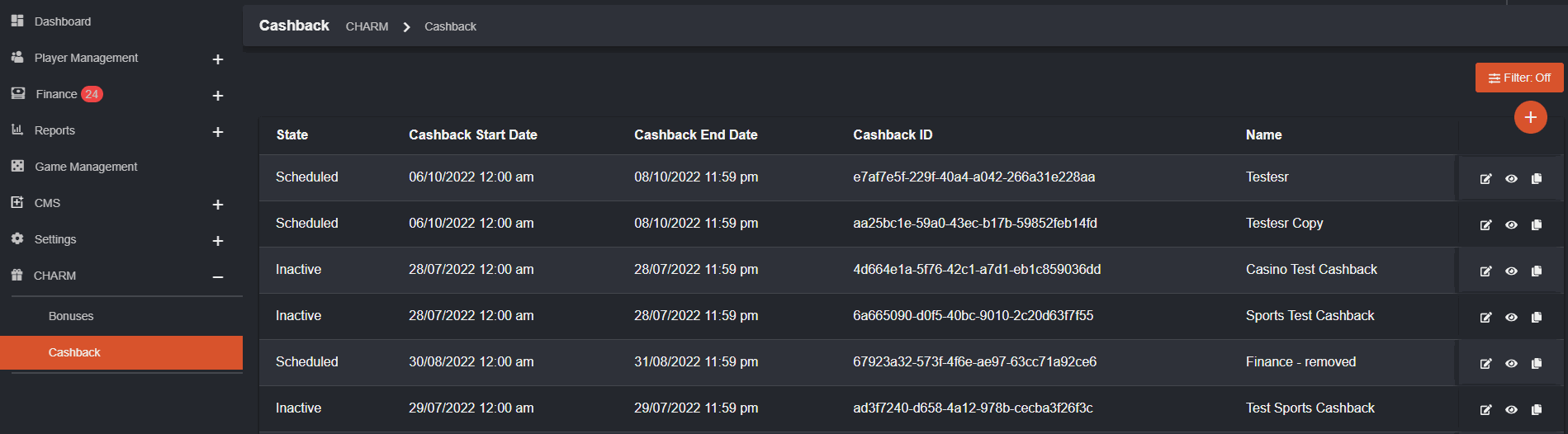
State (Active/Inactive/Scheduled) - Active refers to a campaign that is ongoing while Scheduled refers to a campaign set on a future date that will start at the given start date. Inactive means the campaign has ended.
Start and End Dates - This is going to be the period in which losing bets made by the player will be included in the cashback campaign. Note that once the end date and end time is reached, the system will then proceed to compute how much cashback the player has accumulated.
You may press on the  button on the upper right hand of the menu to create a new cashback campaign.
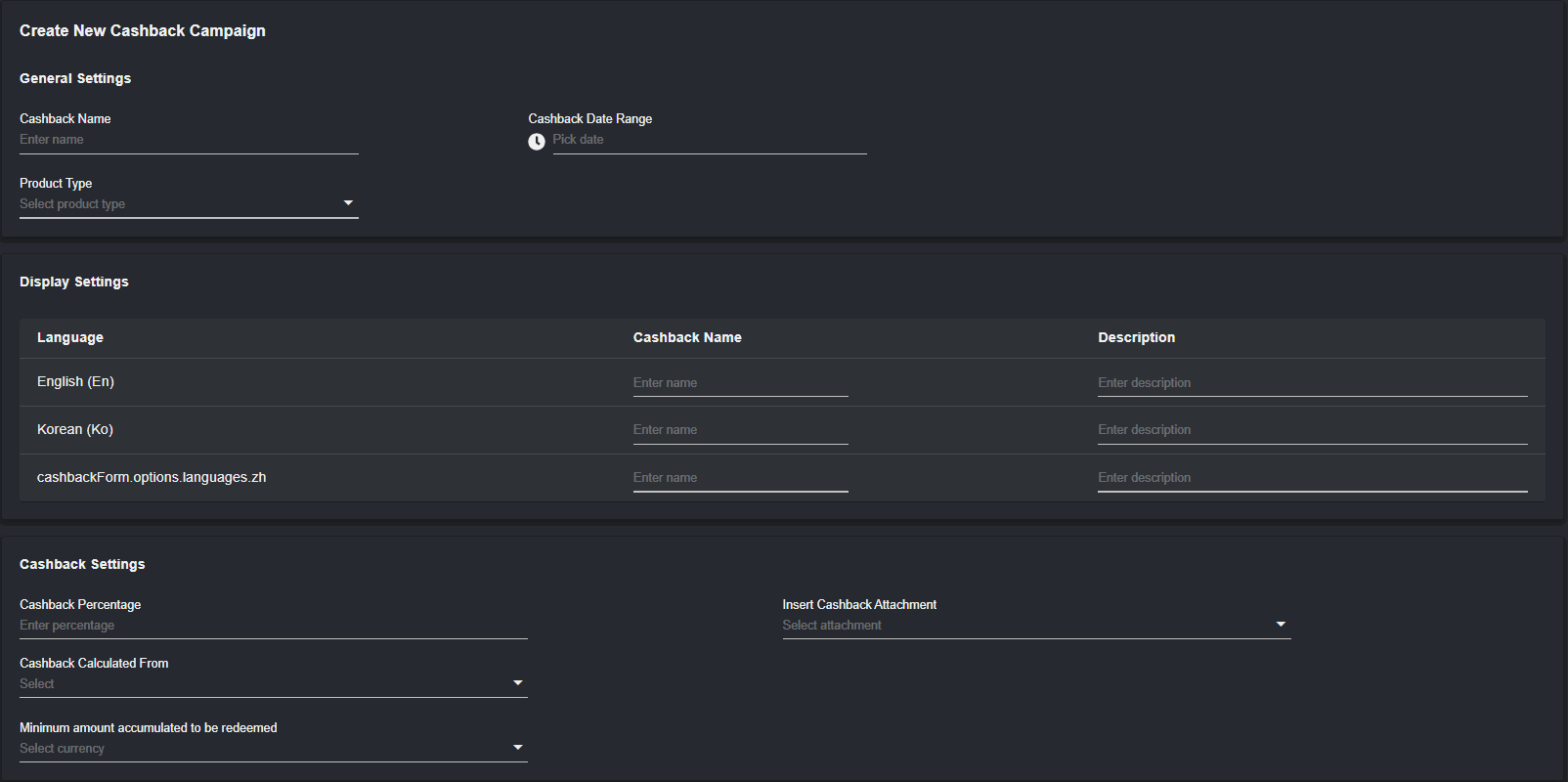
When creating a campaign you will have to fill in four of the main categories which are: General Settings, Display Settings, Cashback Settings, and Product Type Settings (will appear once you select either Sports or Casino or Both under Product Type)
**I. General Settings**
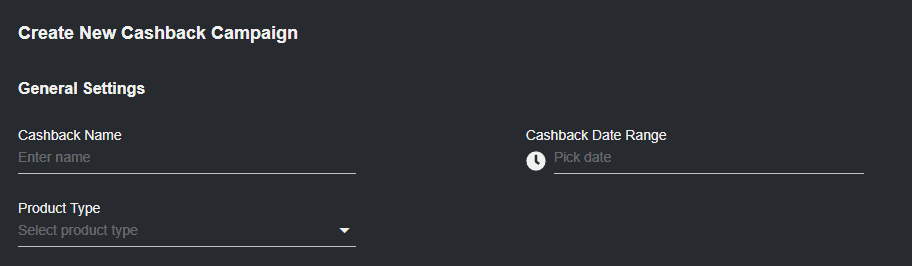
1. Cashback Name - Name you would like to give to the campaign (this name is seen by Backoffice users)
2. Cashback Date Range - Selecting this range will set your Campaign Start and End Dates. Make sure to use the custom range when using this option.
3. Product Type - You can either choose Sports or Casino or Both
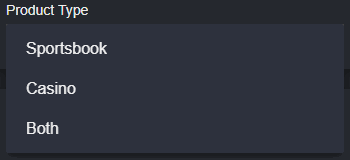
*\*This is very important to the campaign as this will dictate which type of bets will be included in the campaign. For example, If you pick Sports then only sports bets will be calculated into the campaign and all casino bets will NOT be counted for the campaign. If you pick Both, then all bets under sportsbook and casino will be counted in the campaign.*
**II. Display Settings**

The name and description that you put here will be displayed to all members. This also supports multi-currency/language so you can put the name and description depending on the language you want to.
**III. Cashback Settings**

1. Cashback Percentage - You can set the percentage of the cashback here. This will be the multiplier to be used when determining how much cashback a member will receive whenever he/she makes a losing bet during the campaign.
2. Insert Cashback Attachment - This is where you will insert the cashback attachment that you have made in the bonuses section under CHARM. The dropdown will contain all the cashback attachments created and you can choose one from them.
*\*This is very important as well since the cashback attachment will be the one the system uses to give out the bonus to the members. So if there is no attachment, players will not receive any bonus from the cashback campaign.*\
*\*See:* [*How to create a bonus Cashback Attachment*](https://updates-proxy.gpappmanager.com/en-cashback.md#p1311703442)
3. Cashback calculated from - This is the where cashback will be based from. For now, we have based on *GGR* and *Losing Bets.* This will dictate the amount that will be used in the computation for the player's cashback.
4. Minimum amount accumulated to be redeemed - Here you will be able to set how much minimum cashback amount the player has to meet before they will be eligible to receive cashback bonus. All players are automatically allowed to join a cashback campaign but if they do not reach this minimum amount they will not receive any bonus from the campaign.
This option supports multi-currency and as such you may choose which currency you want to include in the campaign and then set the minimum amount for each currency.

**IV. Product Settings**
Once you have selected a product type a new menu will be populated wherein you are able to set specifics to the product type you chose. Once you pick a specific category, then all bets included in that category will be included in the campaign and all bets not in that category are automatically excluded from the cashback campaign.
If you want the cashback campaign to apply to all bets then you may choose Both then leave the menus that will appear as blank then save it.\
However, if you want the campaign to be specific you can follow these fields:
1. Sports
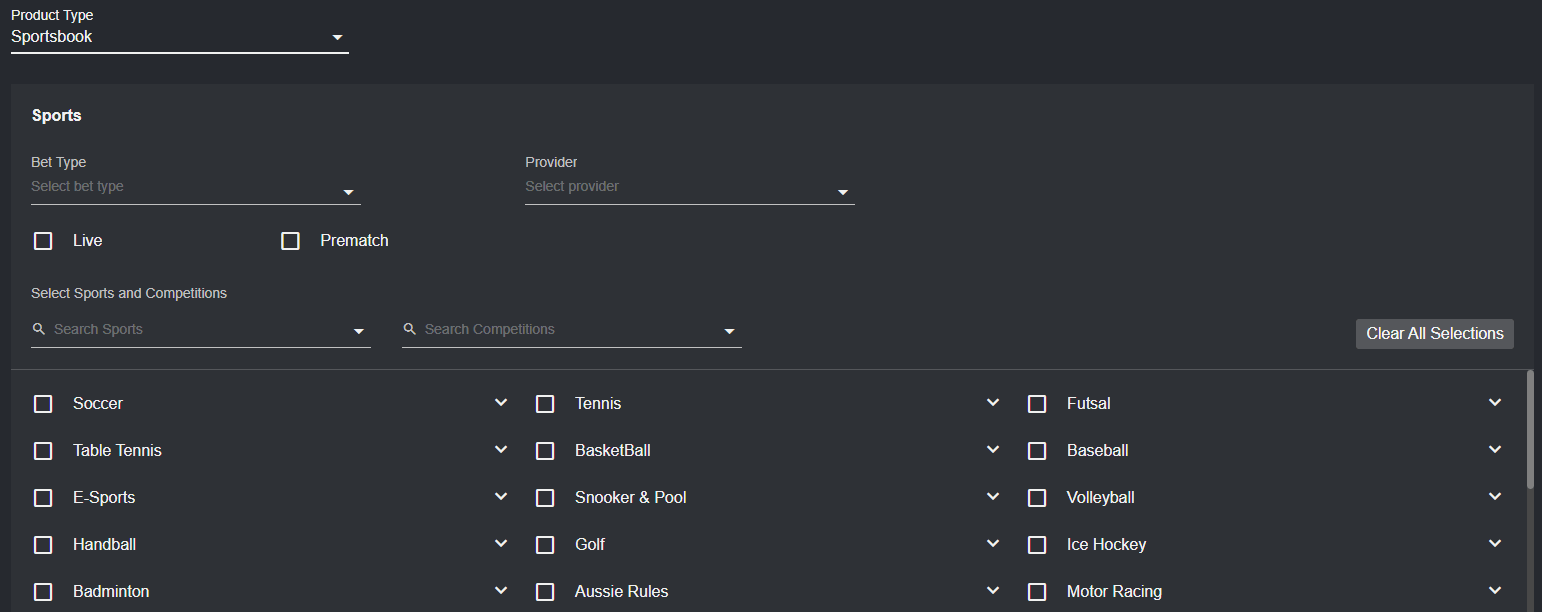
You are able to set how specific you want in Sports you can set your campaign to be and these are:\
a. Bet Types (Single/Combo/System)\
b. Provider (BTi/Pinnacle)\
c. Live/Prematch\
d. Sports - ex. Basketball/Soccer/Tennis\
e. Competitions - ex. NBA/LaLiga/Wimbledon
2. Casino
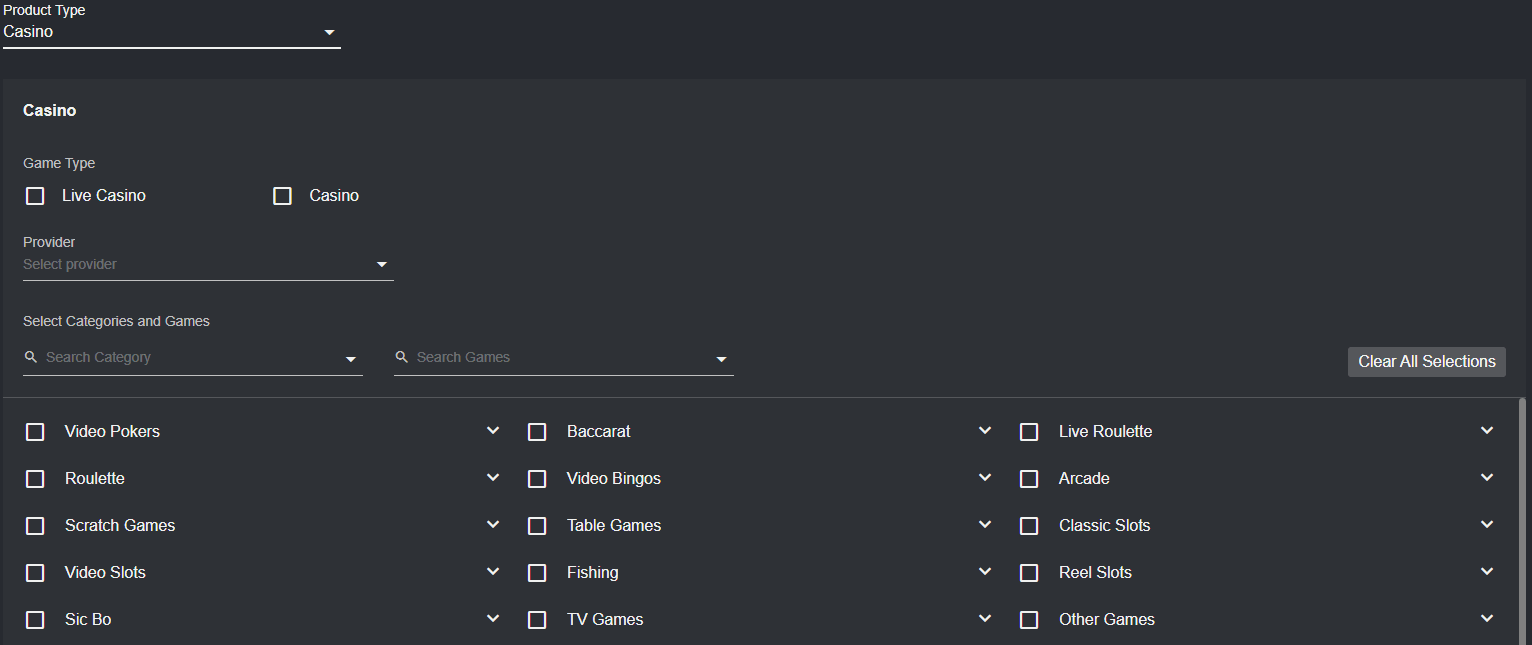
You are able to set how specific you want in Casino you can set your campaign to be and these are:\
a. Game Type (Live Casino/Casino)\
b. Provider\
c. Category - ex. Roulette/Slots/Arcade\
d. Games - ex. Tropicool/Golden Whale/Forgotten Island Megaways
3. Both
You are able to set how specific you want in both Casino and Sportsbook you can set your campaign to be.
For example: \
For sports you set it to Basketball only\
For Casino you set it to Casino only
then all bets not falling into both categories will not be included in the campaign.
Tips:
1. Make sure to fill out all fields (except for product settings which will depend on what bets you want to be included).
2. Once a cashback campaign ends, the bonus will then be distributed to all the members via the attachment. It may take time to distribute due to the volume of the bets that will be reviewed. There is a possibility that it may take from a few minutes to a few hours or up to a maximum of 3 days.
3. When creating multiple cashback campaigns make sure that it doesn't end on the same time since there is a possibility that players will receive bonus from those campaigns at the same time as well but they will only be allowed to pick one of them. We want to avoid any situation wherein the players will misunderstand that they have multiple cashback bonuses as well.
If you want to review the entire cashback feature you may see: [Guide to Cashback](https://updates-proxy.gpappmanager.com/en-cashback.md#p1311703392)
## How to create a bonus Cashback Attachment
**Cashback attachments** can be found under CHARM>Bonuses. This attachment will be the *component that a cashback campaign will use to give cashback bonuses to the players*. This will work the same as a deposit/manual bonus and as such you can customize it as much as you want like how you already do when creating the other bonuses.
To create a cashback attachment you can follow these steps:
Under the Bonuses section in charm you may click the  on the upper right hand and choose the cashback option.
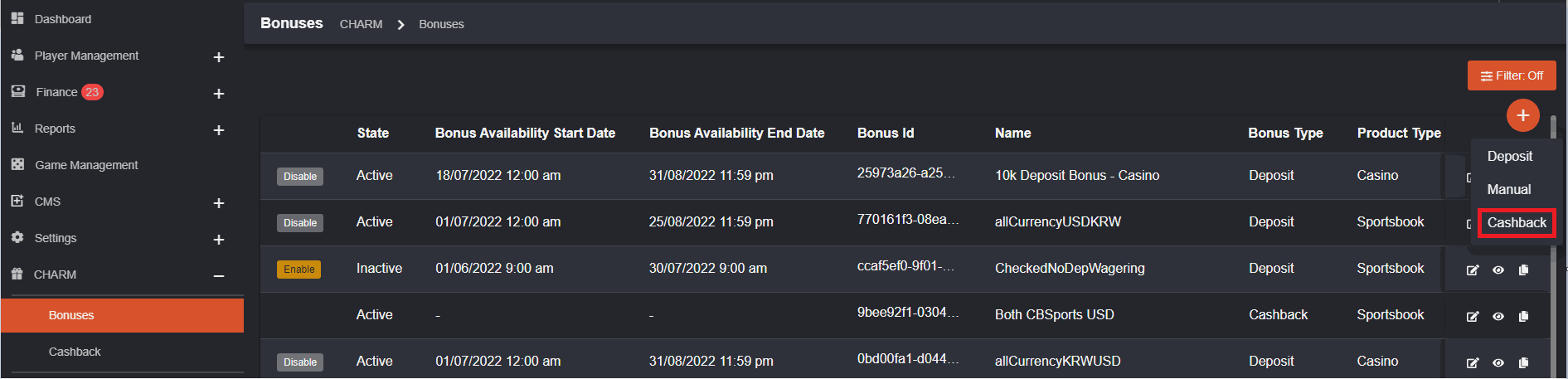
Creating a cashback attachment is the same as creating a bonus. If you want to know the steps and the different options involved you may follow this: [Guide to Bonuses](https://updates-proxy.gpappmanager.com/en-bonus.md#p1311768711)
Once you have created your cashback attachment, you can see it in the bonuses section and it will be tagged as cashback under the bonus type:

Take note that there are some differences between cashback and deposit/manual bonuses:
1. Cashback attachments will always be active and it cannot be deactivated or disabled
2. There is no availability start and end date for cashback attachments because they are only used as a payment facility for the cashback campaign. Remember, you can use your cashback attachments for any campaign you want, and so you may even set just one cashback attachment if you want to.
Once you have created a cashback attachment you can now proceed to create your cashback campaign. You can learn about creating campaigns here: [How to create a Cashback Campaign](https://updates-proxy.gpappmanager.com/en-cashback.md#p1311736181)
If you want to review the cashback feature, please see [Guide to Cashback](https://updates-proxy.gpappmanager.com/en-cashback.md#p1311703392)
## Bonuses: Cashback Attachment Max Bonus Amount
#### Overview
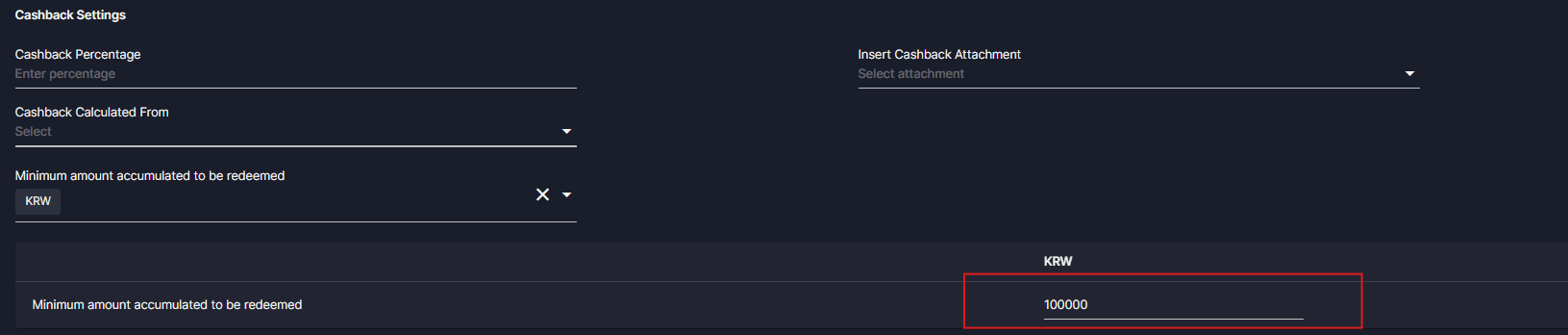
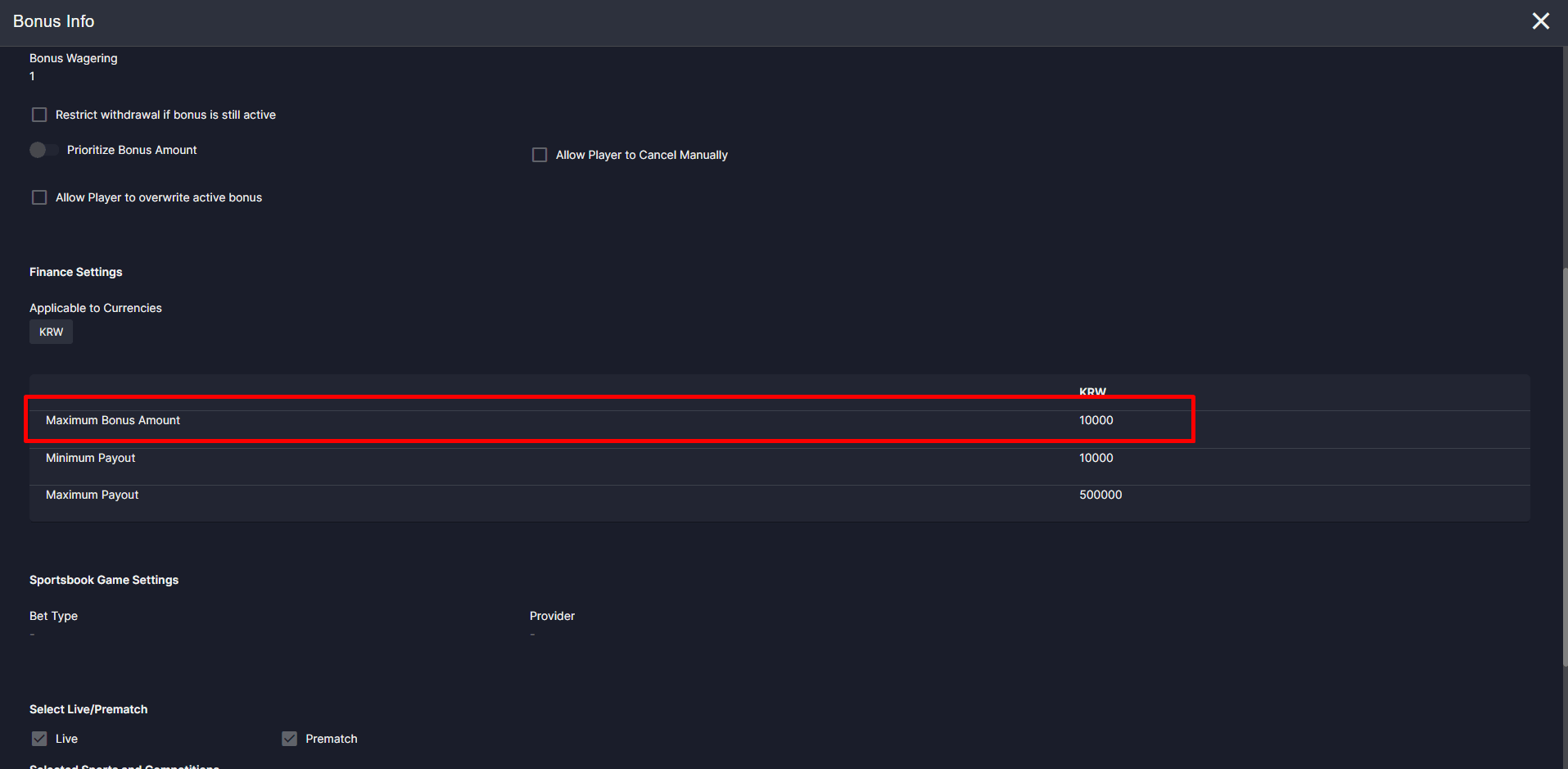
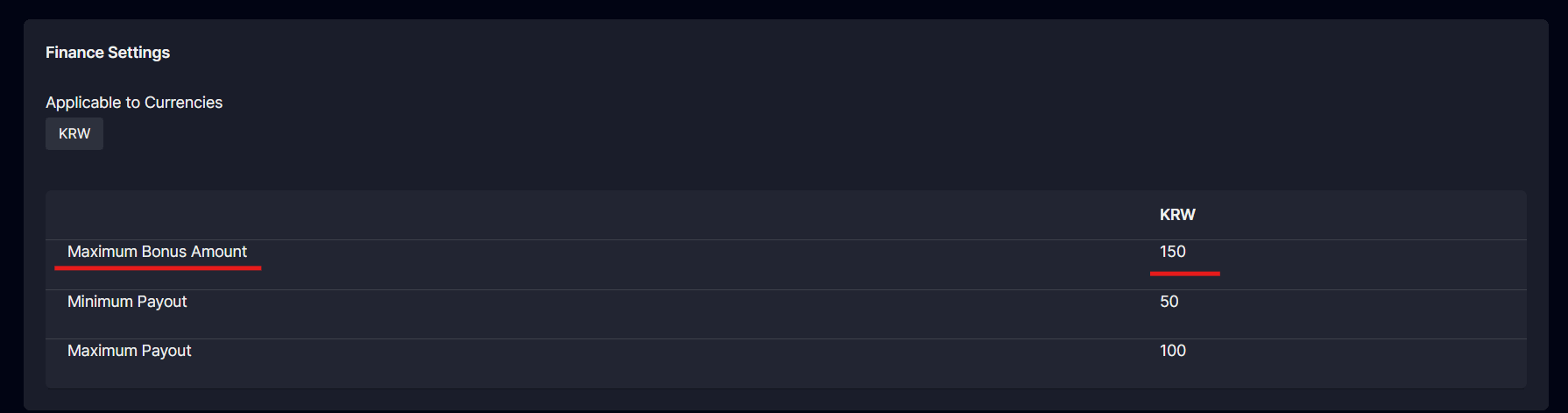
The **Maximum Bonus Amount** feature allows you to set a limit on the total bonus that can be awarded through a cashback attachment. This ensures that even if the system calculates a higher cashback value, the payout will not exceed the defined cap.
###### Navigation:
**CHARM → Bonuses → New Bonus → Cashback Attachment → Finance Settings**
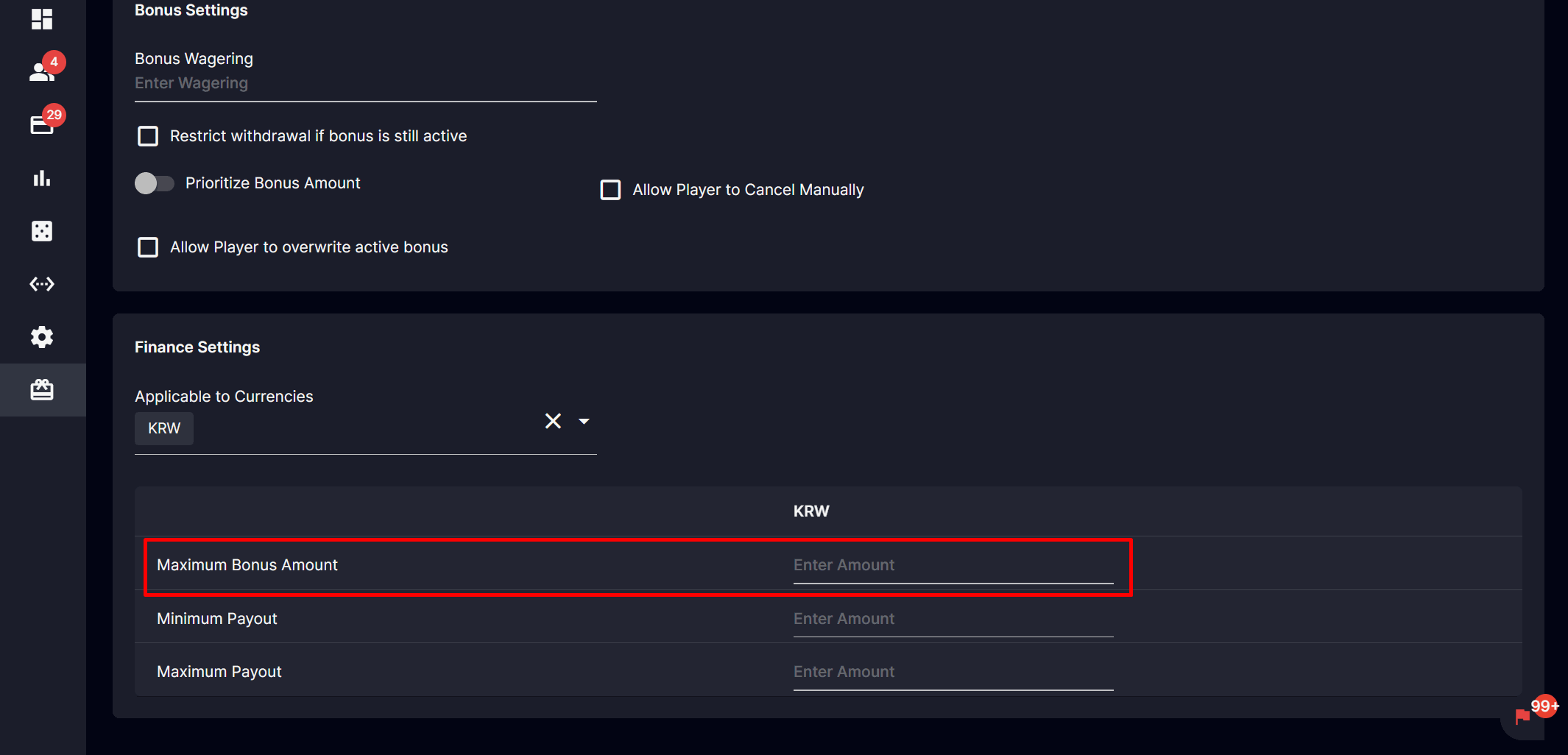
Maximum Bonus Amount
###### Details:
This setting is located within the **Finance Settings** section of the cashback attachment configuration. Its primary purpose is to **cap the maximum bonus** a player can receive from that particular attachment.
##### For example, if a player’s calculated cashback is 120,000 KRW but the maximum bonus cap is set to 100,000 KRW, the player will only receive 100,000 KRW as their bonus.
###### **Visibility:**
The **Maximum Bonus Amount** field is displayed in two key areas within the Back Office:
1. **Bonus Info**
2. **Cashback Bonus Creation**
Bonus info
**Cashback Bonus Creation**

Cashback Bonus Creation
***
**How to Set It Up?**\
\
Navigation: **CHARM > Bonuses > Cashback Attachment > Create New Cashback Attachment.**
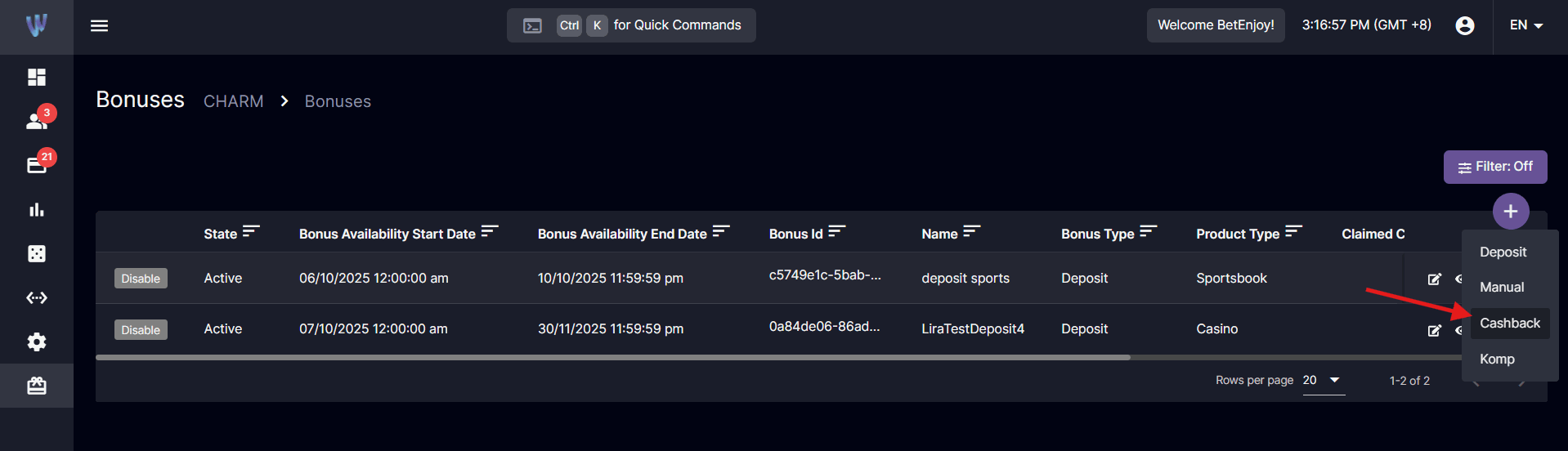
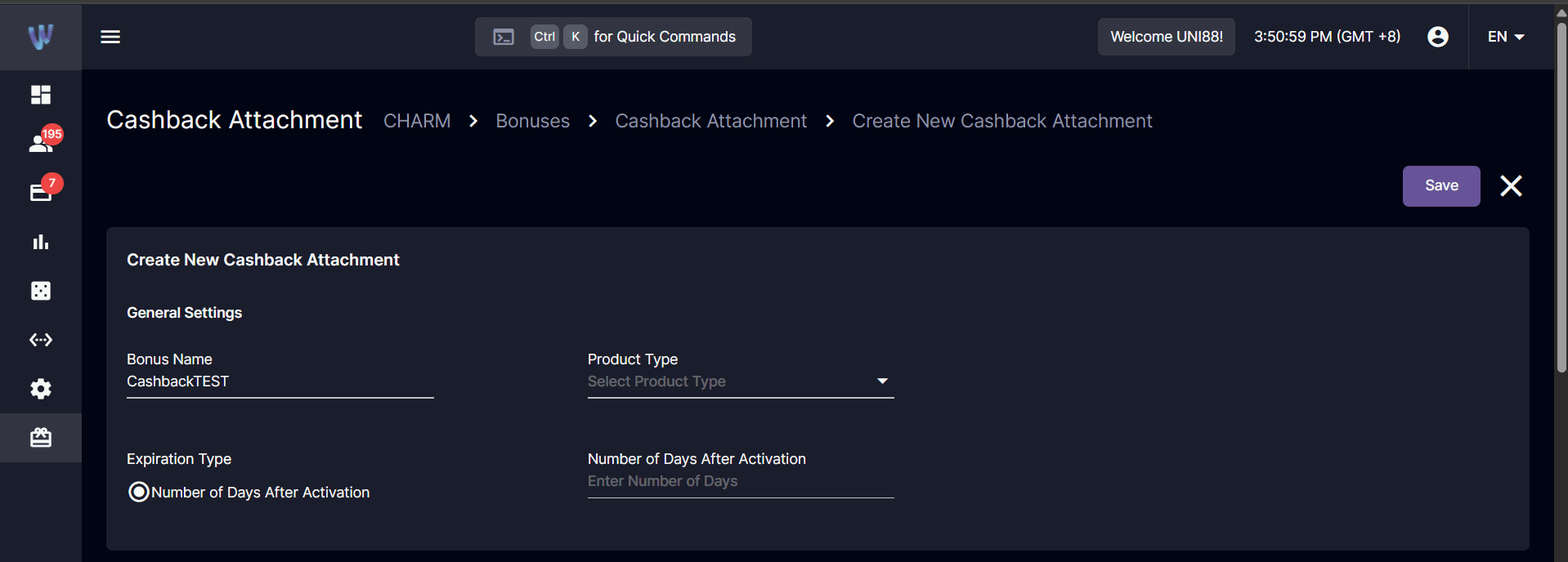
In Finance Settings, you can edit the **Maximum Bonus Amount** section.
Whenever you set up cashback, you need to create a **cashback campaign** and a **bonus cashback attachment**. The campaign sets up everything you need for the cashback, and the attachment facilitates the payouts that members will receive from the campaign.
You can check out our documentation to help you create these two components:
1. [How to create a bonus Cashback Attachment](https://updates-proxy.gpappmanager.com/en-cashback.md#p1311703442)
2. [How to create a Cashback Campaign](https://updates-proxy.gpappmanager.com/en-cashback.md#p1311736181)
**Note:** It is recommended that you create the Cashback attachment first, as you will need to select an attachment when you create the campaign.
***
KR Translation: [보너스: 캐시백 부가 최대 보너스 금액](https://updates-proxy.gpappmanager.com/ko-cashback.md#p1987379211)
## Cashback Frequency System
#### Overview
Cashback Frequency feature streamlines the creation of recurring cashback campaigns. Instead of manually setting up each campaign, you can now schedule them to recur automatically—saving time and ensuring consistency. This enhancement eliminates repetitive tasks by allowing automatic scheduling of cashback campaigns as “children” under a cashback period. Old campaigns are now classified as one-time, while the new system supports daily, weekly, and monthly recurring campaigns.
**Parent and Child Structure:**\
Each recurring campaign consists of a “parent” campaign (which sets the rules and schedule) and multiple “child” campaigns (automatically created for each recurrence, inheriting the parent’s settings). This structure simplifies tracking and reporting.
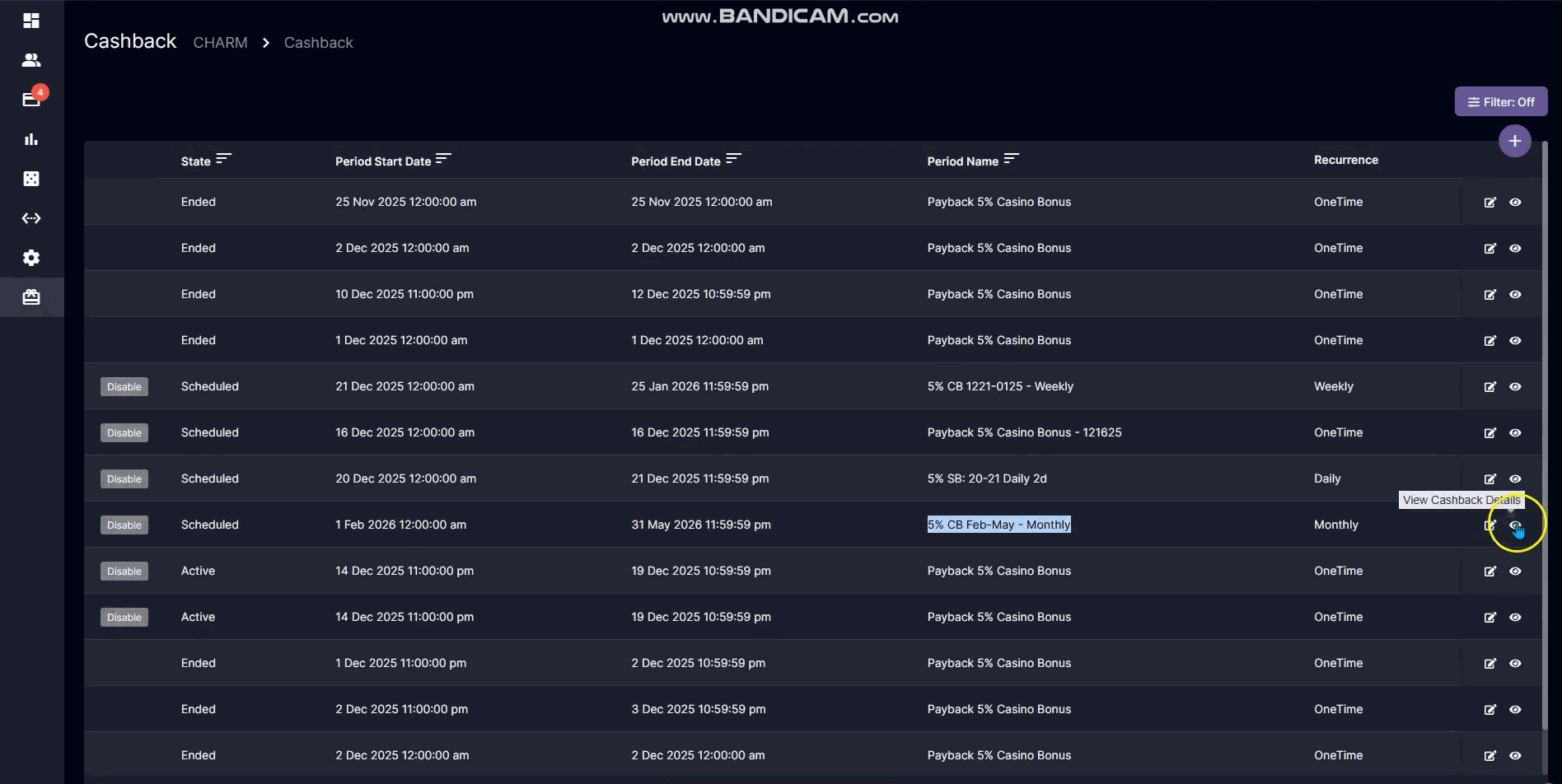
Parent
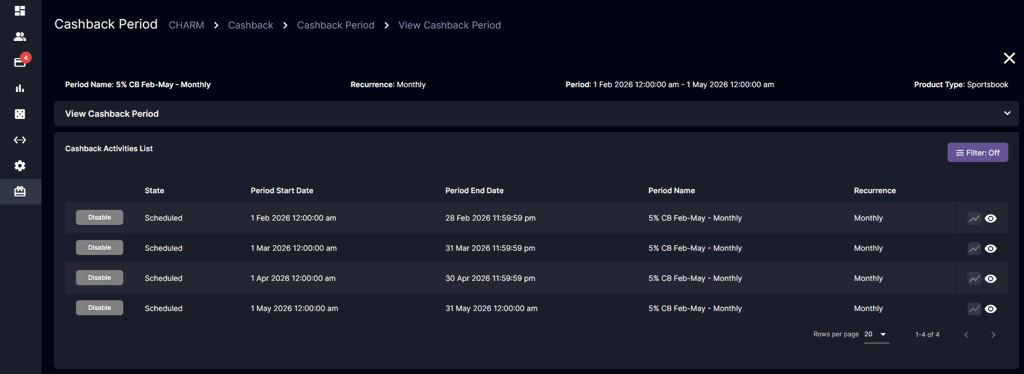
Child
* Automatic Scheduling: Recurring cashback campaigns (children) are created under a cashback period.
* Recurrence Types: Choose from One-time, Daily, Weekly, or Monthly frequencies.
* **Consistent Core Functionality:** Editable fields and operational limitations remain unchanged.
* **Navigation:** Access cashback campaigns under the same “Charm” navigation as before.
* **Recurrence Visibility:** Each cashback now displays its recurrence type.
* **Reporting:** View reports for each cashback activity within its cashback period.
* **Editing:** Only the following fields can be edited after creation: Name, Display Settings, Cashback Attachment, Currency, and Minimum Amount.
* **Overlapping Campaigns:** Existing rules for overlapping campaign operation types still apply.
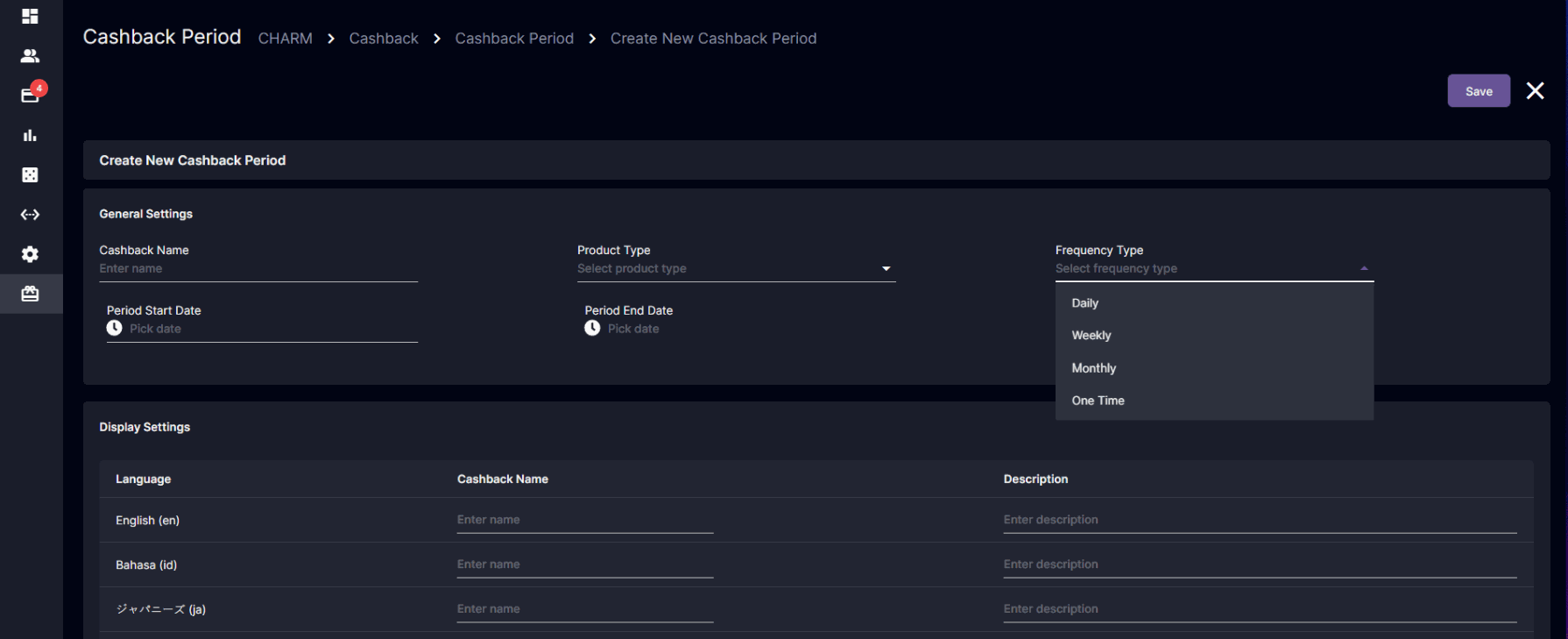
#### Creating Cashback Campaigns
##### One-time
A One-Time Cashback campaign is a single, non-recurring cashback event. It is ideal for special promotions, limited-time offers, or unique events where cashback is only awarded once, rather than on a recurring schedule.
* Select **“One-time”** from the **“Frequency Type”** dropdown.
* Set the desired date for the campaign
* Period Start Date and Period End Date (e.g., December 16th).
* Complete all required fields, such as:
* Campaign Name
* Cashback Settings
* Cashback Percentage
* Insert Cashback Attachment
* Cashback Calculated From
* Minimum amount accumulated to be redeemed (Currency and Amount)
* Review your entries.
* Click **Save** to create the campaign.
##### Daily
This Cashback is a recurring cashback campaign that automatically creates a separate cashback activity for each day within a specified date range. This is ideal for promotions or rewards that need to be distributed on a daily basis. No need to manually create a campaign for each day. The system handles this automatically, saving time and reducing errors.
* Select “**Daily**” from the **“Frequency Type”** dropdown.
* Set the date range for the campaign
* Period Start Date and Period End Date (e.g., December 20–21).
* If you set a daily cashback campaign for a date range (e.g., December 20–21), the system will automatically create a separate cashback activity for each day within that range.
* For December 20 - 21: You will have **2** daily cashback campaigns set (one for December 20 and one for December 21).
* Complete all required fields, such as:
* Campaign Name
* Cashback Settings
* Cashback Percentage
* Insert Cashback Attachment
* Cashback Calculated From
* Minimum amount accumulated to be redeemed (Currency and Amount)
* Review your entries.
* Click **Save**.
**Note:**\
A separate cashback campaign is created for each day in the range, each as a child under the cashback period.
**After Creation:**
* Each day appears as a separate cashback activity. Click the eye icon to view details for each.
* Only the following fields can be edited after creation: Name, Display Settings, Cashback Attachment, Currency, and Minimum Amount.
* Changes to the period name are reflected in all child campaigns.
##### Weekly
Weekly Cashback is a recurring cashback campaign that automatically creates a separate cashback activity for each week within a specified date range. This is ideal for promotions or rewards that need to be distributed on a weekly basis.
* Select “**Weekly**” from the **“Frequency Type”** dropdown.
* Set the date range for the campaign
* The end date must be the same day of the week as the start date (e.g., December 21–27).
* Complete all required fields, such as:
* Campaign Name
* Cashback Settings
* Cashback Percentage
* Insert Cashback Attachment
* Cashback Calculated From
* Minimum amount accumulated to be redeemed (Currency and Amount)
* Review your entries.
* Click **Save**.
###### What Happens If You Set a 3-Week Weekly Campaign?
If you set a weekly campaign for 3 weeks, here’s what happens:
1. **You choose the start date** (e.g., January 1, which is a Monday).
2. **You set the end date** to be 3 weeks later, on the same day of the week (e.g., January 22, which is also a Monday).
3. The system will automatically create 3 separate weekly cashback campaigns:
* Week 1: January 1 – January 7
* Week 2: January 8 – January 14
* Week 3: January 15 – January 21
4. Each week, a new cashback activity is created and managed independently.
5. At the end of each week, the cashback for that week is calculated and distributed according to your settings.
##### Monthly
Monthly Cashback is a recurring cashback campaign that automatically creates a separate cashback activity for each month within a specified date range. This is ideal for promotions or rewards that need to be distributed on a monthly basis.
* Select “**Monthly**” from the **“Frequency Type”** dropdown.
* Set the date range for the campaign
* The start is always the first of the month, and the end is the last day of the month (e.g., February–May).
* Complete all required fields, such as:
* Campaign Name
* Cashback Settings
* Cashback Percentage
* Insert Cashback Attachment
* Cashback Calculated From
* Minimum amount accumulated to be redeemed (Currency and Amount)
* Review your entries.
* Click **Save**.
* The system will automatically generate a cashback activity for each month in the selected range.
* February 1 – February 29
* March 1 – March 31
* April 1 – April 30
* May 1 – May 31
* Each monthly campaign is treated as a “child” under the main cashback period.
***
Korean Version: [캐시백 주기 시스템](https://updates-proxy.gpappmanager.com/ko-cashback.md#p2225799170)
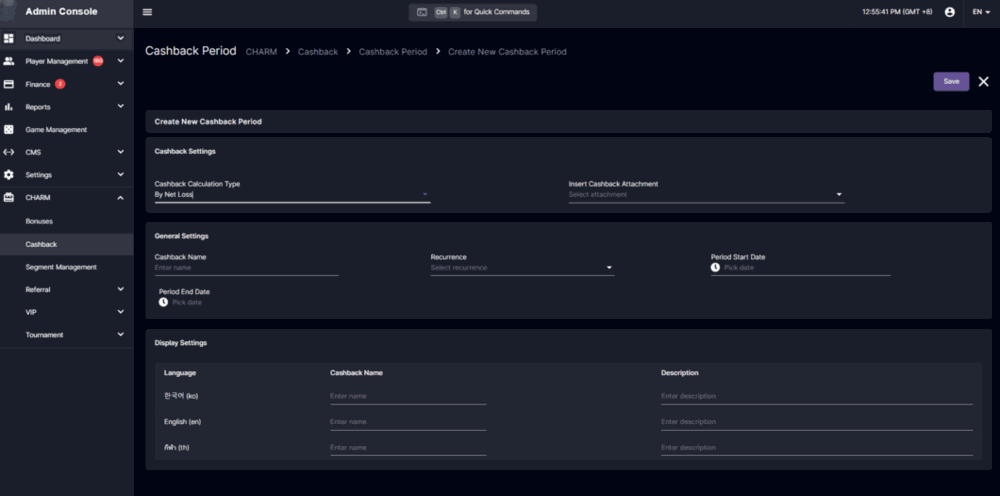
## Cashback: By Net Loss calculation type
This update introduces a new cashback calculation type called **By Net Loss**, along with several improvements to cashback campaign management, reporting, and configuration.
The goal of these updates is to provide:
* More accurate cashback calculations
* Better fraud/risk control
* Easier multi-currency management
* Improved campaign visibility and reporting
#### 1. New Cashback Type: By Net Loss
##### What is “By Net Loss”?
“By Net Loss” calculates cashback based on the player’s actual financial loss during the cashback period.
Unlike other cashback types, players only receive cashback if they truly lost money after considering:
* Deposits
* Withdrawals
* Remaining wallet balance
* Open bets
* Pending withdrawals
***
#### Net Loss Formula
Net Loss is calculated as:
Net Loss = Deposits − Withdrawals − Current Balance − Open Bets − Pending Withdrawals
If the final Net Loss is:
* Positive → cashback may be granted
* Zero or negative → no cashback is given
| Item | Amount |
| - | - |
| Deposits | 1,000 |
| Withdrawals | 200 |
| Wallet Balance | 100 |
| Open Bets | 50 |
| Pending Withdrawals | 50 |
Net Loss:
1,000 − 200 − 100 − 50 − 50 = 600
The player’s eligible Net Loss is 600.
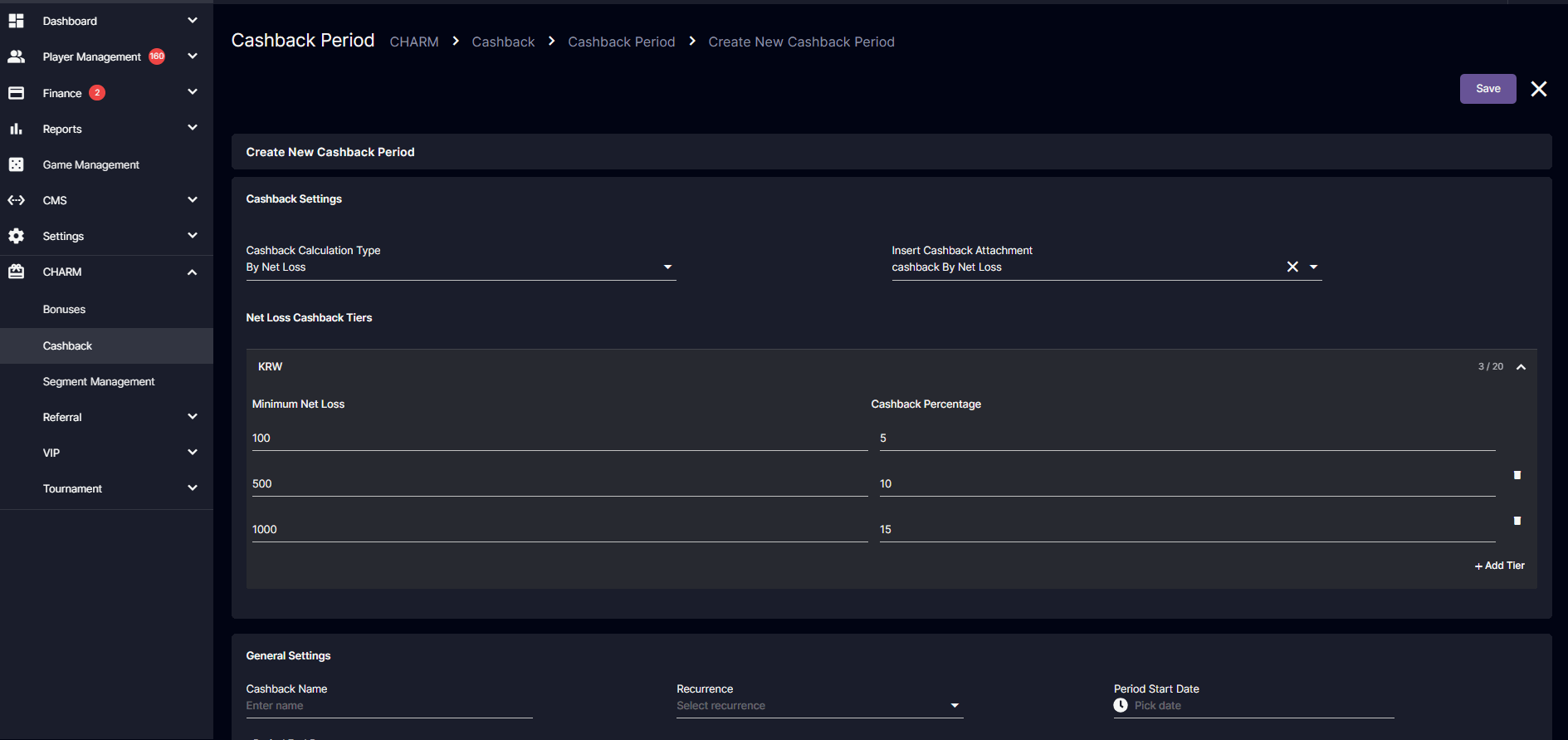
#### 2. Cashback Tier Configuration
Operators can configure up to:
* 20 cashback tiers per currency
Each tier contains:
* Minimum Net Loss
* Cashback Percentage
***
##### Example Tier Setup
| Minimum Net Loss | Cashback % |
| - | - |
| 100 | 5% |
| 500 | 10% |
| 1,000 | 15% |
The system automatically applies:
* the highest qualifying tier
***
#### Important Rules
##### Cashback Percentage
* Must be whole numbers only
* Allowed values: 1–100
##### Tier Values Must Increase
Each row must be higher than the previous row for:
* Minimum Net Loss
* Cashback Percentage
Example:
| Valid | Invalid |
| - | - |
| 100 → 500 → 1000 | 100 → 80 → 1000 |
| 5% → 10% → 15% | 5% → 5% → 3% |
#### 4. Maximum Bonus Cap
All payouts respect the:
* Maximum Bonus Amount configured in the Cashback Attachment
If the calculated cashback exceeds the cap:
* the payout is reduced to the configured maximum
***
#### 5. New Activity State: “Waiting for Calculation”
A new status has been added to cashback activities.
***
##### Cashback Activity Flow
| State | Meaning |
| - | - |
| Active | Campaign is running |
| Waiting for Calculation | Period ended, calculations are processing |
| Ended | Calculations completed |
***
##### Important Notes
While in “Waiting for Calculation”:
* the Disable button is unavailable
* calculations are still running in the background
This state is visible:
* in Cashback Activities list
* in the State filter
***
#### 6. Per-Currency Configuration for GGR and Losing Bets
GGR and By Losing Bets cashback types now support:
* separate settings per currency
Previously:
* only one flat cashback percentage existed for the entire campaign
Now:
* each currency can have its own configuration
***
##### Existing Campaigns
No manual migration is required.
Existing campaigns are automatically pre-filled using:
* their previous flat cashback percentage
***
#### 7. Cashback List Improvements
The Cashback Program List now includes:
##### New Column
* Cashback Calculation Type
Examples:
* By GGR
* By Losing Bets
* By Net Loss
***
#### New Filter
Operators can filter campaigns by:
* All
* By GGR
* By Losing Bets
* By Net Loss
***
#### 8. Field Name Changes
To improve clarity, the following labels were renamed:
| Old Name | New Name |
| - | - |
| Frequency Type | Recurrence |
| Cashback Calculated From | Cashback Calculation Type |
***
#### 9. Cashback Report Improvements
The Cashback Report now includes:
* Bonus Amount
* Bonus Amount (MC)
for:
* By GGR campaigns
* By Losing Bets campaigns
This helps operators track:
* actual cashback awarded per player
***
#### 10. Campaign Form Updates
##### Section Order Changed
The Cashback Settings section now appears:
* before General Settings
This improves setup flow during campaign creation.
***
#### Product Type Visibility
When:
* “By Net Loss” is selected
the Product Type field becomes hidden automatically.
***
#### 11. By Net Loss Overlap Validation
The system prevents overlapping By Net Loss campaigns.
If another active or scheduled By Net Loss campaign already exists during the same date range:
* new campaign creation is blocked
***
##### Important Difference
For By Net Loss:
* Product Type does NOT matter
The system checks:
* date overlap only
***
#### 12. Cashback Info Page Improvements
The Cashback Info page for:
* By GGR
* By Losing Bets
now uses:
* per-currency accordion layouts
This matches the Edit Form design for better consistency and readability.
***
#### Frequently Asked Questions (FAQ)
##### 1. What is the main difference between “By Net Loss” and “By Losing Bets”?
By Losing Bets only considers the total value of lost bets.
By Net Loss calculates the player’s actual financial loss after considering:
* deposits,
* withdrawals,
* current wallet balance,
* open bets,
* pending withdrawals.
This makes By Net Loss more accurate and helps prevent cashback abuse.
***
##### 2. Why did a player with losing bets receive no cashback?
A player may still have:
* remaining wallet balance,
* pending withdrawals,
* or open bets.
If the final Net Loss calculation is zero or negative, the player does not qualify for cashback even if they had losing bets.
***
##### 3. Can a player receive cashback in multiple currencies?
Yes.
Net Loss is calculated separately for each currency.
If a player has a positive Net Loss in multiple currencies, they can receive:
* separate cashback rewards for each currency.
***
##### 4. Why is the “Add Tier” button disabled?
The Add Tier button becomes disabled when:
* Cashback Percentage reaches 100%,
* or the maximum tier limit has been reached.
The system does not allow cashback percentages above 100%.
***
##### 5. Why can’t I create another By Net Loss campaign for the same date range?
The system prevents overlapping By Net Loss campaigns for the same operator.
If another active or scheduled By Net Loss campaign already exists during the selected date range, the new campaign cannot be created.
***
##### 6. Does Product Type affect overlap validation for By Net Loss?
No.
For By Net Loss campaigns:
* overlap validation only checks the date range.
Product Type is not considered.
***
##### 7. Why is the Product Type field hidden for By Net Loss?
By Net Loss calculations already evaluate the player's full financial position.
Because of this:
* Product Type selection is not required for this cashback type.
***
##### 8. What does “Waiting for Calculation” mean?
This means:
* the cashback campaign period has ended,
* but cashback calculations are still being processed.
Once processing is complete, the activity status changes to:
* Ended.
***
##### 9. Can I disable a cashback activity while it is “Waiting for Calculation”?
No.
The Disable button is unavailable while calculations are in progress.
***
##### 10. What happens if required fields are missing in a collapsed currency section?
When Save is clicked:
* the system automatically expands the affected currency accordion,
* highlights the invalid fields,
and displays validation errors.\
\
\
KR Translation: [캐시백: 순손실 계산 방식](https://updates-proxy.gpappmanager.com/ko-cashback.md#p2439086085)
This documentation is built and hosted on [Mintlify](https://mintlify.com), a developer documentation platform.