Community Chat
A community chat is a space where the players engage in conversations, share information, and build connections. To set up community chat settings, go to CMS > Community Chat. Chat Settings To edit, click the pen icon. Click save to update changes. Max number of chat characters - refers to the maximum allowable number of characters that can be used or entered in a chat message including letters, numbers, punctuations, spaces, and symbols.
Initial messages to list hours - refers to the hours the chats will be available. The number of chat hours can be configured.
Channels
Permits the player to see conversations across various channels depending on the language added/enabled by the backoffice user.
Max number of chat characters - refers to the maximum allowable number of characters that can be used or entered in a chat message including letters, numbers, punctuations, spaces, and symbols.
Initial messages to list hours - refers to the hours the chats will be available. The number of chat hours can be configured.
Channels
Permits the player to see conversations across various channels depending on the language added/enabled by the backoffice user.
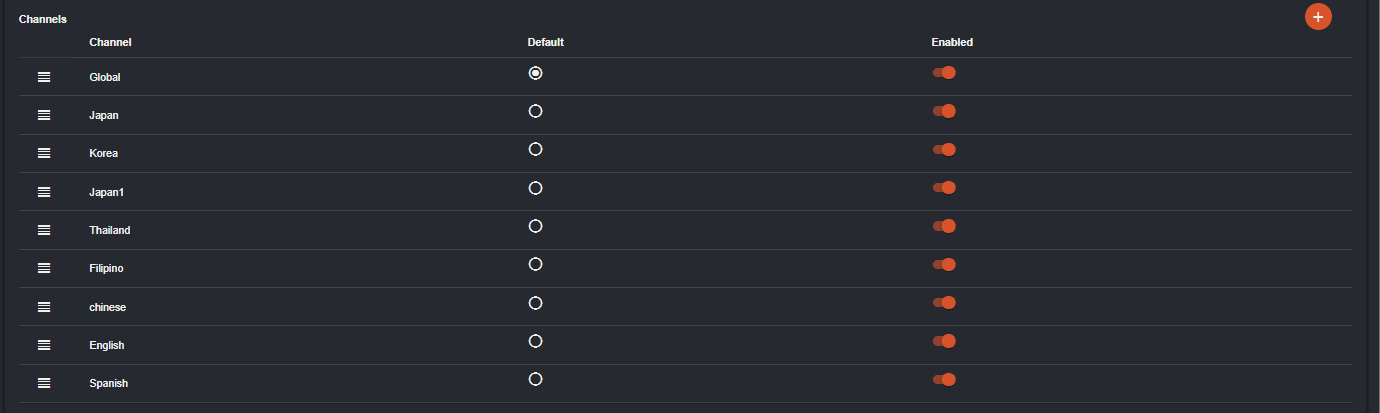 If enabled, the language will appear in the channel list. If default, the first language set as default will appear once the player entered the community chat. In the example, if global is default, all channels will be appearing in the chat since no specific language is selected.
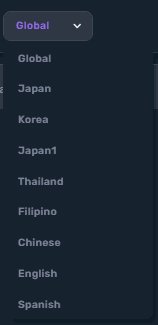
This is how it appears in the player page.
If enabled, the language will appear in the channel list. If default, the first language set as default will appear once the player entered the community chat. In the example, if global is default, all channels will be appearing in the chat since no specific language is selected.
This is how it appears in the player page.
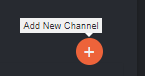
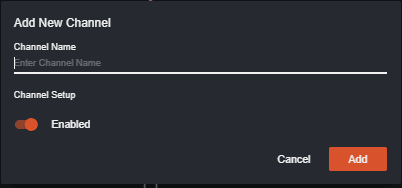
 To add a new channel, click the plus icon
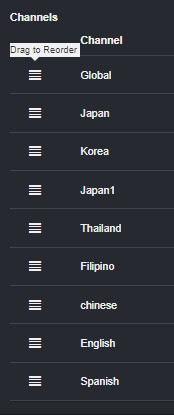
 The back office user can also reorder the channels by dragging it to its desired place. Make sure to click the Save button for the changes to apply.
 Players not Logged-in
Players with no account or not logged in within the platform will not be able to send chat/s but will still be able to view chats.
Players not Logged-in
Players with no account or not logged in within the platform will not be able to send chat/s but will still be able to view chats.
- If a Player attempts to send a chat, he/she will be redirected to the platform’s login page.
- Players not logged-in will not be able to view other Player’s profile.
* If attempted to view other Player’s profile, he/she will be redirected to the platform’s login page too.
- User Profile > Global Settings > Privacy
* Hide my Gaming data on Profile
* Hide my Username from Public Post
- All Players (whether logged-in or not) will be able to view the recent chats configured in Settings.
- When engaging in the Community Chat, player’s Nickname will be displayed not their Username. Each Player’s Nickname should be unique. Player’s Nickname will be publicly available to be used for Community Chat features therefore Nicknames must be different from their Username.
- Chat Sender’s User Profile can be accessed by clicking their Nickname in the Community Chat.
- In the Community Chat, Player’s Nickname will be clickable allowing other Players to view the Chat Sender’s User Profile if it is set to be visible to Public.
- For Private User Profile, user Profile is hidden to public. It will only show <Hidden User> and then the chat. Nickname will not be clickable too since the Player chooses to not show his/her Profile to other Players.
- For Public User Profile, a Player chooses to show his/her basic information to the public or platform’s other Players.
How to Configure the Hot Leagues Widget
The operator’s Backoffice administrator can setup and/or configure Pinnacle Hot Leagues by navigating to CMS > Widgets. Click on the button to add “Hot Leagues” and “Featured Events”. Once added it will look like this:
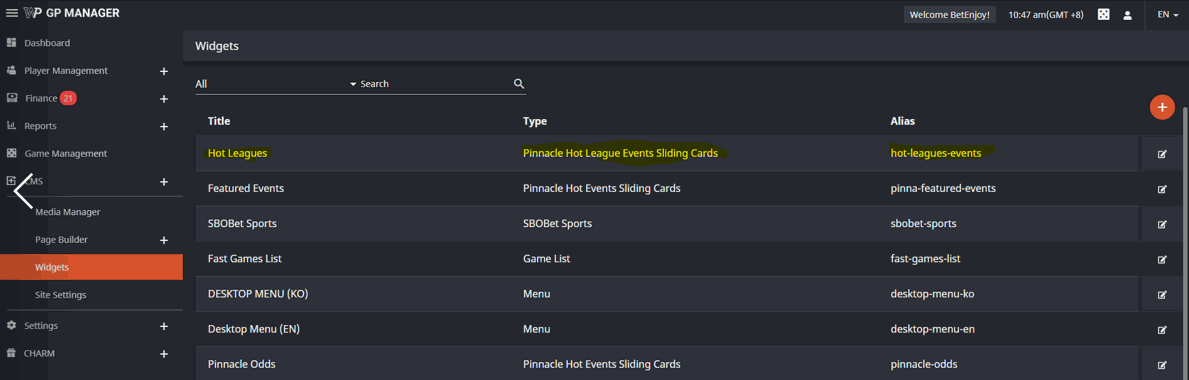 The specific Widget to configure is:
- Title: Pinnacle Popular Leagues
- Type: Pinnacle Hot League Events Sliding Cards
- Alias: hot-leagues-events
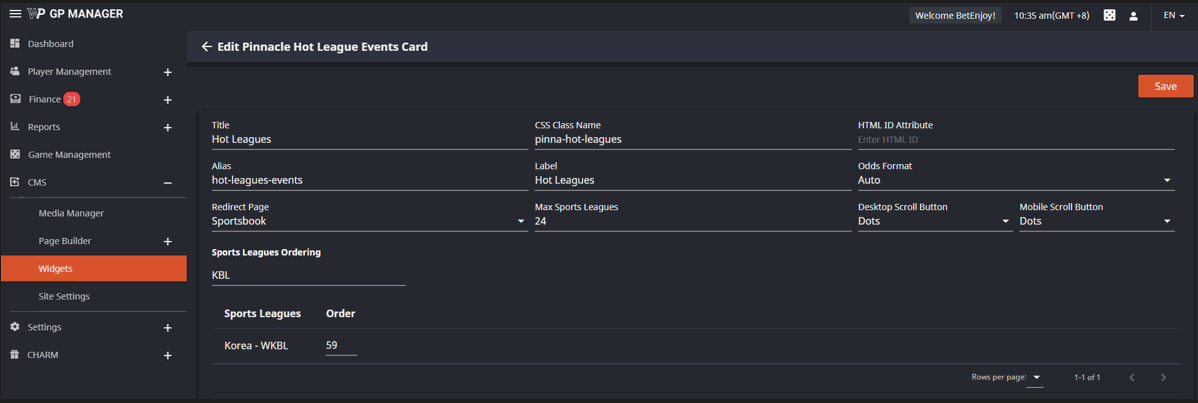
- Max Sports Leagues – this is the maximum number of Sports Leagues that will be viewed in the operator’s player portal website
- Sports Leagues Ordering – this is the order of sports cards that will show first, where the lower value will be prioritized over the other
- Desktop / Mobile Scroll Button – this is where the administrator can select what type of scroll button to use. Options are:
- Arrow
- Dots
- Both
- NOTE: All other configuration fields should be kept as is
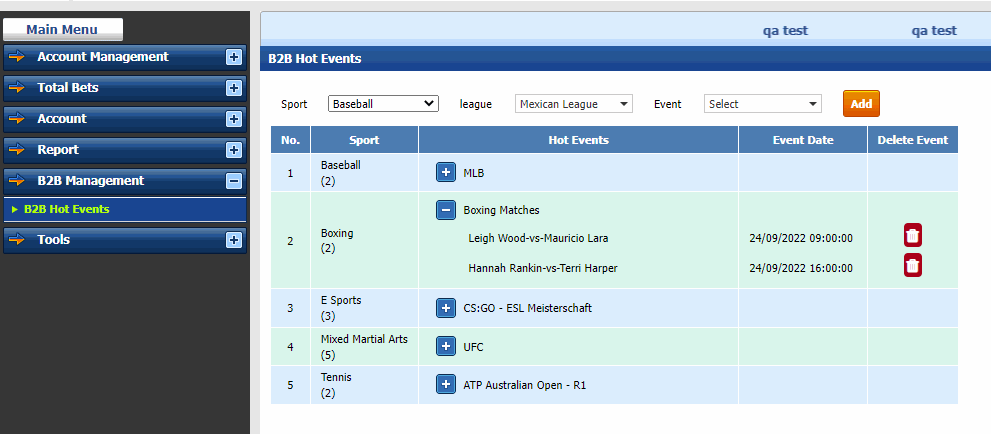 The agent level user can add or remove any event they want. This will control what the players will be able to see as a hot event.
You may add more sports/leagues/events to your hot leagues by following this guide:
Player experience of the Hot Leagues can be found here:Guide to Pinnacle Hot Leagues
The agent level user can add or remove any event they want. This will control what the players will be able to see as a hot event.
You may add more sports/leagues/events to your hot leagues by following this guide:
Player experience of the Hot Leagues can be found here:Guide to Pinnacle Hot Leagues
Guide to Pinnacle Hot Leagues
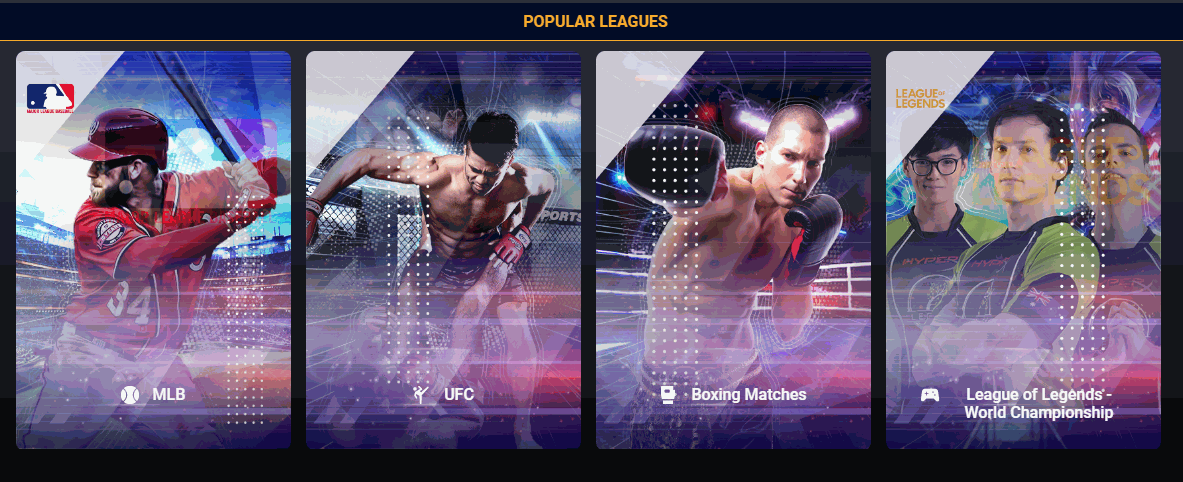
The Pinnacle Hot Leagues Widget is a way for the operator to target their players to featured and recommended sports and e-sports events as well as its specific matches. What the Player Sees This feature is available to the operator’s players in their player portal, both over mobile and web: Example Image - Desktop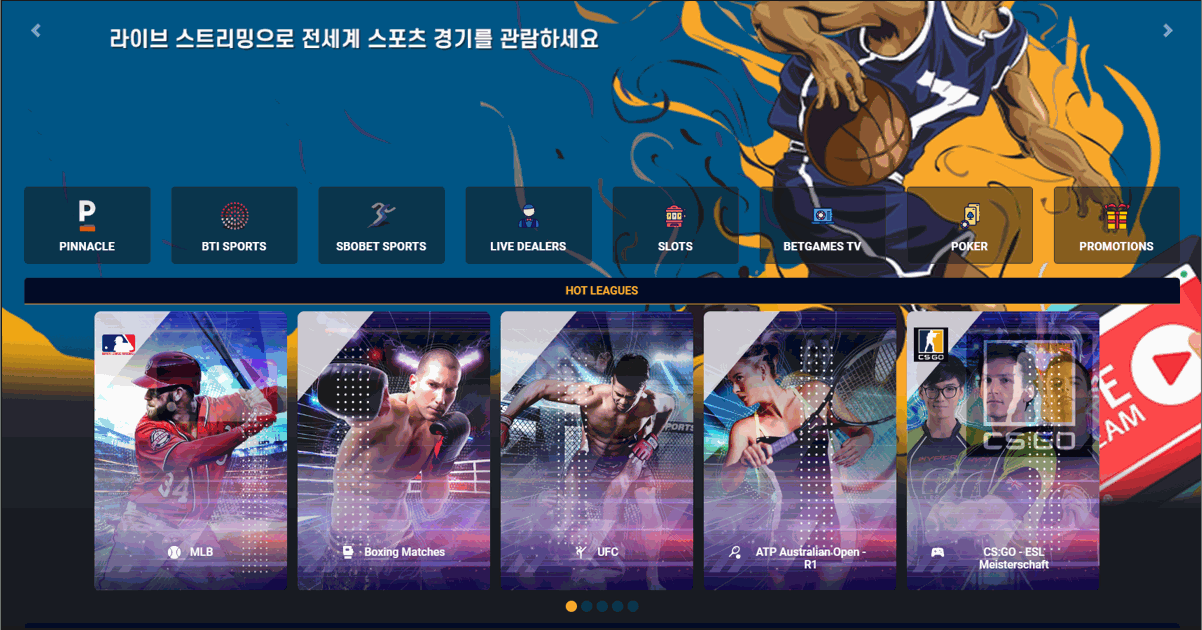 Example Image - Mobile
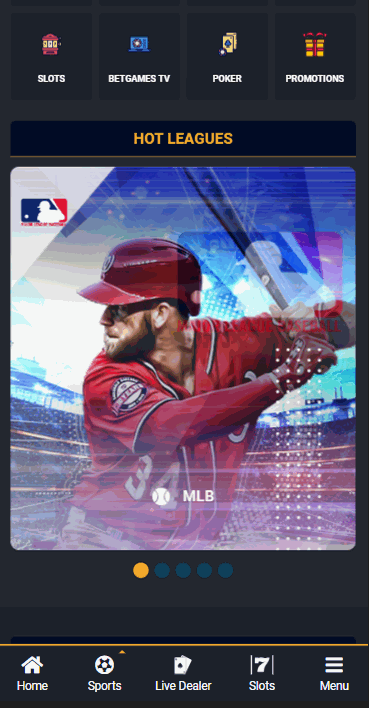
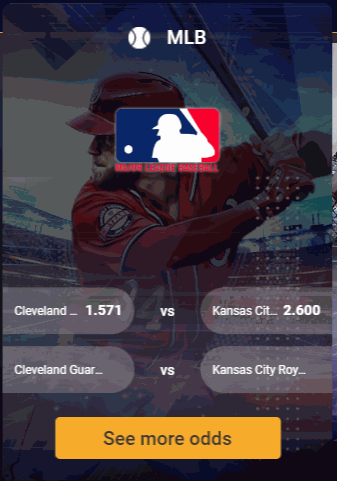
- A player may tap or click on a league card to show the current featured matches under that league.
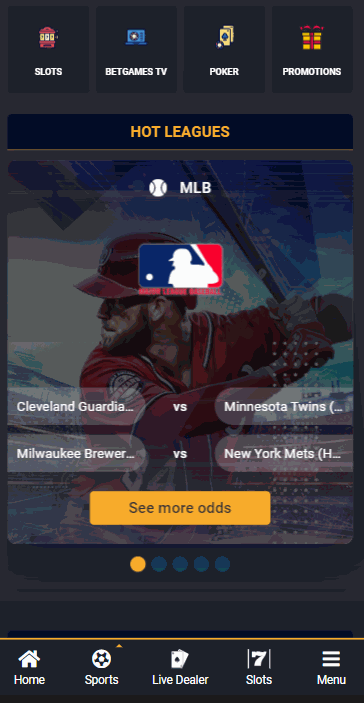
- League Match View - The player may tap or click on a specific team or selection (like in the image above) and he/she will be directed to the Pinnacle page where the event and its different wagering options are.
- If the player taps or clicks the “See more odds” button, then the player is directed to the Pinnacle League page, or if not available, to the Pinnacle Sports page of the sport the league belongs to.
For #2
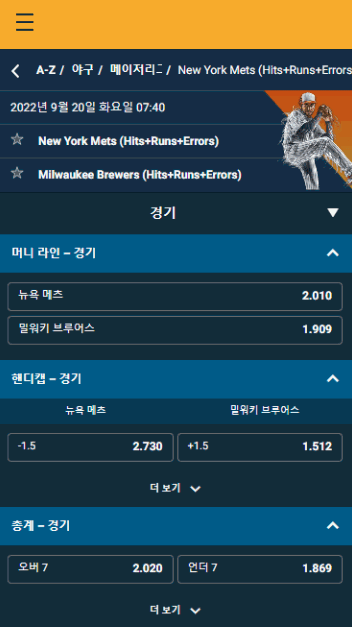 For #3:
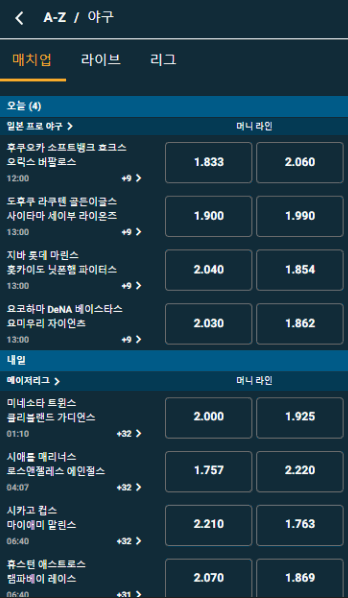 Before this feature will appear in the Player Portal, you will have to first configure this in the Backoffice. Please follow this guide in setting up your Pinnacle Hot Leagues Widgets: How to Configure the Hot Leagues Widget
How to add Sports/Leagues/Events to Pinnacle Hot Leagues
Before a match/event gets added to the pinnacle hot league cards, the operator has to set it up first in Pinnacle’s Back office.- Access Pinnacle’s Backoffice (https://www.pinnaclesolution.com/partner/en/login) using your credentials.
- Use the sidebar and go to B2B Management > B2B Hot Events:
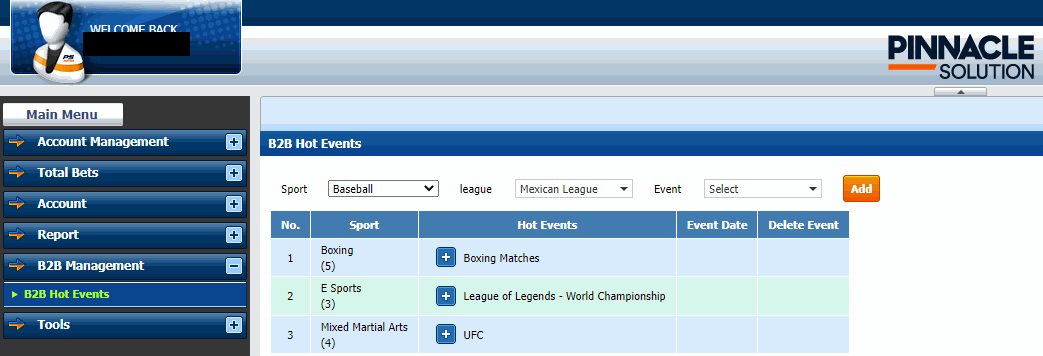
- To add a match to your sliding card please first confirm if the match is currently being offered under the Sports or E Sports page of Pinnacle sportsbook.
Kansas City Royals versus Cleveland Guardians
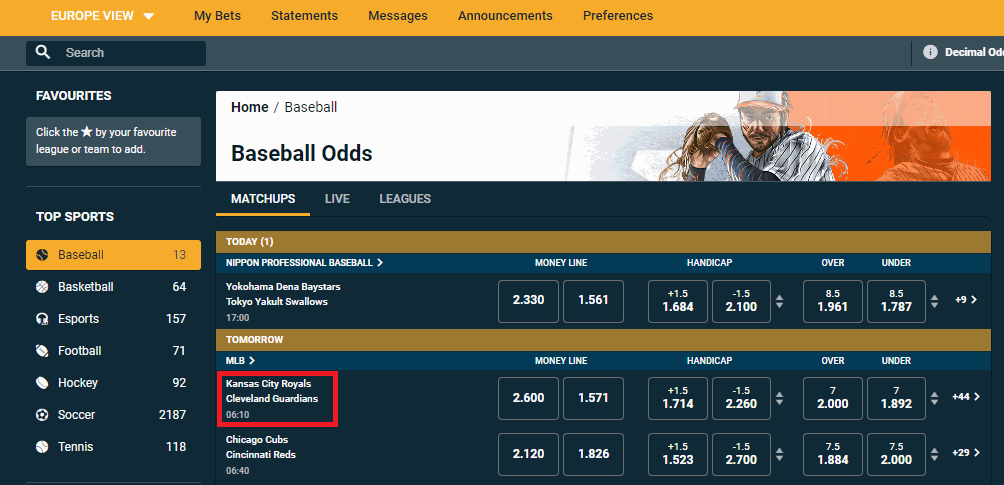
- Once you confirm that the match is being offered in the sportsbook page, you may proceed to select it under the B2B Hot Events page in Pinnacle’s backoffice:
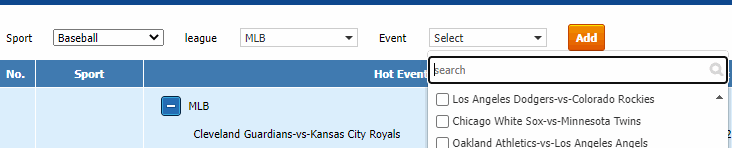 For Example: Baseball> MLB > Cleveland Guardians vs Kansas City Royals
Once successful you will see them added:
For Example: Baseball> MLB > Cleveland Guardians vs Kansas City Royals
Once successful you will see them added:
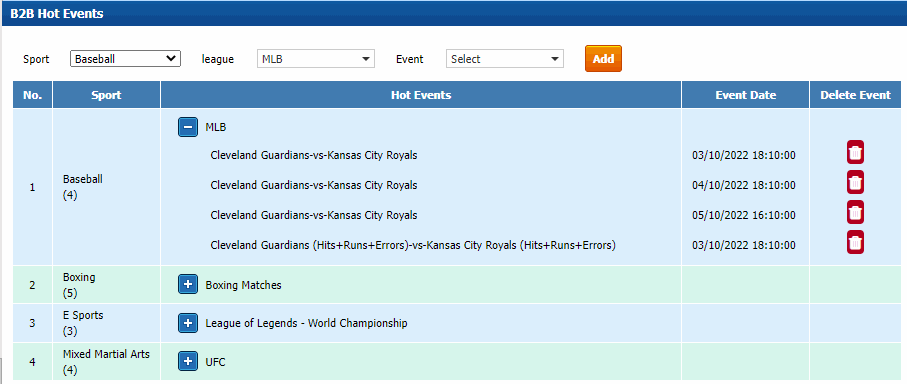
- It will now reflect as a new hot league card or gets added to your already existing card:
 When you hover your mouse to the card it will reveal the matches you can bet on:
 To be able to set up/configure the hot leagues sliding cards please follow this guide: How to Configure the Hot Leagues Widget
Player experience of the Hot Leagues can be found here: Guide to Pinnacle Hot Leagues
To be able to set up/configure the hot leagues sliding cards please follow this guide: How to Configure the Hot Leagues Widget
Player experience of the Hot Leagues can be found here: Guide to Pinnacle Hot Leagues
Widgets
We have created a widget to enhance your experience by providing quick access to relevant content, features, or services without the need to navigate away from the current page or application. In this article, you will learn how they can be customized and arranged according to your preferences to personalize the player experience. Below is an example on how to add a widget and choose a page where you like it to appear.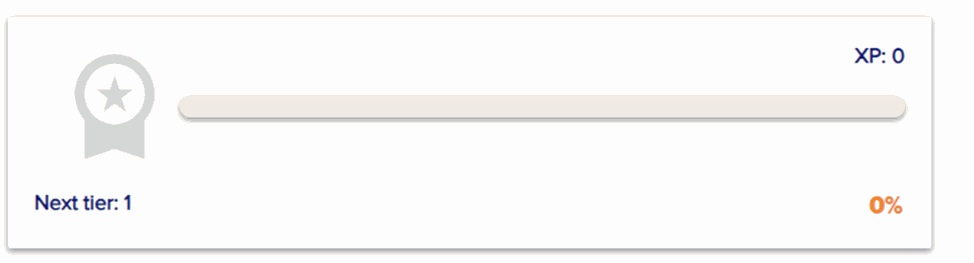 Here are the steps to follow if you would like to add the VIP Current Tier Info:
- Go to CMS then click Widgets.
- Add a new widget by selecting VIP Current Tier Info.
- Fill out the required fields.
- Display for Non-Logged in Players
- Display Nothing – will not display anything when not logged in
- Display Login/Register Buttons – when player is not logged in, they will see “Login” and “Register” button if both are checked. If only one is selected from the two, then only one will appear.
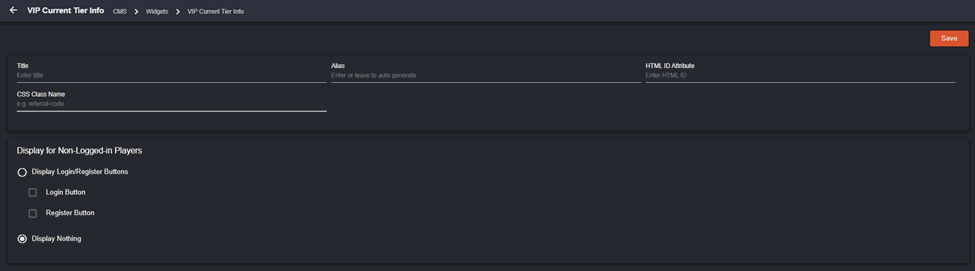 Once widget has been set up, continue by clicking Page Builder > Pages (CMS).
You may select which page the widget will appear. For example, you select Virtual Sports (Page Name). If the player is not logged in and ‘Display Nothing’ is selected and clicked Virtual Sports, the player will not see the VIP Current Tier Info unless they are logged in.
Here are the steps to follow:
Once widget has been set up, continue by clicking Page Builder > Pages (CMS).
You may select which page the widget will appear. For example, you select Virtual Sports (Page Name). If the player is not logged in and ‘Display Nothing’ is selected and clicked Virtual Sports, the player will not see the VIP Current Tier Info unless they are logged in.
Here are the steps to follow:
- Click edit beside the chosen page.
- All fields are automatically filled out, so you may edit Access if you would like it to be Public or Registered as well as Language (EN/KO). You can also publish or unpublish the page in Status.
- Toggle on ‘Advanced’ then ‘Add Widget.’
- Select the widget that you have created (VIP Current Tier Info), copy it and insert on the content below. It will appear at the top, middle, and bottom part of the page depending on where you inserted it. Note that the display for widgets will initially follow the basic design. However, CSS styling of these widgets can be adjusted depending on how you want them to appear in the player portal.
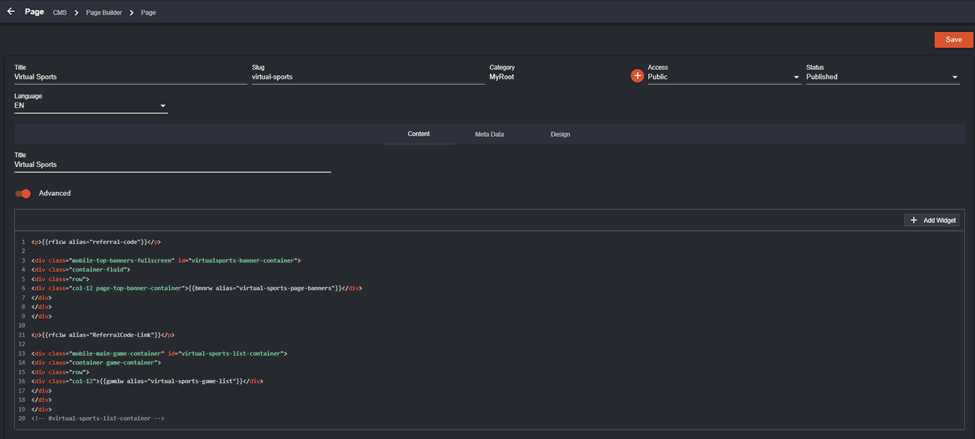 Make sure to Save for the changes to apply.
The same process will apply if you will add the widgets for the following:
VIP Tier Details
Make sure to Save for the changes to apply.
The same process will apply if you will add the widgets for the following:
VIP Tier Details
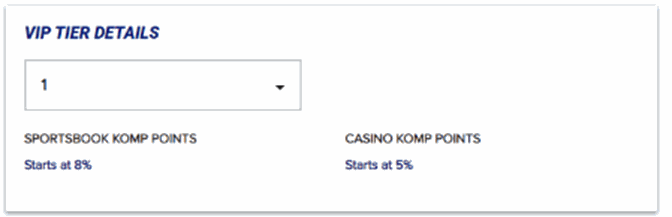
- Komp Points – if both is selected, both will be displayed. If one, then only one will appear.

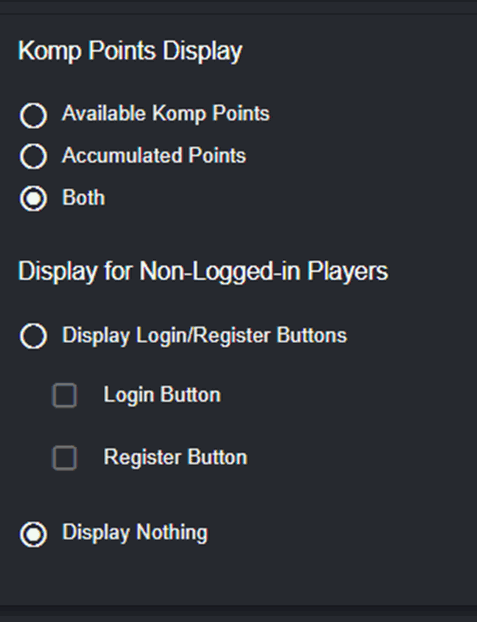
- Referral Code – if logged in, the player can see the referral code.
- Referral Code Link - when logged in and the specific page is clicked, this is what the player will see.

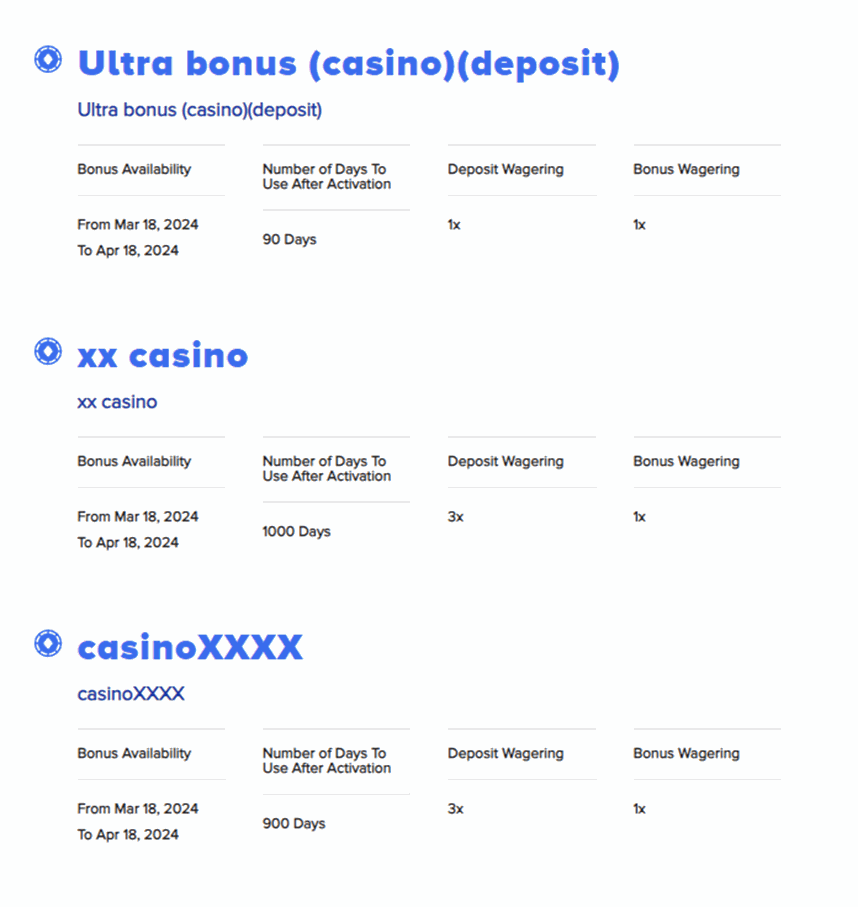
- Available Bonuses Widget – this widget is applicable to both logged in and non-logged-in players.
BTI Odds Sports Widget in the Backoffice
This new feature is added to highlight live and upcoming sports matches for BTi Sports. Players can easily place bets on the displayed matches from any page featuring the BTi Sports odds widget. Configurable fields are available for back office users to set up a widget for displaying sports odds.CMS
Navigation: CMS > Widgets > BTI Sports Odds Display
The BTI Sports Odds Display can show two categories: Live matches and Upcoming matches.- Live: Displays sports that are currently in progress.
- Upcoming: Displays sports scheduled to start at a designated future date.
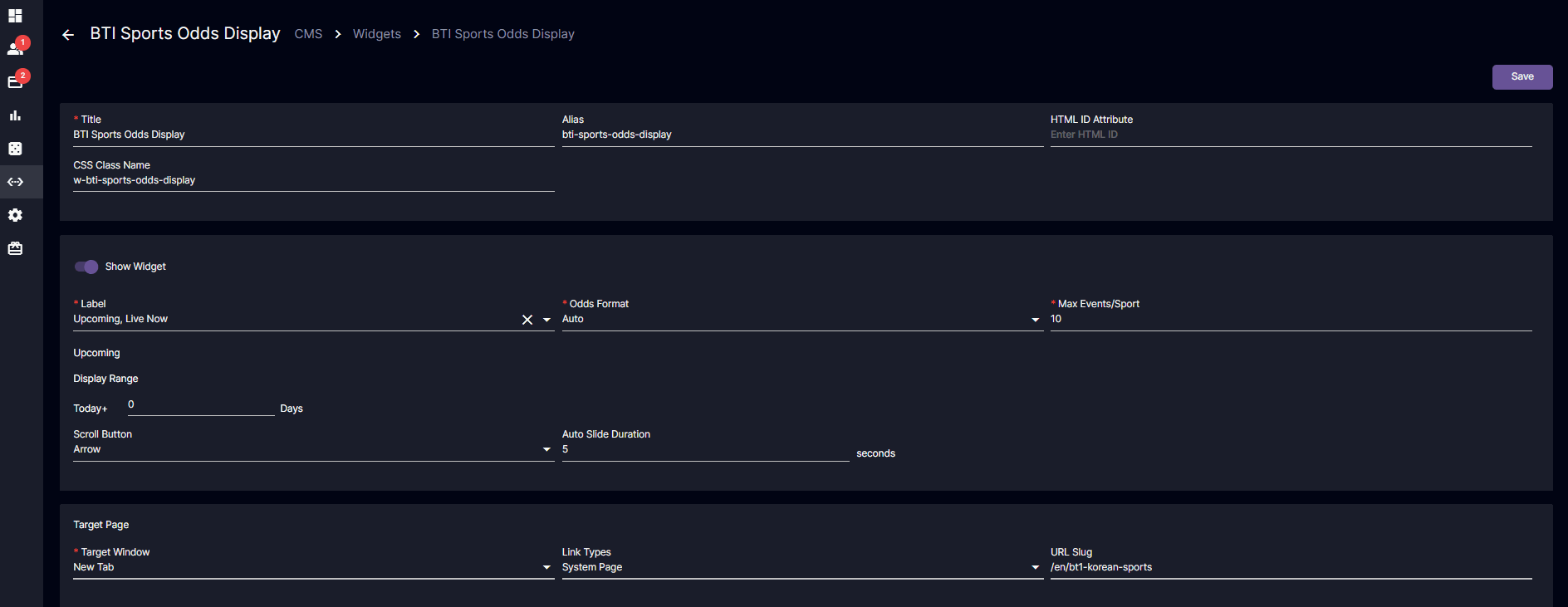
| BTI Sports Odds Display | Description | Details |
|---|---|---|
| ⭐ Title | Field to enter a title for the widget, which might appear on the player portal or in the backoffice for easy identification. | Input Field Error Message: “The Title field is required.“ |
| Alias | An alternative name for the widget, which can be autogenerate d if left blank. Example: Title: BTI Sports Display Alias: bti-sports-display | Input Field |
| HTML ID Attribute | This field can be used to assign a unique HTML ID to the widget, which is useful for specific front-end targeting (e.g., JavaScript or CSS). | Input Field |
| CSS Class Name | Allows entering a CSS class name to apply custom styling to the widget’s appearance on the portal. | Input Field |
Show Widget | To make it easier for the back-office operator to hide the widget, as it may be placed on different pages, eliminating the need to search for it. | Toggle Button |
| ⭐ Label | Label displayed to end-users, providing context for the type of events shown, such as “Live Now” or “Upcoming.” The back office user can select both for the widget to display: • Live Now • Upcoming (Pre-match) - the BO needs to configure the Display Range as shown below: 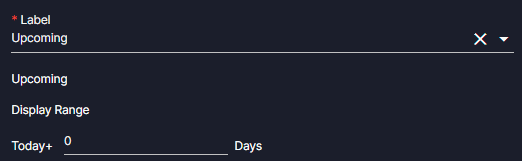 Display Range refers to the start date and the number of days within that range for which the widget will display matches. | Dropdown multiple selections - Label (Live Now, Upcoming) Input Field - Display Range Error Message: “The Label field is required.“ |
Odds Format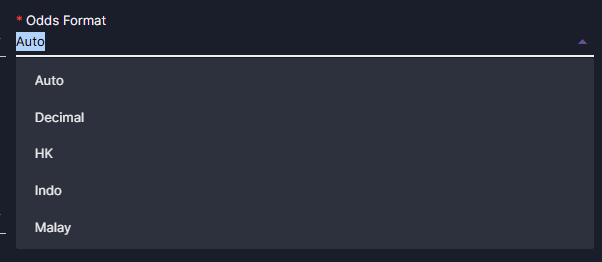 | Allows you to choose the format for displaying odds. It’s currently set to “Auto,” which may automatically adjust the odds format based on user preference or location. • Decimal - This is the odds showing in decimal/europe odds format. This is also the format for true odds. • HK - This is the odds showing in Hongkong odds format. • Indo - This is the odds showing in Indo odds format. • Malay - This is the odds showing in Malay odds format | Dropdown Single Selection |
| ⭐ Max Events/Sport | Field to set a maximum limit on the number of events per sport that the widget will display. • Minimum = 1 • Maximum = 30 | Input Field Error Message: “The Max Events/Sport field is required.“ |
| Scroll button/Navigation button | To choose the appropriate navigation button for the widget card, consider the following options: 1. Arrow: A single arrow button to navigate to the next or previous widget card, typically indicating forward or backward movement. 1. The arrow shall be active when the player hovered the widget and intentionally click the arrow. 2. The arrow must be hidden when the number of card/slide reached at its end. 2. None (Default): Meaning there is no arrow navigation and the player can navigate it by sliding or swiping the slide. 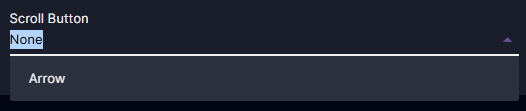 | Single Selection Dropdown |
| Auto Slide Duration | To configure the auto next slide of the widget card, if the back office operator inputs a value, it will define the autoslide duration (by seconds) for the widget. This means: • If a value is entered by the back office user, the widget will automatically transition to the next slide based on the specified time interval. • If the value is ‘0’ (default) is entered, autoslide will remain disabled, or the widget will stay on the current slide until manually changed. This setup gives the back office user control over whether the widget slides automatically and at what speed.  Expected behavior for PP: If the user manually clicks the next or arrow button, auto-slide should become inactive. If the player is idle, auto-slide should become active again after 5 (fix) seconds. | Input Field |
| Target Window | This specifies how the destination page will open: 1. Same Page (Default Value): The destination opens in the same browser tab. 2. New Tab: The destination opens in a new tab or window. | Single Selection Dropdown |
| ⭐ Link Type | This determines the kind of destination the link will point to: 1. Internal: The link navigates within the same system or application. It’s typically used for related pages within the platform. For example, if you’re on the dashboard and want to navigate to a settings page, the link will use an internal URL slug for seamless navigation. 2. System Page: The link redirects to an external system or page outside the current platform. This is ideal for external references or tools. Since BTI Sports is a CMS page, the Back Office (BO) needs to configure the link type to determine where it will be redirected. | Single Selection Dropdown |
| ⭐ URL Slug | Input URL Slug for where the redirection will point to. Selectable if Internal is selected under link types Manually input if System page is selected under Link types This will just be triggered/show when the Link type has a selected option. | Single Selection pop-up or Manual input of URL Slug Error Message: “The URL Slug field is required.“ |
| Save Button | To save the current configurations of the widget. | Button |
Game Management
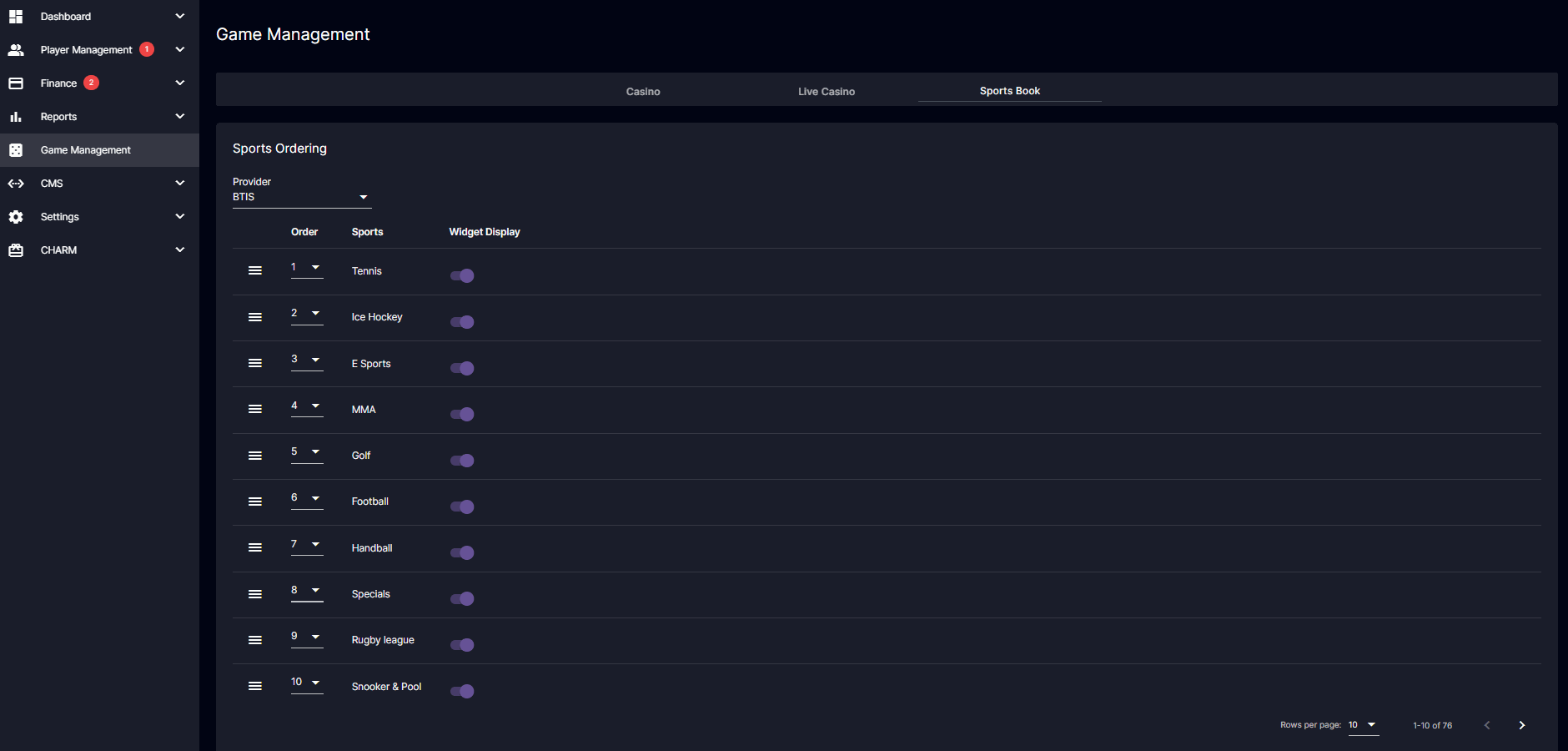
This page displays the BTI List of Games that can be managed, and the Back Office (BO) user can reorder the sports in the widget card, whether they are currently live or upcoming.The Back Office user shall select provider first before showing the data integrated with that provider. The default view when data is shown is this page shall only consist of 10 rows, if the page exceeds the 10 rows, it shall be scrollable and paginated. The scope of game management is for specifically sorting, ordering, and displaying only of sports that is applied for both Live Now and Upcoming. The Provider field allows the operator to select a specific provider to be displayed.
Navigation: Game Management > Sportsbook > choose a provider (BTIS)
Korean version: 백오피스의 BTI 배당률 스포츠 위젯
You may check out this article for the player portal view: BTI Odds Sports Widget in the Player Portal
BTI Odds Sports Widget in the Player Portal
Since BTI is sending us the data to be displayed in the website, the website has a refresh rate to fetch new update/data from BTI when a match is added, removed, or finished.- For Logged-in Players:
- Refresh rate is set to 1 minute and will be continuously updated.
- For Non-Logged-in Players:
- Refresh rate is also 1 minute, and though the data may not be constantly updated, it should be refreshed periodically.
If the selected label in the BO corresponds to no matches or events,
- Widget Display:
- If the selected label in the BO corresponds to no matches or events, the Odds Display Widget will display “There are no matches available.”

If there is no current Match in a sport, it shall not display the sport itself.
Example:- If the count for badminton is 0, it will hide badminton button and move to the next sport until it finds one with a data or event/matches.
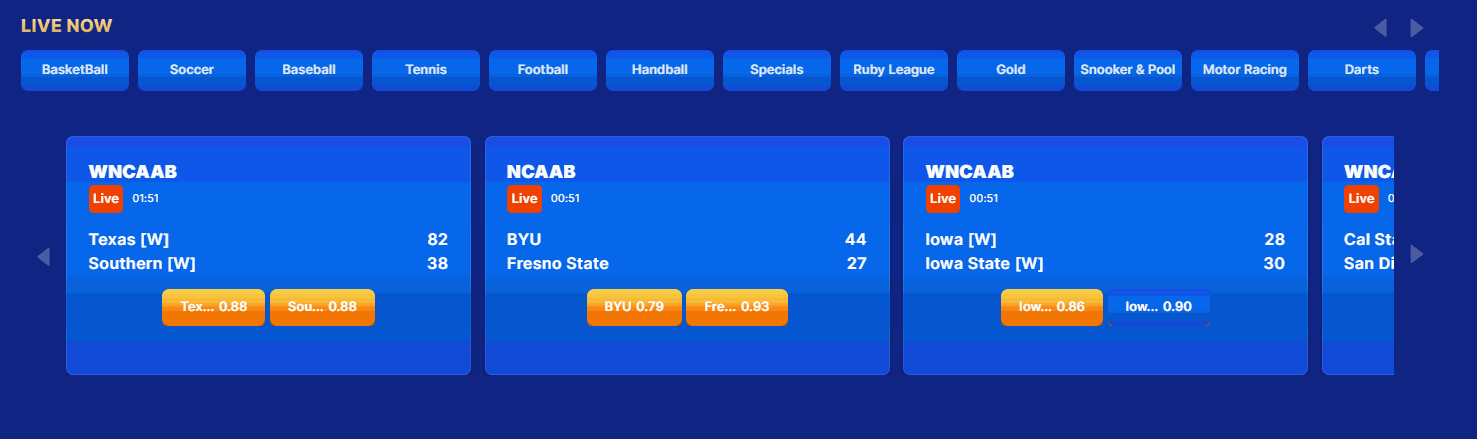
badminton button is not visible
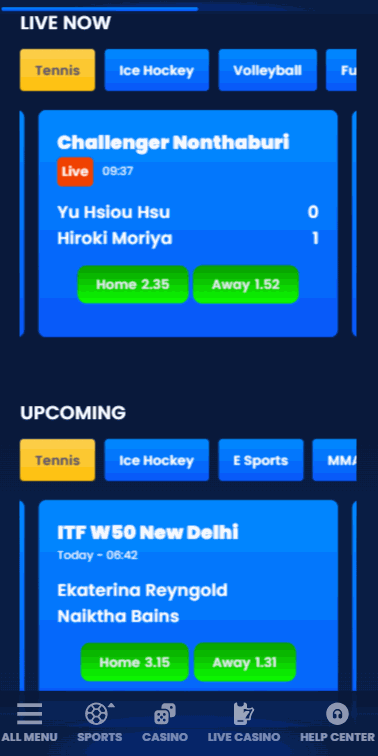
Mobile View
Desktop View
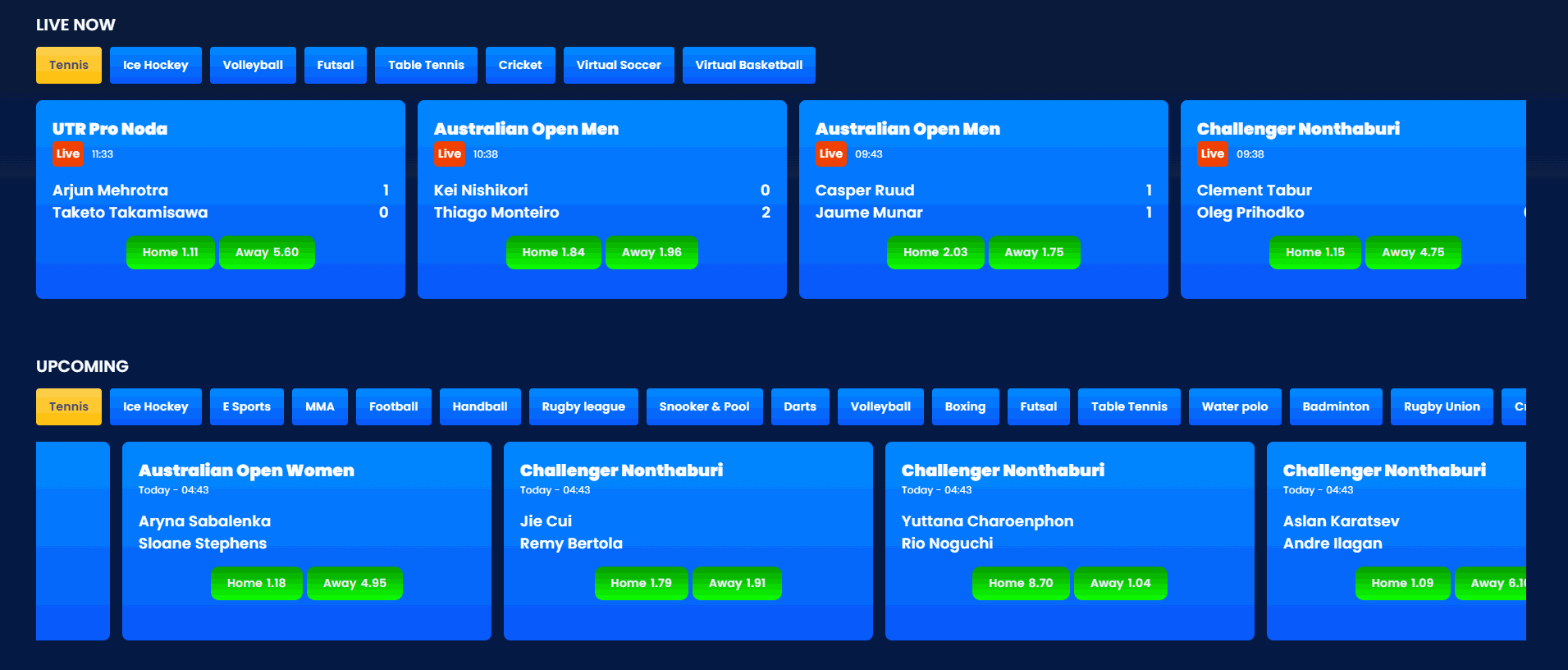 Sports Card Widget is consists of:
- Label
- Sports
- League
- Match
- Date and Time
- Home and Away
- The card itself is clicked redirect to the homepage of the sports
- League is clicked to redirect to the game itself
- Home, X, or Away button, it redirects to the match’s betting page with an initial bet already set for the selected option, and a betting slip is generated.
Note that this will only work when the player is logged in, and it may NOT work as expected if the event or market type is suspended.
Product Categories
The CMS Product Categories feature streamlines the organization and display of all gaming categories, such as Baccarat, Blackjack, and more, which are automatically seeded and centrally managed for efficient updates and customization.User Management
Give what level of permission an individual can do. This gives the BO operator if they are:- Not permitted - Not authorized to view or configure.
- Permitted - Can view but cannot configure.
- Can Modify - Can view and configure

Navigation: CMS > Product Categories
The backoffice user can configure or customize all the product categories that will be displayed in the player portal here.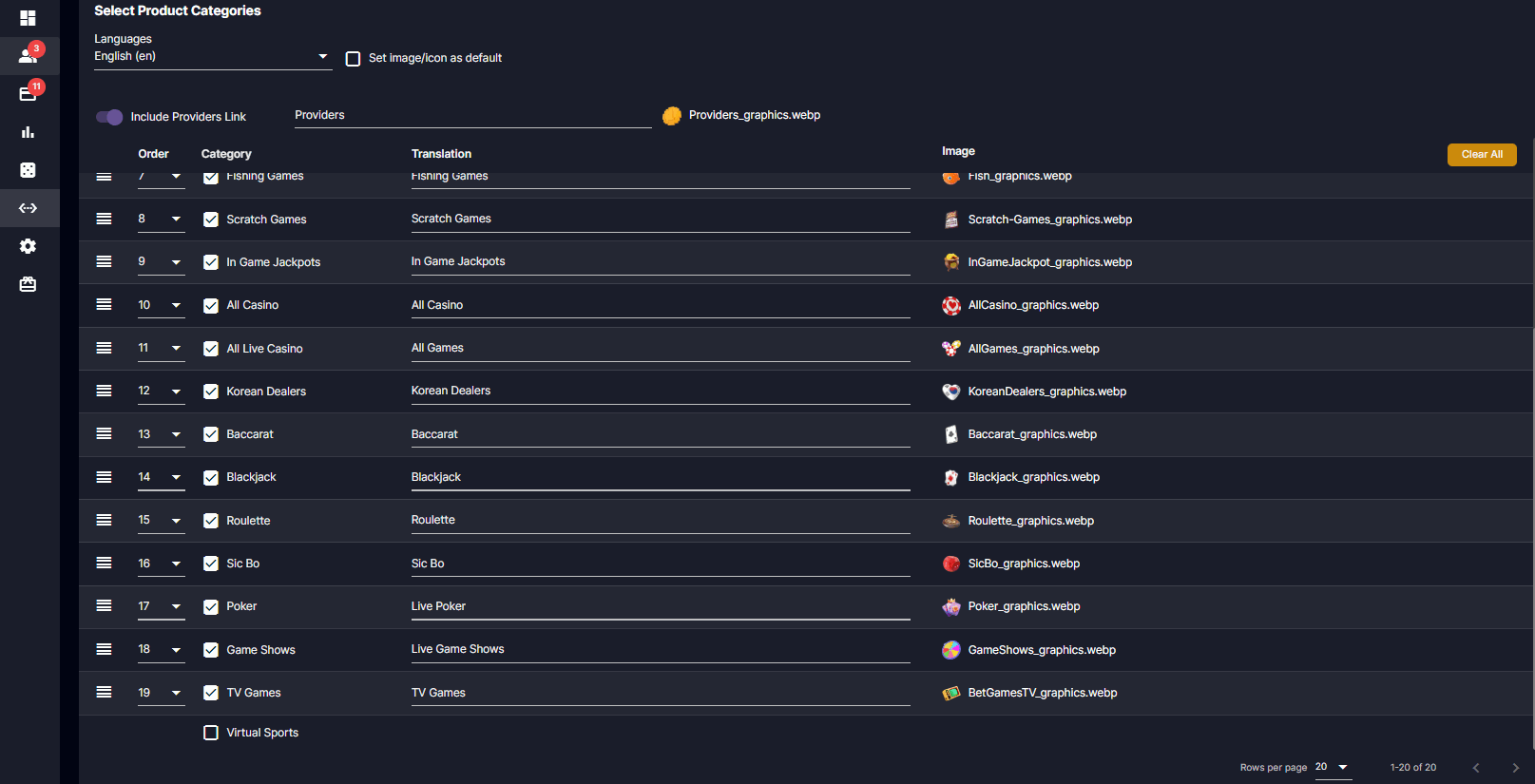 Korean ver: 제품 카테고리
How to Add, Edit and Delete Meta Tags
This new feature is added to increases website visibility and accessibility for global users to ensure the website appears correctly in search engine results based on the user’s language.CMS
Navigation: CMS > Site Settings > Meta
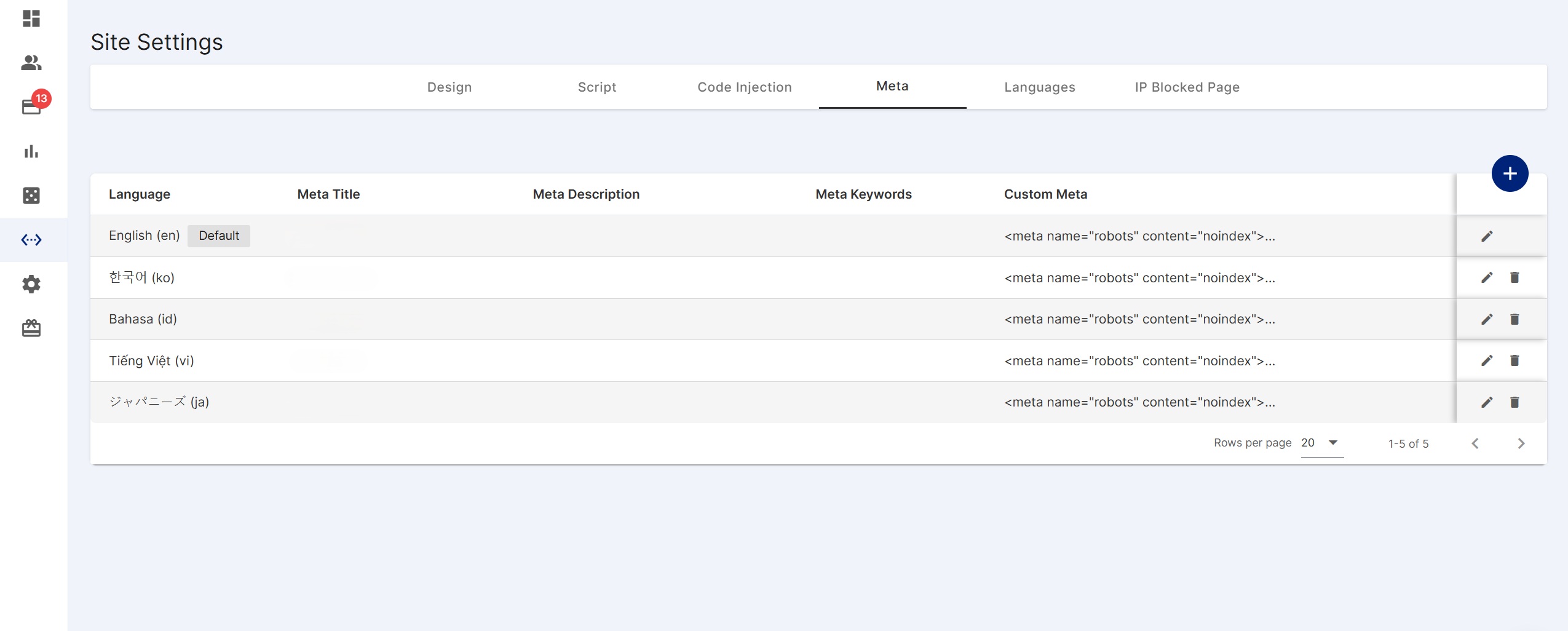
Meta Listing
Meta Listing:
- Language
- Purpose: The language setting allows defining SEO metadata (Meta Title, Meta Description, Meta Keywords, and Custom Meta) for different languages to ensure the website appears correctly in search engine results based on the user’s language.
- Meta Title
- Purpose: This is the title that appears on search engine results when the user searches for the website.
- Meta Description
- Purpose: This is a short summary (snippet) of the website that appears in search engine results below the title.
- Meta Keywords
- Purpose: These are keywords or phrases that help search engines understand the page content.
- Custom Meta
- Purpose: Defines the website name in Open Graph (
og:site_name) for consistent branding in social media previews.
- Purpose: Defines the website name in Open Graph (
Add Meta
Navigation: CMS > Site Settings > Meta > Add Button icon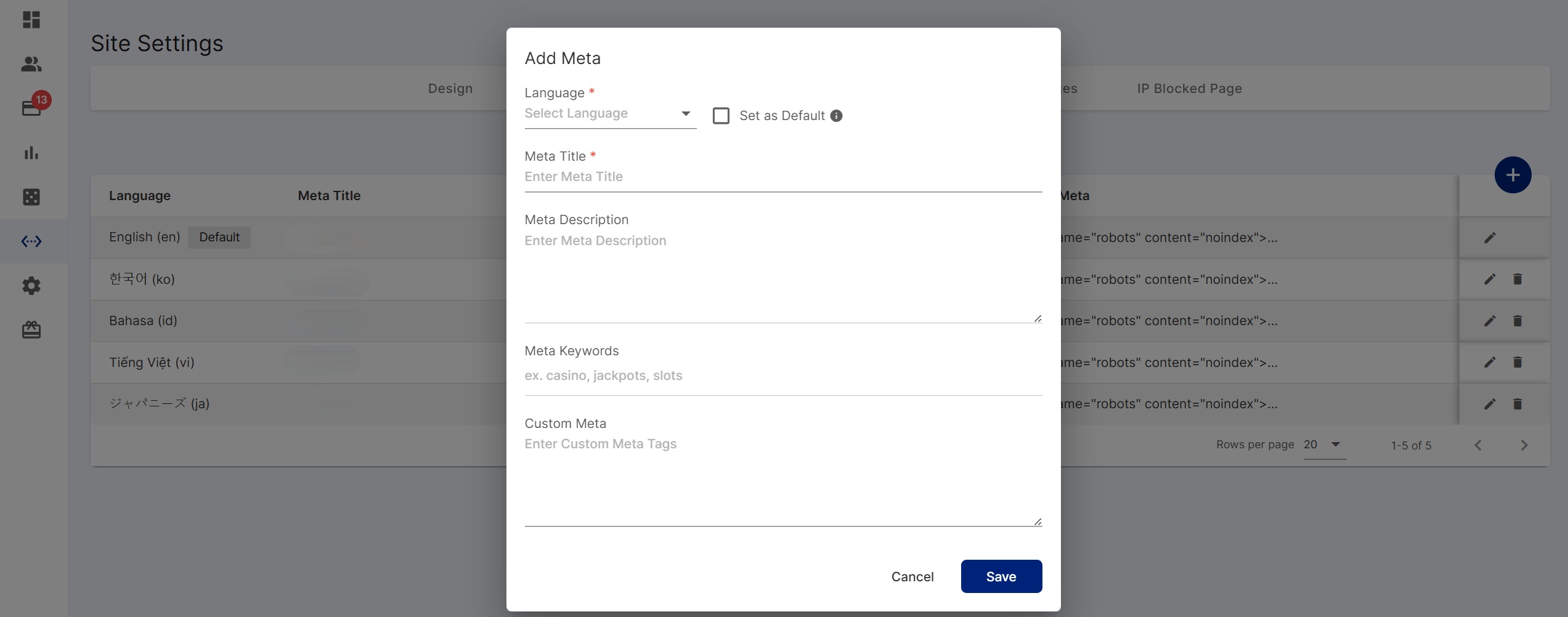
Adding Meta
- Language - A single-select dropdown that displays all available languages not yet added for the brand.
- Checkbox - An optional checkbox where the Back Office Operator can check if the meta should be set as default.
- Adding a Meta: Always includes a “Set as Default” checkbox.
- tooltip text*:* “ Default when no language is detected from the user’s searched language. “
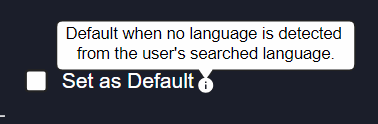
Tooltip text
- tooltip text*:* “ Default when no language is detected from the user’s searched language. “
- Only one default Meta is allowed.
- If another language is set as the default, the current default Meta is replaced upon saving.
- A confirmation prompt appears:
“Are you sure you want to replace the current <Language> Meta?” (Yes/No)
- Adding a Meta: Always includes a “Set as Default” checkbox.
- Meta Title - To input Meta Title
- Meta Description - To input the Meta description
- Meta Keywords - To input Meta Keywords
- Custom Meta - To input Custom Meta to define the website’s name in Open Graph (
og:site_name) for consistent branding in social media previews.
- Drag functionality of the icon: Back Office Operators can drag the icon from the lower right of the text field to reposition it within the interface.
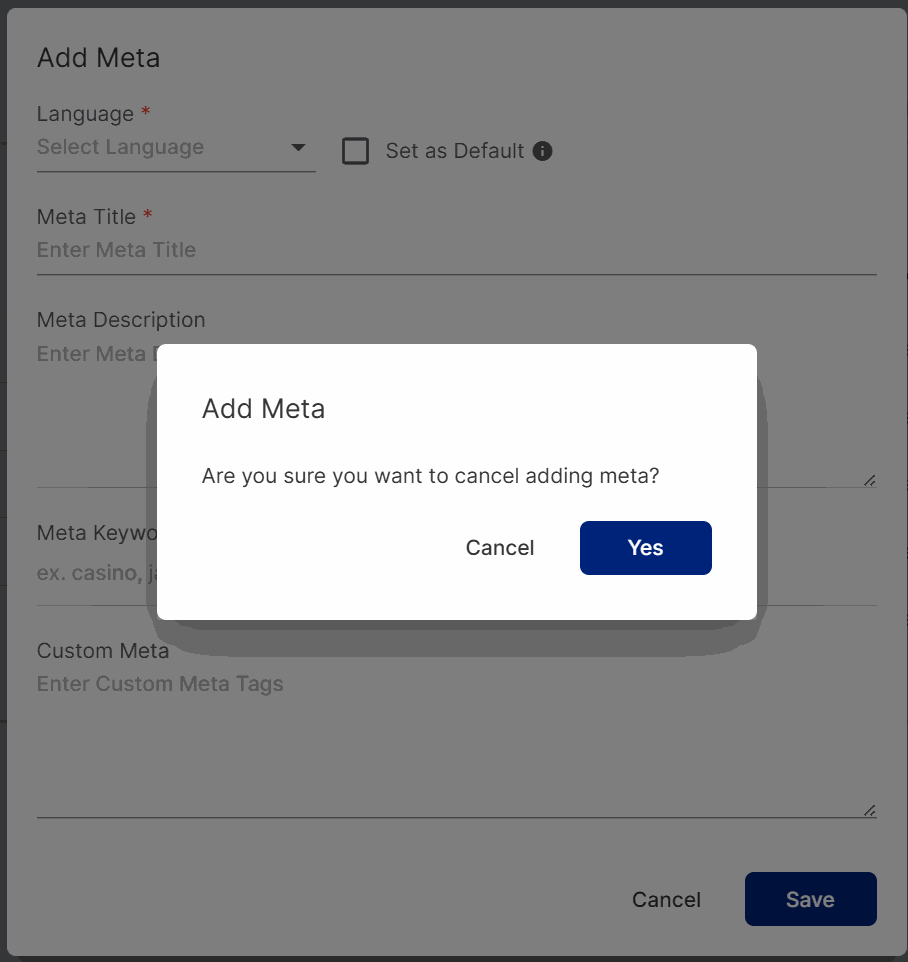
Cancel notification pop-up
- NO - will go back to the creation of adding the meta pop-up
- YES - will cancel the adding of the meta and will be redirected to the Meta Listing page.
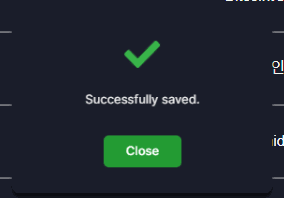
Save Notification Pop-up
- Close - will close the save notification pop-up.
Edit Meta
Navigation: CMS > Site Settings > Meta > Edit Button icon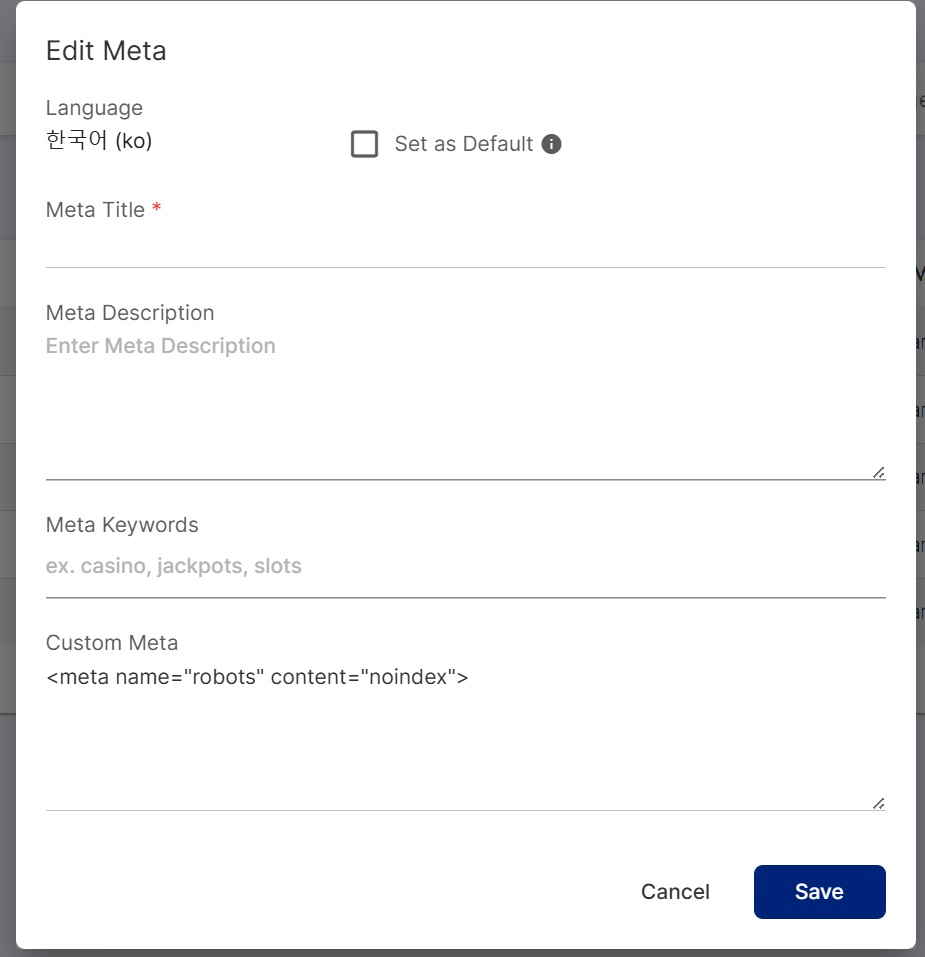
Editing non-default Meta
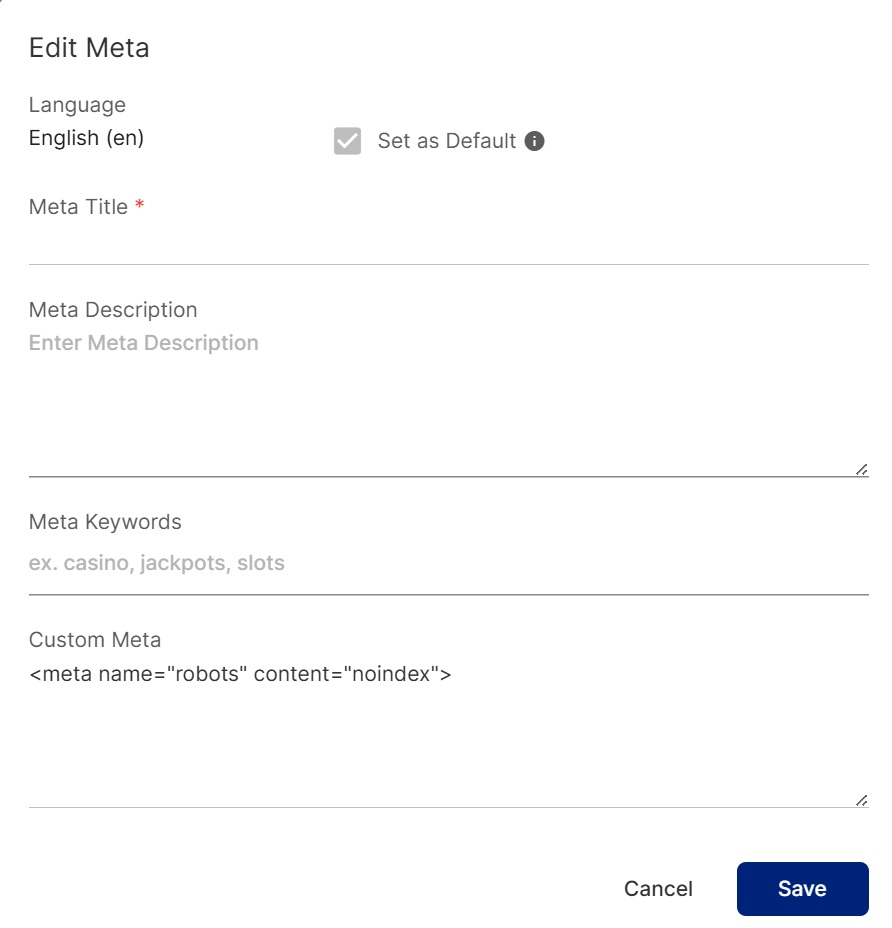
Editing Default Meta
- Language cannot be changed when editing an existing Meta.
- Only the following fields are editable:
- Meta Title
- Meta Description
- Meta Keywords
- Custom Meta
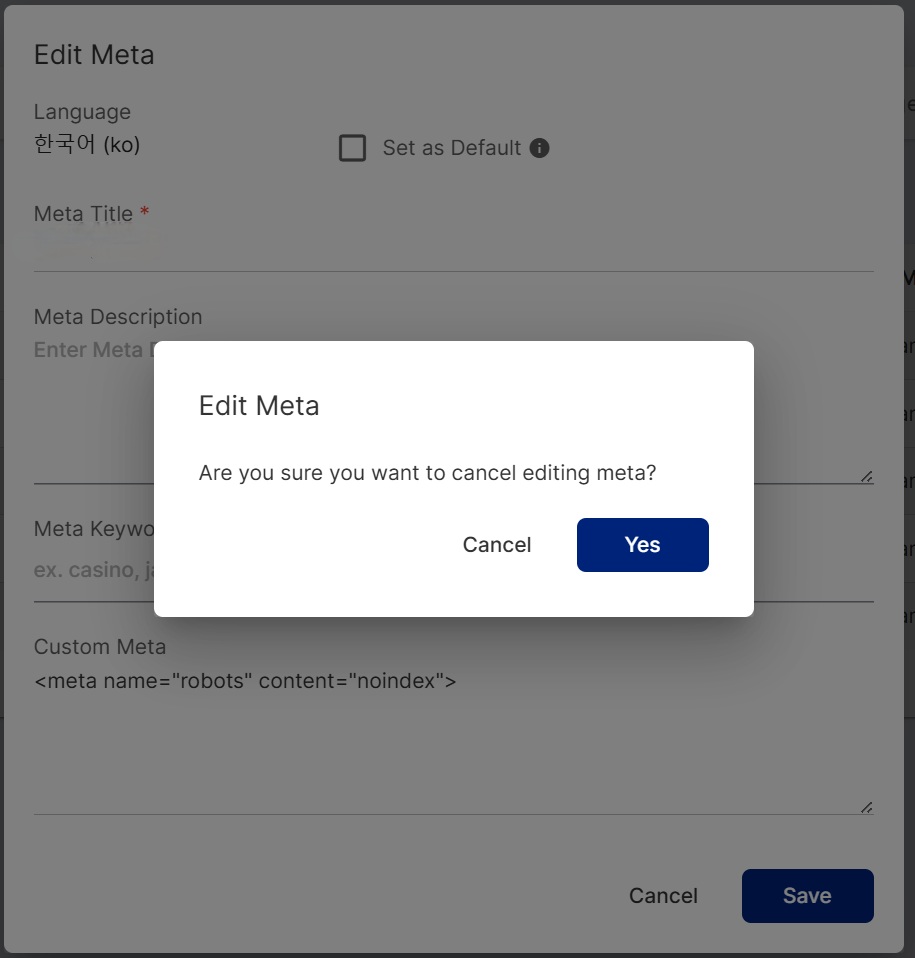
Cancel notification pop-up
- NO - will go back to the editing of the meta pop-up
- YES - will cancel the editing of the meta and will be redirected to the Meta Listing page.
Delete Meta
Navigation: CMS > Site Settings > Meta > Delete Button icon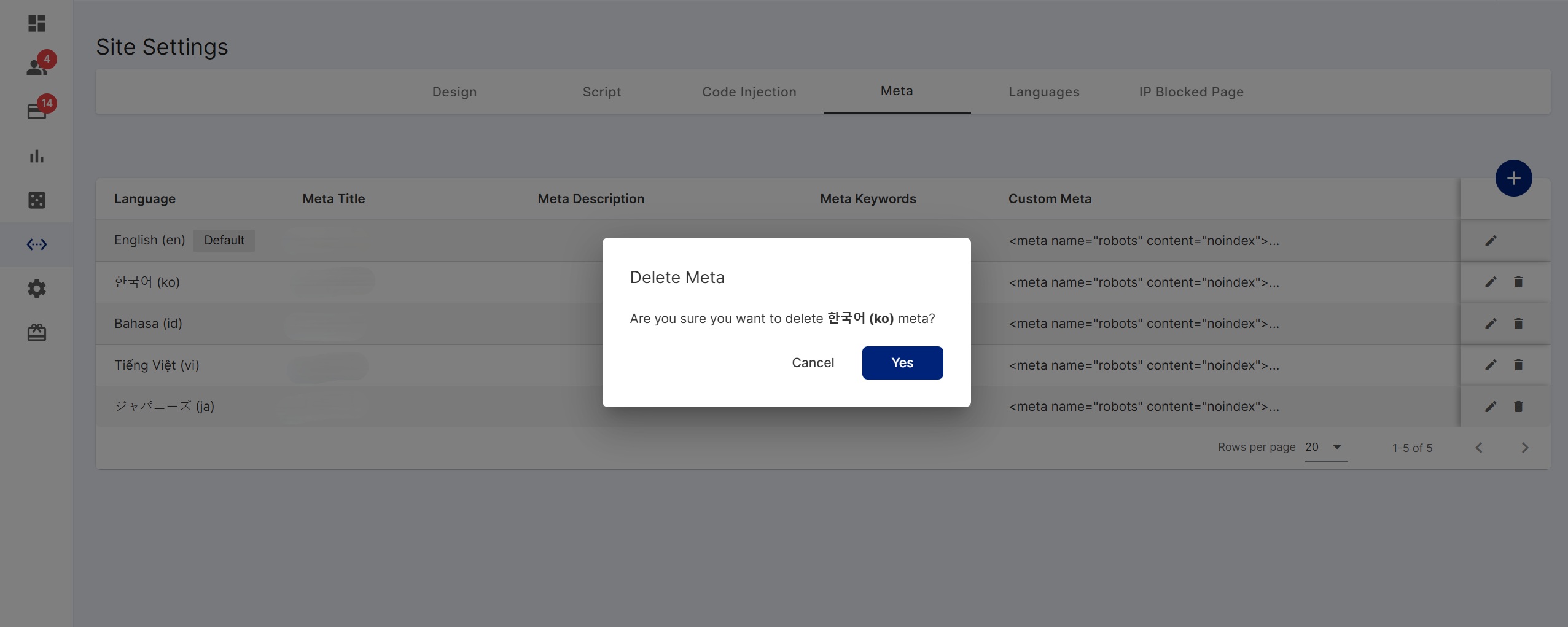
Delete Notification pop-up