How to Identify if a Player is Eligible for Cashback Program?
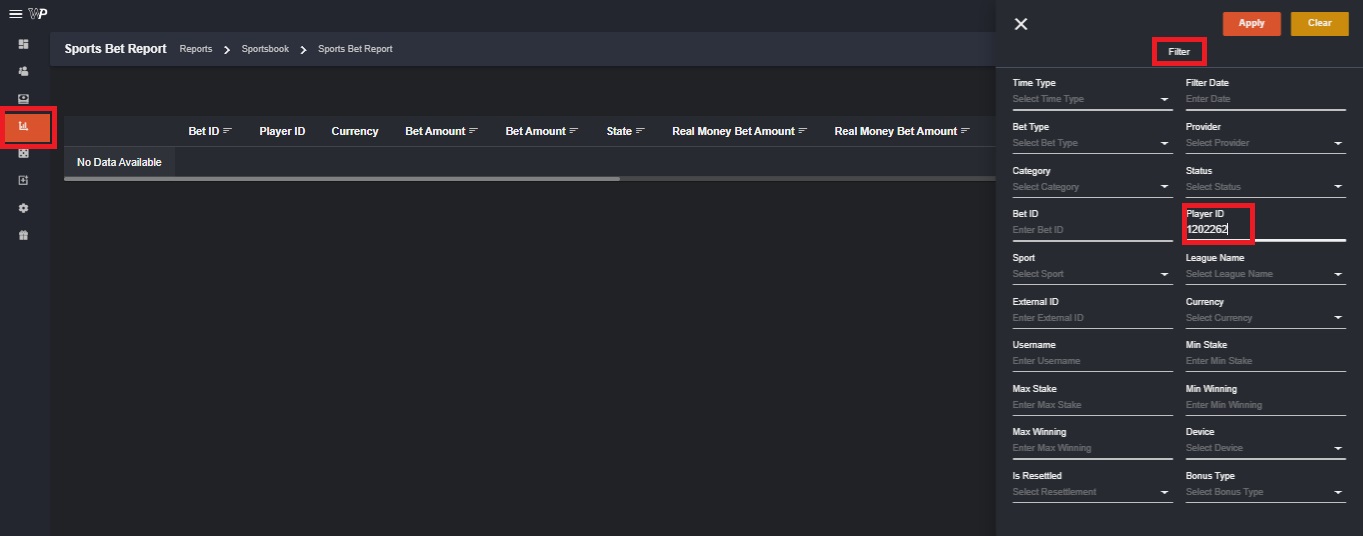
I. How to Identify if a Player is Eligible for Cashback Program by Identifying their GGR To see if a player is eligible for a cashback program in Sports or Casino, you may view it by filtering the bets of a specific player during the run of the cashback program. Follow these steps:- Go to Reports and choose the category you want to filter (Sports or Casino). Then you may click on the Filter and enter the Player ID.
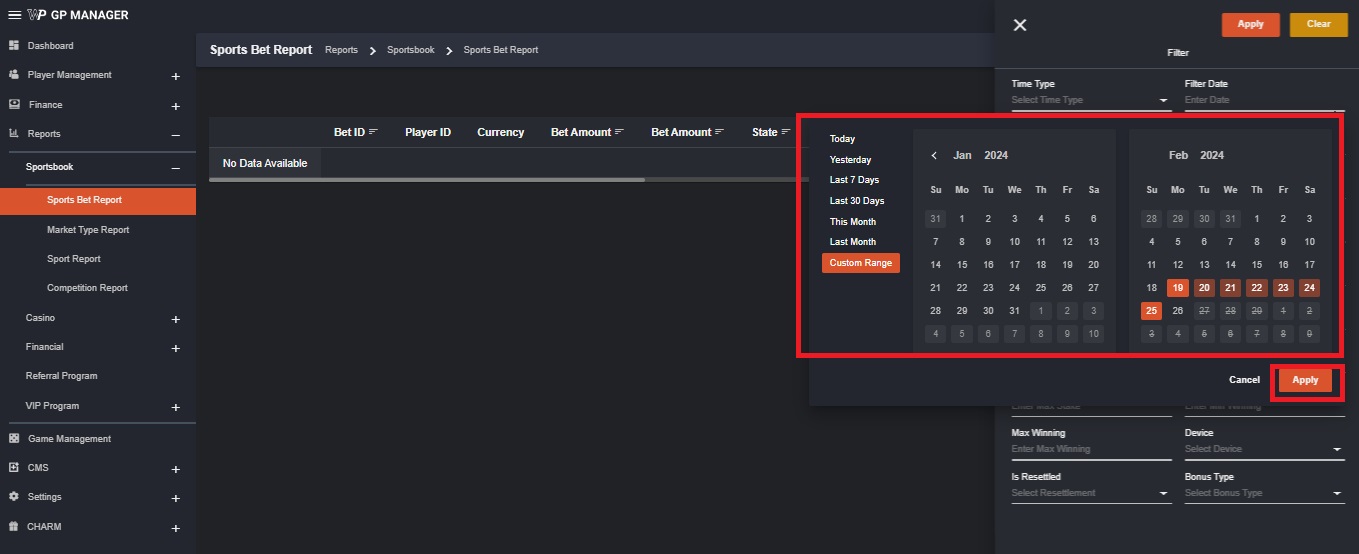
- Choose the date range where the Cashback Program runs. Then click on the apply button below the calendar.
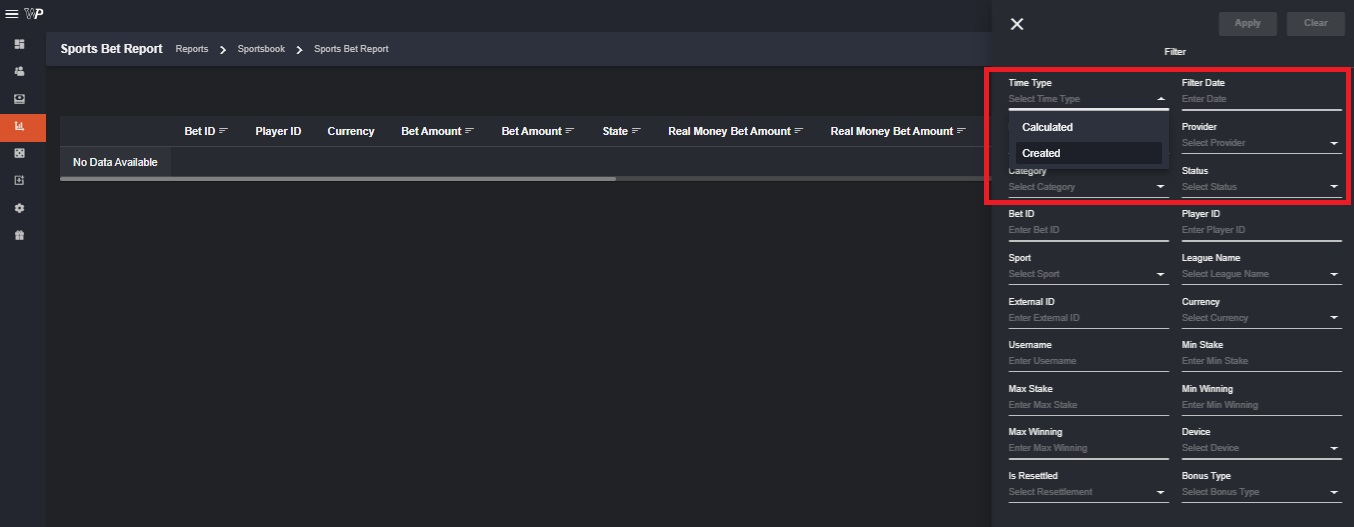
- Change the Time Type by selecting “Calculated”. Then click Apply.
- Change the Bonus Type by selecting “Real”. Then click Apply.
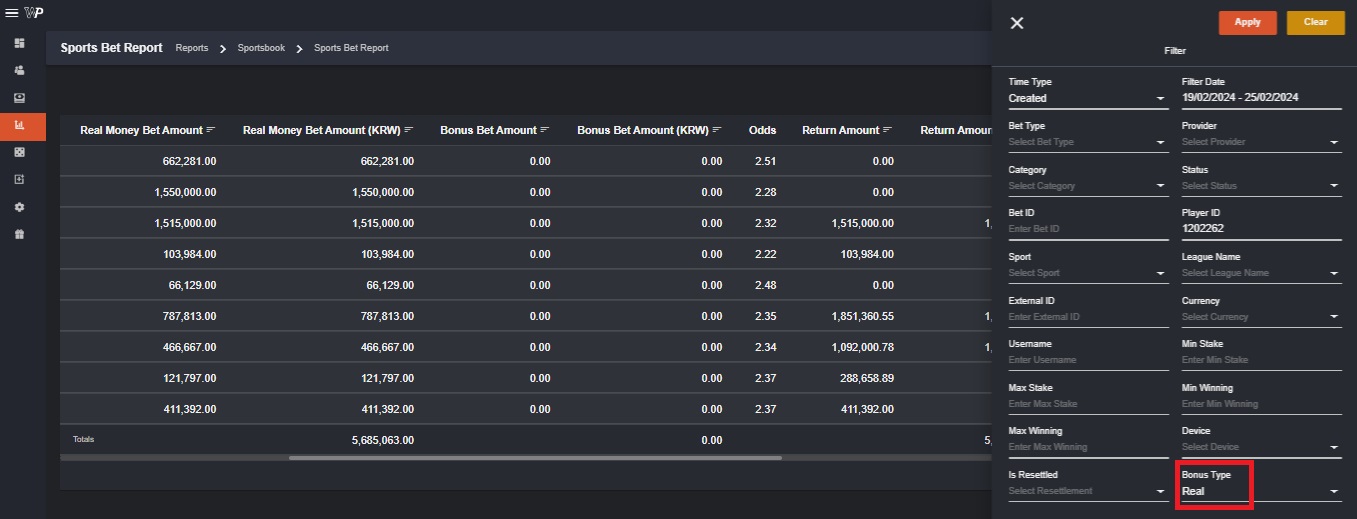
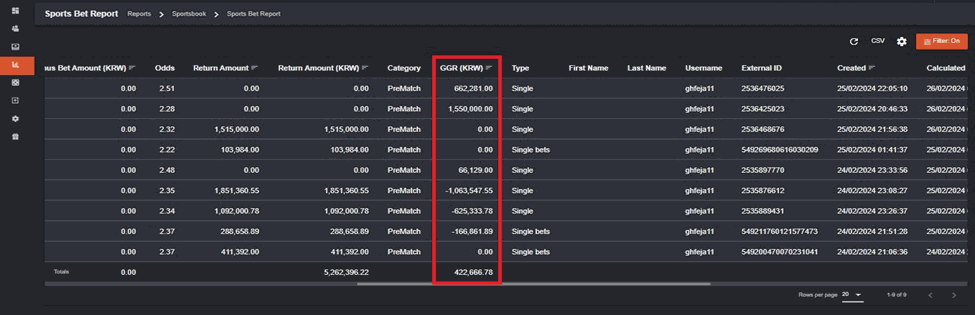
- After applying the filters, You will have the results. Hover your mouse to the right and you can see the GGR of the player for that specific week. You can now identify if the player reached the amount to be qualified for a cashback program. Also, you can identify if the player has a casino or sports bet during that week.
 Korean version: 플레이어가 캐시백 프로그램에 적합한지 어떻게 확인하나요?
Telegram Bot Guide
What is a Telegram bot?
A Telegram bot can serve various purposes depending on its design. Here are some common features:- Automated Responses: Offer immediate replies to frequently asked questions.
- Notifications and Alerts: Send updates, reminders, or notifications about specific events.
- Content Sharing: Distribute news articles, images, or videos tailored to user interests.
- Analytics: Gain insights into user behavior through interactions with the bot, helping you refine your offerings and marketing strategies.
- Task Automation: Connect with other services to automate processes like scheduling or data entry.
- User Engagement: Run polls, surveys, or feedback sessions to involve users.
- E-commerce: Support shopping experiences by showcasing products and managing orders.
- Data Collection: Collect information from users via forms or chat interactions.
How to enable Telegram bot?
- To find the BotFather in the application, simply search for “BotFather” in the search bar.
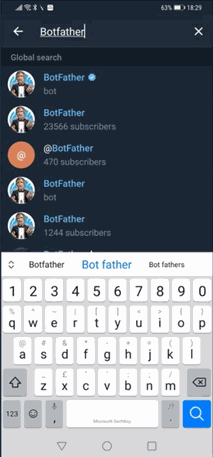
- Once you click on the verified BotFather, you can configure the necessary settings for Telegram Login. Next, we should review the BotFather commands.
- You can message or chat with the BotFather using commands that begin with the slash (/) character. To see the available commands, just type the /start command.
- Step 1. Create a new bot using the /newbot command.
- Set the bot’s name in Pascal case (capitalize the first letter of each word), for example: WinkaBetamaxBot.
- Set the bot’s username in camel case or all lowercase with underscores, ending with “_bot,” for example: winka_betamax_bot.
- Make sure to record the result and save the assigned token, as you will need it to set up the configuration on your website.
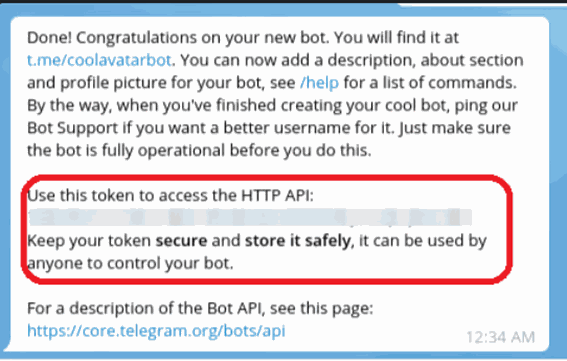
- Step 2. Setup and assign the domain names using /setdomain command
- To setup just select your bot and then type the associated domain defining the host name only as Betamax.club
- bot information: bot name, bot username, bot token and then the DNS hostname
Hints in creating the details of the telegram bot:
- One installed telegram account in a device can handle multiple telegram bots issued by the BotFather
- At least create a rule (or just follow) how to name the bot and must be consistent in all operator
- You need to setup one bot per domain since the bots will authenticate only one per valid DNS or website
- Although an installed telegram can accept multiple bots, this must be reviewed with our white label branding that one operator should have one setup or settings.
What are the different Statuses of Casino Bets?
Casino Bets under the backoffice are represented by these statuses: Pending - Game is ongoing and results are not yet updated Processed - Game has finished and result have been given out together with any return amount. Processed bets are either a Won or Lost bet. Refund - Various reasons may lead to a bet being returned to the player. This indicates that the game has not transacted normally and bet amount is returned to the player. Example of the bet statuses above in our backoffice: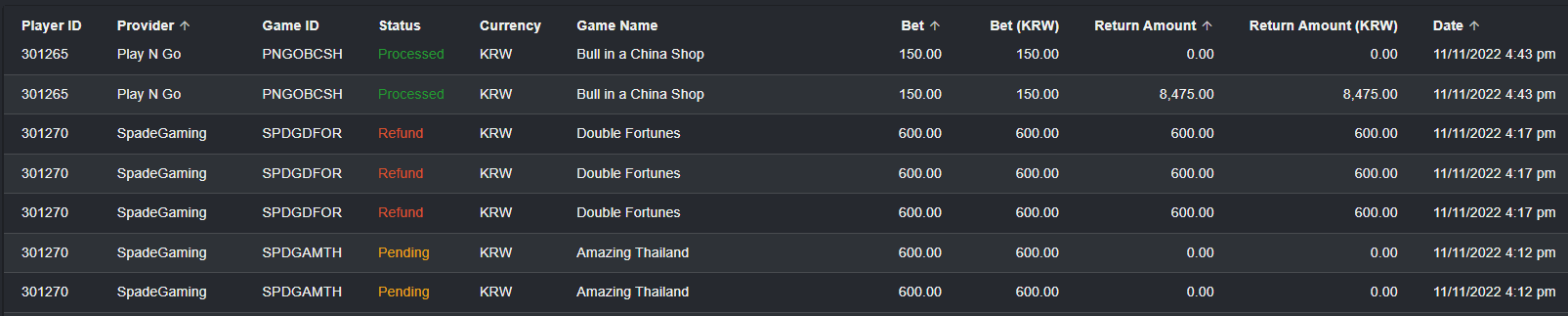 Pending bets will be highlighted in an orange color while processed will be green and refund as red.
Note that these will be the status that will appear in the backoffice and as well as the player portal.
Korean version: 카지노 베팅의 다양한 상태는 무엇입니까?
Pending bets will be highlighted in an orange color while processed will be green and refund as red.
Note that these will be the status that will appear in the backoffice and as well as the player portal.
Korean version: 카지노 베팅의 다양한 상태는 무엇입니까?
How to Install the App on Player Device
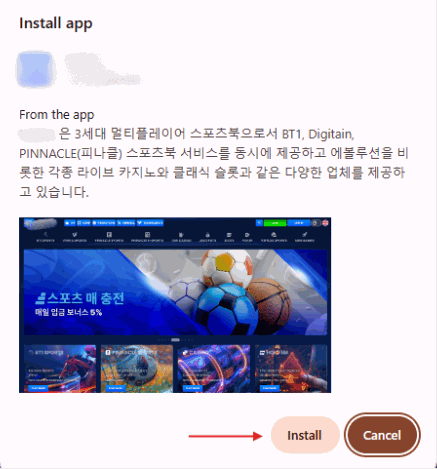
Players who wish to install the app on their device. Here’s a quick guide to installing the app on their devices.For Website (via Chrome)
Open Chrome on your device. Search for our app or visit our website. Click the “Download App” button on the page and click the download icon to the upper right corner. Wait for the app to download and install automatically.
For iOS Users
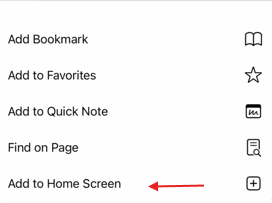
Open Safari: Use Safari (not other browsers) on your device. Visit the Website: Go to our app’s download page. Tap the Share Icon: Tap the up-arrow icon at the bottom of Safari. Add to Home Screen: Scroll and select “Add to Home Screen.” Confirm: Tap “Add” to place the shortcut on your home screen.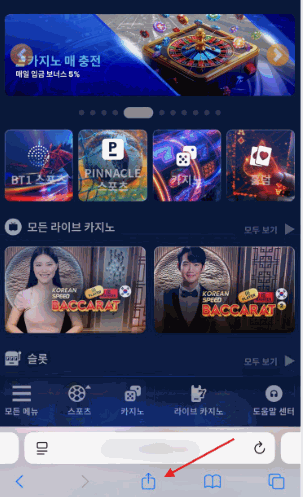
For Android Users (via Chrome)
Open Chrome: Launch the Chrome browser on your device. Visit the Website: Search for our app or go to our website. Download the App: Tap the three dots in the top-right corner, select Add to Home screen, then click the Install Application icon. Install: Once downloaded, the app will automatically install. Launch: Open the app from your home screen.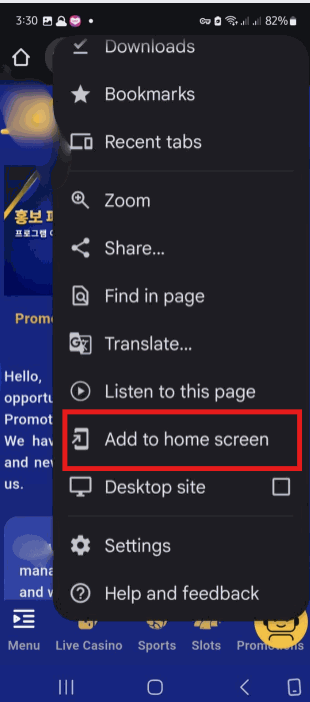
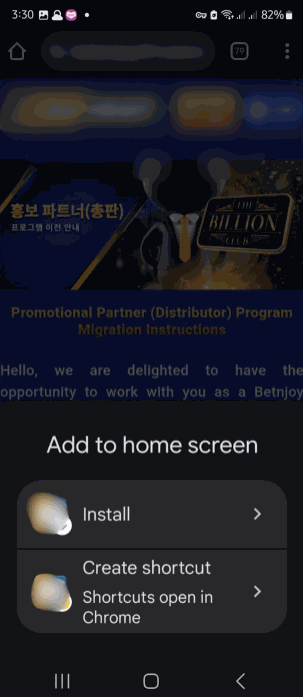
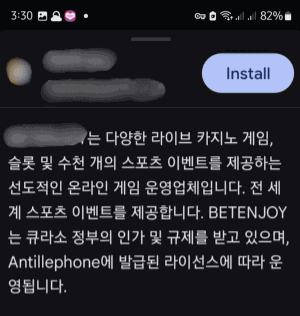 Korean version: 플레이어 기기에 앱을 설치하는 방법
Command Palette
Command Palette is a new Backoffice feature which allows the back office users to easily search for Player ID, Username, Mobile Number, Registration IP, BTAG, Bank Account Holder, Bank Account Number, Casino Bets, and Sports Bets. The search bar will be available across all back office pages. Quick search will be triggered when the search bar is clicked or when using CTRL + K for windows or CMD + K for mac.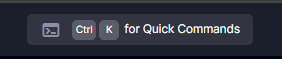 The command palette shall be closed after doing the shortcut keys “CTRL + K” twice.
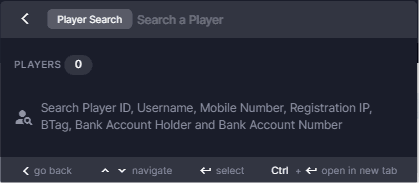
The Backoffice user will see the instructions on how to navigate it. Command Palette: / P (Players)
Display when command palette / P is typed. Available search criteria: Player ID, Username, Mobile Number, Registration IP, BTag, Bank Account Holder and Bank Account Number
 Single Search Result
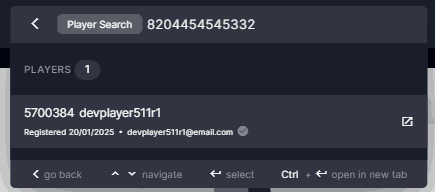 Single search result displays a Players header with a count badge. Each result is clickable to open Player Management details on the same page, showing Player ID and Username on the first row, and registration date (BO format), email, and verification badge on the second. An Open icon allows viewing the details in a new tab.
Multiple Search Result
Single search result displays a Players header with a count badge. Each result is clickable to open Player Management details on the same page, showing Player ID and Username on the first row, and registration date (BO format), email, and verification badge on the second. An Open icon allows viewing the details in a new tab.
Multiple Search Result
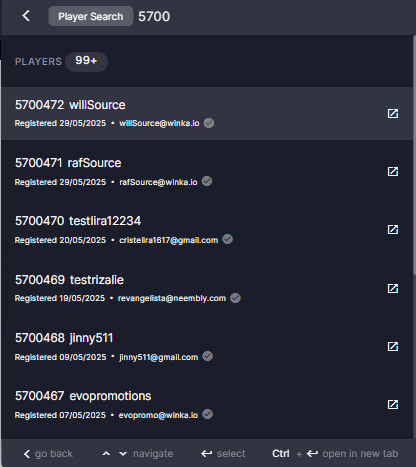 If the search result count exceeds 99, display a 99+ badge. Show a maximum of 10 rows with dynamic scrolling. A View All Results option is available to open the filtered results in the Player Management – Player section on the same page.
No Result
If the search result count exceeds 99, display a 99+ badge. Show a maximum of 10 rows with dynamic scrolling. A View All Results option is available to open the filtered results in the Player Management – Player section on the same page.
No Result
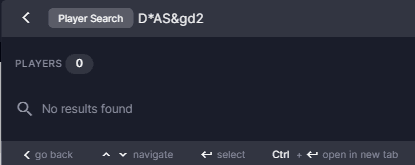 Non-clickable information text “No results found”
Command Palette: / B C (Casino Bets) | / B S ( Sports Bets )
Search Result Section: “/ B C to Search for Casino Bets and “ / B S ” to Search for Sports Bets
Non-clickable information text “No results found”
Command Palette: / B C (Casino Bets) | / B S ( Sports Bets )
Search Result Section: “/ B C to Search for Casino Bets and “ / B S ” to Search for Sports Bets
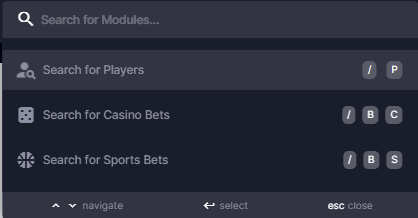
Quick Search opened and clicked
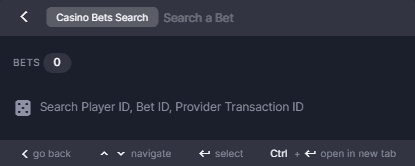 The feature is displayed when the command palette or / B C is typed. It includes a label titled “Casino Bets Search”, a search textbox with the placeholder “Search a Bet”, and supports search criteria such as Player ID, Bet ID, and Provider Transaction ID.
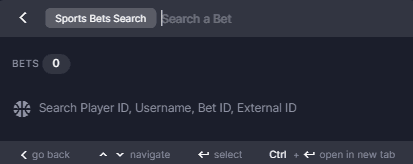 The feature appears when the command palette or / B S is typed. It displays a label titled “Sports Bets Search”, along with a search textbox featuring the placeholder “Search a Bet”. Supported search criteria include Player ID, Username, Bet ID, and External ID, with all values required to be exact for a successful search.
Search Result Section
Single Search Result
Bets Search Result shows a Bets header with a count badge. Each result is clickable, opening Casino or Sports Report details on the same page. The first row includes Player ID, Username (sports only), Provider, and a truncated Bet ID (first and last four digits, expandable on hover). The second row shows Status, Date (BO format), Bet (BO format), Currency, and Bonus Type, with real-time updates for Status, Date, and Bet. An Open icon allows viewing details in a new tab.
Multiple Search Result
If the search result count exceeds 99, a 99+ badge is displayed. A maximum of 10 rows is shown initially with dynamic scrolling. Selecting View More loads 10 additional scrollable results within the command palette.
The feature appears when the command palette or / B S is typed. It displays a label titled “Sports Bets Search”, along with a search textbox featuring the placeholder “Search a Bet”. Supported search criteria include Player ID, Username, Bet ID, and External ID, with all values required to be exact for a successful search.
Search Result Section
Single Search Result
Bets Search Result shows a Bets header with a count badge. Each result is clickable, opening Casino or Sports Report details on the same page. The first row includes Player ID, Username (sports only), Provider, and a truncated Bet ID (first and last four digits, expandable on hover). The second row shows Status, Date (BO format), Bet (BO format), Currency, and Bonus Type, with real-time updates for Status, Date, and Bet. An Open icon allows viewing details in a new tab.
Multiple Search Result
If the search result count exceeds 99, a 99+ badge is displayed. A maximum of 10 rows is shown initially with dynamic scrolling. Selecting View More loads 10 additional scrollable results within the command palette.
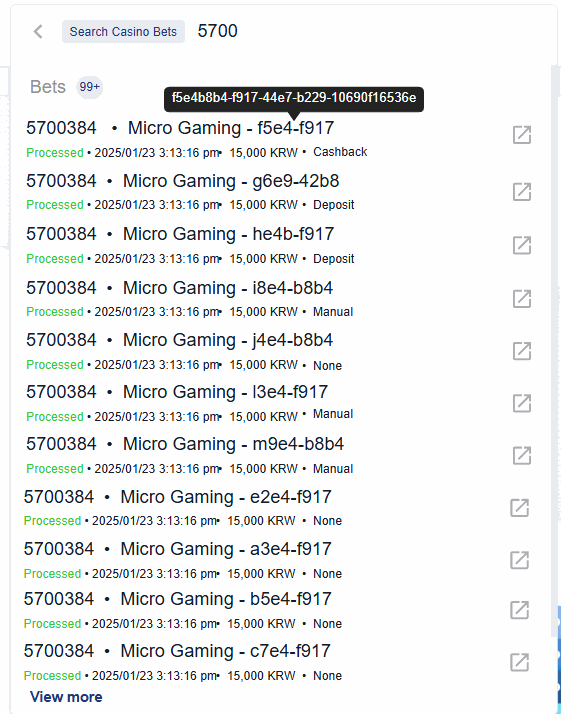
Search Casino Bet Result
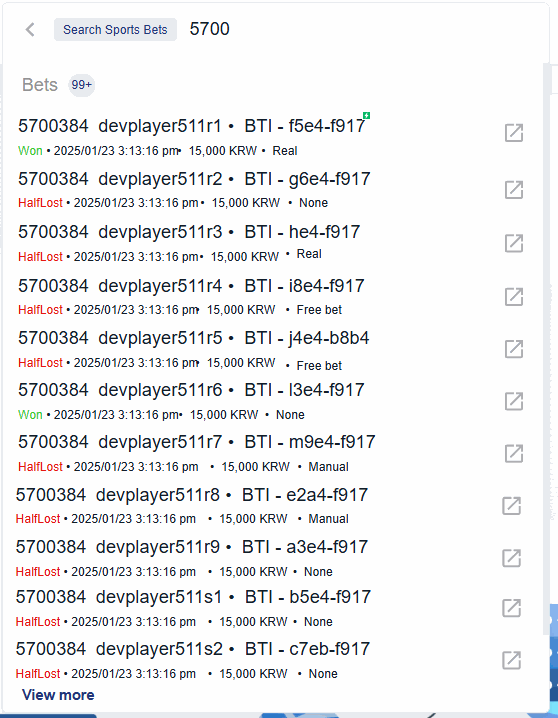
Search Sports Bet Result
Risk Management Notification and Auto Disable
I. Risk Management: Notification for Big Bets
A new feature that allows the operators to setup if they would like to be notified when substantial bets are placed and will help mitigate potential losses from suspected high-risk players. Once setup,- a sound notification will play for bets exceeding the set threshold for specific product types.
- it will display a
 notification for threshold-exceeding bets.
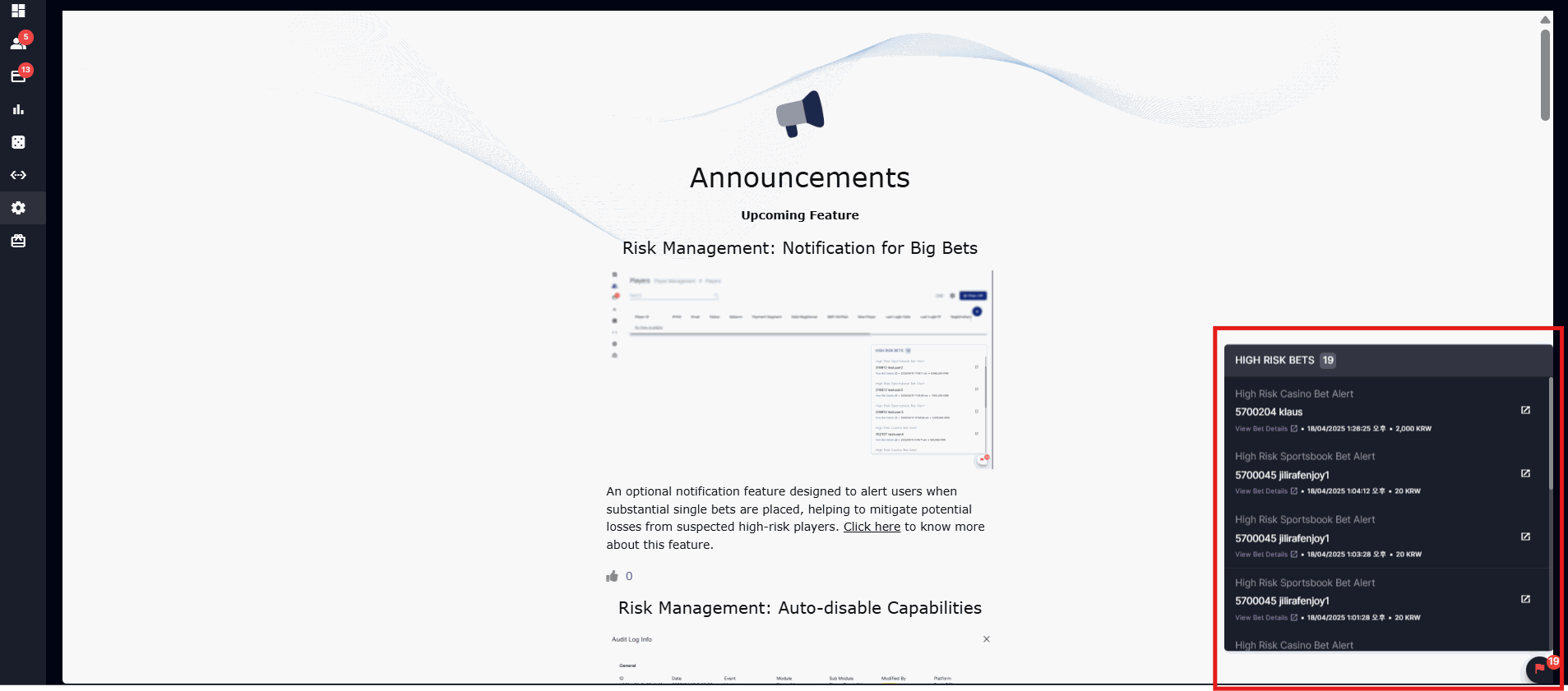 The operator may request to configure the settings of the minimum bet amount per product type (Sports/Casino).
- Minimum Bet Amount: Set the lowest bet amount that will trigger a notification to back office users when a player places a high bet (based on the operator’s currency).
- Bet Type: Choose if this is for Casino or Sports (Provide corresponding Minimum Bet Amount per Bet Type)
Note: For Casino, the minimum bet amount is logged based on settled bets. For Sports, it is logged based on open bets.
Notification flow
- When a casino bet is settled and the bet is higher than the configured bet amount threshold, the following actions will be triggered:
- A notification sound will play.
- A High Risk Casino Bet Alert BO snackbar (notification) will appear.
- A Player Note will be logged as High Risk Casino Bet Alert.
- When a sportsbook bet is placed (open status) and the bet is higher than the configured bet amount threshold, the following actions will be triggered:
- A notification sound will play.
- A High Risk Sportsbook Bet Alert BO snackbar (notification) will appear.
- A Player Note will be logged as High Risk Sportsbook Bet Alert.
- When the operator clicks on either ‘View Bet Details’ or ‘View Player Transactions’,
- The associated alert will be cleared.
- The bet details will appear for ‘‘View Bet Details’.
- The player transactions will appear from Player Management > Reports for ‘View Player Transactions’.
- A player Note is logged for the alert which includes the bet ID.
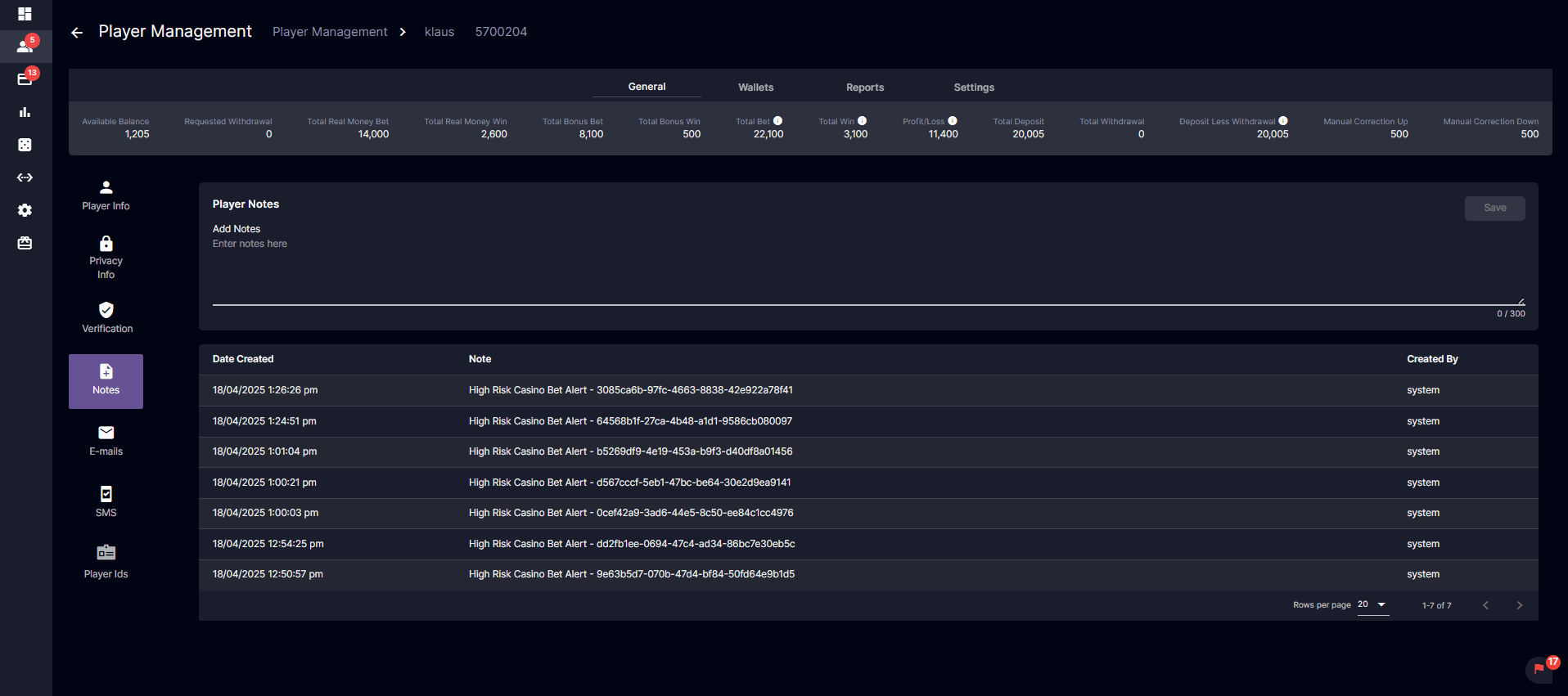
System triggered Player Notes
II. Risk Management: Auto Disable Player Capabilities
An optional feature allows the automatic disabling of a player’s capabilities if there are no betting activities within a configured timeframe following a deposit. This aims to reduce potential risks associated with high-risk players and prevent financial losses. The operator may request to configure the following:- Minimum Deposit Amount: Set the smallest deposit amount that will mark a player for the watchlist.
- Idle Time (in minutes): Set how long a player can stay inactive before their features are turned off.
Note: The idle time countdown begins as soon as the deposit request has been marked as Paid. - Bet Type: Choose if this is for Casino, Sports, or Both (Select only one)
Note: If “Both” is selected, a player can place bets on either Casino or Sports to avoid being included in the list of players whose capabilities will be disabled due to inactivity. - Disable Features: Pick which features to turn off when the player is inactive.
Note: Future updates will include additional feature options to disable.- Can Bet
- Can Withdraw
- Can Earn Sports Bonus
- Can Earn Casino Bonus
Auto disable capabilities flow
- When a deposit request is paid to a player and the amount paid reached the minimum threshold to trigger the auto-disabling of player capabilities, monitor user’s bet activity
-
If Idle based on Sports Bet Type is configured and the player has not placed a sportsbook bet during the configured period, the following actions will be triggered:
- Log a Player Note as High Risk Player Alert
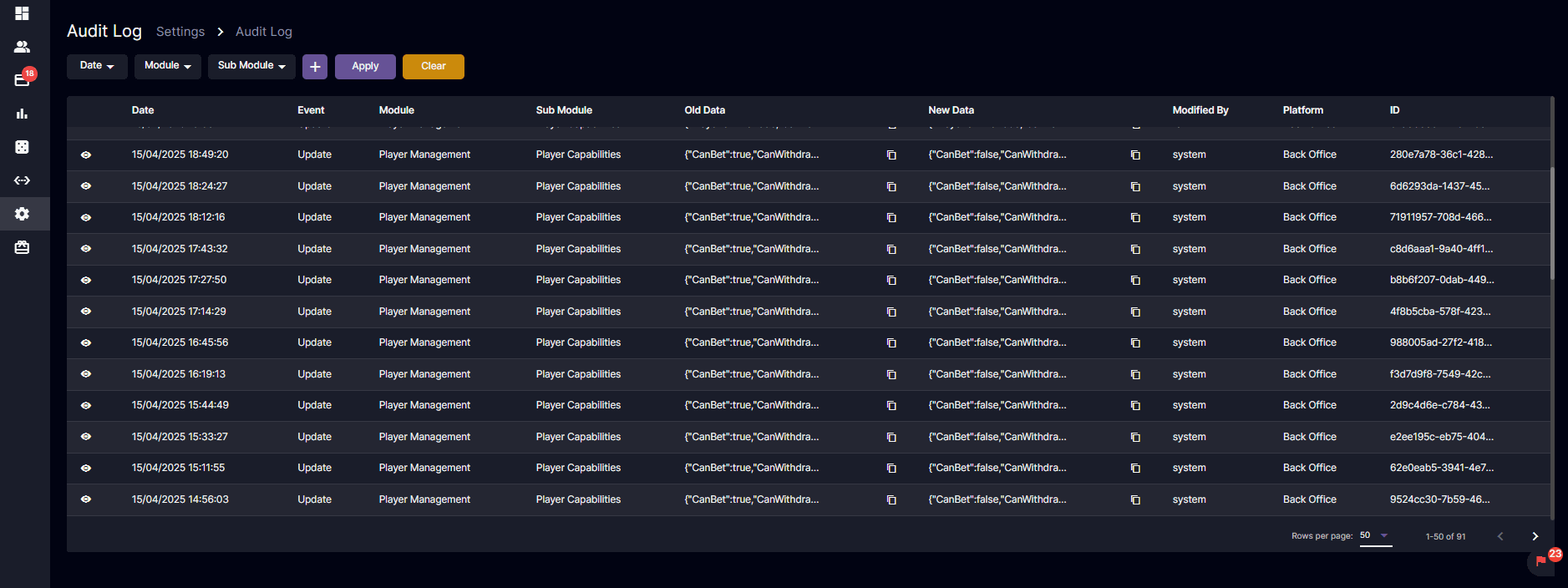
- Disable CanBet, CanWithdraw, CanEarnBonus Player Capabilities for the player
- Log Audit Log for Player Capability changes
-
If Idle based on Casino Bet Type is configured and the player has not placed a casino bet during the configured period, the following actions will be triggered:
- Log a Player Note as High Risk Player Alert
- Disable CanBet, CanWithdraw, CanEarnBonus Player Capabilities for the player
- Log Audit Log for Player Capability changes
-
If Idle based on Both Bet Types is configured and the player has not placed a casino or sportsbook bet during the configured period, the following actions will be triggered:
- Log a Player Note as High Risk Player Alert
- Disable CanBet, CanWithdraw, CanEarnBonus Player Capabilities for the player
- Log Audit Log for Player Capability changes
-
If Idle based on Sports Bet Type is configured and the player has not placed a sportsbook bet during the configured period, the following actions will be triggered: