Player Management - How to search for Player accounts
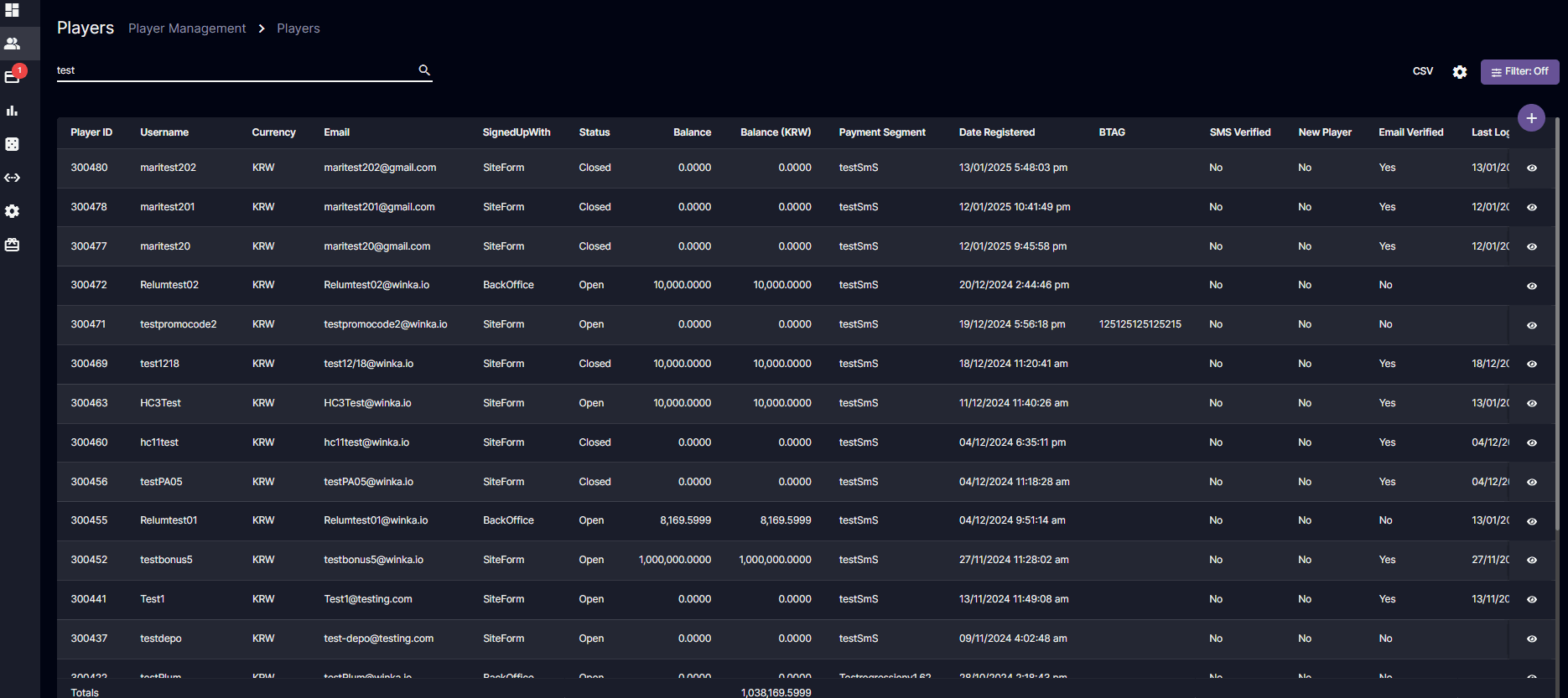
Player profiles_ which contain all information regarding a player and his account can be found in the Player Management section. Here is a short guide on how to search for a player profile:_- Under the Player Management section, you may use this function to find a specific or group of player.

- You may click on the magnifying icon without inputting anything in the search bar and this should show you all players in the database (or based on your filter)
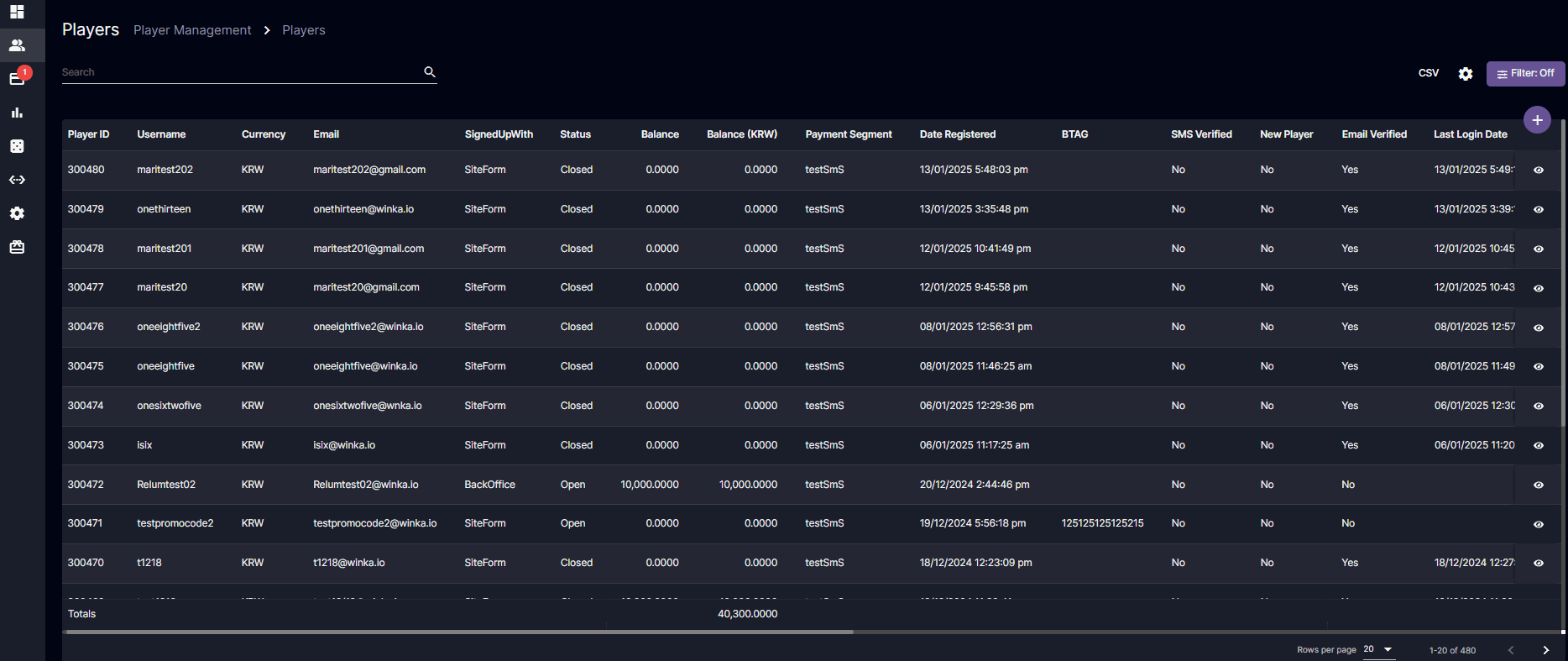
CSV button is added to generate csv file to filter Players record.
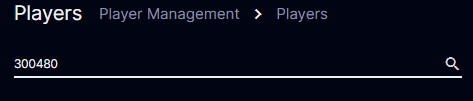
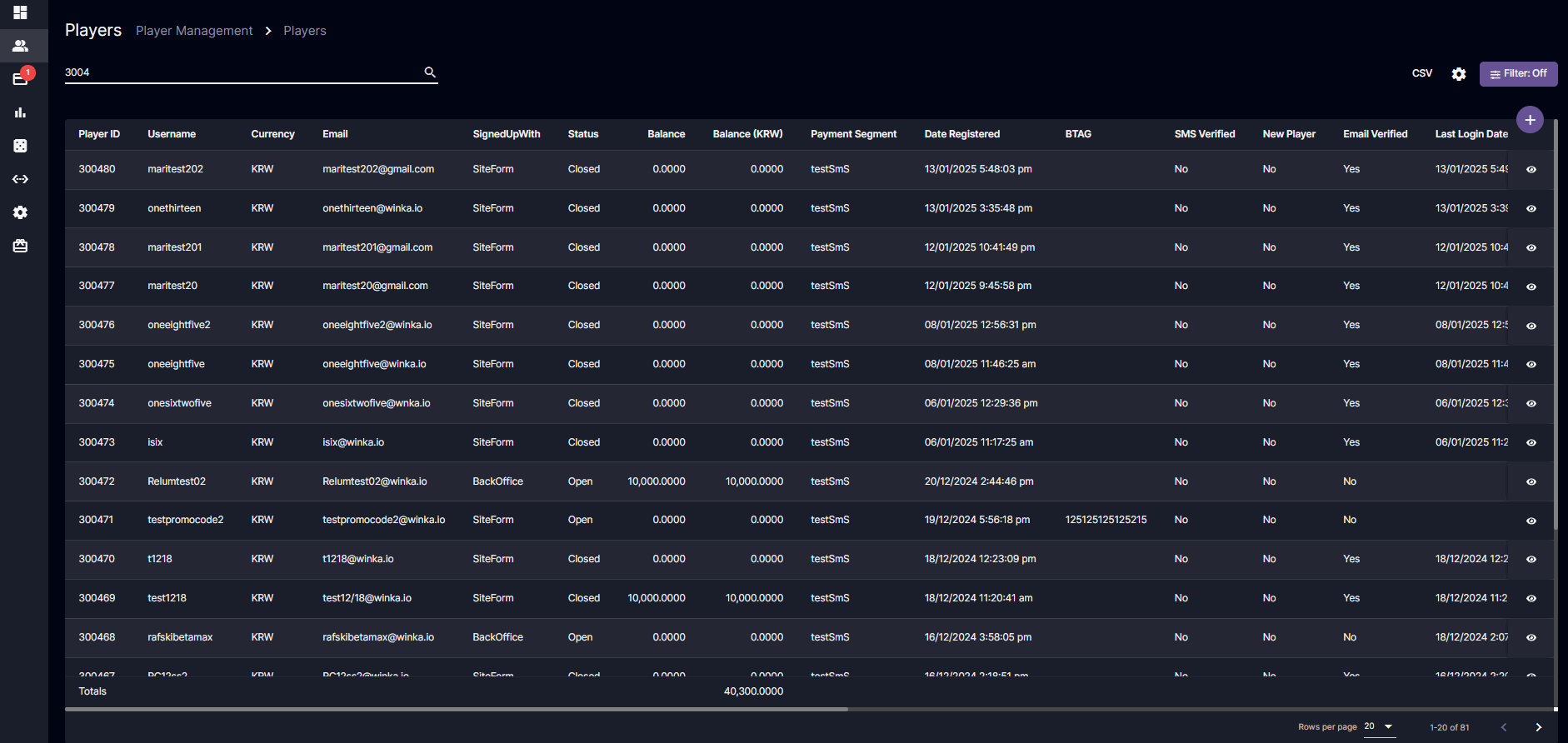
 3b. You may also type in an incomplete player ID so that all players with a match to that will appear such as:
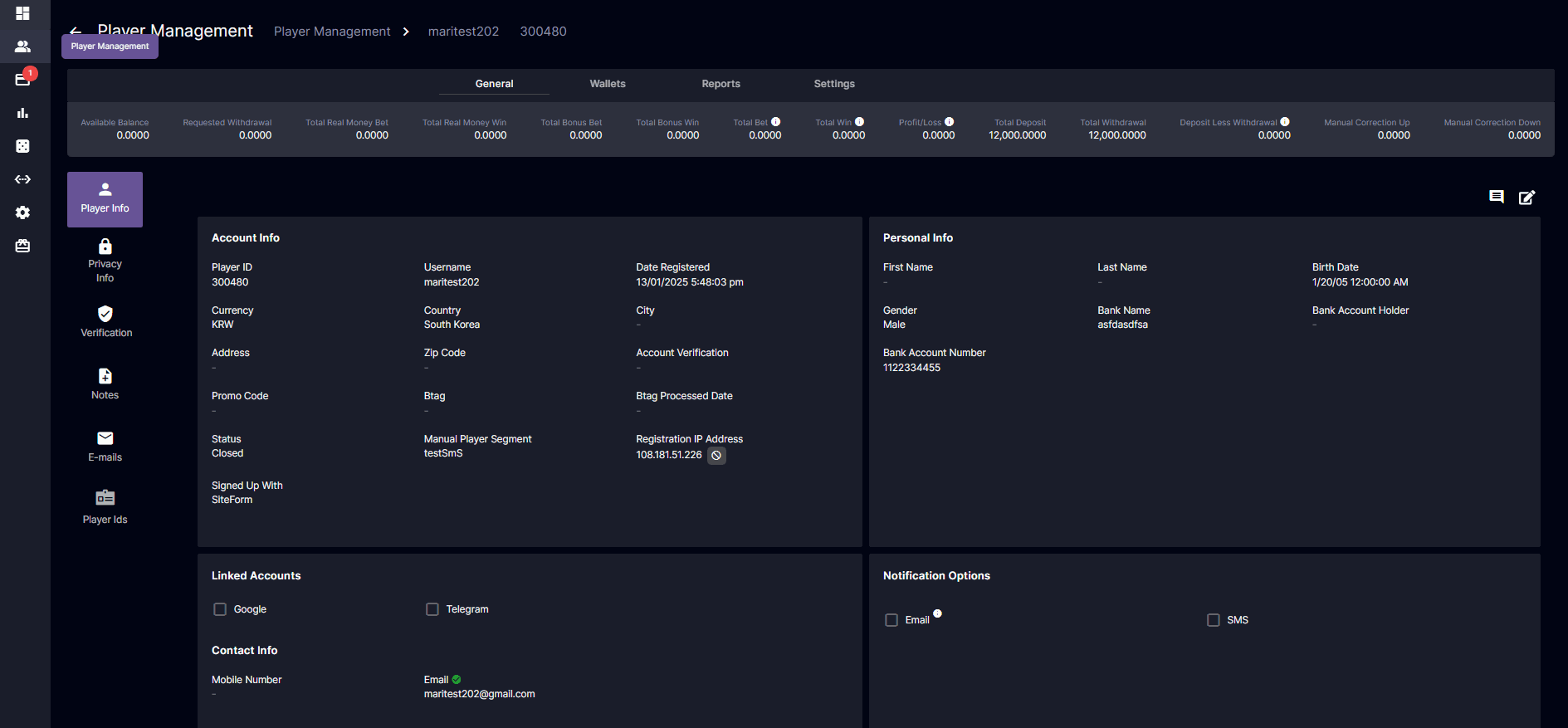
Tap the eye icon on the right to go to the player's profile, as shown above.
- The same thing will apply to searching for usernames, if you input an incomplete name it should show you all players that match with your input such as:
Player Management - How to reorder and select which Data you want to appear
The Backoffice supports several features that lets you, the user, arrange how you would like to see the data that is appearing on your screen. Since there are a lot of information and data that is being shown, you would properly would like to turn on/off some of these data or rearrange them to your liking. To do so, please follow these steps:- Under Player Management > Players, press the Gear icon
 on the upper right hand of the screen and this should open a settings tab that lets you choose which column you want to appear.
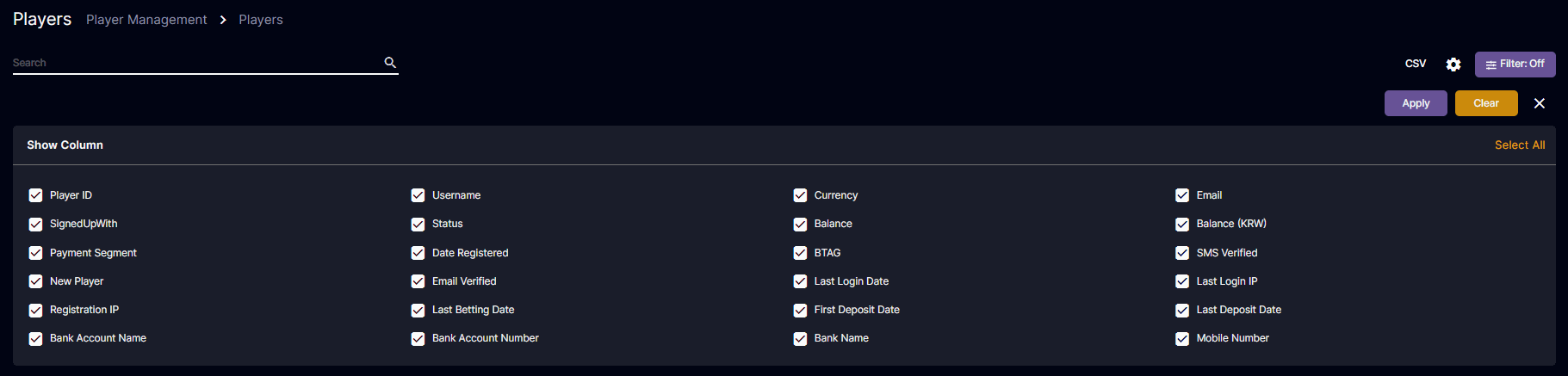
- Click on the checkboxes of the data that you would like to appear on your Player Management tab and then press Apply. Once done, it will show you the selected columns that you chose.
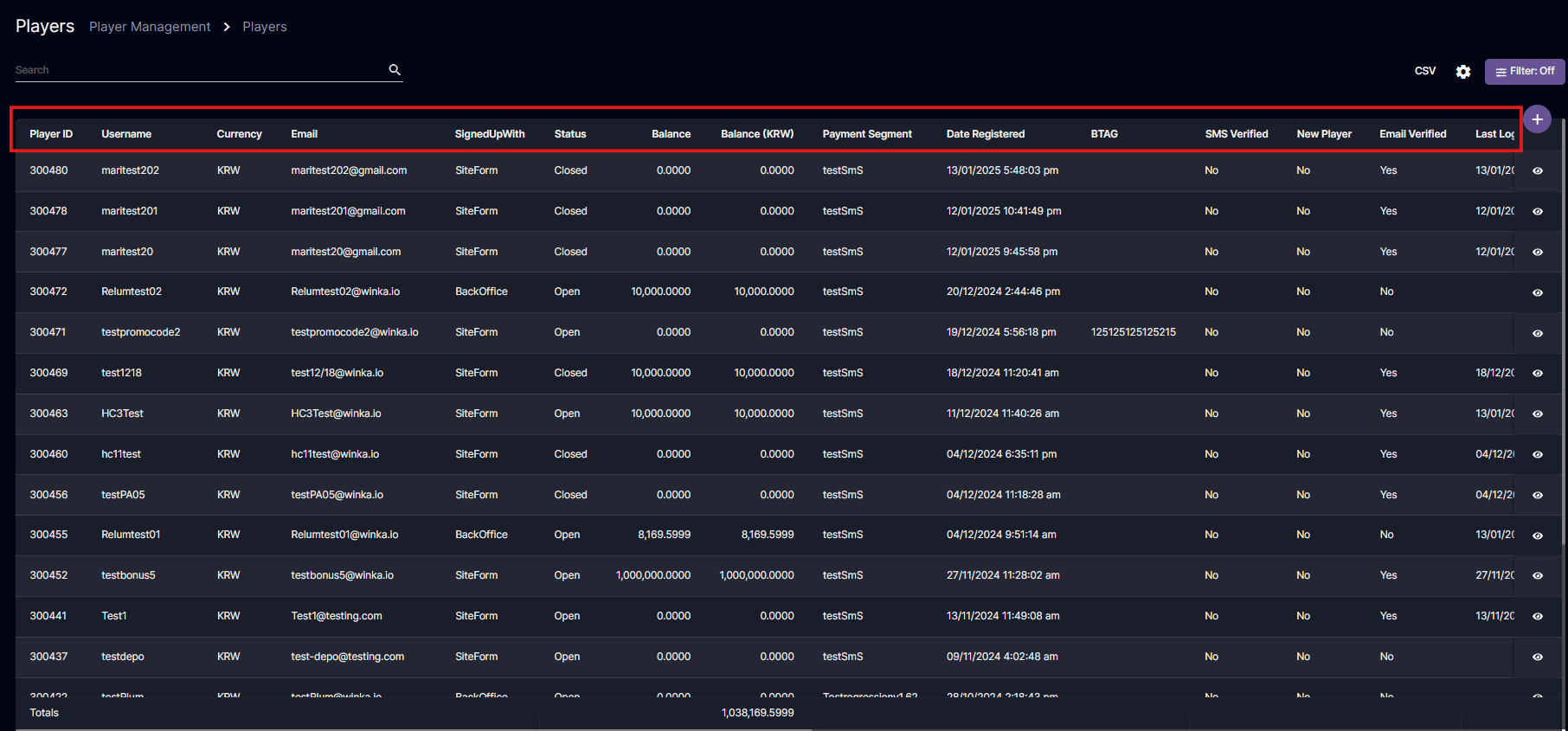
- To rearrange the order of how the columns are, just click on the header of the column you want to rearrange and then drag it to your desired order.
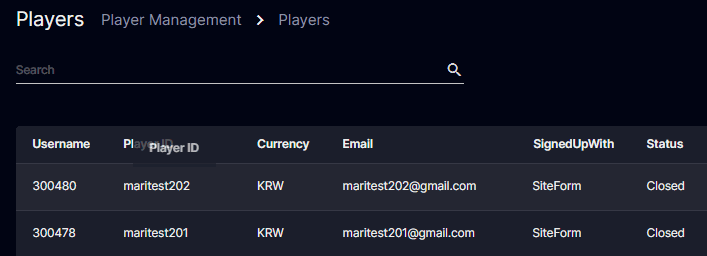
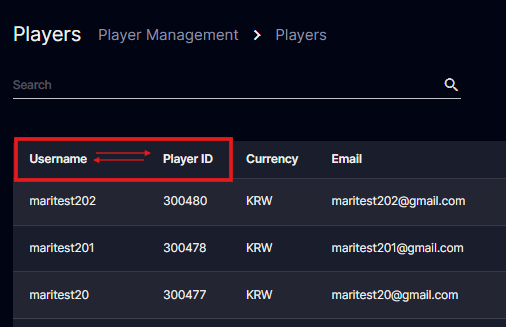
- Once done, the page will refresh and reflect the proper data in the column you adjusted it to.
Player Management - How to filter information and data
There are times when you would like to search for certain data according to a parameter of your choosing. Filtering what you see is also a supported feature of the Backoffice. Under Player Management press the Filter icon on the upper right hand of the screen. This should open a Filter menu that lets you choose which certain from a certain parameter of your choosing you would like to see:
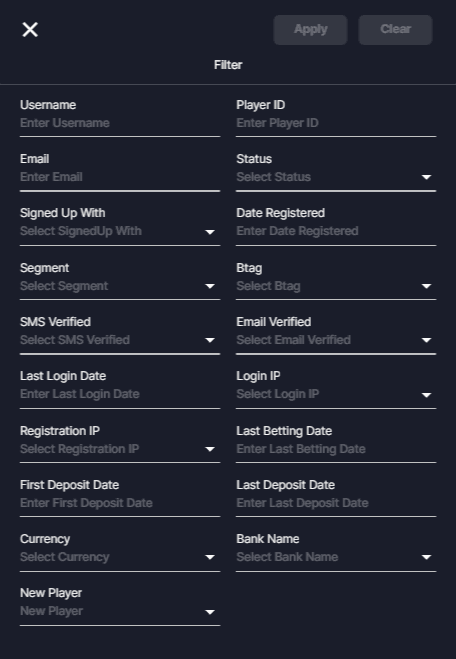
- These different options can let you sort data by:
- Dates
- Player Information such as name, email, IPs, etc.
- Classifications such as segments, Btags, Status, etc.
- Click on the dropdown, enter the date, or type in to set the filter and once done click on Apply to reflect your filter preferences.
Player Management - How to add new players manually
To manually add a player, go to Player Management then click the button.
Fill the fields below to proceed. The box is checked when account created is a test account.
button.
Fill the fields below to proceed. The box is checked when account created is a test account.
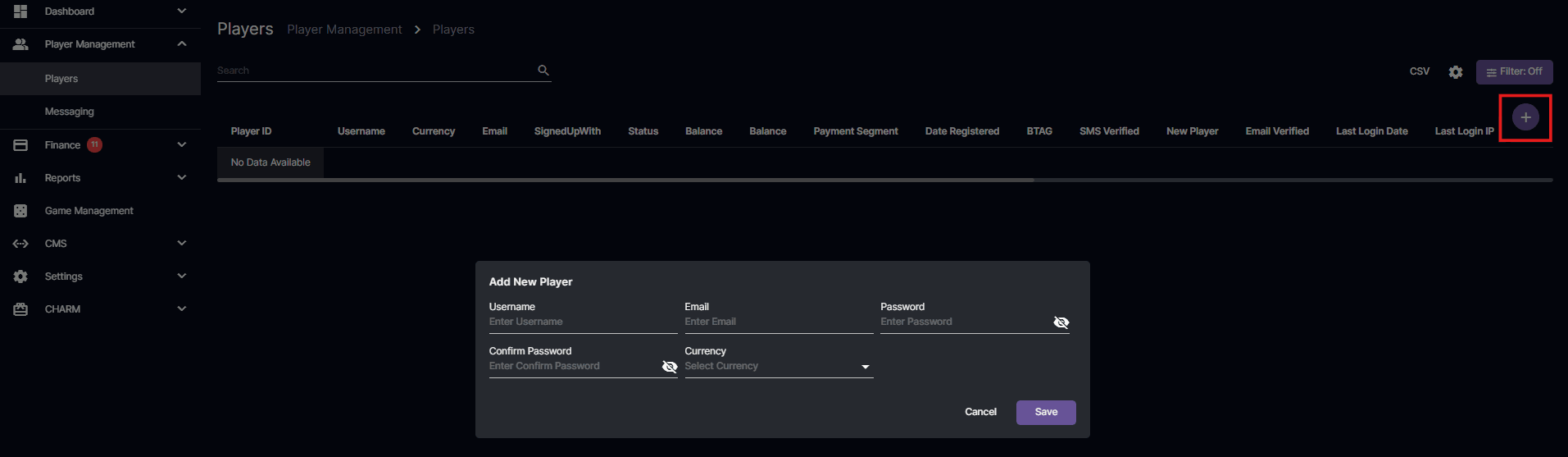 Once saved. The page will be redirected to the General screen of the player profile.
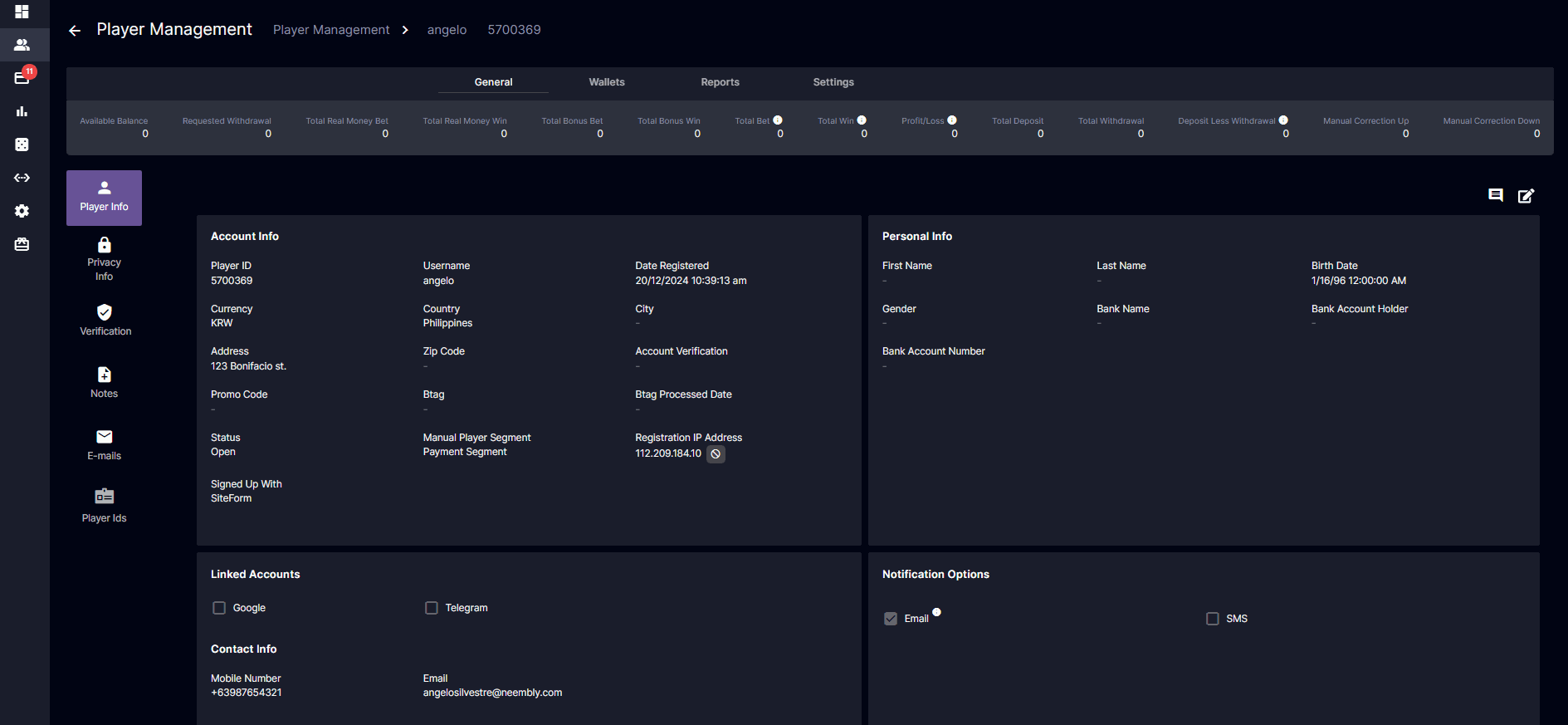 Other fields in the player’s profile can be edited by clicking the ‘edit’ button.
Player Management - Player Profile (General, Wallets, Reports, Settings)
The BackOffice lets you see and edit any information regarding a player under their profile. This includes their personal information, wallets and balances, their activities, and also lets you set certain restrictions on a player.- Under a player’s profile four major categories are included and these are:

- General - Information regarding the player is included here
- Wallets - Anything regarding player balances and monetary information are reflected here. You may also do balance adjustments and edit bonuses here
- Reports - Player activities are reflected here
- Settings - You may set player payment and spending limits here.
- A summary of player information will also be reflected under the categories:

These are usually some basic information that a back office user will often need to see and as such it is reflected there already for a quick glance by the user
 *For example: General Tab
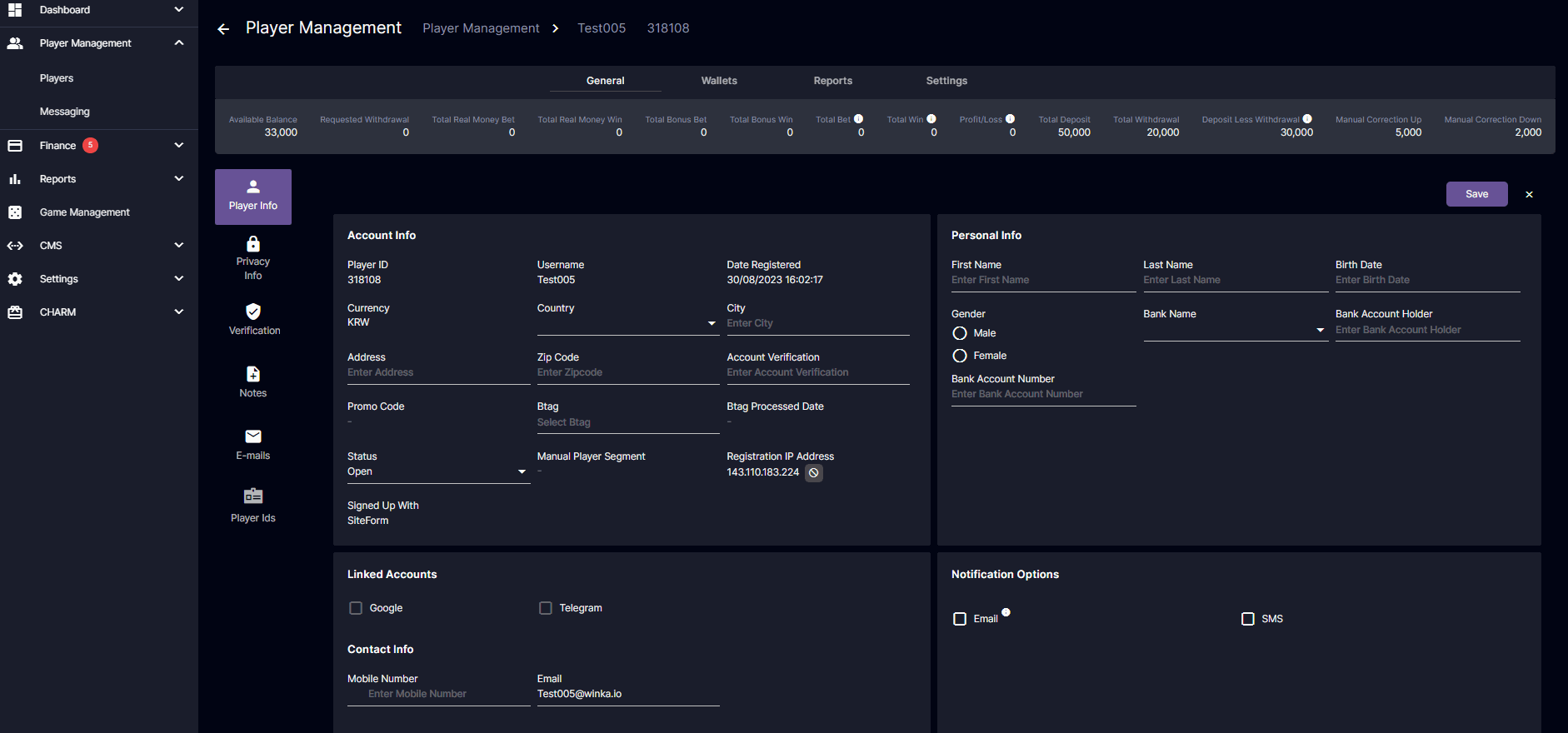 See linked article to know more about General Page and it’s features. Player Management - Player Profile (General)
Wallet
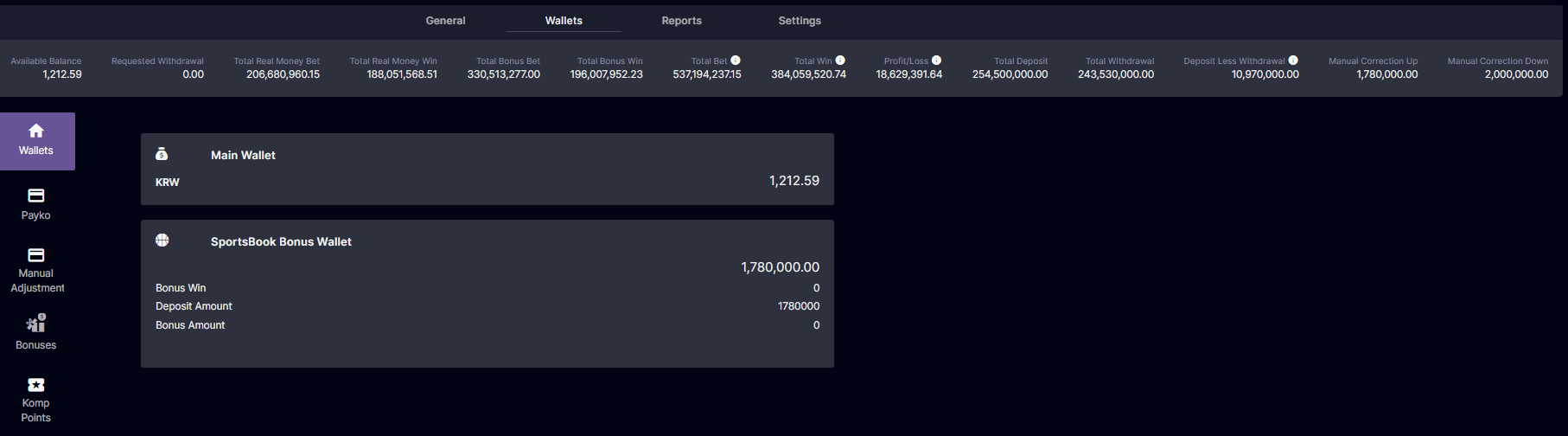
You can see the available balance of the player, manual adjustment section and the bonuses of the player.
See linked article to know more about General Page and it’s features. Player Management - Player Profile (General)
Wallet
You can see the available balance of the player, manual adjustment section and the bonuses of the player.
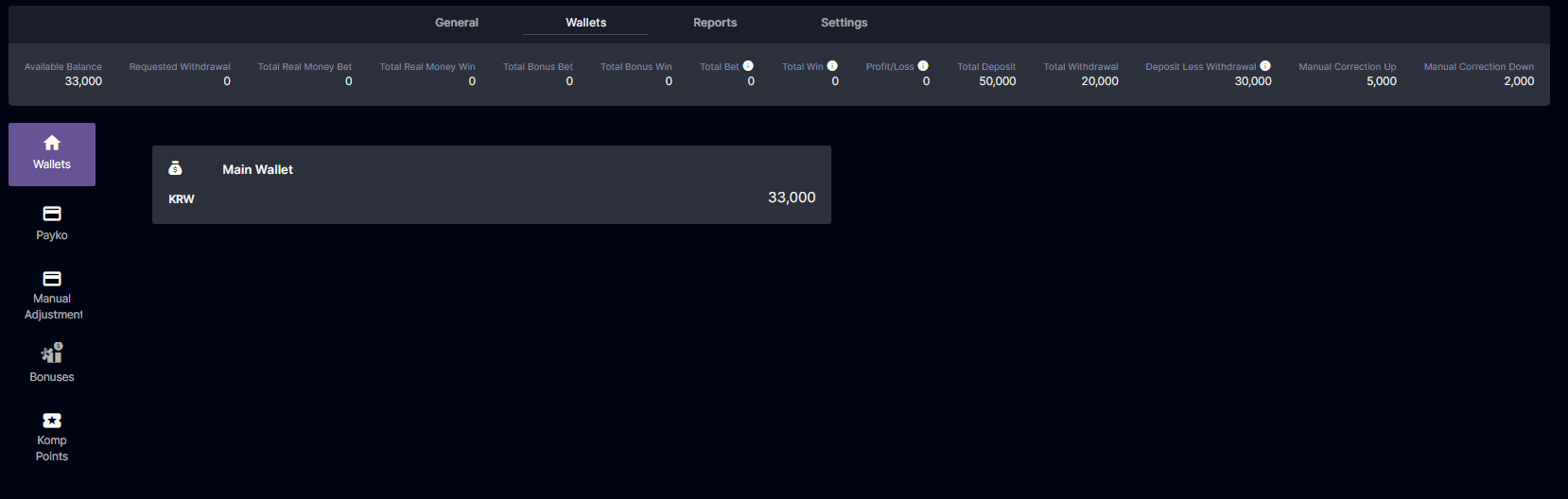 Player Management - Player Profile (Wallets)
Reports
All transactions made by the player will appear here.
Player Management - Player Profile (Wallets)
Reports
All transactions made by the player will appear here.
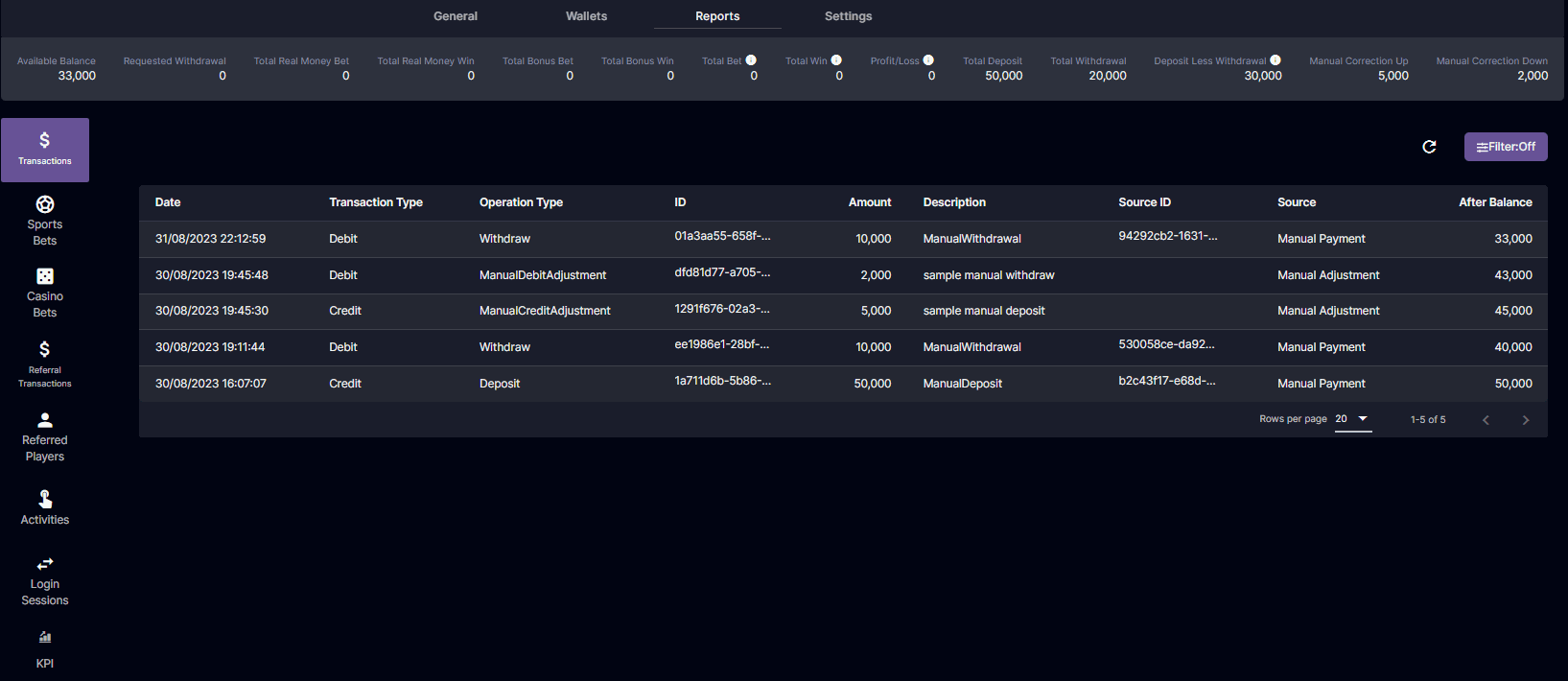
Please note that bonus transactions such as bets with bonuses will be viewed once you click the bonus ID and will redirect you the page where you can see all the bets made in the specific bonus ID.
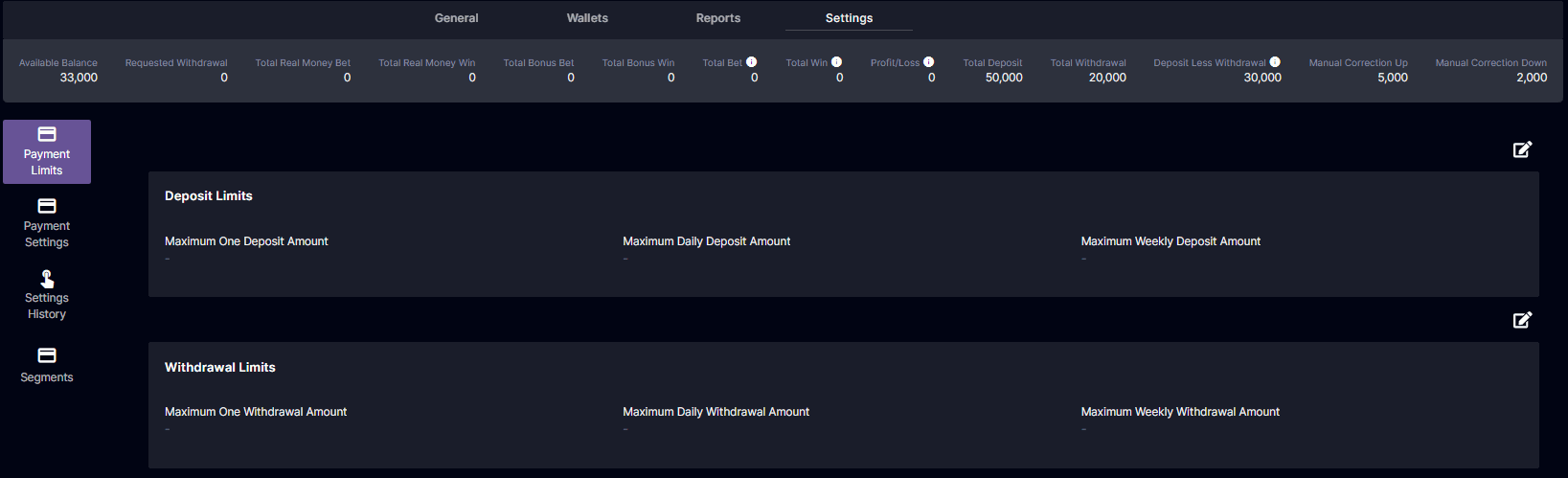 Player Management - Player Profile (Settings)
Player Management - Finance Summary [MultiCurrency]
Navigation: BO Player Management > <playerID> The summary of each user’s financial information under each player profile is added so that backoffice users can easily access each player’s financial information. This summary will display all amounts based on the operator’s base currency.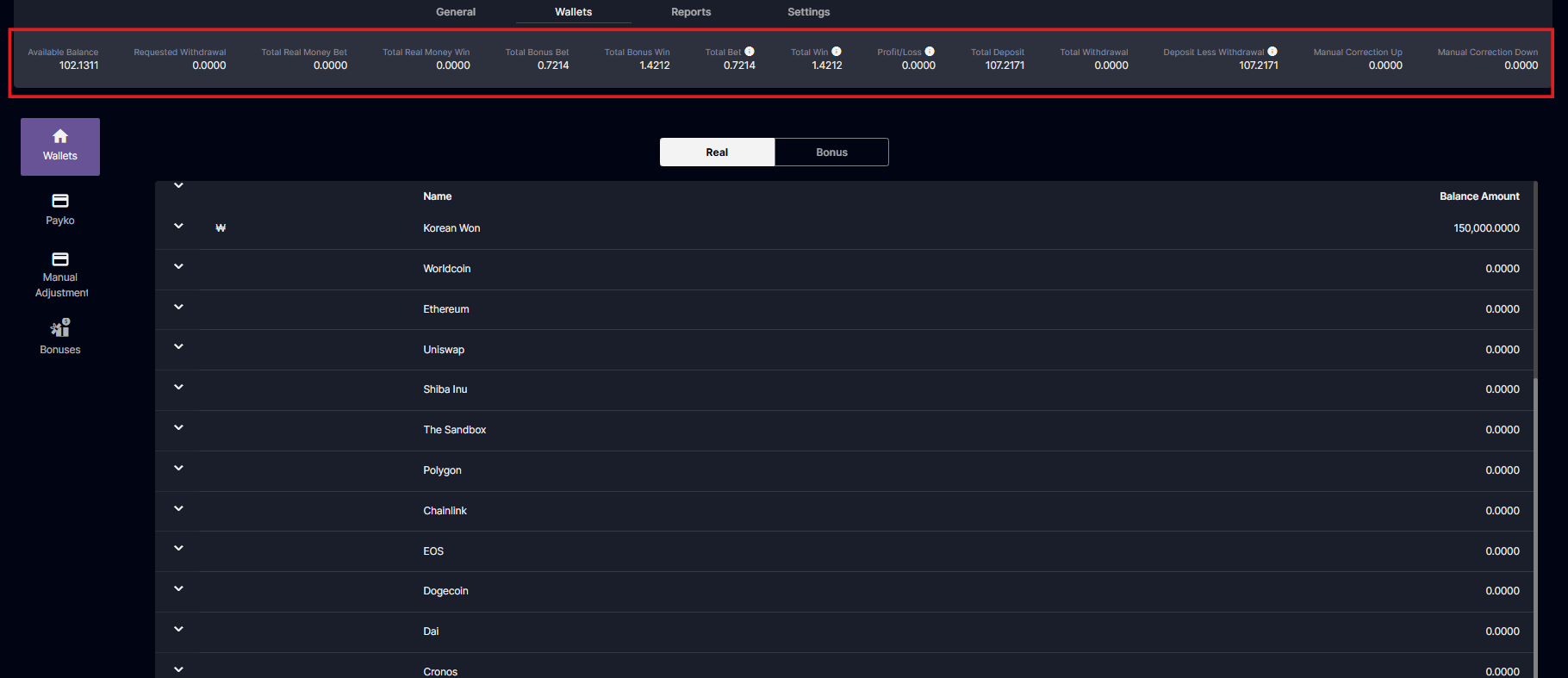
FX Rate basis
The FX rate basis for the Finance Summary modules can be classified into two (2) types:- Real-time: Uses the updated FX rate when a back-office user accesses the page.
- Transaction-based: Uses the FX rate at the time the transaction was initiated.
Player Management - Player Profile (General)
Under the General Tab, you may edit a player’s personal information anytime you choose to, edit their capabilities to bet, deposit, login, and/or withdraw, and/or leave notes regarding the player so that another user may see it.- Under a player’s profile, select the General Tab and choose one subtab that you would want to edit.
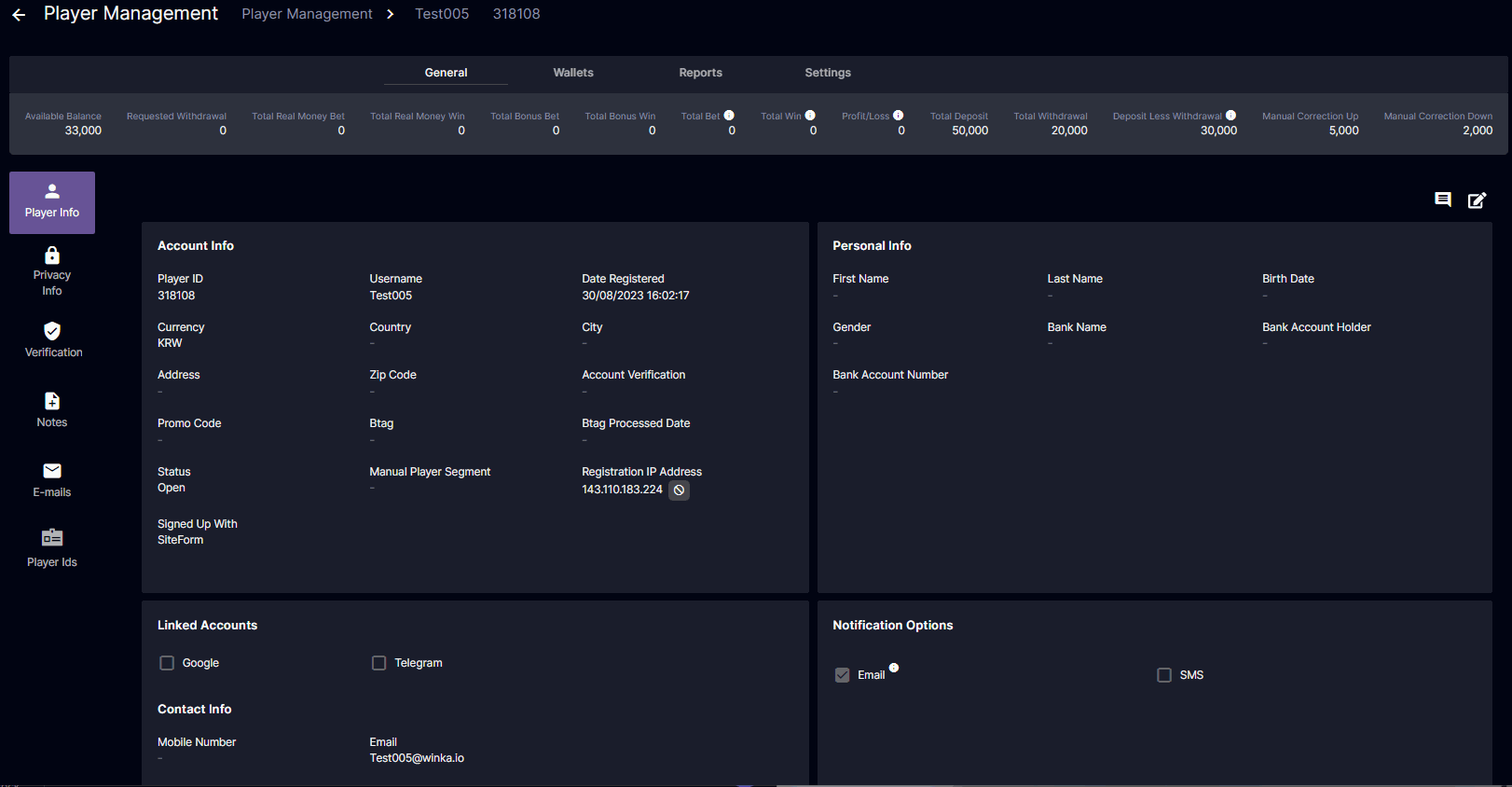 *This section lets you edit all personal, account, contact information and notification options. Just click on the pencil/pen icon
  to edit.
**Under notification options you may choose whether the player will get an email or SMS whenever he gets a notification
b. Privacy Information - You may edit player password here.
to edit.
**Under notification options you may choose whether the player will get an email or SMS whenever he gets a notification
b. Privacy Information - You may edit player password here.
 *Click on the pencil/pen icon
  to edit.
c. Verification - You may edit player’s capability to do particular actions here.
to edit.
c. Verification - You may edit player’s capability to do particular actions here.
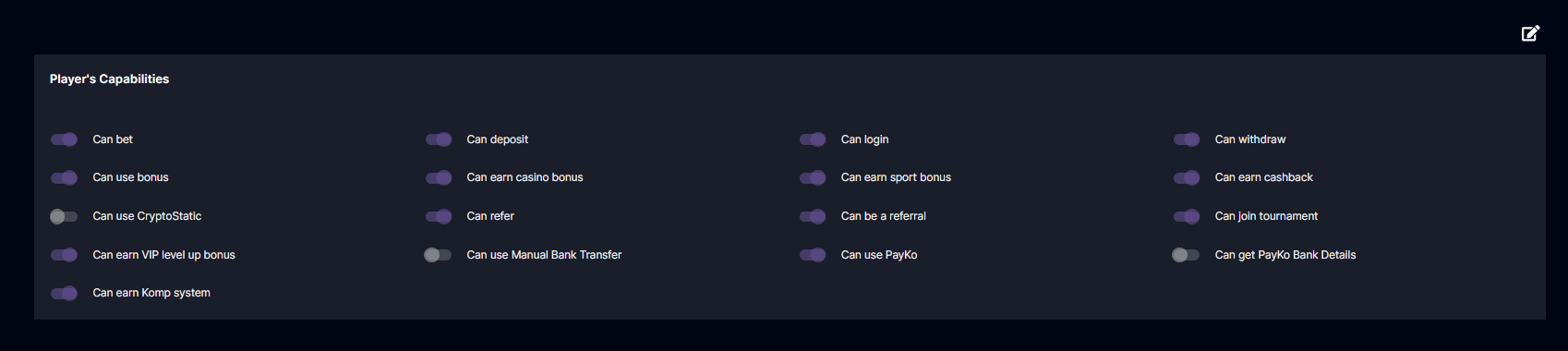
Can earn casino bonus and can earn sports bonus were added which will enable/disable a player from being assigned a casino/sports bonus to all bonus types.
 to edit. Flip the switch to turn it on/off, if it has color it means its on and gray if its off. Hit save after.
*If ‘Can use bonus’ is off, bonus will be assigned but player is unable to claim and use it. If ‘Can earn cashback’ is off, cashback will not be assigned and player will not receive cashback.
More details here: Player Verification Setttings
d. Notes - This section serves as a place where different backoffice users can leave notes regarding the player here. There are certain information that a backoffice user might want to note regarding a player. All notes can be seen by other back office users.
to edit. Flip the switch to turn it on/off, if it has color it means its on and gray if its off. Hit save after.
*If ‘Can use bonus’ is off, bonus will be assigned but player is unable to claim and use it. If ‘Can earn cashback’ is off, cashback will not be assigned and player will not receive cashback.
More details here: Player Verification Setttings
d. Notes - This section serves as a place where different backoffice users can leave notes regarding the player here. There are certain information that a backoffice user might want to note regarding a player. All notes can be seen by other back office users.
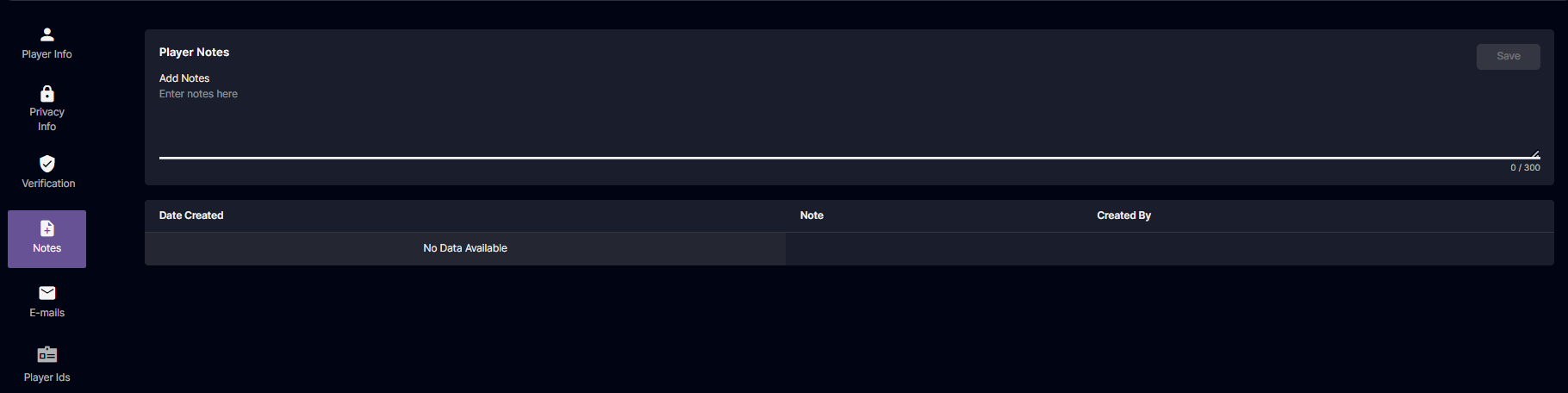 *Fill the note you want in the add notes and hit save, it will be added to the notes saved below it.
*You may also move the columns according to your preferences.
*It will reflect when the noted was made and who left the note there.
e. E-mails - This section shows you all emails to a player and its status if it has been sent or not.
*Fill the note you want in the add notes and hit save, it will be added to the notes saved below it.
*You may also move the columns according to your preferences.
*It will reflect when the noted was made and who left the note there.
e. E-mails - This section shows you all emails to a player and its status if it has been sent or not.
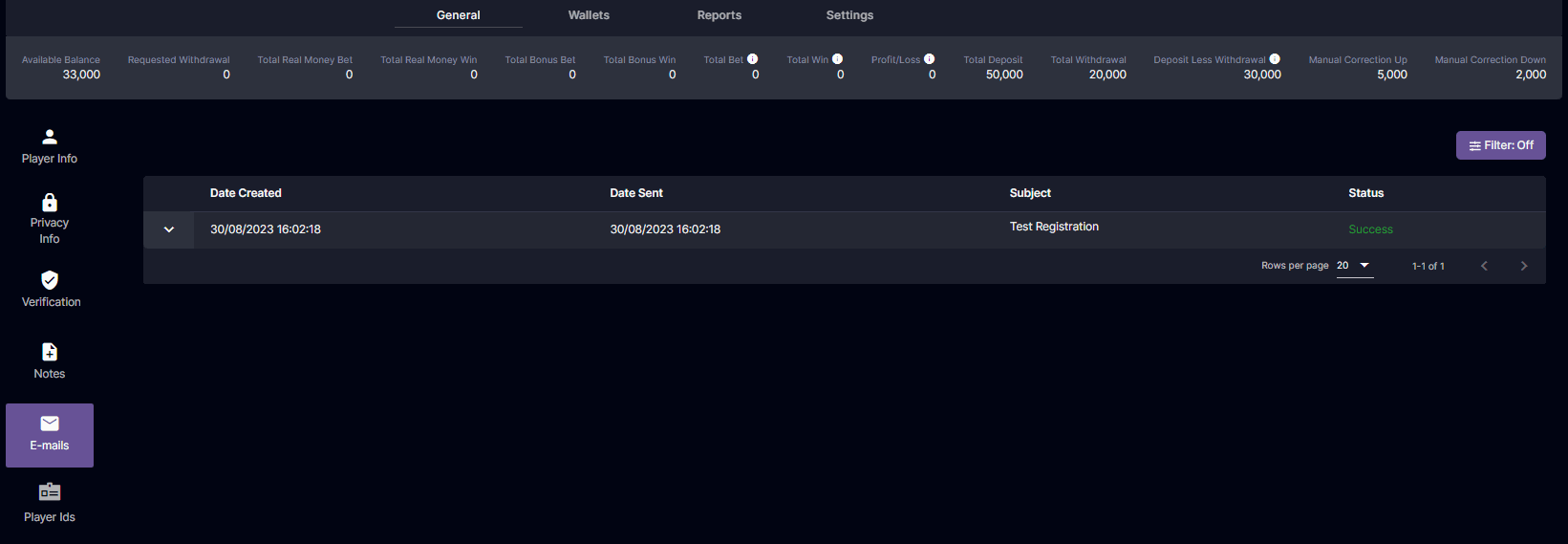 *You may also move the columns according to your preferences.
f. Player Ids
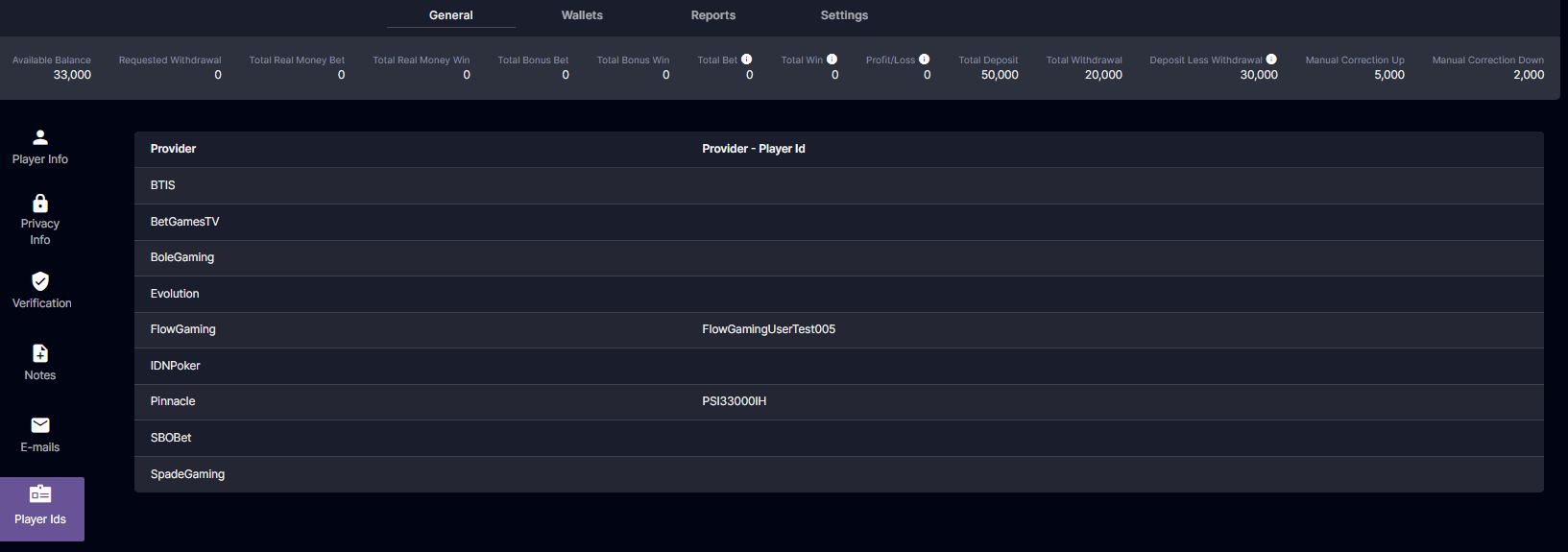
Provider player ID of the player can be found in this page. It will be generated once provider is accessed. The provider ID generated are used when accessing the provider back office to search a player’s account or what we give to the provider if in any case we need assistance to a player’s inquiry.
*You may also move the columns according to your preferences.
f. Player Ids
Provider player ID of the player can be found in this page. It will be generated once provider is accessed. The provider ID generated are used when accessing the provider back office to search a player’s account or what we give to the provider if in any case we need assistance to a player’s inquiry.
 Overview for Player Management:Player Management - Player Profile (General, Wallets, Reports, Settings)
Player Wallets, Manual Adjustment, and Bonuses? Check Player Management - Player Profile (Wallets)
See all player transactions, activities, and sessions, visit Player Management - Player Profile (Reports)
Overview for Player Management:Player Management - Player Profile (General, Wallets, Reports, Settings)
Player Wallets, Manual Adjustment, and Bonuses? Check Player Management - Player Profile (Wallets)
See all player transactions, activities, and sessions, visit Player Management - Player Profile (Reports)
Player Verification Settings
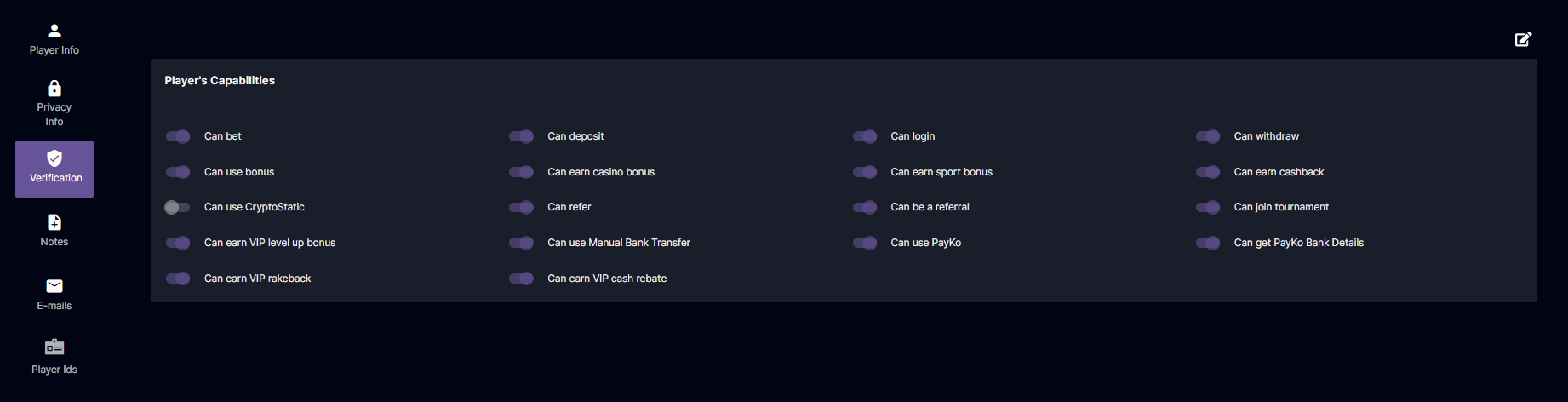
The back office user has the control to enable/disable a player’s capabilities in accessing and using features. To navigate, go to Player Management > input the player (ID/username) > in General, click Verification. Click the pen icon to start editing.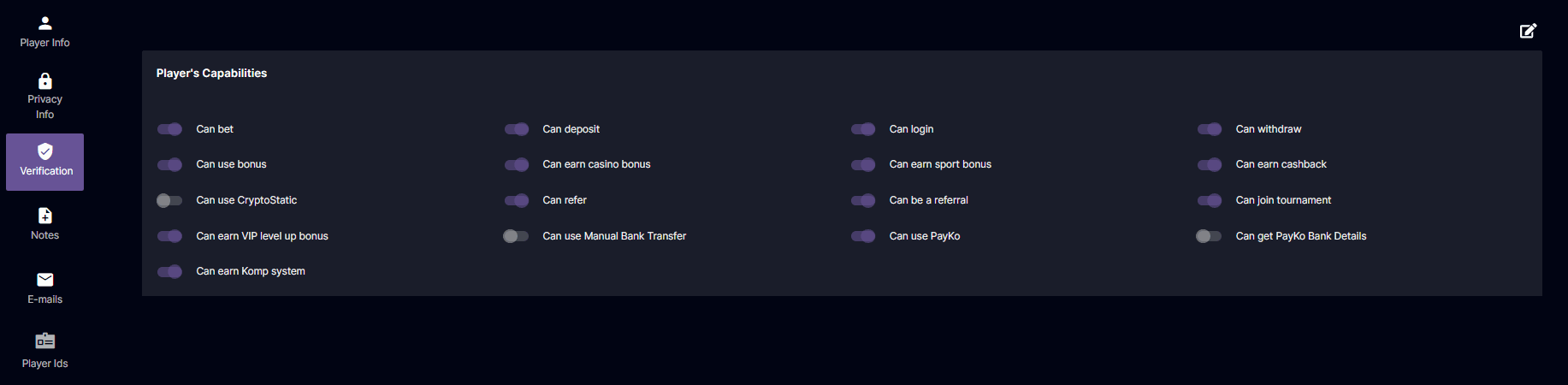
Singlecurrency
Multicurrency
- Can bet - player cannot bet
- Can deposit - player cannot deposit
- Can login - player cannot login
- Can withdraw - player cannot withdraw
- Can use bonus - player will still be assigned with bonus but unable to claim and use bonus
- Can earn cashback - player cannot be assigned/earn cashback
- Can use cryptoStatic - cannot use cryptoStatic
- Can refer - cannot refer
- Can be a referral - cannot be a referral
- Can join tournament - cannot join tournament games
- Can earn VIP level up bonus - player cannot earn VIP level up bonus
- Can Use Manual Bank Transfer - the player cannot use it. As a result, Manual Bank Transfer should not be an option for making Deposit and Withdrawal requests.
- Can Use PayKo - cannot deposit/withdraw using payKo. if PayKo is toggled off, it should not be shown as an option for deposits and withdrawals.
- Can get PayKo Bank Details - If the toggle is off, the player cannot personally get the PayKo virtual bank account details. In such cases, the player must contact our Customer Support to obtain the account details.
- Can earn Komp System - player will not receive komp points
- Can earn VIP rakeback - player cannot earn VIP rakeback
- Can earn VIP cash rebate - player cannot earn VIP cash rebate
- Can earn casino bonus - if toggled off will disable a player from being assigned a casino bonus to all bonus types.
- Can earn sports bonus - if toggled off will disable a player from being assigned a sports bonus to all bonus types.
Player Management - How to send a notification/message to a Player
Under General in the Player’s profile, there is an option that lets you communicate with that particular player. This can be seen here:
- Click on the messaging icon
 in the right side of the Player Info sub tab.
 - Enter your message in the Pop-up that appears.
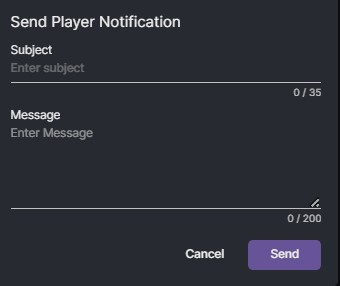
- After hitting send, a message will pop-up for the player in Player Portal under his notifications tab.
 *The player needs to click the bell icon and this should bring him to his notifications page and the message will be reflected there. In this case, I said Hello which was reflected in Player Portal.
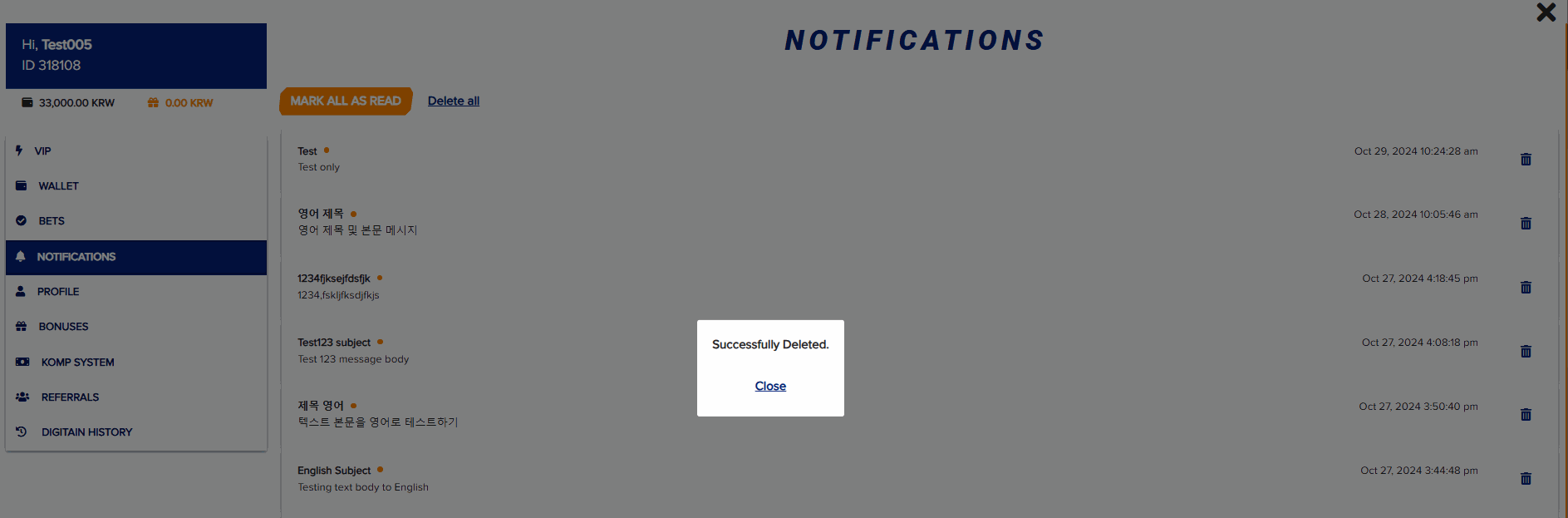
The player has an option to delete a message, mark all as read, and delete all.
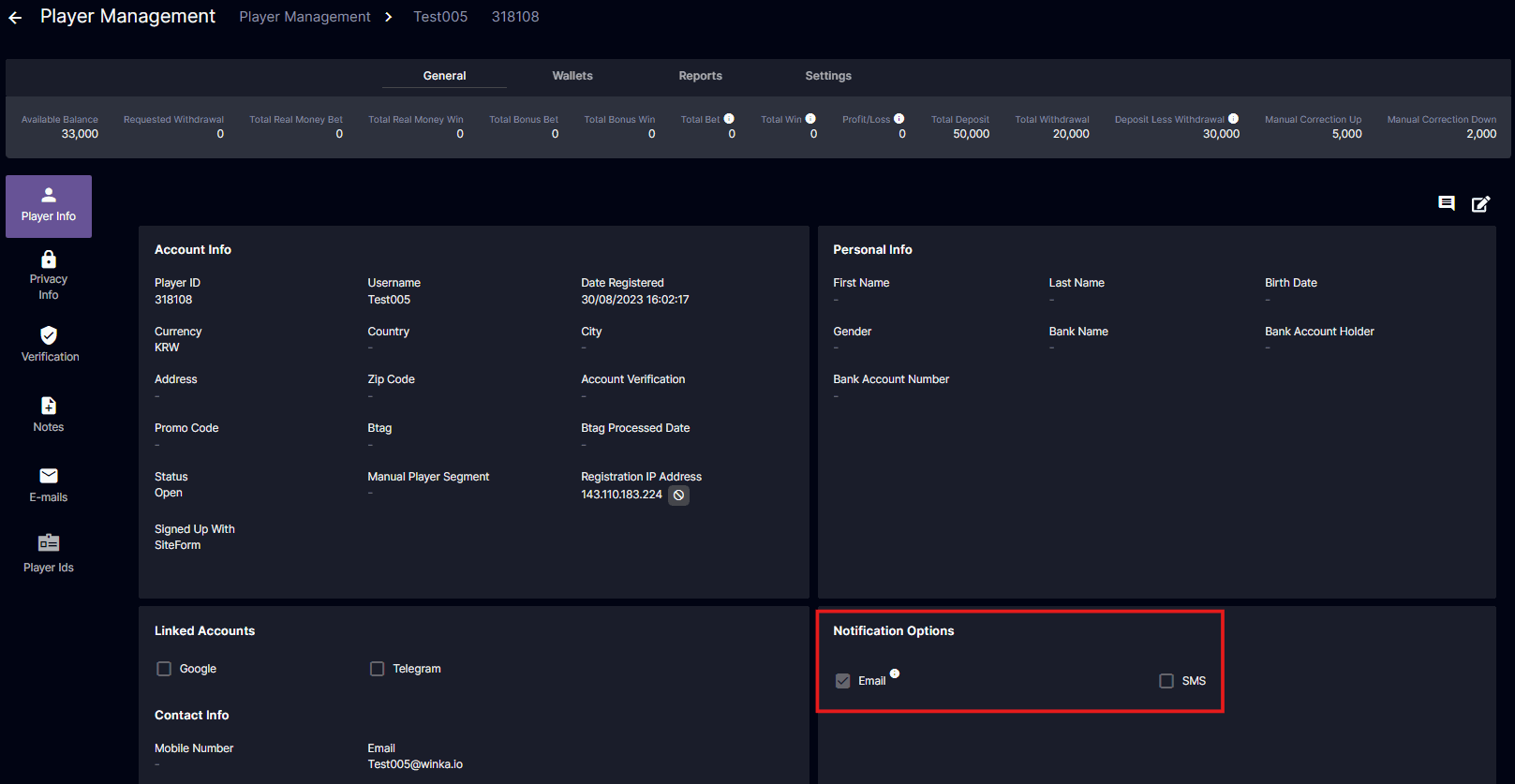
- Depending on the Notification options set under the Player’s Profile in Player Management, your message will also be sent via email and/or SMS:
Player Management - Player Profile (Wallets)
In Wallets, you can see the player’s available balance, bonuses, and do manual adjustments.- Wallets
- PayKo
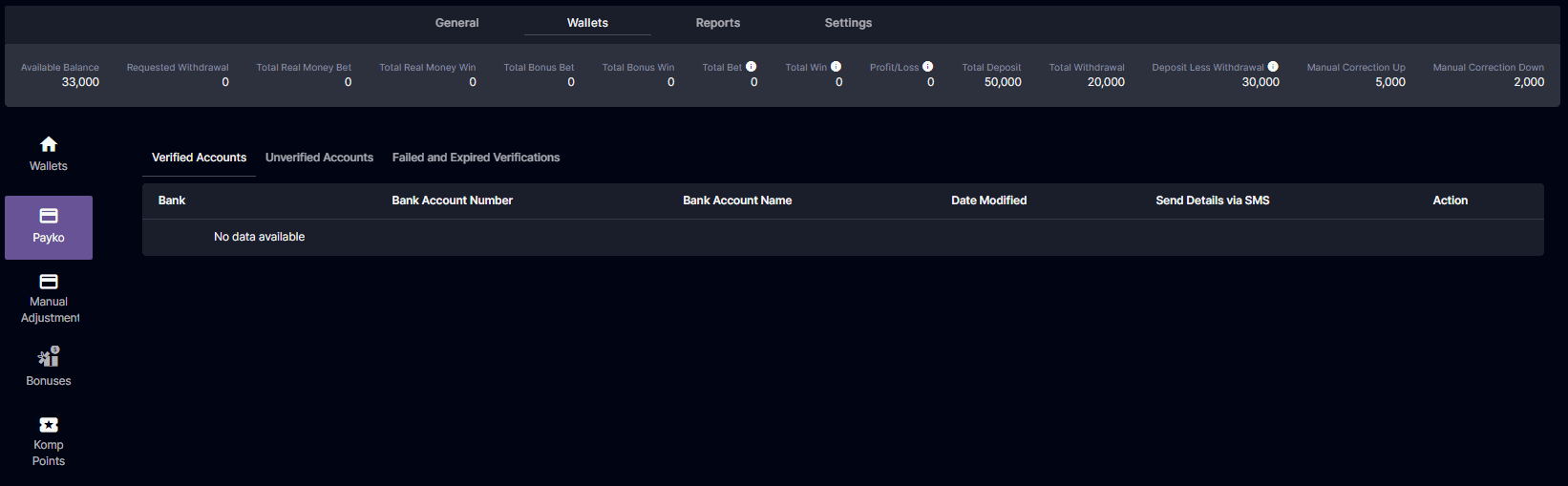 You may visit this document for more details: PayKo Improvements (BO)
- Manual Adjustment
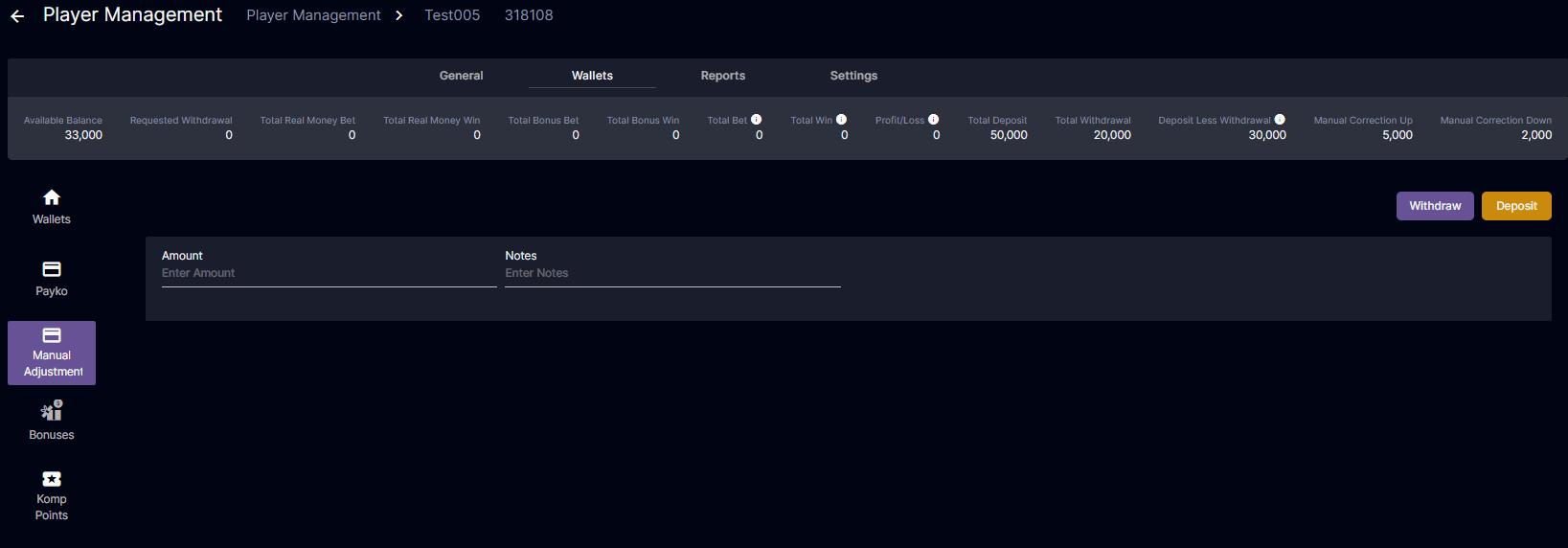
 Click on withdraw to subtract or deposit to add to the balance.
 A confirmation window containing the transaction will pop out.
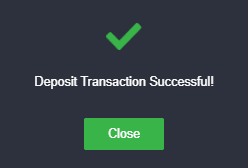
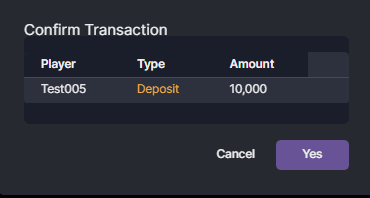 A prompt regarding the action will pop out as well. The balance will have adjusted already.
- Bonuses
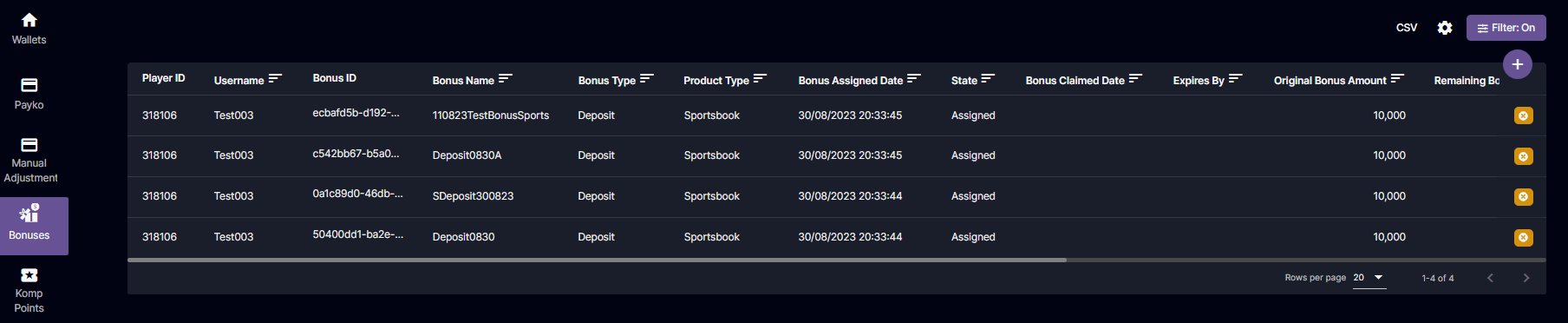
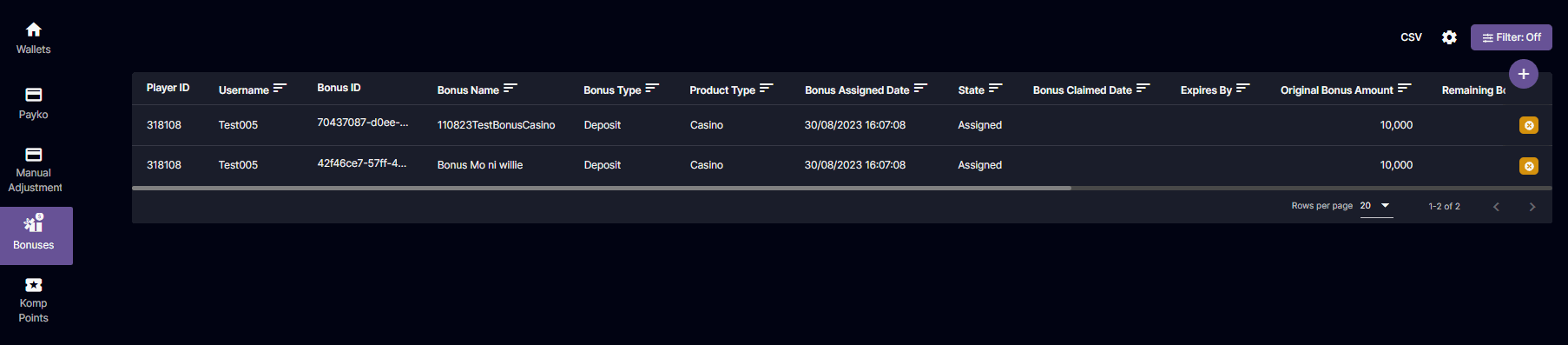 The yellow icon is an indication the the bonus is Assigned and can be can be cancelled by the backoffice user. Guide to Bonuses
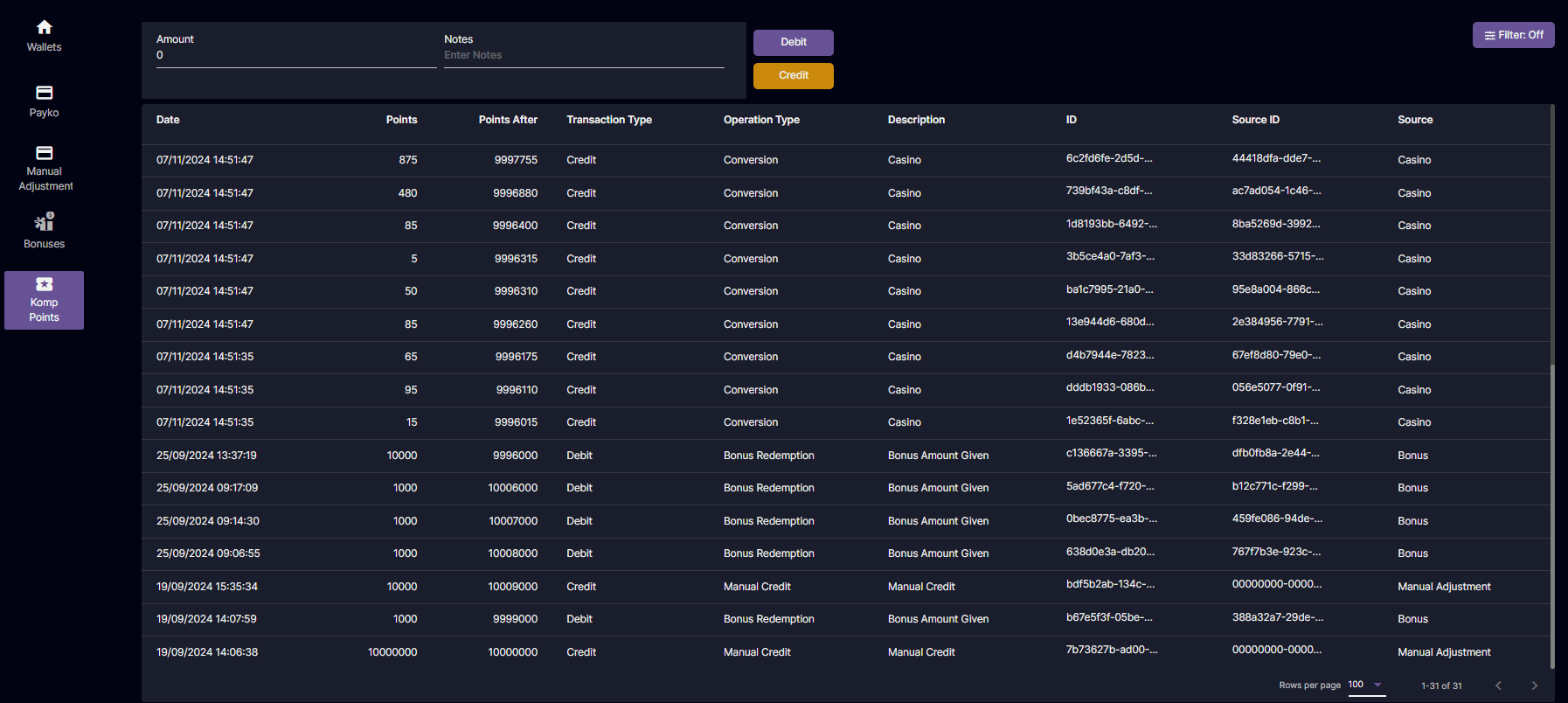
- Komp Points
 Introduction to Player Management: Player Management - Player Profile (General, Wallets, Reports, Settings)
View and manage player info Player Management - Player Profile (General)
Check this out for player transactions: Player Management - Player Profile (Reports)
Introduction to Player Management: Player Management - Player Profile (General, Wallets, Reports, Settings)
View and manage player info Player Management - Player Profile (General)
Check this out for player transactions: Player Management - Player Profile (Reports)
Player Management - How to remove/add bonus to a player manually
There is also an option to add bonuses to a player manually located under his/her profile.- Under Wallets > Bonuses, you can see all active bonuses claimed or applicable to the player.
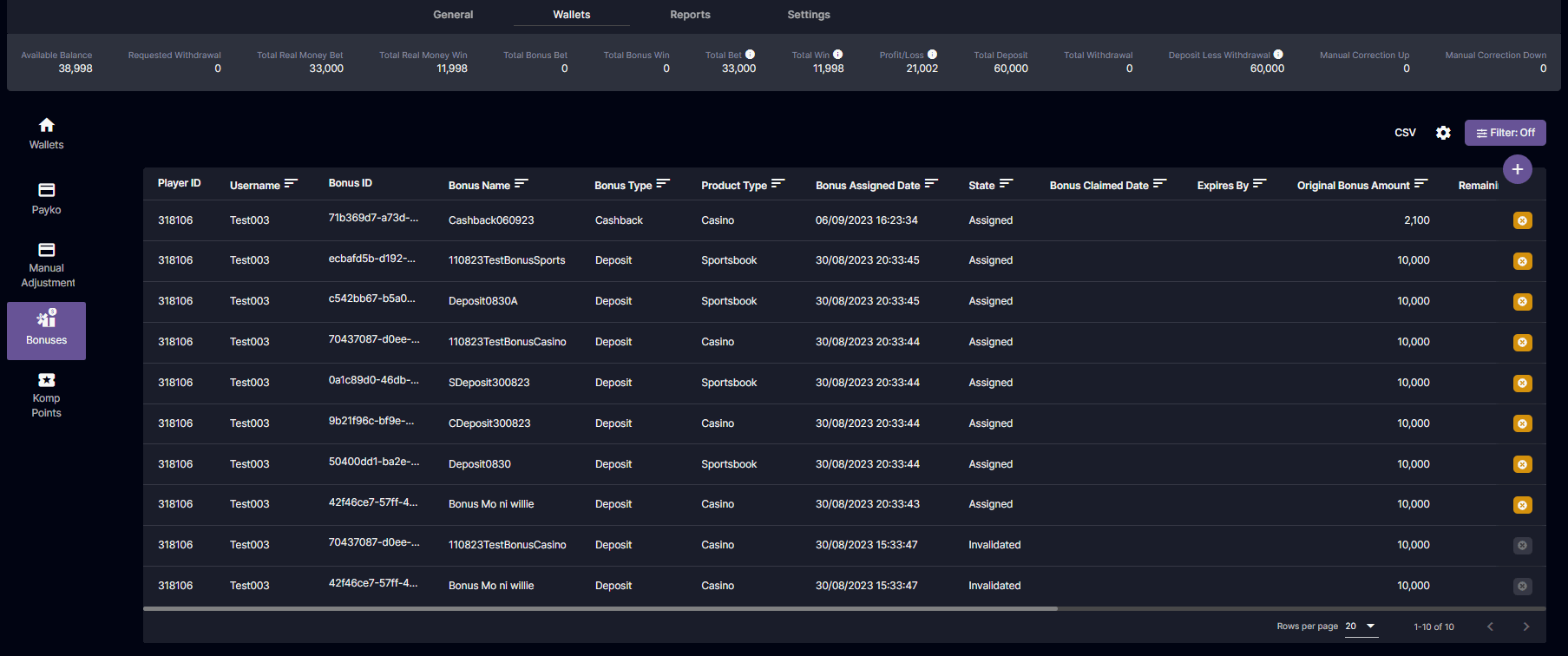 *You may arrange the columns as you wish by dragging the column you want to move.
a. To Add a bonus click on the
*You may arrange the columns as you wish by dragging the column you want to move.
a. To Add a bonus click on the  icon on the right side of the screen and fill up the applicable parameters and enter the amount, you may also set if you want to restrict a player from withdrawing if the bonus is still active. Hit save after.
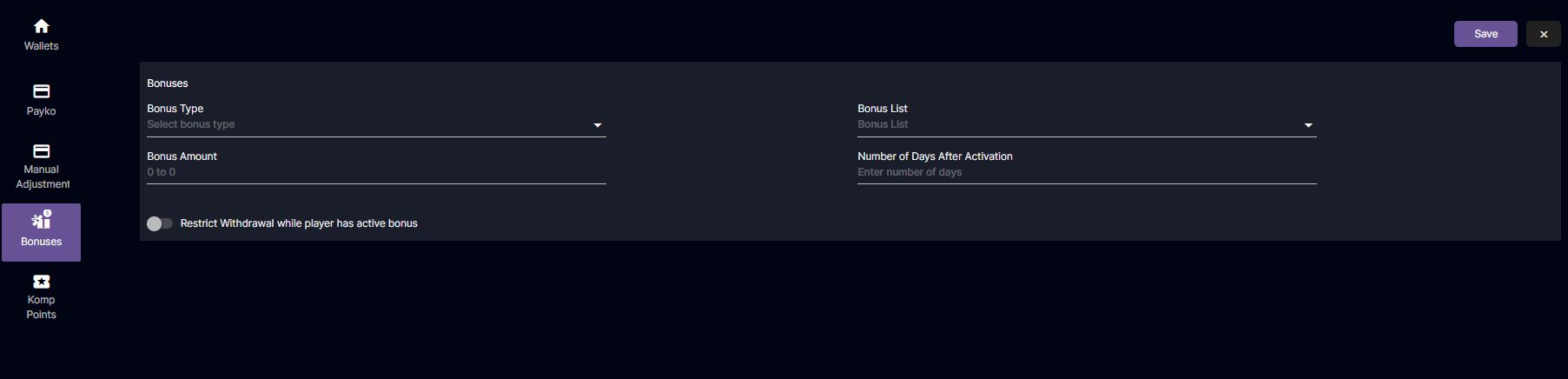 *For the slider button, it is on if it has color and it is off if it is gray.
b. To remove a bonus, click on the X icon
*For the slider button, it is on if it has color and it is off if it is gray.
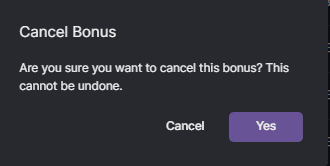
b. To remove a bonus, click on the X icon  and press confirm on the preceding pop up.
Player Management - Player Profile (Reports)
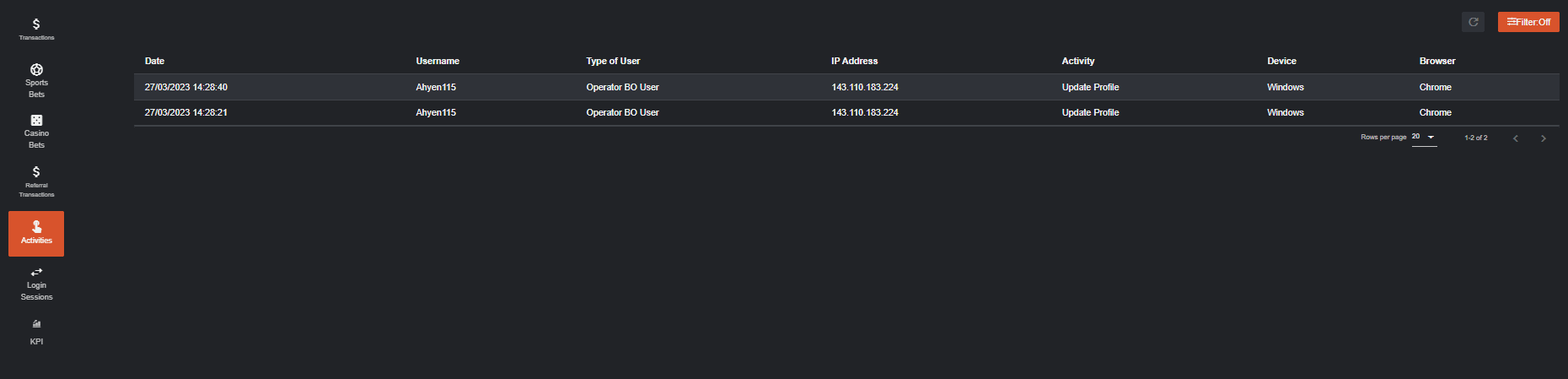
Reports will provide you all the player transactions including sports and casino, referral transactions, activities, login sessions, and KPI. I. Transactions Transactions will show all player transactions such as the date, transaction type (debit/credit), operation type, ID, amount, description, source ID, source, and after balance.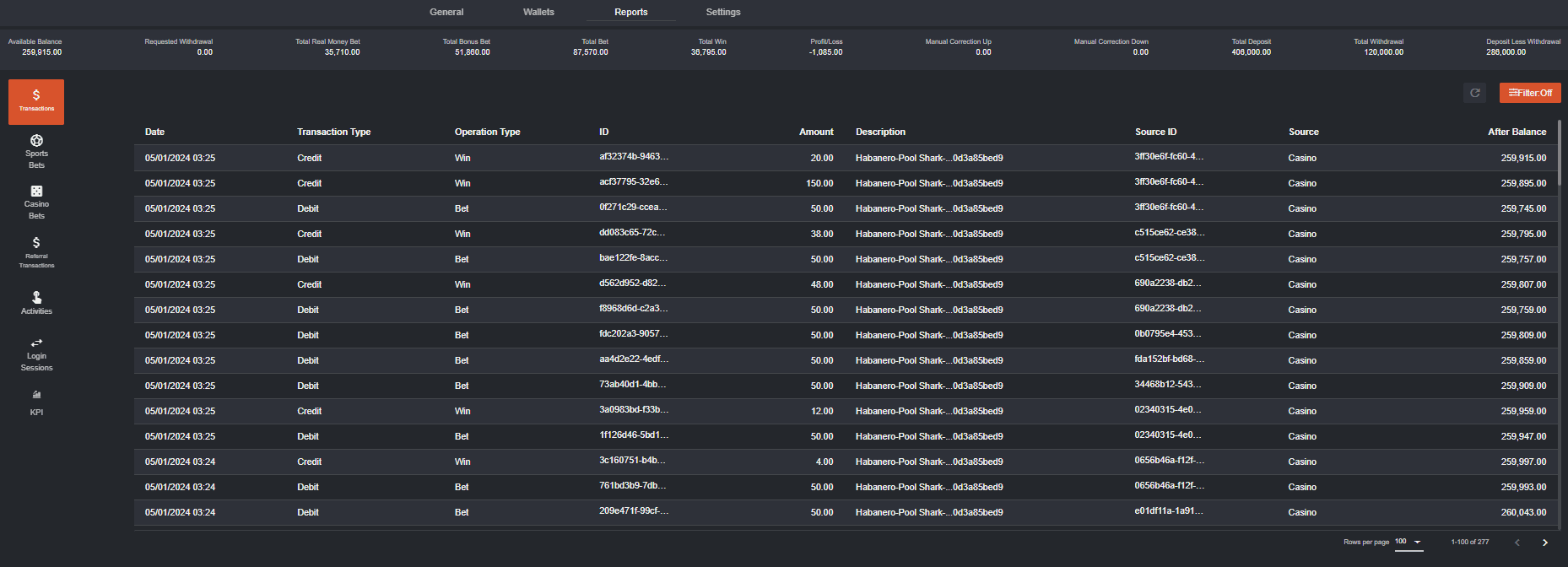
*Note that the After Balance and Available Balance in the header should always match.
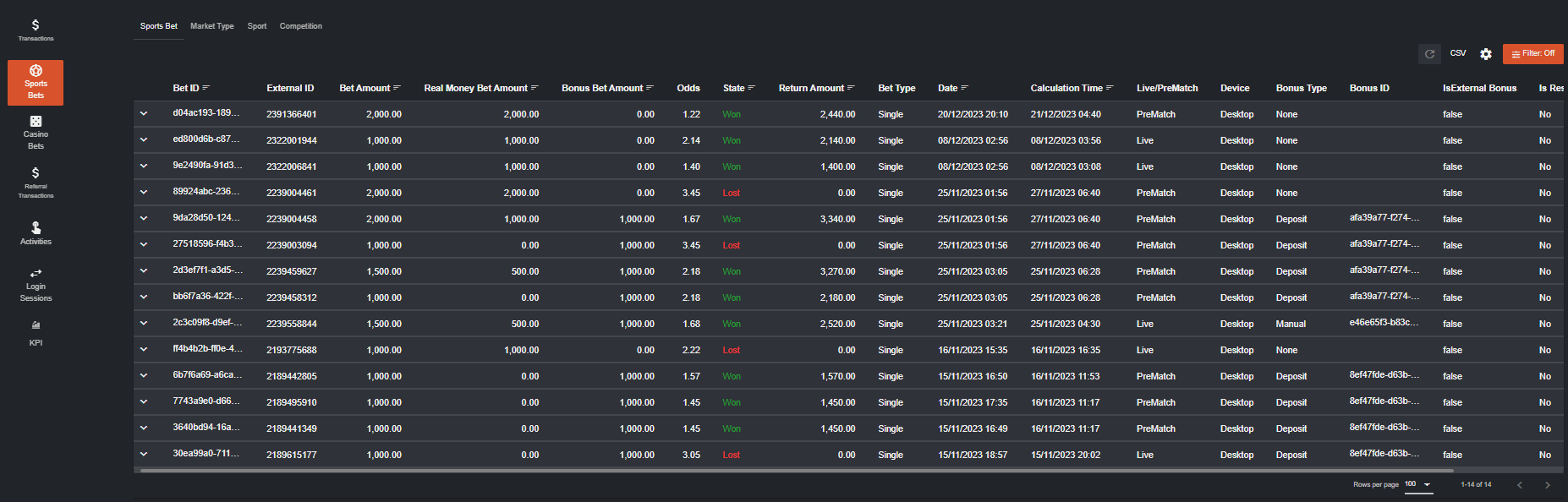 III. Casino Bets
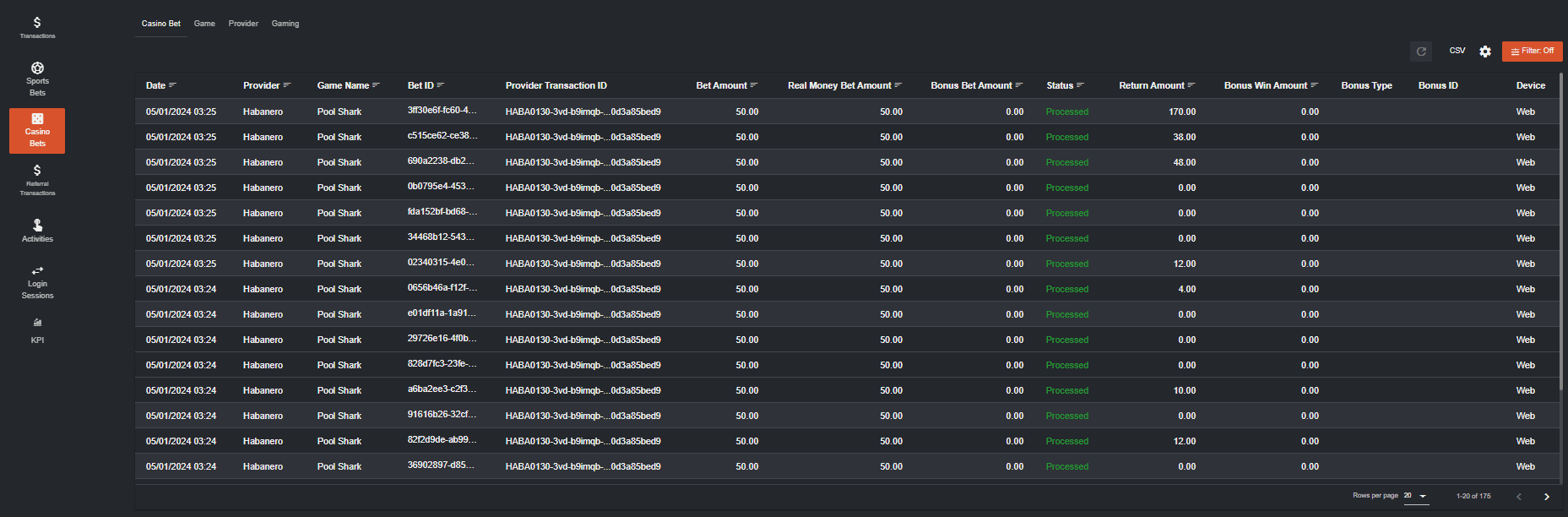
All casino bets will appear in this section.
III. Casino Bets
All casino bets will appear in this section.
 Check out Player Management: Sportsbook and Casino Reports for more details about Sports and Casino reports Categories.
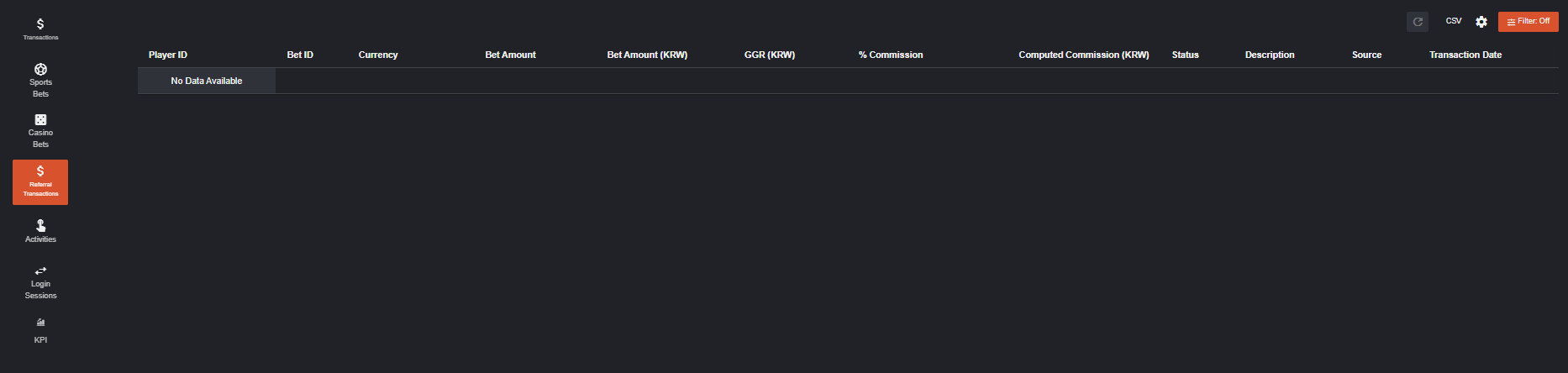
IV. Referral Transactions
All referral related transactions will appear here.
Check out Player Management: Sportsbook and Casino Reports for more details about Sports and Casino reports Categories.
IV. Referral Transactions
All referral related transactions will appear here.
 V. Referred Players
All referred players will appear here. View Referral Program New Update for more details.
V. Referred Players
All referred players will appear here. View Referral Program New Update for more details.
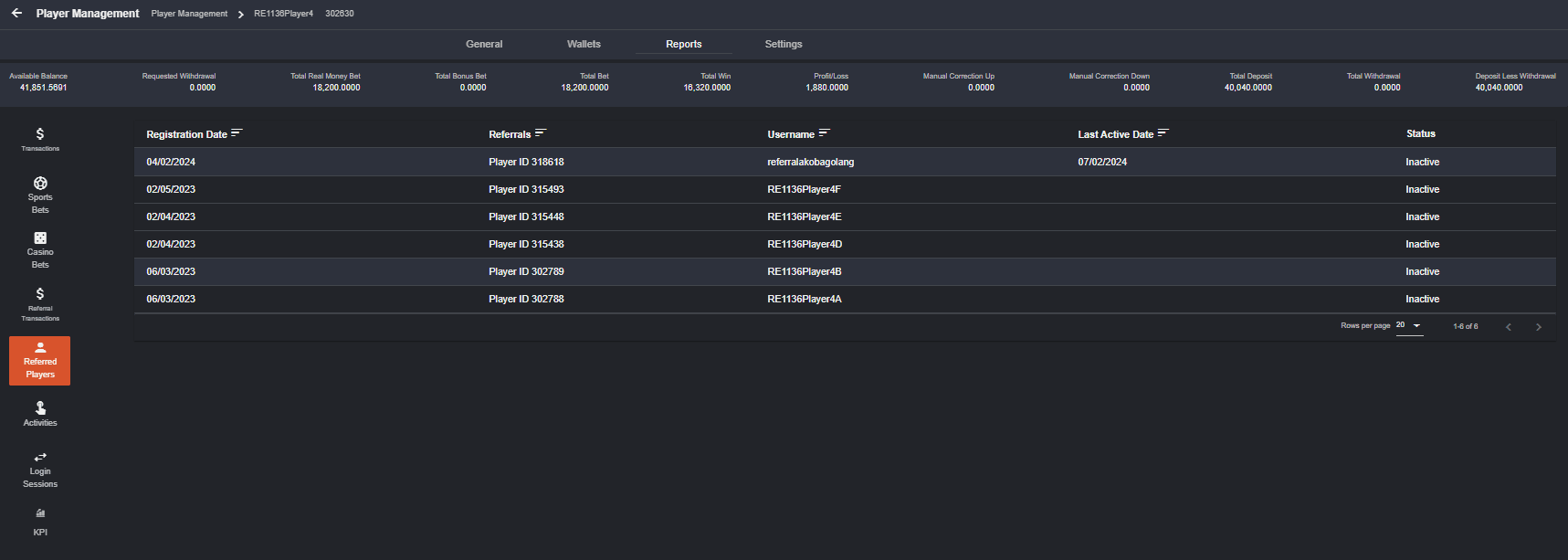
Referred Player's Player ID is clickable and will direct users to the player’s profile.
 VII. Login Sessions
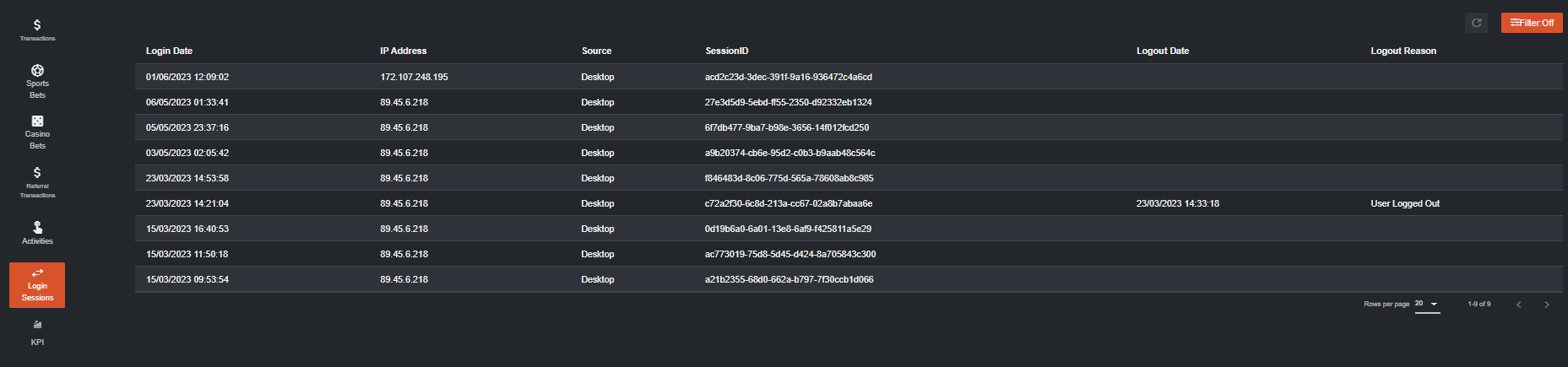
This section will display the player’s login sessions, including the date, IP address, and the source of the session occurrence.
VII. Login Sessions
This section will display the player’s login sessions, including the date, IP address, and the source of the session occurrence.
 VIII. KPI
Several KPIs are crucial for regular monitoring. This section provides the overview of the players Deposits, Withdrawals, Sports, Casino, Sport Bonuses, and Casino Bonuses.
VIII. KPI
Several KPIs are crucial for regular monitoring. This section provides the overview of the players Deposits, Withdrawals, Sports, Casino, Sport Bonuses, and Casino Bonuses.
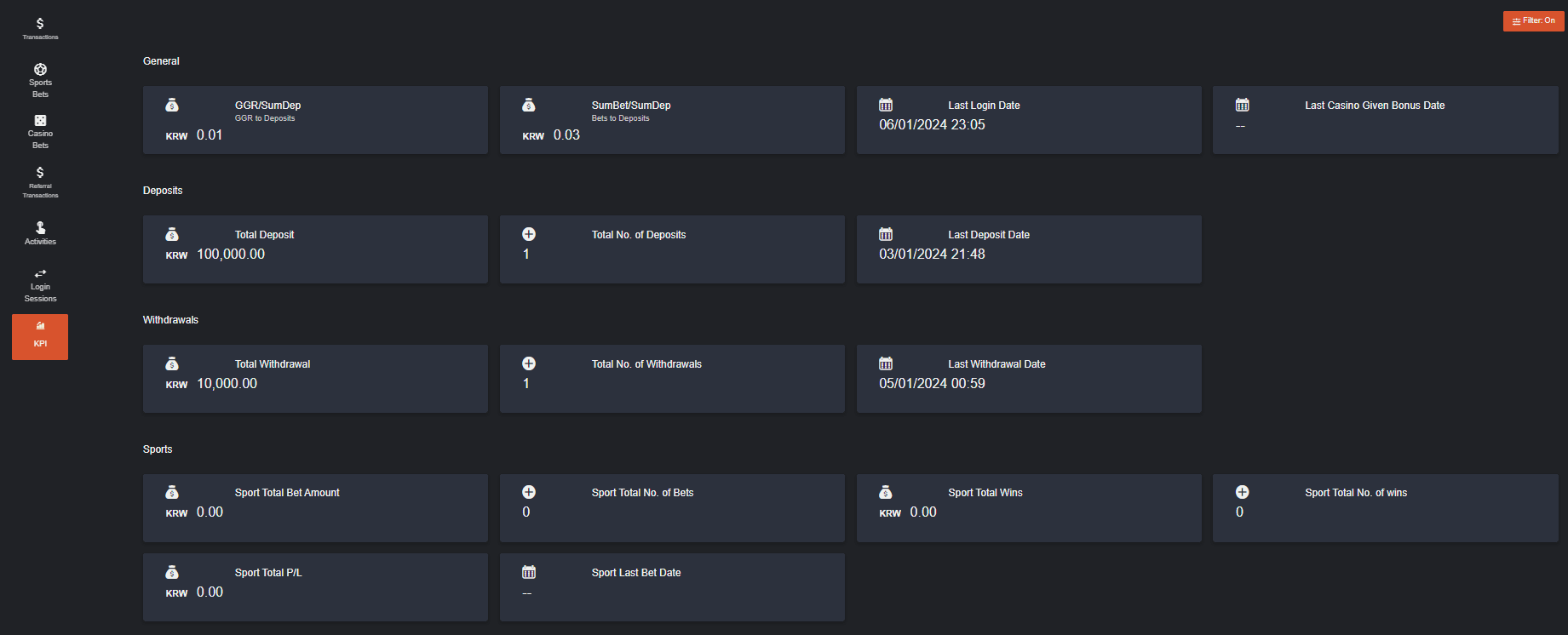 Each section is equipped with a Filter menu, providing the option to filter their views more specifically. Additionally, the columns can be rearranged based on the preferences of the backoffice user.
Player Management: Sportsbook and Casino Reports
Enhancing the Backoffice makes it easier for the Backoffice user to browse the player’s account. Let me walk you through with the new updates. I. Sportsbook Navigation: Player Management > Players, click 🔍 Search to show Player List, and then click 👁️🗨️View Details for selected Player. On the General page, select Reports > Sports Bets. You can see the four major categories in the header: (1) Sports Bet, (2) Market Type, (3) Sport and (4) Competition.- Sports Bet will mainly show you all the bet transactions made by the player.
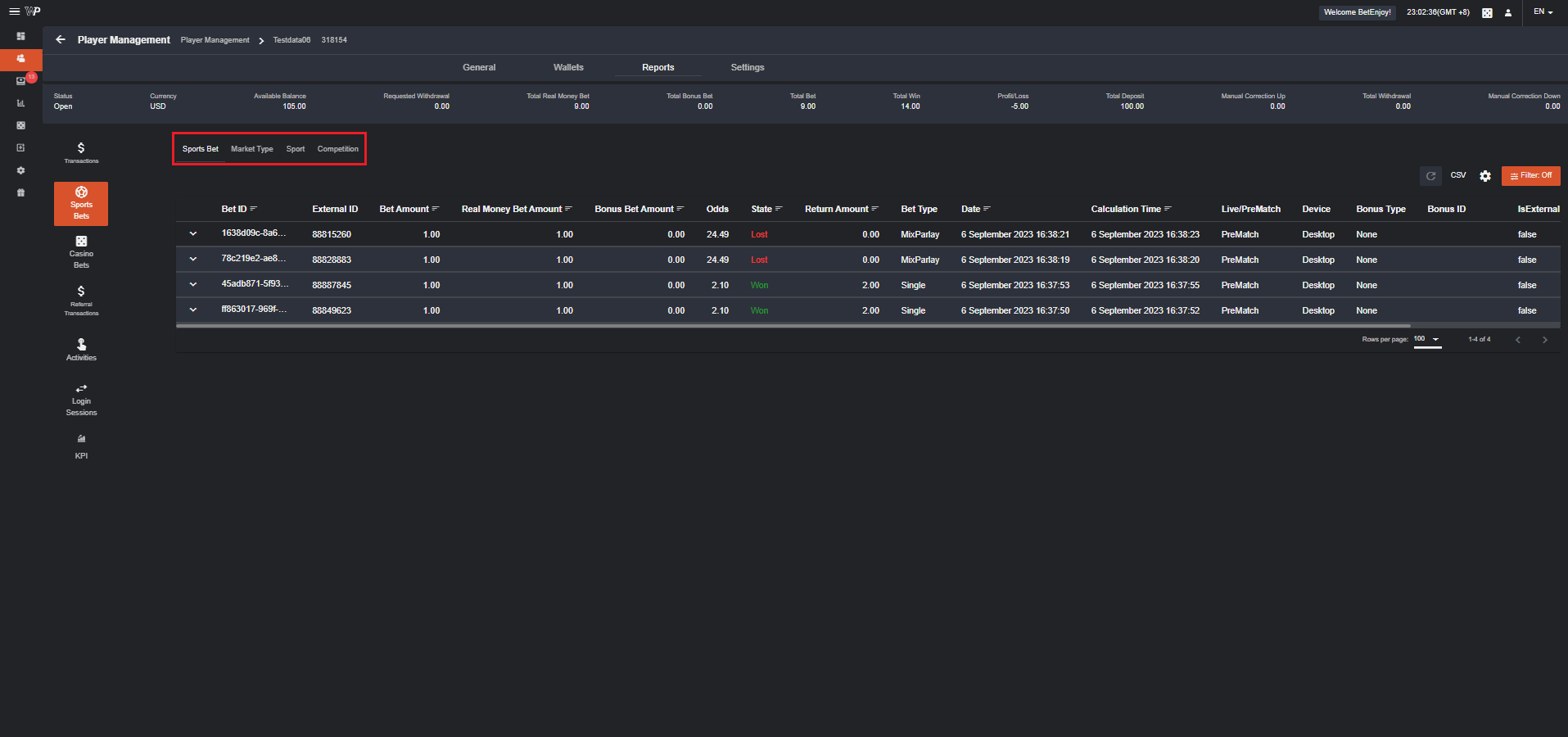
- Open the Filter section and the date today will appear. You must first click Apply for the Market Type details to appear or you can set the filter based on your preference.
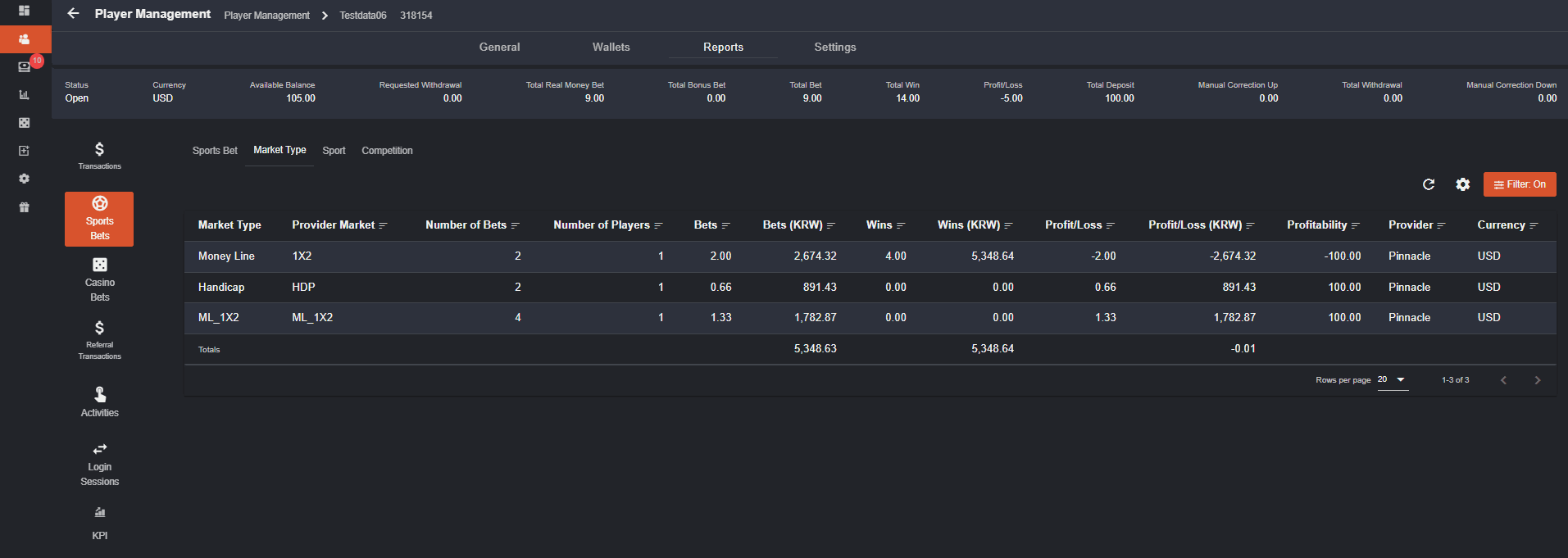
- What it looks like in Sports.
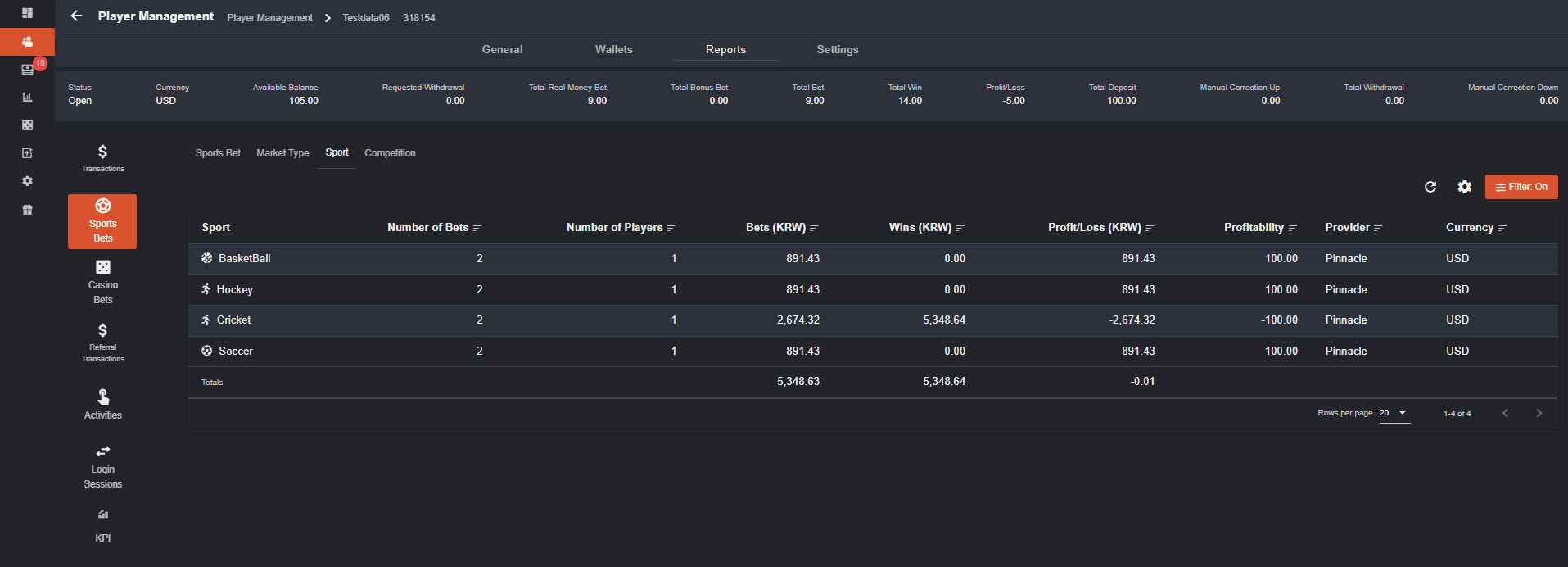
- Competition will show the League Names of the Sports the player has placed bet on.
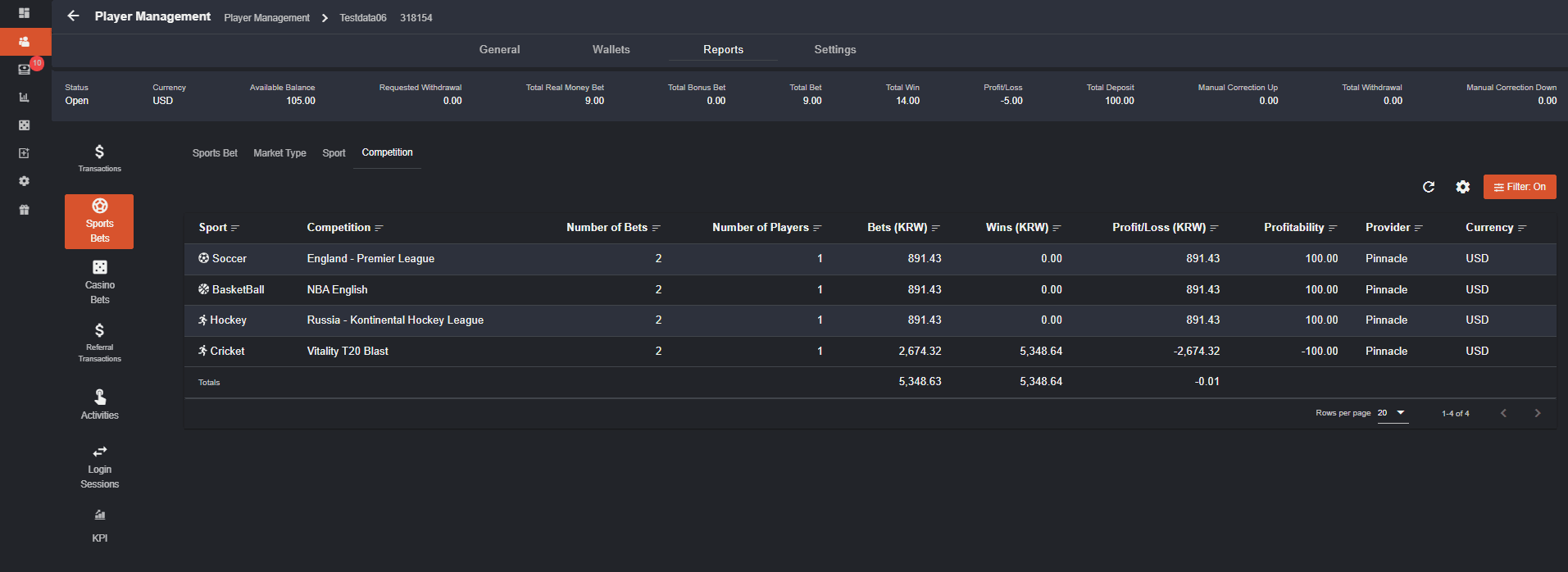 II. Casino
Navigation: Player Management > Players, click 🔍 Search to show Player List**,** and then click 👁️🗨️View Details for selected Player. On the General page, select Reports > Casino Bet
Categories in the header includes (1) Casino Bet, (2) Game, (3) Provider and (4) Gaming
II. Casino
Navigation: Player Management > Players, click 🔍 Search to show Player List**,** and then click 👁️🗨️View Details for selected Player. On the General page, select Reports > Casino Bet
Categories in the header includes (1) Casino Bet, (2) Game, (3) Provider and (4) Gaming
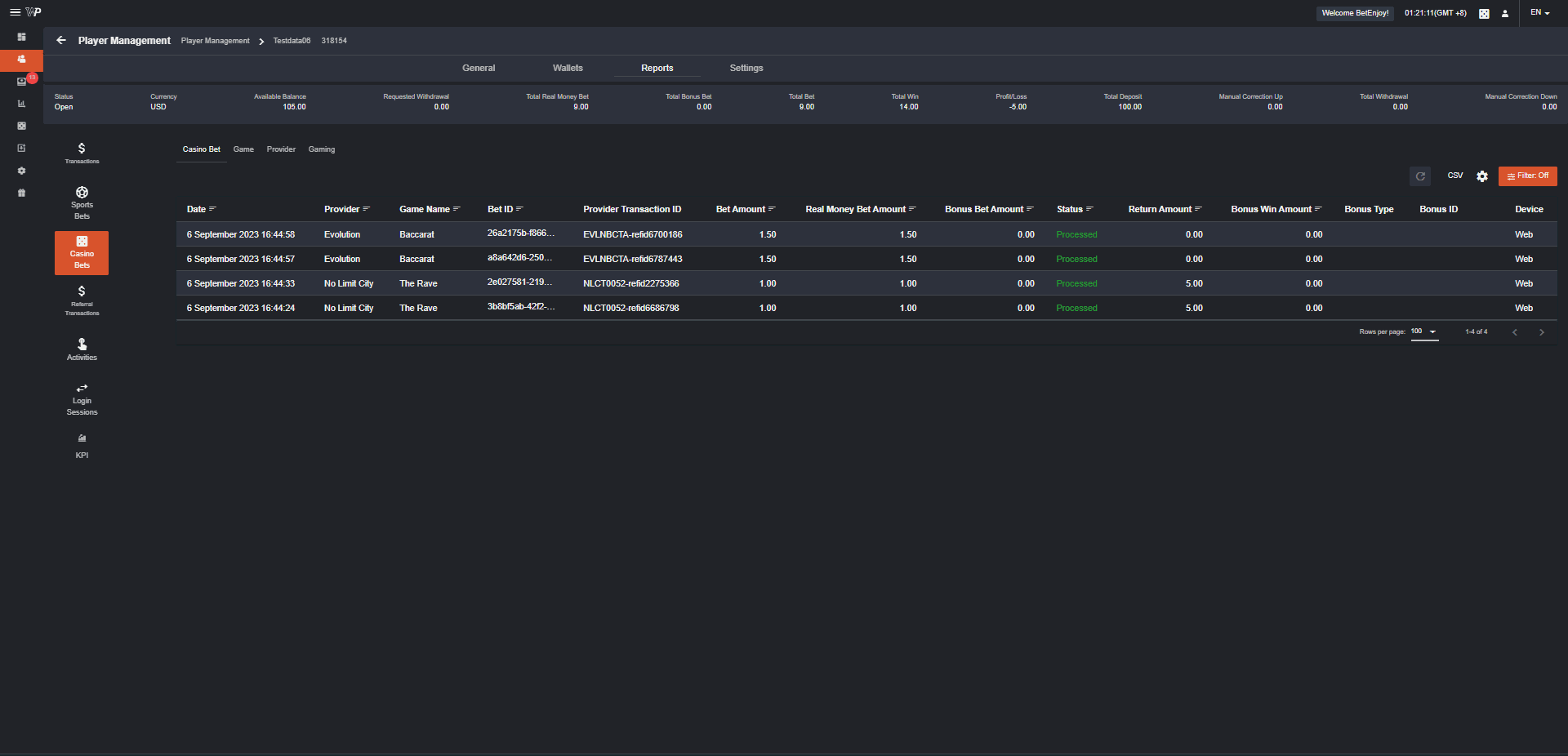
- Bet transactions made by the player will appear in Casino Bet including the bet ID and status of the bets.
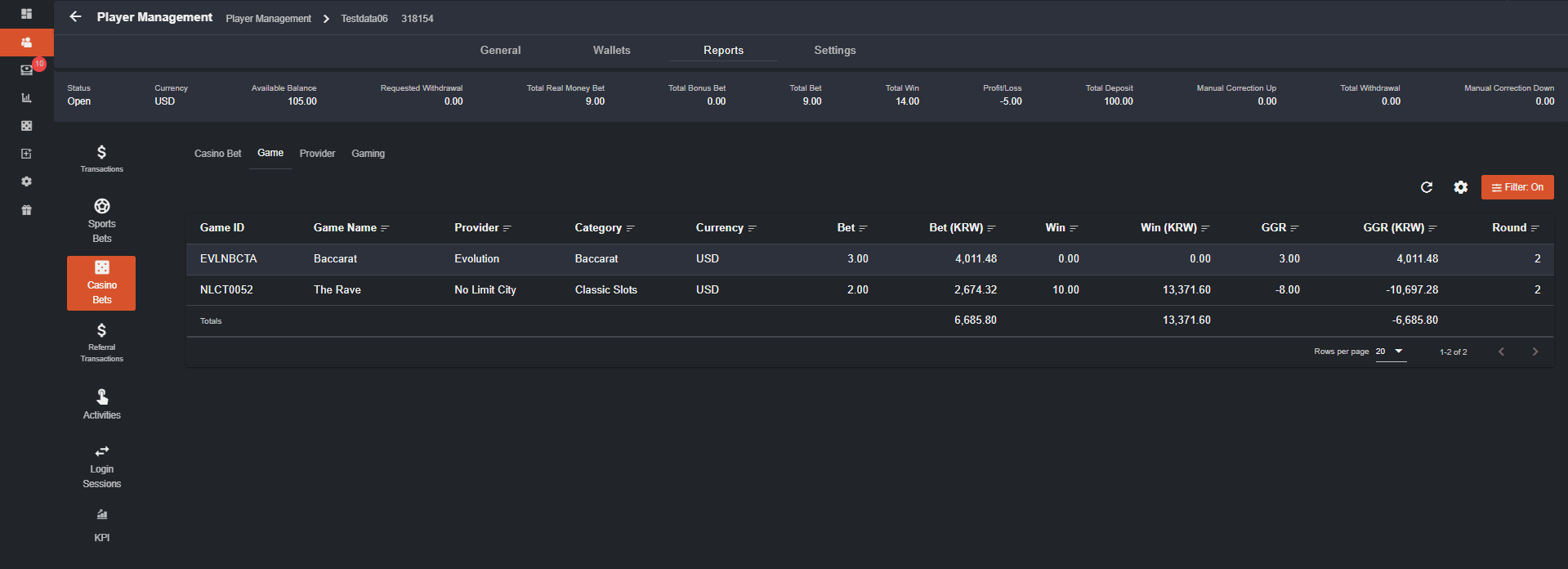
- Game provides the games the player bet on including the Game ID and summary of the total transactions made on the games.
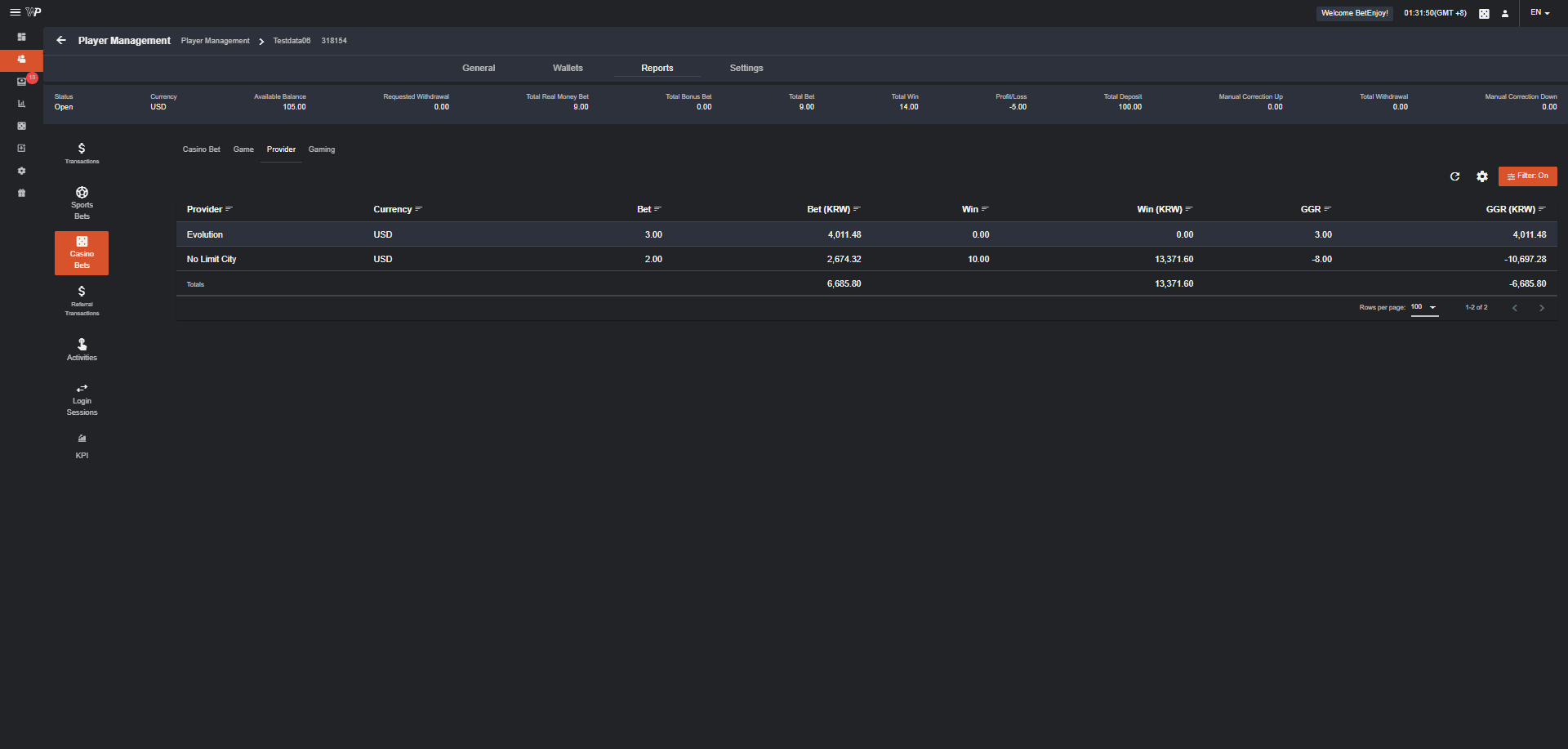
- Provider shows the Backoffice user what games the player usually bet on.
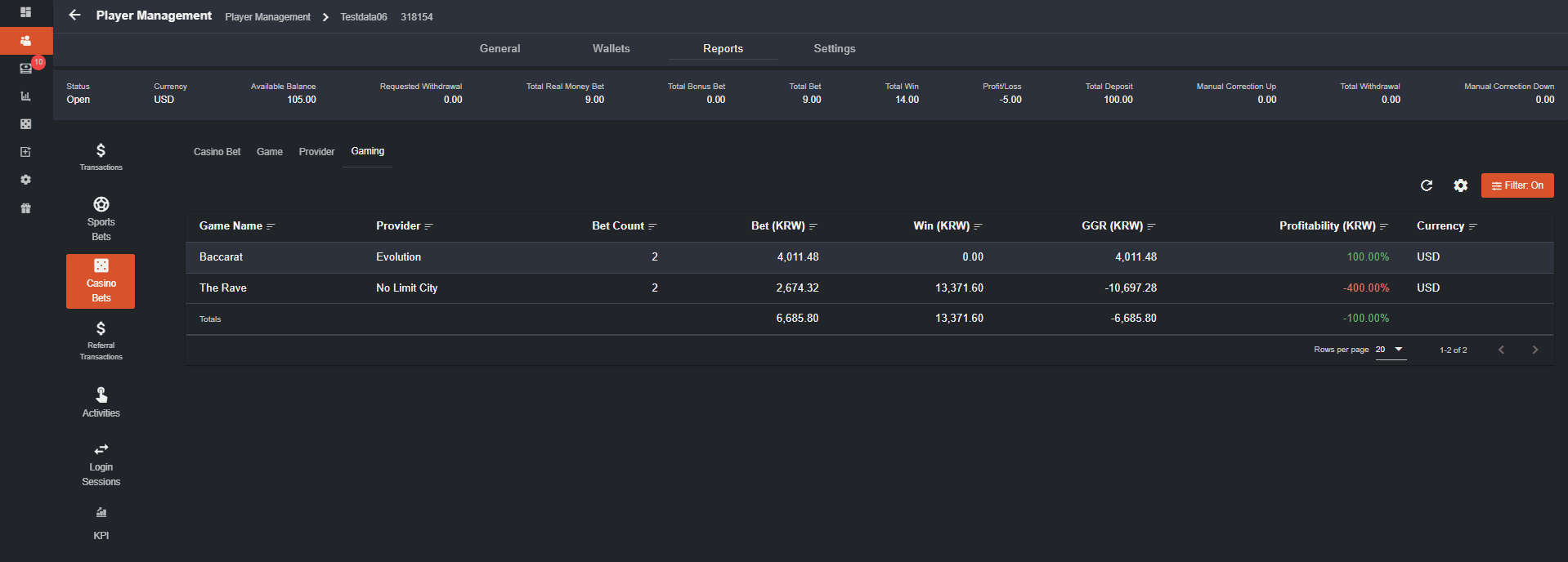
- Gaming provides the user what games this player plays and total revenue in a set period.
 *When column with the sort icon
  is clicked, the (↑) and (↓) will appear which indicates that it can be arranged in an ascending and descending manner.
*This
is clicked, the (↑) and (↓) will appear which indicates that it can be arranged in an ascending and descending manner.
*This  icon will appear when you hover your cursor over the column. Click the column to move it to the order of your preference.
*The filters in each product type (Sportsbook and Casino) can be adjusted by the back office user based on their needs.
In summary, the categories are added to shorten the Backoffice user’s effort in navigating into different tabs. They are just a click away from getting the players data.
icon will appear when you hover your cursor over the column. Click the column to move it to the order of your preference.
*The filters in each product type (Sportsbook and Casino) can be adjusted by the back office user based on their needs.
In summary, the categories are added to shorten the Backoffice user’s effort in navigating into different tabs. They are just a click away from getting the players data.
Player Management - Player Profile (Settings)
- Player Limits – limits can be set per player compared to global limits. The backoffice user can set the maximum Deposit limits and Withdrawal limits which can be one time, daily, and weekly.

- Payment Settings - refers to which payment segment the player is in. Clicking the dropdown will provide you all options of segments.

- Settings History - record of changes made for payment segments on a specific player.

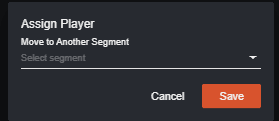
- Segments - refers to which referral segment the player is in. The icons at the right indicates that the player can be moved to another segment or can be removed to the current segment.
 If ‘Move to Another Segment’ is clicked, this pop up will appear which will provide you the option for segments in the dropdown.
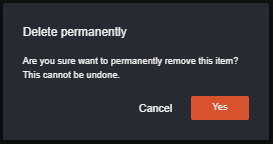
 If deleted, this prompt will show.
Player Management - Setting Up and Editing Player Limits
If you would like to limit a specific player’s deposit and withdrawal, you can set limits in the players settings. Navigation: Player Management > Input the player (ID/username) > Settings > Payment Limits Click the pen icon to start editing.
Deposit Limits
Maximum One Deposit Amount - refers to the maximum amount that the player can deposit one time.
Maximum Daily Deposit Amount - refers to the maximum amount of all the deposits made by the player per day.
Maximum Weekly Deposit Amount - refers to the maximum amount the player can make in a weekly basis.
Withdrawal Limits
Withdrawal Limits - refers to the maximum amount the player can withdraw in a single request,
Maximum Daily Withdrawal Amount - refers to the maximum total withdrawal a player can request for a day.
Maximum Weekly Withdrawal Amount - refers to the maximum amount the player can only withdraw in a week.
Click the pen icon to start editing.
Deposit Limits
Maximum One Deposit Amount - refers to the maximum amount that the player can deposit one time.
Maximum Daily Deposit Amount - refers to the maximum amount of all the deposits made by the player per day.
Maximum Weekly Deposit Amount - refers to the maximum amount the player can make in a weekly basis.
Withdrawal Limits
Withdrawal Limits - refers to the maximum amount the player can withdraw in a single request,
Maximum Daily Withdrawal Amount - refers to the maximum total withdrawal a player can request for a day.
Maximum Weekly Withdrawal Amount - refers to the maximum amount the player can only withdraw in a week.
Player Management Columns Calculations
Winka has modified the columns calculations for more effective tracking of players transactions. Below are the details to keep you updated:- Available Balance - refers to the (Total Deposits + Total Wins + Manual Correction Up + Transfer IN) - (Total Withdrawal + Total Real Money Bet + Manual Correction Down + Transfer OUT [bonus claimed])
- Requested Withdrawal - refers to the sum of all pending withdrawals of the player
- Total Real Money Bet - refers to the sum of all settled real wallet bets of the player
- Total Bonus Bet - refers the sum of all settled bonus bets of the player
- Total Bet - refers to the Total Real Money Bet + Total Bonus Bet
- Total Win - refers to the sum of all settled real wallet bets of the player
- (Formerly GGR) Profit/Loss - refers to the Total Bets - Total Win (Bonus bets and wins not included)
- Manual Correction Up - refers to the sum of all manual correction up of the player
- Manual Correction Down - refers to the sum of all manual correction down of the player
- Total Deposit - refers to the sum of all deposits of the player
- Total Withdrawal - refers to the sum of all paid withdrawals of the player
- Deposit Less Withdrawal – total deposit – total withdrawal
Player Management: Display Last Login IP on Account Info
Overview
This feature enhances Player Management by prominently displaying each player’s last login IP address, alongside the existing registration IP, and providing direct IP control tools to support clearer monitoring and management of login activity.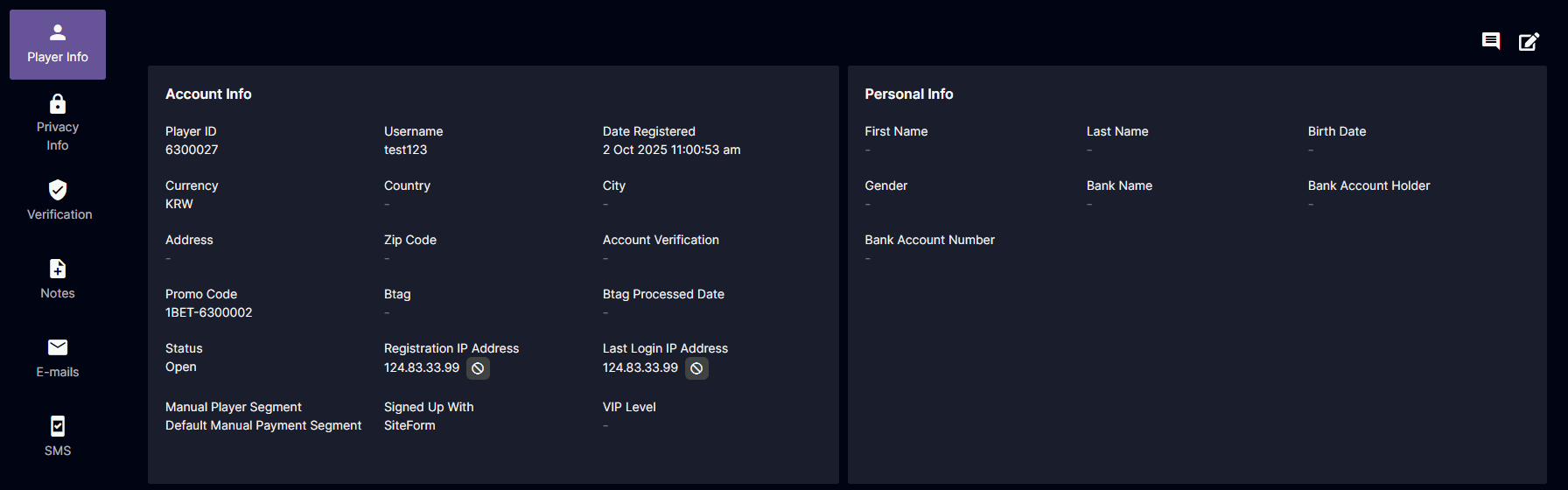
Key Details
- Last Login IP Field:
The Account Info section now shows a dedicated Last Login IP field, which is kept distinct from the Registration IP. This allows operators to compare the origin and recent access points for each player. - Block IP Action:
A “Block IP” action is available beside the Last Login IP, enabling quick response to suspicious activity. - Player List Integration:
The Last Login IP value is also exposed as a column and filter in the Player Management > Players list, streamlining investigations and operational checks. - UI Consistency:
The Last Login section layout is aligned with the existing registration IP styling, ensuring long text wraps correctly and spacing remains consistent.
Benefits
- Improved monitoring of player login activity.
- Faster response to suspicious or unauthorized access.
- Enhanced operational efficiency for investigations.
Sound Notification for New Players
For operators to be notified to check the details of newly registered players. There will be a sound notification for newly registered players. A notification badge for Player Management will also appear.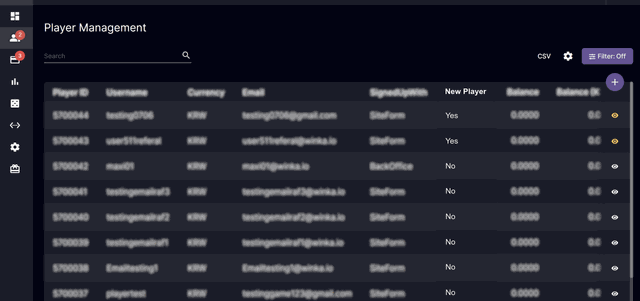
- A new column “New Player” is added.
- Add Filter: New Player - Single select dropdown
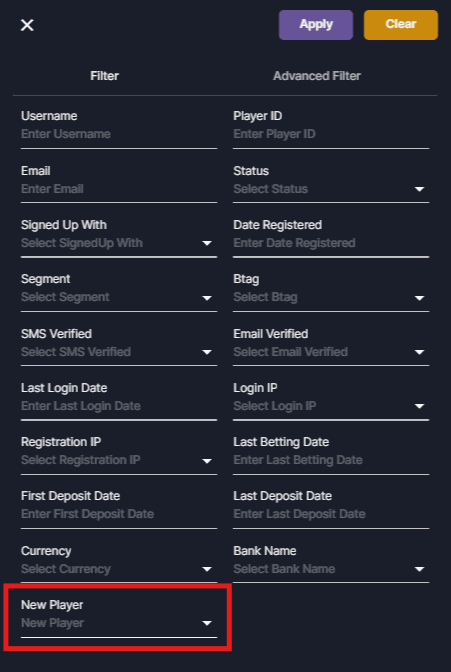
- Add Settings: New Player - Checkbox
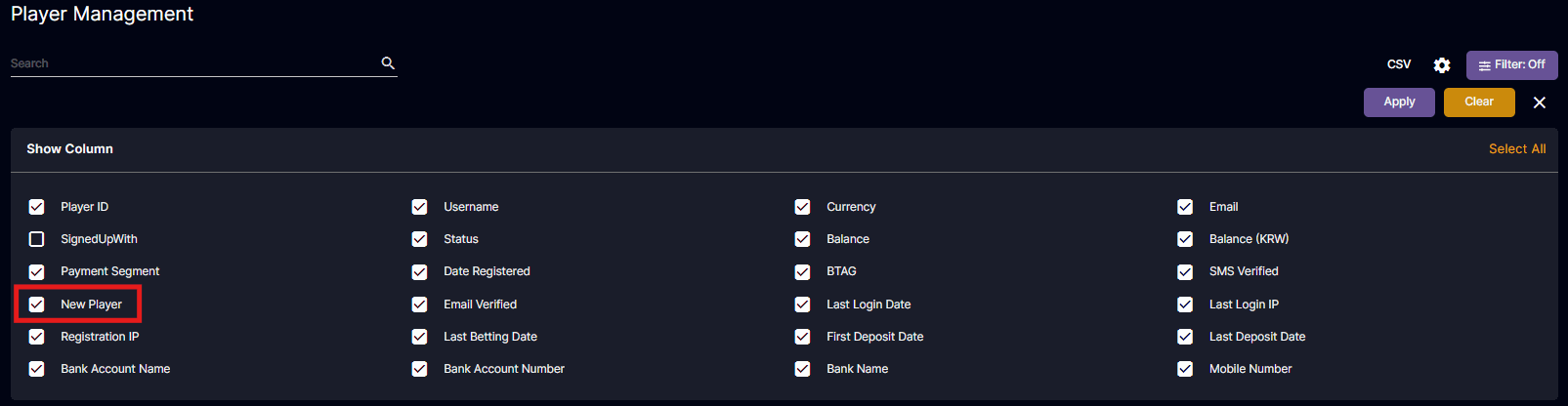
- Add New Player Column in CSV

- Player Management sound notification should only be available if backoffice user permission for player management is set to permitted or can modify.

- New player registrations through the website should be included in the notification sound/badge, while those done in the backoffice should be excluded.
Messaging
This feature enables back-office users to send messages to all players with an ‘Open’ status regarding promotions, upcoming events, or announcements. Players will receive these messages via email or notifications. The operator should set the individual permission for Messaging to appear in Player Management. Navigation: Settings > User Management > Select > Scroll to Individual Permissions > Player Management > Messaging Individual Permission setting:- Not Permitted - If selected, restrict access to Messaging
- Permitted - Radio button disabled
- Can Modify - If selected, allow view access and sending of messages in the Messaging module
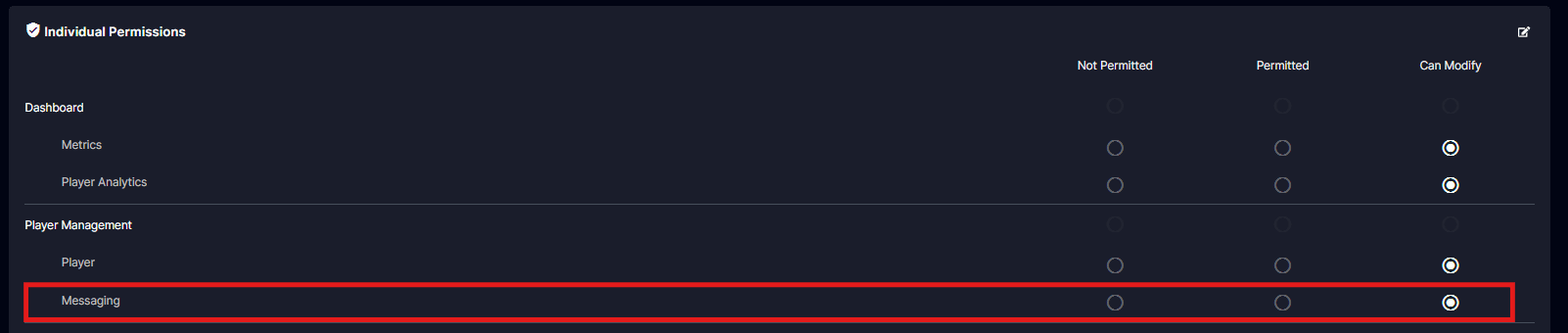 Navigation: Player Management > Messaging
In the messaging system, the operator can send messages to all players.
Navigation: Player Management > Messaging
In the messaging system, the operator can send messages to all players.
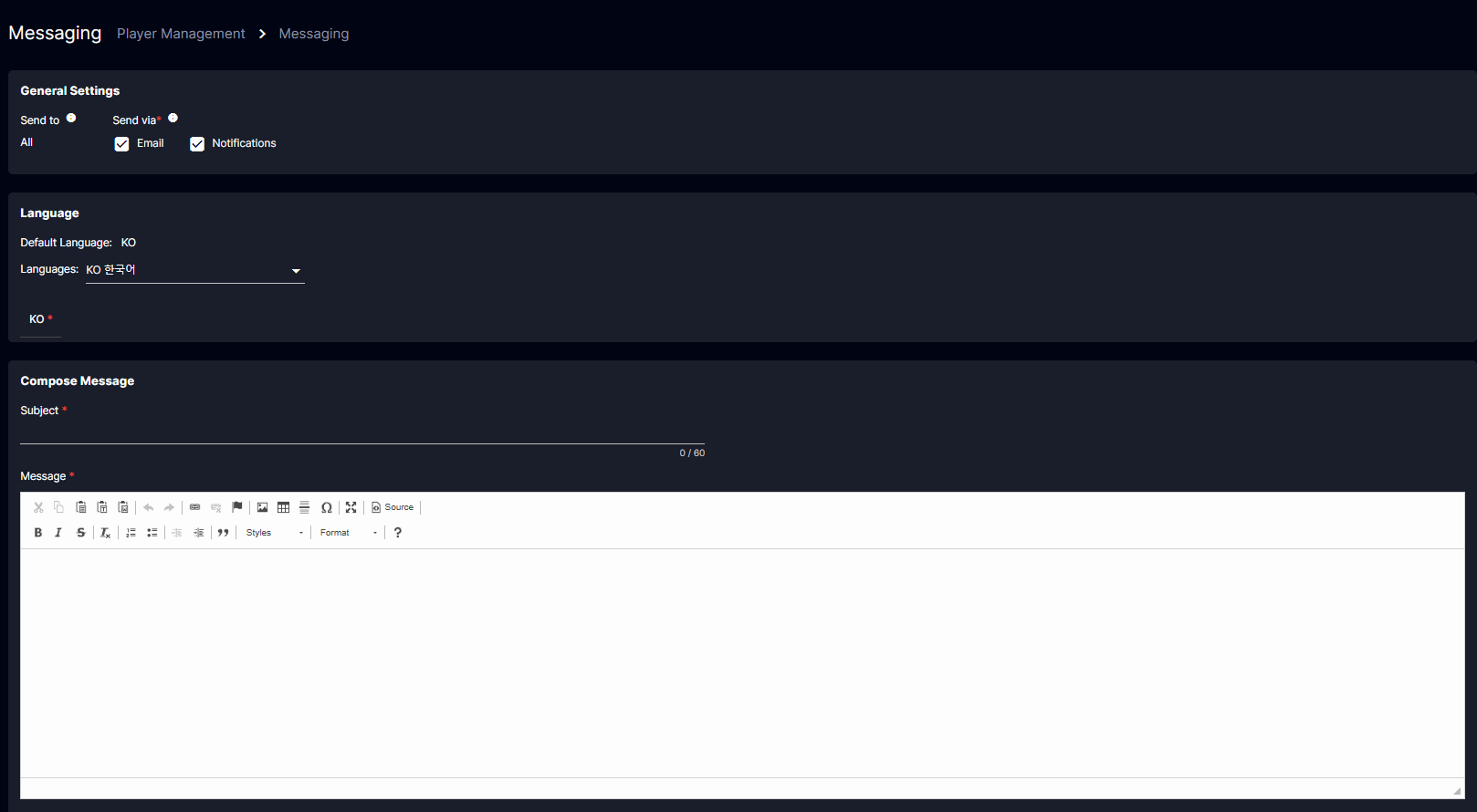
This is what it looks like in the backoffice
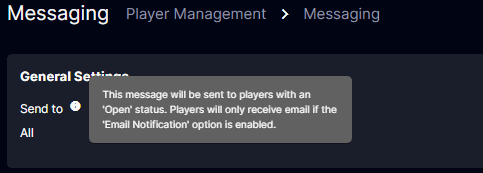
- The default option is “Send to All,” which sends messages to all players whose status is open, which means that the email notification option is checked. An information tooltip next to “Send to” states, “This message will be sent to players with an ‘Open’ status. Players will only receive email if the ‘Email Notification’ option is enabled.”
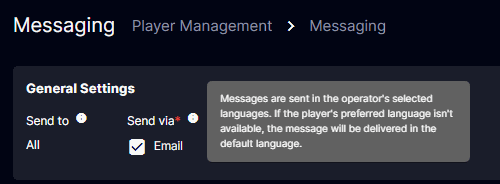
- An information icon beside the Send Via, “Messages are sent in the operator’s selected languages. If the player’s preferred language isn’t available, the message will be delivered in the default language.”
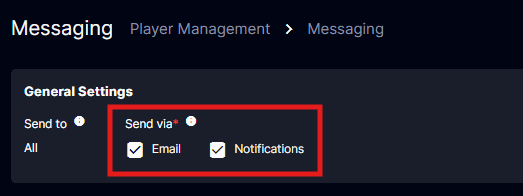
- The “Send via” option can either be “Send via Email” or “Send via Notification.” In the General Settings, the “Send via’” option is editable, allowing the operator to choose how to send messages to the players via Email, Notification, or both.
Creating Message
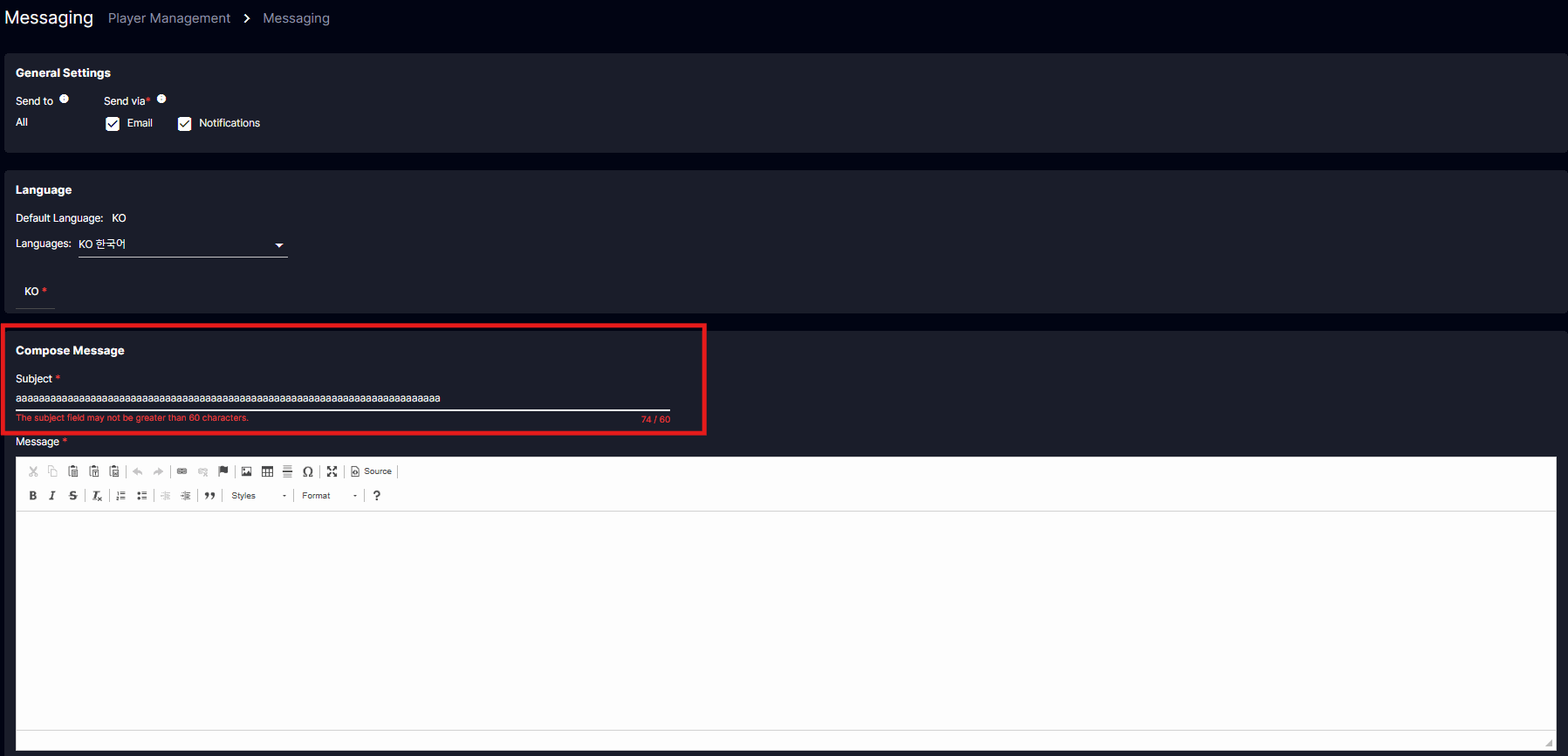
In creating a message these are the things to consider:- Subject: The operator must enter a subject with at least 60 characters. If the subjects exceed the maximum allowed length, an error message will appear stating: “The Subject field may not be greater than 60 characters.”
- Message: The operator must enter a message, with no length limit.
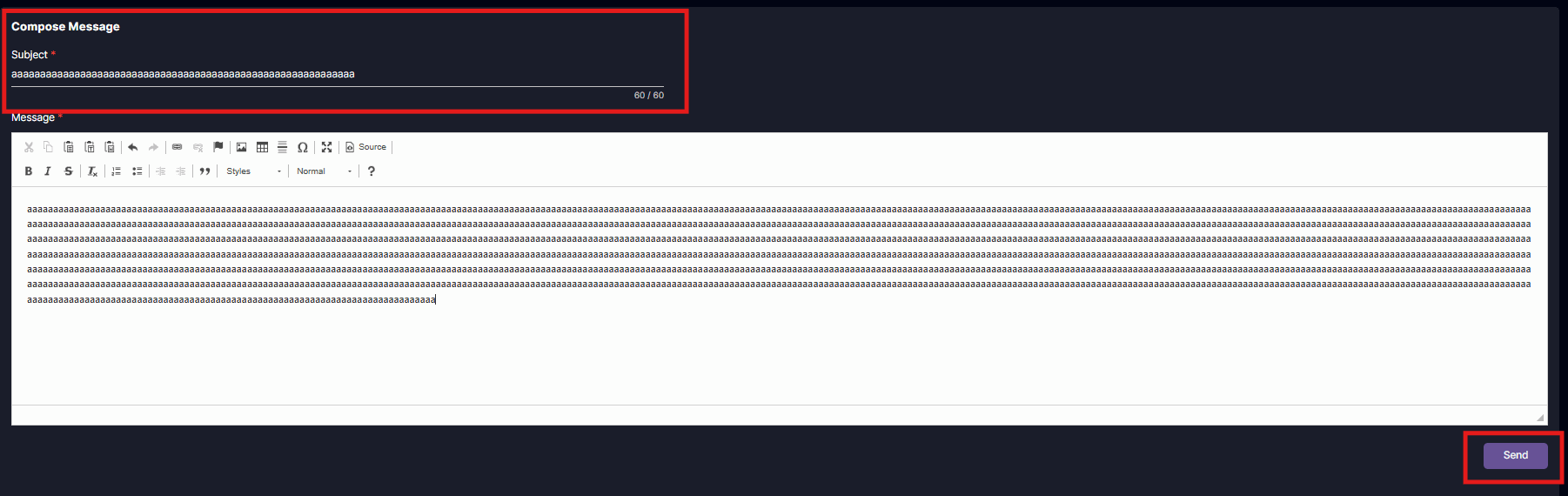
Note that the ‘Send’ button will only be available if there the subject is set up properly.
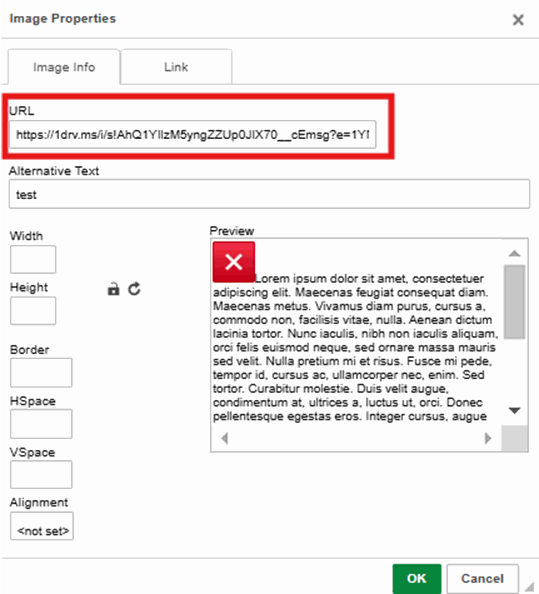
- The operator can insert images in their messages, they can use URL in sending images.
- Language:
- The Language used for sending messages will be based on the operator’s default language set on the Back Office.
- Example: The player will receive messages in the language set in the Back Office, regardless of their preferred language in the player portal.
- If the operator does not select a language while creating the message, it automatically uses the default language set in the Back Office. (ex. English).
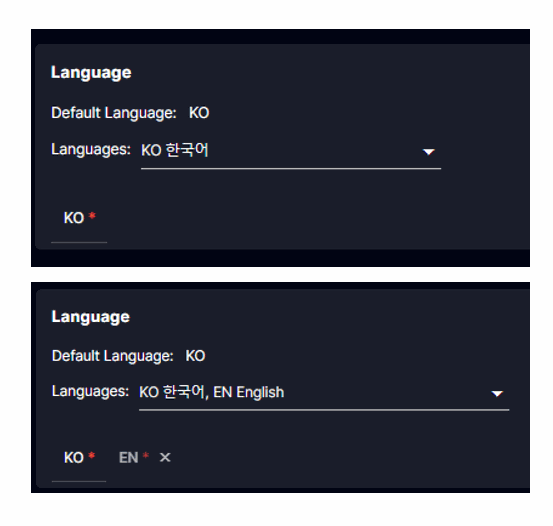
- If the operator selects another language when creating the message, the message will be sent in the chosen language/s.
- Example: The player will receive the message in their preferred language on the player portal. For instance, if the player’s chosen language is Korean, they will receive the message in Korean, as long as the operator has a Korean version of the message.
- The operator must provide messages in selected languages to ensure the players receive messages in their preferred language. If the player’s preferred language is Korean and the operator does not provide a Korean Language version of the message the player will receive the message in the default message. (Example: English)
- On the dropdown menu, the operator can choose other languages they want to use in sending messages to the players.
- The Language used for sending messages will be based on the operator’s default language set on the Back Office.
 The ‘Send’ button will be disabled if the subject and message are missing. It will also be disabled if the subject exceeds the character limit. The ‘Send’ button will only be enabled when both the subject and message are provided and the subject is within the character limit.
Confirmation
A pop-up confirmation will appear after clicking the send button: “Send this message to all players. This message will be sent to [Player Count] players.” If the operator sends a message via player notifications, it will display the total number of players receiving the message through their notification.- Example: Send this message to all players. This message will be sent to 215 players.
- Example: Send this message to all players. This message will be sent to 214 players.
- Subject: The subject field is required.
- Message: The message field is required.
Email Notification
Email Historical Notification
Navigation: Player Management > Player > E-mails The emails of every player will show the history of the players’ emails. The history includes password reset notifications, email verification messages, and email messages from the operators that the player received.Language (Default Languages)
CMS > Site Settings > Languages > Default Languages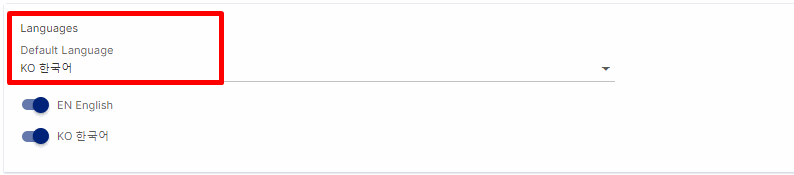
Language Behavior for Notification and Email
When an operator sends a message to players, the default language in the Back Office will be used if the operator does not select a specific language for the message. Newly registered users who have not set their language preference will see the message in this default language when they log into the Player Portal If a player has set a language preference (e.g., Korean) and the operator provides the message in that language, the player will receive it in Korean. However, if the message is only provided in a different or default language (e.g., English), the player will receive it in the operator’s default language.Notification (SingleCurrency)
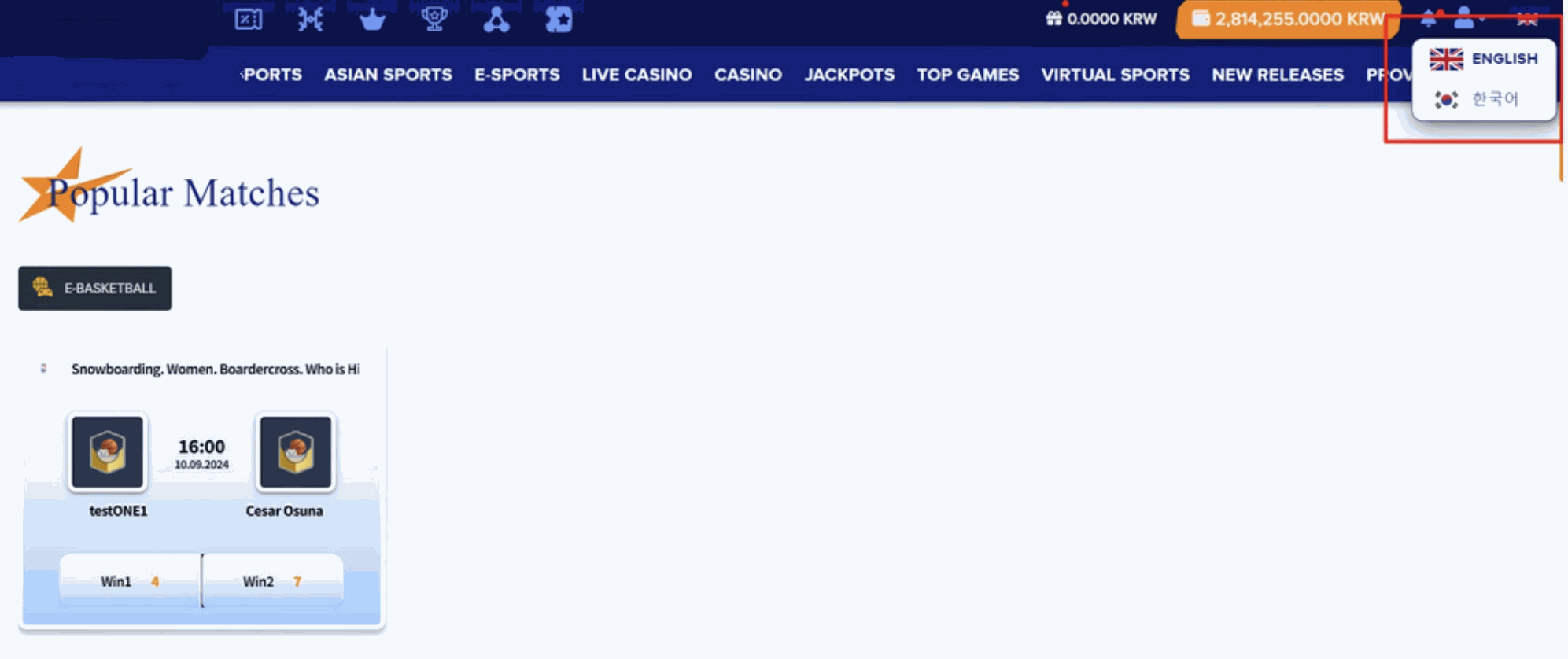
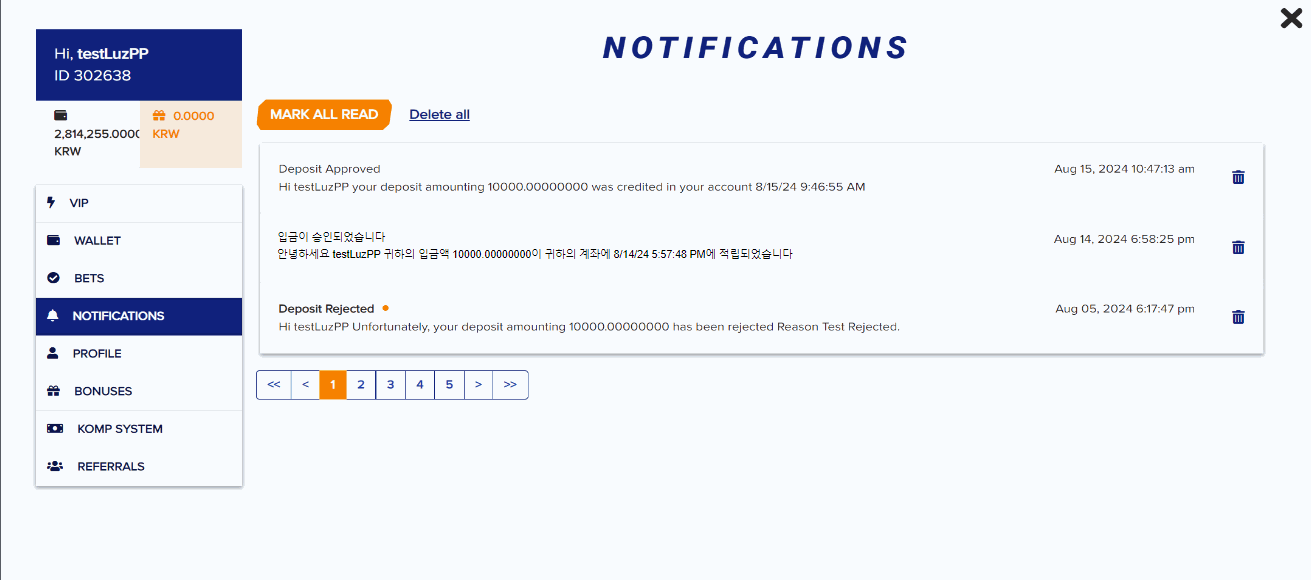
Back Office - Player Management
Status
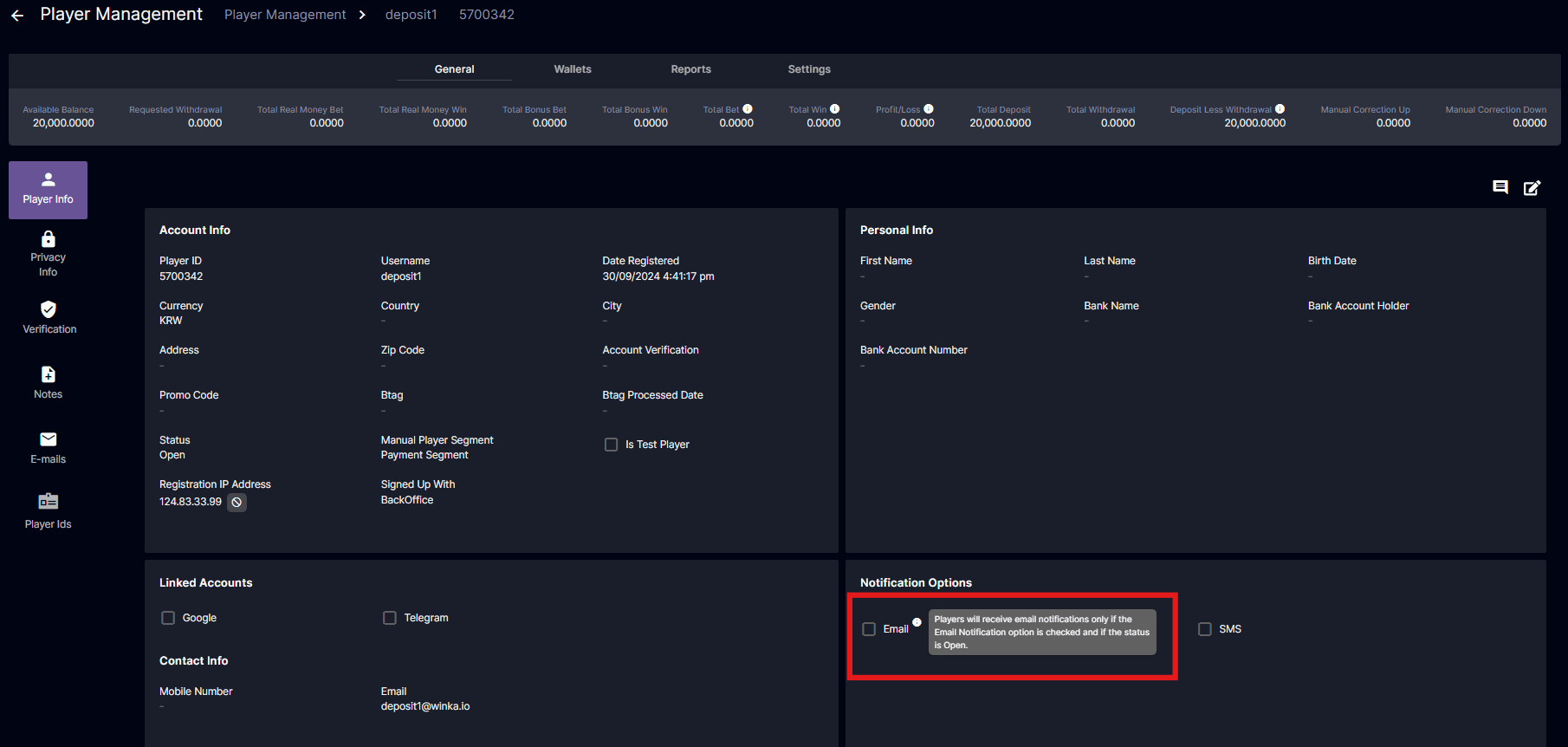
In Player Management, if a player has an ‘Open’ status and the Email Notification option is checked, the player will receive emails from the operator. If the Email Notification option is unchecked, the player will only receive messages via notifications, but only if the operator selects the “Send via Notification” option. If the operator chooses to send only via Email, the player will not receive the message. When the player status is ‘Closed,’ the Email Notification option will still be unchecked and the player won’t receive messages since their status is already ‘Closed’ and the player will no longer receive any emails or notifications from the operator.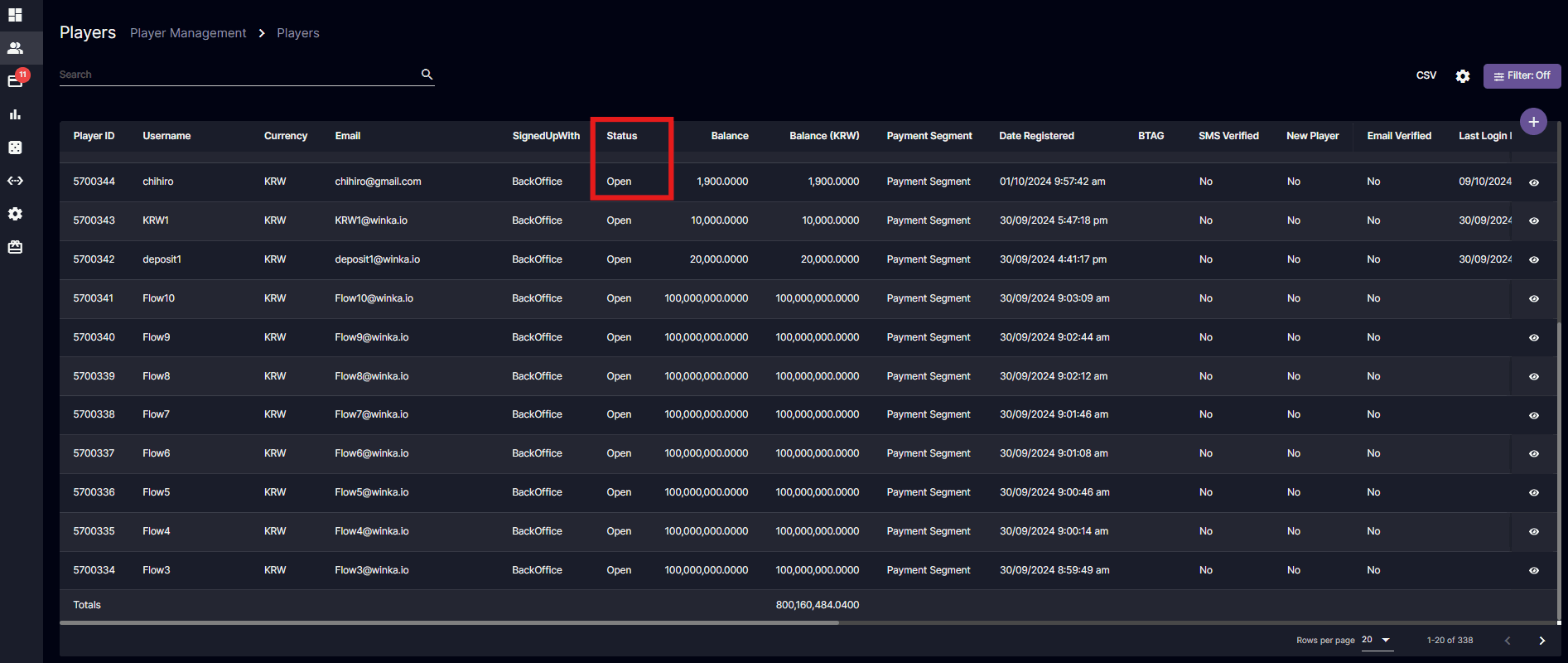 On the Notification option, an information tooltip states that “Players will receive email notifications only if the Email Notification option is checked and if the status is Open.”
Player Security Pin
Overview
The Player Security PIN adds an extra layer of protection to your account, especially for sensitive actions like withdrawals. Here’s how it works and what you need to know:- Player PIN Setup: Players can create a Security PIN via their profile or when prompted during a withdrawal or login. PIN must be verified with the account username and password.
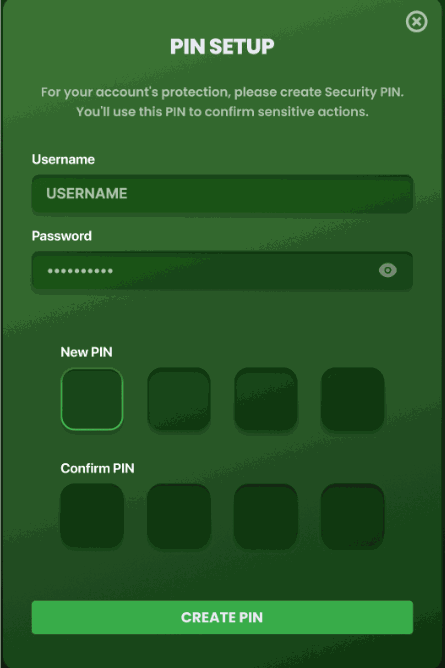
PIN-Setup
- Player PIN Reset: Players can reset their PIN if they know the current PIN. Input validation ensures the new PIN differs from the current PIN.
- Back Office PIN Reset: Authorized BO users can reset a player’s PIN with a mandatory reason. Players are prompted to set a new PIN on their next login or withdrawal.
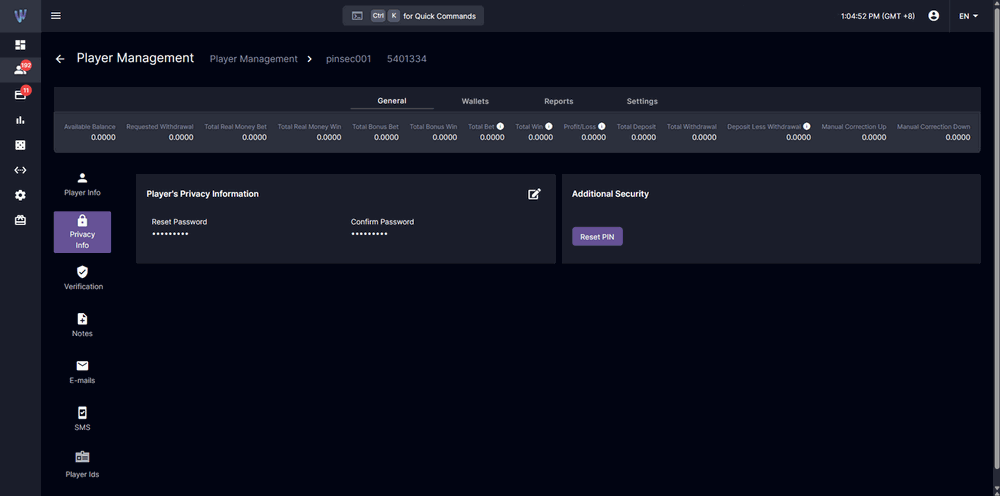
Back Office PIN Reset
- Withdrawal Security: PIN entry is required before completing a withdrawal; configurable by payment method. Players without a PIN are prompted to set one before proceeding.
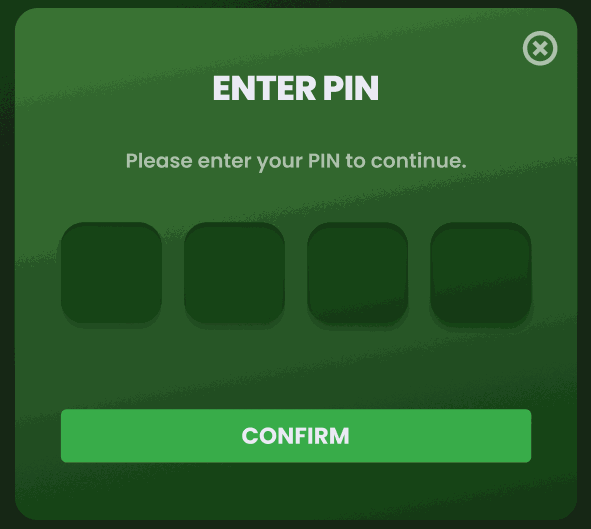
Enter PIN
- Lockout and Cooldown: Accounts lock after failed attempts (3 default attempts), with a cooldown period (default 15 minutes).
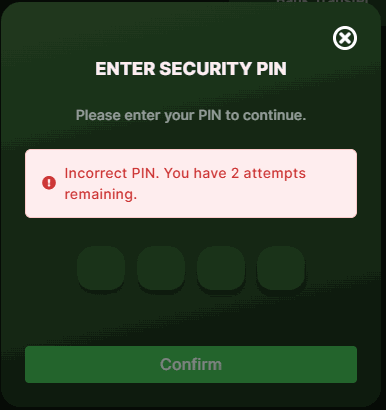
PIN Failed Attempts
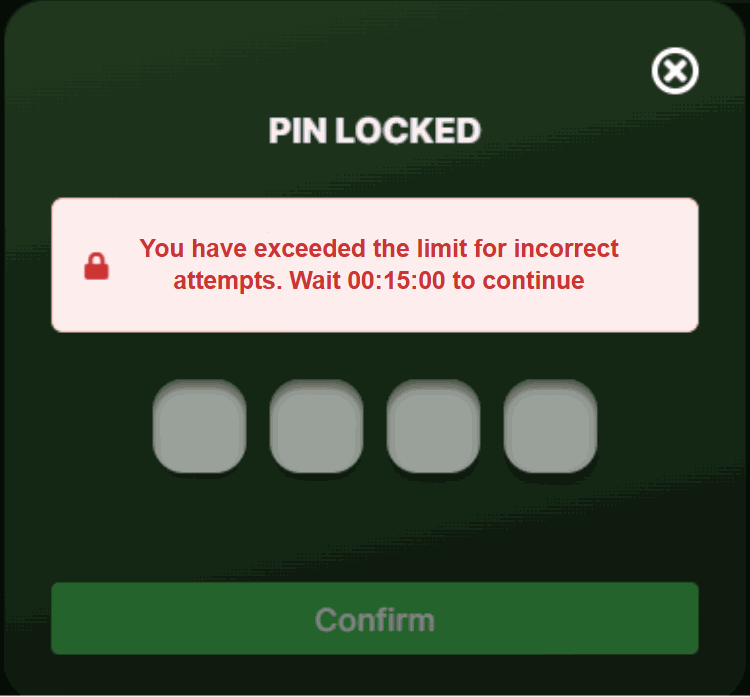
PIN Lockout - Cooldown Time
- Audit Log: All PIN-related actions (Setup, Reset, Failed attempts) are logged with clear tracking of the user (player or operator).
Korean Translation: 플레이어 보안 PIN
Telegram Sign In
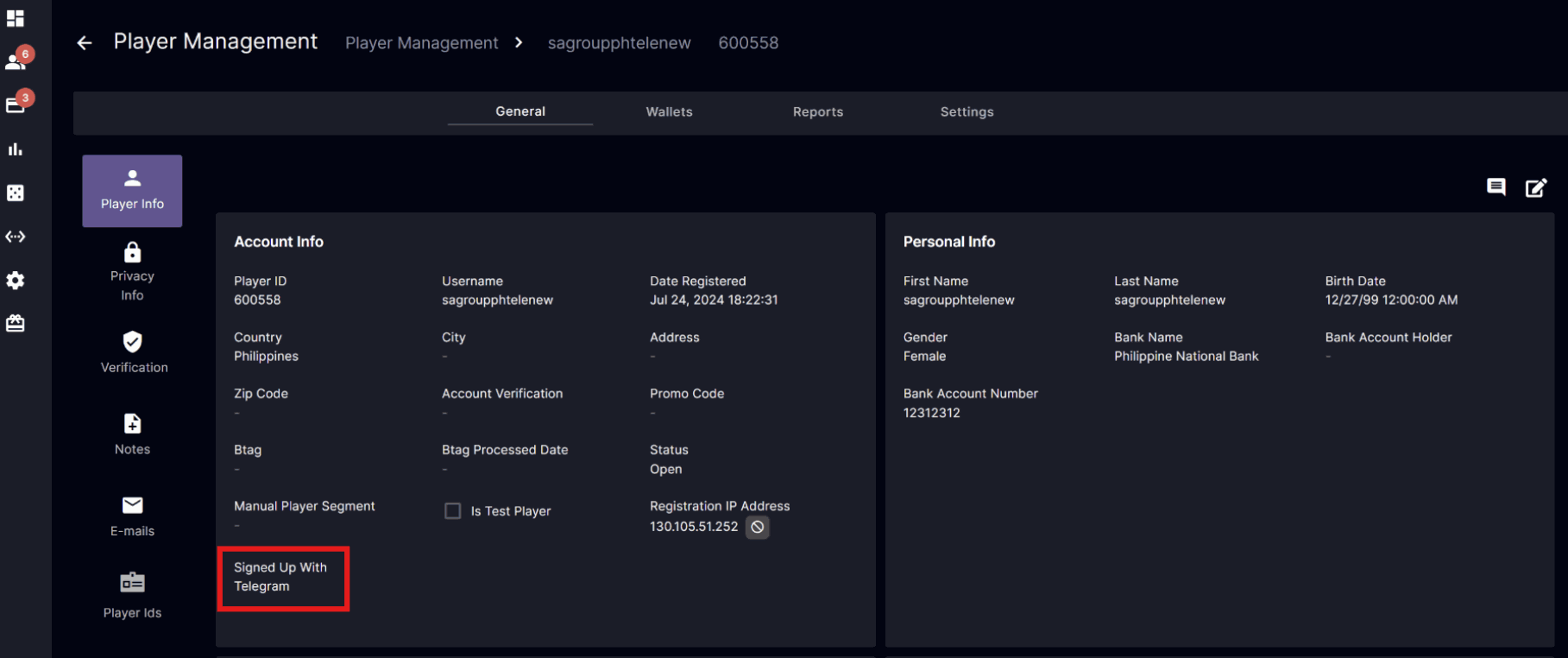
Allow users to register for a new account or connect their current account with their Telegram profile for seamless access and interaction. Telegram sign-in is an optional widget that can be implemented for all operators.Sign in Page
New users
After clicking the Telegram login button, new users will be directed to the Telegram authorization pop-up. Upon accepting the account linking, they will be presented with a registration form.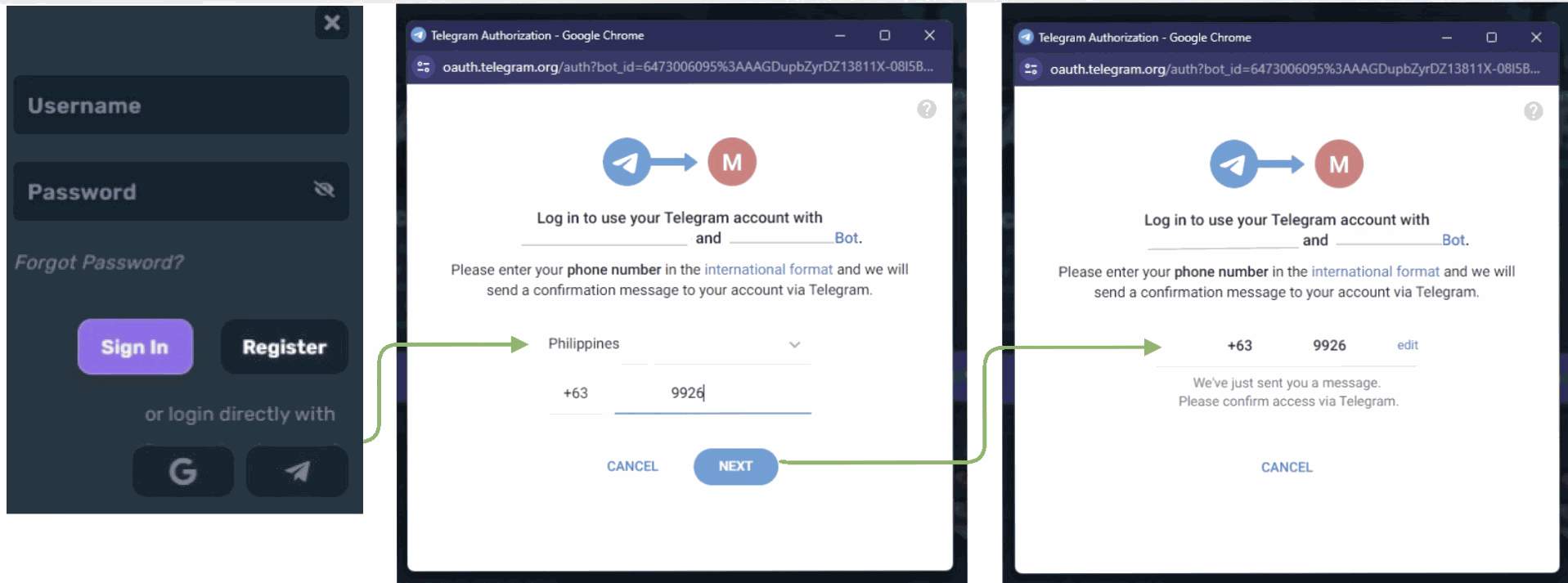
Input Telegram Details
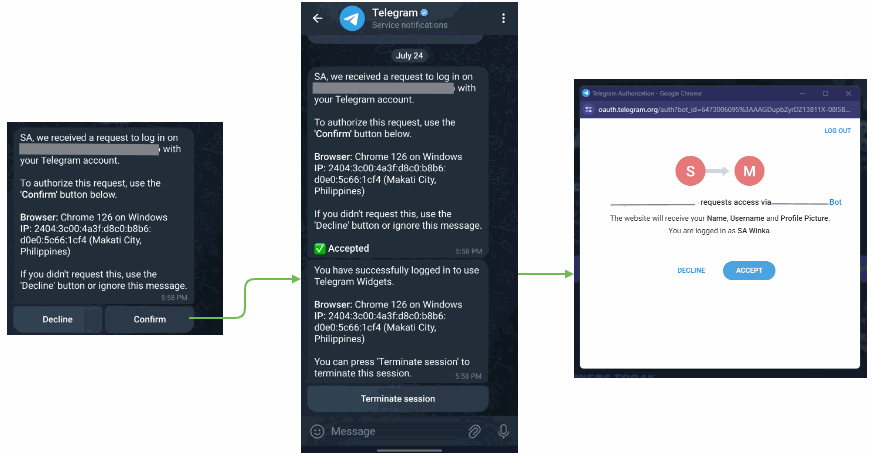
Confirm Telegram Login
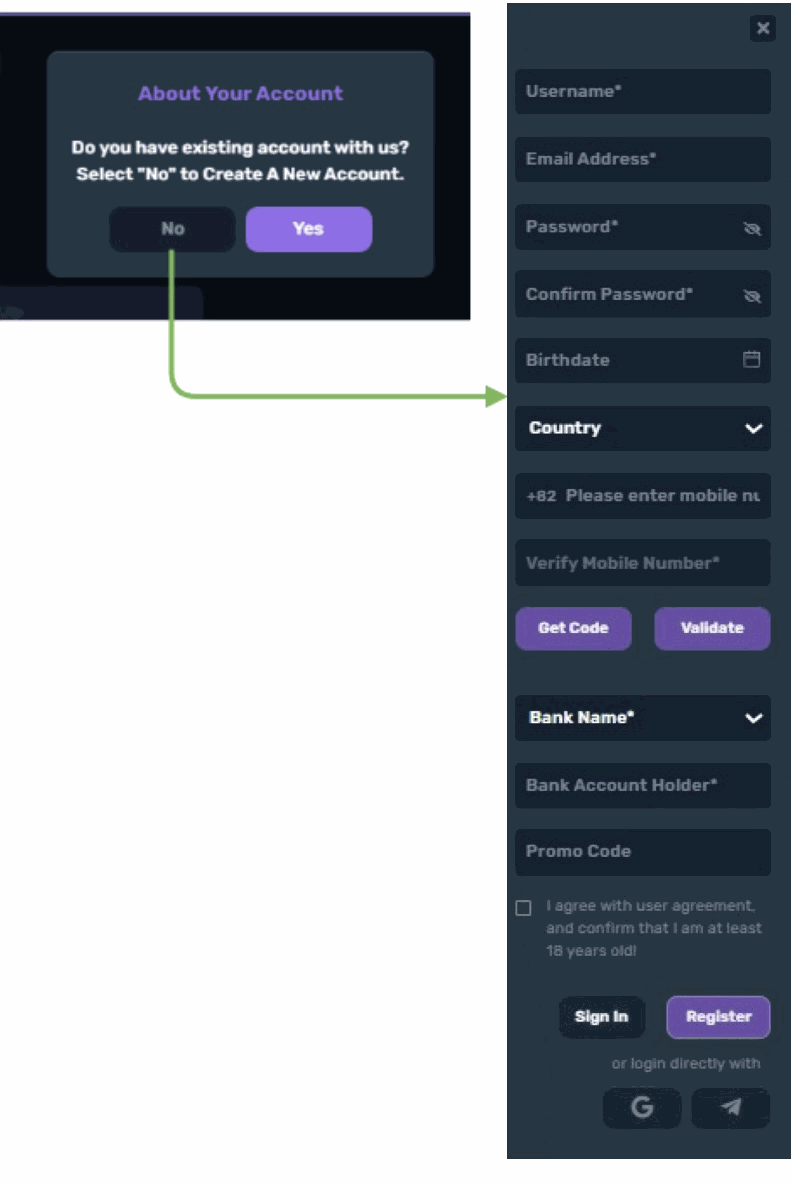
Input required field sign-up form
Existing users
The same steps as illustrated in the Input Telegram Details & Confirm Telegram Login figures above will be the initial flow for existing users who wish to log in using their Telegram account. Upon selecting “Yes” in the “Do you have an existing account” prompt, the existing user verification prompt will follow. Users can then input their username/email address and password for the existing account to enable sign-in using username/email and password as well as telegram SSO.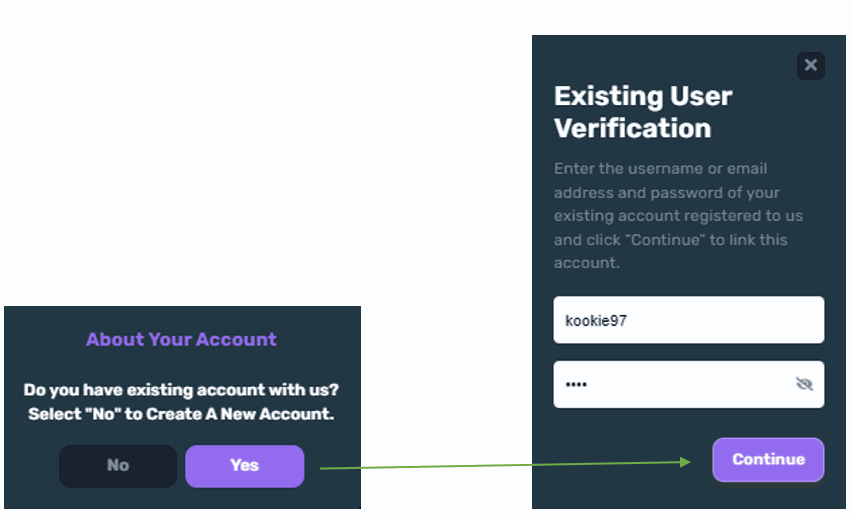
Telegram Sign-in Notifications when:
- Telegram-side authentication not authorized: Show an error message “Telegram authorization error“
- User Declined on Confirm Telegram Login step: Show error message in telegram “Declined by the user”
- Existing User Verification account already linked or incorrect login details: Show error message “Account cannot be linked or account is blocked.”
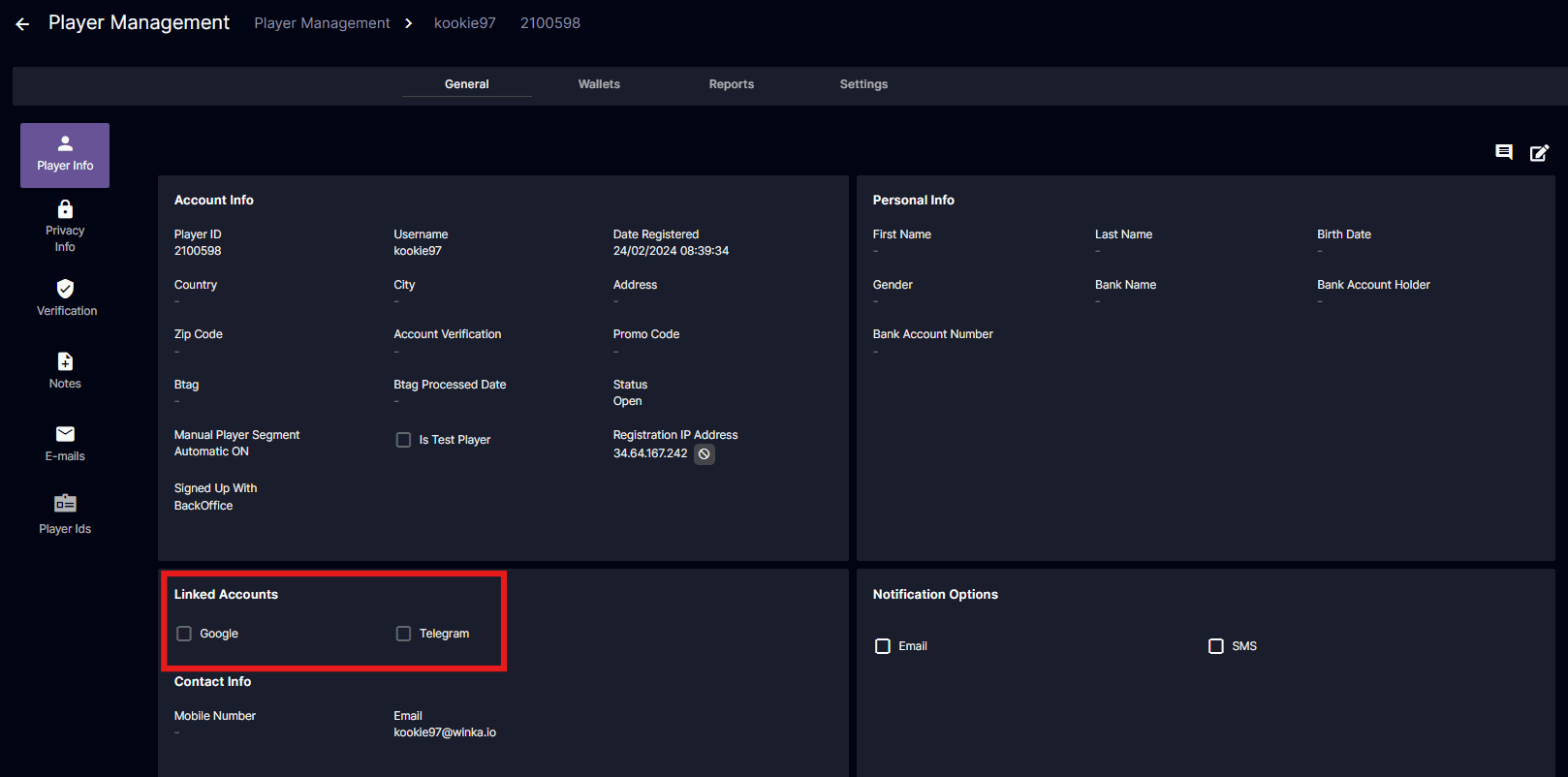
Player Details
Linked Accounts will be added to the Player Details for backoffice operators to have a view of login methods enabled for the player.- The corresponding account method used to link will be ticked if this has been used to log in to the player’s account.
- This is non-editable
Additional Notes
- The email verification flow should still work if enabled in the Registration Settings.
- Accounts registered and linked through the site form/backoffice, Google login, and Telegram should be able to log in using the same multiple sign-in methods.
- Google sign-ups not linked to an existing site form/back office registered account will not be able to be linked to Telegram.