Welcome to MGate
MGate is a Korean Payment Gateway Provider that exclusively deals with the KRW currency. It stands out from other payment gateways by eliminating the need for a deposit request. Instead, players simply register and verify their bank accounts, prompting MGate to generate a Virtual Bank Account Number for deposits. Deposit This Virtual Bank Account Number becomes the designed channel for players to make seamless deposits at any time, triggering automatic notifications to our platform regarding the successful deposit and the deposited amount. Withdrawal Withdrawals follow a distinct process, where players can only select a destination bank account from their pre-registered and verified list. Approval for player withdrawals is required from BackOffice users. Player Bank Account Registration and Verification Process- Player selects MGate as the Payment Method
- New Players will need to undergo the Registration and Verification Process of their bank account that they will use for funding their Player Account.
- Registration requires the Player to provide the following information:
- Bank Name
- Bank Account Number
- Bank Account Name
- Birth Date
- Once MGate validated the above information, it will transfer 1KRW to the Bank Account of the Player
- Once the Player received the amount in his/her bank, he/she can then proceed with the Verification Process.
- Verification is just simply entering the Depositor’s Name in the Verification Form. The Depositor’s Name can be found in the Player’s Bank Transaction History (Bank’s application), this is the sender of the 1KRW sent by MGate.
- MGate will validate the Depositor’s Name if valid, if so, MGate will then proceed to generate a Virtual Bank Account Number in a certain Bank.
- Winka Platform should store this information for the Player to retrieve the information anytime.
- Player selects MGate as the Payment Method
- List of Verified Bank Accounts with the corresponding Virtual Bank Account Numbers will be presented to the Player
- From that list, the Player will choose one Virtual Bank Account Number and can proceed with the actual deposit through his/her bank application.
- Once MGate received the deposit amount transferred to the Virtual Bank Account, MGate will notify Winka Platform through API about the Amount, Player Bank Account Number and and Player Bank Account Name.
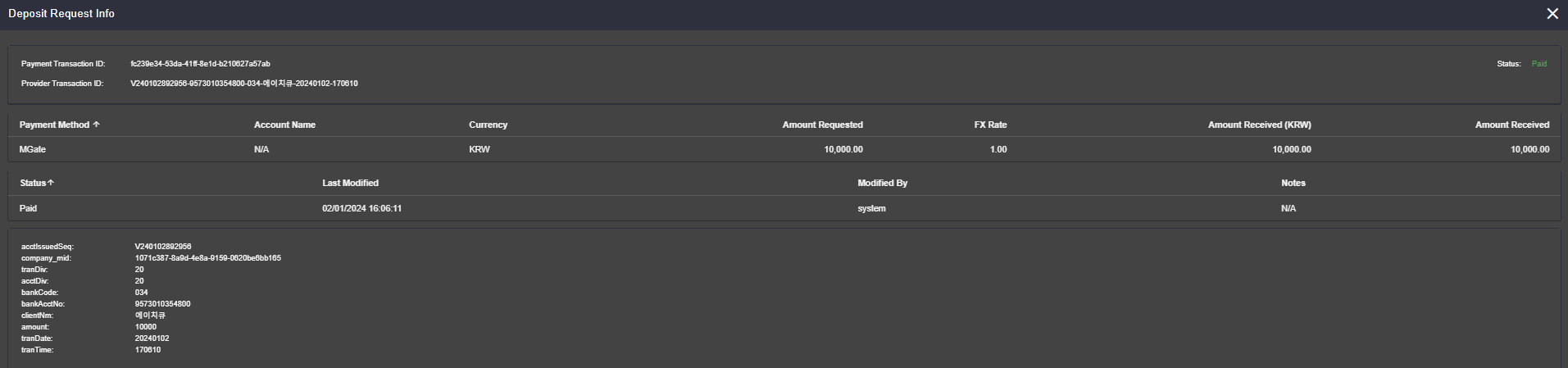
- Winka Platform will then proceed to create a Deposit Request record as Paid with the information received from MGate and also the following steps:
- Check for Bonus Eligibility
- Increase Player’s Balance and create the corresponding Wallet Transaction
- Player selects MGate as the Payment Method
- Player will then input the following:
- Bank Account --- from a dropdown with the list of his/her verified bank accounts
- Amount to be withdrawn
- Winka Platform will then create a Withdrawal Request record.
- Backoffice user will be notified for the Withdrawal Request and can proceed with Approving or Rejecting the request.
- Once the Backoffice user approved the request, a payout request will be sent to MGate for the actual transfer of money to the Player’s Bank Account.
- If the Payout Request is successful, the request should then be marked as Paid, else as Failed.
- Settlement Account – this is the account, in which the Operator transfers in and out funds from MGate. And this is used to fund the Float Account to be able to fund the Players’ withdrawals.
- Float Account - this is the source account for the actual transfer of payout to the Players’ Bank Accounts. The Operator should ensure that there is enough balance in this account before approving any withdrawal requests. Failed to do so will result to failed payout requests.
- Display the Float Account Balance
- Initiate a transfer request from Settlement Account to the Float Account
Guide to MGate Backoffice
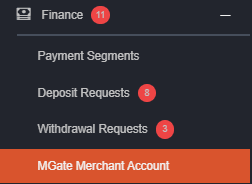
MGate Merchant Account will be incorporated into the Finance section, enabling back-office users to review holding balances, merchant balances, fees, and transaction histories. Additionally, back-office users have the capability to add funds to MGate’s balance. I. To start, the backoffice user must select Can Modify to view and modify MGate Merchant Account. To navigate, go to Settings > User Management > Select the User > Edit Individual Permissions. If Not Permitted is chosen, the backoffice user is forbidden from viewing nor making changes. MGate Merchant Account will not appear in Finance. Permitted means that the backoffice user has a viewing access and MGate Merchant Account will appear like this.
 A brief overview of its appearance and functionality is as follows:
Query Balances - Clicking the button allows a back-office user to refresh the data for Holding Balance, Merchant Balance, and Fee.
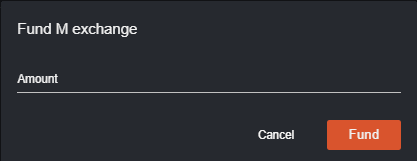
Fund M Exchange - Clicking the button shows a pop-up that allows a back- office user to request a fund for MGate’s balance.
A brief overview of its appearance and functionality is as follows:
Query Balances - Clicking the button allows a back-office user to refresh the data for Holding Balance, Merchant Balance, and Fee.
Fund M Exchange - Clicking the button shows a pop-up that allows a back- office user to request a fund for MGate’s balance.
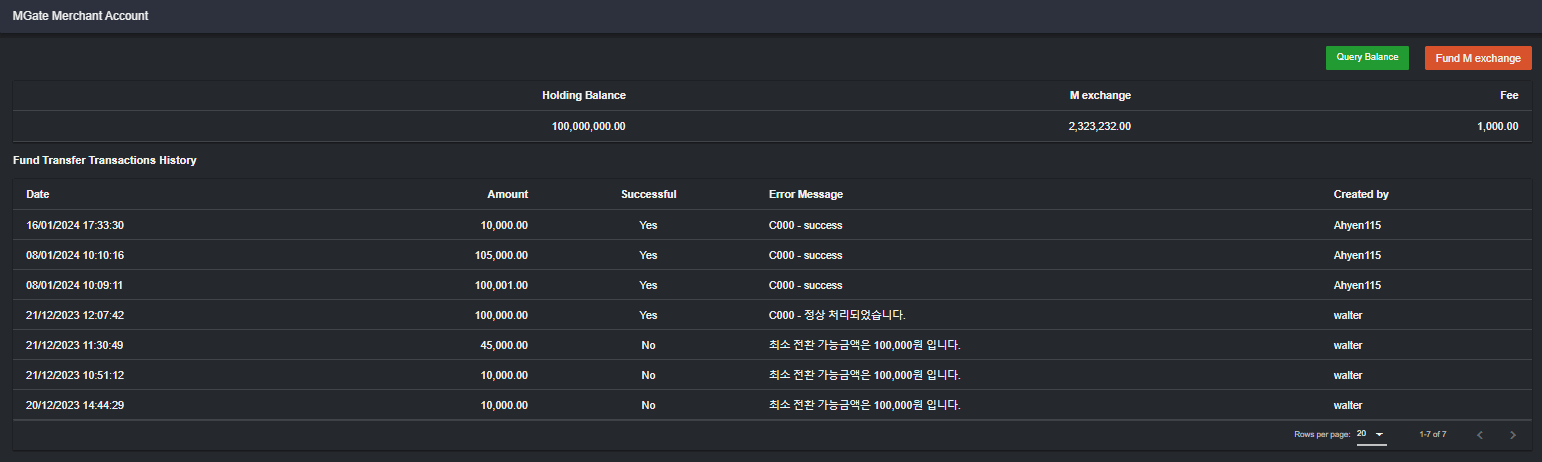
 a. Holding Balance - Refers to the accumulated deposit amount from players.
Note:
a. Holding Balance - Refers to the accumulated deposit amount from players.
Note:
- 1% of the amount requested charge and the KRW430 transaction fee are already deducted
- There is a fee associated with transferring funds from the Holding balance to the Merchant balance.
- A BO User should not be able to approve a withdrawal request if the merchant balance is insufficient.
- Error message : “Insufficient Merchant Balance. Kindly go to MGate Merchant Account to check the merchant’s balance.”
 Withdrawal Request (SingleCurrency)
Note that the ‘Amount Withdrawn (KRW)’ field should display ‘0’ if the status is not yet ‘Paid’.
Withdrawal Request (SingleCurrency)
Note that the ‘Amount Withdrawn (KRW)’ field should display ‘0’ if the status is not yet ‘Paid’.
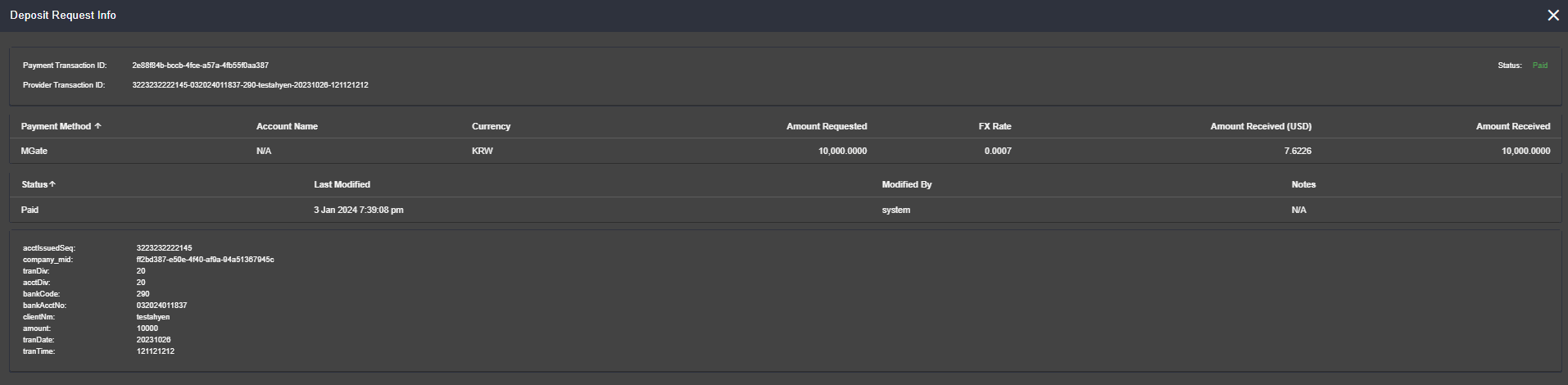
 Deposit Request (MultiCurrency)
Clicking the eye/view icon shows a popup that displays the transaction details.
Deposit Request (MultiCurrency)
Clicking the eye/view icon shows a popup that displays the transaction details.
 Withdrawal Request (MultiCurrency)
To process a withdrawal request, click the eye icon of the specific request then you can see the Process button. If the request has been Approved, ‘For Reconcile’ will appear in the back office for the operator to review. After checking, the operator can then process it if ‘Paid/Rejected’.
Withdrawal Request (MultiCurrency)
To process a withdrawal request, click the eye icon of the specific request then you can see the Process button. If the request has been Approved, ‘For Reconcile’ will appear in the back office for the operator to review. After checking, the operator can then process it if ‘Paid/Rejected’.
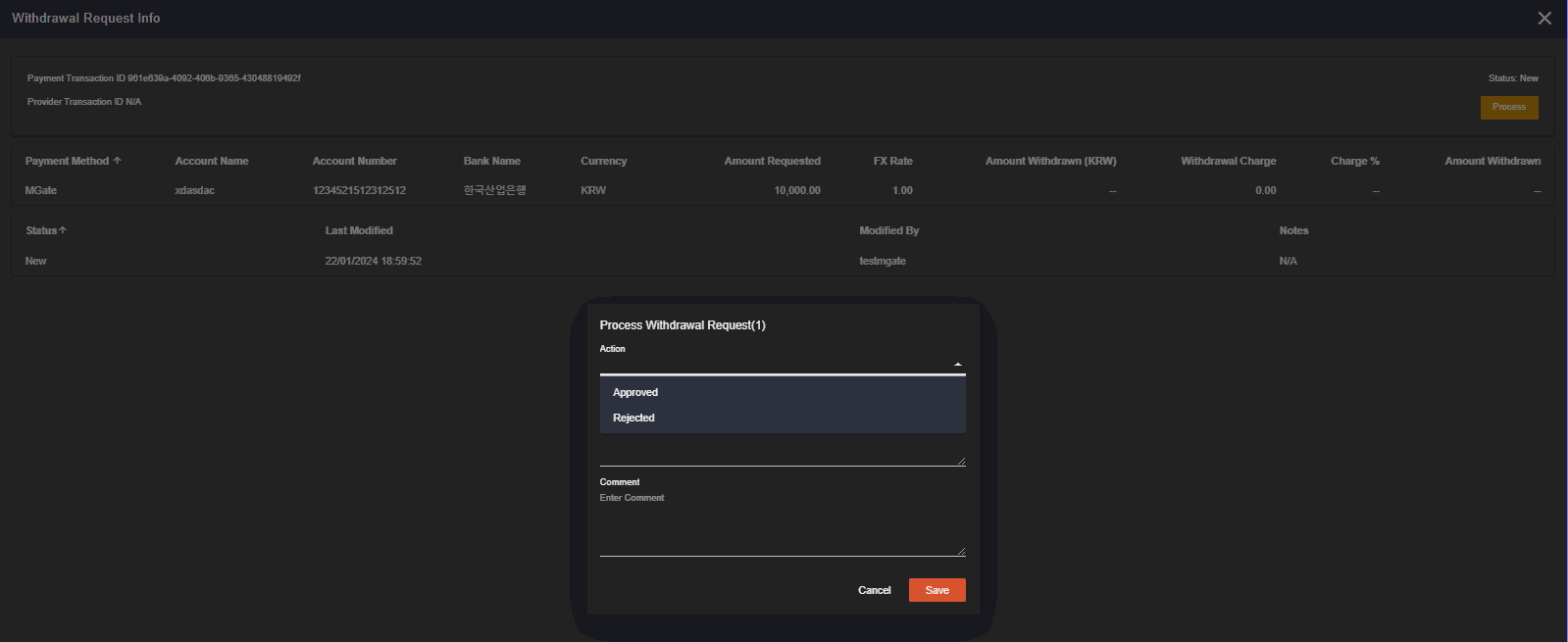 Note that the ‘Amount Withdrawn (KRW)’ field should display ‘0’ if the status is not yet ‘Paid’.
 IV. Filter for Finance
a. Deposit Requests
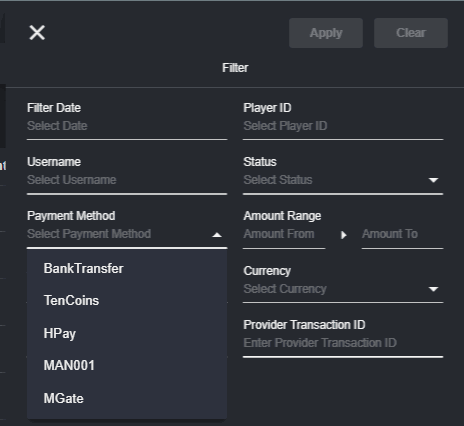
Payment Method
‘MGate’ will be added as an option in the Payment Method dropdown to allow a BO user to view deposit requests for MGate.
IV. Filter for Finance
a. Deposit Requests
Payment Method
‘MGate’ will be added as an option in the Payment Method dropdown to allow a BO user to view deposit requests for MGate.
 Status
SingleCurrency
Status
SingleCurrency
 MultiCurrency
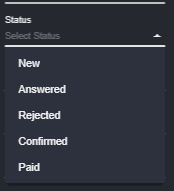
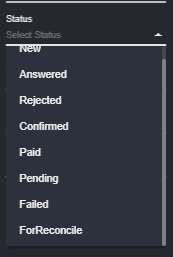 ‘Failed’ status will be added to allow a BO user to view deposit requests with ‘Failed’ status.
b. Withdrawal Requests
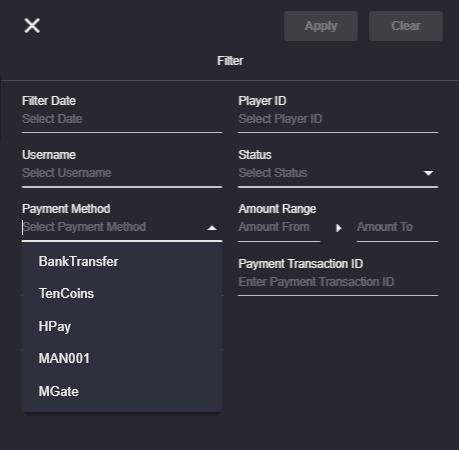
Payment Method
‘MGate’ will be added as an option in the Payment Method dropdown to allow a BO user to view withdrawal requests for MGate.
‘Failed’ status will be added to allow a BO user to view deposit requests with ‘Failed’ status.
b. Withdrawal Requests
Payment Method
‘MGate’ will be added as an option in the Payment Method dropdown to allow a BO user to view withdrawal requests for MGate.
 Status
SingleCurrency
Status
SingleCurrency
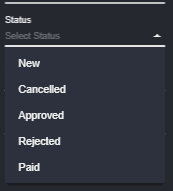 MultiCurrency
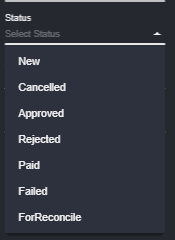 ‘For Reconcile’ status will be added to allow a BO user to view withdrawal requests with the status ‘For Reconcile’.
A notification will appear if the transaction is a success or a need to contact the administrator. This only appears for singe request.
c. Reports
Reports > Financial > Deposit Report
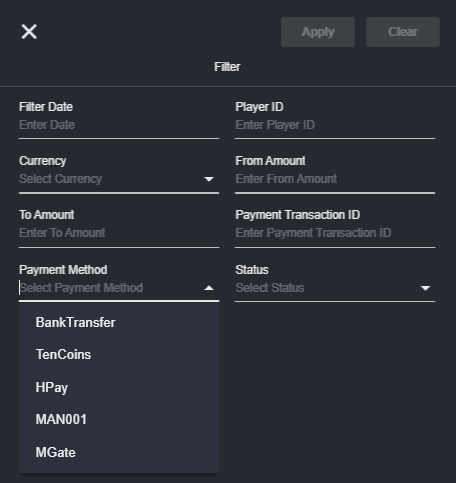
Payment Method
‘MGate’ will be added in the option to allow a BO user to view Deposit Reports that are specific to MGate.
‘For Reconcile’ status will be added to allow a BO user to view withdrawal requests with the status ‘For Reconcile’.
A notification will appear if the transaction is a success or a need to contact the administrator. This only appears for singe request.
c. Reports
Reports > Financial > Deposit Report
Payment Method
‘MGate’ will be added in the option to allow a BO user to view Deposit Reports that are specific to MGate.
 Status
Since we have Failed and Paid Status for MGate Transactions, we will add ‘Failed’ as a Status filter to allow a BO user to view Failed deposit transactions for MGate.
d. Player Management Transactions
Player Management > Reports > Transactions
Since the Backoffice user has to manually check and process the withdrawal request, compared to deposit,, withdrawal description will still be ManualWithdrawal.
Status
Since we have Failed and Paid Status for MGate Transactions, we will add ‘Failed’ as a Status filter to allow a BO user to view Failed deposit transactions for MGate.
d. Player Management Transactions
Player Management > Reports > Transactions
Since the Backoffice user has to manually check and process the withdrawal request, compared to deposit,, withdrawal description will still be ManualWithdrawal.
 e. CHARM
CHARM > Bonuses
When creating a new Deposit Bonus, a BO User can choose whether to limit the bonus for a certain Payment System. Since MGate is a new Payment System, we will be adding it as an option in the Payment System.
e. CHARM
CHARM > Bonuses
When creating a new Deposit Bonus, a BO User can choose whether to limit the bonus for a certain Payment System. Since MGate is a new Payment System, we will be adding it as an option in the Payment System.
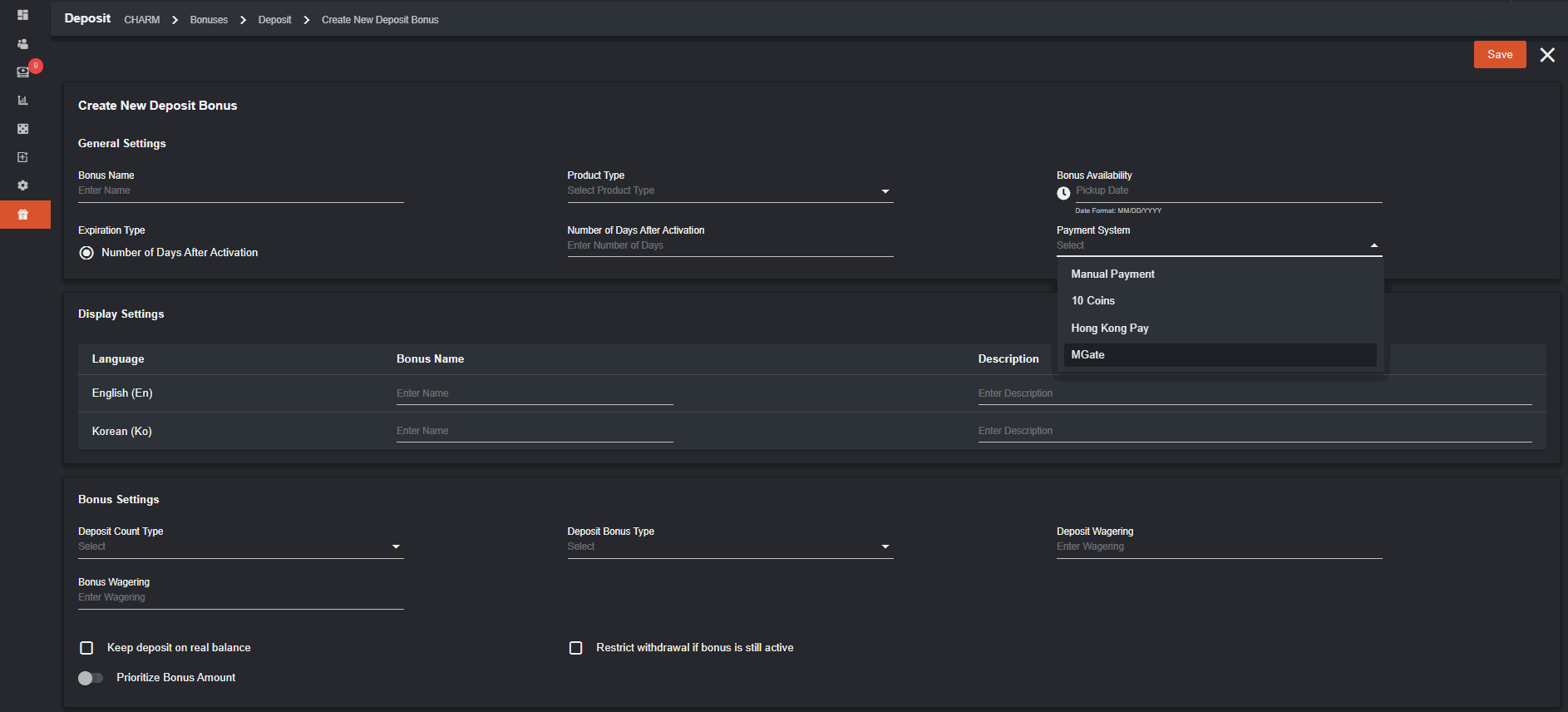 Payment System field will not be a required field. If no Payment Method is selected, this means that the Deposit Bonus created will be applied to all Payment Systems.
Player’s Guide for MGate Deposit and Withdrawal Requests (SingleCurrency)
I. Deposit When accessing the Wallet, users will be directed to the Deposit Page, where they will encounter various Payment Methods. The availability of Payment Methods on this page depends upon the methods enabled by the Operator, with MGate being one of the options. Opting for MGate as the selected Payment Method for a deposit enables users to access information about their verified bank accounts, unverified bank accounts, and all failed verifications. It also provides users with the capability to register a new bank account and verify already registered bank accounts.
Players will need to undergo the Registration and Verification Process of their bank account that they will use for funding their Player Account. See link for more details:
Once you click Register a new Bank Account, this pop-up will appear,
Opting for MGate as the selected Payment Method for a deposit enables users to access information about their verified bank accounts, unverified bank accounts, and all failed verifications. It also provides users with the capability to register a new bank account and verify already registered bank accounts.
Players will need to undergo the Registration and Verification Process of their bank account that they will use for funding their Player Account. See link for more details:
Once you click Register a new Bank Account, this pop-up will appear,
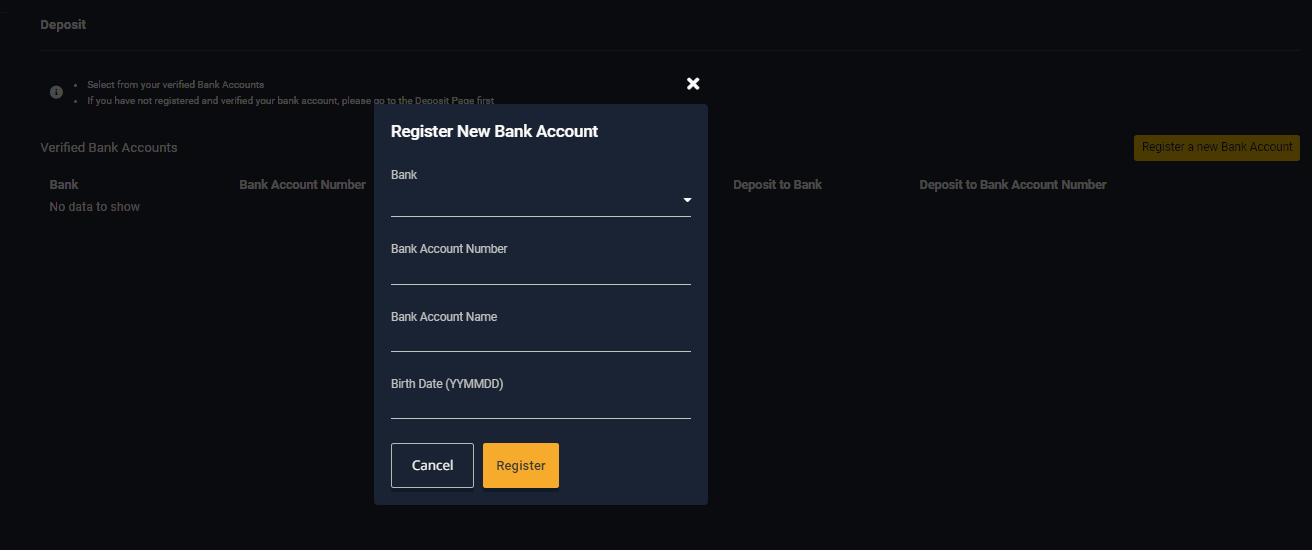 Bank displays the name of banks that MGate supports. Allows a user to choose the bank where his/her account belongs, Bank Account Number, Bank Account Name, and Birth Date.
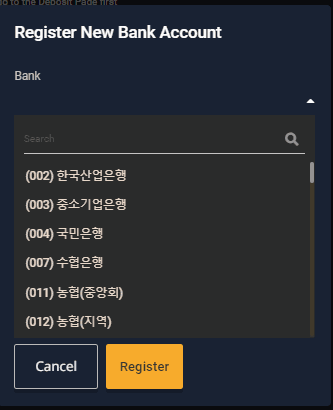 Once a user successfully registers a bank account, MGate will then send 1 KRW to the user’s bank account where the depositor’s name is included. The Depositor’s name will serve as a verification code wherein a user needs to use it to verify his/her account.
Verified Bank Accounts
In this table, bank accounts that are already verified are listed together with the virtual bank account number from MGate.
Once a user successfully registers a bank account, MGate will then send 1 KRW to the user’s bank account where the depositor’s name is included. The Depositor’s name will serve as a verification code wherein a user needs to use it to verify his/her account.
Verified Bank Accounts
In this table, bank accounts that are already verified are listed together with the virtual bank account number from MGate.
 Unverified Bank Accounts
Unverified bank account will appear in this page until the player verify them.
Unverified Bank Accounts
Unverified bank account will appear in this page until the player verify them.
 Failed Verifications
 II. Withdraw
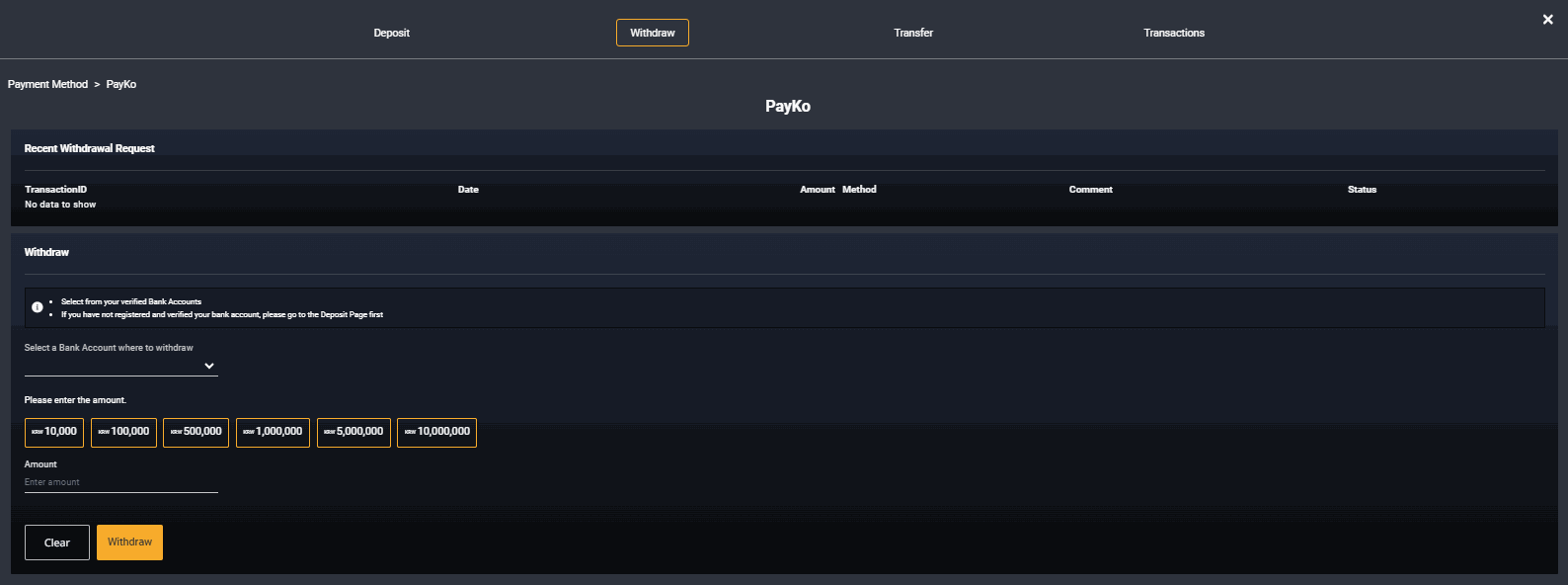
Just like Deposit, the Withdraw page is also accessible by clicking the Withdraw Tab on the Wallet page. The selection of payment methods for withdrawals is determined by the enabled methods chosen by the Operator, and MGate will be included as one of the available choices.
Choosing MGate as the Payment Method for withdrawal lets a user choose what bank account he/she wants the amount to be withdrawn.
II. Withdraw
Just like Deposit, the Withdraw page is also accessible by clicking the Withdraw Tab on the Wallet page. The selection of payment methods for withdrawals is determined by the enabled methods chosen by the Operator, and MGate will be included as one of the available choices.
Choosing MGate as the Payment Method for withdrawal lets a user choose what bank account he/she wants the amount to be withdrawn.
 Transactions
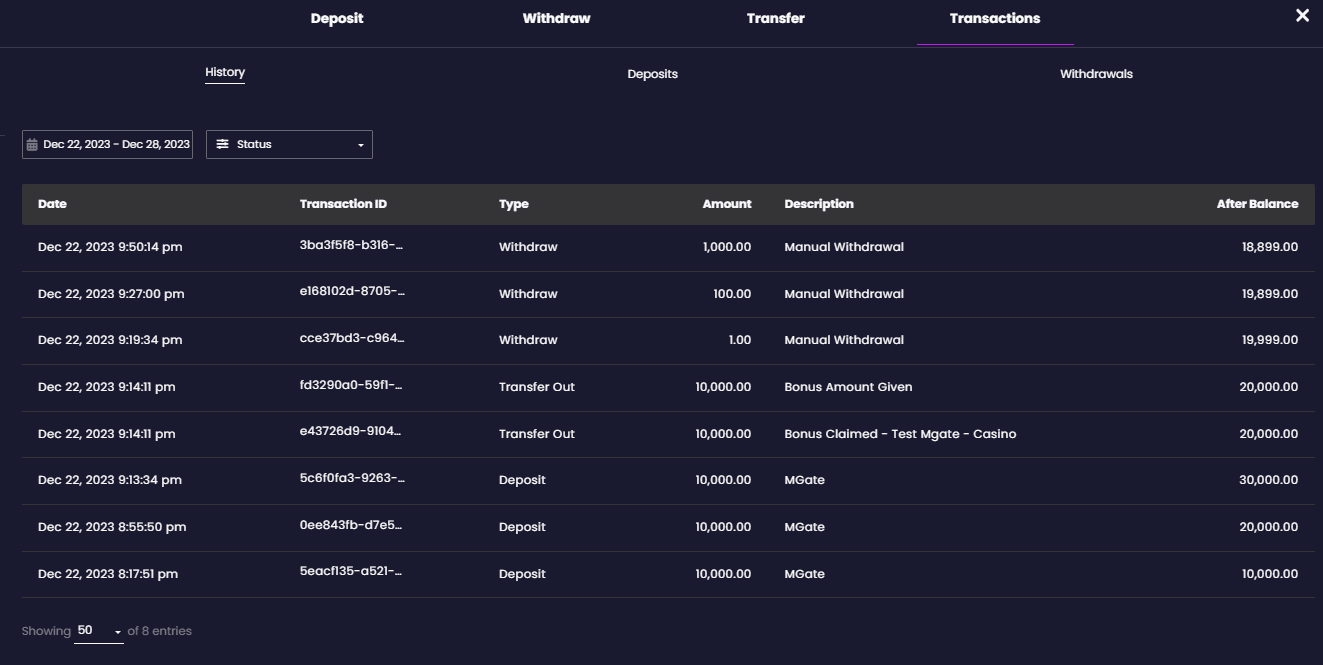
The tab previously labeled ‘History’ has been changed to ‘Transactions.’ Within the Transactions tab, users can access their wallet history, deposit transactions, and withdrawal transactions.
Transactions
The tab previously labeled ‘History’ has been changed to ‘Transactions.’ Within the Transactions tab, users can access their wallet history, deposit transactions, and withdrawal transactions.
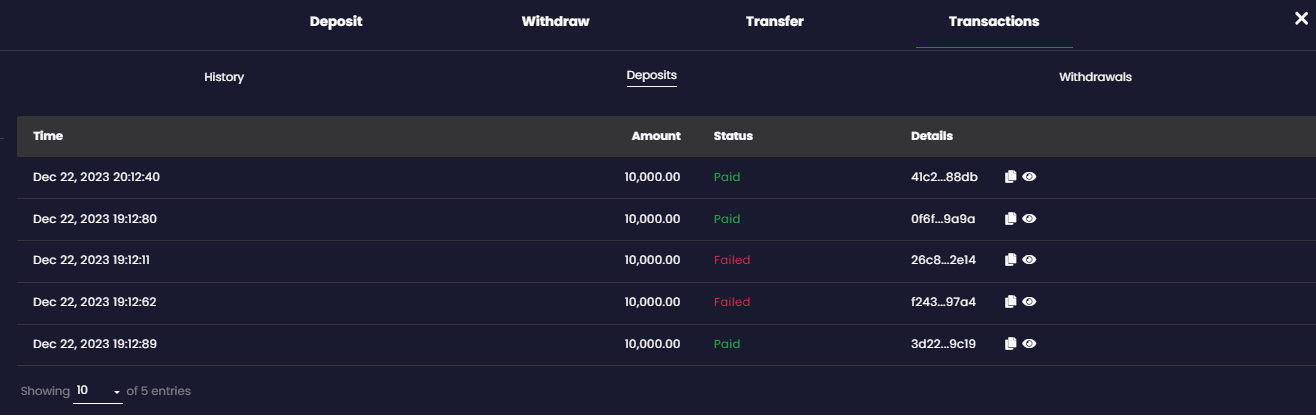
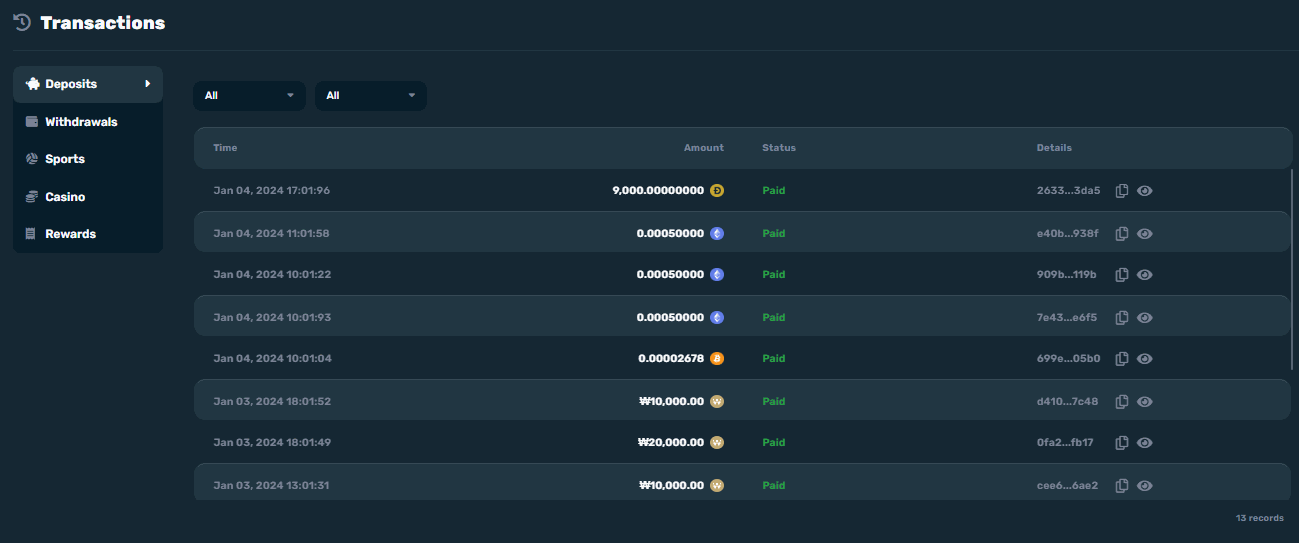
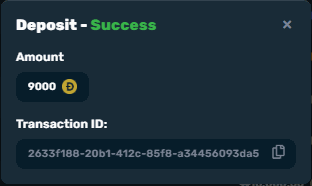
 Deposit will display all deposit transactions of a user regardless of their status. If you click the copy icon beside details, it will copy the transaction ID of the deposit while the eye icon will provide you the details.
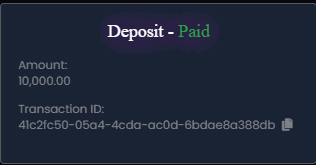
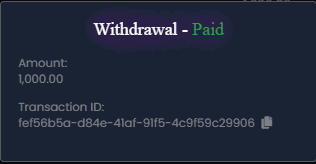 Withdrawal appears just like the Deposit except eye icon is not available for cancelled transactions.
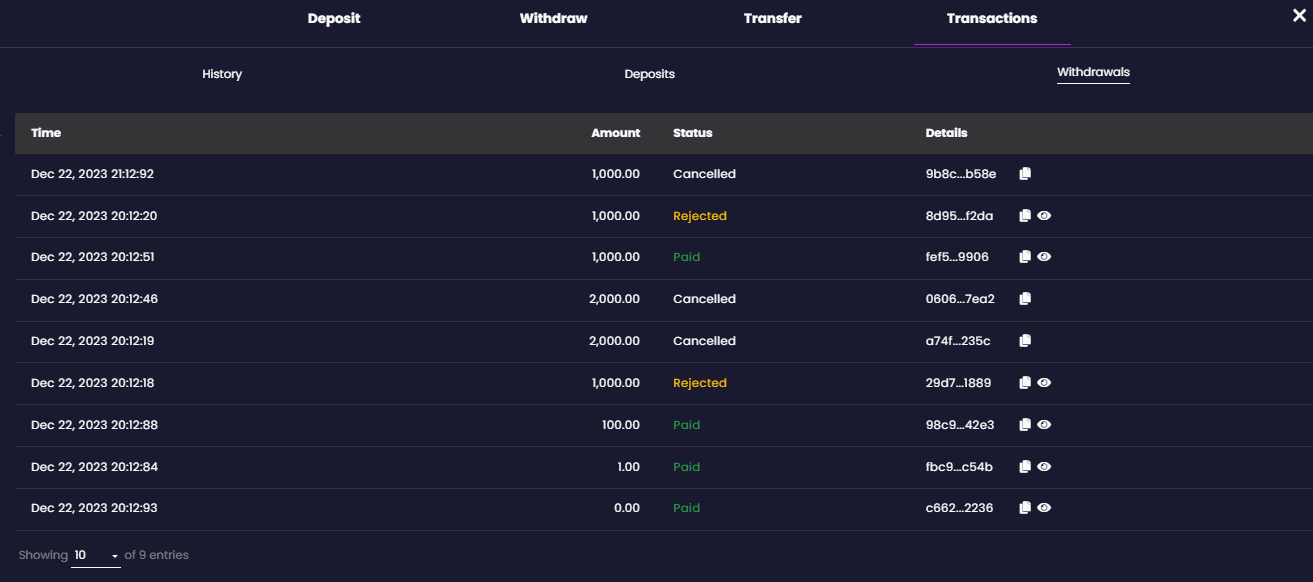
- If the Status is still ‘Pending’, a delete icon beside the status will be available to allow cancellation of the withdrawal request. Once the delete icon is clicked, it will display a confirmation prompt.
- There should only be 1 pending withdrawal request per player. With that, making a new withdrawal request is not allowed if there is still a pending withdrawal transaction. The Bank selection, amount selection, amount field, Cancel, and Withdraw buttons will not be clickable unless there is no pending withdrawal transaction.
Player’s Guide for MGate Deposit and Withdrawal Requests (MultiCurrency)
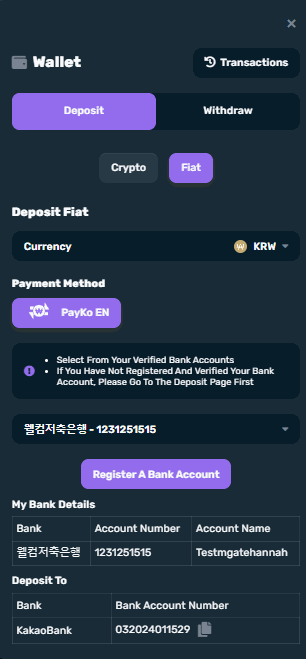
I. Deposit (Fiat) To navigate, click Wallet and select Fiat. The availability of Payment Methods on this page depends upon the methods enabled by the Operator, with MGate being one of the options.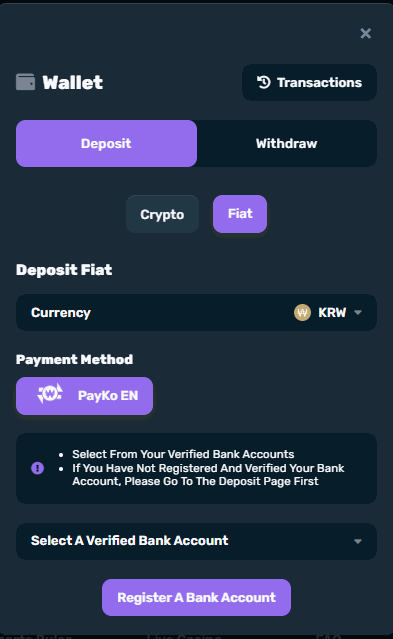 If no Bank Account appears in the dropdown, the member needs to register a bank account to continue with MGate.
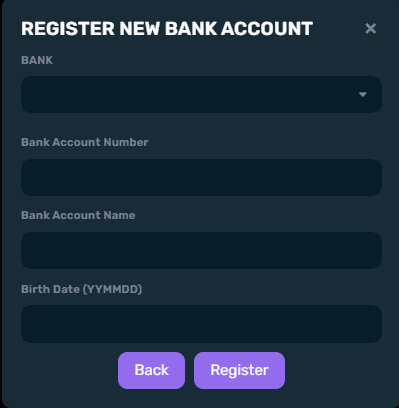 The bank selection will present a list of supported banks by MGate, enabling players to select where his/her account belongs.
Once a user successfully registers a bank account, MGate will then send 1 KRW to the user’s bank account where the depositor’s name is included. The Depositor’s name will serve as a verification code wherein a user needs to use it to verify his/her account.
The bank registered will now appear in the selection and its details.
The bank selection will present a list of supported banks by MGate, enabling players to select where his/her account belongs.
Once a user successfully registers a bank account, MGate will then send 1 KRW to the user’s bank account where the depositor’s name is included. The Depositor’s name will serve as a verification code wherein a user needs to use it to verify his/her account.
The bank registered will now appear in the selection and its details.
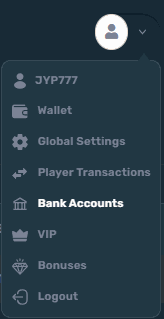
 Bank Accounts
 is an added Player Menu. Once accessed, it will redirect users to dedicated pages for Verified Accounts, Unverified Bank Accounts, and Failed Verifications.
Bank Accounts
Bank Accounts is an added Player Menu. Once accessed, it will redirect users to dedicated pages for Verified Accounts, Unverified Bank Accounts, and Failed Verifications.
 Verified Bank Accounts
By default, the Verified Bank Accounts menu is selected once the Bank Accounts page is accessed.
Verified Bank Accounts
By default, the Verified Bank Accounts menu is selected once the Bank Accounts page is accessed.
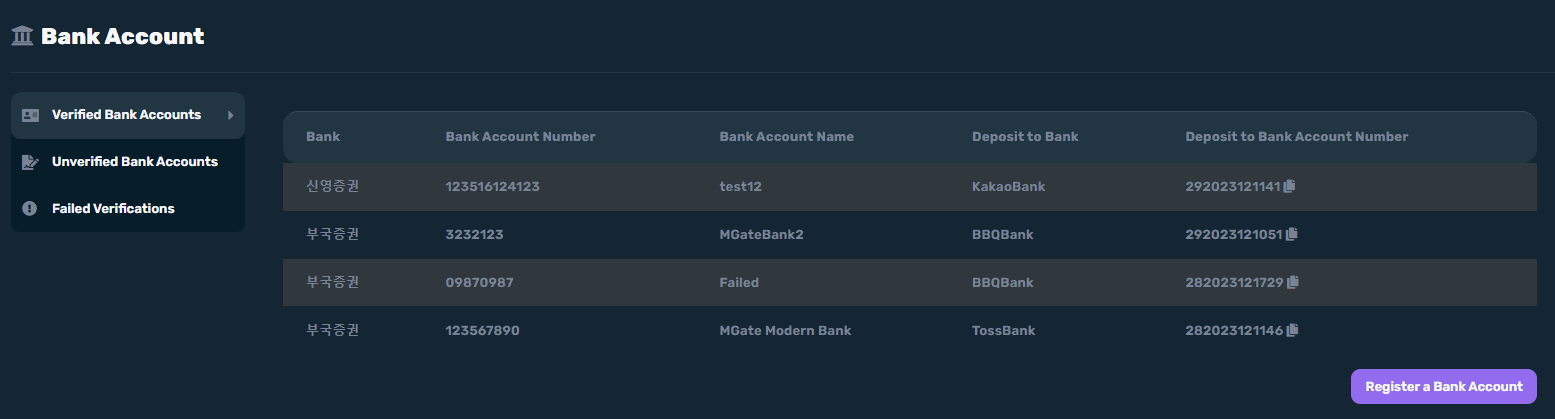 The player can also register a new bank account in this page.
Unverified Bank Accounts
Unverified bank account will appear in this page until the player verify them.
The player can also register a new bank account in this page.
Unverified Bank Accounts
Unverified bank account will appear in this page until the player verify them.
 Failed Verifications
 II. Withdraw (Fiat)
To navigate, click Wallet > Withdraw > Fiat. The selection of payment methods for withdrawals is determined by the enabled methods chosen by the Operator, and MGate will be included as one of the available choices.
II. Withdraw (Fiat)
To navigate, click Wallet > Withdraw > Fiat. The selection of payment methods for withdrawals is determined by the enabled methods chosen by the Operator, and MGate will be included as one of the available choices.
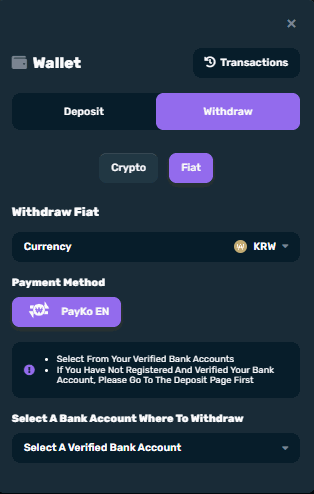 Verified bank account will appear in the dropdown where the player can choose from.
Transactions
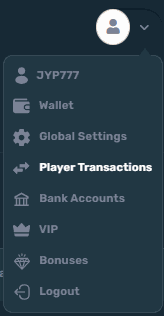
Transactions can be accessed through the Player Menu (Player Transactions) or in the Wallet pop-up (Transactions)
Verified bank account will appear in the dropdown where the player can choose from.
Transactions
Transactions can be accessed through the Player Menu (Player Transactions) or in the Wallet pop-up (Transactions)
 Deposit will display all deposit transactions of a user regardless of their status. If you click the copy icon beside details, it will copy the transaction ID of the deposit while the eye icon will provide you the details.
 Withdrawal appears just like the Deposit except eye icon is not available for cancelled transactions.
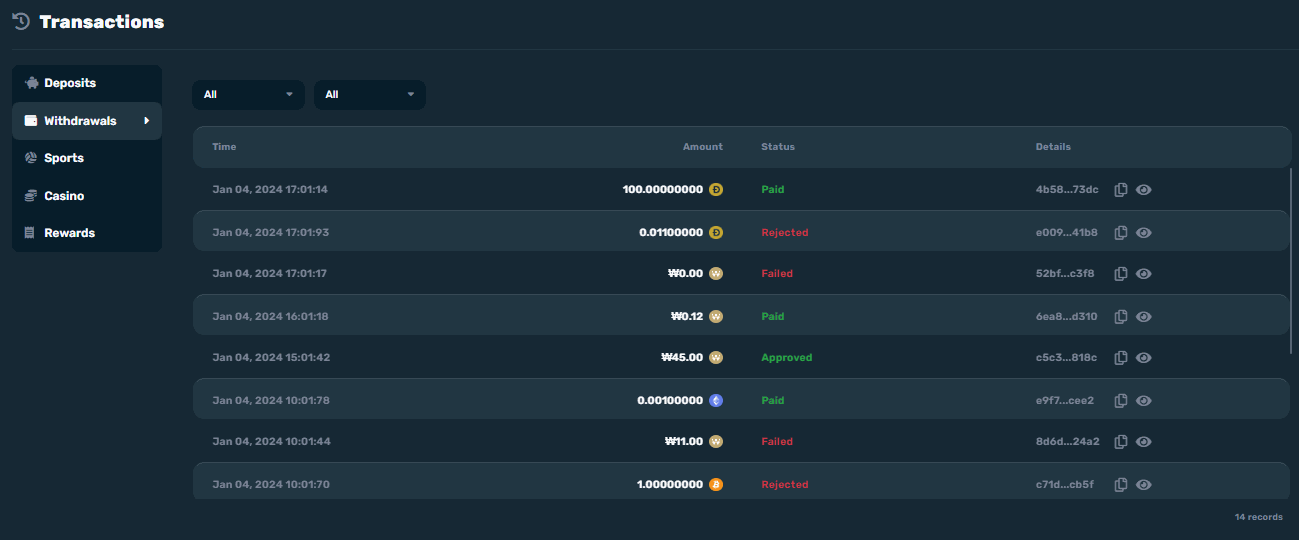 No changes to the existing Transactions page for Withdrawals.
- If the Status is still ‘Pending’, a delete icon beside the status will be available to allow cancellation of the withdrawal request. Once the delete icon is clicked, it will display a confirmation prompt.
- There should only be 1 pending withdrawal request per player. With that, making a new withdrawal request is not allowed if there is still a pending withdrawal transaction. The Bank selection, amount selection, amount field, Cancel, and Withdraw buttons will not be clickable unless there is no pending withdrawal transaction.
MGATE Fund Transfer To Merchant Balance Processing Time Duration
MGate has established specific settlement time periods for operators initiating fund transfers to their Merchant Wallets. Please consult the table below for detailed guide on each settlement time frame:PayKo Process Flow Changes
Bank Registration Bank Registration pop-up can be accessed by clicking the ‘Register a new Bank Account’ button.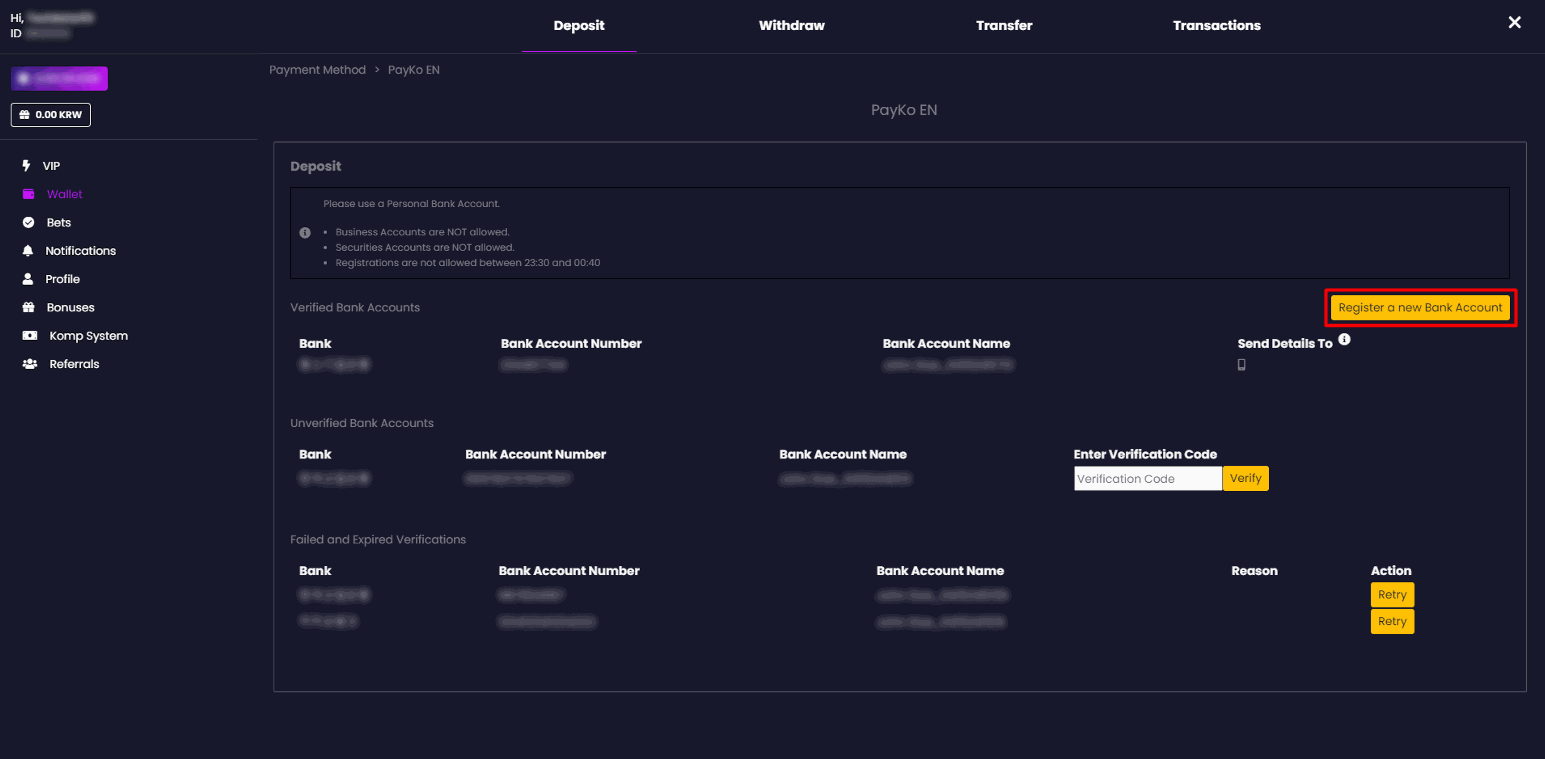
-
To register a Bank Account, player has to fill out all the required fields:
● Bank
● Bank Account Number
● Birth Date
● Phone Number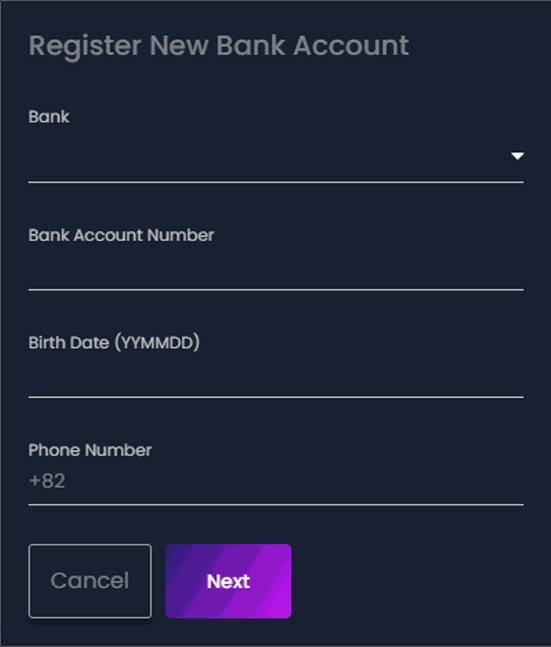
-
Clicking the ‘Next’ button will allow PayKo to check the Account Name to which the previously entered details belong.
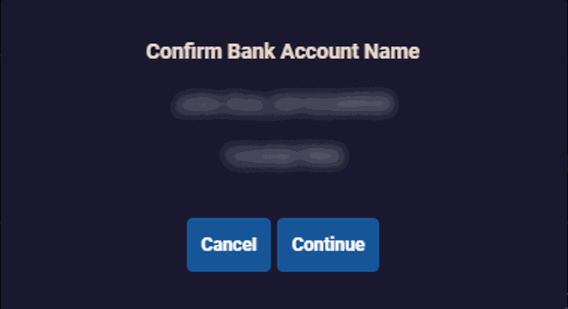 3. Clicking the ‘Continue’ button will let the player securely verify his identity through a standard bank verification service. The player must input the required information to complete the identity verification process.
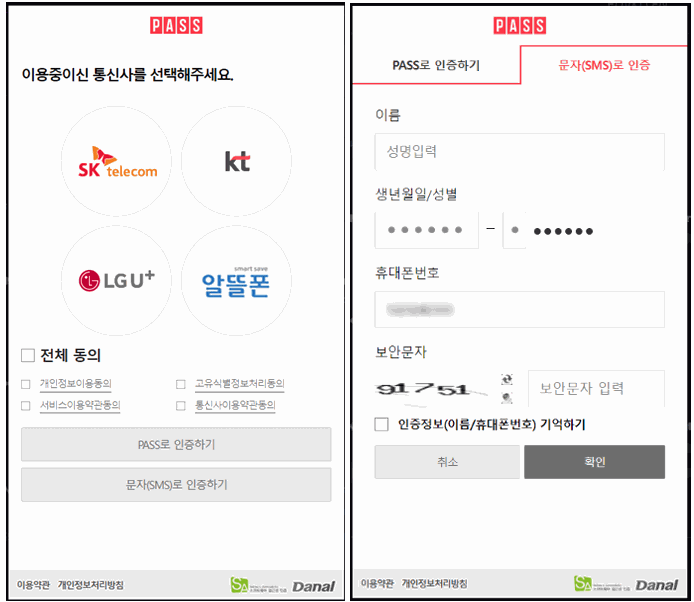 4. Once the Identity Verification is completed, PayKo will send 1 KRW to the player’s bank account along with the verification code.
5. To fully verify the Bank Account, the player has to input the verification code and click the ‘Verify’ button.
4. Once the Identity Verification is completed, PayKo will send 1 KRW to the player’s bank account along with the verification code.
5. To fully verify the Bank Account, the player has to input the verification code and click the ‘Verify’ button.
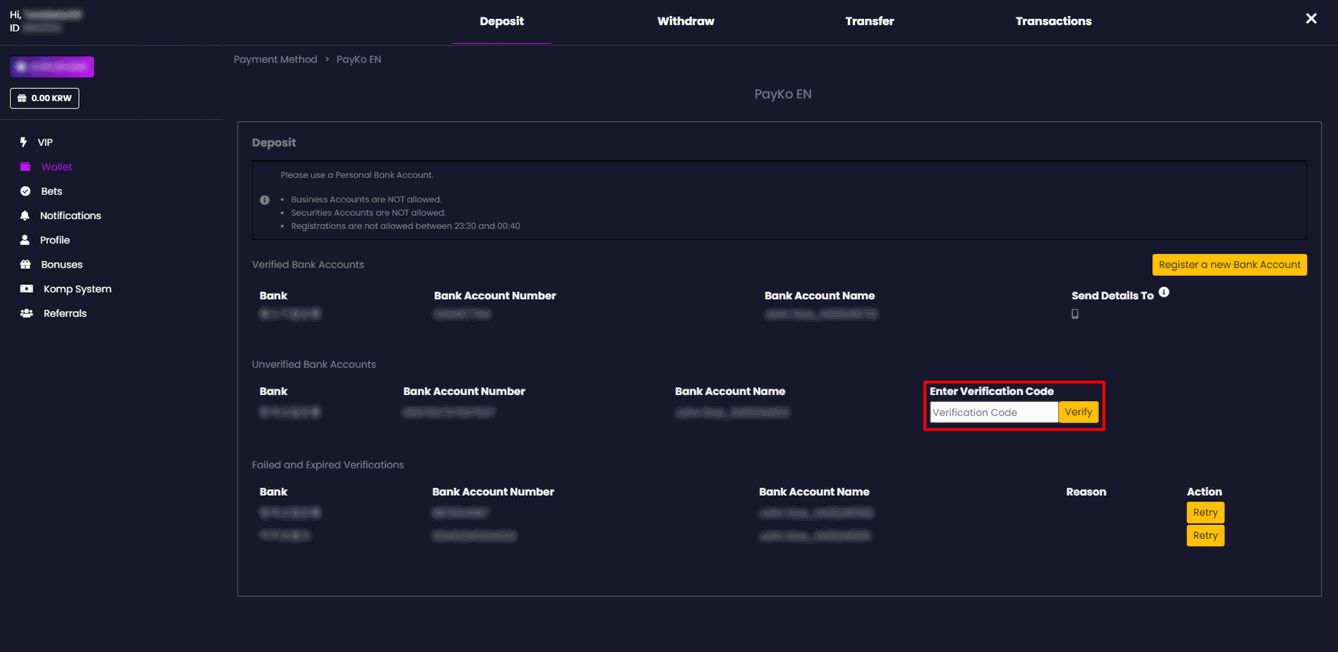
-
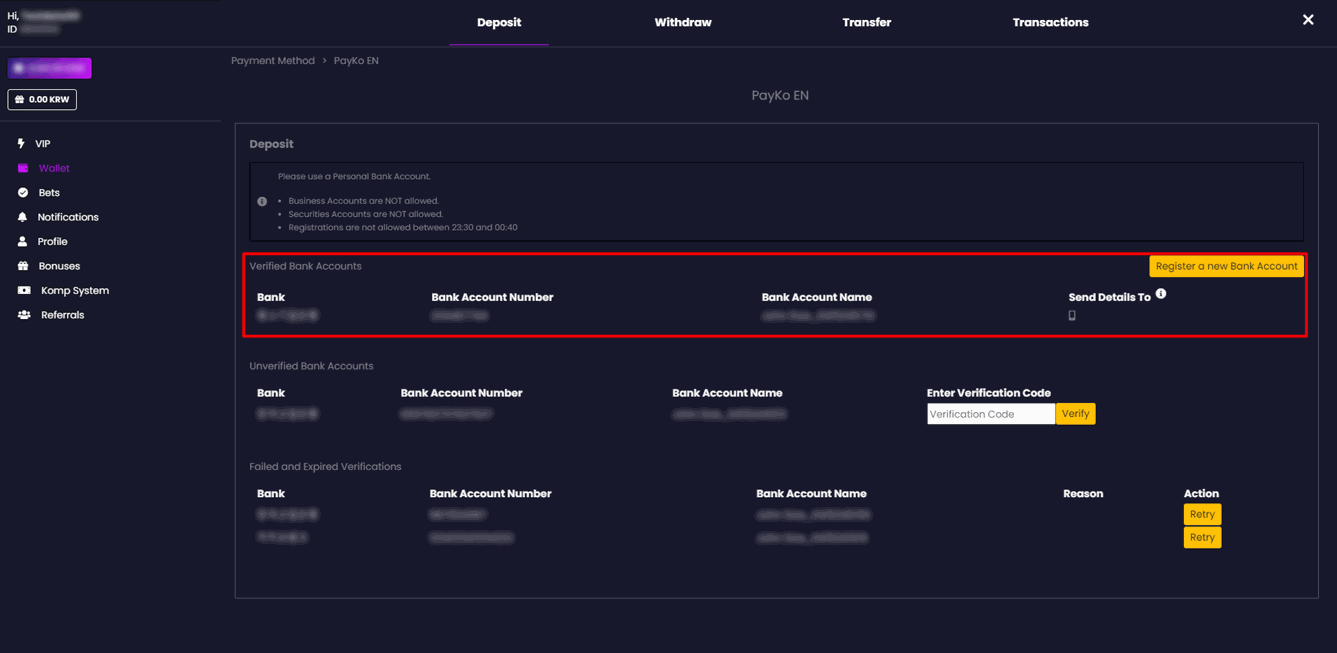
PayKo will validate whether the verification code entered is valid. If valid, the Bank Account will be fully verified and listed in the ‘Verified Bank Accounts’ section.
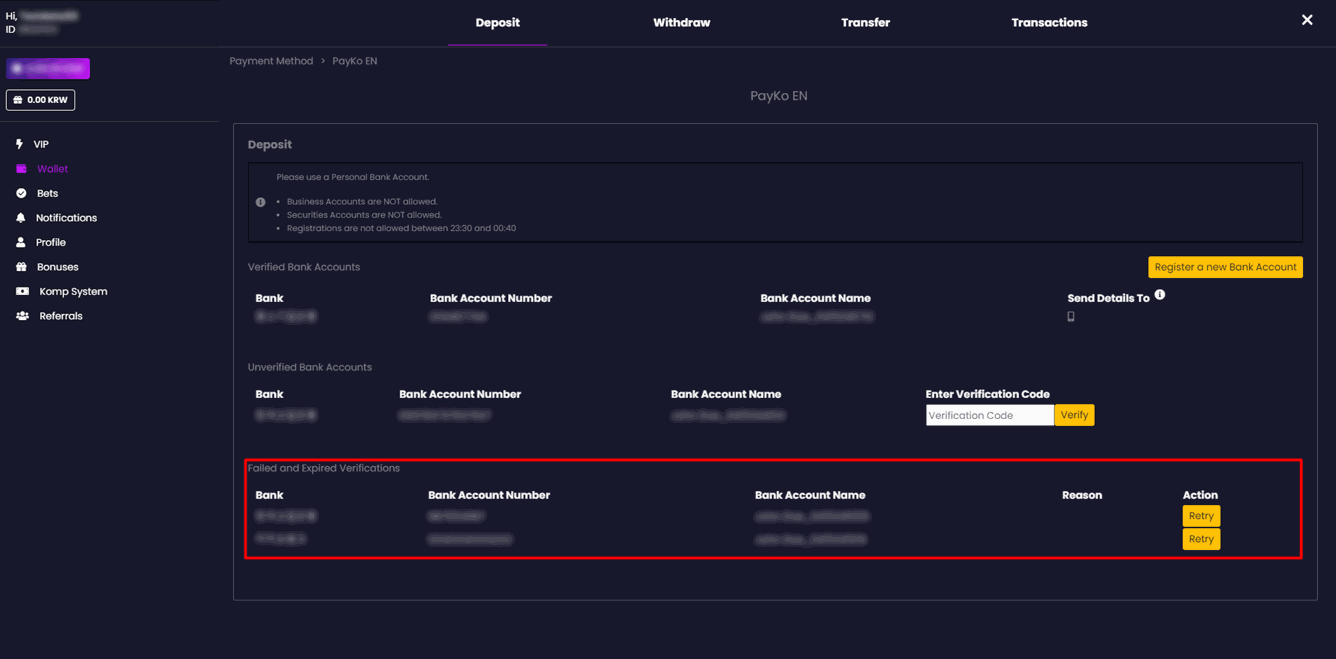
 Otherwise, the verification is considered ‘Failed’ and will be listed in the ‘Failed and Expired Verifications’ section.
The player can deposit using PayKo once a Bank Account is fully verified. To get the Bank Details on where a player can deposit the amount, follow these steps:
1. Click the phone icon.
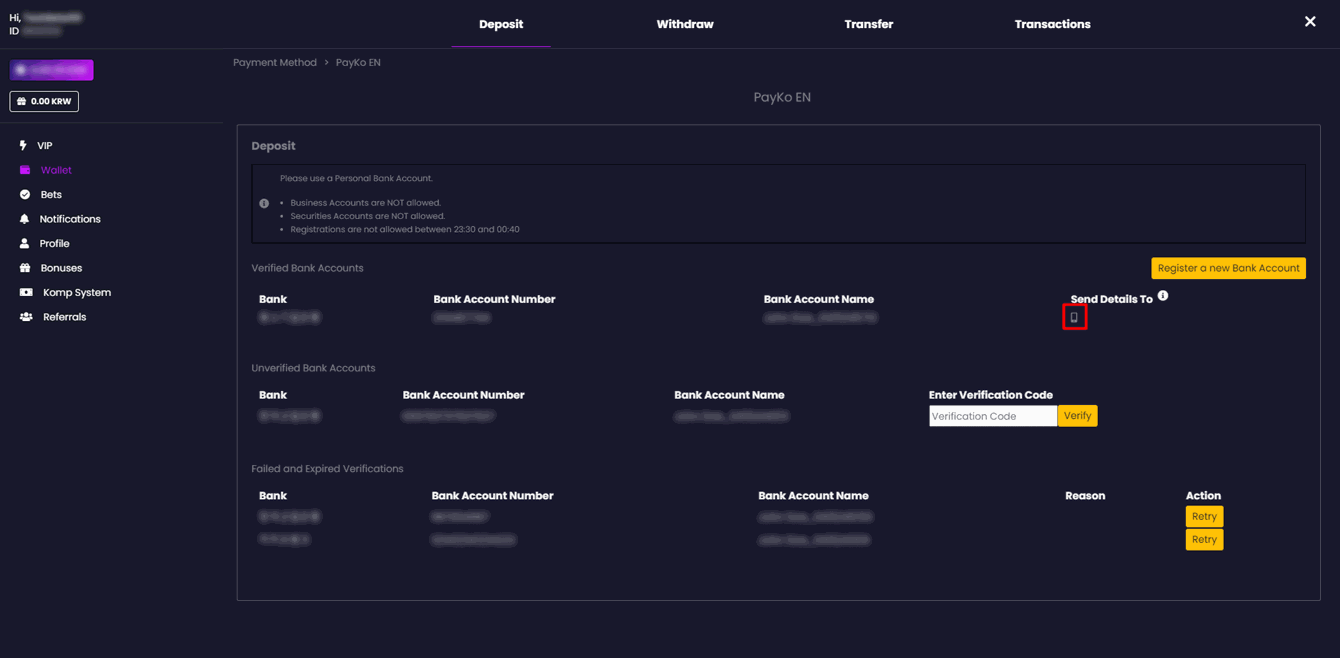
- Once clicked, a pop-up will display the phone number used to verify the Bank Account.
- The Player has to click the ‘Submit’ button
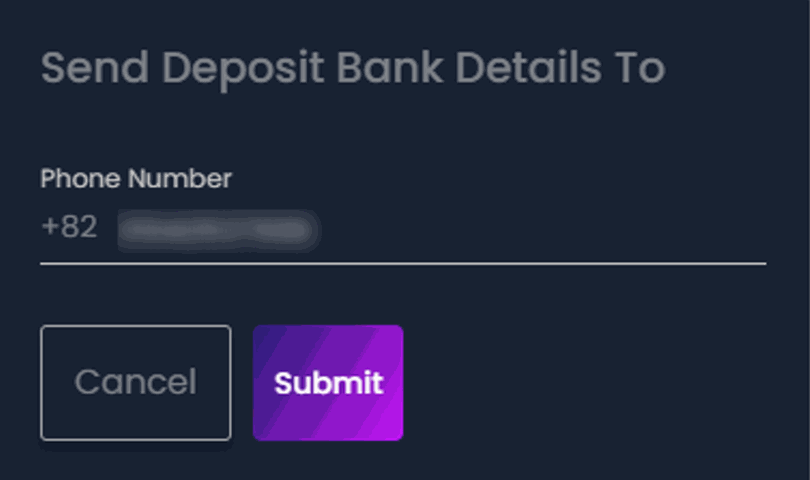
- After clicking the ‘Submit’ button, PayKo will send the corresponding bank details via SMS.
PayKo Improvements (BO)
Here is a brief article to inform you about our latest PayKo updates.Player Management
Navigation: Player Management > Player ID > General > Verification- Added the ‘Can Use Manual Bank Transfer’ toggle in Wallet Capabilities
- If toggled on, the player will be able to use Manual Bank Transfer for making Deposit and Withdrawal requests
- If the Manual Bank Transfer toggle is off, the player cannot use it. As a result, Manual Bank Transfer should not be an option for making Deposit and Withdrawal requests.

- Added the ‘Can Use PayKo’ toggle in Wallet Capabilities
- If toggled on, the player will be able to use PayKo for making Deposit and Withdrawal requests
- If PayKo is toggled off, it should not be shown as an option for deposits and withdrawals.

- Added the ‘Can Get PayKo Bank Details’ toggle in Wallet Capabilities
- If toggled on, the player will be able to get the PayKo assigned/virtual bank account details through the available channel.
- If the toggle is off, the player cannot personally get the PayKo virtual bank account details. In such cases, the player must contact our Customer Support to obtain the account details.
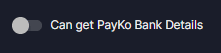

What it looks like in the Player Capabilities page after the new options have been added.
Wallets (PayKo Verified Accounts)
Navigation: Player Management > Player ID > Wallets > PayKo Added the ‘Send details via SMS’ column-
This feature allows BO Users to manually send bank account details to a player’s registered phone number via the ‘Send to SMS’ icon associated with each Verified Bank Account.
 Here is the confirmation prompt that you will see once you click the phone icon to send bank details.
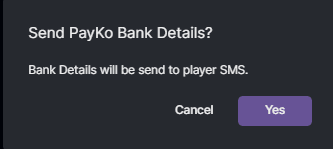
Wallets > PayKo > Unverified Accounts
Navigation: Player Management > Player ID > Wallets > PayKo > Unverified Accounts Unverified bank accounts will be displayed in this page.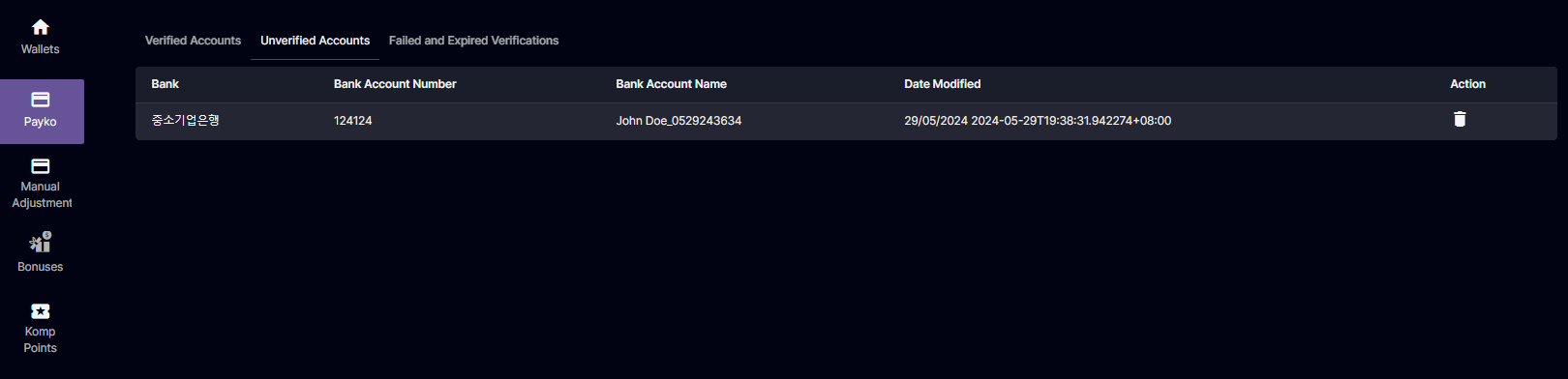
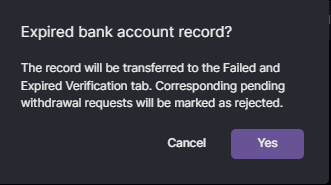
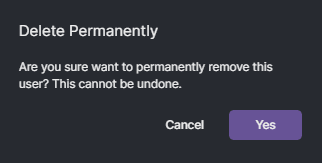 Added a delete icon per row of unverified/failed and expired accounts.
-
This feature allows BO Users to delete a player’s bank account manually.
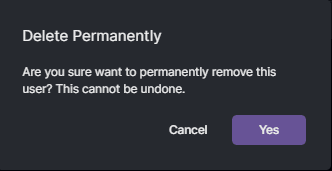
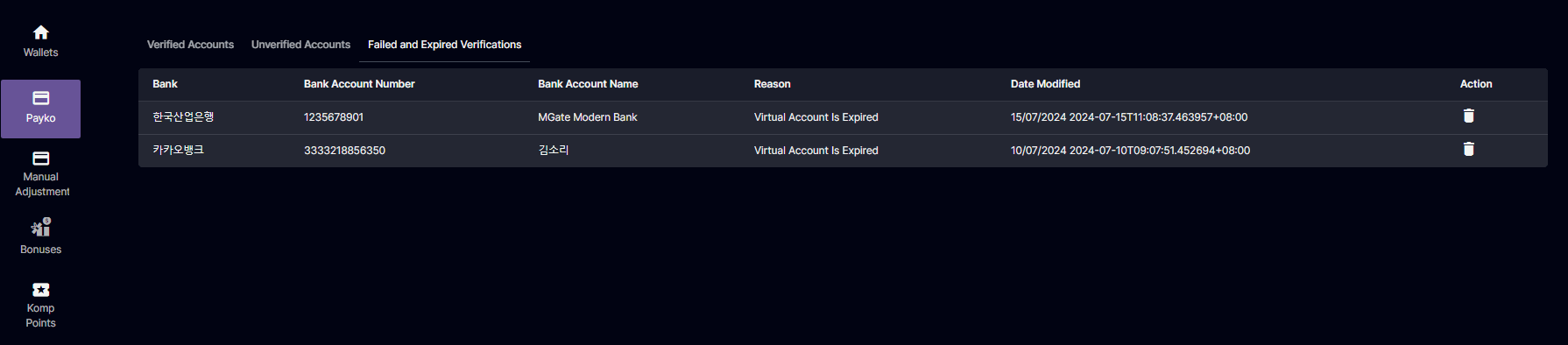 Here is the confirmation prompt that you will see once you click the trash icon to delete the player’s bank account.
Settings
Navigation: Settings > Player Settings > Default Capabilities Added the ‘Default Capabilities’ page under Settings > Player Settings. By default, all capabilities are toggled on.- This additional page allows a BO User to set the default capabilities of a player upon sign-up.
- The platform must apply the default player’s capabilities for all new players as soon as they sign up. Also, the default capabilities will be used for newly created players in the Back Office.

SingleCurrency

MultiCurrency
PayKo Improvements (Player Portal)
The payment options in the Wallet page will appear depending on what is setup in the backoffice. For example, if ‘Can use Manual Bank Transfer’ is toggled off, it will not appear in the payment options. Can get PayKo bank details via SMS The ‘Can get PayKo bank details via SMS’ toggle switch is on.- No changes will be made to our current process of sending PayKo bank details via SMS. This means that the player can request the bank details.
- A prompt message will display after clicking the “Send to SMS’ button which will require them to contact the support team.


 Unverified Bank Accounts
Option to Cancel the Verification of a Bank Account
Add the ‘Cancel’ button in the ‘Enter Verification Code’ column to allow a Player to discard the verification of a Bank Account.
Unverified Bank Accounts
Option to Cancel the Verification of a Bank Account
Add the ‘Cancel’ button in the ‘Enter Verification Code’ column to allow a Player to discard the verification of a Bank Account.
 Here is the confirmation prompt that they will receive once they press ‘Cancel’.
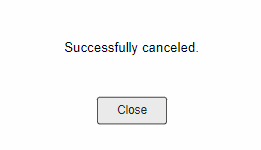
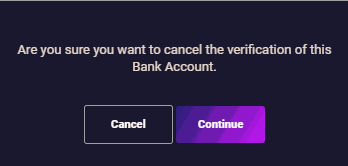 If ‘Cancel’ is clicked, it will discard the cancellation of Bank Account verification and close the confirmation prompt. If you ‘Continue’, it will cancel the Bank Account verification and remove the entire row from the Unverified Bank Accounts table. It will display a success prompt ‘Successfully canceled’ and will go to the Failed Verifications table with the ‘Player Cancelled’ reason in the Reason column.
 Additional Info Text
An info text reminding players to always request to send details before making a deposit will be added to the Deposit Page for PayKo. This change was proposed since there is a possibility that the previously sent bank account details to the player may be re-assigned to another player. In such case, the assigned bank account to the previous player will expire and should not be used to deposit. The player must click the Retry button for the bank details that has been tagged as Expired in order to re-register the bank account and get newly assigned bank details.
If you want to modify the information text instructions provided for PayKo to better fit your brand, you may request it and inform us about it.
Additional Info Text
An info text reminding players to always request to send details before making a deposit will be added to the Deposit Page for PayKo. This change was proposed since there is a possibility that the previously sent bank account details to the player may be re-assigned to another player. In such case, the assigned bank account to the previous player will expire and should not be used to deposit. The player must click the Retry button for the bank details that has been tagged as Expired in order to re-register the bank account and get newly assigned bank details.
If you want to modify the information text instructions provided for PayKo to better fit your brand, you may request it and inform us about it.
- Sample: Add ‘Please request the assigned bank account details before making a deposit.’

Virtual Bank Account Assignment and Expiration
Expire Virtual Account #1 for inactive depositor Player 1 so this can be used by Player 2 (regardless of Operator).- If the same Virtual Account #1 is assigned to Player 2, expire Virtual Account #1 to Player 1.
Sample scenario
- Player 1 registers a bank account (Account 1) > MGate issues Virtual Account #1
- Player 2 registers a bank account (Account 10) > MGate reuses Virtual Account #1, previously issued to Player 1.
- Player 1 Verified Bank Account (Account 1) [expired]
- Player 2 Verified Bank Account (Account 10) with Virtual Account #1 assigned [verified/active]