Finance - How to set up and edit Payment Segments
Click the plus button to get started. Fill all the fields in the pop-up.
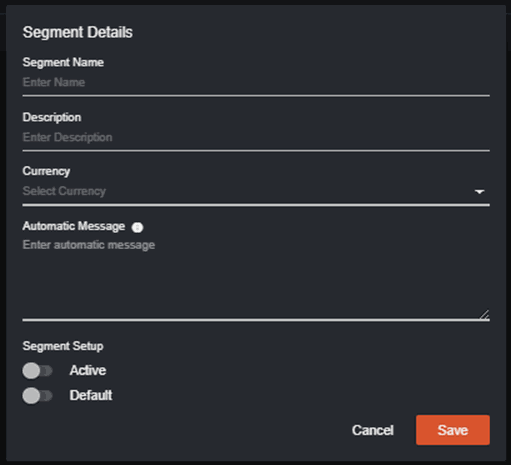 Segment Name – segment name itself
Description – brief note about the segment
Currency – currency used
Automatic Message – message that will be sent to the players under the segment they are in
Segment Setup - Active if segment is activated or Default means registered players will automatically added
Once segment is created is Saved, it will now appear in the Payment Segments page. The operator has the capability to edit or delete a segment.
Click the pen icon to edit Segment chosen.
Segment Name – segment name itself
Description – brief note about the segment
Currency – currency used
Automatic Message – message that will be sent to the players under the segment they are in
Segment Setup - Active if segment is activated or Default means registered players will automatically added
Once segment is created is Saved, it will now appear in the Payment Segments page. The operator has the capability to edit or delete a segment.
Click the pen icon to edit Segment chosen.
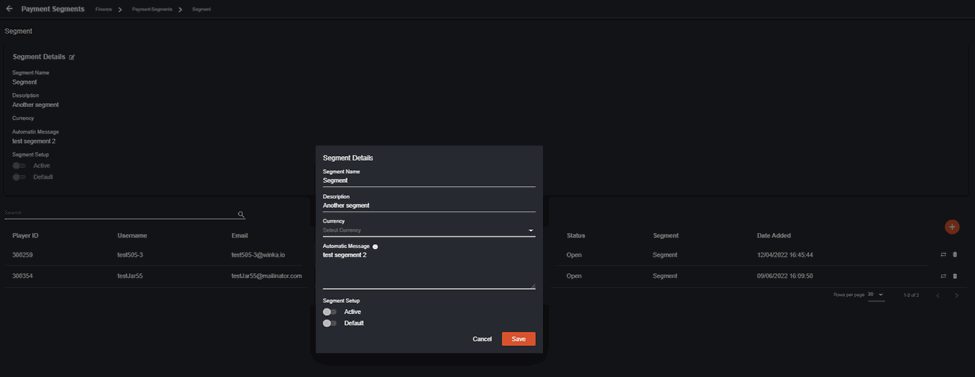 All fields filled when segment was first created can be edited.
All players included in the segment will appear here.
All fields filled when segment was first created can be edited.
All players included in the segment will appear here.
 The icons beside each player are indications that players can be moved to another segment or removed to their current segment.
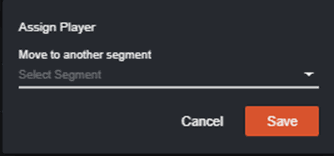
If you decide to move the player, the dropdown will provide you all the segments.
The icons beside each player are indications that players can be moved to another segment or removed to their current segment.
If you decide to move the player, the dropdown will provide you all the segments.
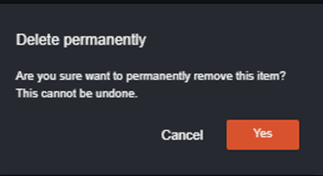
 A confirmation pop-up will appear before the player removed to the segment.
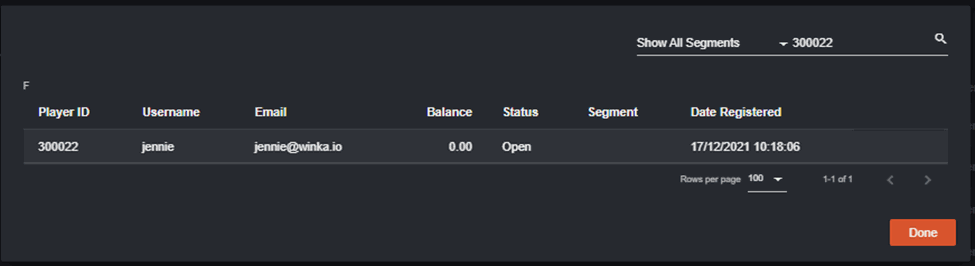
 Click the plus button to add player in the segment. A pop up will appear with the list of players. You can use the filter above to choose a specific segment or use the search button to find a specific player to be added.
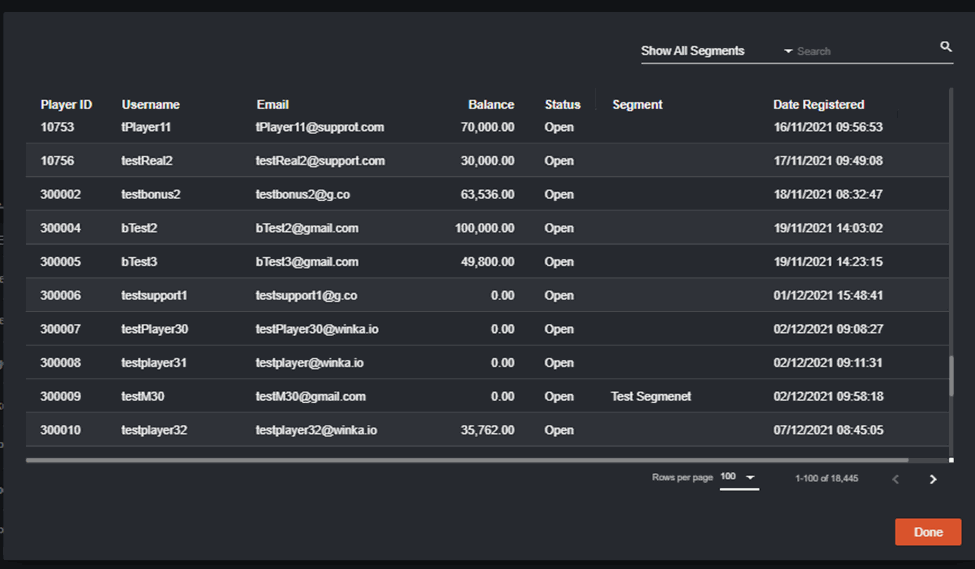 Once player is selected, it will now appear in the segment.
Finance - How to navigate Manual Payment Segments
The Manual Payment Segment section provides back office users a way to navigate easily. When there are too many payment segments, a user can have a hard time navigating and locating a particular player or payment segment. You may use the features enumerated in this article to help in navigation. The manual payment segment page has been redesigned to make navigation easier: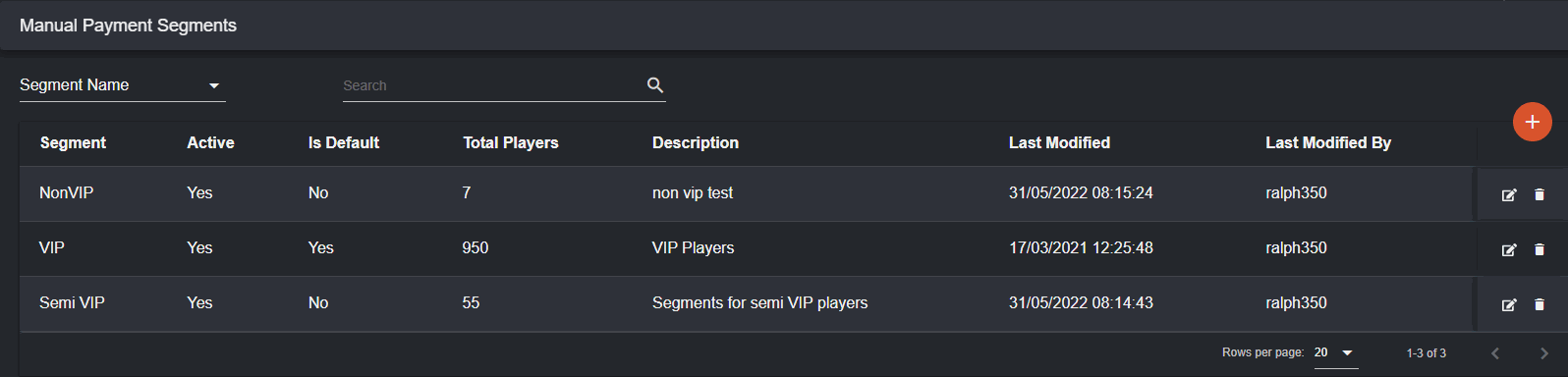
- Search Bar - You may user this to field to search for the segment or exact player you want to search. Results will be displayed after clicking the icon or pressing enter.

- Search Options - You may want to search by segment name, player username, or player ID. Here, you can freely switch between the different options on how you want to search and then fill the information under the search bar.

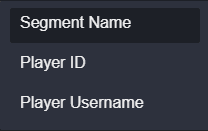 a. Segment Name - If you want to just search for a certain segment name, you can search for the full name or just a portion of the name and it will show you all the results.
b. Player ID - You can enter the exact playerID to find a particular player.
c. Player Username - You can enter the exact username to find a particular player.
a. Segment Name - If you want to just search for a certain segment name, you can search for the full name or just a portion of the name and it will show you all the results.
b. Player ID - You can enter the exact playerID to find a particular player.
c. Player Username - You can enter the exact username to find a particular player.
Finance - Managing Manual Deposit and Withdrawal Requests
Below are the easy steps for you to process a player’s deposit and withdrawal requests. Deposit Requests When a player initiates a deposit in the player page, the status in the back office will be ‘New’. The back office user will process this by clicking ‘Answered’ while the player confirm it in the website.
- Note that deposit sound in the backoffice will be activated once transaction is confirmed.
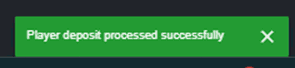
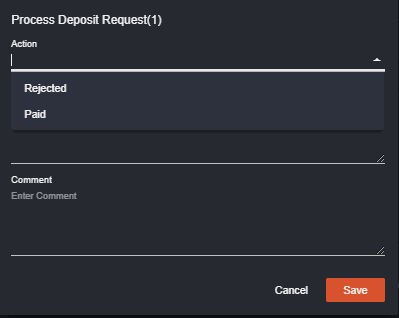 A notification in the backoffice will appear when either Rejected or Paid is chosen.
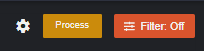
 Multiple deposit requests can be processed. Once the box for specific deposits to be processed are selected, click the process button to continue.
- If you select different statuses to process (New and Answered), options in the dropdown for the action to be taken will be last step (Rejected or Paid).
 Just like deposit, the withdrawal can also process multiple requests.
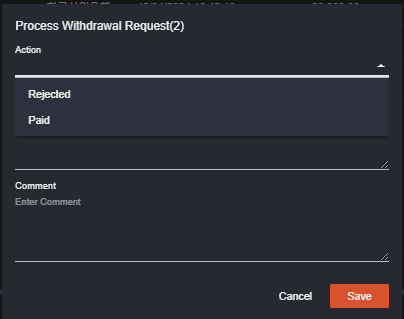
- If you select different statuses to process (New and Approved), options in the dropdown for the action to be taken will be last step (Rejected or Paid).
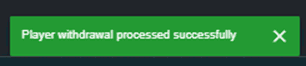 Notes:
- While Deposit sound is activated when the player confirmed the transaction on his/her end, withdrawal sound is automatically activated once a player initiated the withdrawal request.
- Player can only request one deposit/withdrawal at a time. Requested deposit/withdrawal must be rejected or cancelled first before proceeding with another request.
- When a player making a deposit is not under an active Payment Segment, the status in the back office will be New > Answered > Confirmed (once players confirmed it in their end) > Rejected/Paid. However, if under an active Payment Segment, the deposit will automatically be Answered.
- The back office user can also directly click ‘Rejected’ or ‘Paid’ without the player confirmation on his/her end.
- Multiple deposit requests to be processed only works for answered and new requests.
- If the player is requesting a withdrawal after making a deposit, a pop up will appear indicating the payment charge % the player will be deducted if he/she continue the withdrawal without using the amount required.
** Note that the withdrawal amount that the player is requesting will appear in the backoffice without deductions, however, the player will only receive the amount expected (less with the charge).
Finance: Deposit and Withdraw Requests (Before and After)
This will serve as a reference to the before and after of Deposit and Withdrawal Requests that a Backoffice user will see. The images below will make it simple for the Back office user to distinguish and understand the new update.I. Deposit Requests
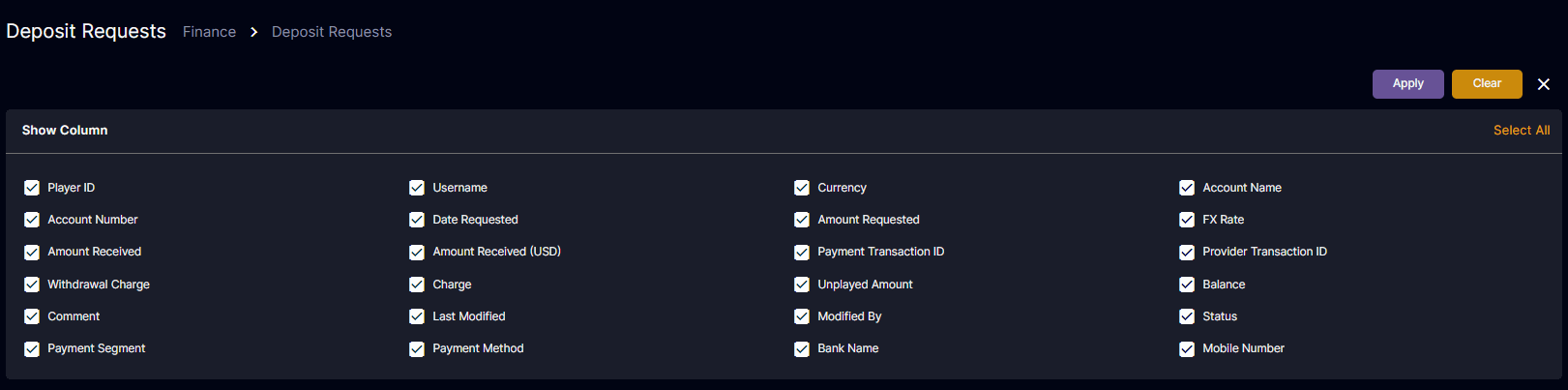
A. Single Currency In the new update, you can see the updated names in the column. The table below can be used to easily identify the differences. Before is the initial back office format and After contains the updated names. , the Back office user can choose columns they want to show or hide. They can also freely rearrange the order of columns by dragging the columns to their preferred order.
This is what you usually see in the “Show Column.”
, the Back office user can choose columns they want to show or hide. They can also freely rearrange the order of columns by dragging the columns to their preferred order.
This is what you usually see in the “Show Column.”
 In the new update, you can see the updated names in the “Show Column.”
 Here are the recently added columns.
 B. Multi Currency
Here is the updated columns in multi currency.
B. Multi Currency
Here is the updated columns in multi currency.
II. Withdrawal Requests
A. Single Currency- In Settings
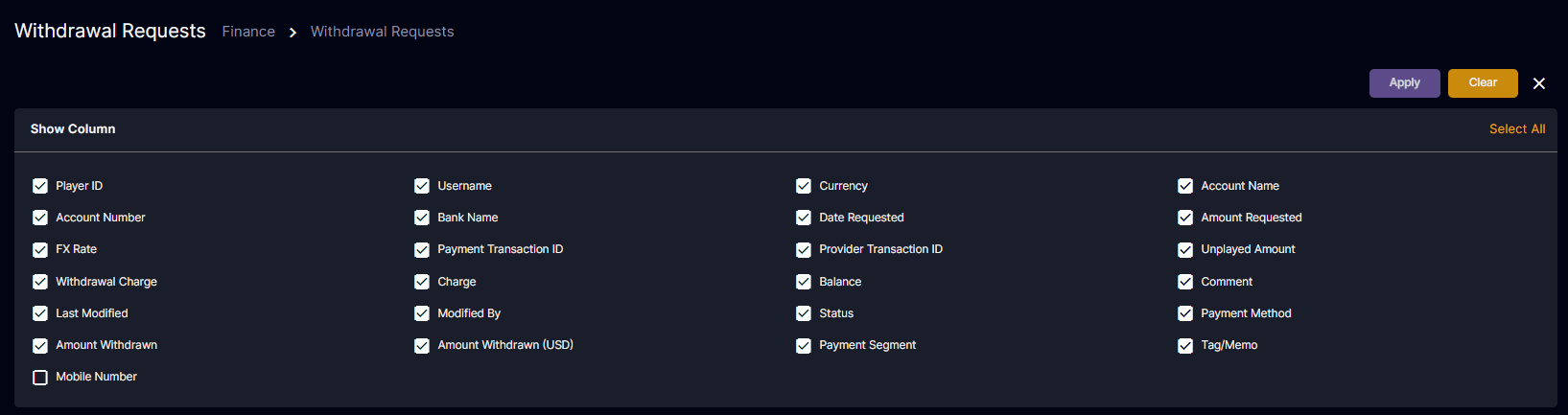
 , you can see the columns you normally see in the “Show Column” section. The images below are the before and after.

 Here are the updates columns.
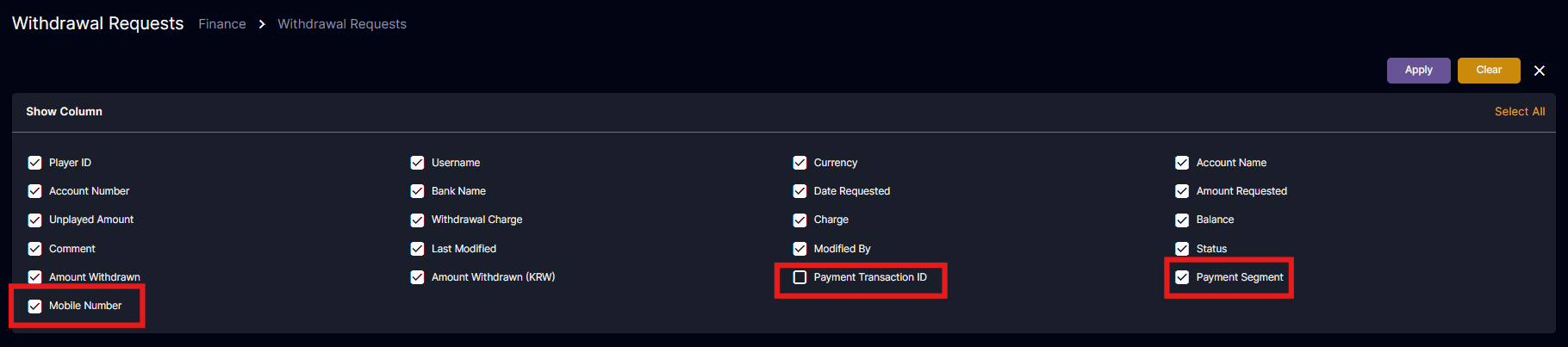 Like the Deposit Requests, the back office user also has the option to choose which columns to show or hide, and rearrange them to their desired order.
Once “Apply” is clicked. The columns selected will then appear in the Withdrawal column display.
You may refer to this table to see the before and after names of the columns.
Like the Deposit Requests, the back office user also has the option to choose which columns to show or hide, and rearrange them to their desired order.
Once “Apply” is clicked. The columns selected will then appear in the Withdrawal column display.
You may refer to this table to see the before and after names of the columns.
 You will notice that “Filter: On” will show if filtered. When no filter is selected, you can see “Filter: Off.”
In the example below, when you select today in the ‘Filter Date’, all transactions on the chosen date will appear.
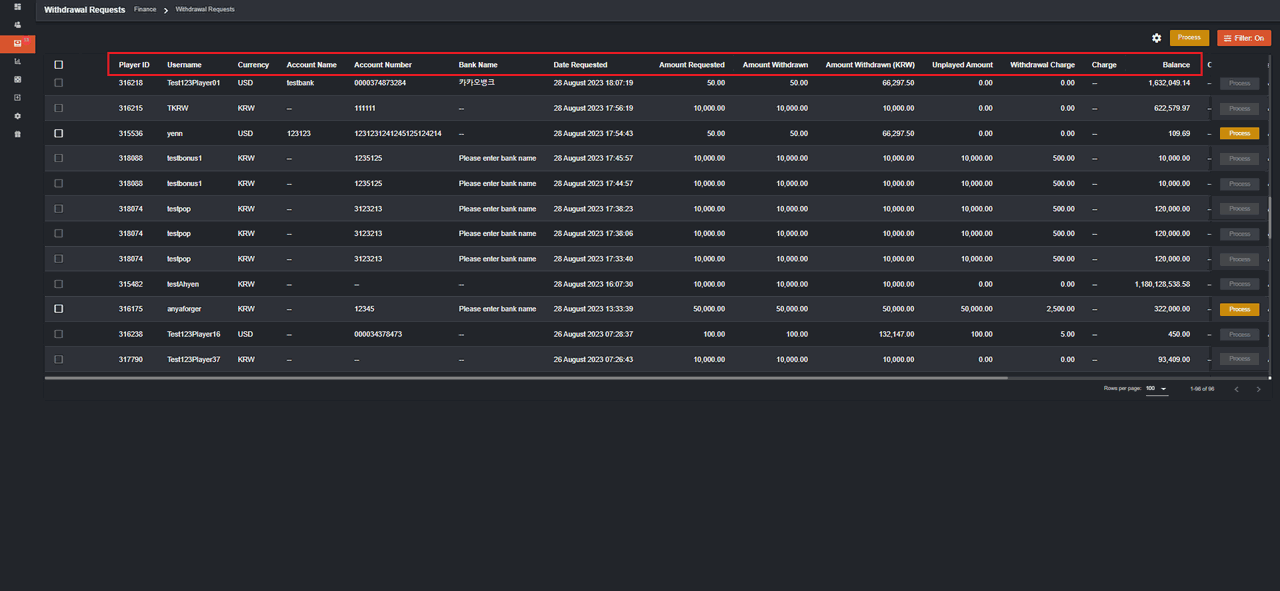 Here is the translated version: 금융 금융: 입금 및 출금 요청(이전 및 이후)
Pop-up message for Manual Deposit (SingleCurrency)
o Automatic Message: Active Toggled On- Show Automatic Message in comment upon clicking Deposit
- Hide comment upon clicking Deposit
- Automatic Message: Active toggled ON
Segment Setup: Active toggled ON
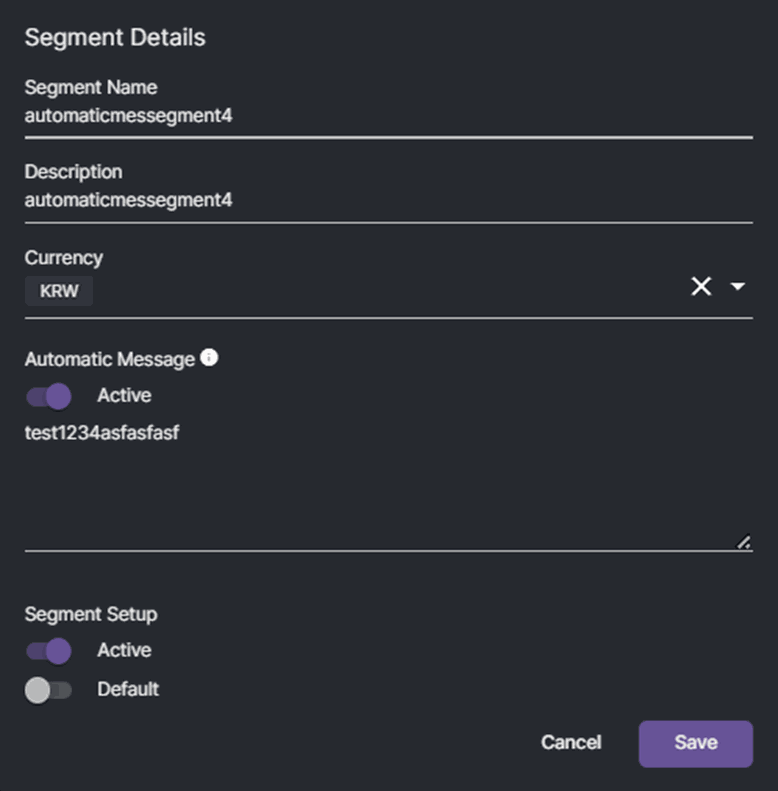

Once the deposit is made, the status will be Answered and the automatic message will appear in the Comment.
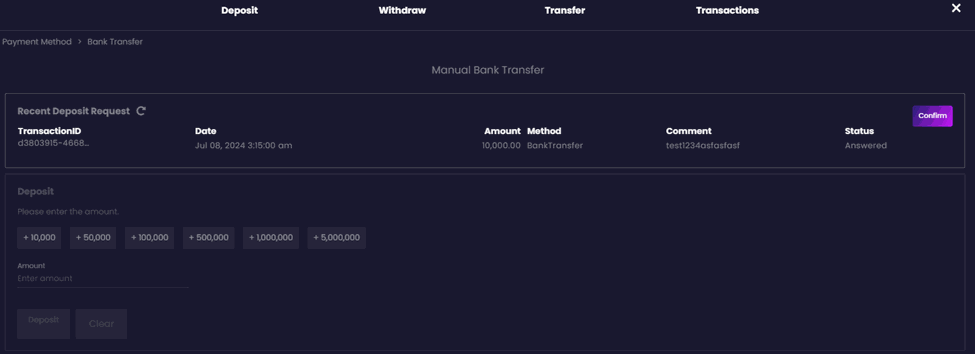
No pop-up will appear in the player portal.
- Automatic Message: Active toggled ON
Segment Setup: No segment chosen
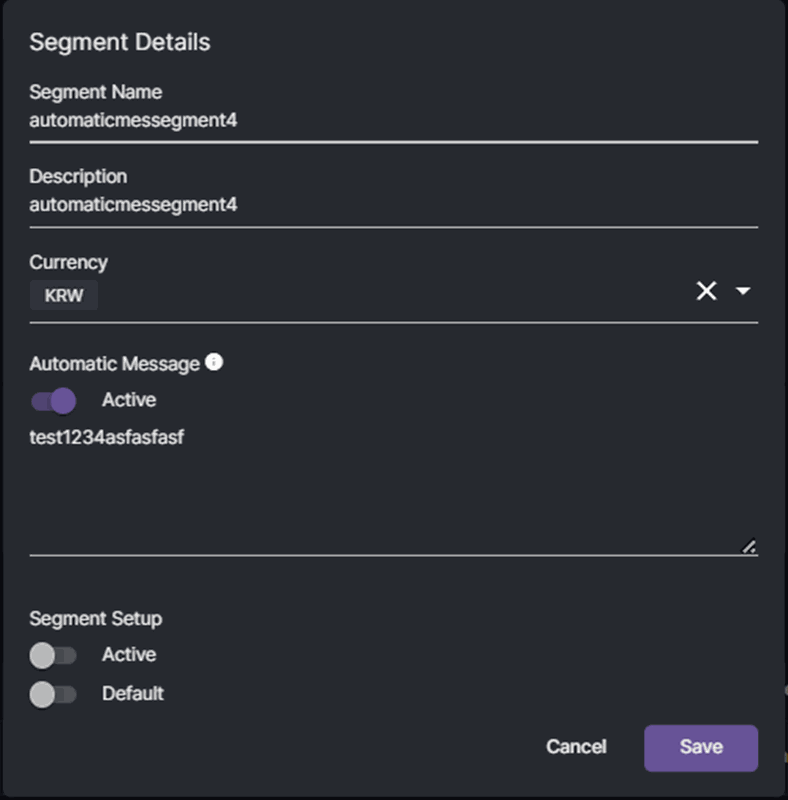

In the backoffice, the status will be New and there will be no automatic message in the comment.
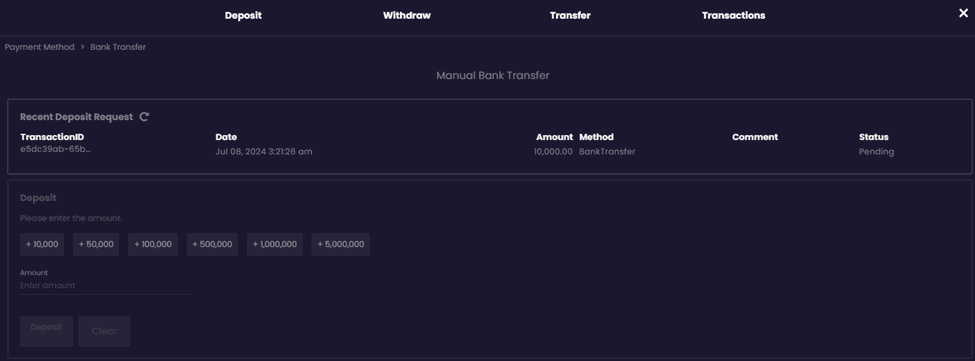
No pop-up will appear in the player portal. The status will be Pending.
- Automatic Message: Active toggled OFF
Segment Setup: No segment chosen
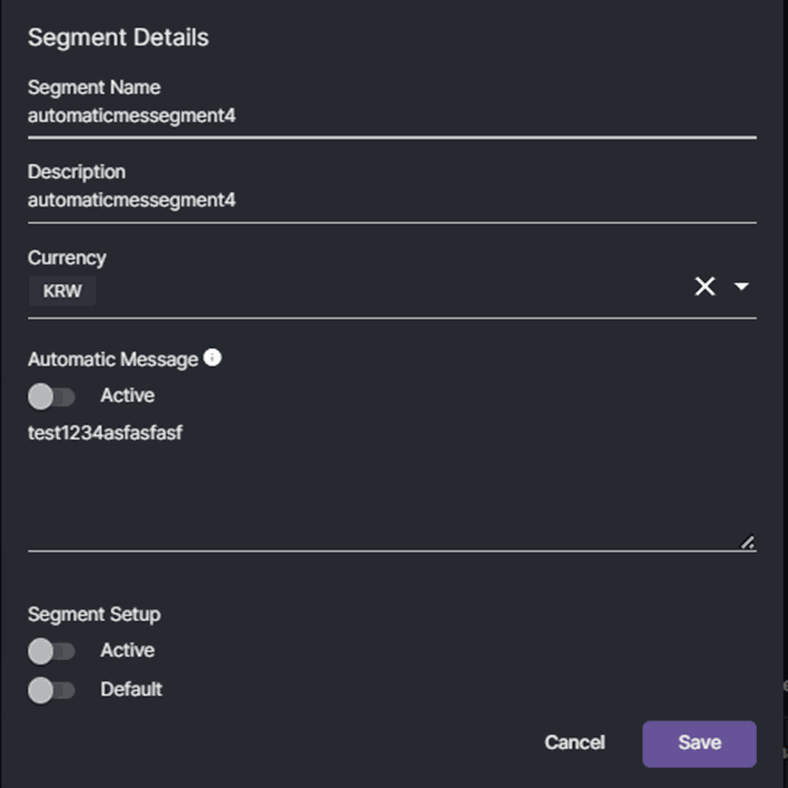

When both are not toggled ON, status will be New in the backoffice and no comment will appear.
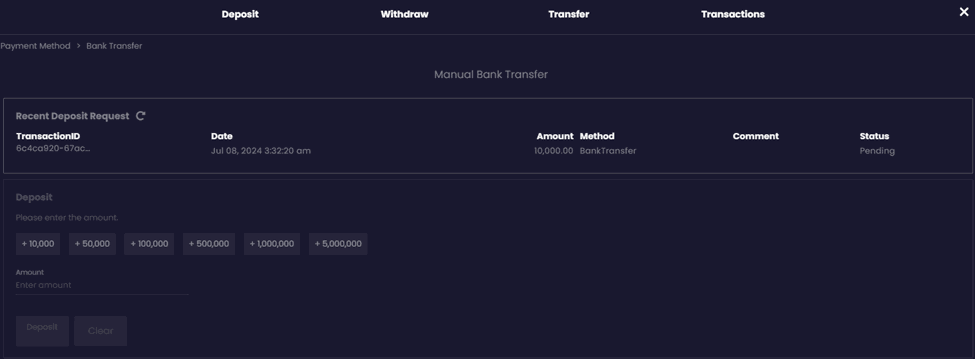
The status is Pending in the player portal.
- Automatic Message: Active toggled OFF
Segment Setup: Active toggled ON
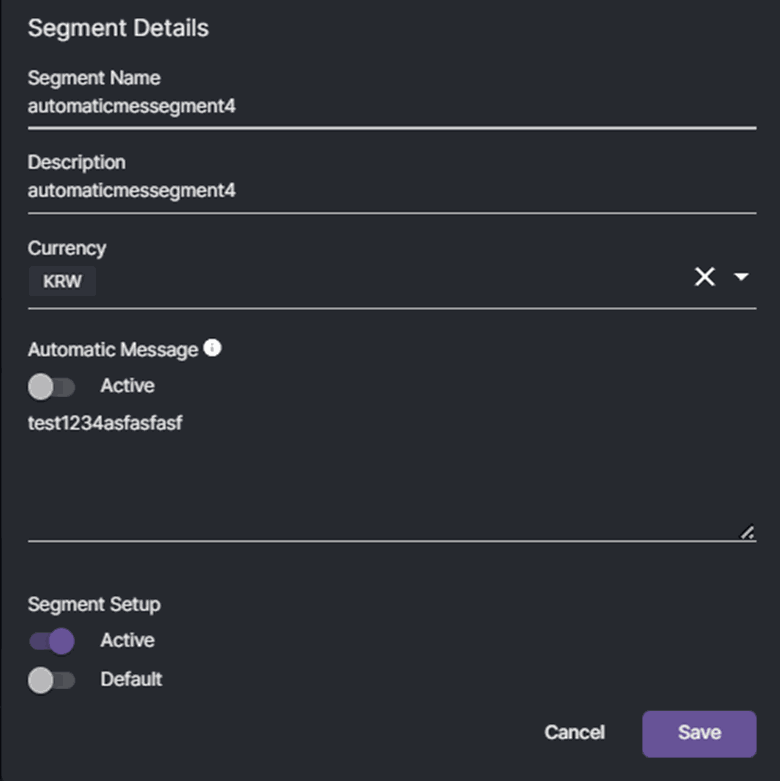

The status will be Answered and no automatic message will appear in the comment.
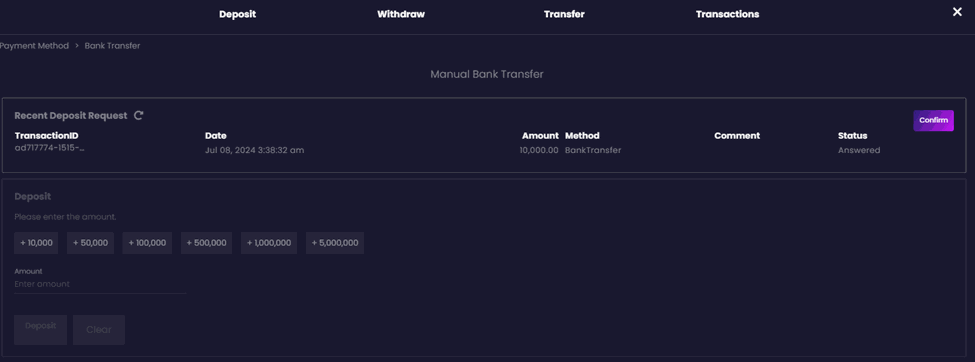
In the backoffice, the status will be Answered.
Pop-up message for Manual Deposit for MultiCurrency
Once a player click deposit, the automatic message set up in the payment segment will appear in the player page pop-up. Navigation: Finance > Payment Segments o For a particular request, Active is on for 일반계좌 Payment Segment and off for others If Active is toggled ON, the automatic message will appear in the player page and you will see the check icon beside the Automatic Message.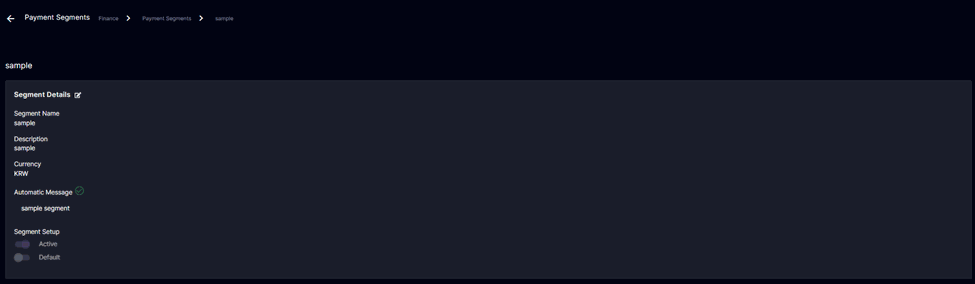 If Active is toggled Off, this means that the Automatic Message set up will not appear rather the existing default message will appear in the pop-up.
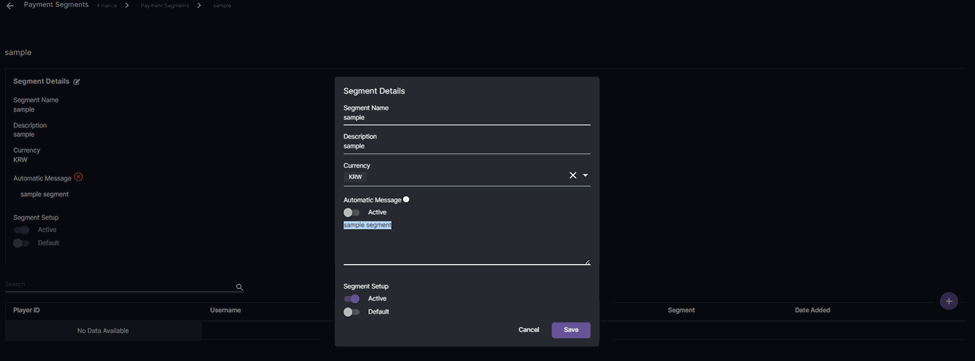 Segment Setup refers to which category (Active or Default) segment the changes will apply.
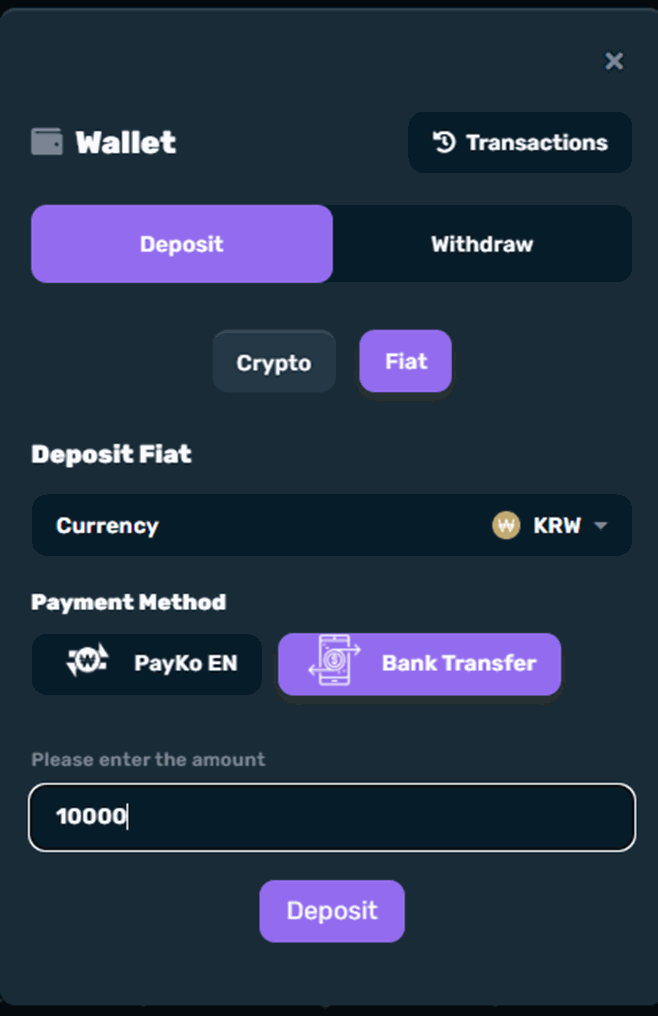
Here is what a player not included in a segment will see.
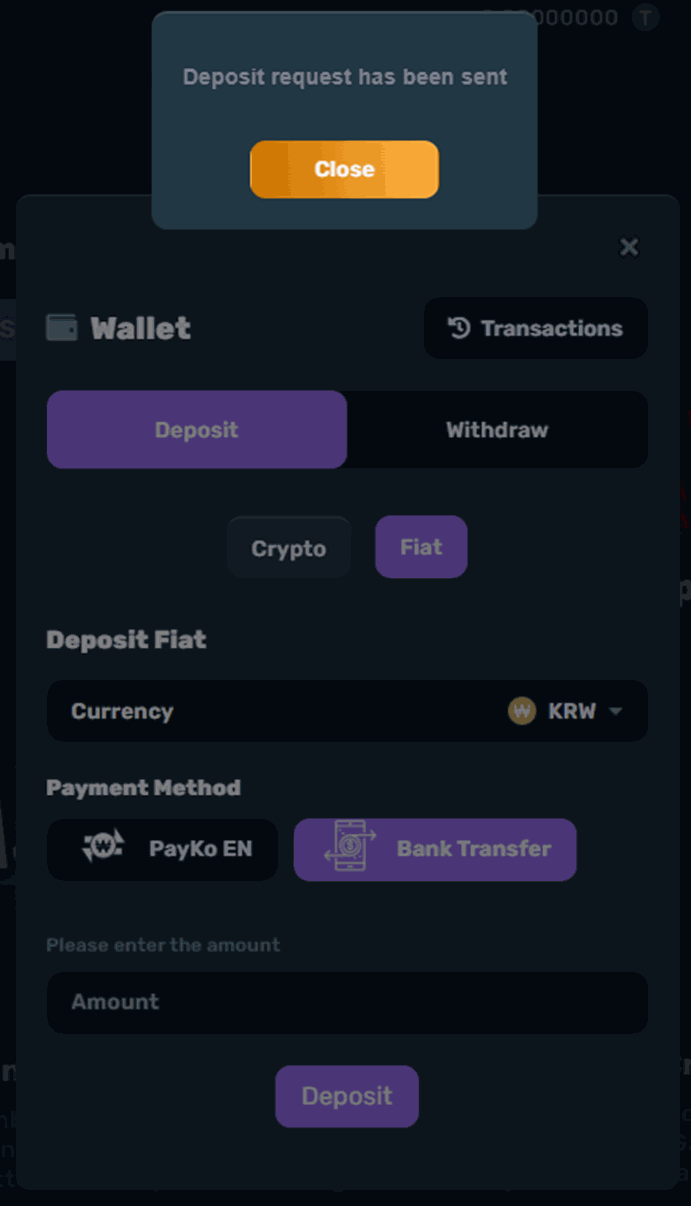 Here is a sample segment setting:
- Automatic Message: Active toggled ON Segment Setup: Active toggled ON
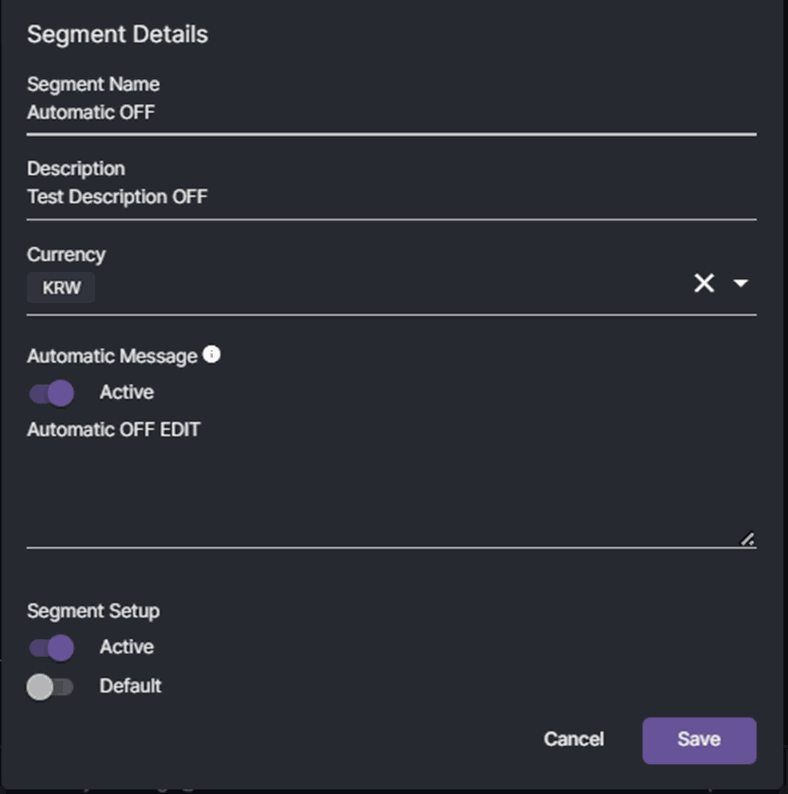 Since this segment is “Active,” the automatic message below will appear in the player portal once the player in the “Active” segment category made a manual deposit.
Once the player made a deposit, the status will be Answered in the backoffice.
Since this segment is “Active,” the automatic message below will appear in the player portal once the player in the “Active” segment category made a manual deposit.
Once the player made a deposit, the status will be Answered in the backoffice.
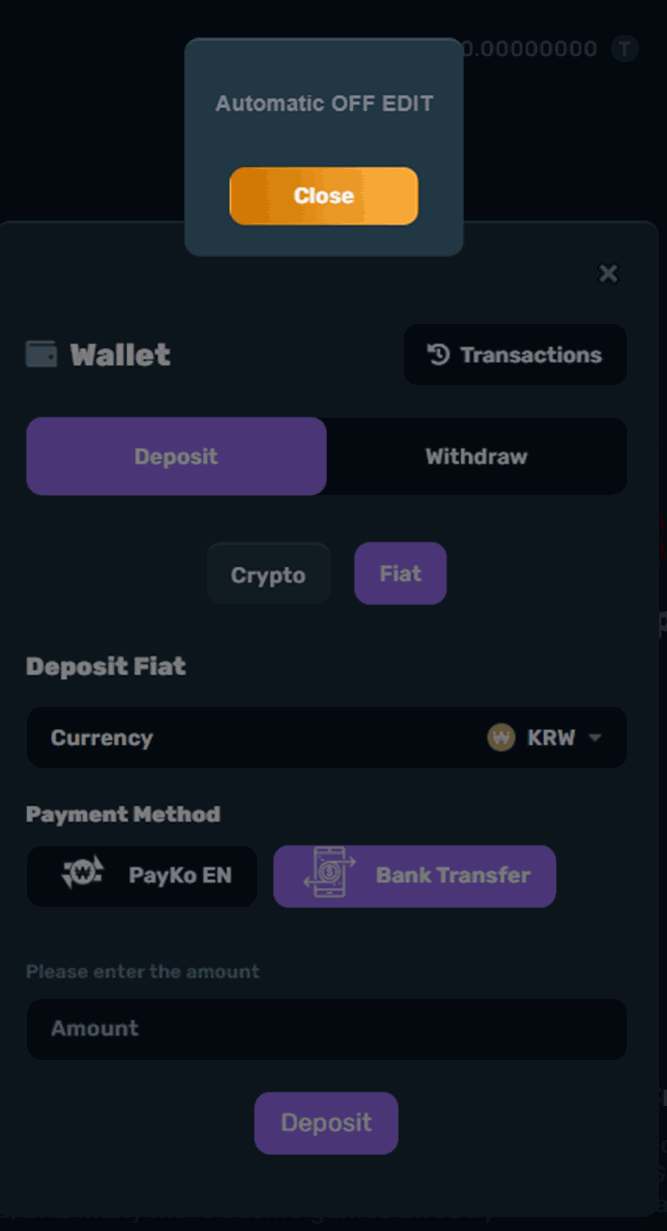
This is what the player will see in the player portal.
- Automatic Message: Active toggled ON
Segment Setup: No chosen segment
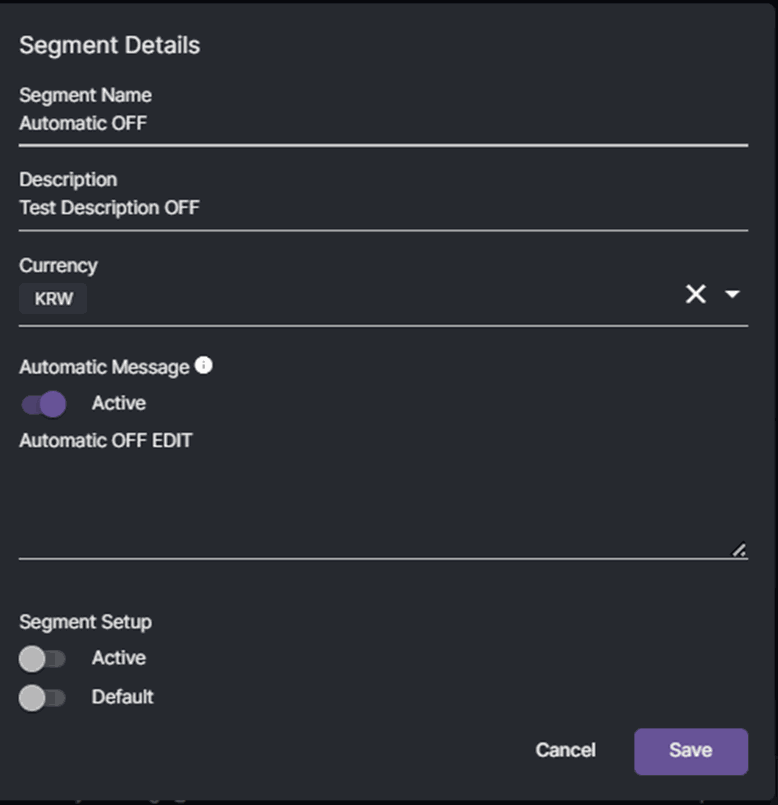 Once the player made a deposit, the status will be New in the backoffice.
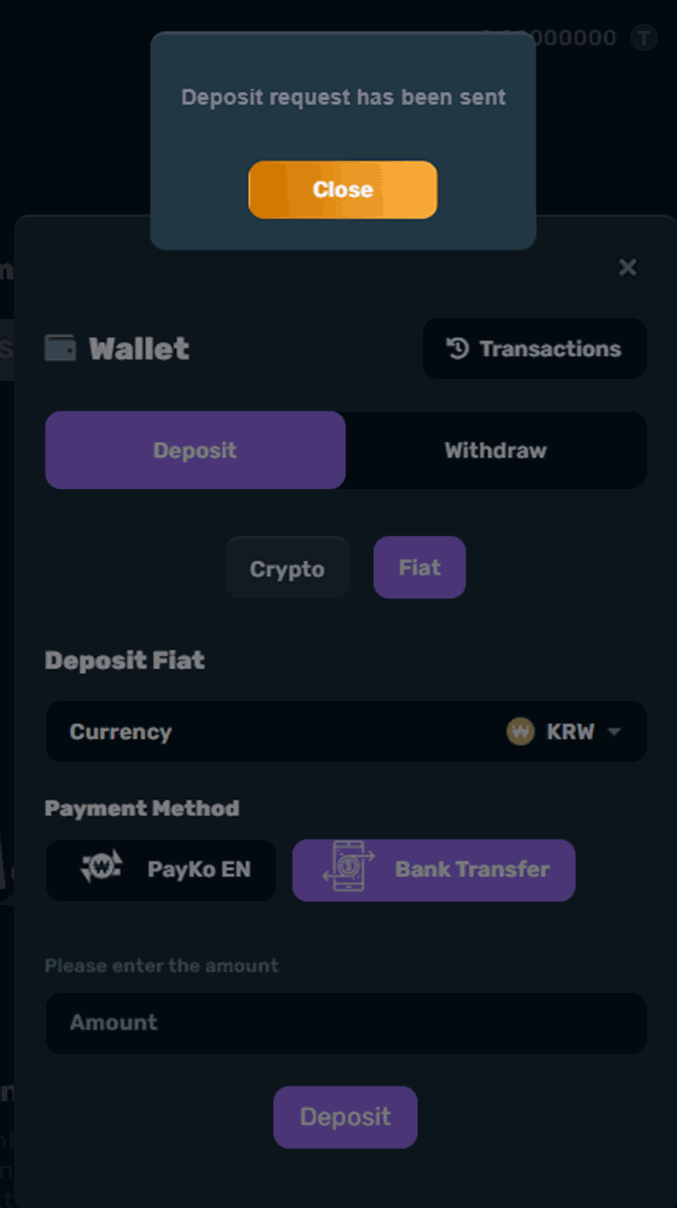
This is what the player will see in the player portal.
- Automatic Message: Active toggled OFF
Segment Setup: No chosen segment
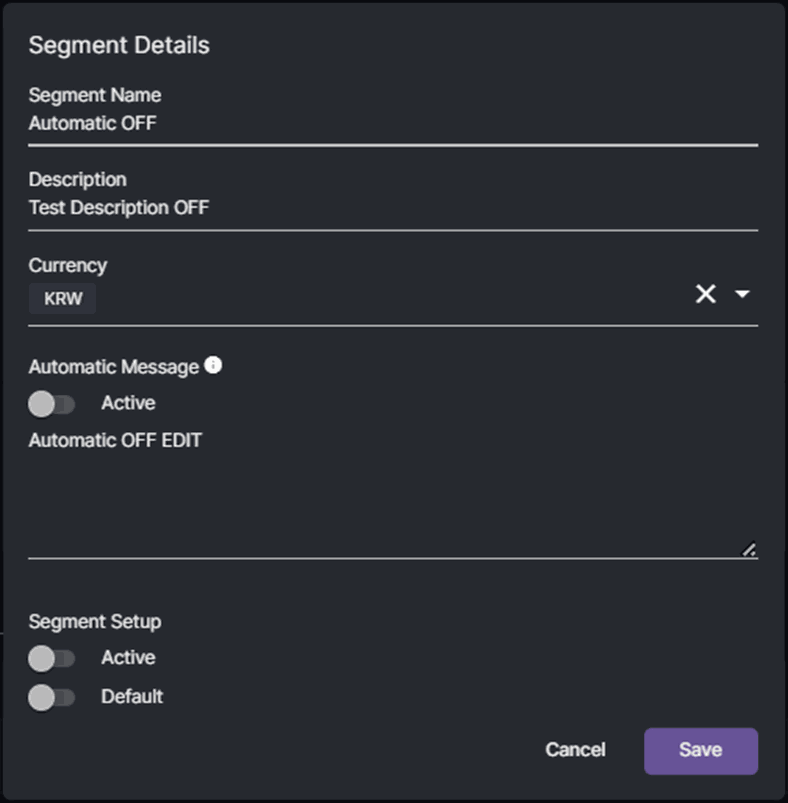 Once the player made a deposit, the status will be New in the backoffice.
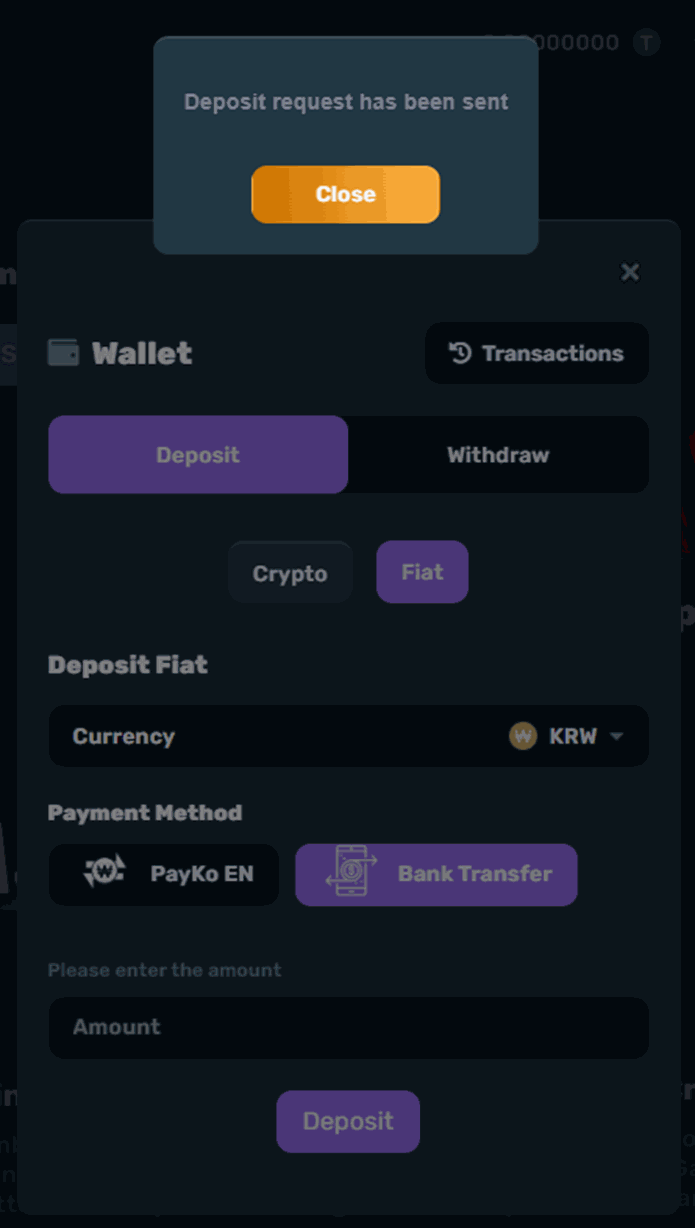
In the player portal, this is what the player will see:
- Automatic Message: Active toggled OFF
Segment Setup: Active toggled ON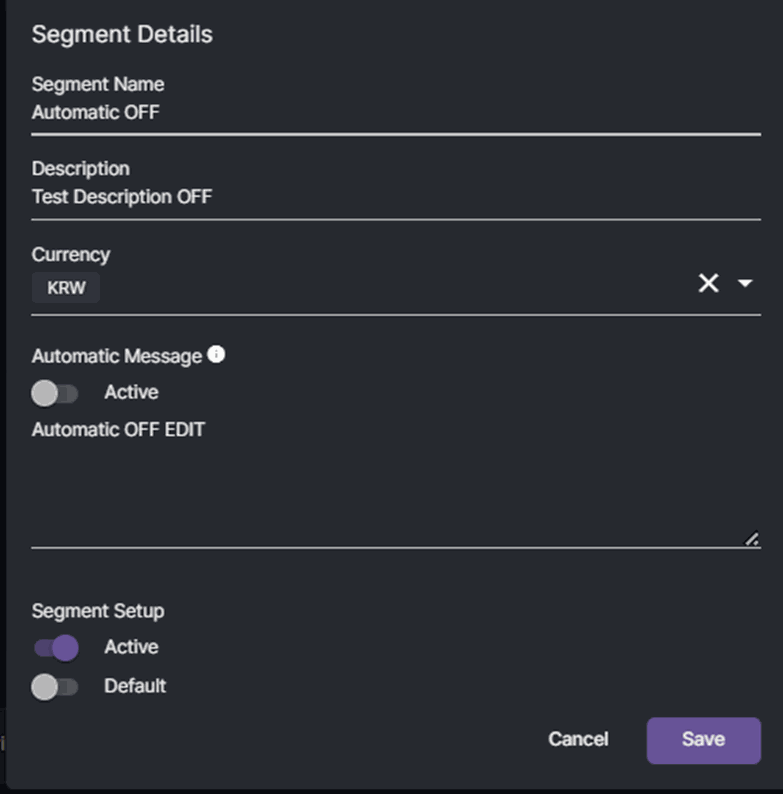
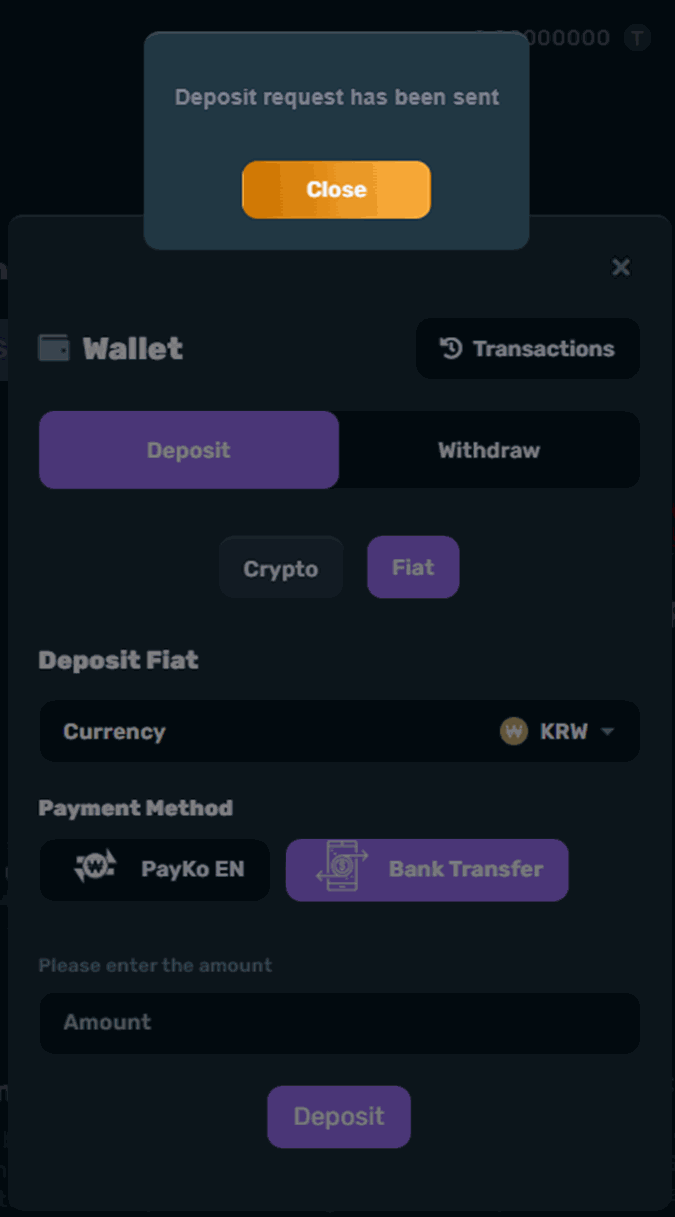
In the player portal, this is what the player will see:
Finance - Payment Segment in Deposit and Withdrawal Requests
Payment Segment columns and filters are added so you can easily identify the player’s payment segment and approve or reject transactions accordingly. In Deposit Requests, click Settings to enable or disable Payment Segment in columns.
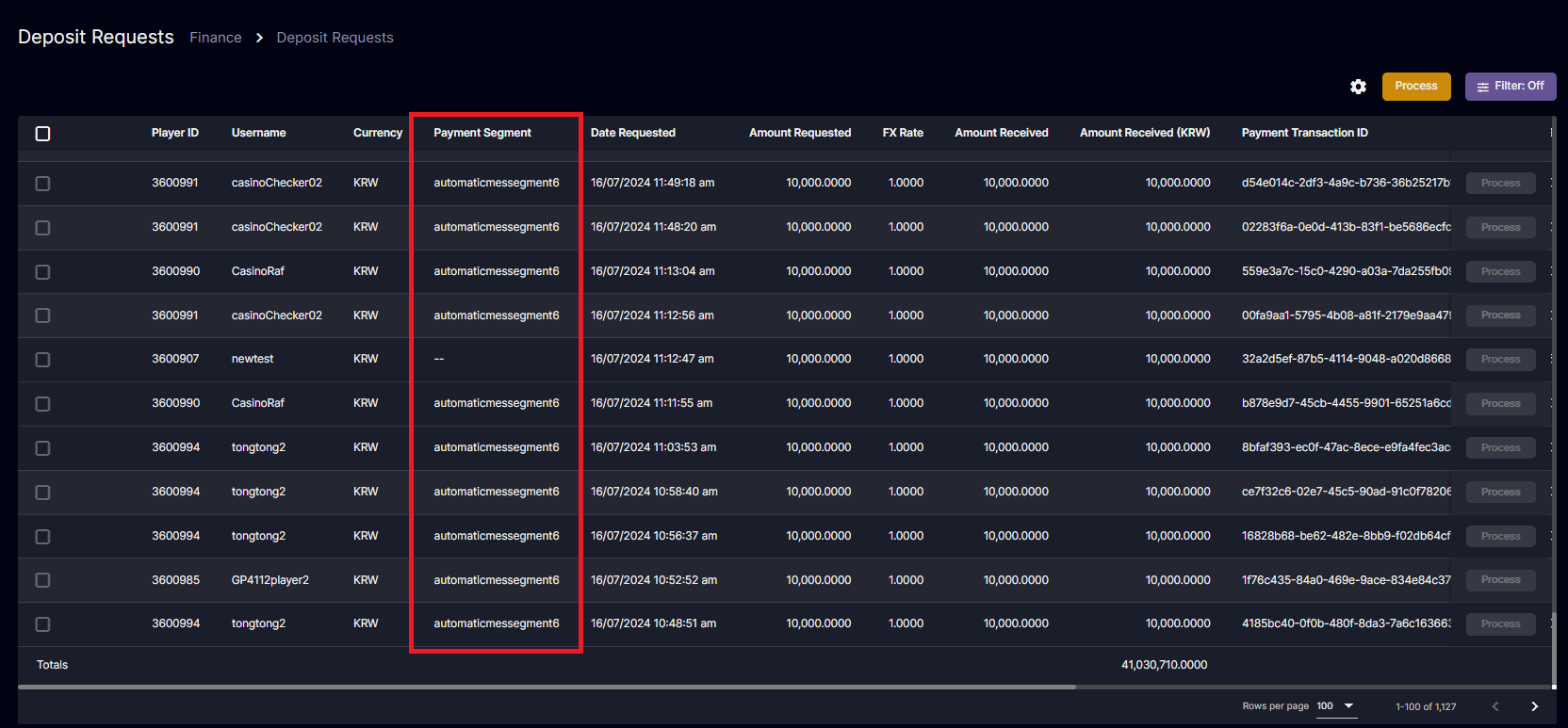
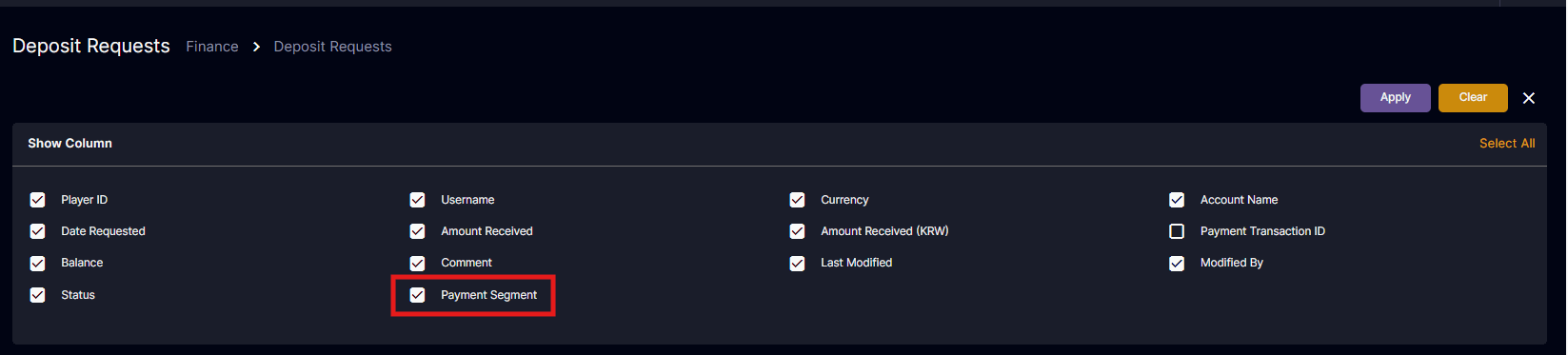 You will be able to see which payment segment the player is included in the deposit.
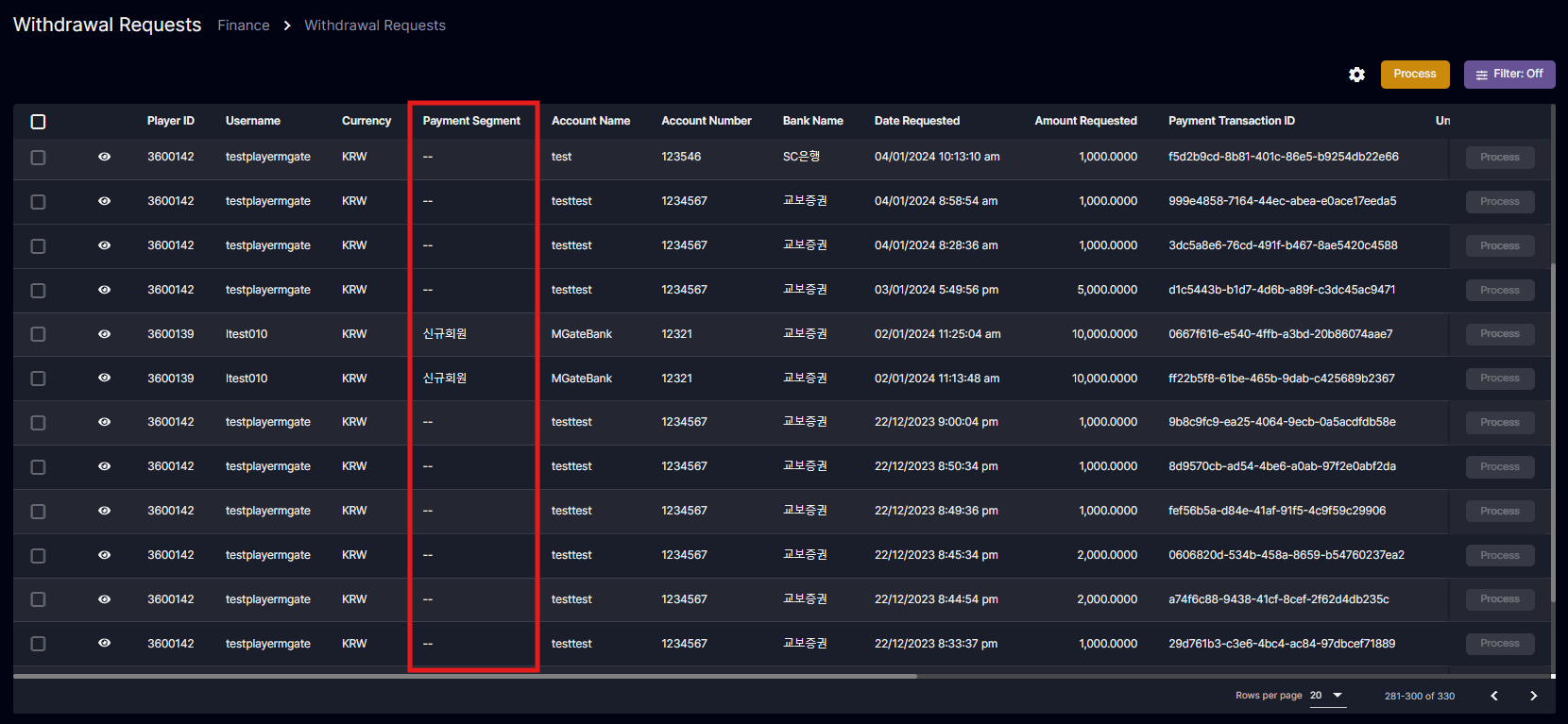
 We recently added Payment Segment in Withdrawal Requests which appears the same way like the Deposit Requests.
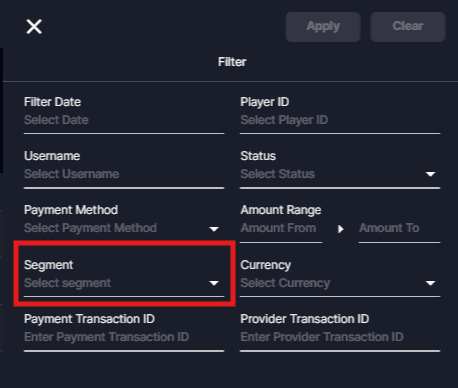
 Segment is also added in the Filter section.
Manual Bank Transfer for MultiCurrency
This article will guide you on how to process bank transfer in Multicurrency.New Deposit Request
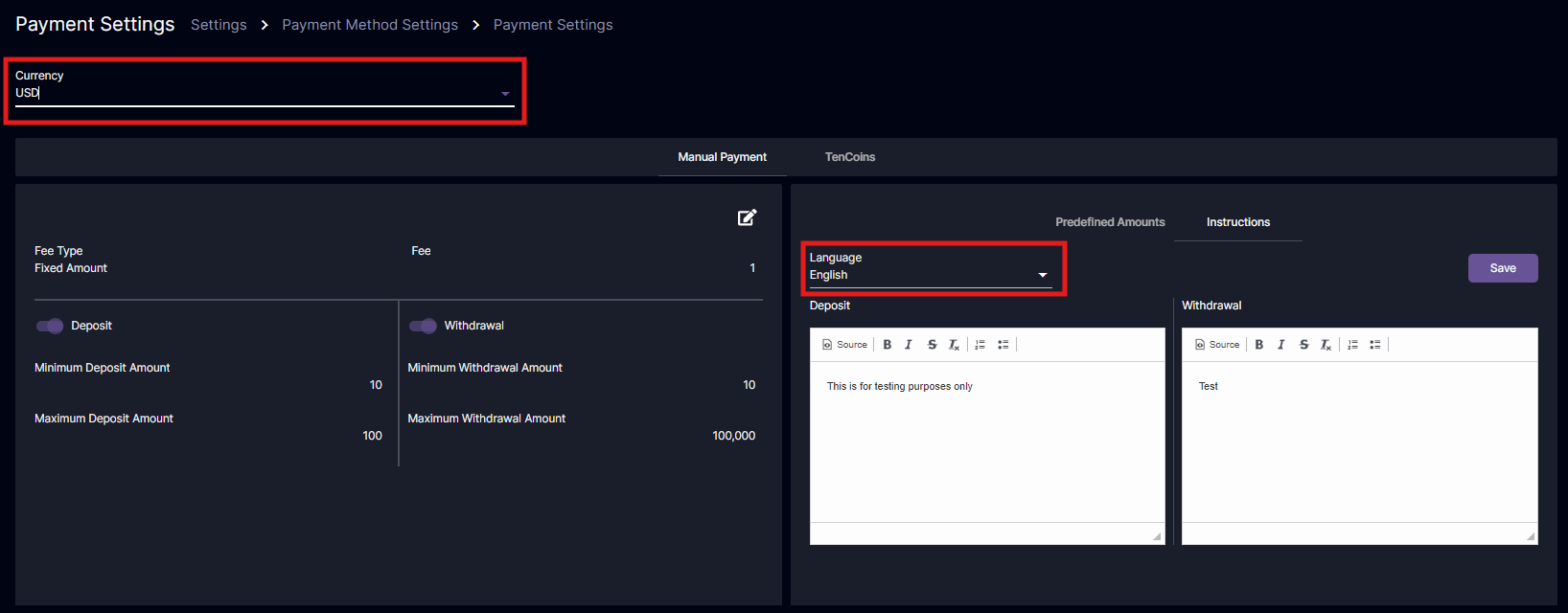
This is what the players will see when they request a new deposit.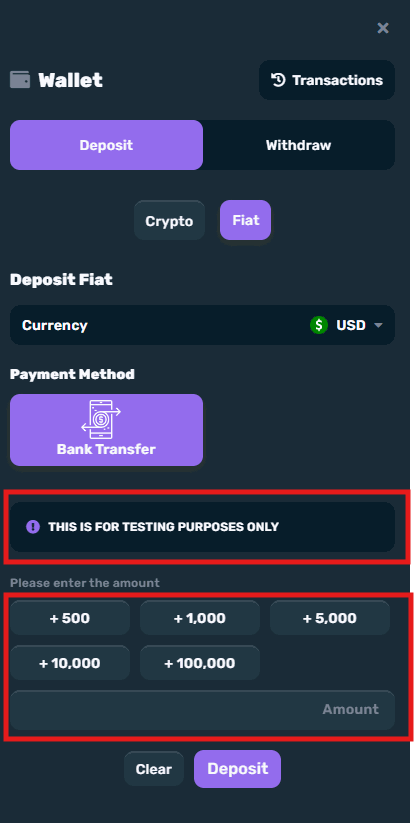 The instructions will appear in the pop-up depending on the selected currency and language set up in the Settings > Payment Method Settings > Payment Settings.
 The predefined amounts can be setup depending on the currency selected in Payment Settings.
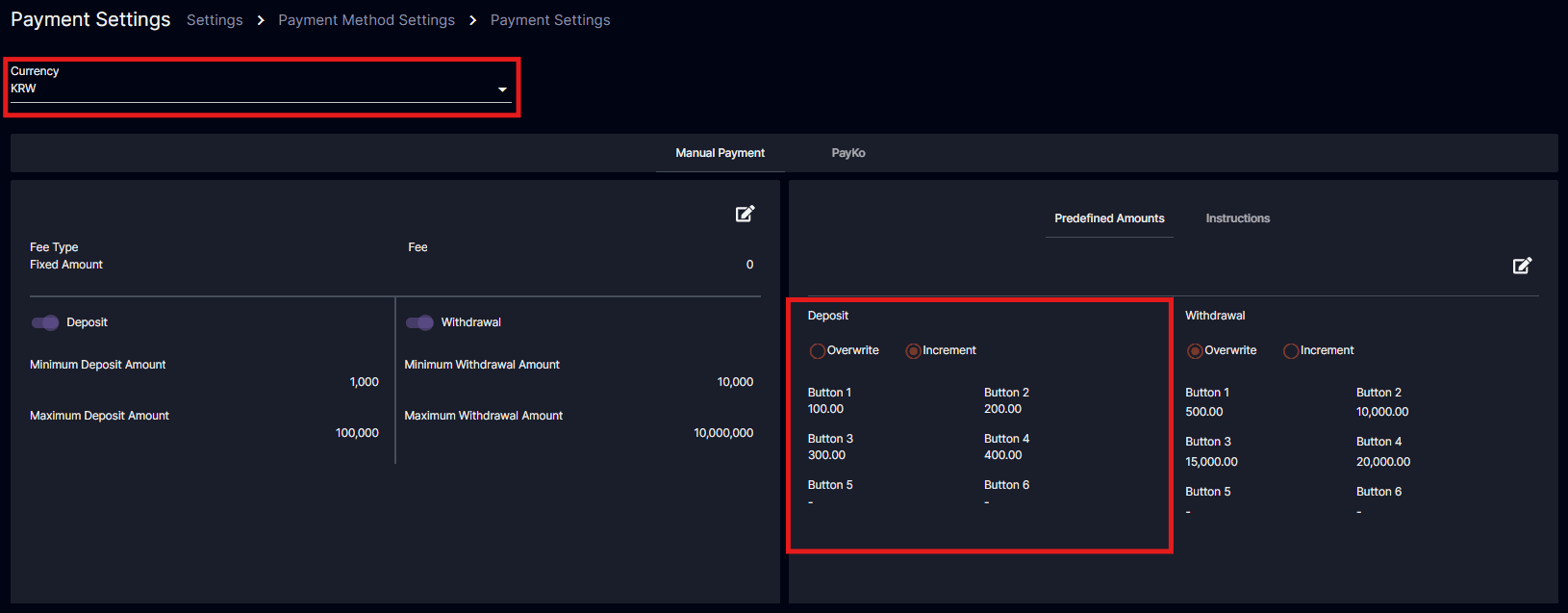
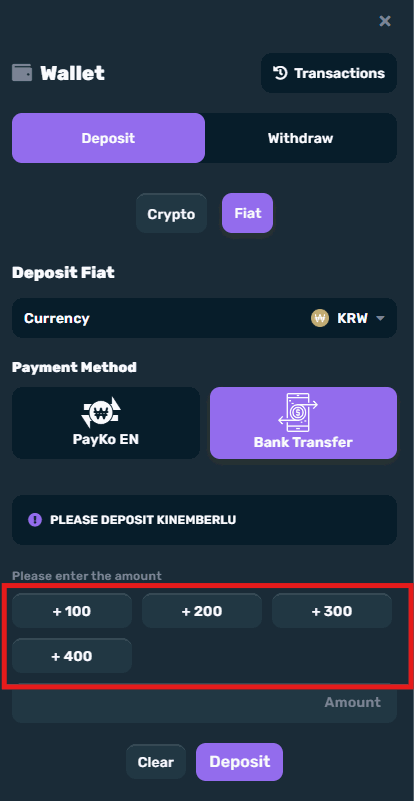
In this image, since I chose KRW, the predefined amount setup in Payment Settings will be appearing in the deposit amount buttons.
Recent Deposit Request
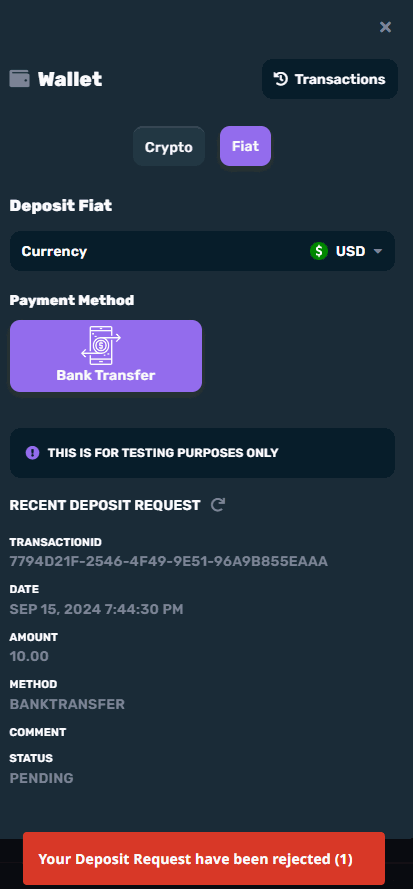
After making the deposit, the players will see a pop-up as a confirmation.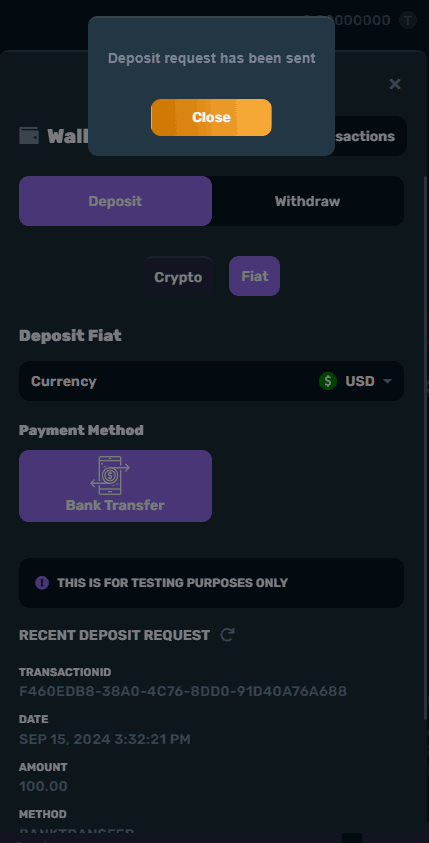
In this sample deposit, you can see the instruction/s and the deposit details.
Sample 1: Player not in a Payment Segment
PP: Pending > Answered > Confirmed > The pop up will disappear once Paid is processed BO: New >Answered/Rejected/Paid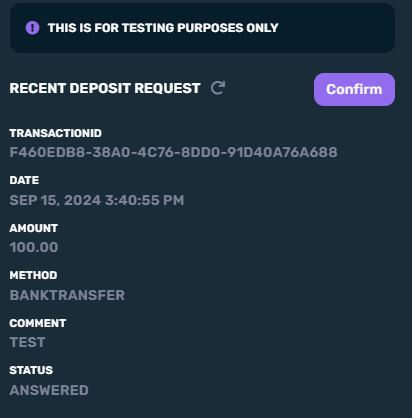
- Refresh Button
- Reload and re-open the wallet modal on the same page to check if there was an update made by backoffice on the transaction being displayed
- “Confirm” button (Primary)
- Applicable for Status: Answered
- TransactionID - Deposit Request Transaction ID
- Date - Last Modified Date
- Amount - Amount Requested
- Method - Bank Transfer
- Comment - Payment Segment Automatic Message or Deposit Request Comment
- Status - Pending/Confirmed/Answered
Sample 2: Player with Payment Segment
PP: Answered > Confirmed > The pop up will disappear once Paid is processed BO: Answered > once player Confirmed (Confirmed) > Rejected/Paid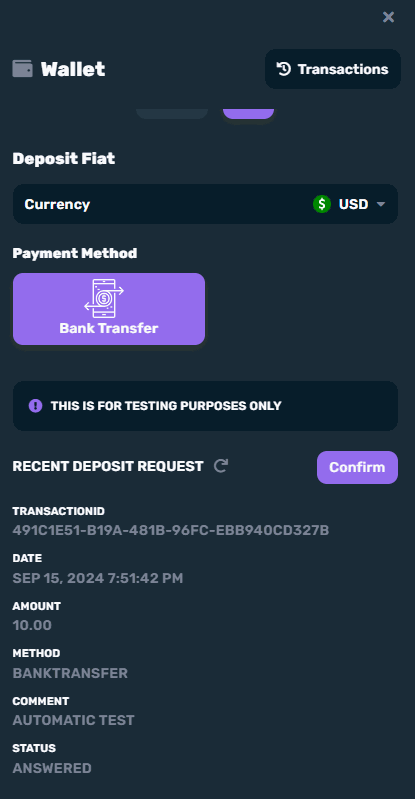
The status will automatically be “Answered” with the corresponding Comment if applicable
Transactions
To view the deposit transaction, click the Transactions in the pop-up or Player Transactions in the profile menu.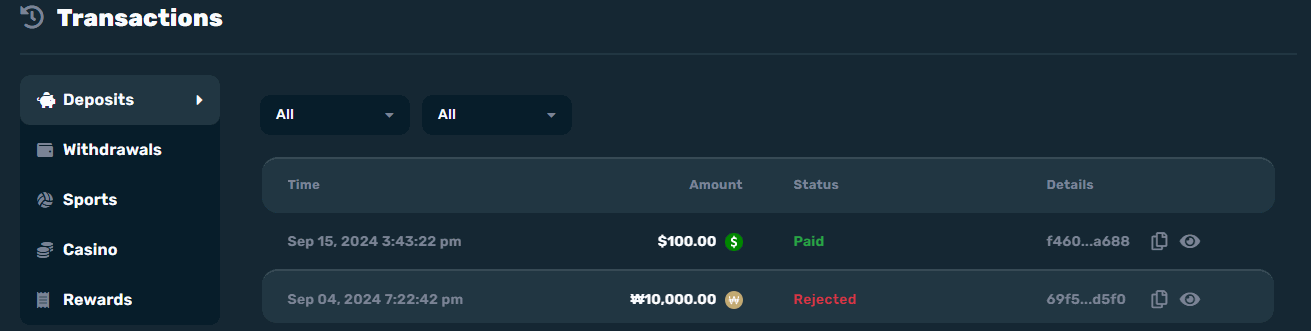 The icons beside the deposit details are clickable where you can copy or view the transaction.
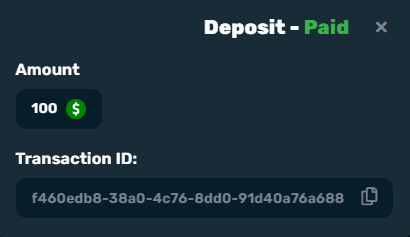
When the eye icon is clicked
How to Setup Predefined Amounts and Wallet (Deposit/Withdrawal) Instructions to appear in Player Portal KO ver: 다중 통화를 위한 수동 은행 송금
Manual Bank Transfer for MultiCurrency (Withdrawal)
[BO] Payment Settings
Withdrawal display and input restrictions should follow instruction texts, button behavior, and predefined amounts set in the Payment Settings for the corresponding currency.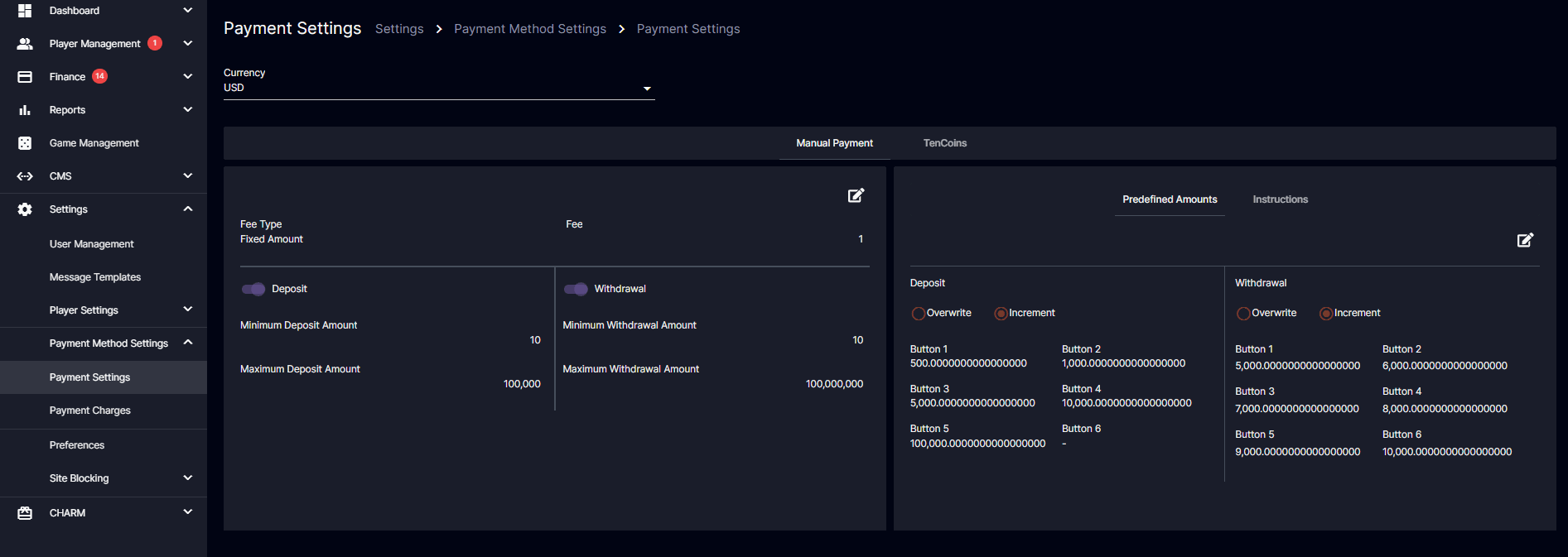
Settings > Payment Method Settings > Payment Settings
Predefined Amounts
The predefined amounts shall be displayed to the amount buttons in the Wallet > Withdraw modal as configured in the Back Office (Settings > Payment Method Settings > Payment Settings).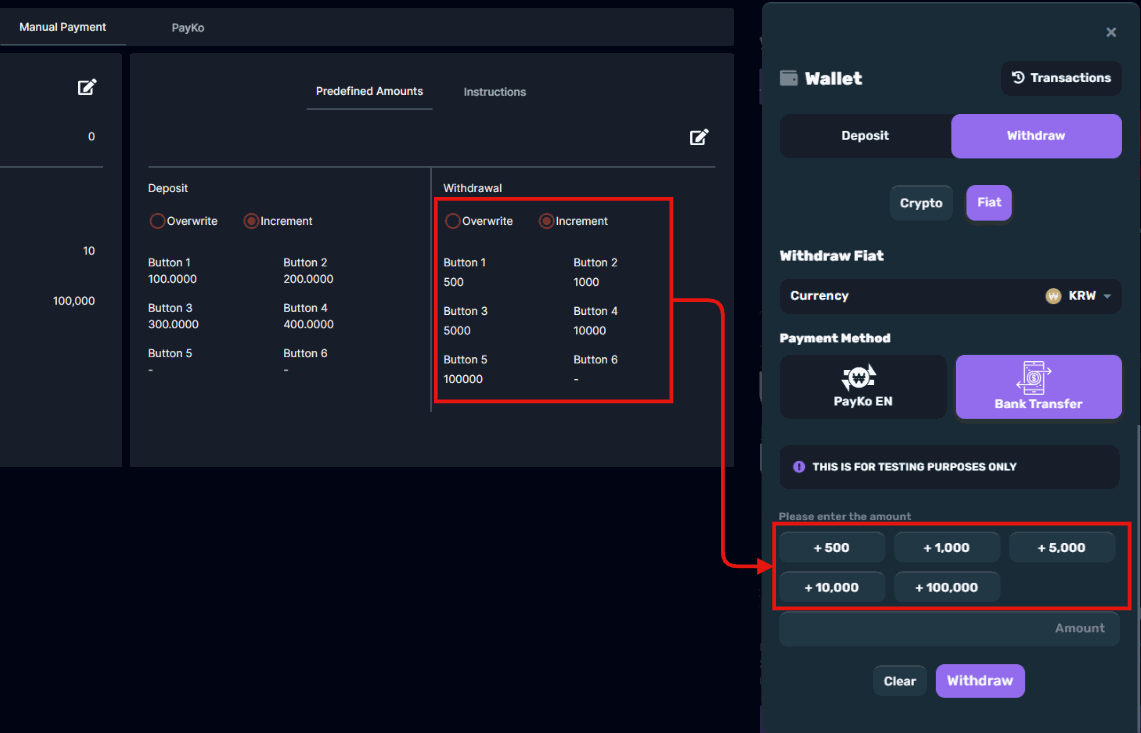
Payment Settings > Predefined Amounts
Instructions
The set instruction per language shall be displayed on Wallet > Withdrawal modal depending on the language set on the website.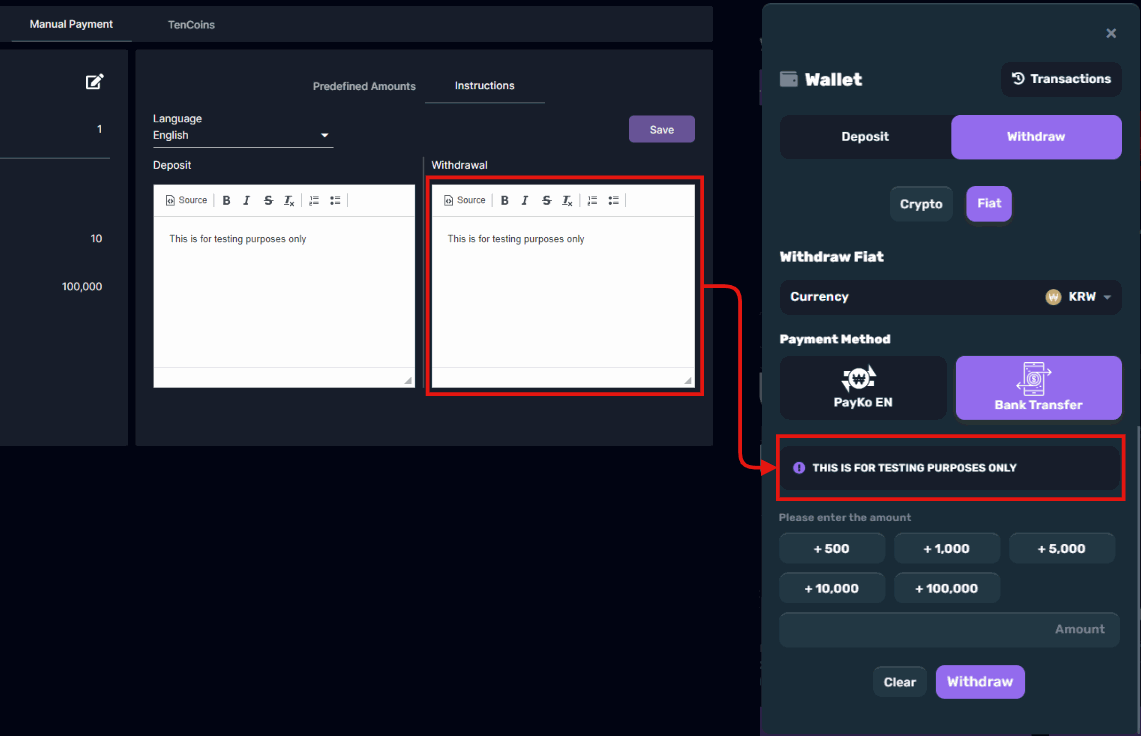
Payment Settings > Instructions
[PP] New Withdrawal Request
This section is triggered upon clicking the Bank Transfer button if there are no pending withdrawal requests for the selected currency. Show withdrawal instructions and input options for withdrawal requests.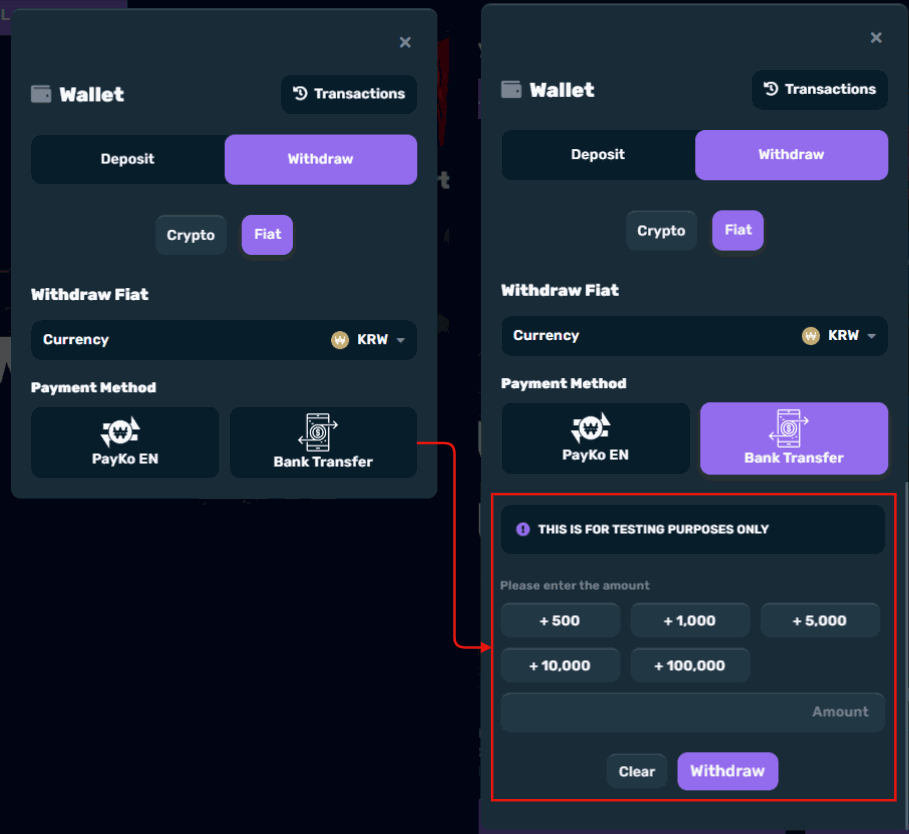
Withdrawal Request form
[PP] Recent Withdrawal Request
The Recent Withdrawal Request section is triggered to display in two ways:- Upon successfully submitting a withdrawal request using a Bank Transfer.
- Upon clicking the Bank Transfer button if there is a pending withdrawal request for the selected currency.
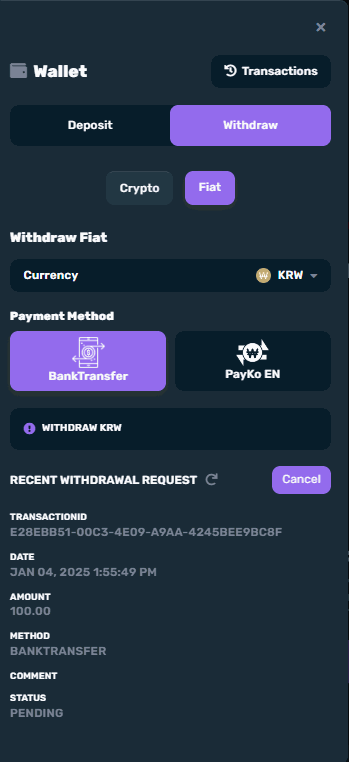
Recent Withdrawal Request
Withdrawal Request Statuses
BO [New] | PP [Pending]
Status for new Withdrawal Requests.
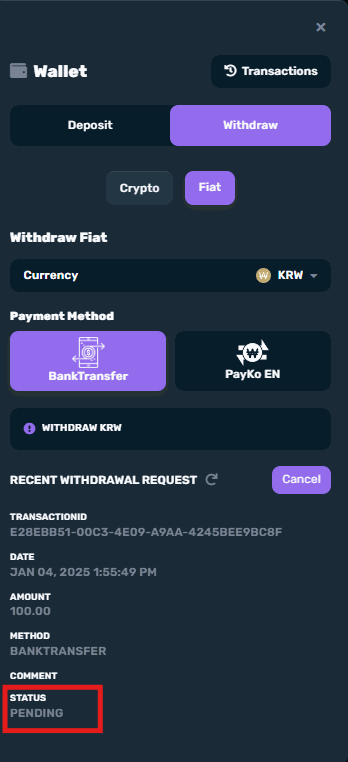
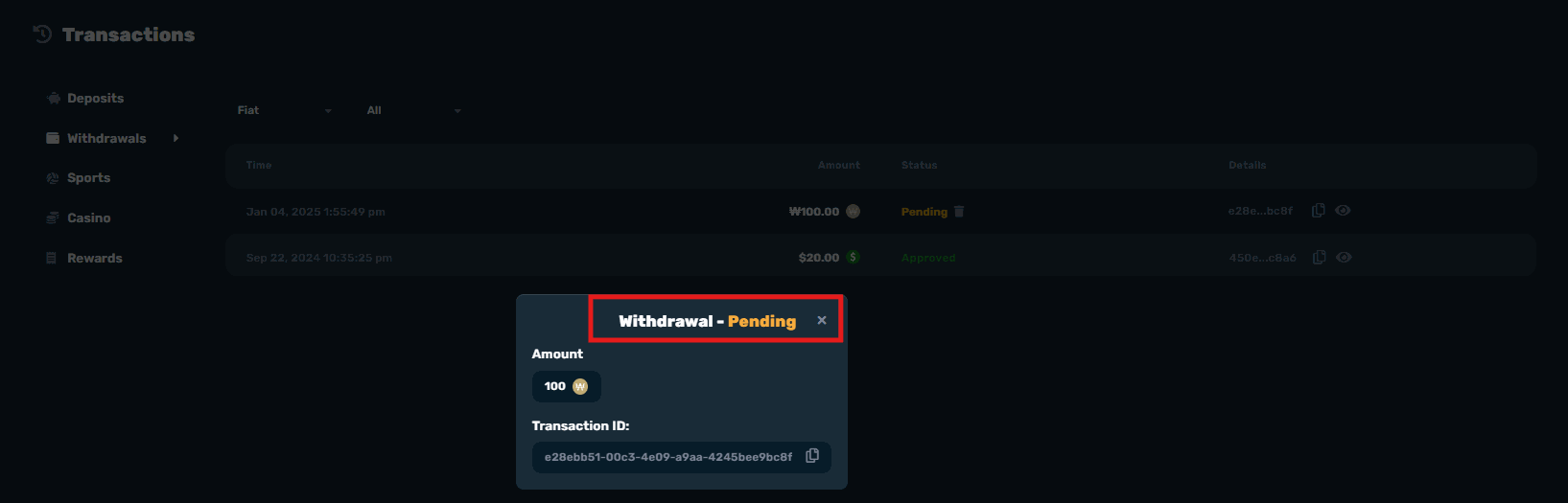
In transactions > withdrawal
Snackbars (Pop-up notifications for withdrawal)
BO & PP [Cancelled]
Status when a user cancels a Withdrawal Request.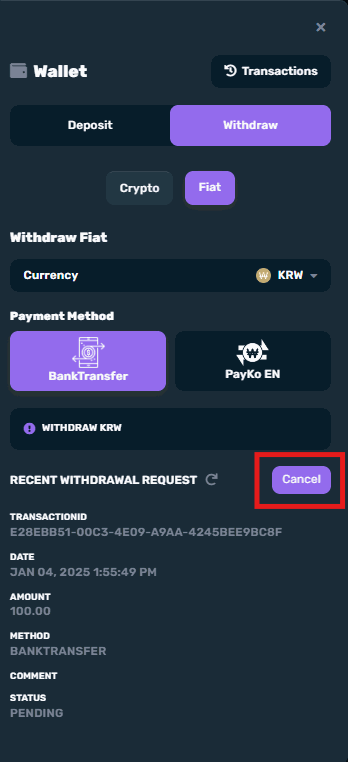


Confirmation Prompt
Triggers upon click of the Cancel button.Confirmation Prompt Action Buttons
BO & PP [Approved]
Status when a Back Office user approves a Withdrawal Request.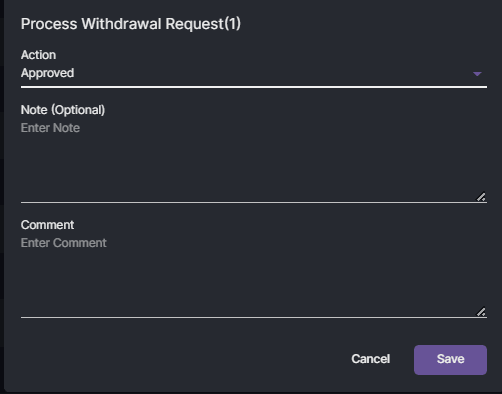
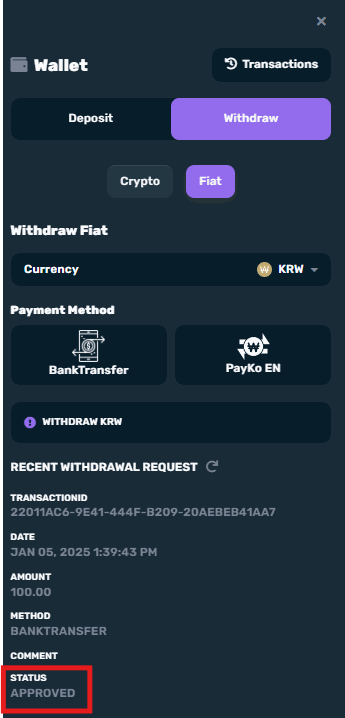
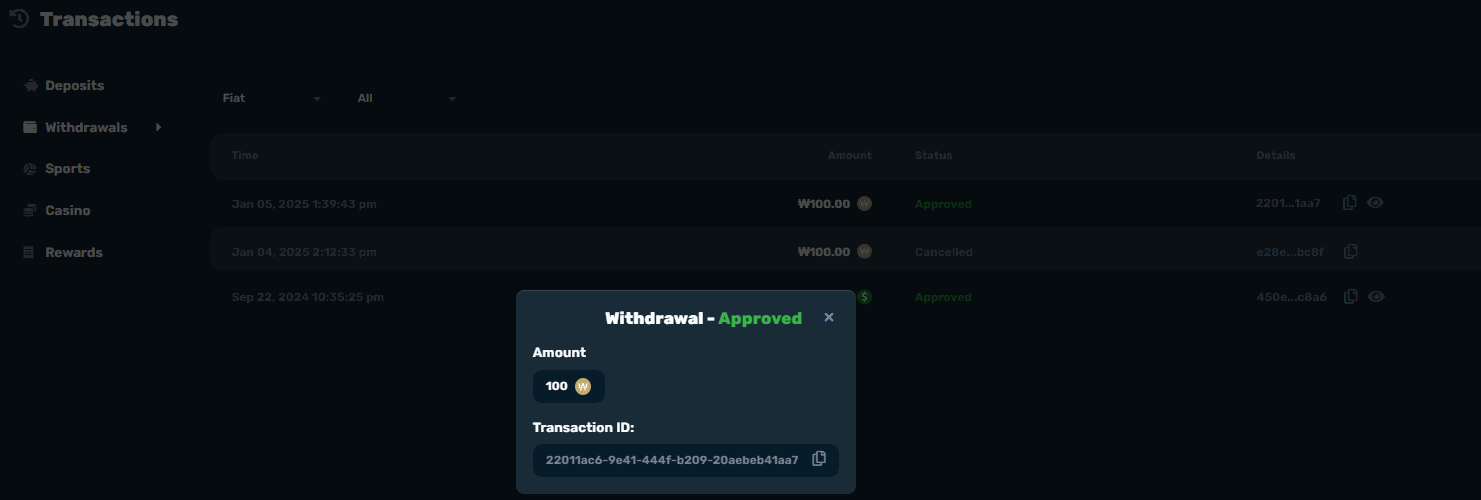
Snackbars (Pop-up notifications for withdrawal)
BO & PP [Rejected]
Status when a Back Office user rejects a Withdrawal Request.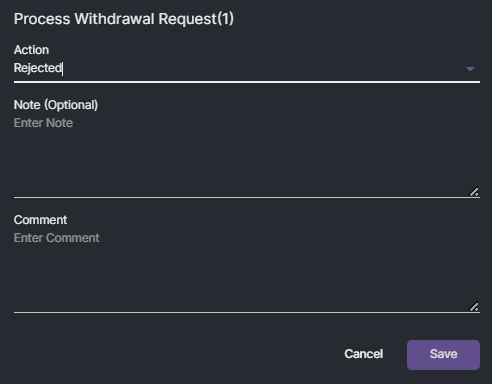
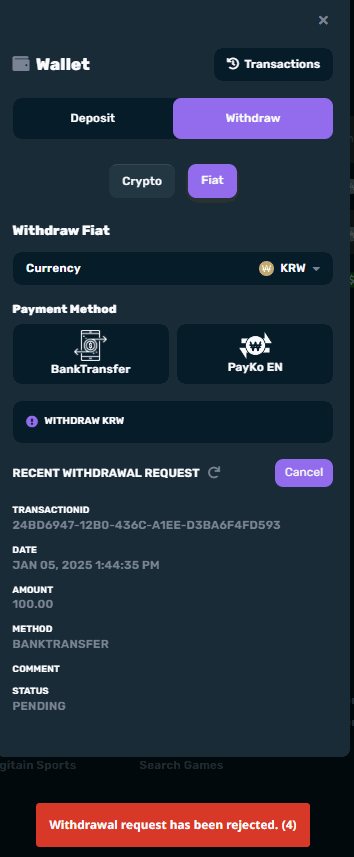
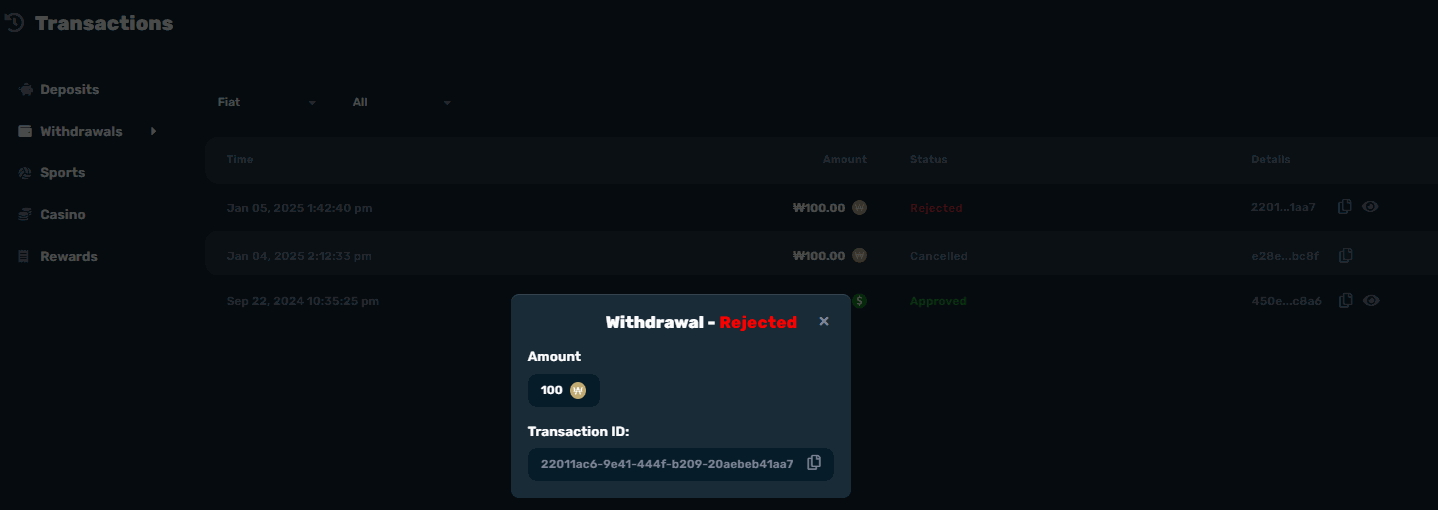
Snackbars (Pop-up notifications for withdrawal)
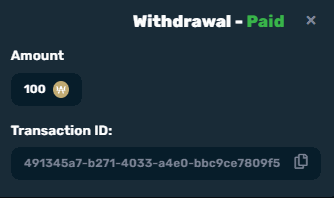
BO & PP [Paid]
Status when a Back Office user sets the status of a Withdrawal Request to ‘Paid’.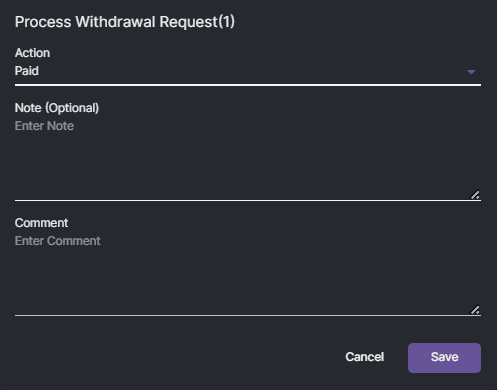

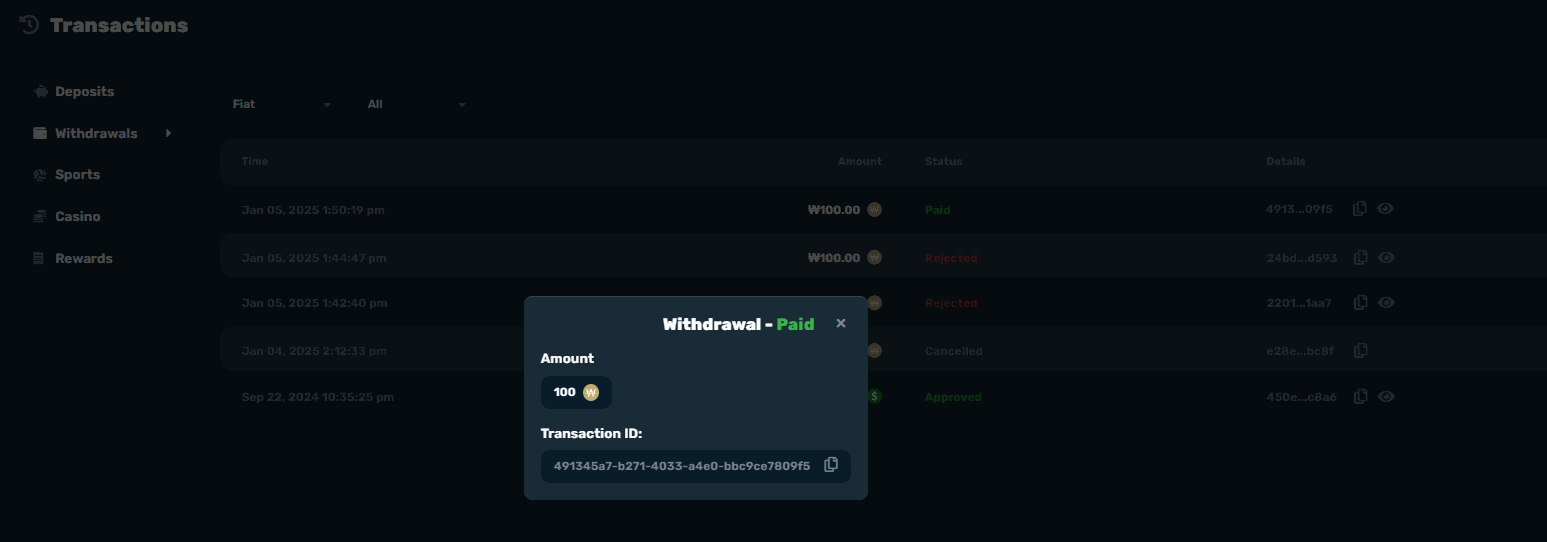
Snackbars
[PP] Transactions
Page can be accessed by clicking the Transactions button on the Wallet modal.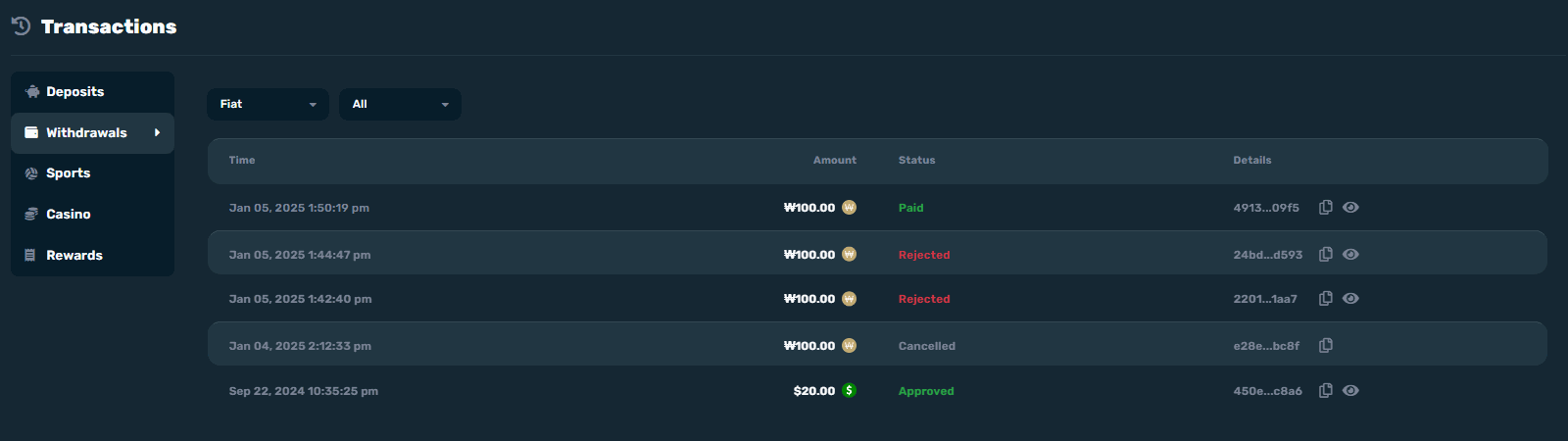
Transactions > Withdrawal
Transaction Details
Popup shall display upon clicking the Eye/View icon on Withdrawal Requests with Pending, Approved, Rejected, or Paid status.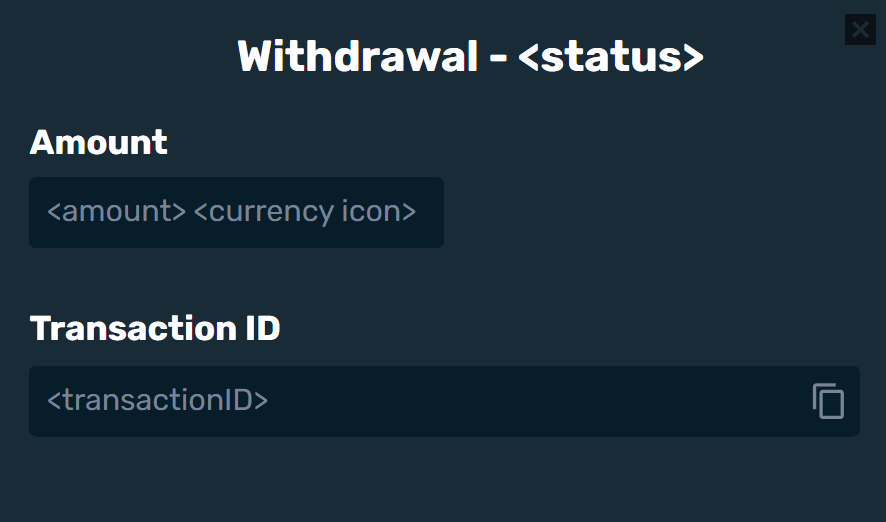
Deposit Request Text Message
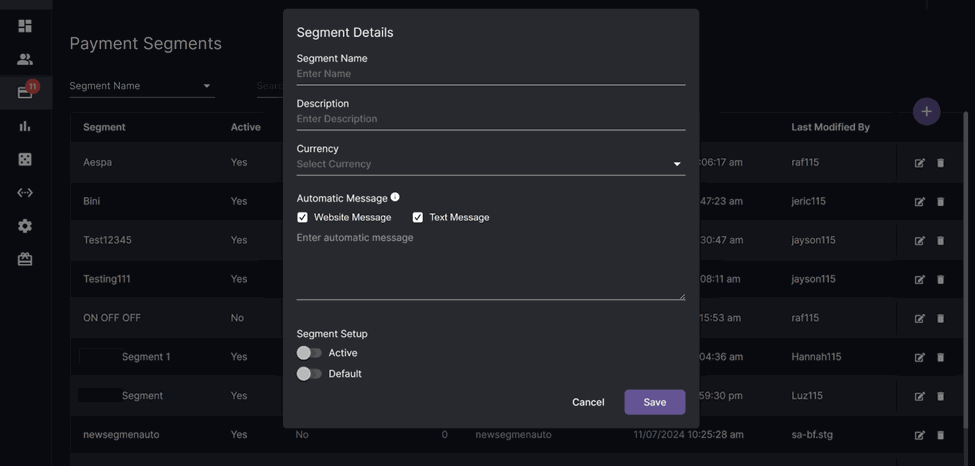
For operators to have the option to send payment segment automatic messages as SMS and have the option to resend in the deposit request page.Navigation: Finance > Payment Segments > Add New Segment
- Replace “Active” with “Website Message” checkbox
- Add an “SMS” checkbox under Automatic Message and set the default to unchecked
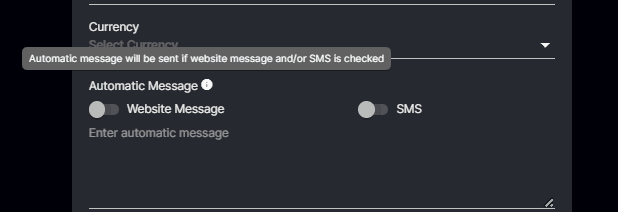
You can see this message when you click the beside Automatic Message: “Automatic message will be sent if website message and/or SMS is checked”
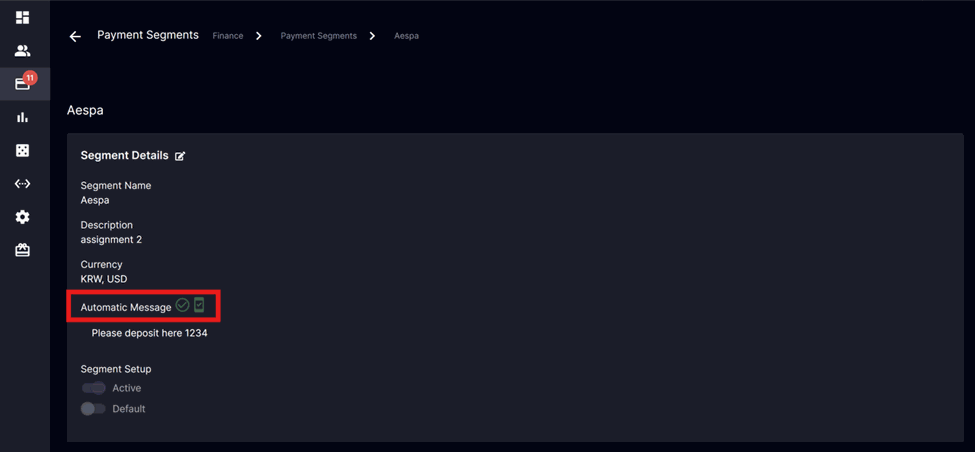
- Green SMS Icon with check will appear when “Text Message” checkbox is checked.
- You can see the Check/X Icon when “Website Message” checkbox is checked/unchecked.
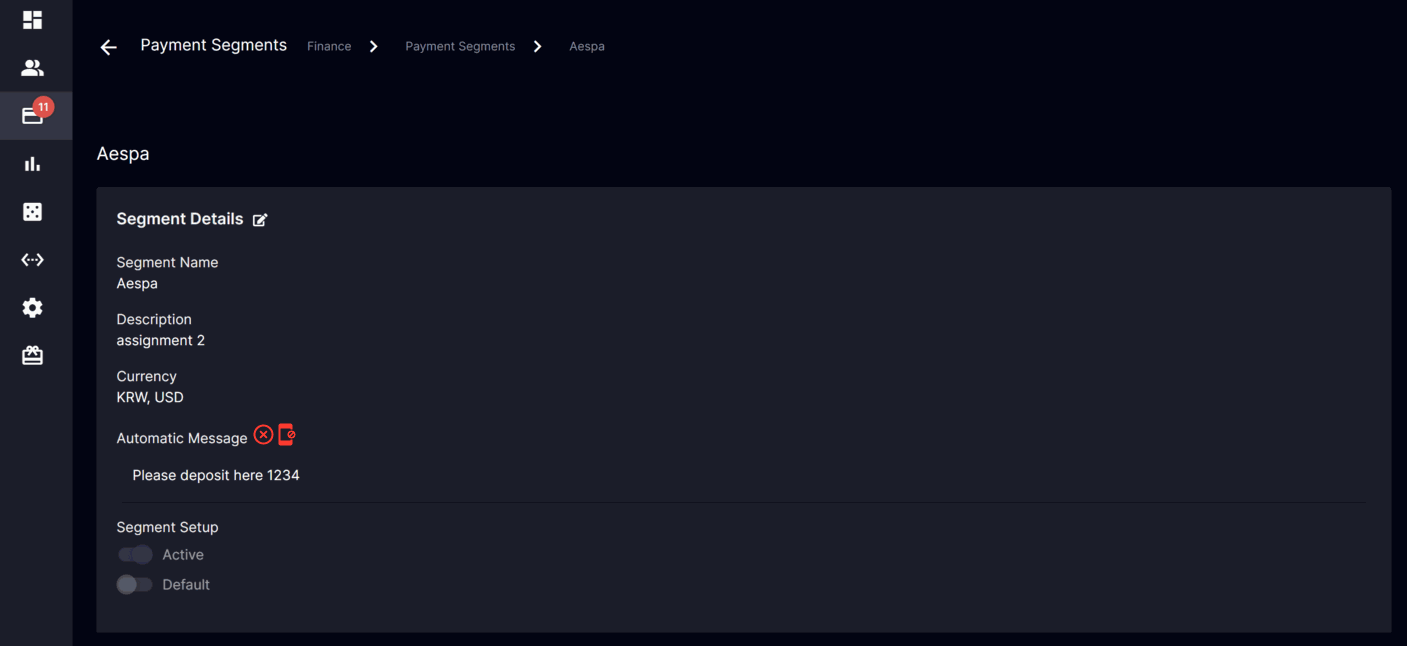
- Red SMS Icon with check will appear when “Text Message” checkbox is unchecked.
- You can see the Check/X Icon when “Website Message” checkbox is checked/unchecked.
Navigation: Finance > Deposit Request
- The send SMS Icon beside the Process button
- Applicable to manual payment with the process button enabled
- Show Send SMS pop-up window when icon is clicked
- Hide this clickable icon when player does not have a mobile number
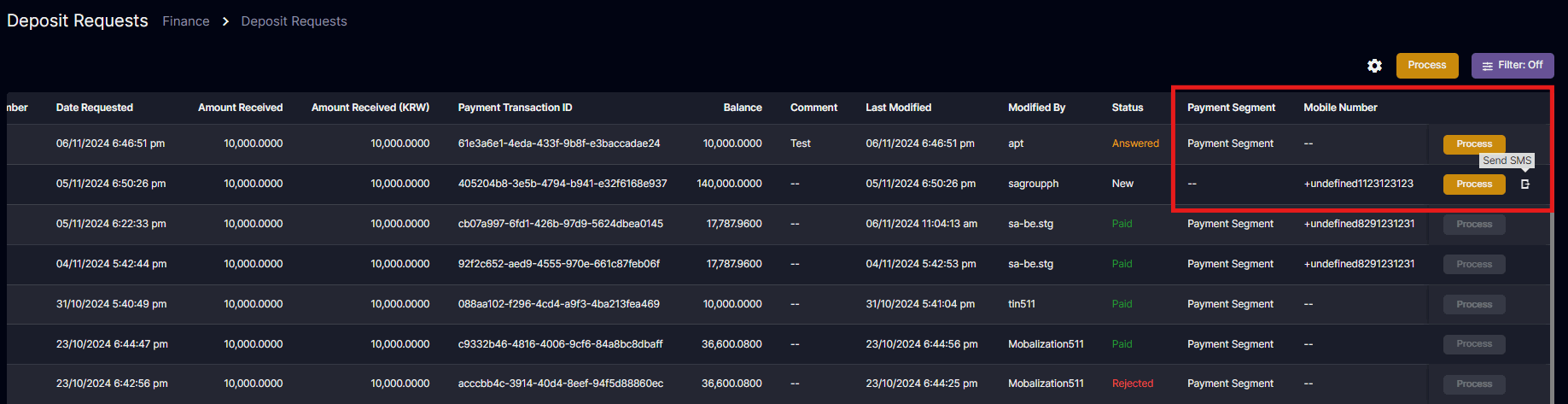

for new deposit requests, the tooltip will appear like this and will be fixed on the next release.
Send SMS pop-up window
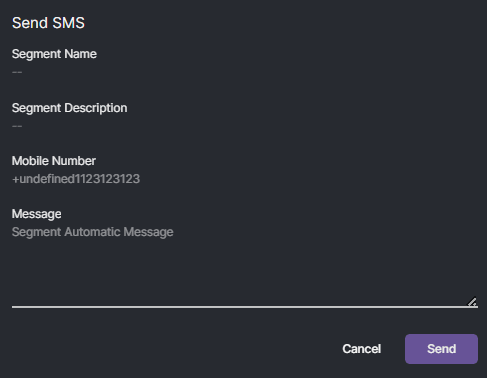
Note that the character limit for SMS text will depend on the SMS provider used for your brand.
- Segment Name - Read-only segment name where the player belongs to
- Segment Description - Read-only segment description where the player belongs to
- Mobile Number - Read-only Player’s mobile number
- Message - required editable textbox with default text from segment automatic message
- show error message “The Message field is required.” if empty upon clicking send button
- Cancel button - close the player details pop-up modal
- Send button - show snackbar “Message Queued”
Navigation: Finance > Deposit Request > Process
- Add Send SMS Button
- Applicable to manual payment with the process button enabled
- Show Send SMS pop-up window when icon is clicked
- Hide the SMS button when player does not have a mobile number
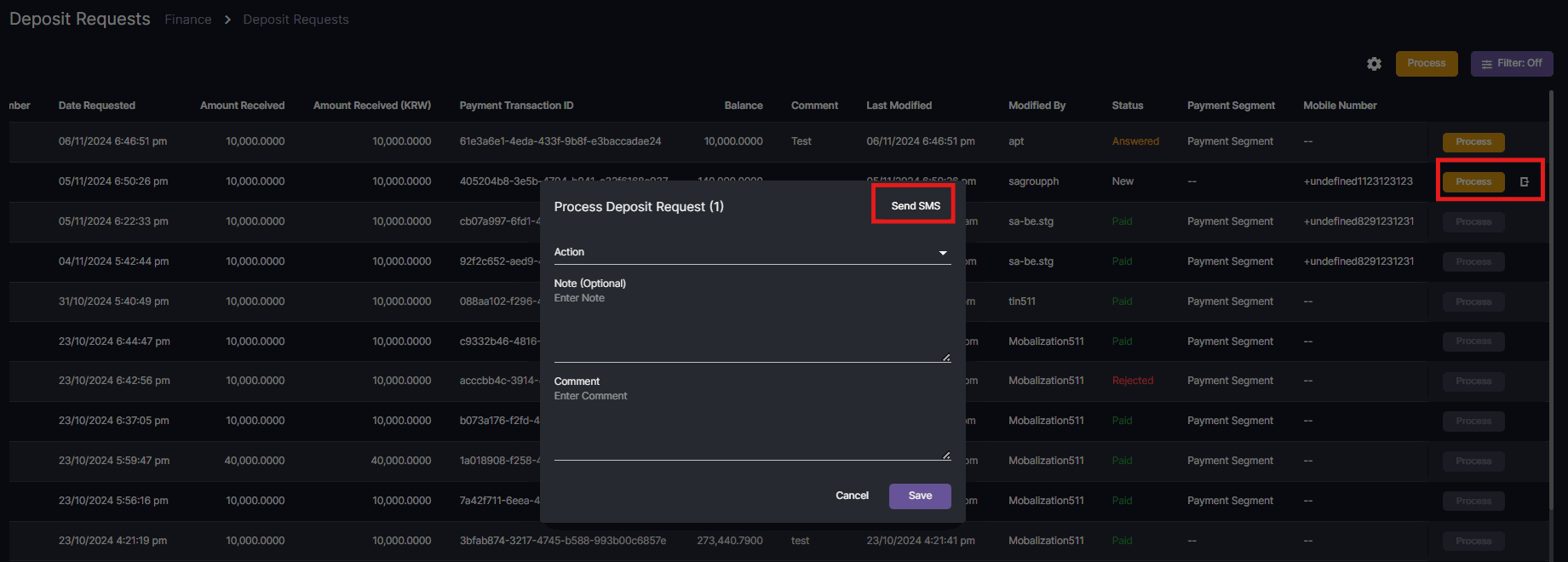
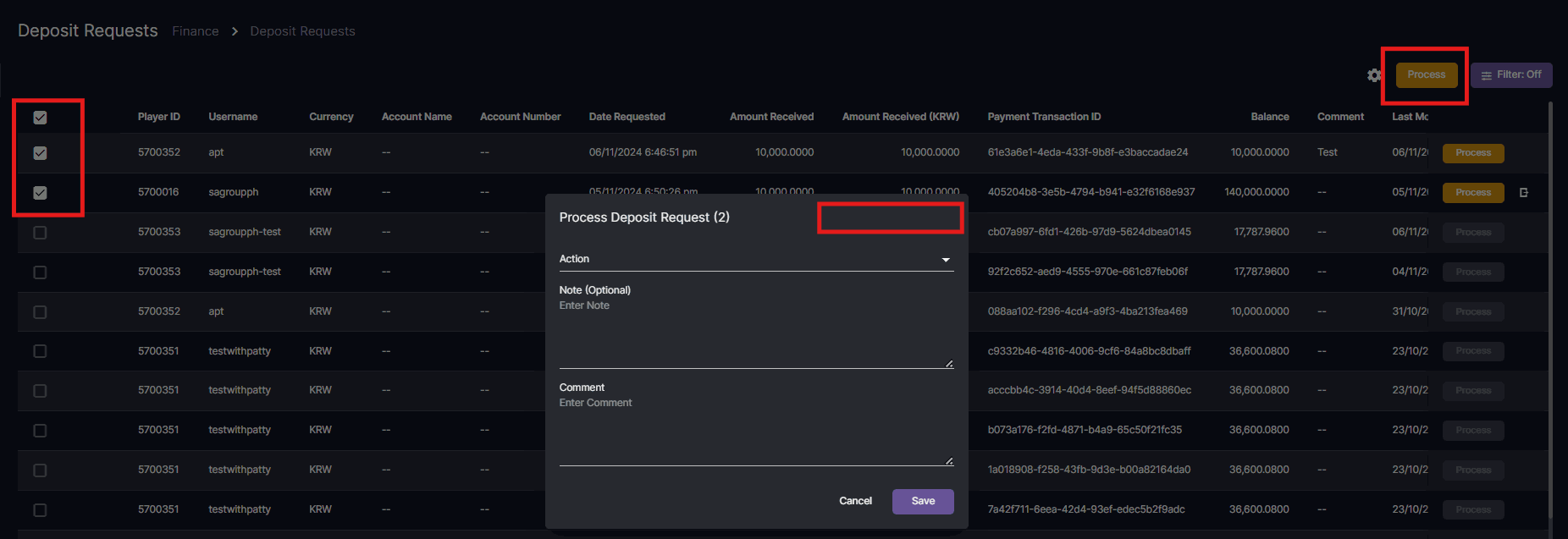
Send SMS button will not appear when multiple rows are selected.
Deposit Request SMS New Update
Payment Segments
Navigation: Finance > Payment Segments >Add New Segment Additional window is added to separate the SMS message textbox.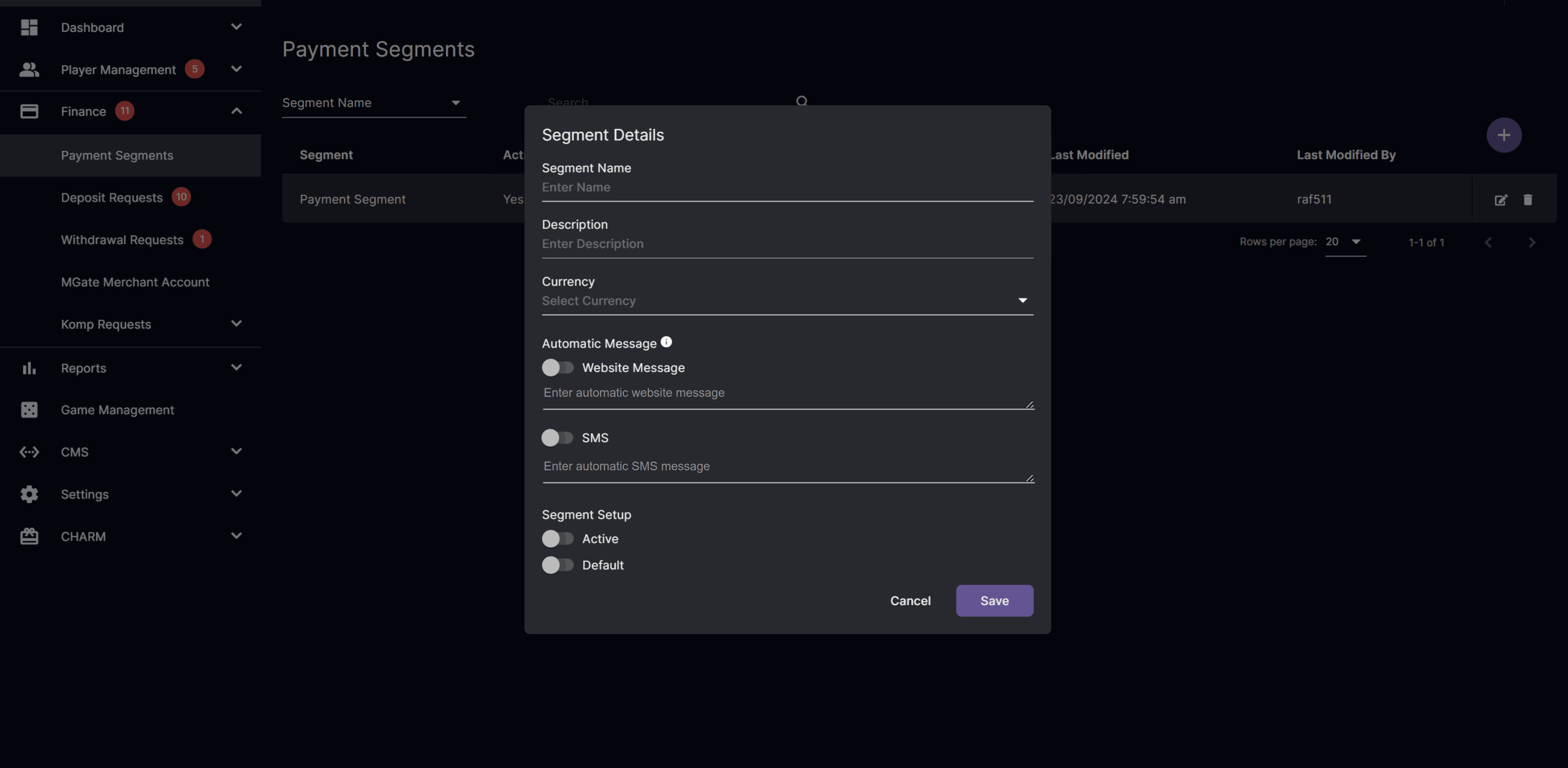
- Error Messages (if toggled on):
- Required Website Message Textbox: “The automatic website message field is required.”
- Required SMS Textbox: “The automatic SMS field is required.”
- The automatic message for SMS will be logged in Deposit Request SMS New Update if the Player belongs to the segment with enabled automatic message for SMS, account status is open and has a mobile number
 Navigation: Finance > Payment Segments > Edit Segment
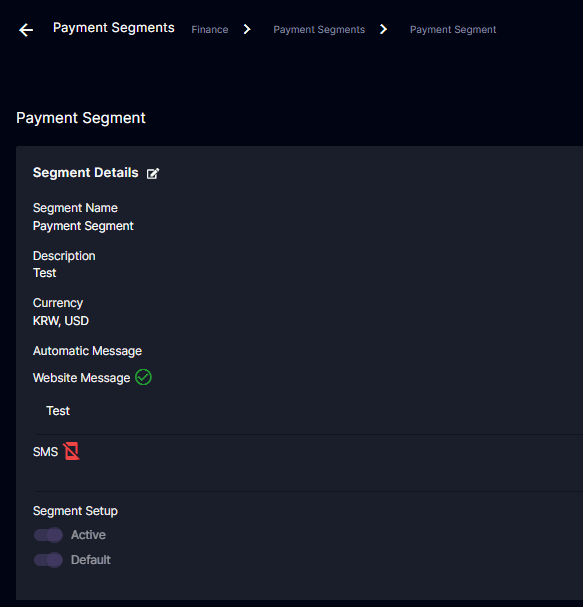
Additional labels for separated Website Message text and SMS text
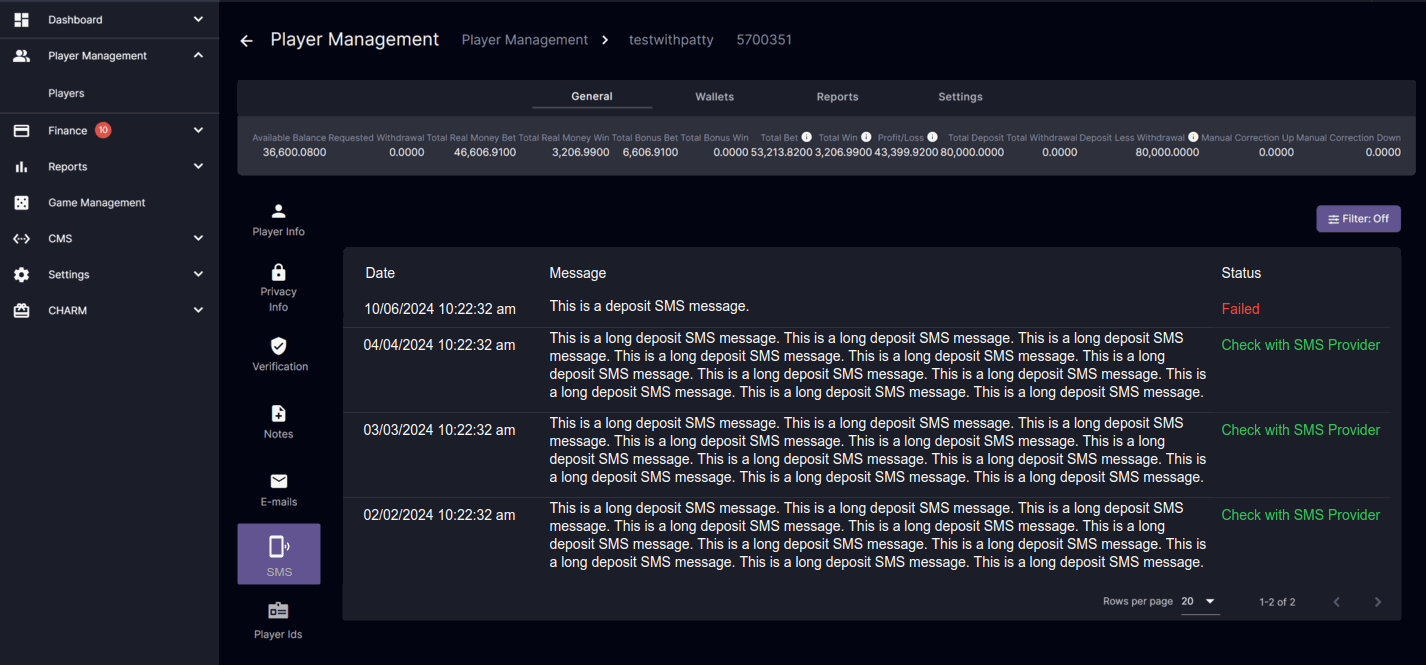
[BO] Player Management: SMS
Navigation: Player Management > [Search Player] > View Details > General > SMS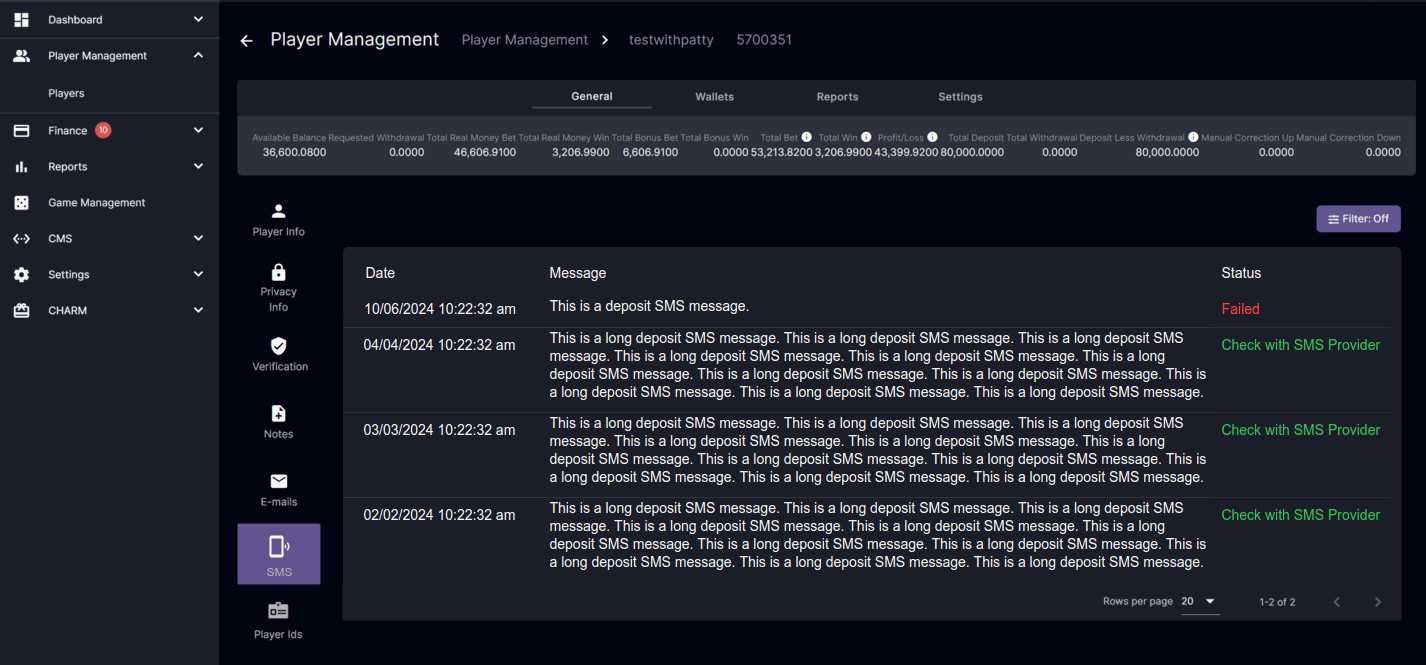
- Date - will display the date of the message and order from Newest to Oldest. The displayed Date and Time will be the same format of your back office preferences.
- Message - all SMS sent to the player’s previous (messages sent to old mobile number are included in SMS history logs) and current mobile number sent through the back office (SMS verification message, Segment automatic message, Deposit request SMS sending, and Player management SMS sending) will be displayed here.
- Status
- Failed - Red text indicating that SMS sending failed
- Check with SMS Provider - Green text indicating that SMS was sent successfully to the SMS provider
- Pending - Orange text indicating that SMS sending is on queue
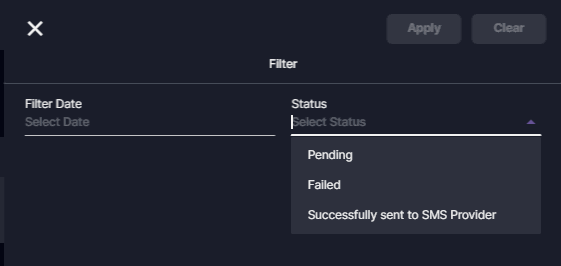
Filter
Player Management: Send SMS
Navigation: Player Management > [Search Player] > View Details > General > Player Info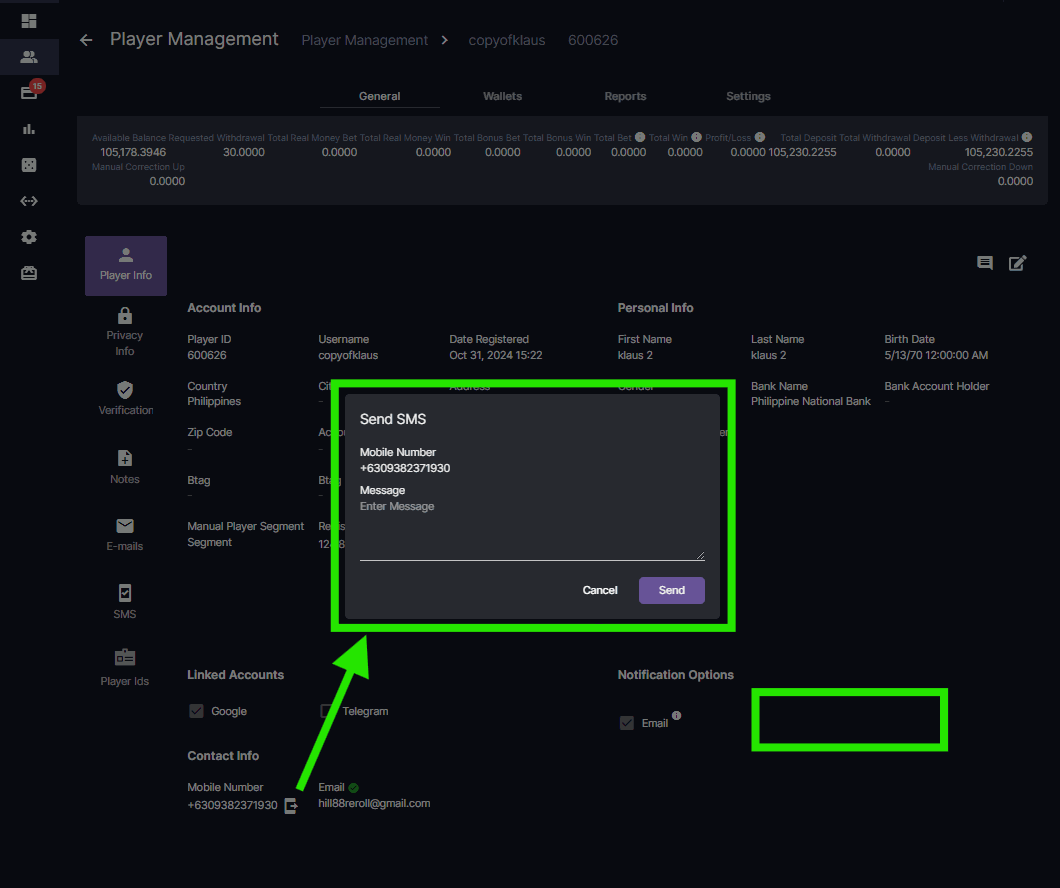
Send SMS pop-up window show upon clicking the SMS icon and SMS checkbox hidden
- You will be able to send SMS by clicking the phone icon beside the mobile number of the player.
- Show error message “The Message field is required.” if empty upon clicking send button
- Show this clickable icon only when user permission for Player Management - Player is Can Modify and there is a mobile number.
- Option should still be available for closed player accounts
- Hide the SMS toggle in the Notification Options container
[BO] Deposit Request: Send SMS
Navigation: Finance > Deposit Requests > Send SMS Alternative Navigation: Finance > Deposit Request > Process> Send SMS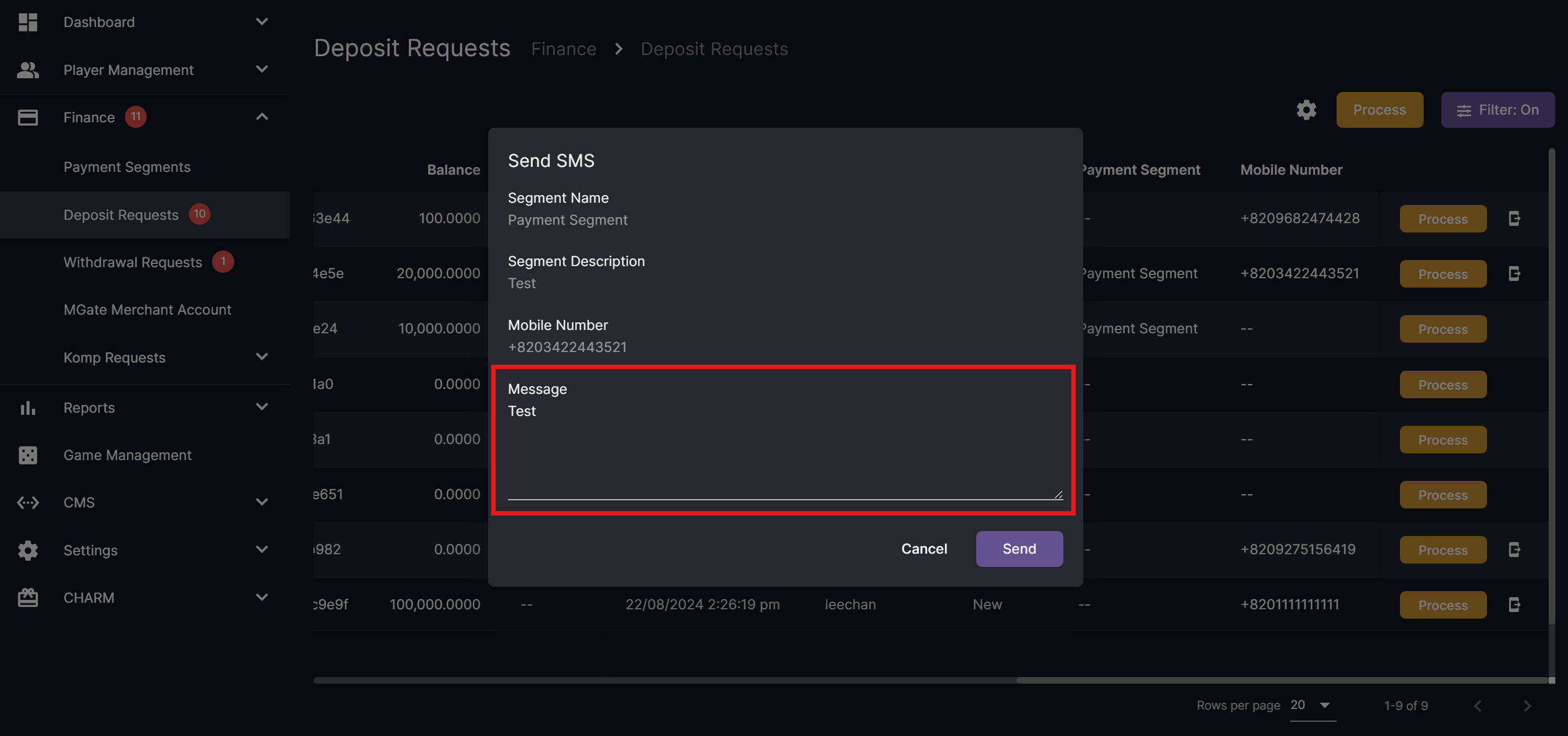
- Show SMS Automatic Message configured for the corresponding Payment Segment as the default Message text
- Existing fields and behavior will remain the same
10Coins Deposit for SingleCurrency
Overview
10Coins is a Payment Gateway Provider (PGP) in the category of Crypto Payment Gateways. Since single currency operators usually set fiat as the player’s currency option, foreign exchange rate conversion is needed to support 10Coins integration.[BO] Player Capabilities
Navigation: Player Management > <playerID> > General > Verification Addition of Can use 10Coins toggle switch on Player’s Capabilities. The same behavior from ‘Can Use Manual Bank Transfer’ and ‘Can use PayKo’ will be applied to Can use 10Coins.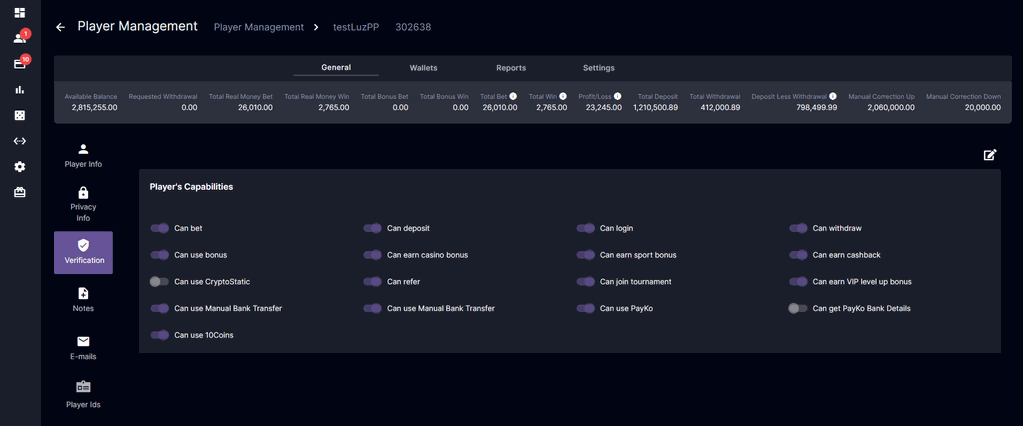
[BO] Manual Payment Settings
Navigation: Settings > Payment Method Settings > Payment Settings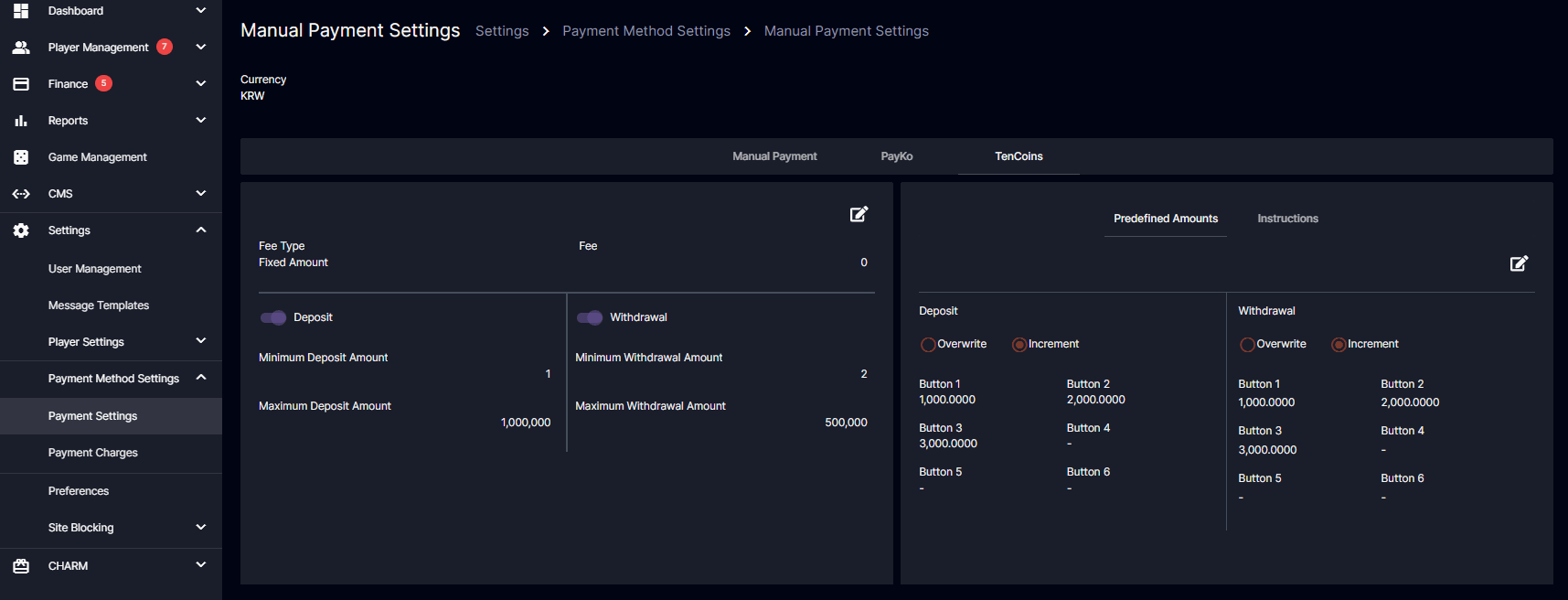
This will allow Back Office users to modify settings related to Deposit and Withdrawal for the specific payment method. The same behavior from other payment method settings will be applied to 10Coins payment settings.
[PP] New Deposit Request
This page is triggered upon clicking the button for 10Coins. Deposit display, instructions, input restrictions, and options should follow Payment Settings > Manual Payment Settings for the corresponding currency.Fiat Request Screen
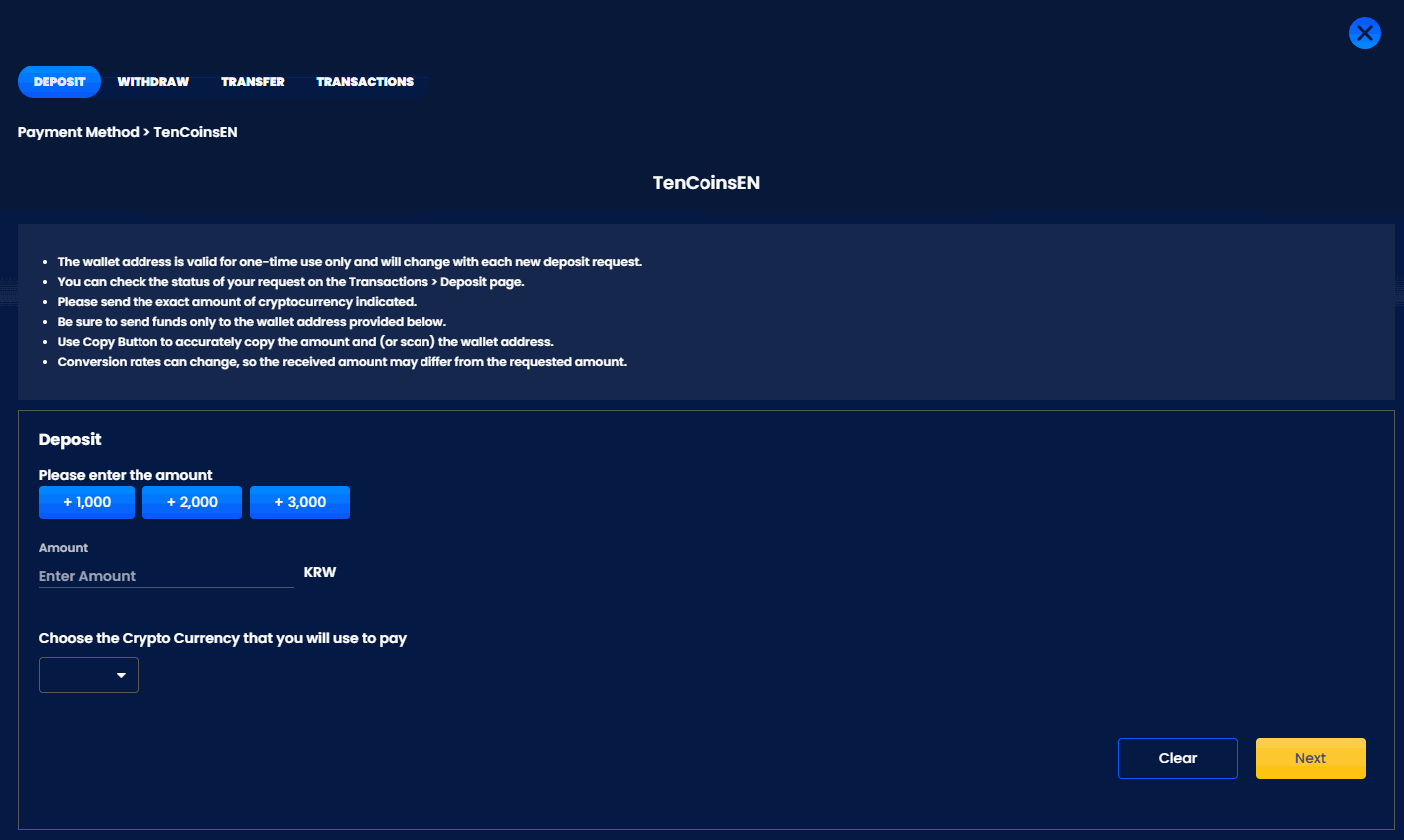
Here are the validations for 10coins deposit request
- Validate the Deposit Amount against the limit before requesting 10Coins to generate the Deposit Wallet Address and continue to the QR Deposit Screen.
- If the player accidentally closes the Deposit Window and the player opens up the Deposit Window again, check if the Deposit Request is still valid and display the QR Deposit Screen with the same information.
[PP] QR Deposit Screen
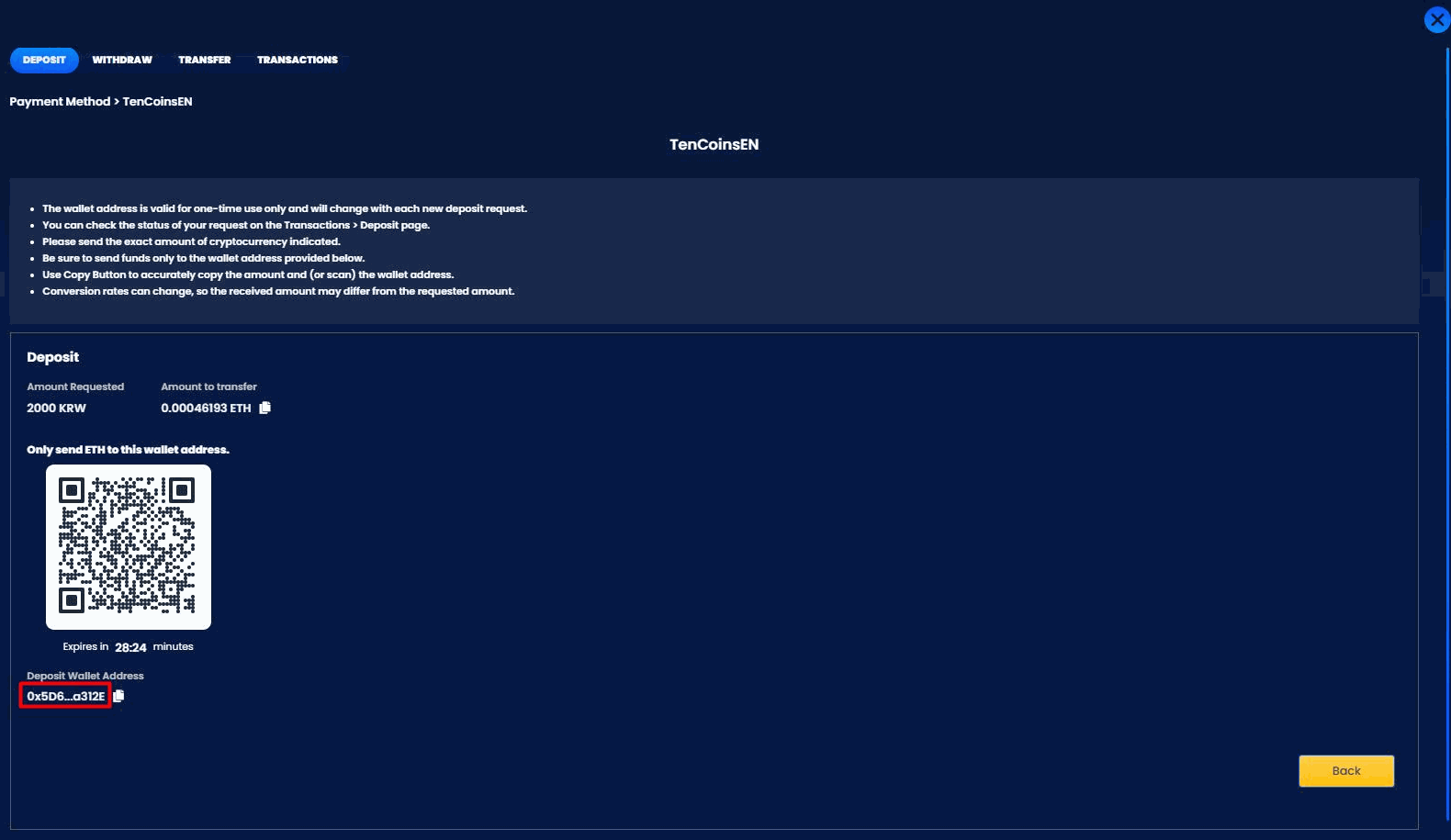
- No changes will occur on the QR Deposit Screen until we receive a callback from 10Coins after a player makes an actual deposit using the information from the screen.
- 1 QR Code is equivalent to 1 transaction and is valid at a given time only.
- The transaction will be added to BO Finance > Deposit Request after receiving a callback from 10Coins.

Once 10Coins sent us a callback about a player’s deposit, a deposit request will then be created on our end. Since the process for 10Coins will be fully automated, the process button is disabled. Details of each request will be displayed in the Deposit Request Info pop-up upon clicking the “view” icon.
[PP] Deposit Transactions
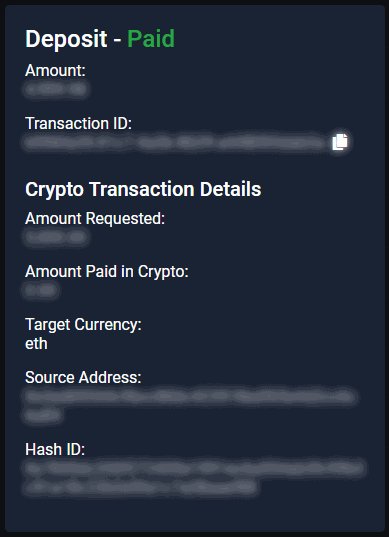
Deposit Statuses
Player Portal Notifications
Notification to display depends on the configured text and format in BO Settings > Message Templates > NotificationsDeposit
10Coins Withdrawal for SingleCurrency
Here is a guide when processing withdrawal request for 10coins cryptocurrency. The deposit process will be fully automated, while the withdrawal process requires BO Users’ help in sending requests to10Coins by approving a request.[PP] Withdrawal
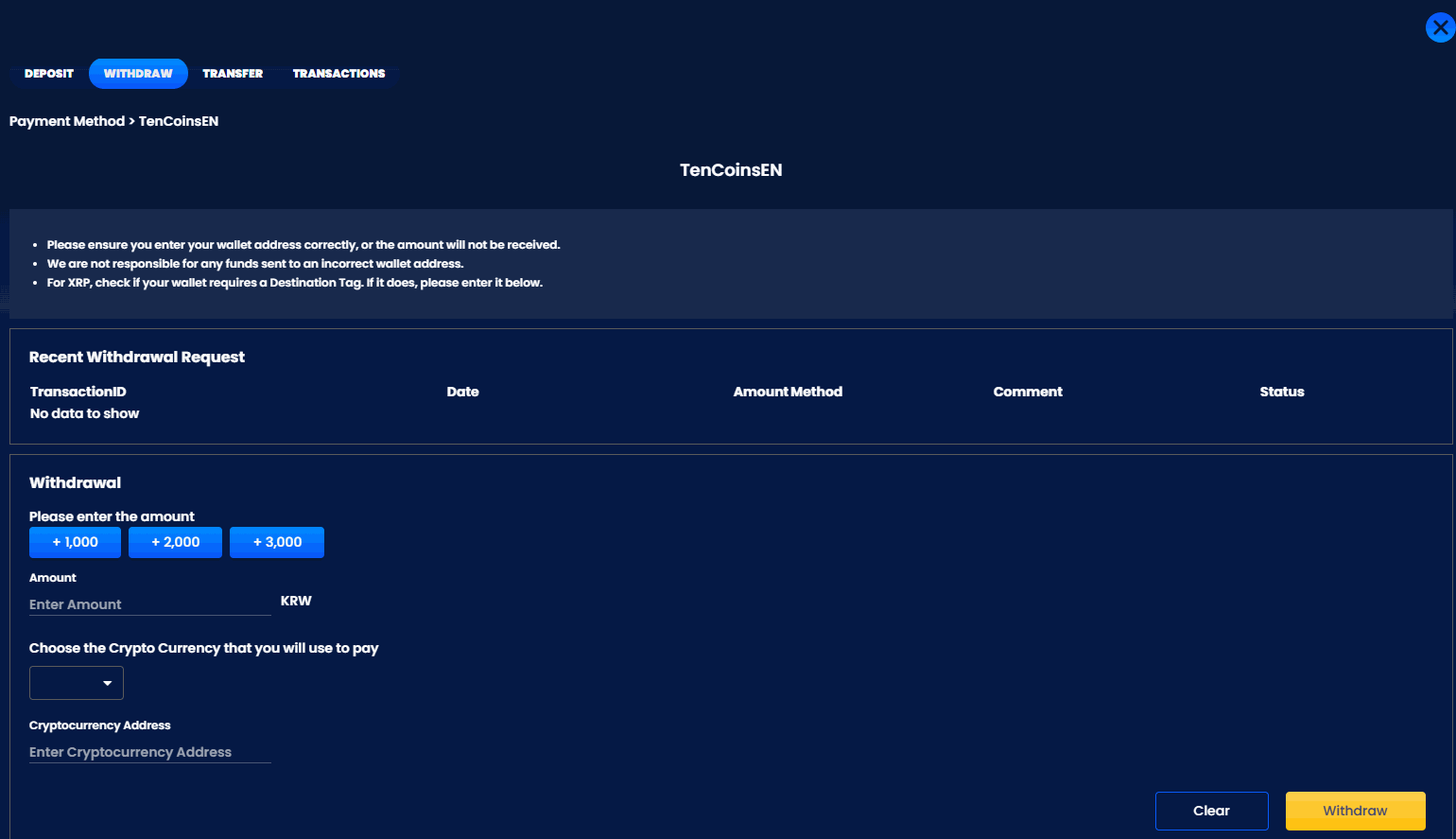
Here are the validations for 10coins withdrawal request
[PP] Recent Withdrawal Request
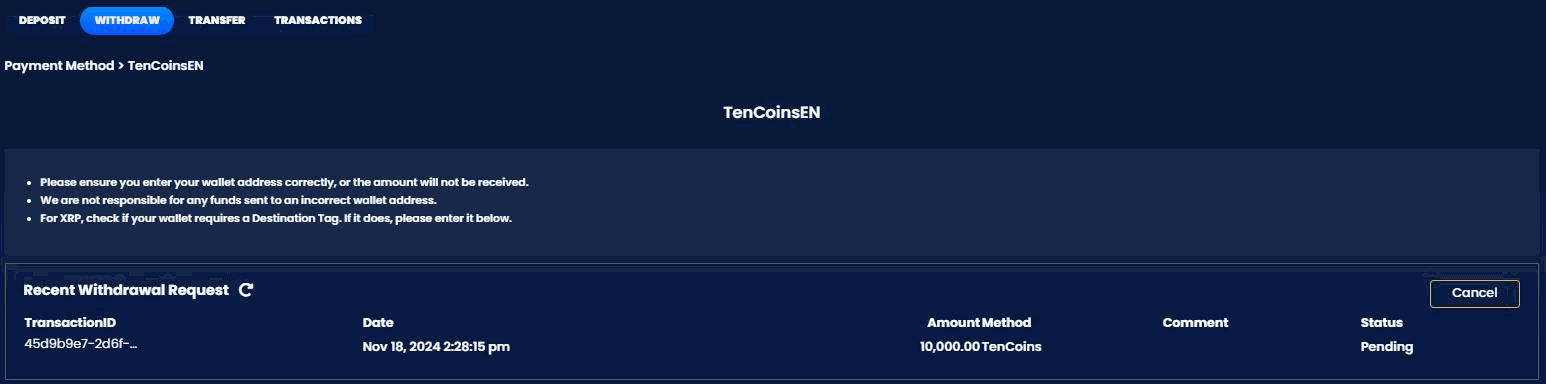
[BO] Process Withdrawal
Status: New | For Reconcile
A new withdrawal request will be created on our end once a player requests new withdrawal request for 10Coins. For 10Coins, the process button is disabled from the main Withdrawal Requests page. This is to avoid including 10Coins requests from processing bulk withdrawal requests. Details of each request will be displayed in the Withdrawal Request Info pop-up upon clicking the “view” icon.
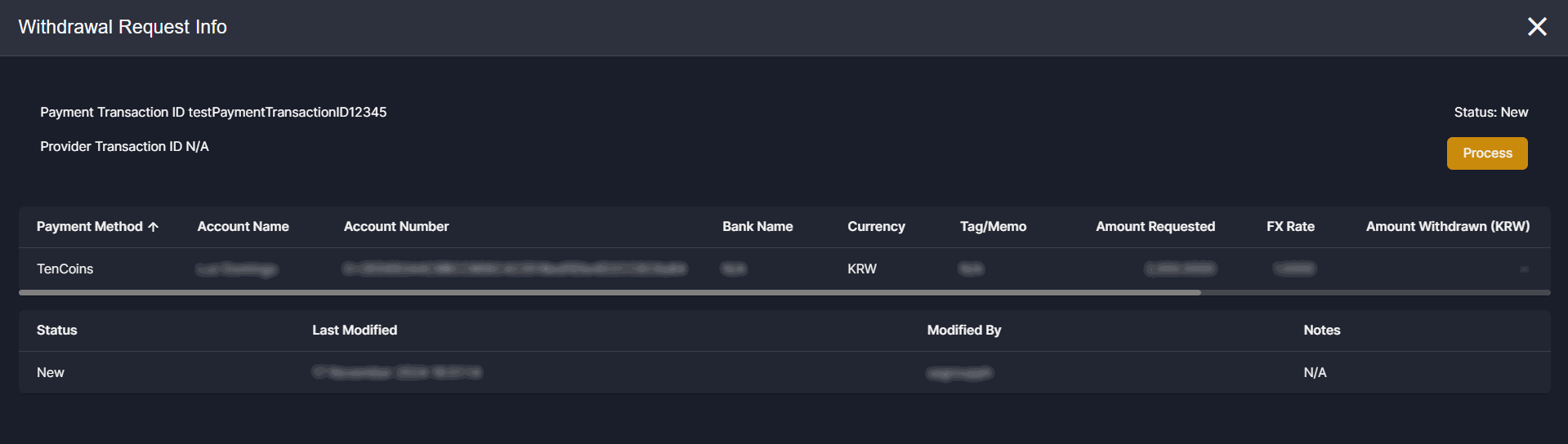 Clicking the “Process” button allows the BO User to either approve or reject a new withdrawal request.
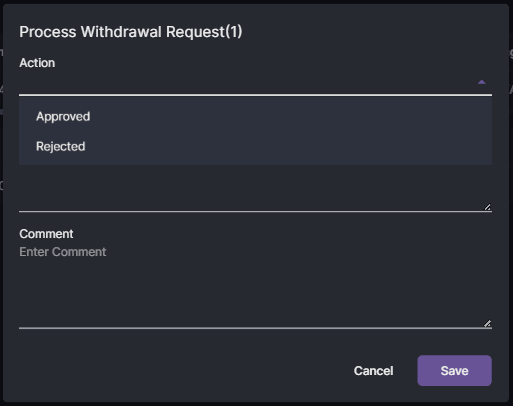
Status: Approved
Approved withdrawal request will then be sent to 10Coins for actual processing of the request.
[PP] Transactions: Crypto Transaction Details
Addition of Crypto Transaction Details section if the payment used for Deposit and Withdrawal is 10Coins. This will only display once 10Coins provides us with this information.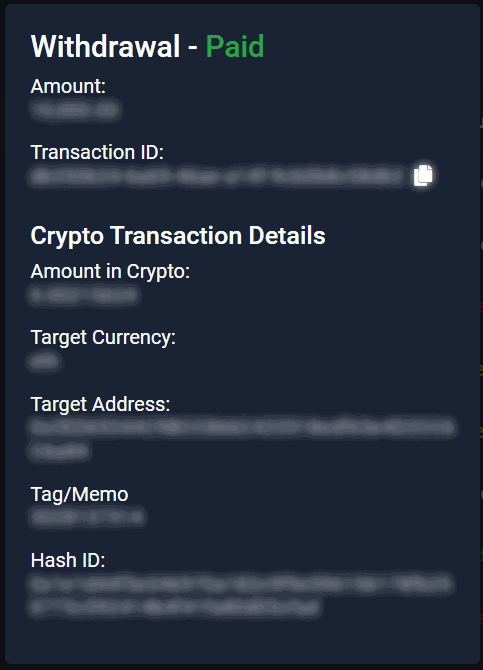
[PP] Notifications
Notification to display depends on the configured text and format in BO Settings > Message Templates > NotificationsWithdrawal
Withdrawal Statuses
- In this status, the Back Office User has the option to manually process [Paid or Rejected] the request.
- For example, the Back Office User sets the status to Rejected which is a settled state already. With this, the withdrawal amount has already been returned.
- 10Coins sends a Failed response again.
- In this case, we will not record the Failed response we received from 10Coins since the request is in a settled state already. This means that no amount shall be returned to the user anymore.
Deposit and Withdrawal Copy Icon
Add a Copy Icon to the specific fields for both Deposit and Withdrawal requests in the Back Office with an adjustment on the format for the pasted values. Fields with Copy Icon:- Deposit Requests: Player ID, Username, Account Name, Account Number, Amount Requested, Amount Received
- Withdrawal Requests: Player ID, Username, Account Name, Account Number, Bank Name, Amount Requested, Amount Withdrawn
Formatting Adjustment:
In the Back Office display, values have commas and decimals. When pasted, remove the commas. If the decimal value ends with .00, eliminate the decimals; if it is greater than .00 retain the decimals. Examples:- The displayed value is 10,000.00 → Pasted value is 10000
- The displayed value is 10,000.85 → Pasted value is 10000.85
Deposit Requests

Withdrawal Requests

Conditional Display for Copy Icon
- For Withdrawal Requests, the copy icon for Amount Withdrawn is only available if the status is “Paid.”

- For Deposit Requests, the copy icon for Amount Received is unavailable if the status is “Failed” or “Rejected.”
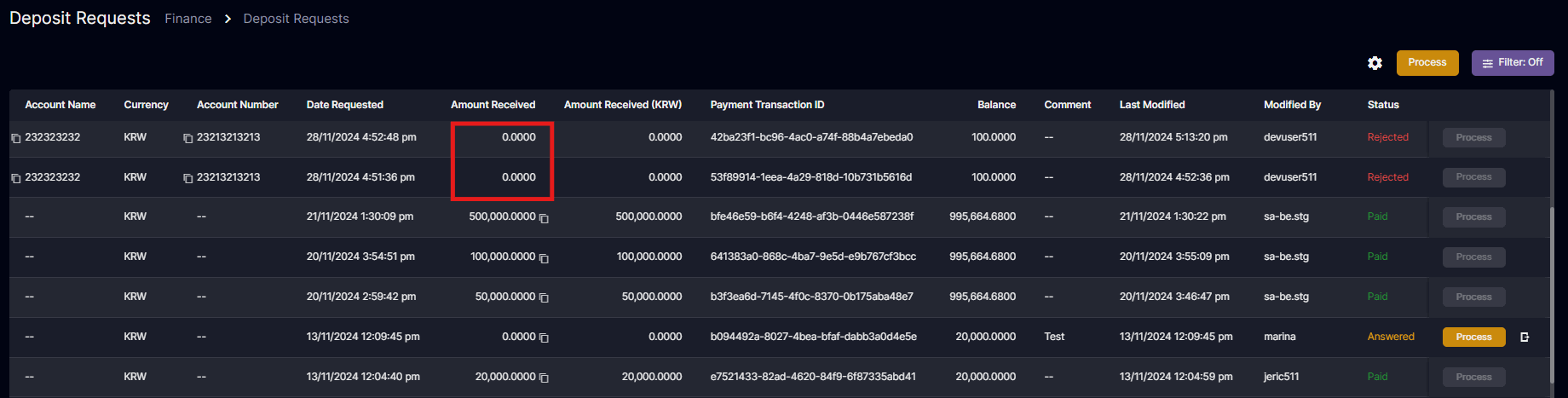
- If there is no value on the specified fields the copy icon should not be available.
 Korean ver: 입금 및 출금 복사본 아이콘
Instant Deposit
Instant Deposit has made the deposit requests of the players easier and convenient with just few steps which will be accessible once players are in Player Segment. Standard Mode- Maintain the existing functionalities
- Deposit request is automatically set to
Confirmedonce request has been made - Skip the
NewStatus in the Back Office andAnsweredStatus in the Player Portal and Back Office - Badge and sound notification triggered for
Confirmeddeposit request PaidandRejectedbuttons appear in the BO Deposit Request page and the “Process” button is removed- Show the enabled Automatic message as instructions when Manual Bank Transfer is selected
- Disable “SMS” toggle and hide “Enter automatic SMS” textbox field
- Maintain the existing functionalities
[BO] Payment Segments
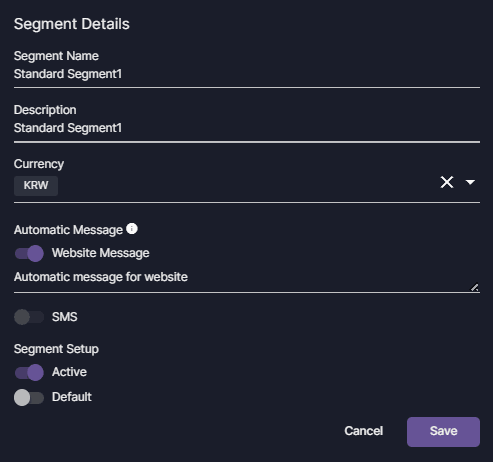
Navigation: Finance > Payment Segments > [Edit / Create a Segment] > Segment Details- Disable the SMS toggle
- Hide the Enter automatic SMS textbox
- Limit the Website Message field to a maximum of 1,200 characters.
- Error message: “The Website message field may not be greater than 1,200 characters.”
[BO] Deposit Requests
Navigation: Finance > Deposit Requests
With Payment Segment
- Show Paid/Rejected Button
- On Click:
- Action - “Paid” or “Rejected”
- Note (Optional) - Same as existing
- Comment - Same as existing
- Send SMS button - Same as existing if mobile number is available
- Cancel & Save buttons - Same as existing
- On Click:
No Payment Segment
- Show Process Button - Same as existing
Applicable to Standard and Instant
- Comment column - Limit maximum displayed characters to standard column width. Expand to show full text on click.
- Remove “Answered” from the Action dropdown when “Confirmed” and/or “Answered” are selected in multi-select processing.
- Change the Send SMS Message placeholder to “Enter Message”
[PP] Deposit: Manual Bank Transfer
Navigation: Wallet > Deposit > Manual Bank Transfer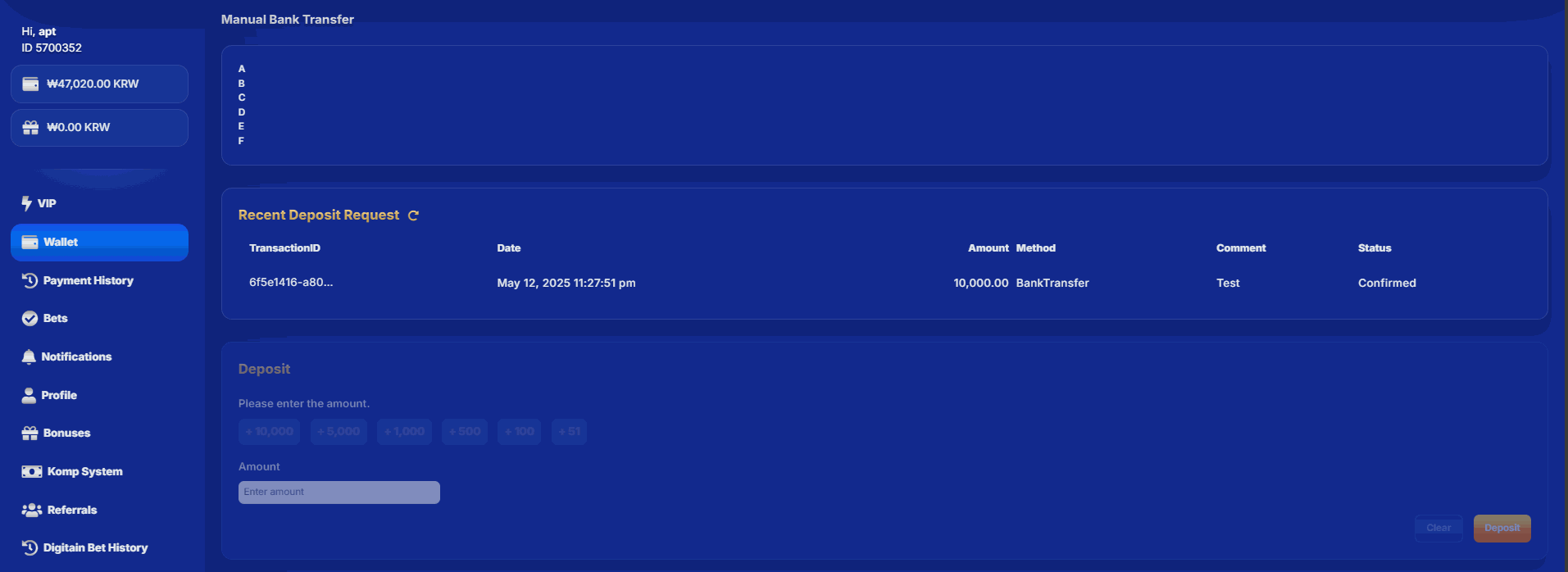
Note: Make sure to enable the Automatic Message for Website Message to show this as a deposit instruction to the player.
- The instructions show the configured automatic message for the player’s payment segment.
- Comment should also show the configured automatic message.
Game Credit
Allows operators to monitor Game Credit balances and transactional records, restricting players from betting if the Game Credit balance is low. Game Credit Calculation The fixed conversion rate for Game Credit top-up and adjustment is 1:10. For example, when an operator tops up an amount of 5,000 KRW, it will result in 50,000 KRW as Game Credit. This ratio remains 1:10, even if there are adjustments. Low Balance Threshold- A seeded value of 10% is used to calculate the low balance threshold for the Game Credit balance after a top-up and adjustment. The threshold will change with each top-up made by the operator.
- Low Balance Threshold is recalculated after each top-up and adjustment.
- A low balance message snack bar appears only when the balance drops below the threshold from above, to prevent repeated alerts when the balance remains low (refer to the previous section for snackbar alert details).
- Top-up: 10,000 Game Credits
- Low Balance Threshold: 10,000 x 10% = 1,000
- Previous Game Credit Balance: 10,000
- Top-up: 20,000 Game Credits
- New Game Credit Balance: 10,000 + 20,000 = 30,000
- Updated Low Balance Threshold: 30,000 x 10% = 3,000
- Previous Game Credit Balance: 9,900
- Top-up: 20,000 Game Credits
- New Game Credit Balance: 9,900 + 20,000 = 29,900
- Updated Low Balance Threshold: 29,900 x 10% = 2,990
A persistent snack bar notification alerts the operator when the Game Credit balance is low. The snack bar message can be dismissed by clicking the close button.
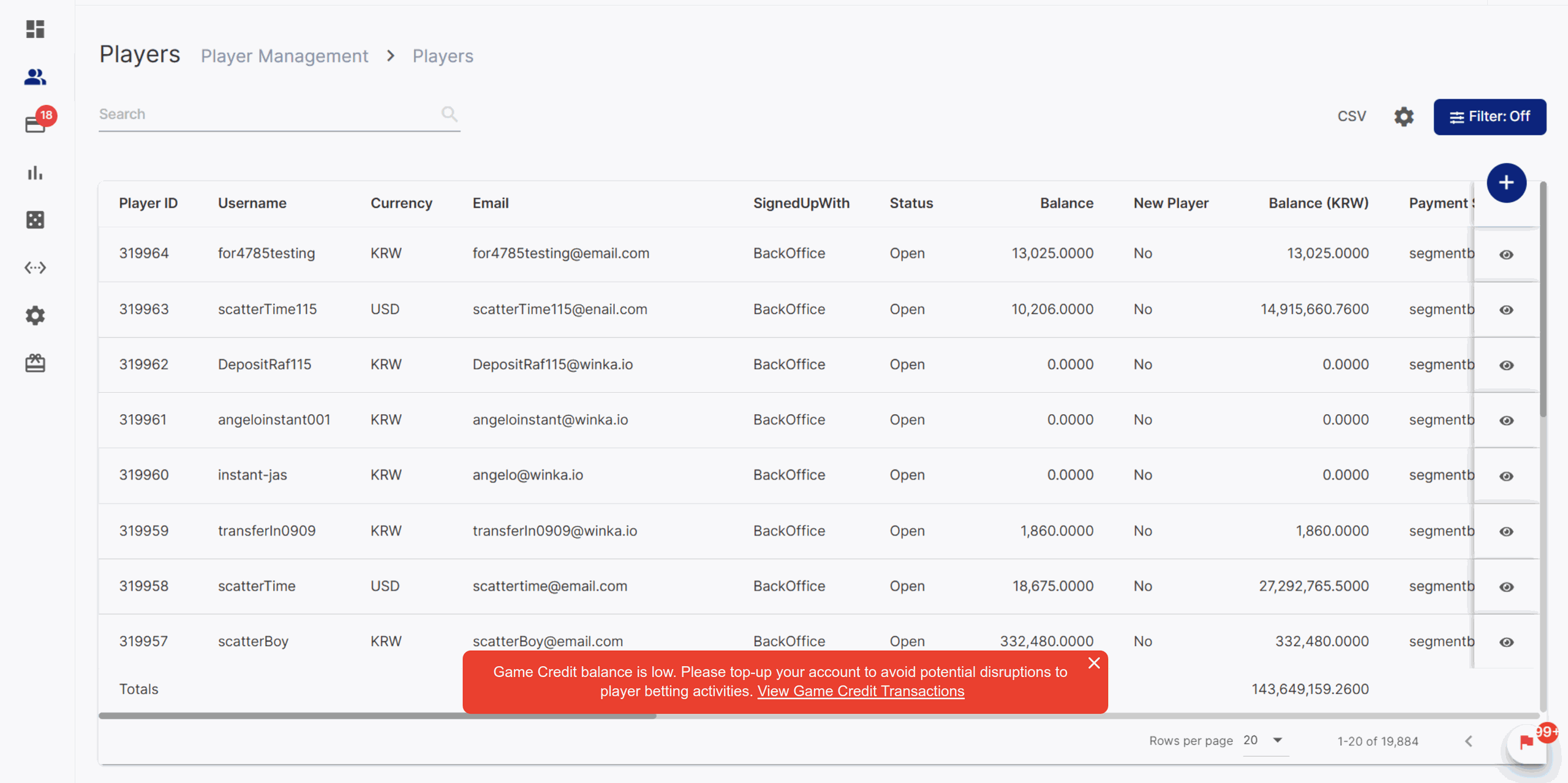
Persistent Snack bar Notification for Permitted Users
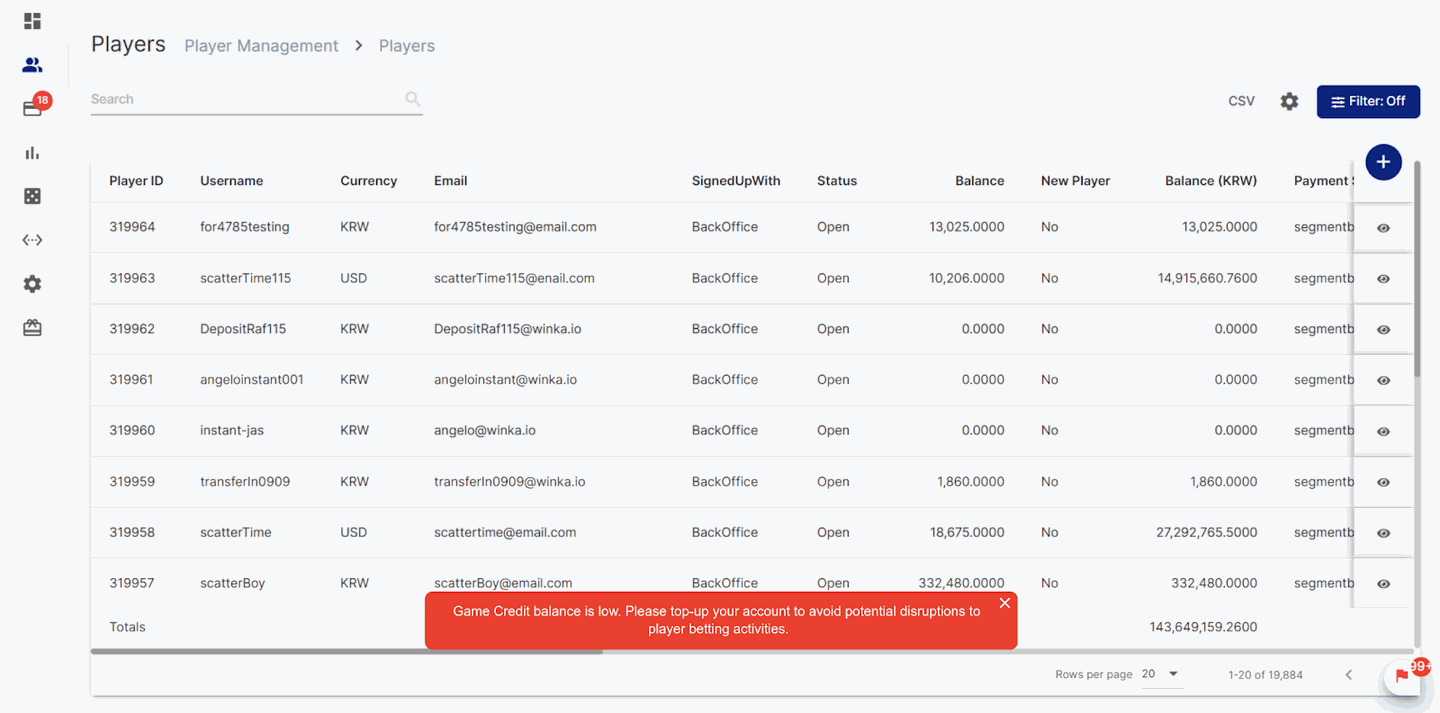
Persistent Snack Bar Notification for Not Permitted Users.
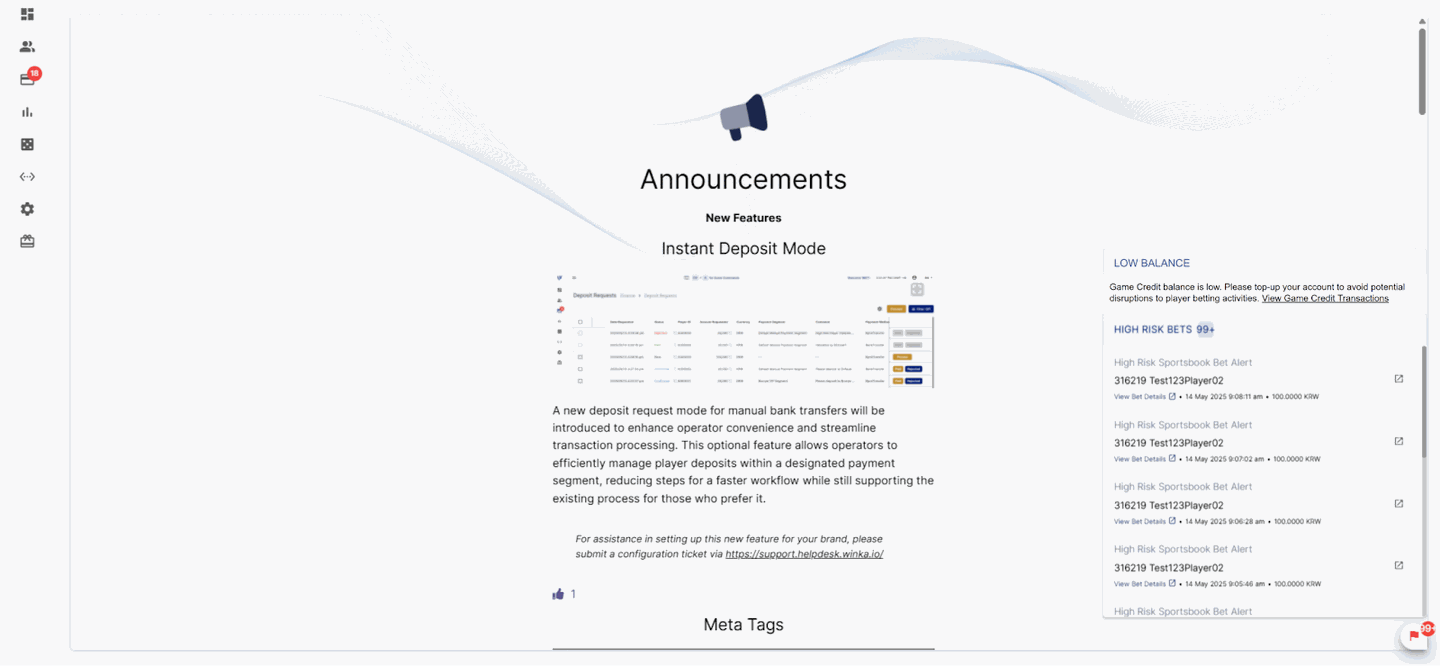
High Risk Bets - Low Balance Message
- If the Game Credit reaches its low balance while the Operator is not logged in, the snack bar will not appear upon login, the low balance notification will be reflected under the High Risk Bets.
- If the Operator refreshes the page and the snack bar is visible, it will disappear after the refresh, and the notification will show on the High Risk Bet.
- Suppose the snack bar is not manually closed, and the Operator refreshes the page or logs in again. In that case, the snack bar will be dismissed, and the low balance notification will be shown under the High Risk Bet.

Game Credit Navigation Tab
- Transactions - Default selected tab. Logs all Game Credit-related activities. (Top-up, Adjustments, and Bets).
- Top-ups - Displays top-up transaction details
- Bets - Shows bet history, including processed and failed bet attempts in relation to Game Credit balance.

Game Credit Balance and Top-up Details Card
- Game Credit Balance - Display the available balance of the Game Credit in the operator’s main currency.
- “As of” [Timestamp] - Date and time when the Game Credit Balance displayed was last updated
- Refresh Button - Updates the Game Credit Balance with real-time data
- Top-up Details - Text information on where and how operators can request a game credit top-up.

Game Credit balance, and if the balance is low
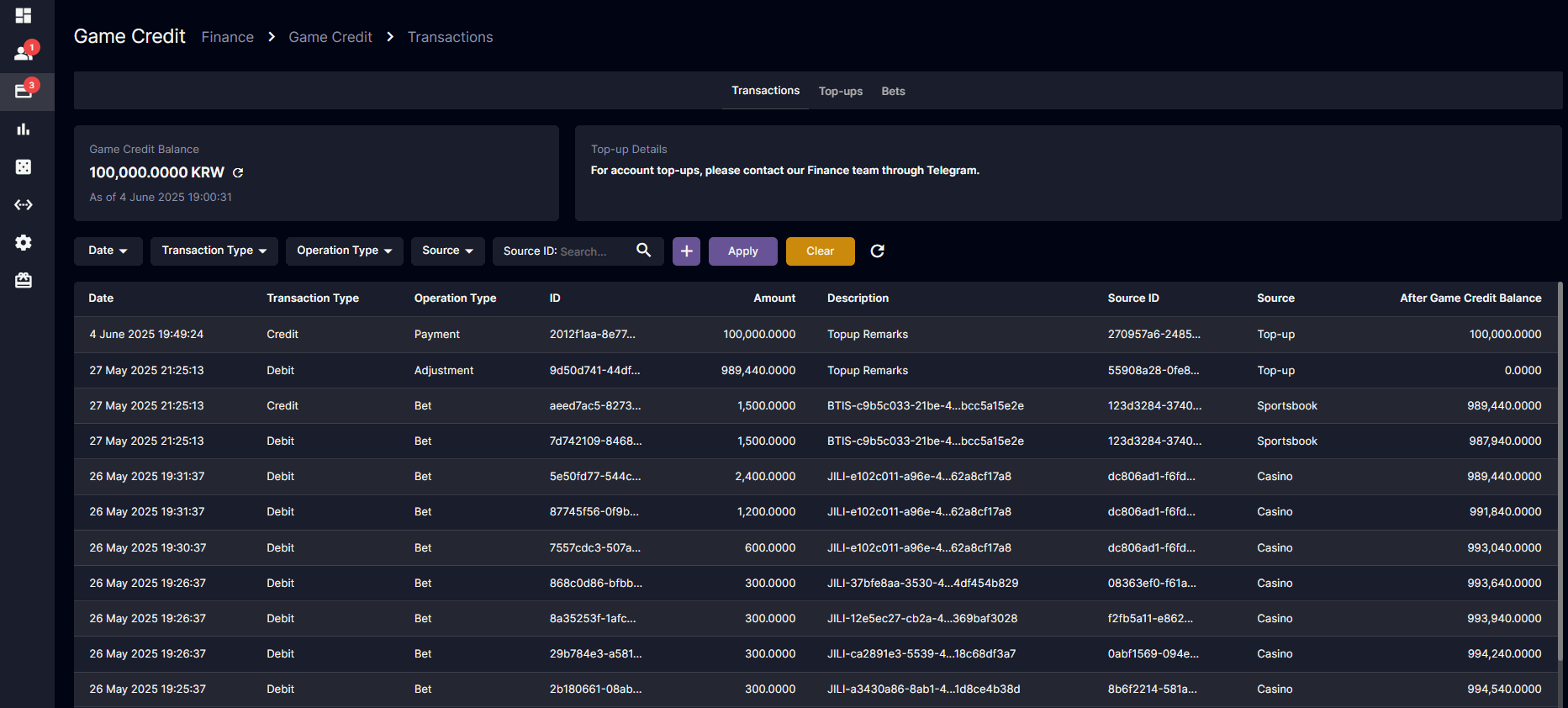
Transaction History
- Debit - Game credit balance was deducted.
- Credit - Game credit balance was increased.
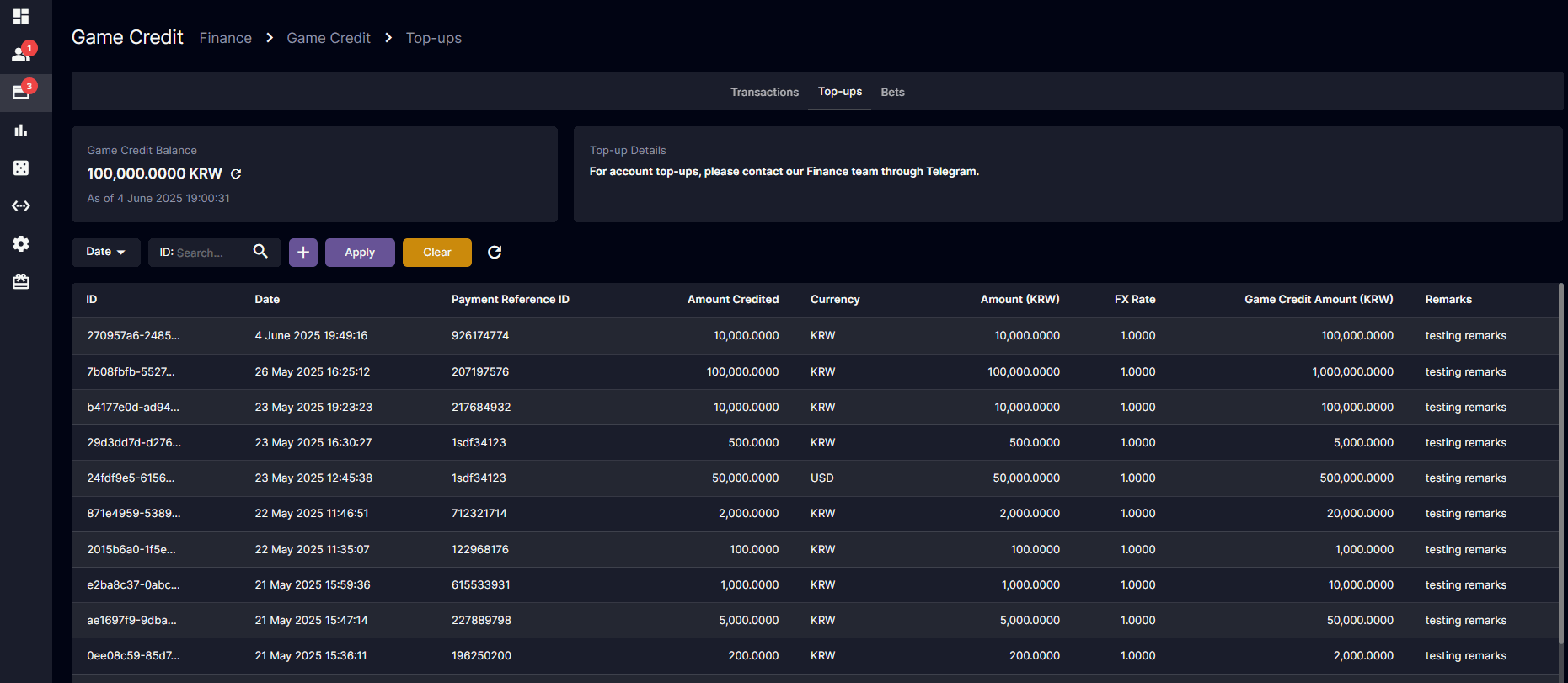
Top-up Request History
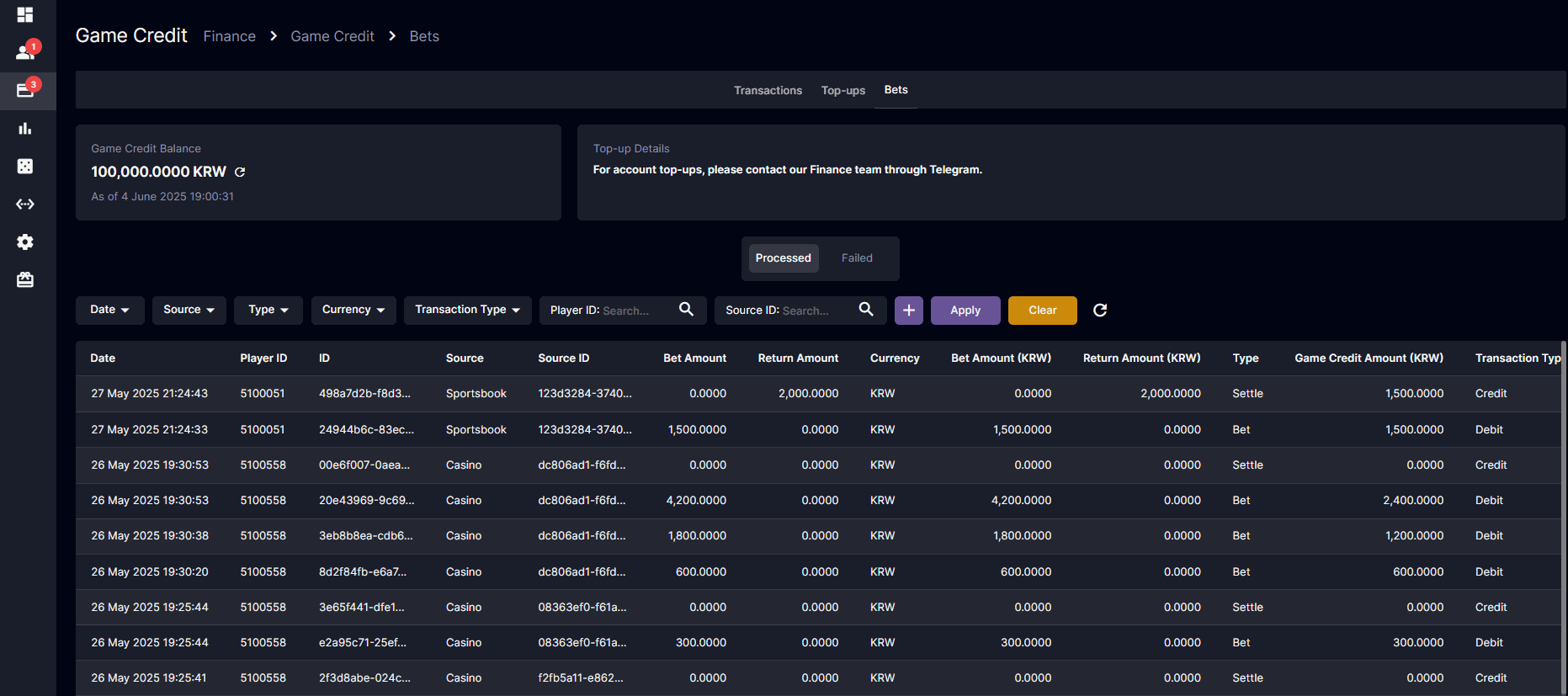
Processed Bets
- The betting behavior: if the user placed a bet of 100 KRW and the bet was won with winnings of 200 KRW, only 100 KRW was returned to the game credit.
- If the bet is lost, no amount will be returned to the game credit.
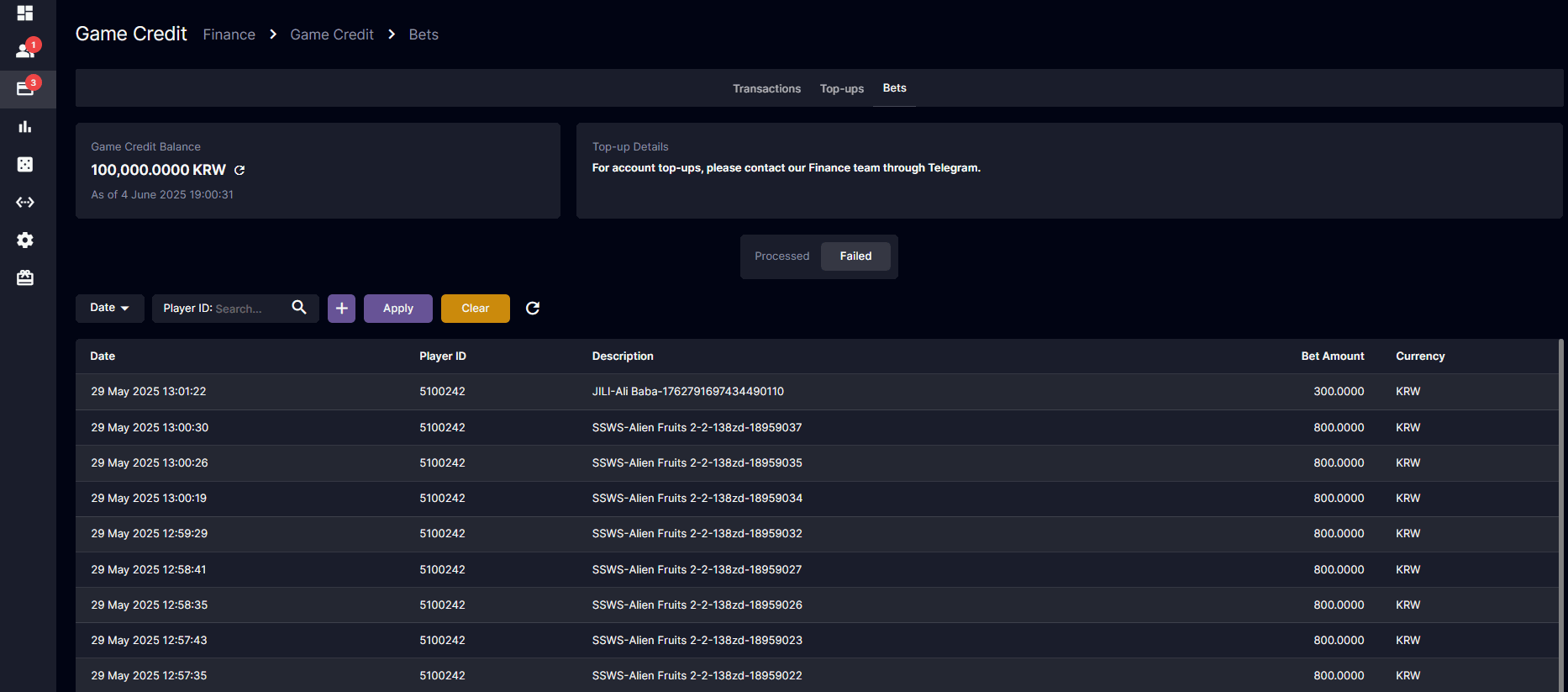
Failed Bets
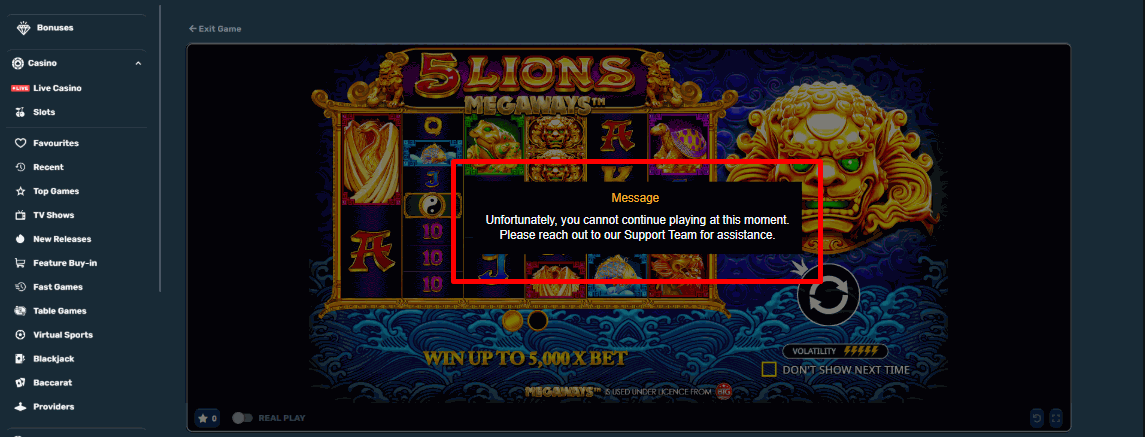 Korean version: 게임 크레딧
PMGate Deposit Payment Method
This payment method is exclusively available for deposit transactions. It supports only KRW (Korean Won) as the currency and is intended solely for operators using a single-currency brand setup. User will see this as a new payment option labeled either PMGate or P2PGate. To complete a deposit, user must enter the required details: bank name, bank account number, account holder’s name, and the deposit amount. [BO] Settings: Payment Settings Navigation: Settings> Payment Method Settings > Payment Settings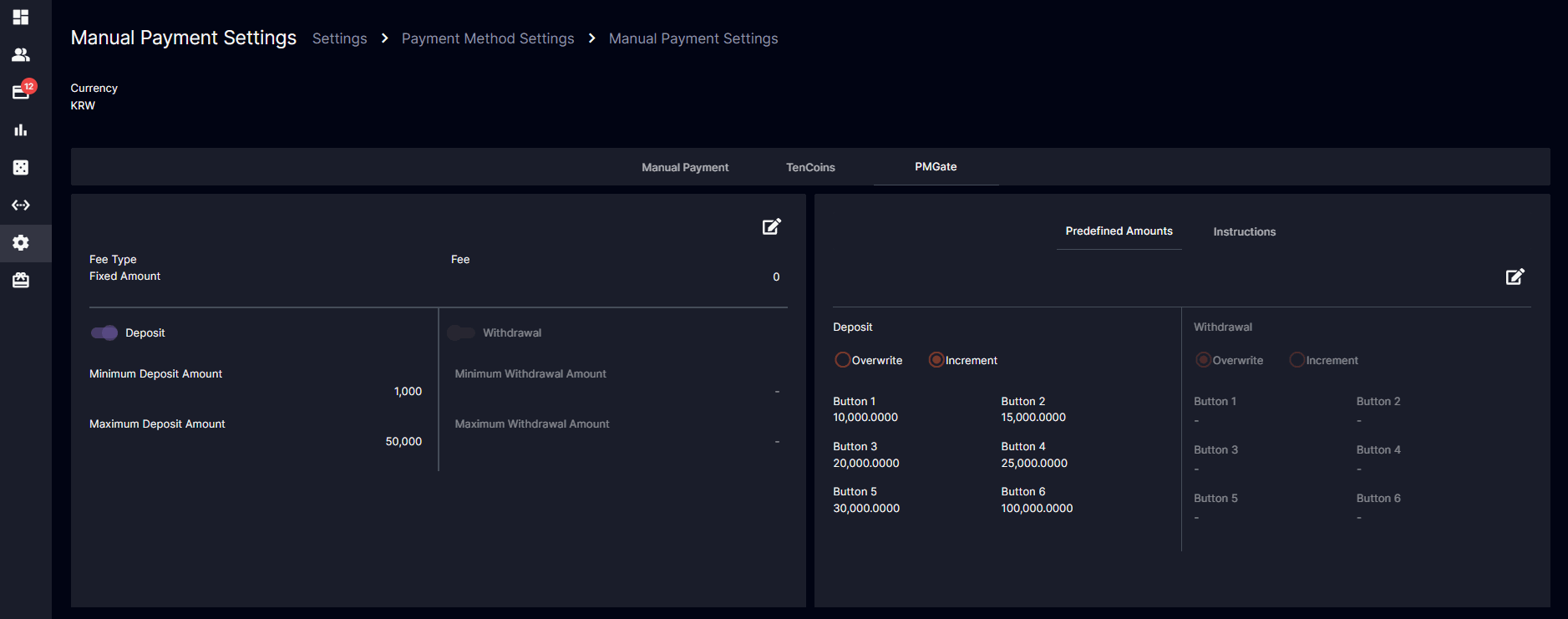 Navigation: Settings> Payment Method Settings > Payment Settings > Instructions
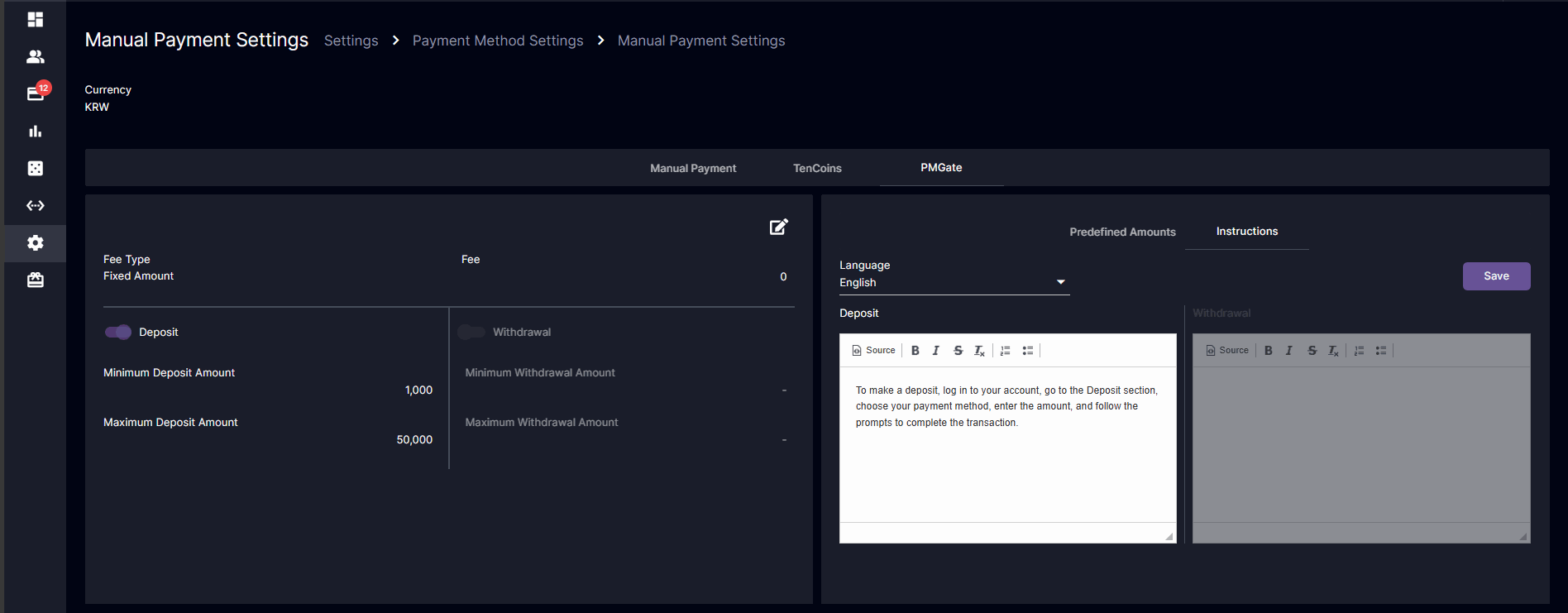 [BO] Deposit Info
Navigation: Finance > Deposit Request
[BO] Deposit Info
Navigation: Finance > Deposit Request
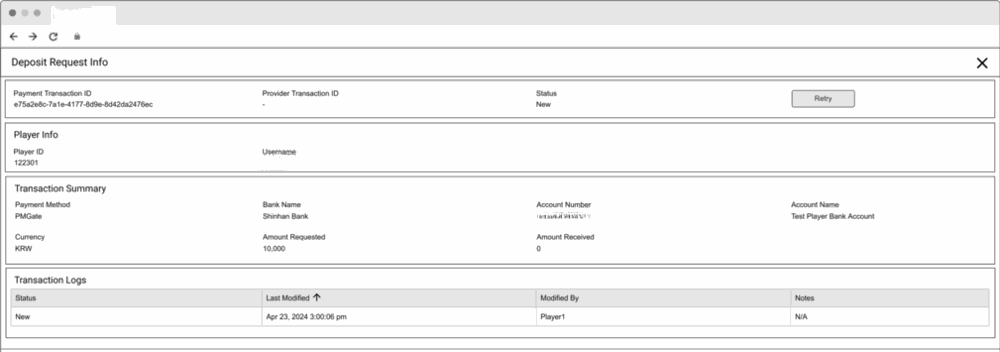 Deposit Request Info – Includes Payment Transaction ID, Provider Transaction ID, Status, and a Retry button.
Player Info – Includes Player ID and Username.
Transaction Summary – Includes Payment Method (PMGate), Bank Name, Account Number, Account Name, Currency (KRW), Amount Requested, and Amount Received.
Transaction Logs – Includes Status (New, Paid, Rejected, and Cancelled), Last Modified, Modified By, and Notes. [BO] Process Deposit Request Action Navigation: Finance > Deposit Request > Process > [Update Action] > Save
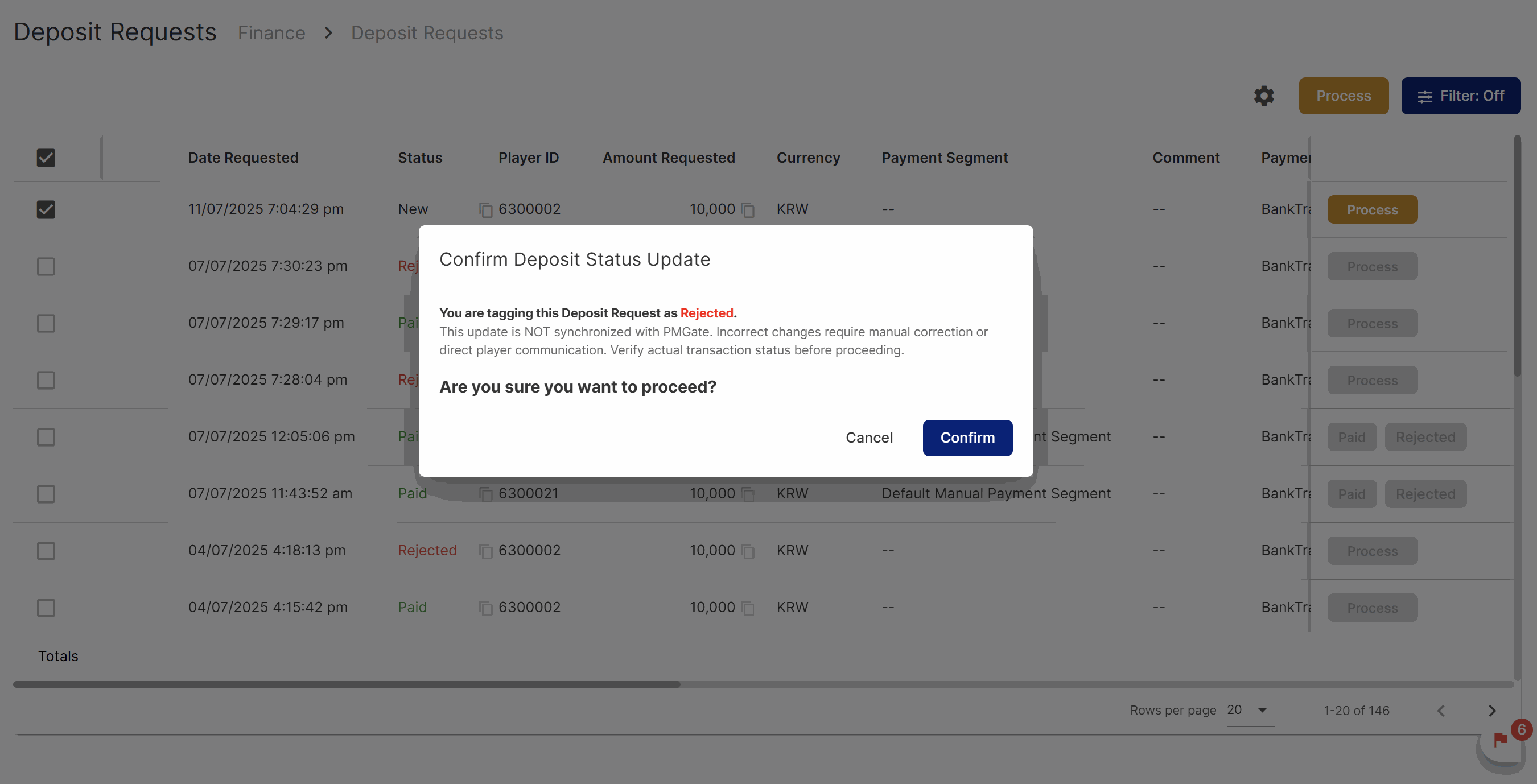 Show a confirmation prompt when deposit transaction for PMGate will be updated to Paid/Rejected before proceeding with the transaction update.
[BO] Player Capabilities
Navigation: Player Management > Verification
Show a confirmation prompt when deposit transaction for PMGate will be updated to Paid/Rejected before proceeding with the transaction update.
[BO] Player Capabilities
Navigation: Player Management > Verification
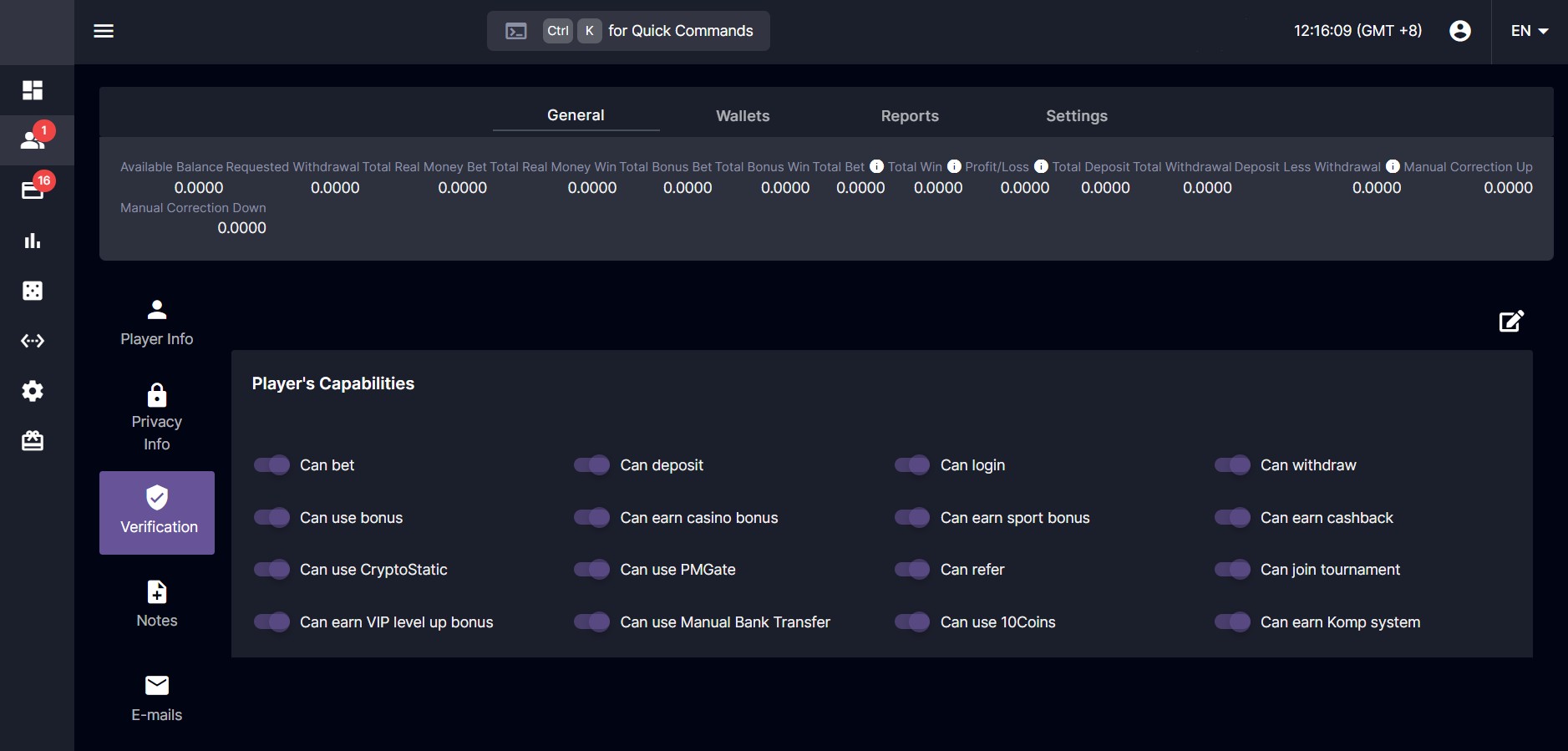 Add “Can use PMGate”
Enabled: The PMGate payment method will be visible to the corresponding player.
Disabled: The PMGate payment method will not be visible to the corresponding player.
[PP] Wallet: Deposit Payment Method Selection
Navigation: Wallet > Deposit
Add “Can use PMGate”
Enabled: The PMGate payment method will be visible to the corresponding player.
Disabled: The PMGate payment method will not be visible to the corresponding player.
[PP] Wallet: Deposit Payment Method Selection
Navigation: Wallet > Deposit
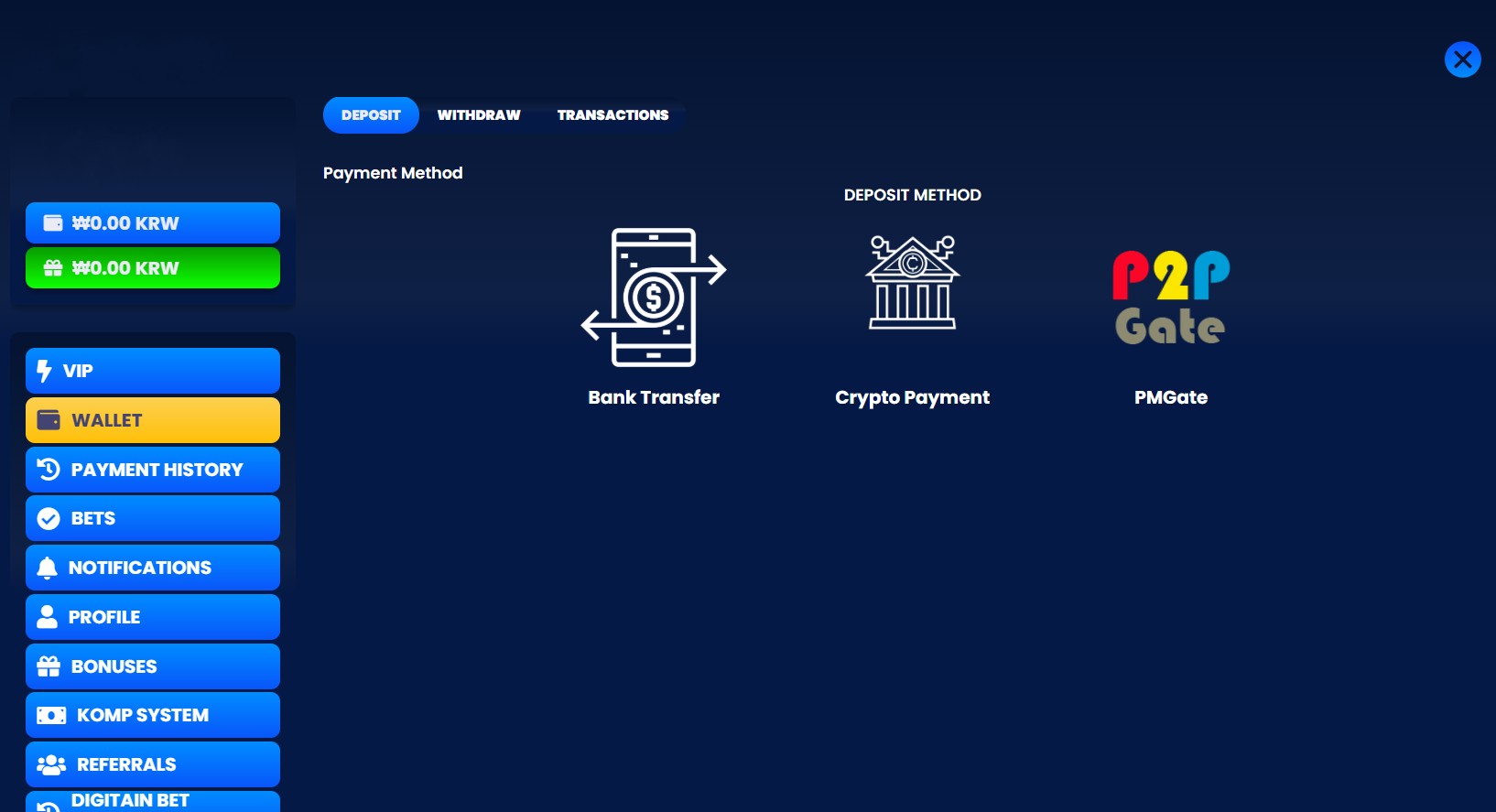 [PP] Wallet: Deposit PMGate
Navigation: Wallet > Deposit > PMGate
[PP] Wallet: Deposit PMGate
Navigation: Wallet > Deposit > PMGate
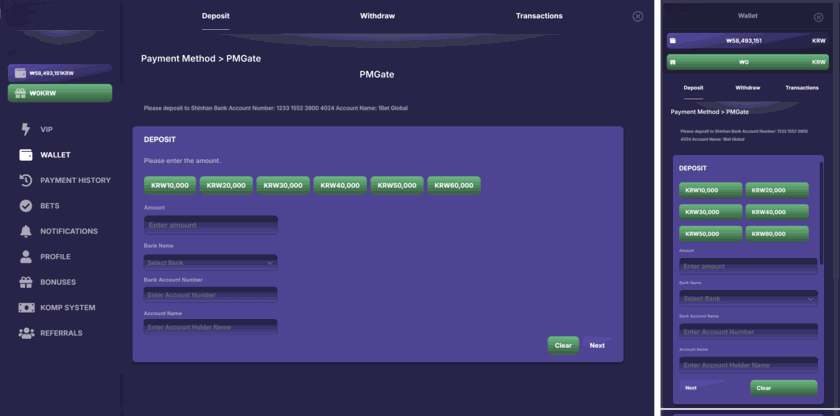 User must enter the Amount, Bank Name, Bank Account Number, and Account Name, then click the Next button to open the PMGate payment window in a new tab.
[PP] Wallet: Deposit PMGate Payment
Navigation: Wallet > Deposit > PMGate > Next
User must enter the Amount, Bank Name, Bank Account Number, and Account Name, then click the Next button to open the PMGate payment window in a new tab.
[PP] Wallet: Deposit PMGate Payment
Navigation: Wallet > Deposit > PMGate > Next
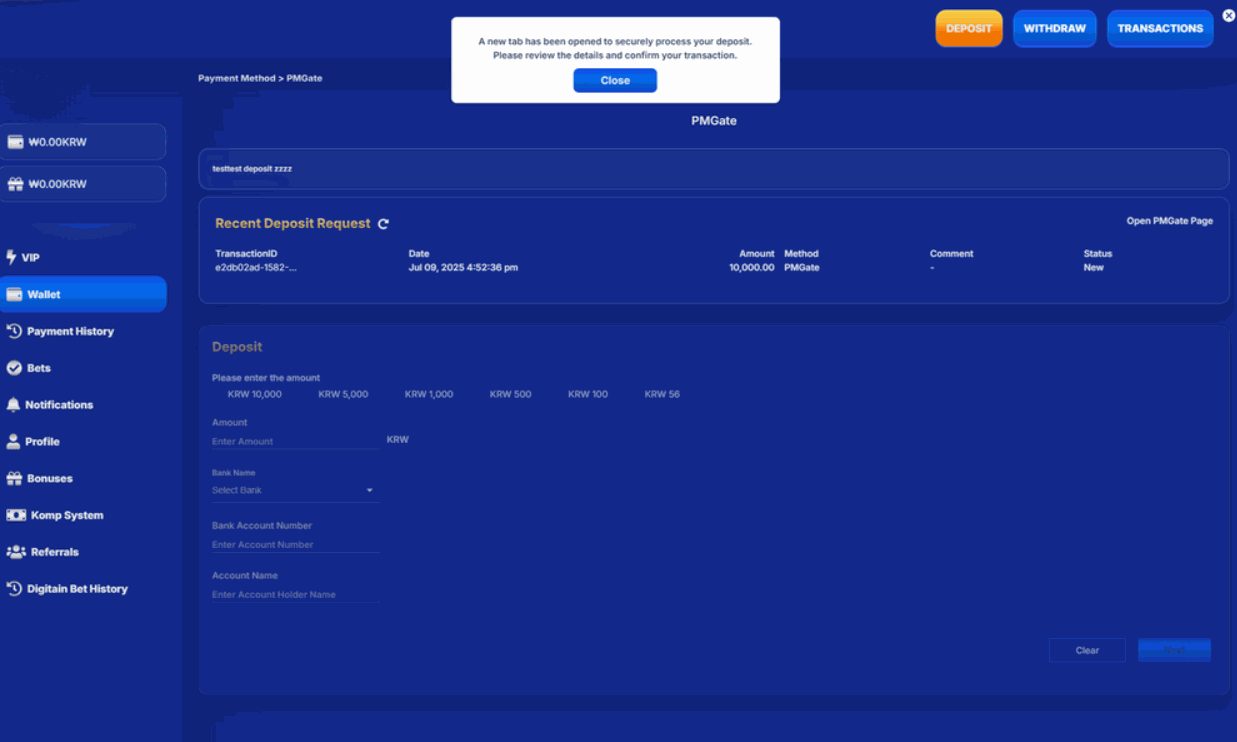 Show a success snackbar when the deposit request has been successfully processed
”Deposit request successfully processed!” [PP] Wallet: Deposit with Pending Transaction Navigation: Wallet > Deposit > [Payment Method]
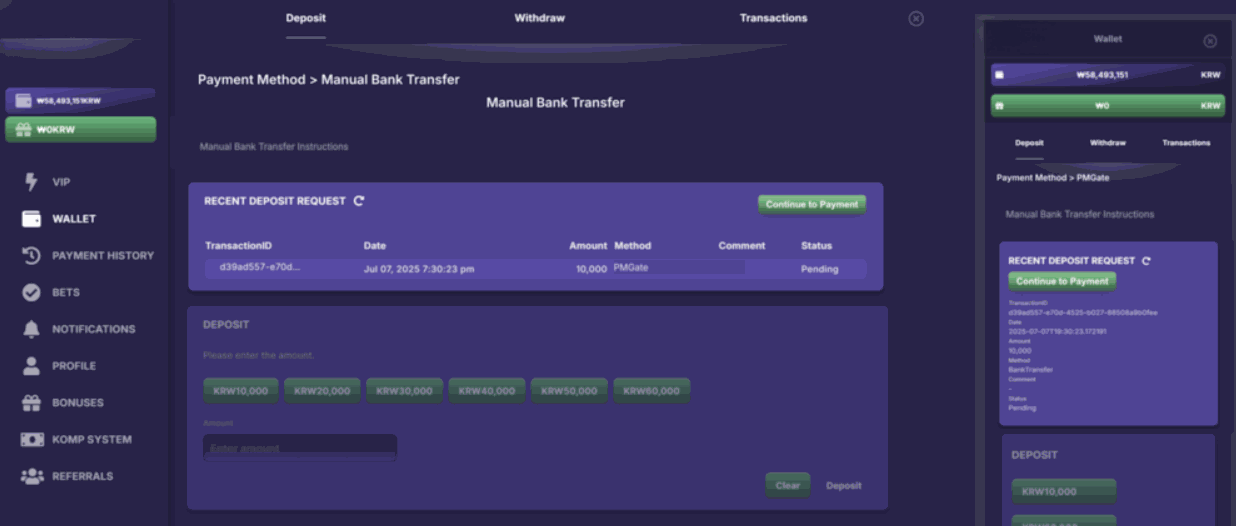 Since multiple deposit requests are not allowed, the Recent Deposit Request panel will be shared across different payment methods and the input amount will be unavailable if there is still a pending deposit request for all payment methods.
Korean version: PMGate 보증금 결제 방법
Since multiple deposit requests are not allowed, the Recent Deposit Request panel will be shared across different payment methods and the input amount will be unavailable if there is still a pending deposit request for all payment methods.
Korean version: PMGate 보증금 결제 방법
Finance - Deposit and Withdrawal UI/UX
Overview
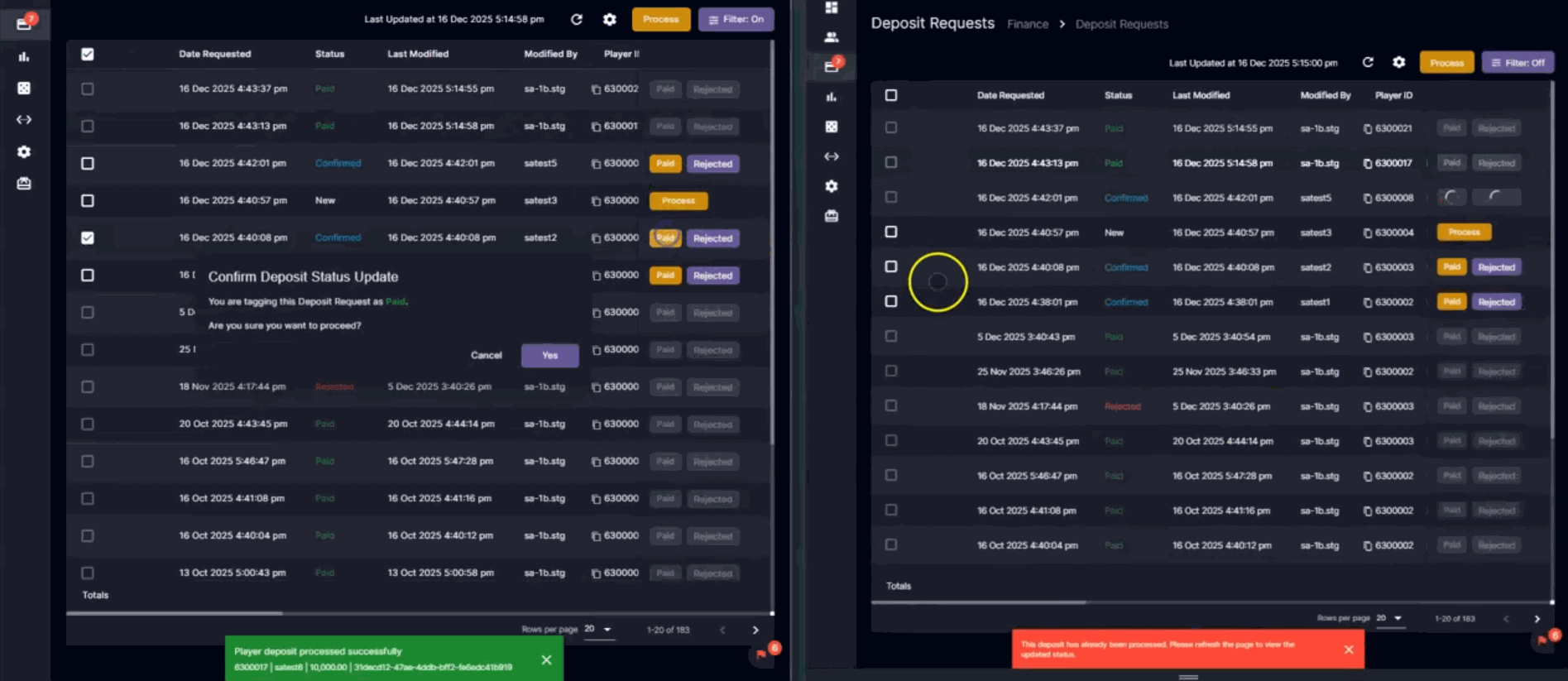
The updated Backoffice Deposit and Withdrawal pages now support concurrent transaction processing, allowing users to initiate and manage several deposit and withdrawal requests at the same time without waiting for previous actions to complete. A background data refresh mechanism ensures that the latest transaction statuses and details are reflected in the UI without interrupting ongoing work.Key Features
1. Parallel Transaction Processing
- Users can process multiple deposit and withdrawal transactions simultaneously.
- No need to wait for one transaction to finish before starting another.
- Improves productivity and reduces wait times.
2. Real-Time Data Refresh
- Automatic and manual data refreshes update transaction statuses and details in real time.
- Newly created or updated transactions are briefly highlighted for easy identification.
- Ensures users always see the most current information.
3. Responsive UI Behavior
- Action buttons and checkboxes are disabled only for transactions that are currently in progress.
- An in-progress indicator is displayed for ongoing transactions.
- Other transactions remain accessible and actionable.
4. Real-Time Field Updates
- Key fields such as Status, Last Modified By, and Last Modified Date update instantly as changes occur.
5. Clear Error Handling
- If a transaction cannot be processed (e.g., already being handled by another user), a snackbar message clearly indicates which transaction is affected.
- Prevents confusion and helps users quickly resolve conflicts.
Expected Benefits
- Faster handling of manual deposits and withdrawals.
- Teams can respond more quickly to player requests, especially during peak periods.
- Improved clarity and responsiveness reduce operational friction.
- Supports more efficient financial operations across managed brands.
 Korean translation: 금융 - 입출금 UI/UX
10Coins Smart Wallet Memory for Crypto Withdrawals
Overview
The system now remembers wallet addresses per “Cryptocurrency + Network” combination after a successful withdrawal.-
Each unique Currency + Network (e.g.,
BTC,USDT-TRC20,USDT-ERC20) has its own saved address. -
When a player selects:
- a single-network coin (e.g., BTC), or
- a currency + network for a multi-network coin (e.g., USDT + TRC20),
- If no saved address exists for that Currency + Network, the field stays empty, and the player must enter an address.
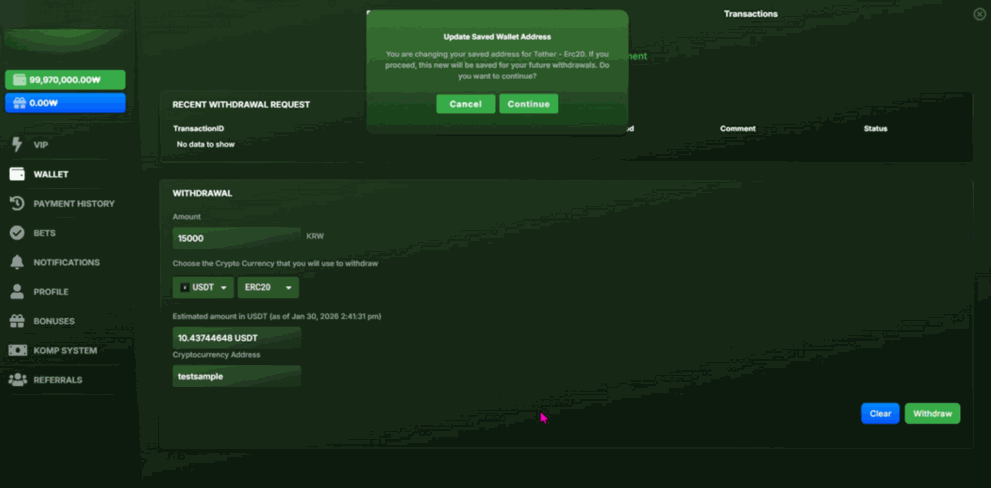
1.1 Confirmation Popup for Changed Wallet Addresses
When a player changes their saved address and then clicks Withdraw, the system shows a confirmation popup to avoid accidental overwrites. Trigger condition:- There is an existing saved address for the selected Currency + Network.
- The player enters a different address and clicks Withdraw.
- Title:
Update Saved Wallet Address - Buttons:
ContinueandCancel - The message explains:
- The player is updating their saved address for the specific Currency + Network.
- If they continue, future withdrawals for that combination will use the new address (after a successful withdrawal).
- Continue
- Proceeds with the withdrawal.
- Updates the saved address only after the withdrawal succeeds.
- Cancel
- Closes the popup.
- Returns the player to the form.
- The saved address is not updated.
2.3 Wallet Address Validation Improvements
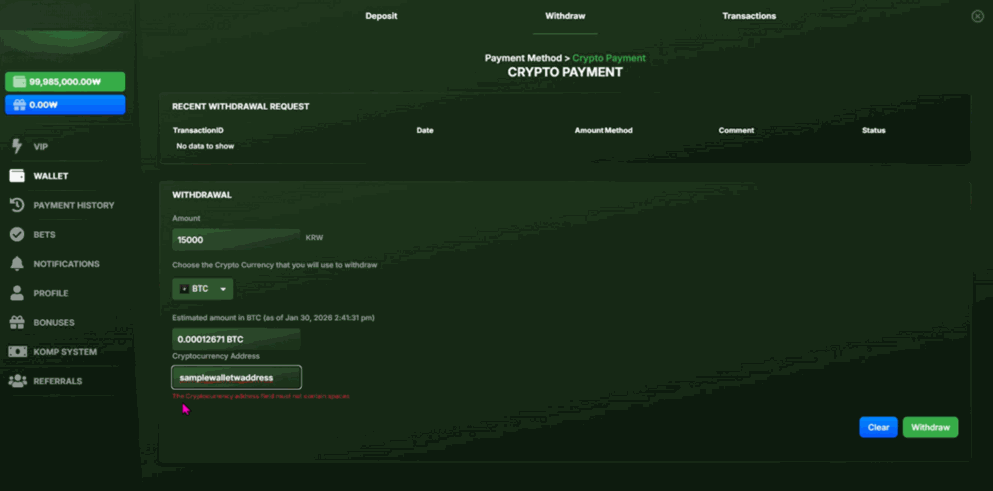
New validation rules:- Spaces are not allowed anywhere in the wallet address:
- No leading spaces
- No spaces in the middle
- No trailing spaces
- If spaces are present, the player sees:
- “The Cryptocurrency address field must not contain spaces”
- Valid special characters are allowed (for example:
-,_,., and other commonly used symbols). - The wallet address field still has a maximum length of 255 characters.
3. How to Use
3.1 Checking Saved Address Behavior (Crypto Withdrawal)
Scenario: Player asks, “Why did my wallet auto-fill?” or “Why is my address not saved?”- Confirm which cryptocurrency and network they selected.
- Explain:
- The system saves a wallet address only after a successful withdrawal.
- It saves it per Currency + Network.
- Clarify:
- If the field auto-filled, it’s using their previously saved address for that Currency + Network.
- If it did not auto-fill, then:
- It’s either their first successful withdrawal for that combination, or
- Their previous successful withdrawal was on a different network (e.g., USDT-TRC20 vs USDT-ERC20).
3.2 Supporting Players Who See the “Update Saved Wallet Address” Popup
Scenario: Player reports a popup when withdrawing: “Update Saved Wallet Address”. How to guide them:- Explain when the popup appears:
- They changed the wallet address compared to what was previously saved for that Currency + Network.
- Clarify options:
- Continue:
- The withdrawal is submitted with the new address.
- If the withdrawal succeeds, this new address will be saved for future withdrawals for that Currency + Network.
- Cancel:
- No change is made.
- They go back to the form and can double-check the address.
- Continue:
- Best practice to advise:
- They should only click Continue if they are sure the new wallet address is correct for the selected network.
3.3 Helping Players with Address Validation Errors (Spaces)
Scenario: Player says they cannot paste or submit their address, or sees an error.- Ask what error they see.
- If they report:
“The Cryptocurrency address field must not contain spaces”
then:- Instruct them to:
- Remove any spaces from the start, middle, or end of the address.
- Paste the address again, making sure no spaces are included.
- Instruct them to:
- Reassure them:
- The system still allows commonly used special characters (such as
-,_,.), so their valid address format should still work as long as there are no spaces.
- The system still allows commonly used special characters (such as
- If the address is shorter than 255 characters and contains no spaces but still fails:
- Escalate according to internal procedures and capture:
- Coin / network
- Exact address (mask or share via a secure channel as per policy)
- Timestamp and steps to reproduce.
- Escalate according to internal procedures and capture:
4. Player Experience Summary
Use this section to quickly explain behavior to players.- First withdrawal for a Currency + Network
- Address field is empty.
- After a successful withdrawal, that address is saved.
- Subsequent withdrawals for the same Currency + Network
- Address field auto-fills with the saved address.
- Changing the address
- A popup (
Update Saved Wallet Address) appears before submission. - On Continue, the new address is used and then saved if the withdrawal succeeds.
- A popup (
- Switching networks (for multi-network coins)
- The system clears the address field and checks for a saved address for the new Currency + Network.
- This prevents using an address from the wrong chain.
- Validation
- Addresses cannot contain any spaces.
- Up to 255 characters are allowed.
- Common special characters remain supported.
5. Edge Cases & Warnings
5.1 Using the Same Physical Address Across Multiple Networks
- The system technically allows the same address string to be stored for multiple Currency + Network combinations.
- However, operators should remind players:
- Not all networks use the same address format.
- It is the player’s responsibility to provide a network-compatible address.
- If a player asks, you can say:
- “Our system saves the address per coin and network, but you must make sure the wallet address is valid for the network you selected.”
5.2 Network Changes During Form Entry
- When a player:
- Enters an address, then
- Changes the network for that coin
- The system:
- Clears the wallet address field.
- Checks for any saved address for the new Currency + Network.
- This prevents accidental use of an address on the wrong blockchain.
- If players complain that “my address disappeared when I changed the network”:
- Explain this is intentional for their safety.
5.3 Saved Address Not Updating After Failed Withdrawal
- The saved address is only updated after a successful withdrawal.
- If a withdrawal fails after they changed the address:
- The saved address remains the old one.
- For complaints like “I changed my address but it still shows the old one later”:
- Check if their recent withdrawal actually succeeded.
- If it failed, explain that the saved address was not updated due to the failed transaction.
6. FAQs for Operators
Q1: Can I see or change a player’s saved wallet address in the backend?A: Follow your internal procedures. If a UI or admin tool exists, use that; otherwise, escalate to the appropriate team with player ID, coin, and network. Q2: Why does the address field auto-fill for some coins but not others?
A: It only auto-fills when:
- The player has previously made a successful withdrawal for that same Currency + Network, and
- A saved address exists for that combination.
A: The system allows common special characters such as
-, _, . and others used in real wallet addresses. If a known-valid address fails without spaces and under 255 characters, escalate with full details.
Korean translation: 10Coins 스마트 지갑: 암호화폐 출금을 위한 메모리