How to set up Player Global Limits
To set limits for selected currencies, go to Settings > Player Settings > Global Settings. In the sample set up in the image below, the maximum amount for withdrawal and deposit are set for daily and weekly. This indicates that the established amounts will serve as the maximum limits for daily and weekly deposit and withdrawal requests.
In here, no amount is set up in the JPY currency which means no limit is set up for the the daily and weekly deposit.
This indicates that the established amounts will serve as the maximum limits for daily and weekly deposit and withdrawal requests.
In here, no amount is set up in the JPY currency which means no limit is set up for the the daily and weekly deposit.
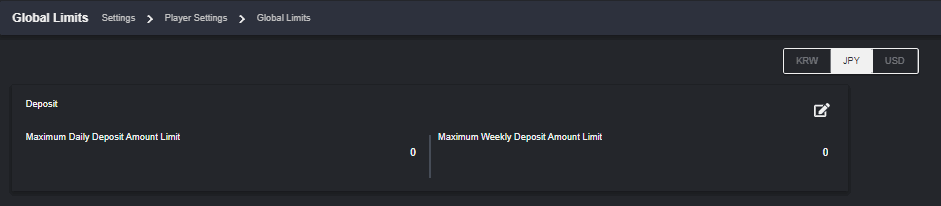 You may click the pen icon to edit the amounts set up in your selected currency.
 Since the Global limits apply to all, you may set up limits for a particular player by going on the player’s profile > Settings > Player Limits.
Setting up message templates for different player activities
The Backoffice has the capability to assign automatic messages that will be sent out to players relating to routinary day to day activities such as player registration verification, forgot password/reset password, deposit/withdrawal adjustments, and wallet adjustments. To setup these automated messages you may go to: Settings>Message Templates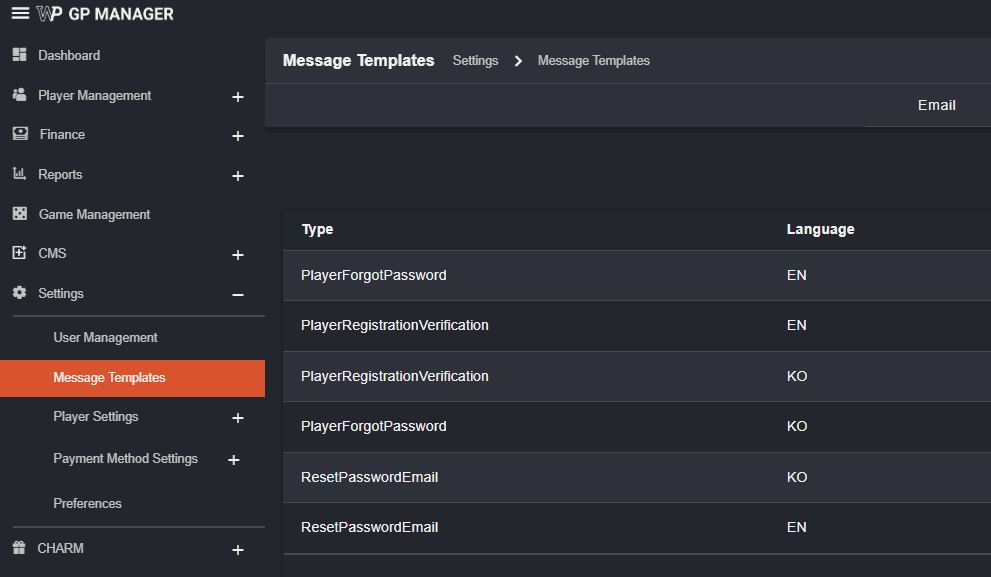 You may choose whether the messages will be sent via email, SMS, and/or player portal notifications.
 Upon adding these are the choices available for each option:
For Email you may choose to add:
Upon adding these are the choices available for each option:
For Email you may choose to add:PlayerForgotPassword
PlayerRegistrationVerification
ResetPasswordEmail For SMS you may choose to add:
PlayerRegistrationVerification For Notifications:
ManualDepositApproved
ManualDepositRejected
ManualWithdrawal Approved
ManualWithdrawal Rejected
WalletManualCredit Adjustment
WalletManualDebit Adjustment
Settings - Adding and Editing Message Templates
To add your own template you may press on the add button.

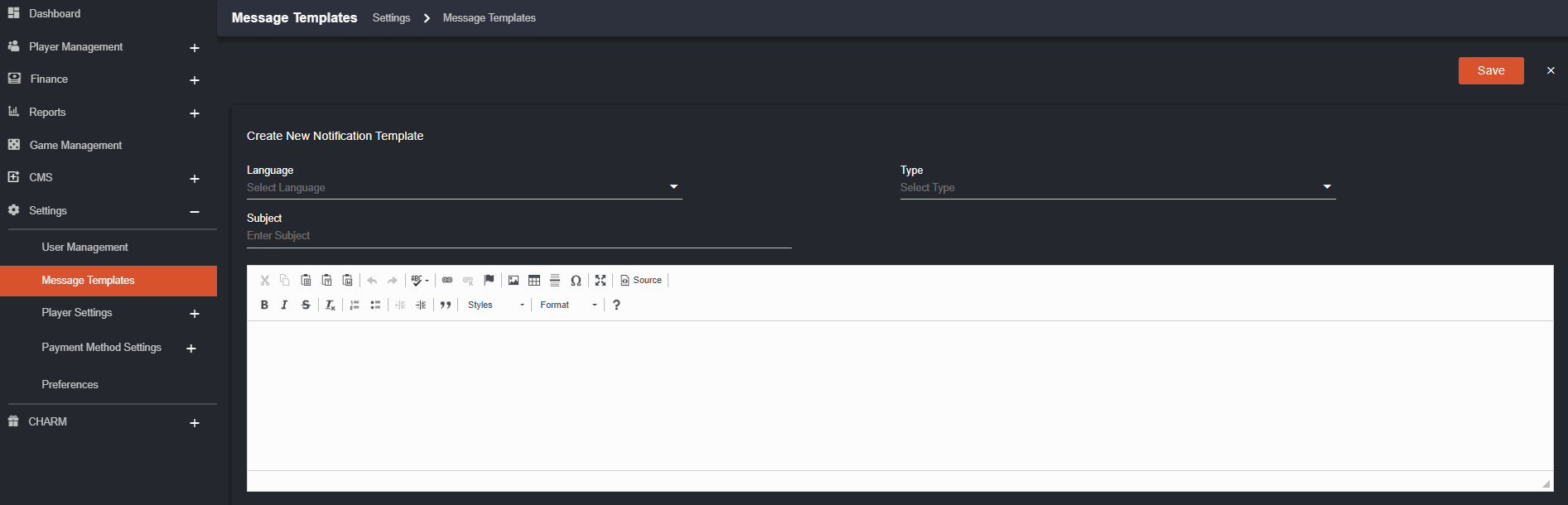 In this page you may choose:
Language - If the player portal is set to the same language, the player will receive this message.
Type - This sets the type of activity that will trigger the automatic sending of message. _For example, if its set to ManualDepositApproved then this message will be sent out ev_ery time the player has his deposit approved.
Subject - You can enter the Subject of the Email/SMS/Notification here.
Text Box - You can input the body of your message here. You are free to type whatever you want in the body and depending on the Type that you set there will be automated buttons that you may click to add the necessary automated information in your message. These may include things such as player name, username, password/newpassword, URLs, etc. For example:
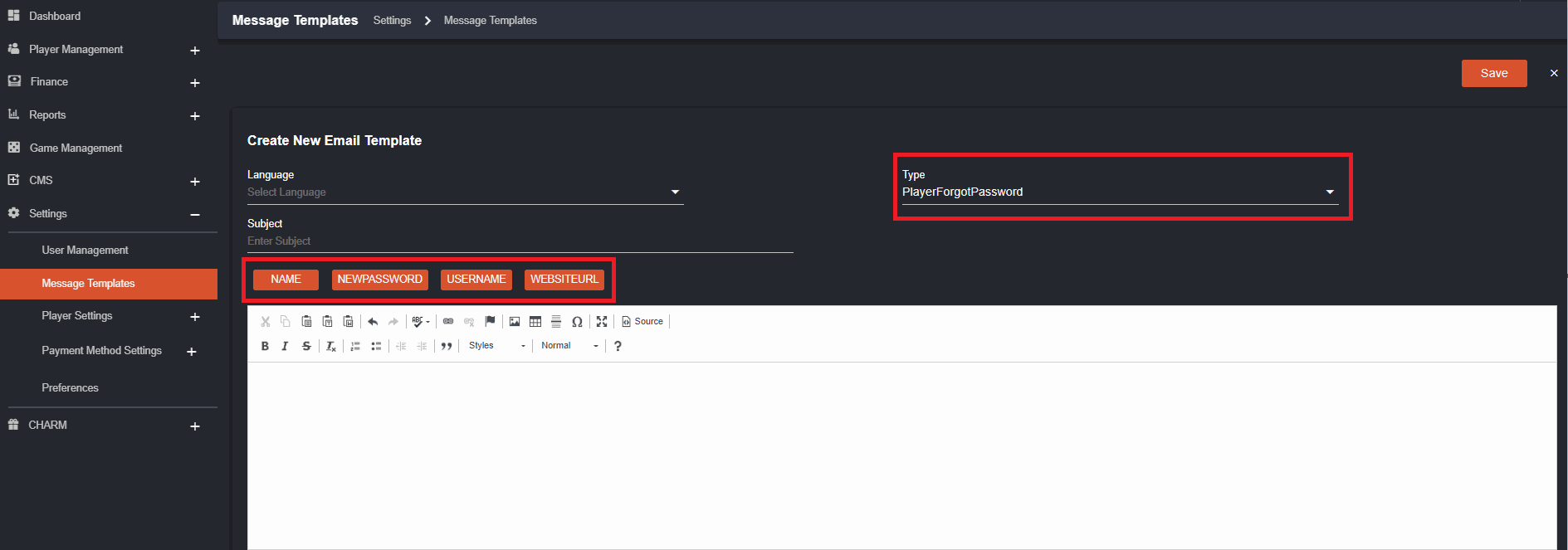 If you click on the Name button it will insert the {{NAME}} field which is automated depending on the name of the player that the message is sent to. Each Type has their own set of automated field and you may use them as you see fit to automate your message properly.
Setting up Player Registration
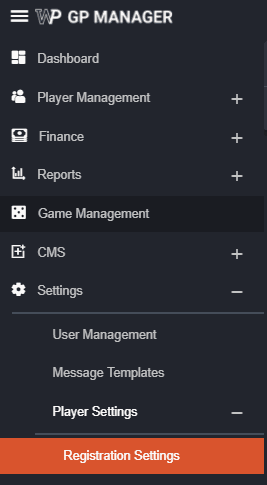
To set up the player registration page please follow these steps:- Access Settings from the main menu of BO and proceed to Player Settings then Registration Settings
- From then on you will be shown all the current available fields that are currently appearing on your registration page.
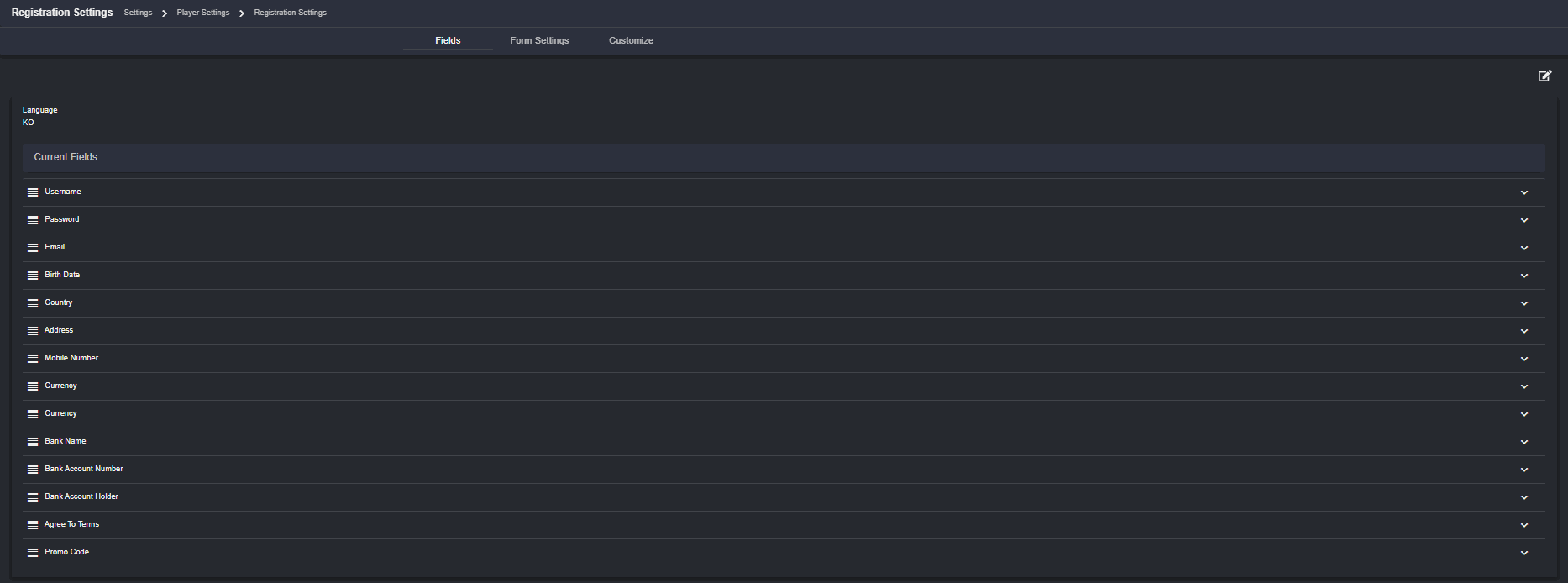
- All available fields may not be shown initially at first and so you may add the fields that you want by pressing the
 icon on the upper right side of the page. Once you press it, you will be given the option to edit the registration fields based on each language supported and also the Add New Field button will appear
  .
.

- Once you have made sure of which language you will be updating, you may proceed to add new fields.
- You may now proceed to edit each field requirements based on your preferences. Don’t forget to press
 so that you may edit each parameter of the field and press
  to save your edits. Some samples of these fields:
 *For the username field, parameters are based on characters that a player may use as his username as well as prompts/validation messages when a player does not meet the username requirements.
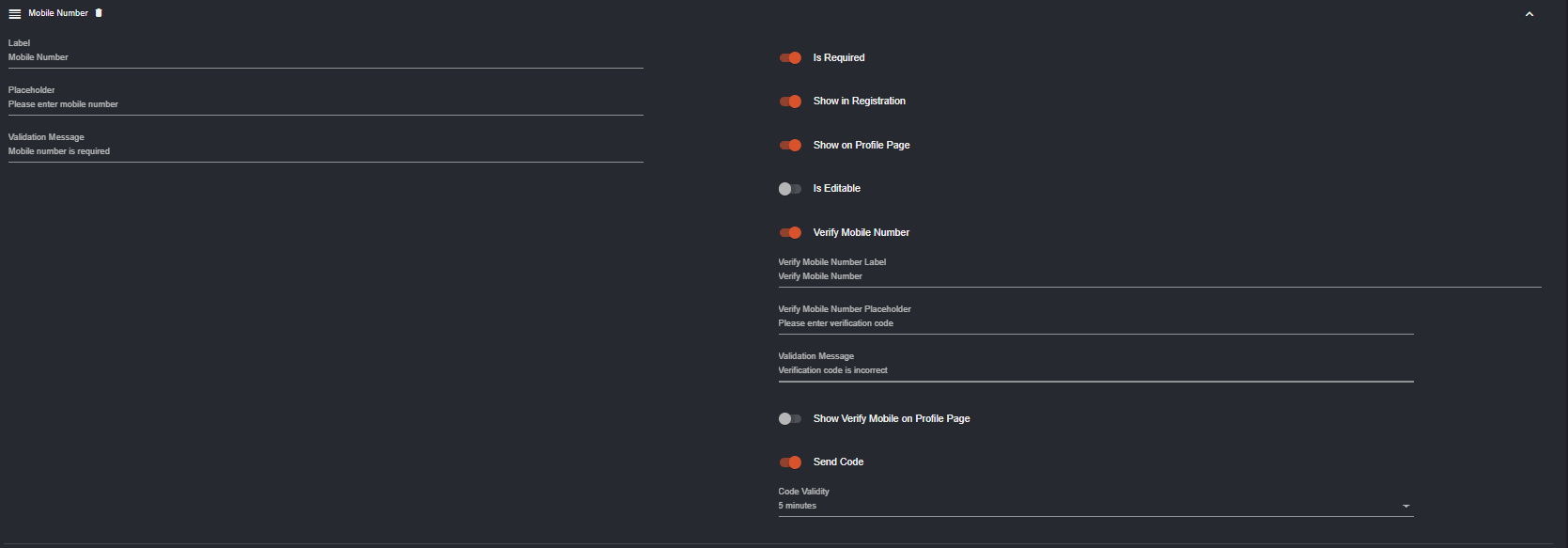 *For the mobile number field, you will have additional options to choose whether it is something you will be requiring for your customers and also the option to add a verification process of said mobile number.
- Each field will have unique options to them all based on the nature of said field and whether it will be required from the player. Once your done editing these fields and have saved your edits, it will automatically reflect on the registration page such as this:
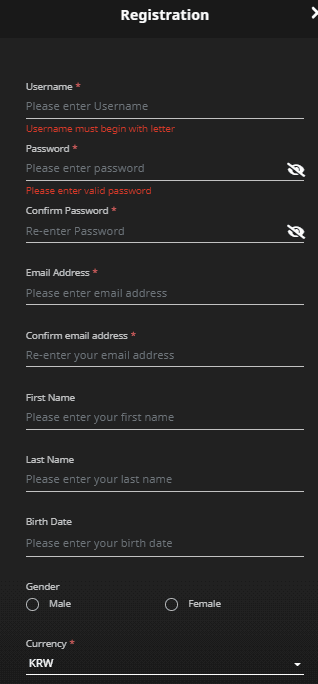 *Fields with the red asterisk besides its name are fields that are required to be filled by the player. Failure to fill these fields will hinder the player from registering.
**validation messages will appear here when a player has not satisfied the requirements of the field.
- To delete a field, just click on this icon
 beside their name. Once deleted, the field can be added back through the add new field button highlighted in step 3.
 *Note that some fields cannot be removed since they are essential to the player registration process.
Adding BackOffice Users
To add more BO users please follow these steps:- You may access the settings section from the menu panel on the left side of the BO. Click on settings and head on over to the User Management section.
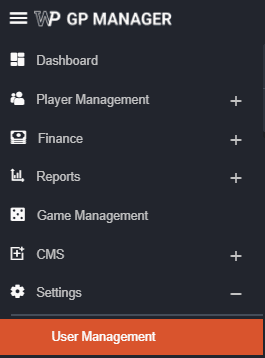
- On the User Management page it will show you all existing BO users with basic info such as name, account status and creation/modification date.

- Click on the
 icon to add a new user.
 - Input all info required and don’t forget to change status to active.
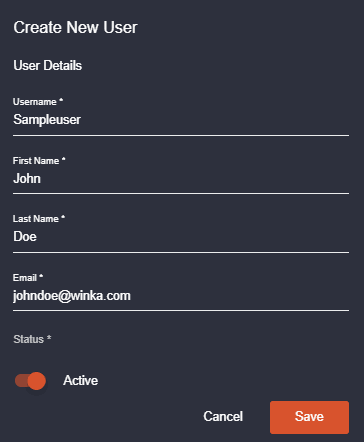
- After saving, it will take you to the user’s profile and here you may edit site permissions and functions that will be available to said user.
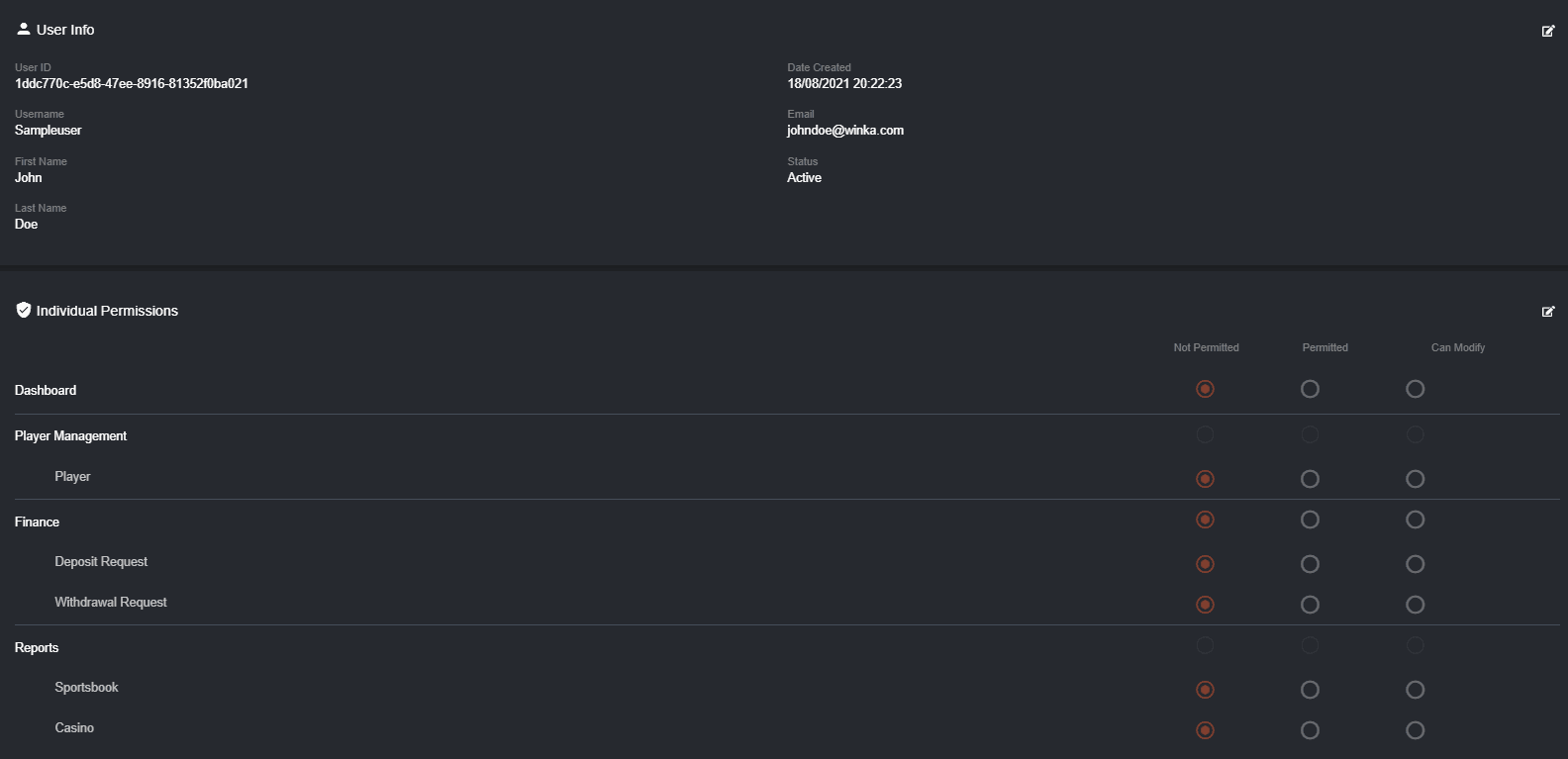 *To edit just press on the
  icon and you can now set whether the user can see certain sections and also the ability to modify in said sections.
- Once your done setting permissions, head on over to the bottom portion of the page and find the Password option. Click on reset and it should give you a randomized password that the user may use for his/her initial login

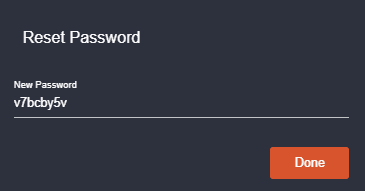 *Once a user has logged in for the first time using the randomized password, he/she will be asked to input a password of his/her choosing to be the account’s password moving forward.
Removing BackOffice Users
The BO currently does not offer a delete function for a user account but you may set an account to inactive which will prohibit said account from being used to access BO. To set a user account to inactive:- Access the User Management tab from the main menu
- From the list of users, search for the account you wish to set to inactive

- Click on the
 icon to bring you to the user profile and click on the
  icon under User Info to edit

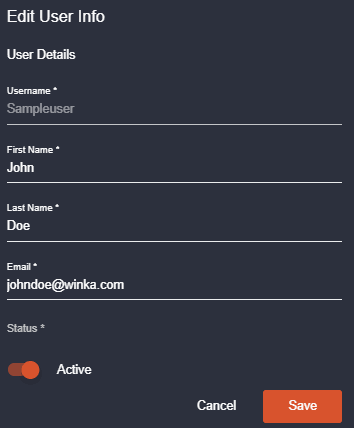
- Set Status to Inactive by making sure that the Active status is turned off
 and hit save.
Getting Started - Customizing Preferences
Once you login to the Backoffice site, it will have an initial look and setting that you may freely customize to your preference.-
After logging in, you may directly access your BO user profile on the upper right portion of your screen.
 a. You can see the backoffice you logged in.
b. The backoffice time set up in
c. Your backoffice profile
d. Language
a. You can see the backoffice you logged in.
b. The backoffice time set up in
c. Your backoffice profile
d. Language
-
Clicking on the
 icon should give you a dropdown that shows you the profile currently logged in, my preferences, and a logout button:
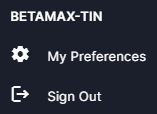
- Click on the My preferences option and you may now choose customizable options and edit the site to reflect the setup that you want. Just click on Done to finish and save your preferences.
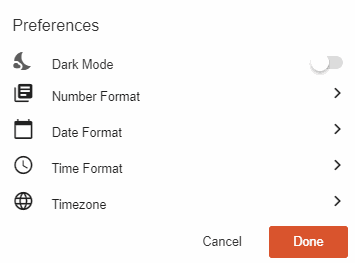 a. Dark Mode - when toggled ON backoffice will appear in dark mode
b. Number Format - you can choose the separator (space or comma), decimal symbol (space, dot, apostrophe), and the number of digits after decimal.
a. Dark Mode - when toggled ON backoffice will appear in dark mode
b. Number Format - you can choose the separator (space or comma), decimal symbol (space, dot, apostrophe), and the number of digits after decimal.
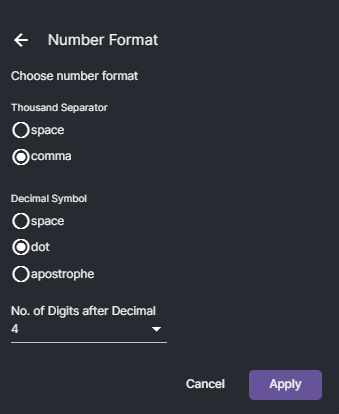
Relog in for changes to apply.
 icon to edit and save.
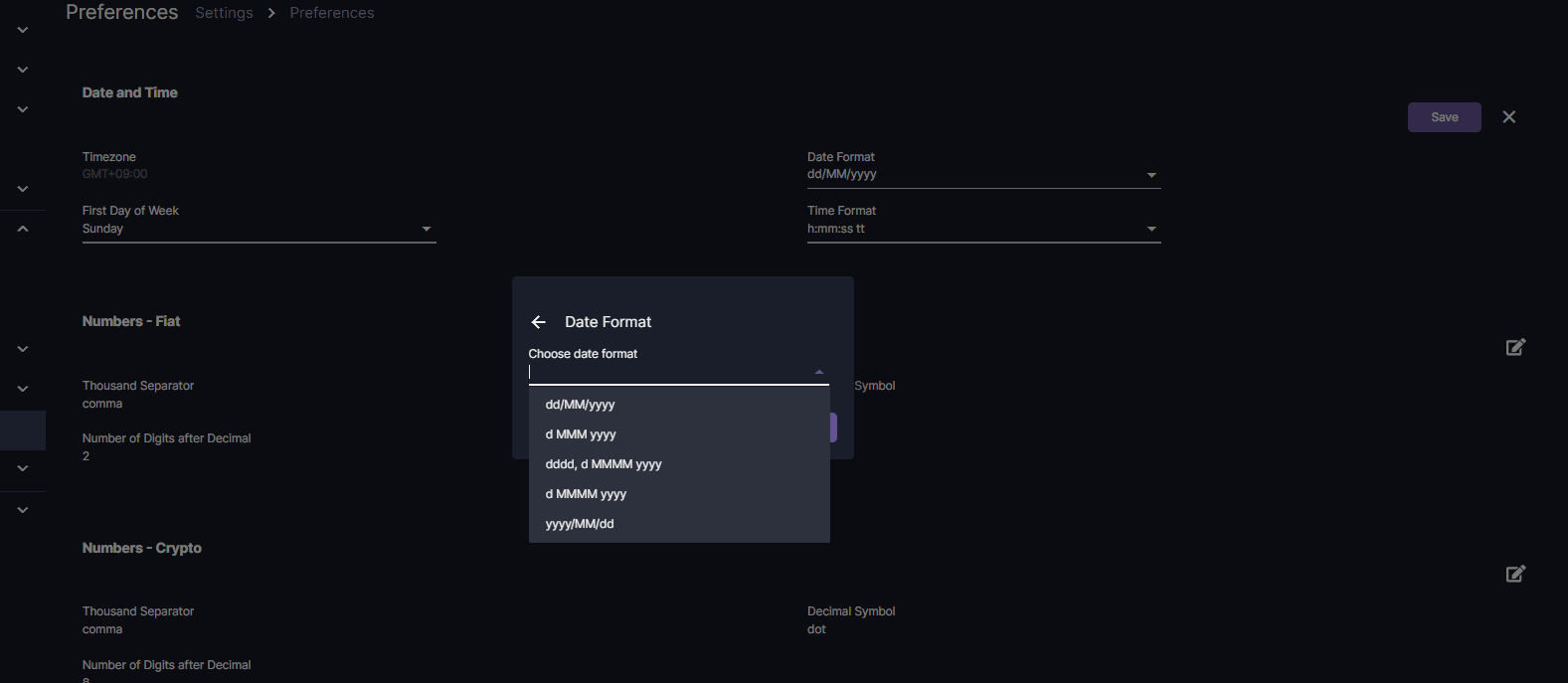
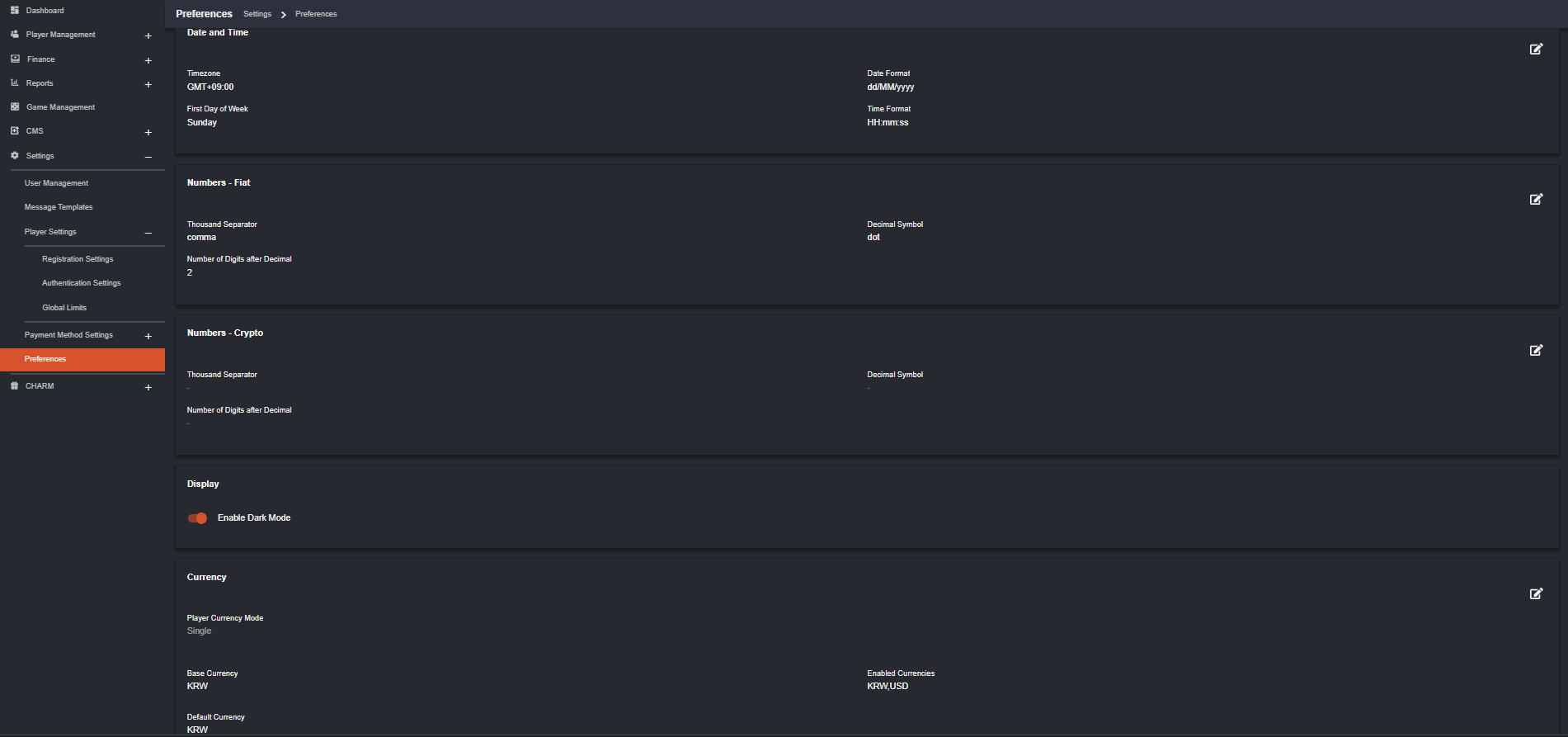 a. Date and Time - by default, timezone is GMT +9 display but the backoffice will appear the timezone you are in. You can set up what is the first day of the week, date format, and time format.
Here are the format options for Date Format
a. Date and Time - by default, timezone is GMT +9 display but the backoffice will appear the timezone you are in. You can set up what is the first day of the week, date format, and time format.
Here are the format options for Date Format
 b. Numbers - Fiat - thousand separator can be space/comma, decimal symbol, and the number of digits to appear after the decimal.
c. Numbers - Crypto - thousand separator can be space/comma, decimal symbol, and the number of digits to appear after the decimal.
d. Display - can be dark mode or not
e. Currency - the backoffice will automatically display what currency you are using for the operator logged in backoffice. The only thing you can update is the default currency (for SingleCurrency) while for MultiCurrency, you can select the default currency, add and see all currencies enabled.
b. Numbers - Fiat - thousand separator can be space/comma, decimal symbol, and the number of digits to appear after the decimal.
c. Numbers - Crypto - thousand separator can be space/comma, decimal symbol, and the number of digits to appear after the decimal.
d. Display - can be dark mode or not
e. Currency - the backoffice will automatically display what currency you are using for the operator logged in backoffice. The only thing you can update is the default currency (for SingleCurrency) while for MultiCurrency, you can select the default currency, add and see all currencies enabled.
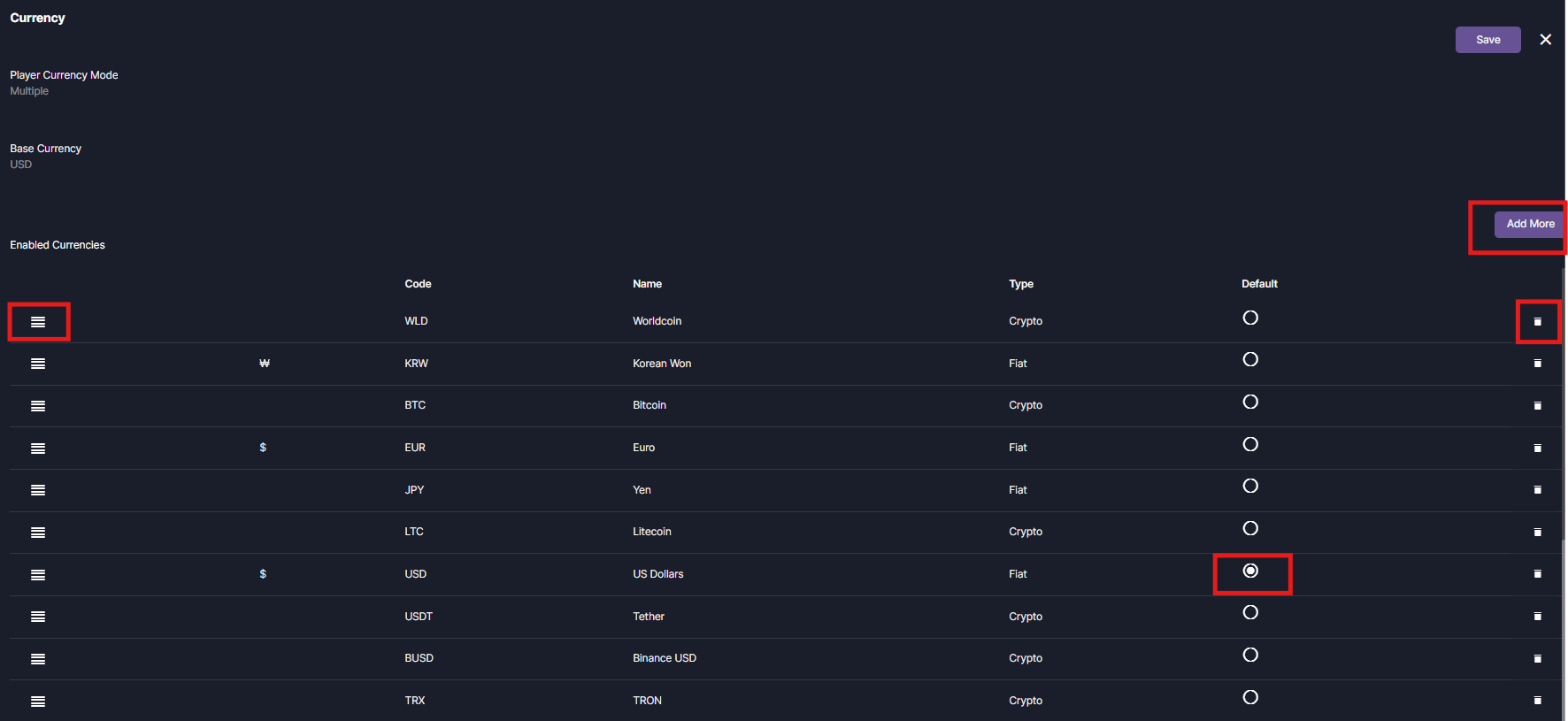
You can rearrange the currencies, delete and add more.
Settings - How to turn registration on/off
The Backoffice user can modify, update, and delete fields within the registration settings. Below are detailed example of how you can turn on/off fields that you want to appear in the sign up form. In here you can see all the current fields. Note that each fields may differ depending on the language (EN, KO) where you have set them.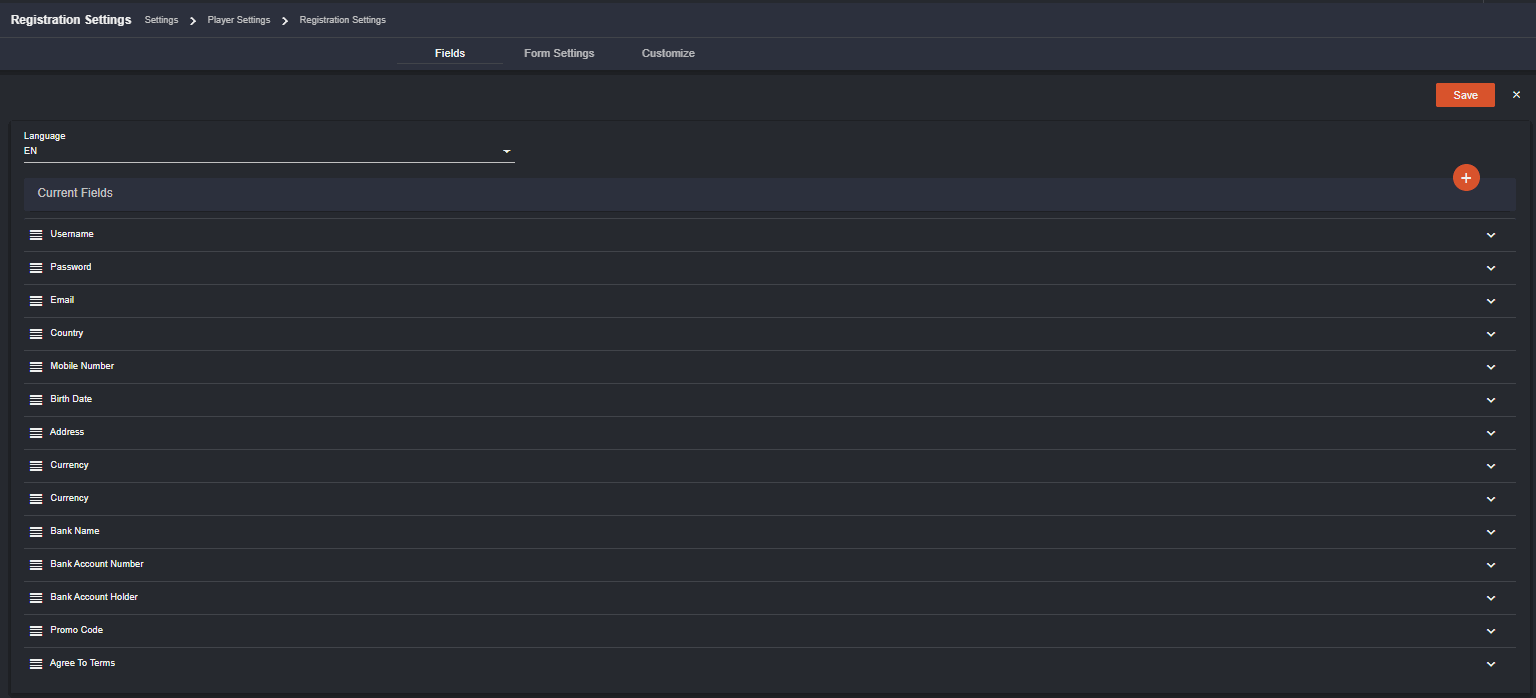 Current Fields
- Username

- Password
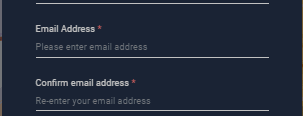
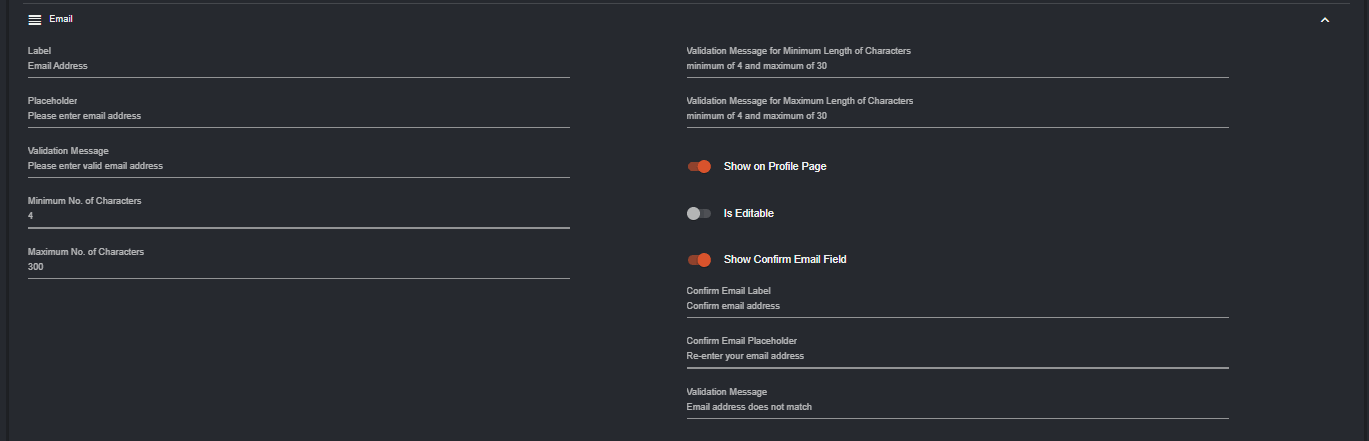 If ‘Show Confirm Email Field’ it will appear like this.
- Country
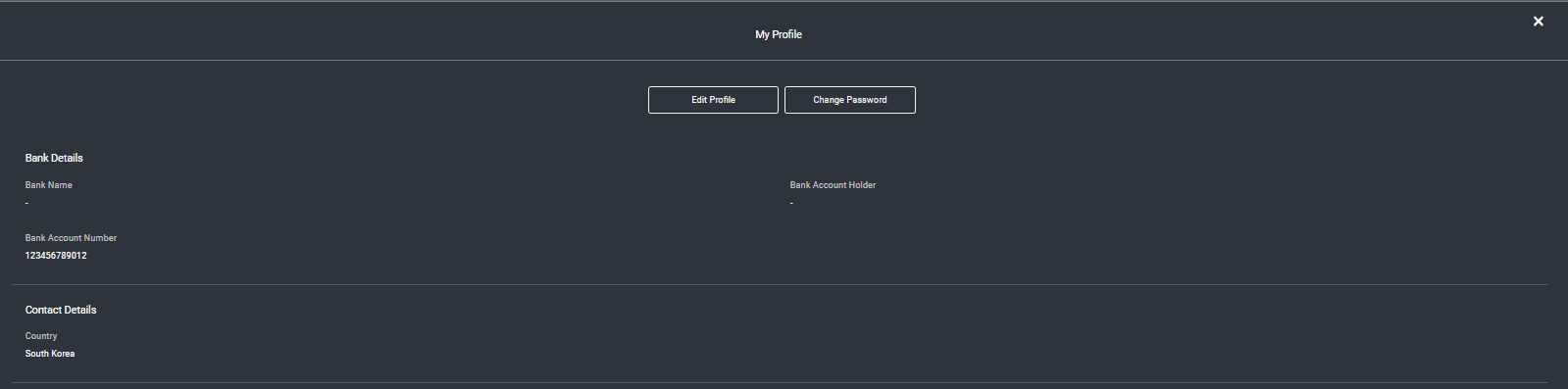
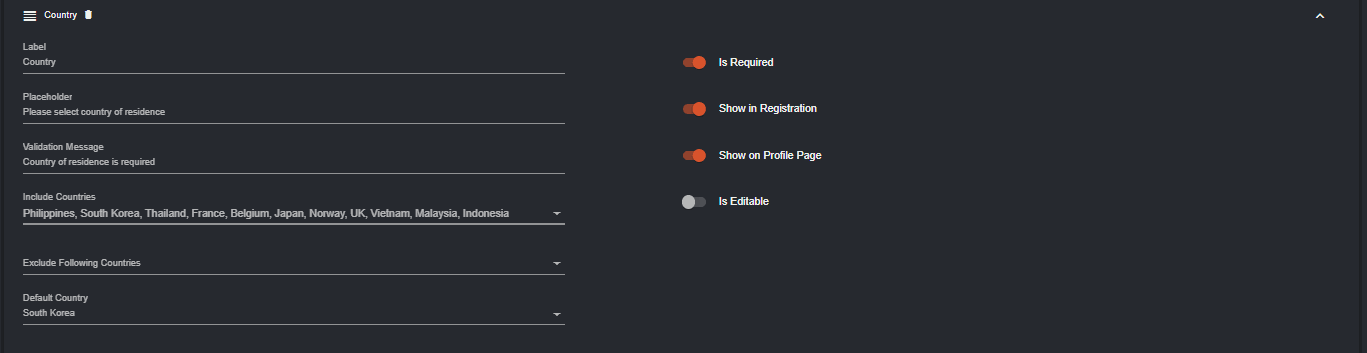 Country will appear in the registration page as well as the player’s profile page, but cannot be edited.
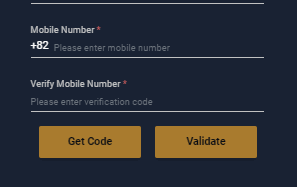
- Mobile Number
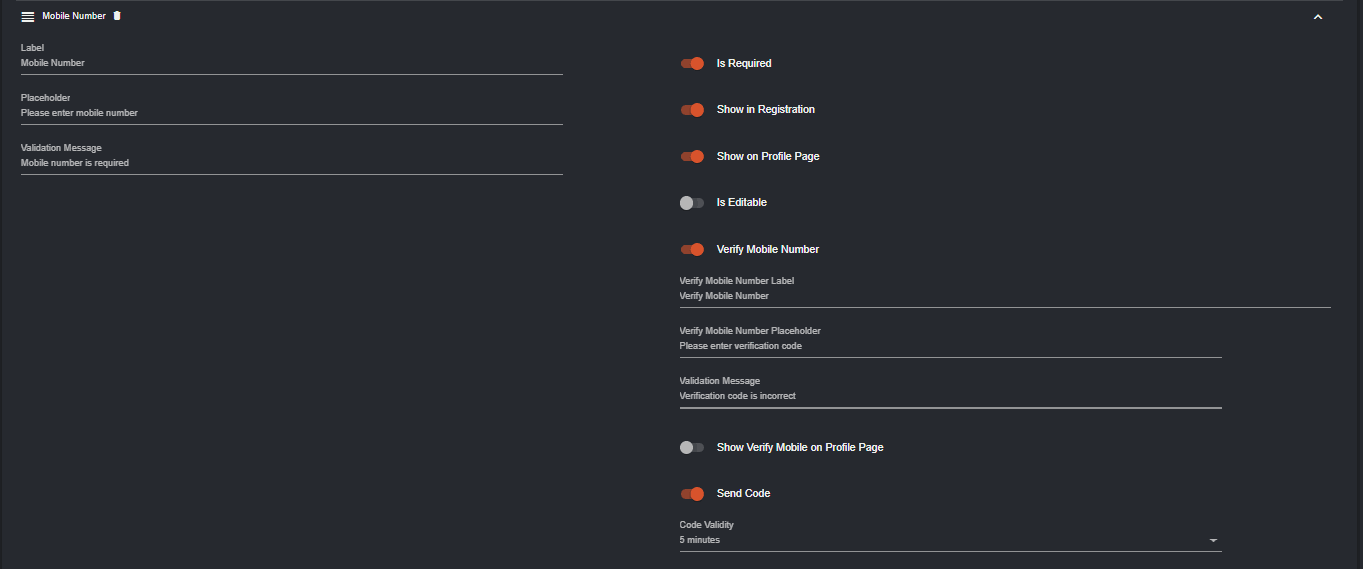 It will appear like this in the sign up form when ‘Verify Mobile Number’ and ‘Send Code’. The player will receive a code then input it for verifying.
- Currency

- Bank Name

- Bank Account Number
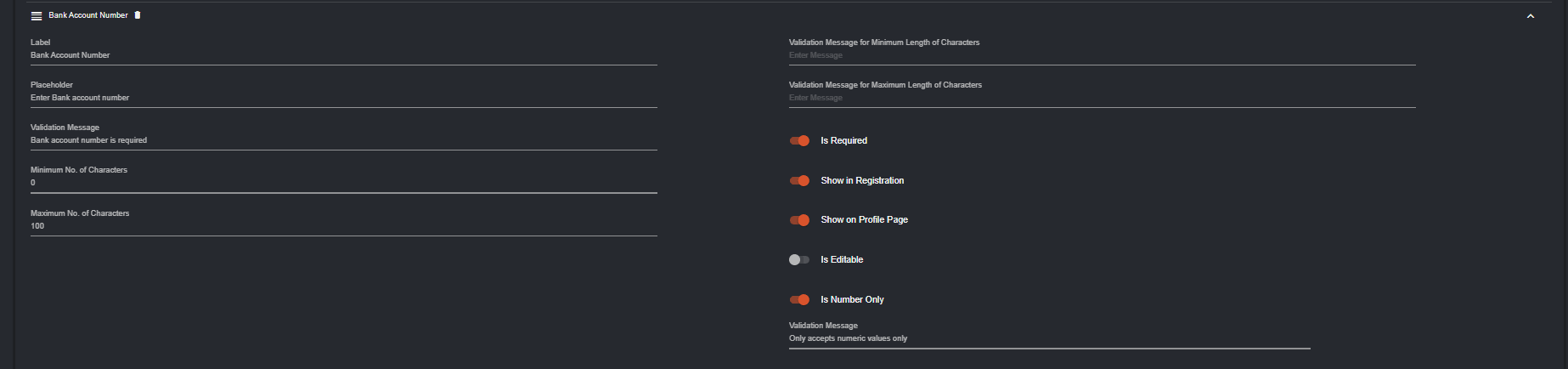
- Bank Account Holder

- Promo Code

- Agree To Terms
 Notes:
- Labels that has no trash icon means that they are default and cannot be removed. However, you can toggle of ‘Show in Registration’.
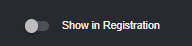
- If ‘Show on Registration’ is ON, the field will appear in the player’s profile.
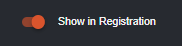
- If the ‘Is Required’ button is enabled, an asterisk (*) will appear on the player registration page, indicating that the corresponding field must be completed.
- The fields can be rearrangement by dragging them according to how you want them to appear in the registration page.
Form Settings and Registration Settings Customization
Once a player has successfully registered, enabling the auto-login feature will automatically log the player into the website.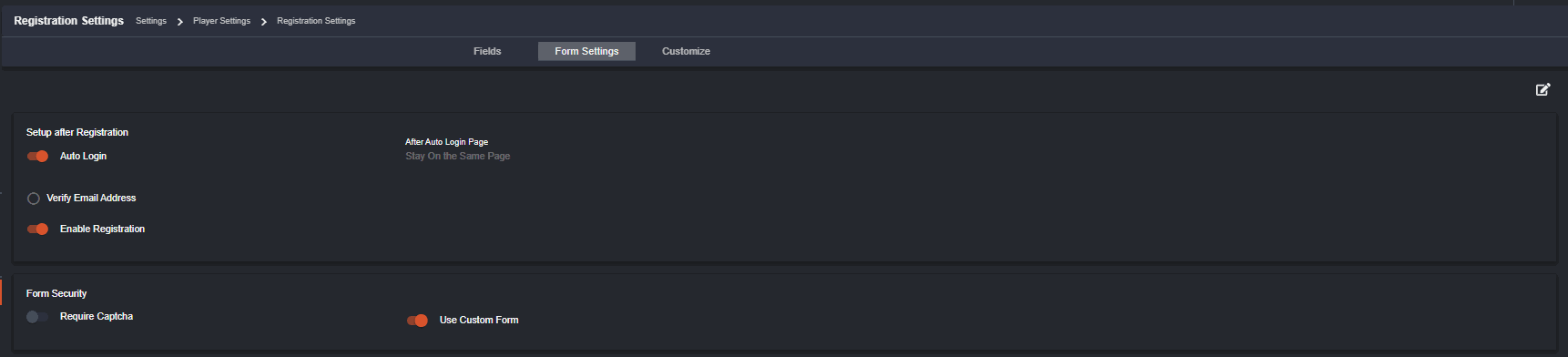 I. Form Settings
Setup after Registration
After the player auto login, stay on the same page means that the player will remain in the page where she/he accessed.
I. Form Settings
Setup after Registration
After the player auto login, stay on the same page means that the player will remain in the page where she/he accessed.
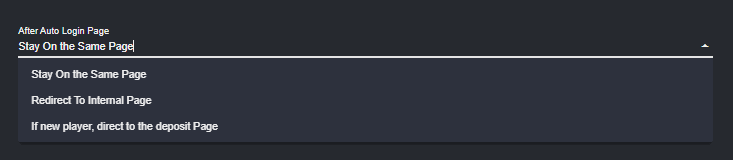 If the option ‘Redirect to Internal Page’ is selected, the back office user can designate the page where the player will be directed.
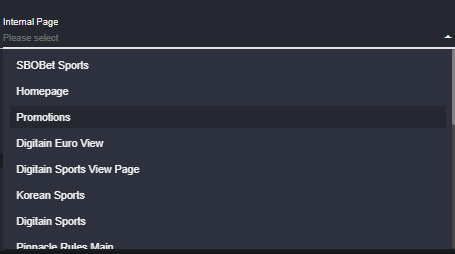 Choosing the deposit page option will lead the player to the deposit page.
 Form Security
 Custom form refers to the registration form that the player see when they sign up.
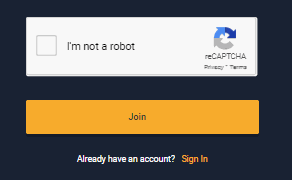
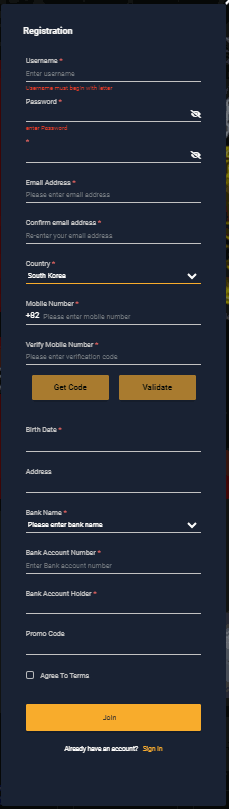 ReCAPTCHA if enabled, will appear at the bottom part before completing the registration form.
 II. Customize
Contents displayed can be categorized by Language.
II. Customize
Contents displayed can be categorized by Language.

How to Setup Predefined Amounts and Wallet (Deposit/Withdrawal) Instructions to appear in Player Portal
The back office user can set up the amount buttons that they would like to appear in the player portal. In this article, you will know how it is set up and how you can put instructions for manual payment settings when it comes deposit and withdrawal bank transfers.Predefined Amounts
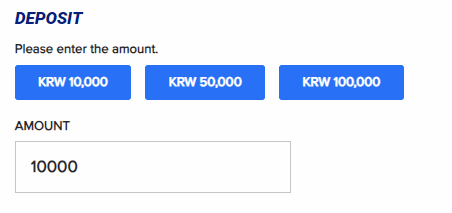
If you would like to set up the the amount appearing in the player portal, you may edit the button and input the desired amount. In this page, you can set up the Predefined Amounts depending on the currency and payment method available.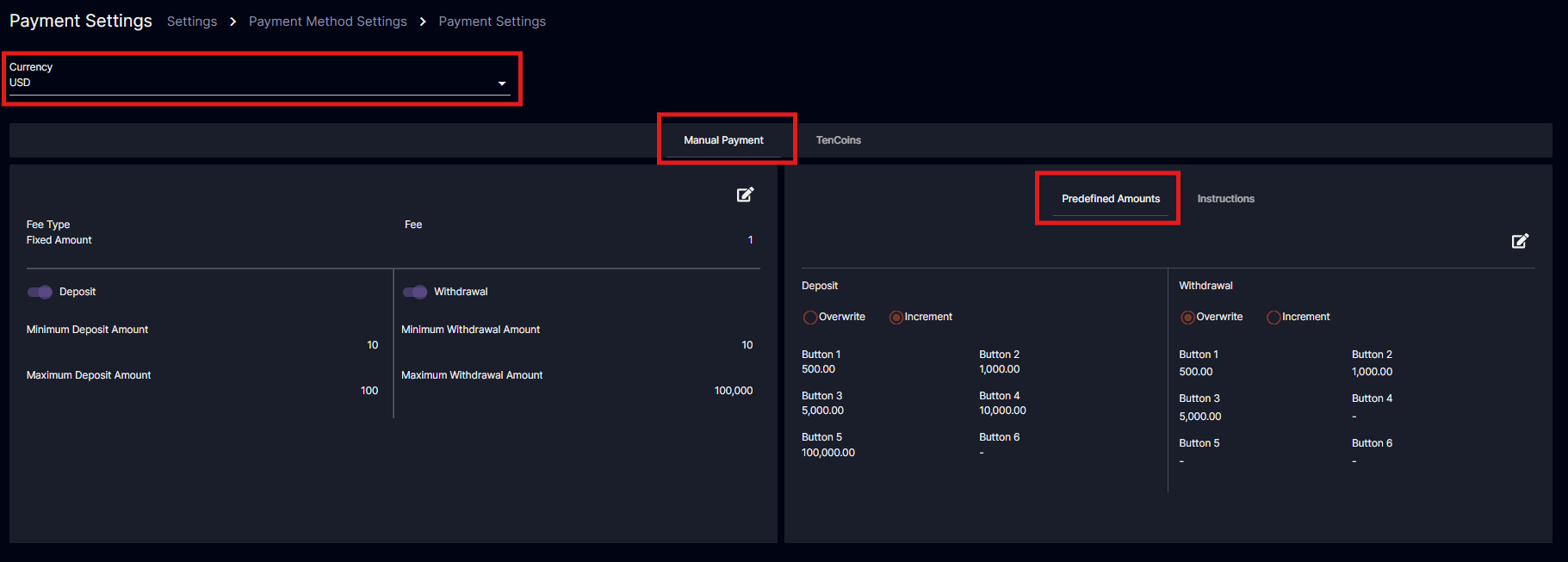 If you click the pen icon, you can input the amount you would like to appear in the player portal deposit page.
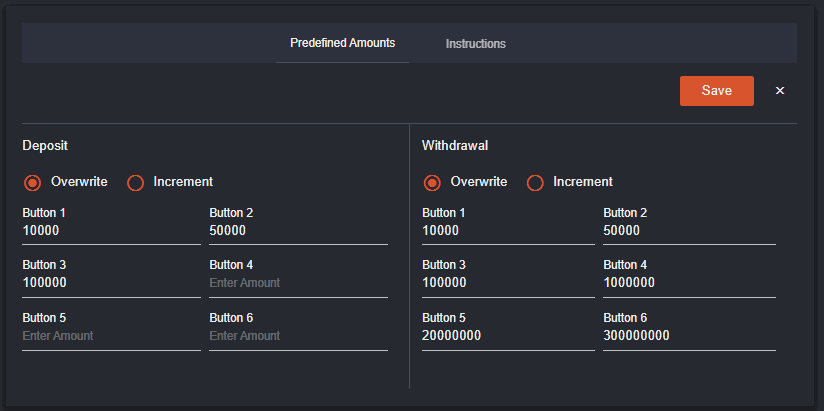 Overwrite - if you will set it to overwrite, it means to say that the player can only click the amount once and will not be clickable again. If the player would like to increase the amount, he/she have to manually edit the amount or click another button with another amount.
Example: If I click the 10,000 button, I cannot click it again. I can manually type the amount or click other buttons with different amount to increase it.
Overwrite - if you will set it to overwrite, it means to say that the player can only click the amount once and will not be clickable again. If the player would like to increase the amount, he/she have to manually edit the amount or click another button with another amount.
Example: If I click the 10,000 button, I cannot click it again. I can manually type the amount or click other buttons with different amount to increase it.
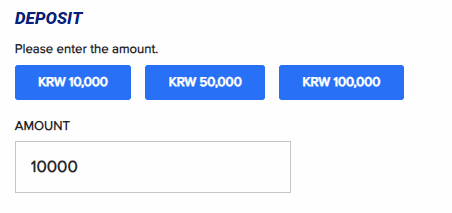 Increment - the player can continuously click the same button with the same amount and the amount increases according to the amount selected.
Example: If I clicked 10,000, the 10,000 button can still be clickable and will continuously increase as I click it.
Increment - the player can continuously click the same button with the same amount and the amount increases according to the amount selected.
Example: If I clicked 10,000, the 10,000 button can still be clickable and will continuously increase as I click it.
Instructions
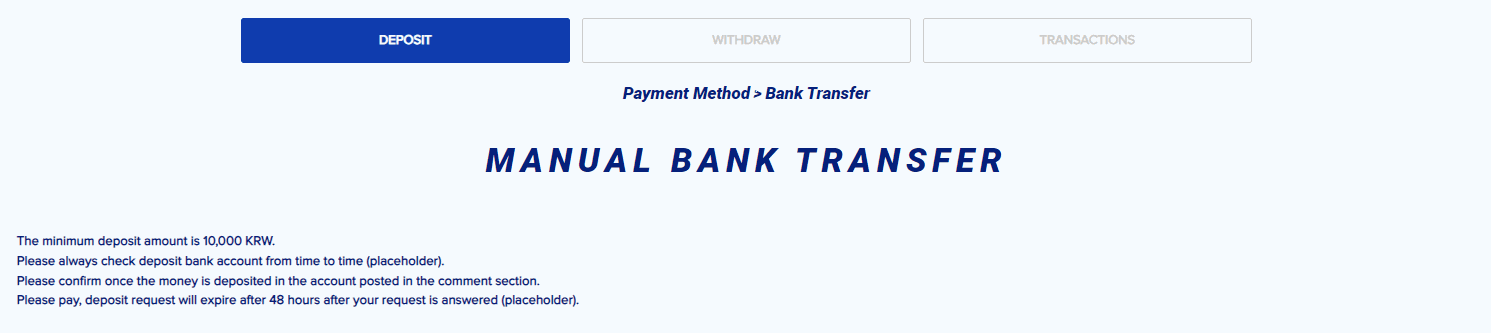
This is where you can input the instructions you want to appear in the player portal Deposit and Withdrawal Wallet page depending on the currency and payment method.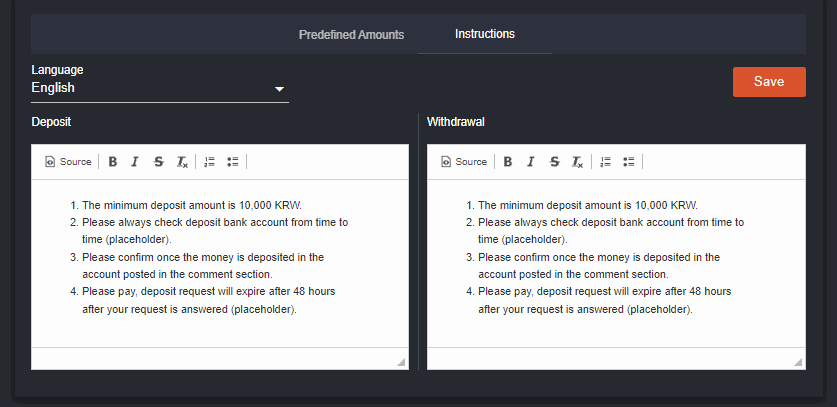
In this example, if I selected USD in currency and set the instructions to English, these will appear when the player made deposit/withdrawal.
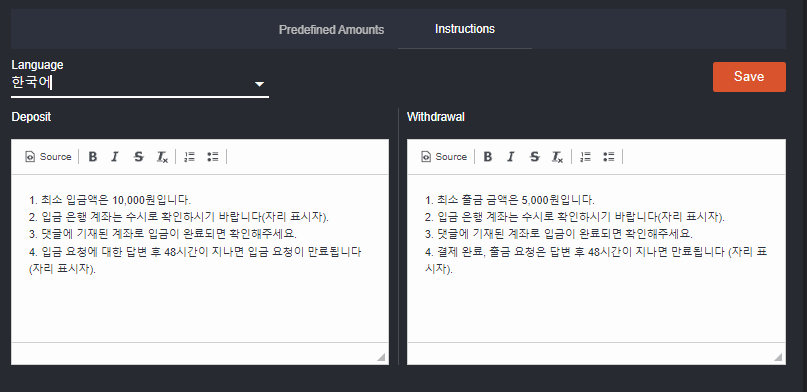
You can also choose the language for instructions which will appear depending on the language (EN,KO) the player is using in the player portal.
Settings - Default Capabilities
Navigation: Settings > Player Settings > Default Capabilities Added the ‘Default Capabilities’ page under Settings > Player Settings. By default, all capabilities are toggled on.- This additional page allows a BO User to set the default capabilities of a player upon sign-up.
- The platform must apply the default player’s capabilities for all new players as soon as they sign up. Also, the default capabilities will be used for newly created players in the Back Office.
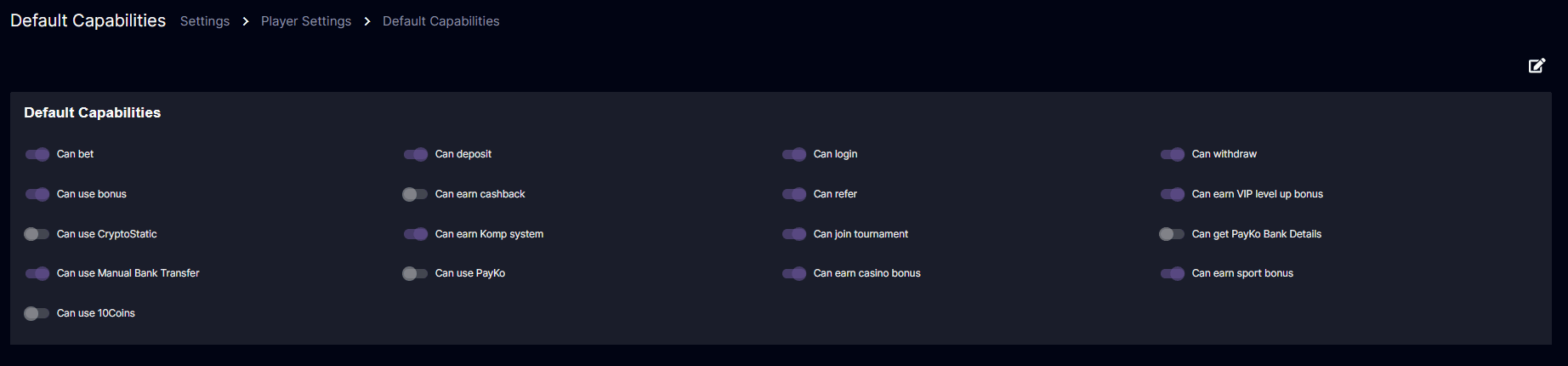
SingleCurrency
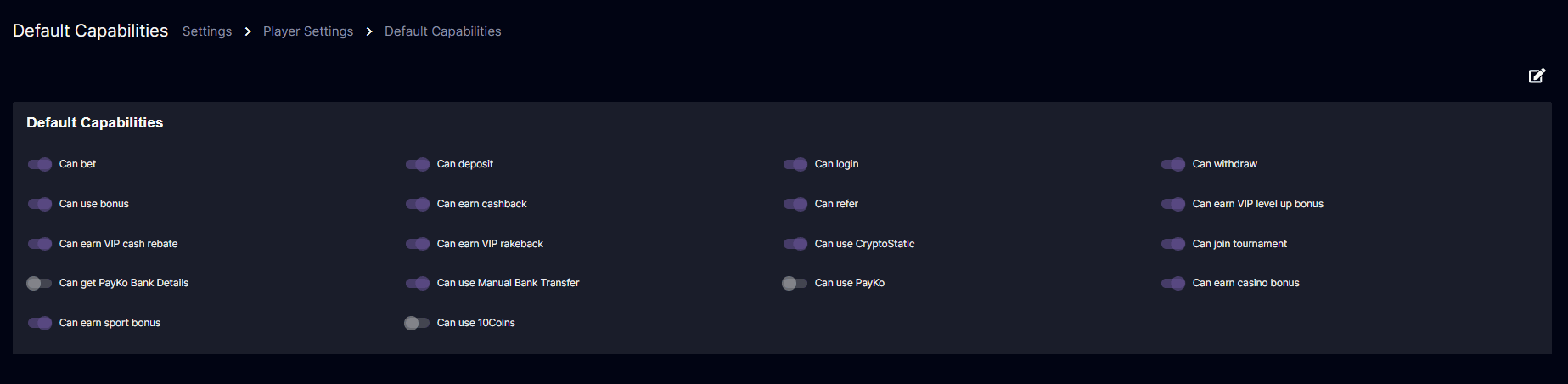
MultiCurrency
Players Guide to Email Verification
This feature will require a new user to verify their email address upon registration. Once the email is verified, users will be granted access to log in and use the platform.Registration
The player must register their email address and provide the required information upon registration. If the player tries to register again with the same email address there will be a prompt message upon registration that the email address has already been used upon registration.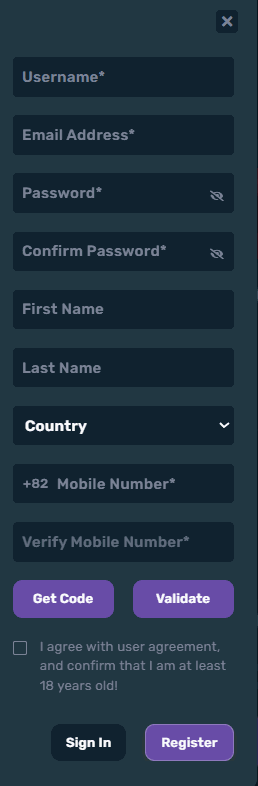 After submitting the registration form, a pop-up message will appear, confirming that the player needs to verify their email address. A verification link will be sent to the email address provided during registration for verification purposes. The user can still log in to their account without verifying it.
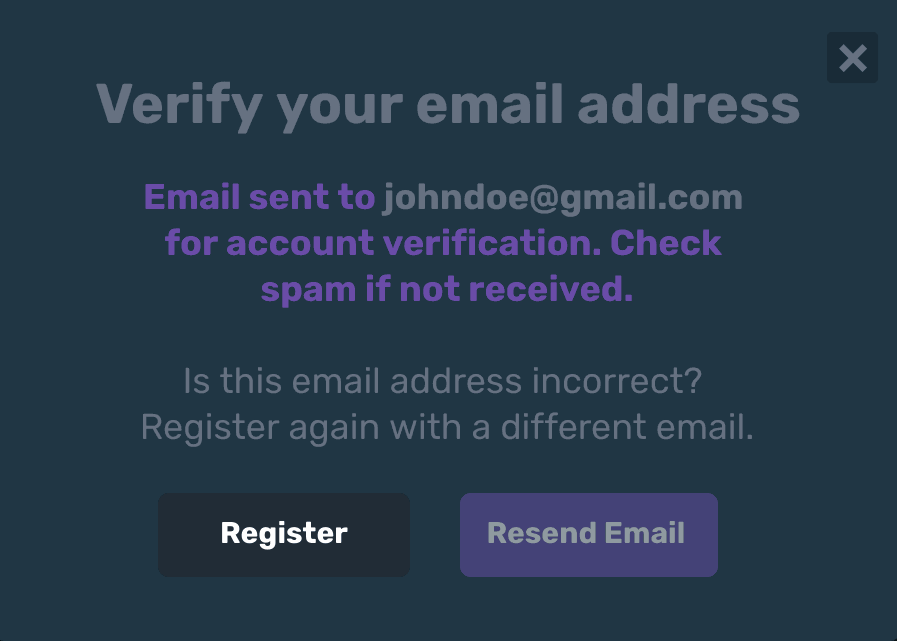 ‘Resend Email’ will be disabled for 2 minutes. If the player did not receive the verification email, they can click the ‘Resend Email’ after the timer. The timer is used to prevent spam and reduce the frequency of emails sent to manage server resources effectively.
Note that if the player had entered the wrong email address, they can click on the ‘Register’ to register again using the right email address. Upon clicking ‘Register’, the information of the user must not be retained, every new registration attempt starts with the blank form. Each registration attempt is a new session for security and privacy reasons in that way the form fields will be empty.
Once the timer is complete, the ‘Resend Email’ will be enabled, and the timer below the two buttons will be removed. Then if the player clicks on the ‘Resend Email’, this will now be disabled and the timer reappear.
The pop-up message will be non-editable and will be the same across all platforms.
‘Resend Email’ will be disabled for 2 minutes. If the player did not receive the verification email, they can click the ‘Resend Email’ after the timer. The timer is used to prevent spam and reduce the frequency of emails sent to manage server resources effectively.
Note that if the player had entered the wrong email address, they can click on the ‘Register’ to register again using the right email address. Upon clicking ‘Register’, the information of the user must not be retained, every new registration attempt starts with the blank form. Each registration attempt is a new session for security and privacy reasons in that way the form fields will be empty.
Once the timer is complete, the ‘Resend Email’ will be enabled, and the timer below the two buttons will be removed. Then if the player clicks on the ‘Resend Email’, this will now be disabled and the timer reappear.
The pop-up message will be non-editable and will be the same across all platforms.
Email Verification
The player will be receiving the verification link via email. This will be used to verify the email address of the player. When the player clicks on the Verification Link sent to their email, they will be redirected to the Login page. The player can now enter the username and password.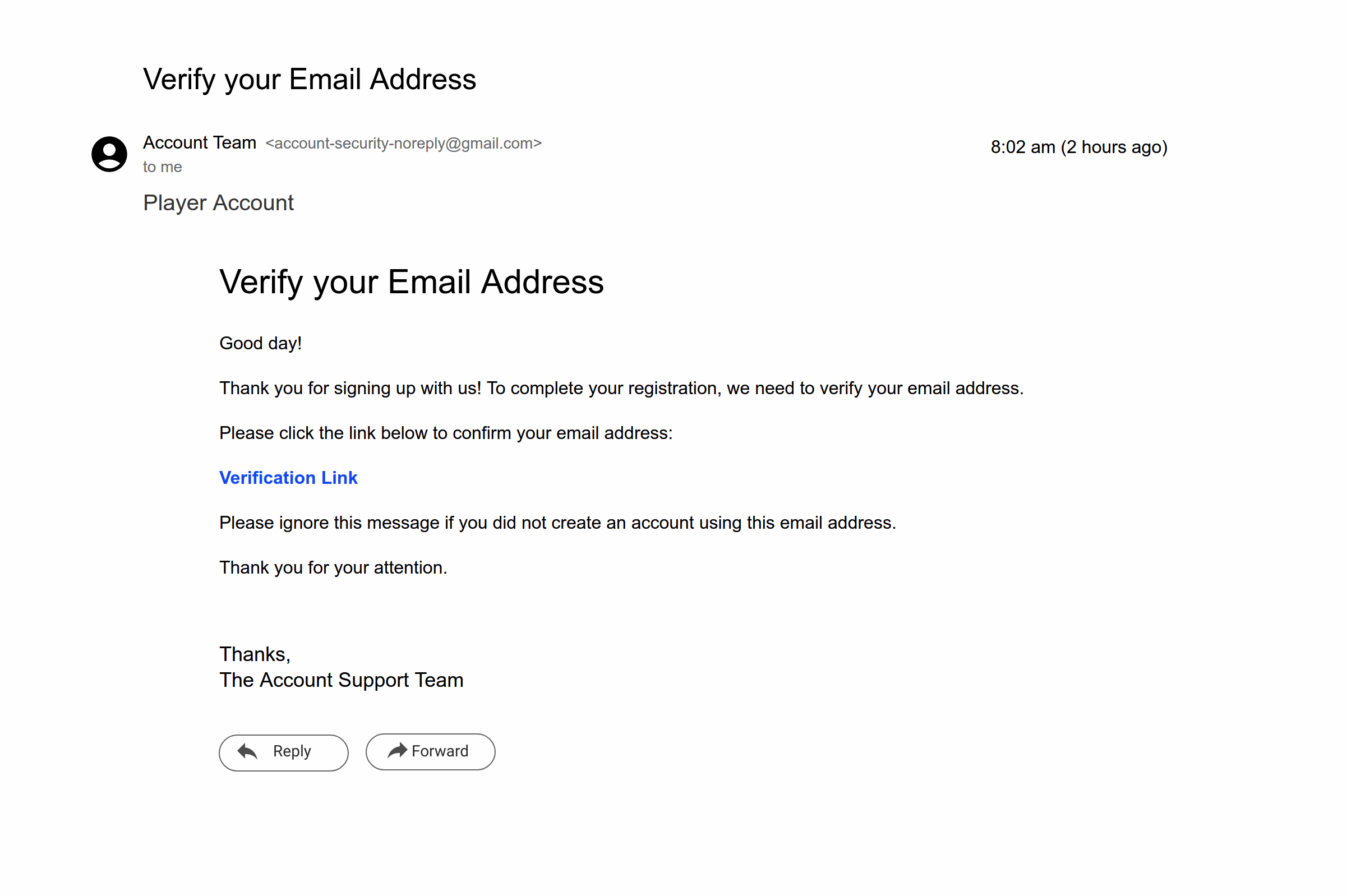
Logging In
If the player resends the email multiple times, the same verification link will be sent to the user until the user verifies their account. If the player tries again to click the verification link, they will be directed to a confirmation message stating that the email is already been verified.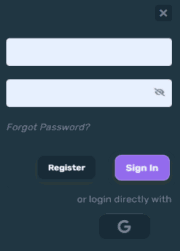 After logging in, players will be directed to the website. A pop up message will appear which will confirm a successful email verification.
 If a player attempts to log in without verifying their email address, they can still log in to their account. The player has the option to verify their email using the verification link that has been sent to their email upon their registration. This might happen when the player registers and the ‘Verify Email Address’ is toggled on at the Back Office.
If players attempt to click another verification link after verifying their email, a confirmation message will appear stating that their email is already verified.
If a player attempts to log in without verifying their email address, they can still log in to their account. The player has the option to verify their email using the verification link that has been sent to their email upon their registration. This might happen when the player registers and the ‘Verify Email Address’ is toggled on at the Back Office.
If players attempt to click another verification link after verifying their email, a confirmation message will appear stating that their email is already verified.
 Korean ver: 이메일 인증에 대한 플레이어 가이드
How to Manage ‘Verify Email Address’ in the Backoffice
Registration Settings
Navigation: Settings > Player Settings > Registration Settings > Email The operator can toggle on ‘Verify Email Address’ to enable players to receive a verification link on their email for email verification. If the ‘Verify Email Address’ is toggled off the user can still log in to their account with or without verifying their account when ‘Allow unverified to Login’ is ON. In the scenario that the ‘Verify Email Address’ is toggled on. Upon the player’s registration, a verification link will be sent to the user’s email for email verification. However, the player can still be logged in to their account. If the player verifies their email address, a message will appear confirming the email has been successfully verified.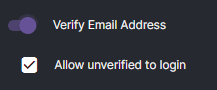 If the ‘Verify Email Address’ is toggled off on the back office, the user can log in even if their account is not verified.
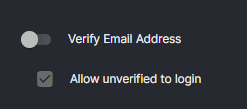 If the operator turns on the ‘Verify Email Address’ and the player is already registered, it will not affect them. Still, the newly registered users will receive a verification link in their email. If the user does not verify their email address, they can still log in.
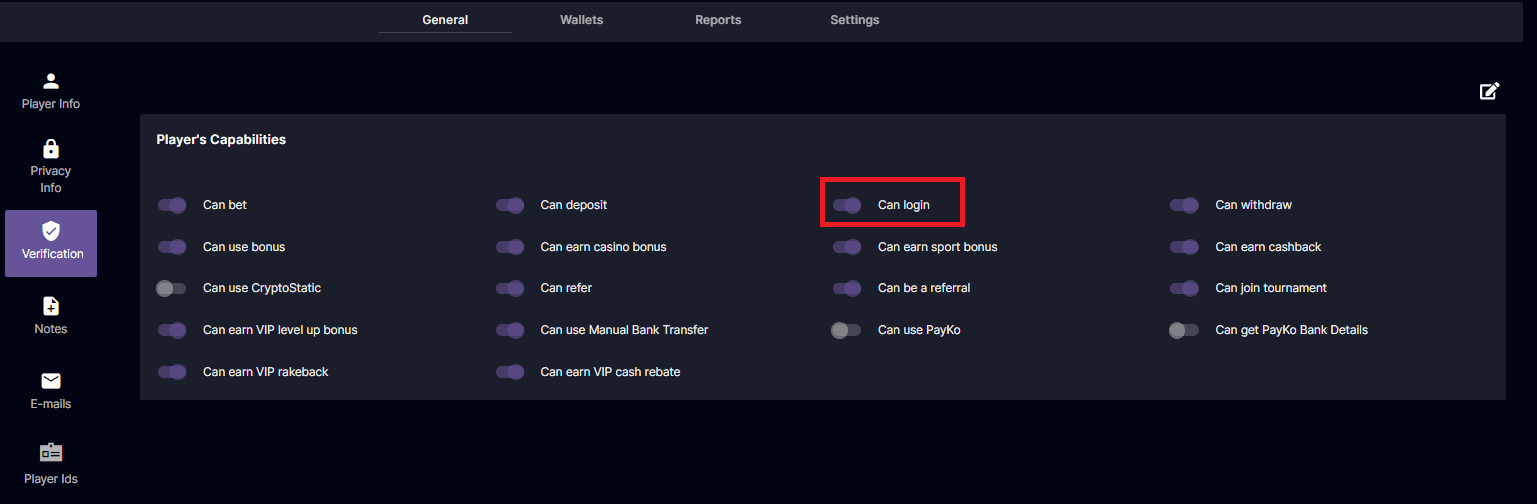
On the Default Capabilities in the Back Office, if the ‘Can Login’ option is enabled, the new users can still log in. It will not affect the newly registered users since the registration flow settings will be followed. The registration settings must be followed for the new users.
If the operator turns on the ‘Verify Email Address’ and the player is already registered, it will not affect them. Still, the newly registered users will receive a verification link in their email. If the user does not verify their email address, they can still log in.
On the Default Capabilities in the Back Office, if the ‘Can Login’ option is enabled, the new users can still log in. It will not affect the newly registered users since the registration flow settings will be followed. The registration settings must be followed for the new users.
 When the player’s email is verified, a verification check will appear next to the email address in the back office under Player Management > Player information > Contact information.
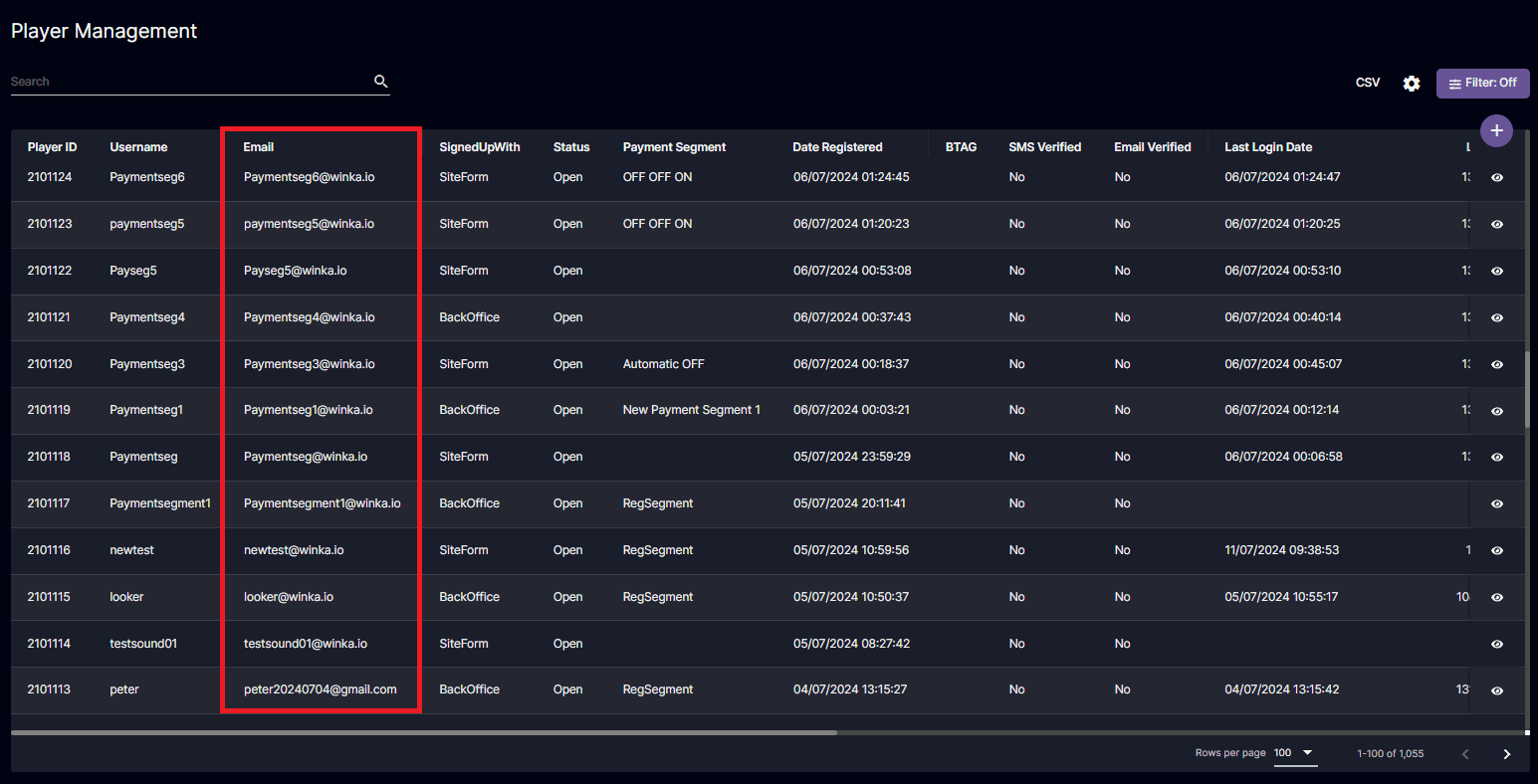
 Also in the back office under the player management list, it will show the user who had their emails verified.
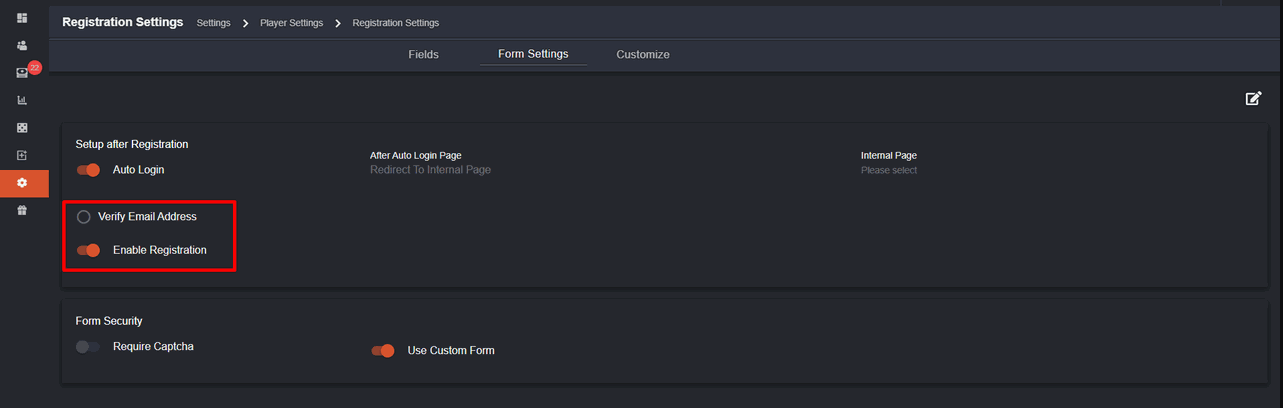
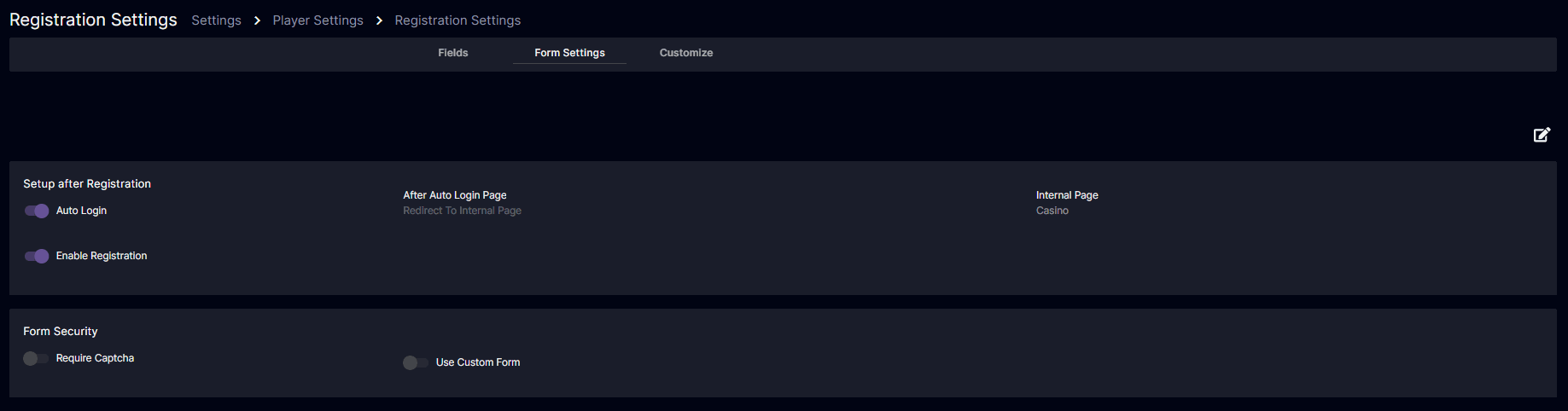
 The Verify Email Address under the Registration settings > Form settings are removed since the feature is not working and the Radio Button option is not applicable since it only requires choosing one option. Upon clicking it, the player cannot unselect the option.
Before
The Verify Email Address under the Registration settings > Form settings are removed since the feature is not working and the Radio Button option is not applicable since it only requires choosing one option. Upon clicking it, the player cannot unselect the option.
Before
 After
After
 Note*: Players can use the same email address to register on multiple platforms. However, each platform will send a unique verification link to the user.*
Korean ver: 백오피스에서 ‘이메일 주소 확인’을 관리하는 방법
Note*: Players can use the same email address to register on multiple platforms. However, each platform will send a unique verification link to the user.*
Korean ver: 백오피스에서 ‘이메일 주소 확인’을 관리하는 방법
Audit Log
Allows the back office user to track the player account changes specifically when making changes in the player’s capabilities.Individual Permission
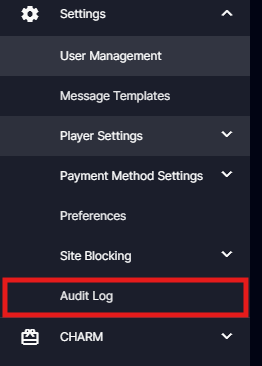
To get started, set up the individual permission of the back office user in the Settings > User Management > Select a player > Audit Log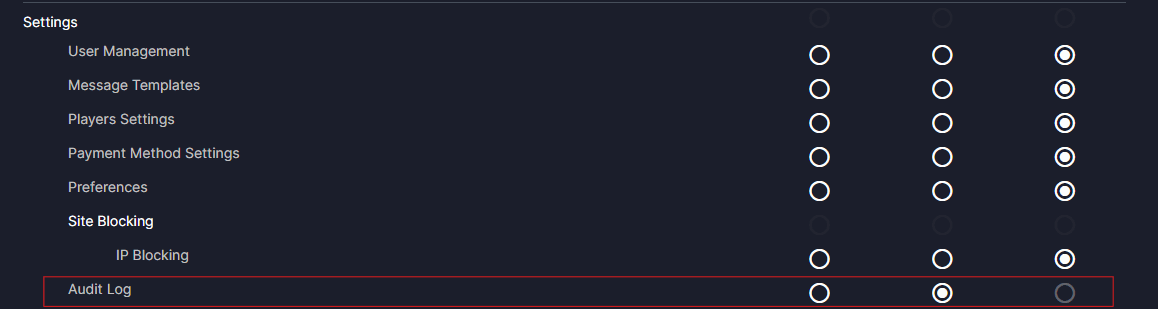 Not Permitted - Audit Log will not be visible in the back office Settings menu.
Permitted - visible in the back office user
Can Modify - disabled since this cannot be edited
Not Permitted - Audit Log will not be visible in the back office Settings menu.
Permitted - visible in the back office user
Can Modify - disabled since this cannot be edited
Audit Log

- Eye Icon - Clickable icon to open Audit Log Info Pop-up
- ID - Unique identifier
- Date - Audit transaction timestamp
- Event - Add / Update / Delete
- Module - The module where the details has been modify
- Sub-module - The specific sub-module which the modification occurs
- Old Data - Displays the player ID including the old player data
- New Data - Displays the player ID including the new data
- Modified By - User that triggered the event
- Platform - Platform where the event was triggered from
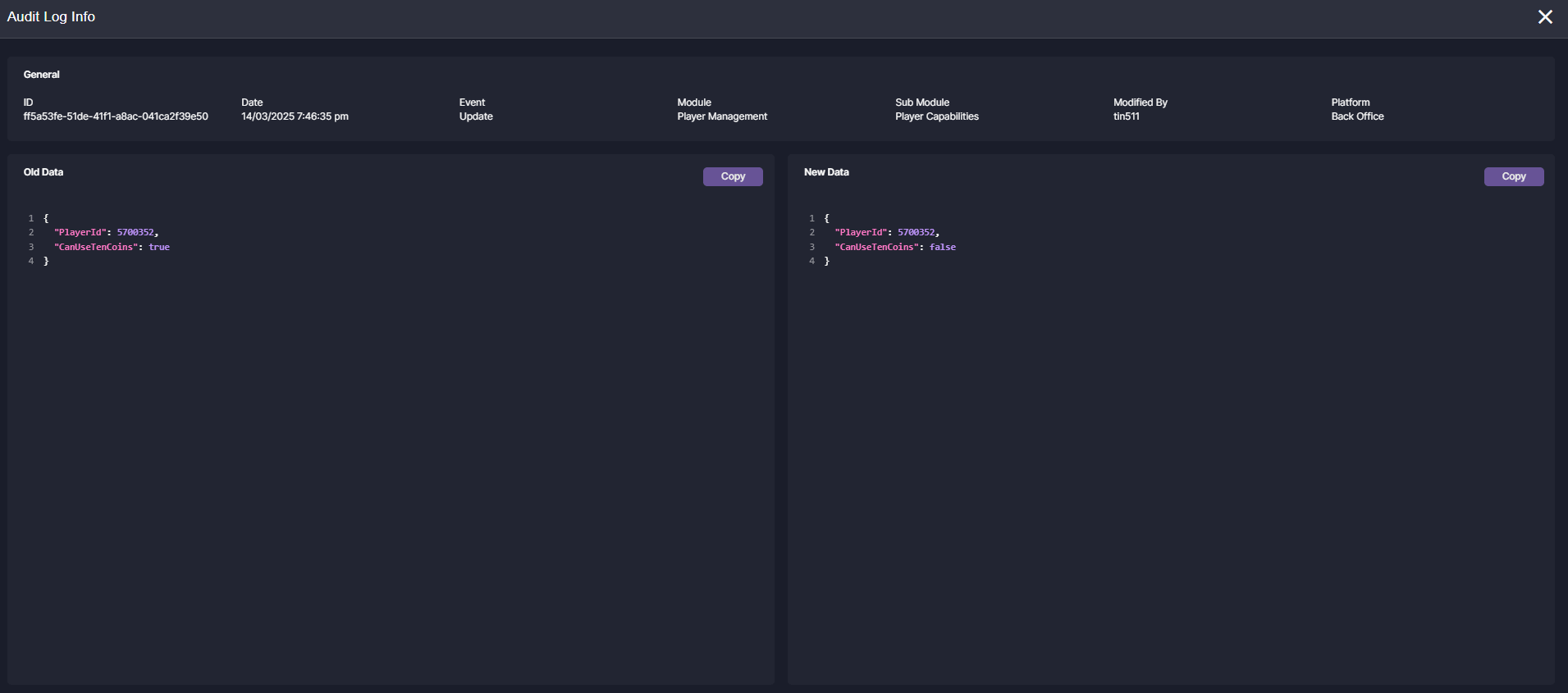
Audit Log Info
Once the eye icon is clicked, here are the details that the back office user will see. In the sample below, player5700352has the CanUseTenCoinstoggled ON before. In the New Data, it has been modified to false which means it is now OFF.
 Korean Ver. 감사 로그