Introduction to Pop-ups
Pop-up is a feature made by marketers to attract website users’ attention by presenting various contents depending to its goal. Like any other pop-ups, we designed it in a way the backoffice user can easily customize; whether it is for advertisements, promotional purposes, announcements and/or custom content that the backoffice user wants the website user to see.- Before creating a pop-up, the backoffice user must have the permission to modify pop-ups. To navigate, go to CMS > User Management > Select the User > Edit Individual Permissions.
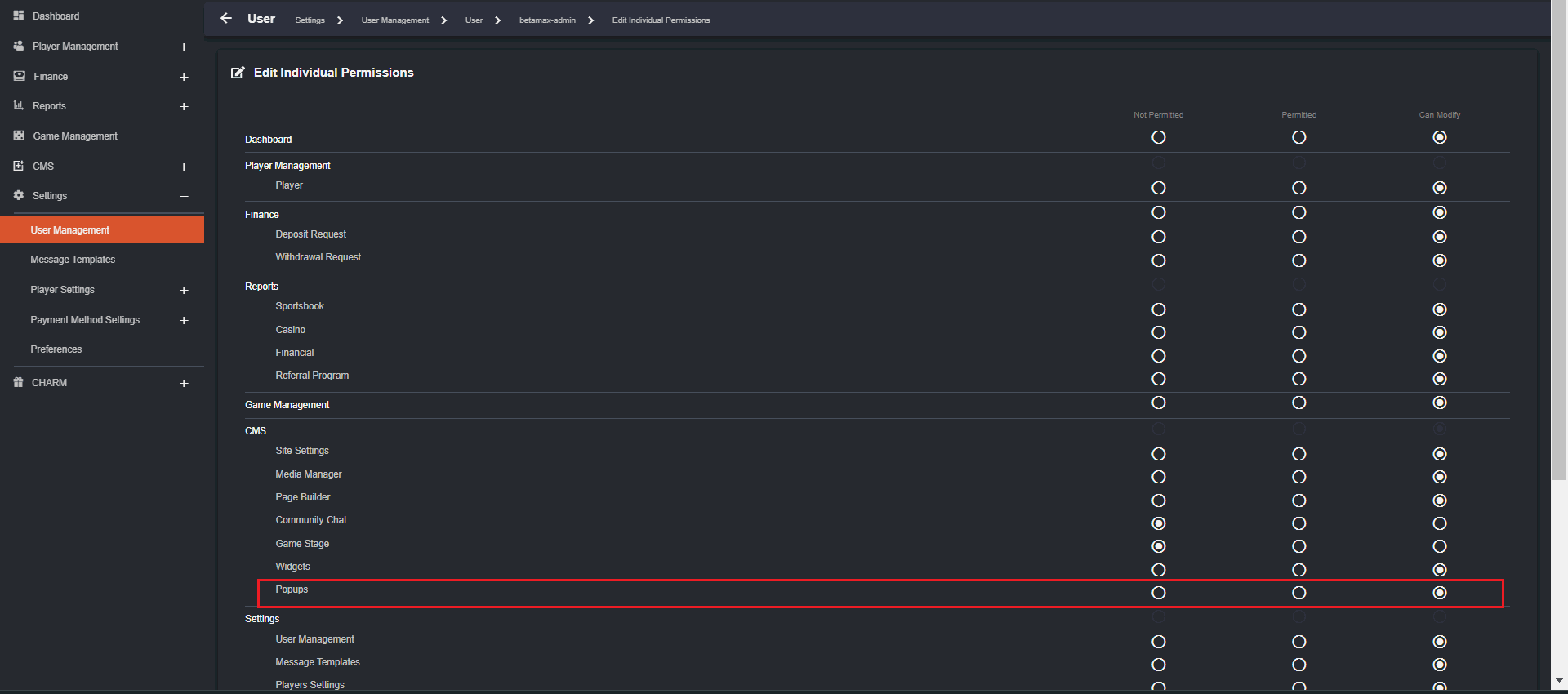 Permission Settings control what a backoffice user can manage. The backoffice user can make changes if permission is set to Can Modify, Permitted is for viewing purposes and Not Permitted will prompt an “Unauthorized” message indicating user has no access.
- The backoffice user has the control to change the order of the pop-ups, disable/enable, and edit depending on how they prefer it to appear in the player page.
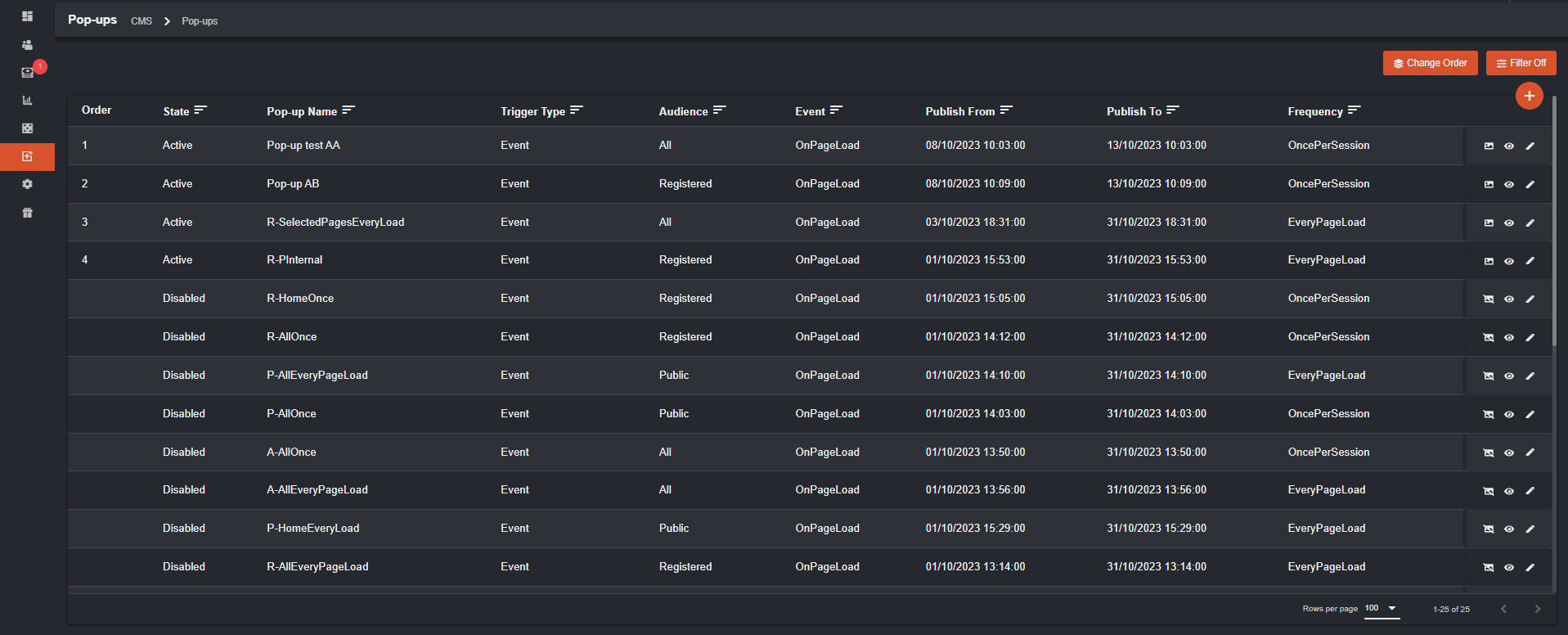 *****Columns can also be sorted.
Order refers to the sequence of pop-ups appearing in the player page following the settings set in the backoffice.
Notes:
*****Columns can also be sorted.
Order refers to the sequence of pop-ups appearing in the player page following the settings set in the backoffice.
Notes:
- Only Active pop-ups can be reordered.
- Disabled pop-ups can be enabled by the backoffice user.
- Inactive pop-ups can be reactivated as long the Publish Availability is adjusted.
 – refers to pop-ups that are active within the publish date and are enabled
Disabled
– refers to pop-ups that are active within the publish date and are enabled
Disabled  – refers to pop-ups that are disabled within the publish date
Inactive
– refers to pop-ups that are disabled within the publish date
Inactive  – refers to pop-ups that are outside of the publish date range
Hover over the icon before Order until you see this icon
– refers to pop-ups that are outside of the publish date range
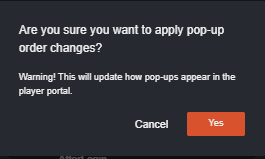
Hover over the icon before Order until you see this icon  . Click the draggable icon and place it to your desired arrangement then click Apply.
 This message will appear. Click Yes to proceed with changes. A notification will appear that it has been successful and will redirect you to the pop-ups page.
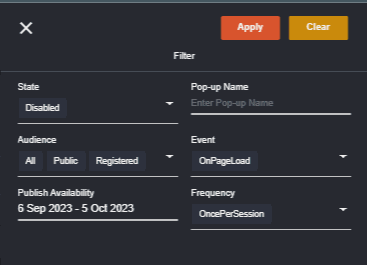
 The filter section can be used to search certain data. You can select more than one option except for Pop-up Name and Publish Availability.
- Each pop-up has individual settings wherein only appears in the player portal according to how the backoffice user set it.
 The first icon can be used to enable/disable the pop-up, eye icon is for viewing, and the pencil icon is for editing.
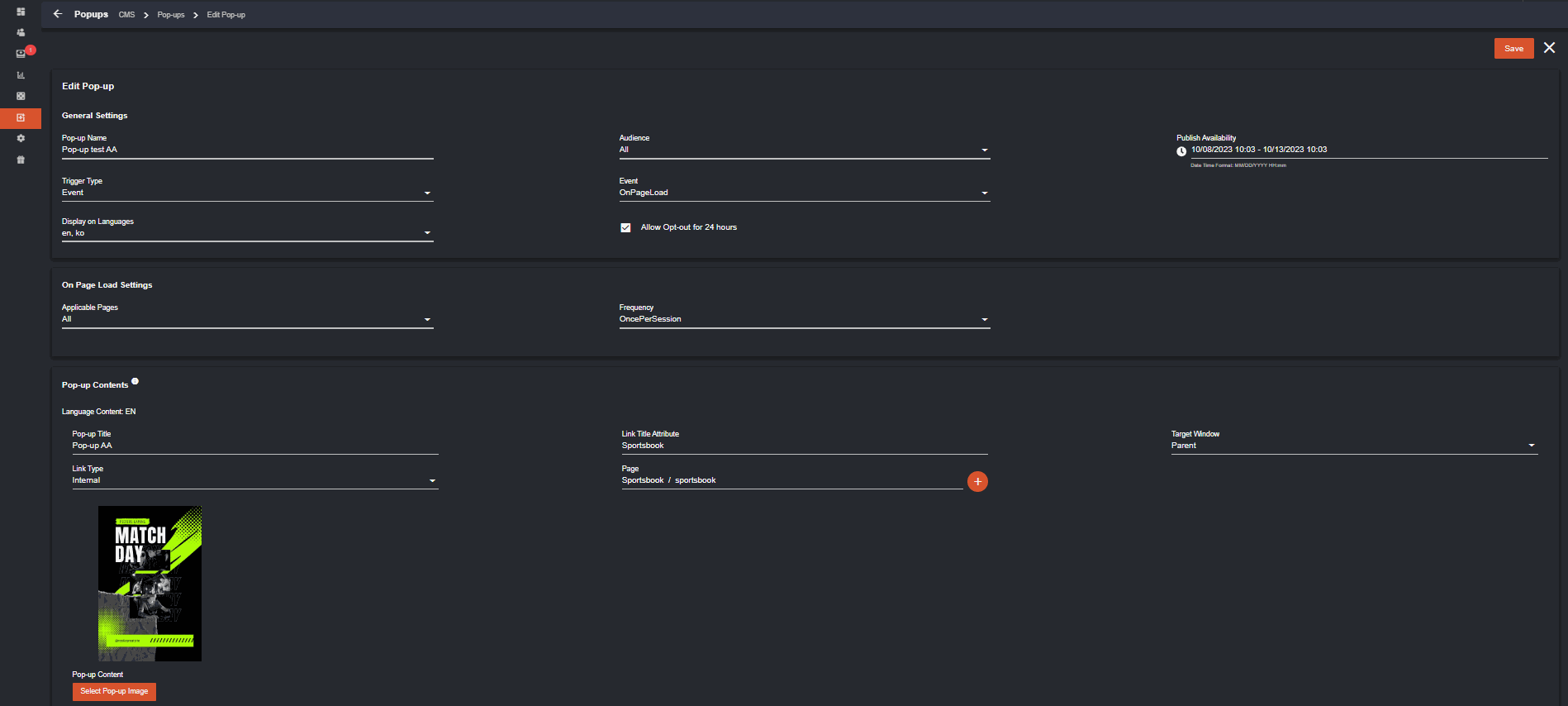
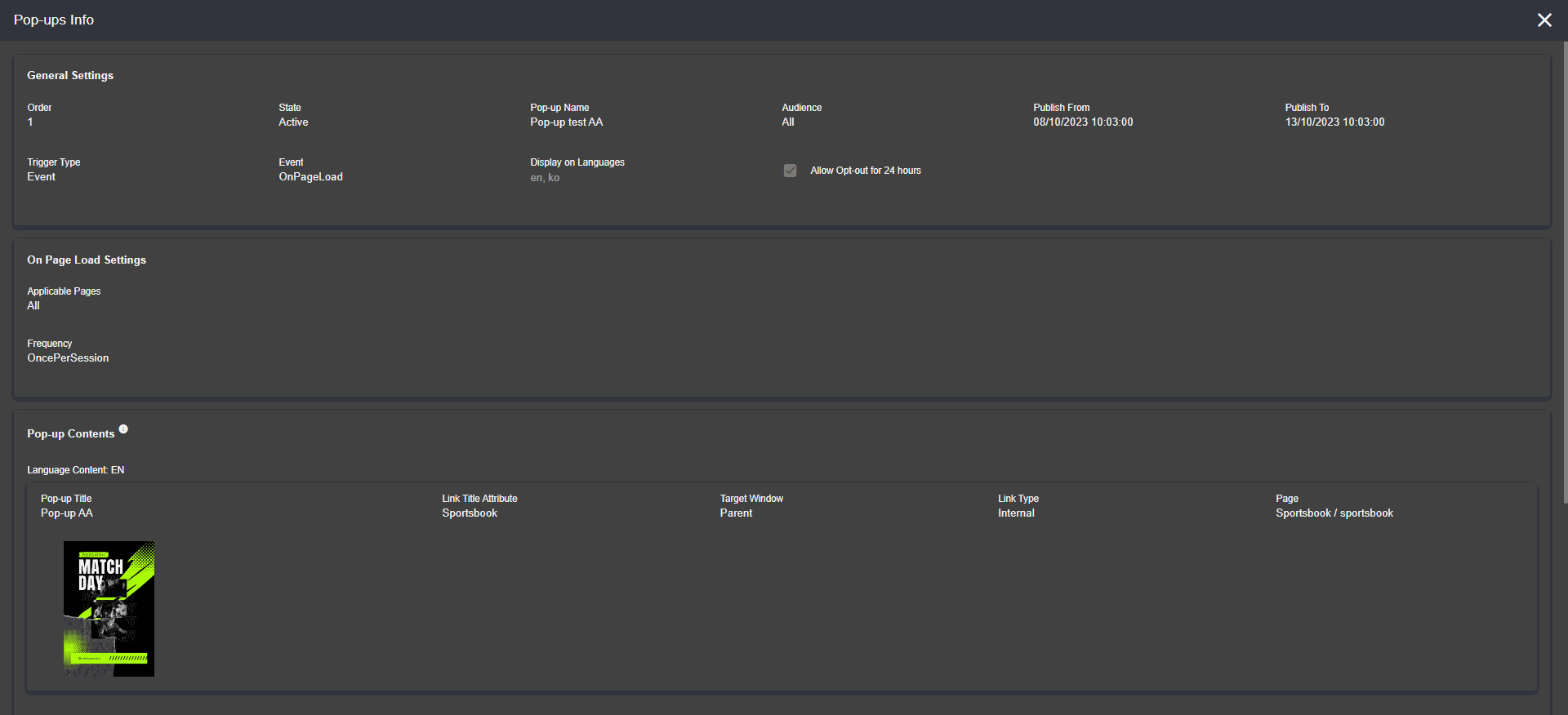 In the Edit Pop-up page
 To get started with pop-ups, go to How to Setup Pop-ups
This is how players see pop-ups, visit How Players See Pop-ups
To get started with pop-ups, go to How to Setup Pop-ups
This is how players see pop-ups, visit How Players See Pop-ups
How to Setup Pop-ups
Here are the instructions to guide the backoffice user to view and add pop ups. Pop-up Creation To add pop-ups, click the above to get started. You will be redirected to Create New Pop-up page.
- General Settings
a. Pop-up Name – refers to the label name of the pop-up created.
b. Audience – has 3 categories which can be viewed by All, Public or Registered members only.
c. Trigger Type – currently, only Event triggered type is available
d. Event – refers to when the pop-up prompt will appear. Event selection will depend on the Audience set up. There are four events: (1) OnPageLoad, (2) AfterLogin, (3) AfterRegistration, and (4) AfterLogout.
- OnPageLoad – pop-ups set on OncePerSession will appear upon access on page. When reload, pop ups that are set to appear on every page load (OnPageLoad) will appear. Audience is set to All, Public, and Registered.
- AfterLogin – pop will appear upon signing in on the website. Audience is set to Registered.
- AfterRegistration – once new player is registered it will automatically log in. Pop-ups set for AfterRegistration will appear. Audience is set to Registered.
- AfterLogout – pop up will appear once player has logged out. Audience is set to All.
a. Applicable Pages – refers to the page where the pop up will appear. Options are All, Home or SelectedPages.
- If SelectedPages is set, you must select the page/s where you want the pop-up to appear. You must double click the category to select.
- OncePerSession – pop up will appear only once in the whole log in session.
- EveryPageLoad – pop up will appear on every page load.
- Contents
Content details will appear only if language is selected.
b. Link Title Attribute – refers to the title of the link added. The title will appear once pointer is hovered on the chosen pop-up.
 c. Target Window – can be Parent (once pop up is clicked, will open on the same page) and NewTab (when clicked, will redirect you to another tab).
d. LinkType – has 2 categories which will provide you the content of the pop up
- Internal – refers to the internal page where the pop-up details will be chosen and appear on Page.
- External – if selected, will be redirected to the page where URL is added in Page.
- If Internal, double click the chosen page to appear.
- Make sure to fill required fields before saving. Below are fields that must be filled.
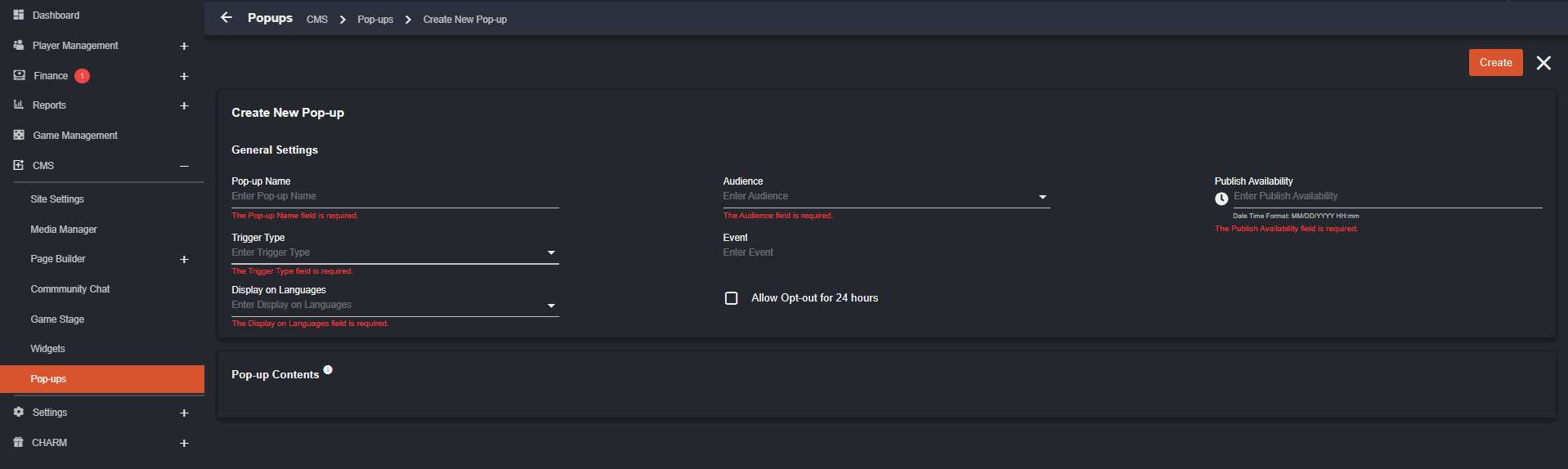
- Only 1-50 characters and a combination of alphanumeric, dash, and space are allowed in generating Pop-up Name and Pop-up Title. Note that Pop-up Name should be unique. An error will appear if pop-up name already exists.
- Only English and Korean are the languages accepted.
How Players See Pop-ups
The pop-ups appearance varies on the settings made by the backoffice user. One of the factors is the Audience. The Audience settings has three categories mainly: All, Public, and Registered.- All – when the audience is set to All, all registered and non-registered players who access the website can see the pop-ups.
*Pop-up appearance will be based on the Event set by the backoffice user (OnPageLoad or AfterLogout) - Public – pop-ups will only appear to non-registered players accessing the website.
*On Event Settings can be OnPageLoad or AfterLogout. - Registered – pop-ups wll appear to existing and new players accessing the website.
*On Event Settings can be OnPageLoad, AfterLogin, and AfterRegistration.
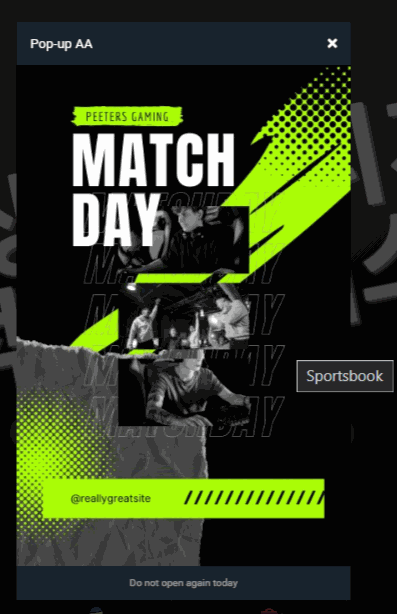
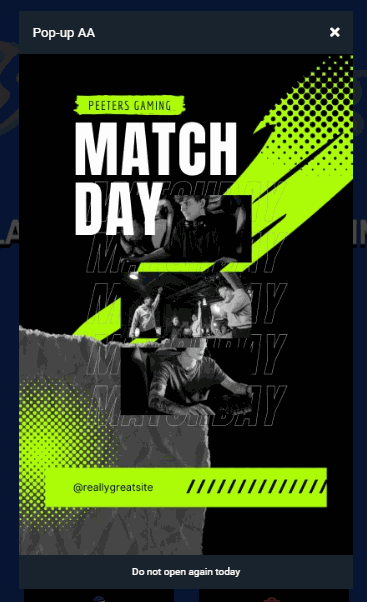
Pop-up Name: Popup test AA
Audience: All
Event: OnPageLoad
Frequency: OncePerSession
Target Window: Parent
Link Type: Internal Page: Sportsbook Allow Opt-out for 24hrs: checked If I reload/log in, Popup AA will not appear again since frequency is only set to OncePerSession.
 The two pop-ups below have “Do not open again today” button except for Popup AB.appear
If “Allow Opt-out for 24hrs” is unchecked in the backoffice, “Do not open again today” button will not appear.
The two pop-ups below have “Do not open again today” button except for Popup AB.appear
If “Allow Opt-out for 24hrs” is unchecked in the backoffice, “Do not open again today” button will not appear.
 If checked, “Do not open again today” button will appear.
 If “Do not open again today” button is clicked, the pop-up will not appear every time the player gets into the site for 24hrs.
- The player can also manually remove the pop-ups by clicking “X.”
 B. Logged in
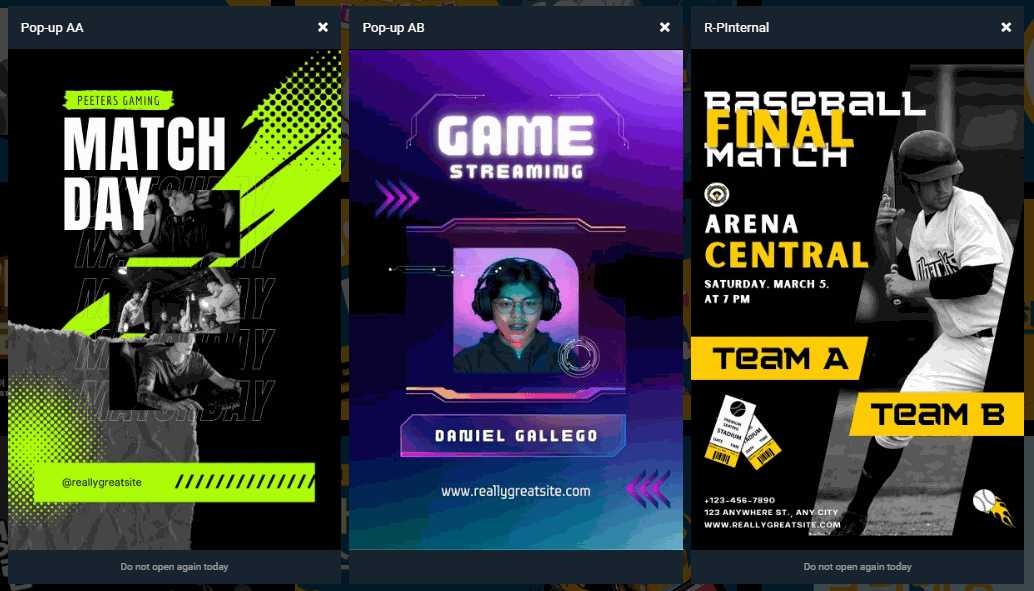
Popup Name: Pop-up AA, Pop-up AB, R-PInternal
B. Logged in
Popup Name: Pop-up AA, Pop-up AB, R-PInternalAudience: All, Registered, Registered
Event: OnPageLoad
Frequency: OncePerSession, OncePerSession, EveryPageLoad
Target Window: Parent, NewTab, Parent
Link Type: Internal In the image above, I logged in and clicked Promotions page, If the player clicked Popup AA, it will open the content of the pop-up in the Parent tab where the player is accessing the website but will be redirected to Sportsbook page. If External, the URL will be accessed on the same page unless the Target Window is set to New Tab. Popup AB is set to appear on SelectedPages only. In this case, this will appear when signed in users clicked Promotions. Once clicked, this pop-up will open in a NewTab and only appear once. R-PInternal will appear on EveryPageLoad. Compared to the OncePerSession, R-PInternal will appear every time the site reloads. Once clicked, will open the BTI Sportsbook Rules or what is set in the pop-up settings. * If I signed out and the page reloads, R-PInternal will not appear even if it is set on EveryPageLoad since this is only applicable to Registered players. Signed out users are counted as All or Public. Notes:
- Pop-ups may include contents for announcements, promotional offers, advertisements, or contents made by the operator to appear and inform the players.
- Pop-ups will come out recurrently in accordance with the pop-up settings made by the backoffice user.
- The player must close them individually before they continue browsing the website.
- Players can click the “Do not open again today” button to refrain from seeing them again for 24hrs.
- Pop-up appears at the center when on website while stacked pop-ups on mobile.
- Individual Pop-up Dimension: 400px x 600px or 100:150 ratio