Dashboard
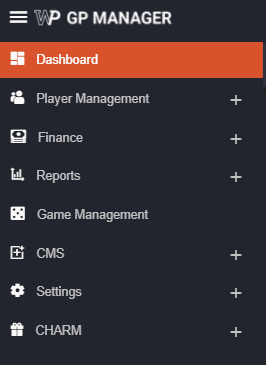
The Dashboard contains a brief summary of necessary information regarding your operational activity, financials, and performance over a certain time period. To get started on viewing the Dashboard follow these instructions:- Once logged in, on the upper left portion of the BO, you will see a menu that houses all sections available in the BO site. Click on the first option Dashboard.
- It should bring you to an empty page with buttons that indicate a certain time period and a custom option that lets you set up which time period you would prefer; Select any of the options:

- Once a time period has been selected, BO will generate a summary of various information to you which will be available for your viewing.
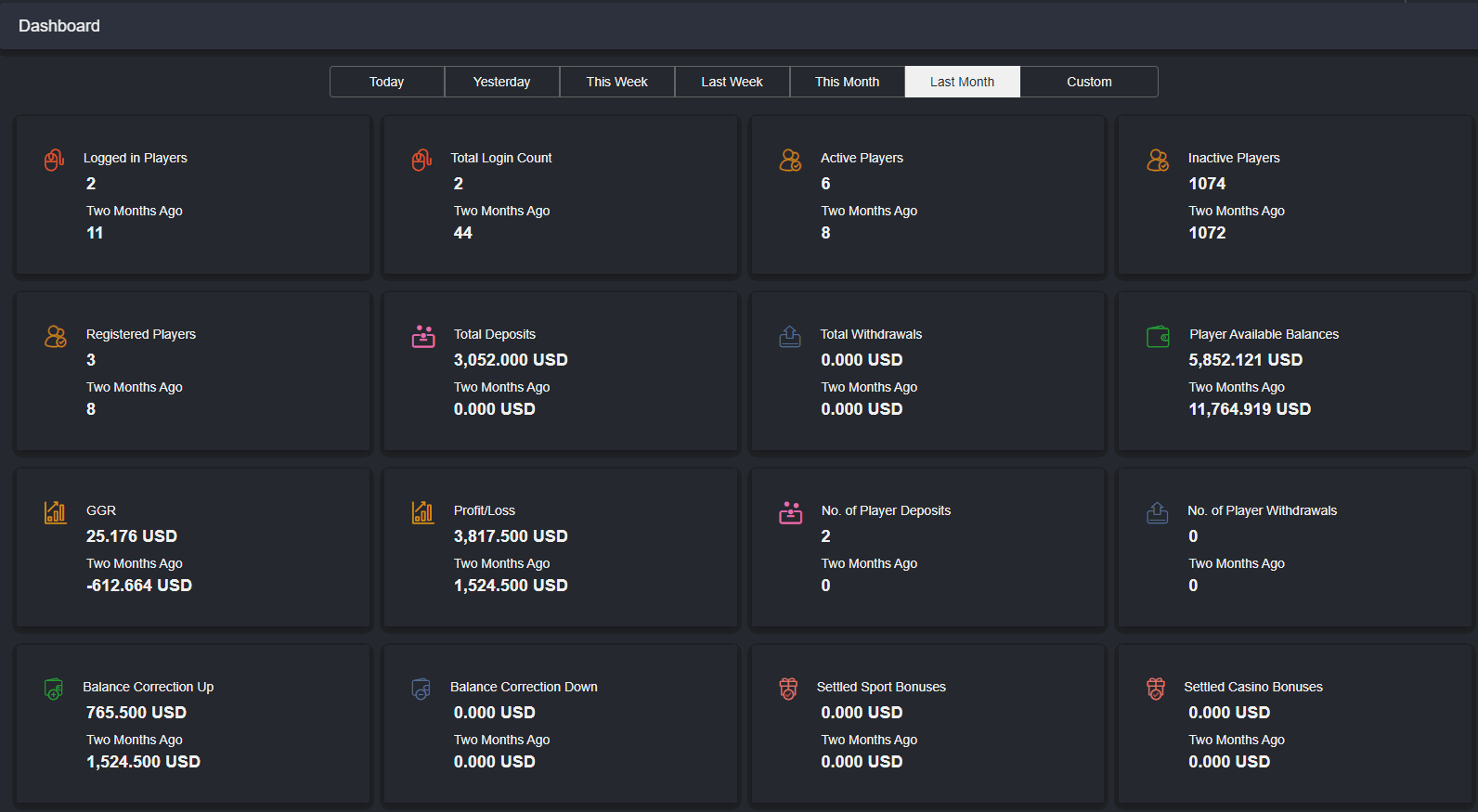
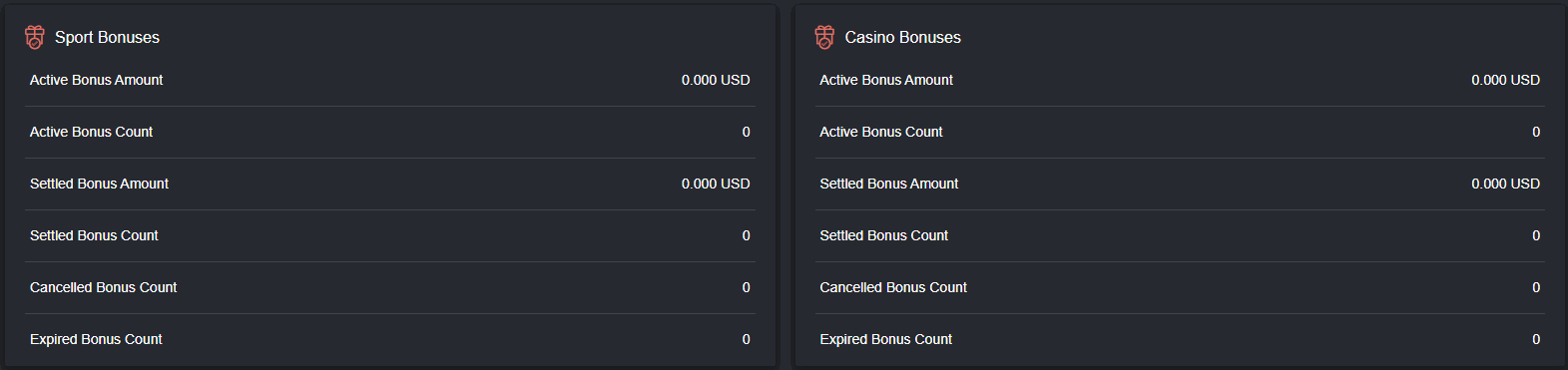
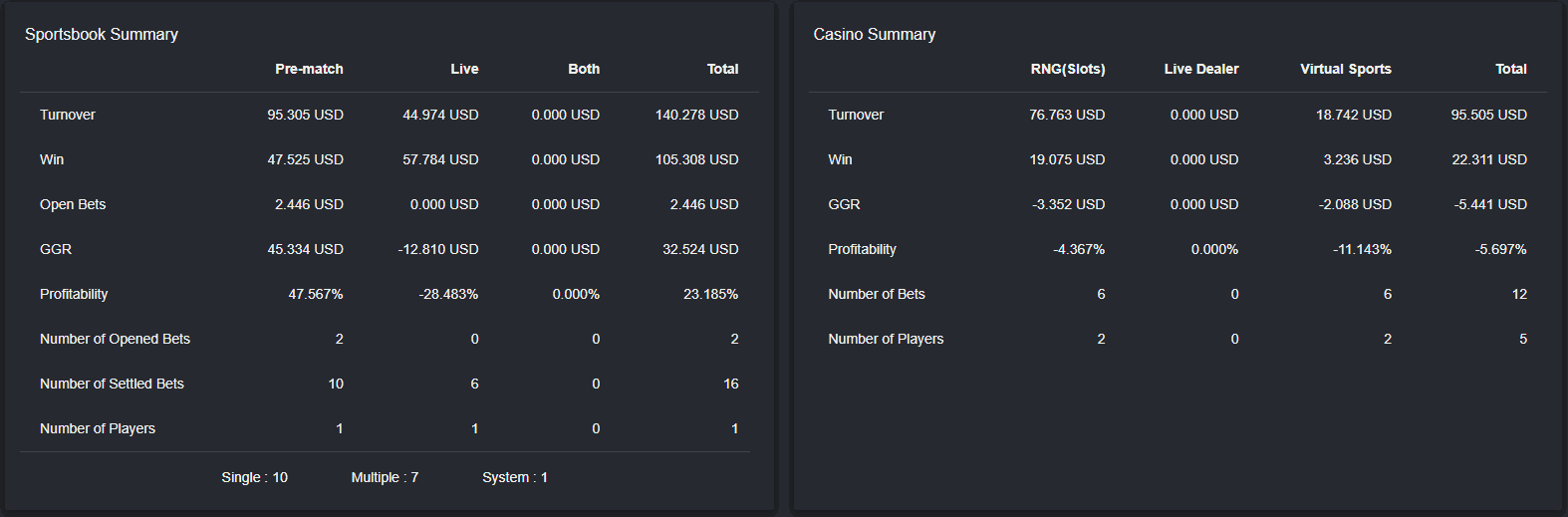
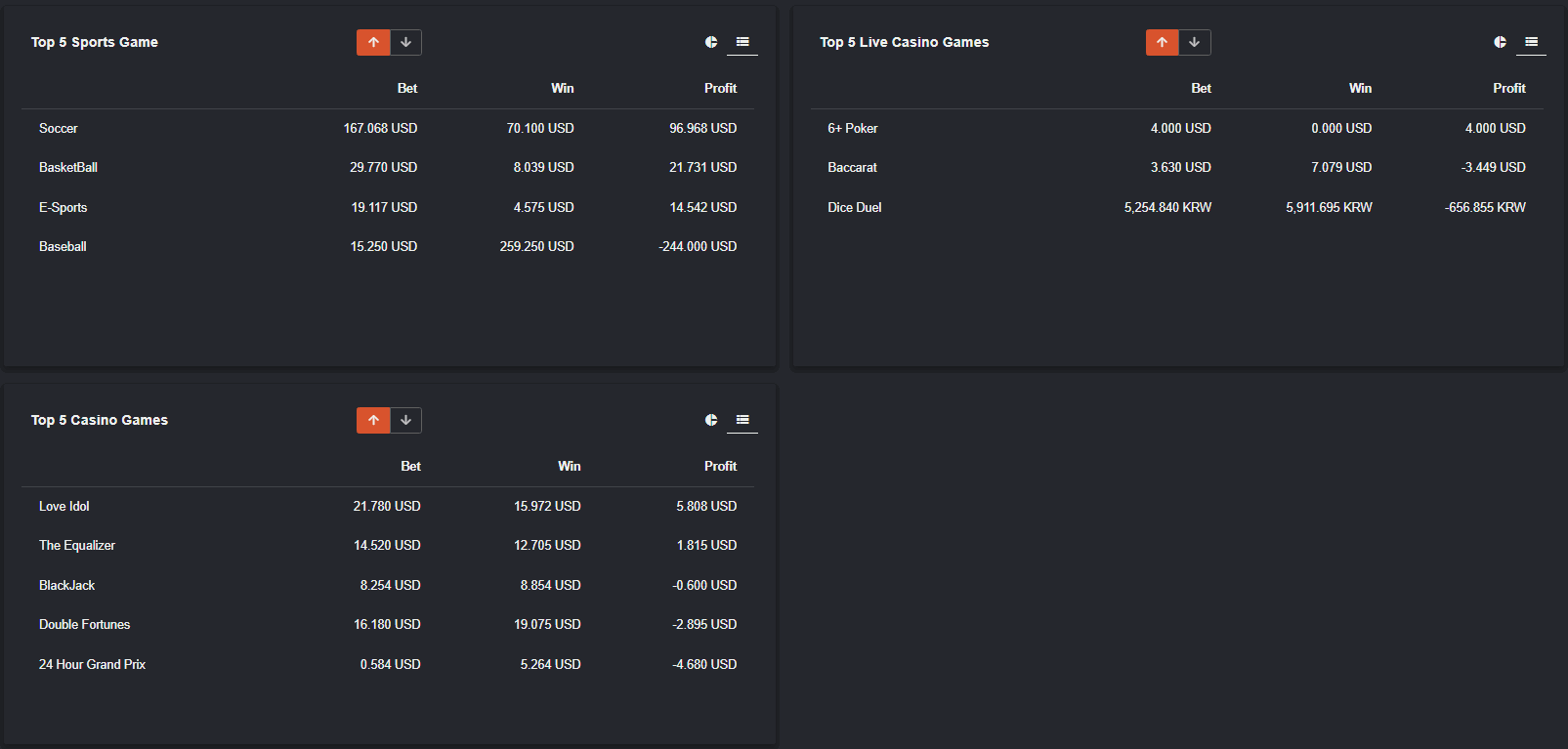 *Various information such as player activity, financial flows, profit/loss, and various game-related summaries will be presented to the user. This should be helpful for a quick summary of important information that a Backoffice user will need.
**The fields will always show your current selection and a point of comparison corresponding to your selection.
Example:
a. If you set “Today”, it will show today and yesterday
b. If you set “Yesterday”, it will show yesterday and two days ago
c. If you set “This Week”, it will show this week and last week
d. If you set “Last Week”, it will show last week and two weeks ago
e. If you set “This Month”, it will show this month and last month
f. If you set “Last Month”, it will show two months ago
***When using “Custom” for the date field make sure to click on a start date and an end date:
*Various information such as player activity, financial flows, profit/loss, and various game-related summaries will be presented to the user. This should be helpful for a quick summary of important information that a Backoffice user will need.
**The fields will always show your current selection and a point of comparison corresponding to your selection.
Example:
a. If you set “Today”, it will show today and yesterday
b. If you set “Yesterday”, it will show yesterday and two days ago
c. If you set “This Week”, it will show this week and last week
d. If you set “Last Week”, it will show last week and two weeks ago
e. If you set “This Month”, it will show this month and last month
f. If you set “Last Month”, it will show two months ago
***When using “Custom” for the date field make sure to click on a start date and an end date:
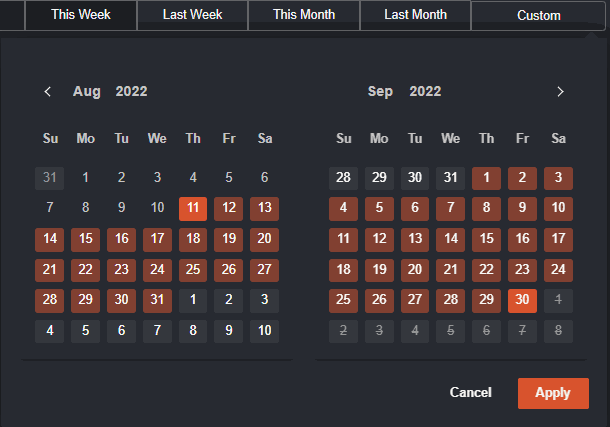 The custom field can only go back to a maximum of 3 months.
Dashboard: Financial Reports
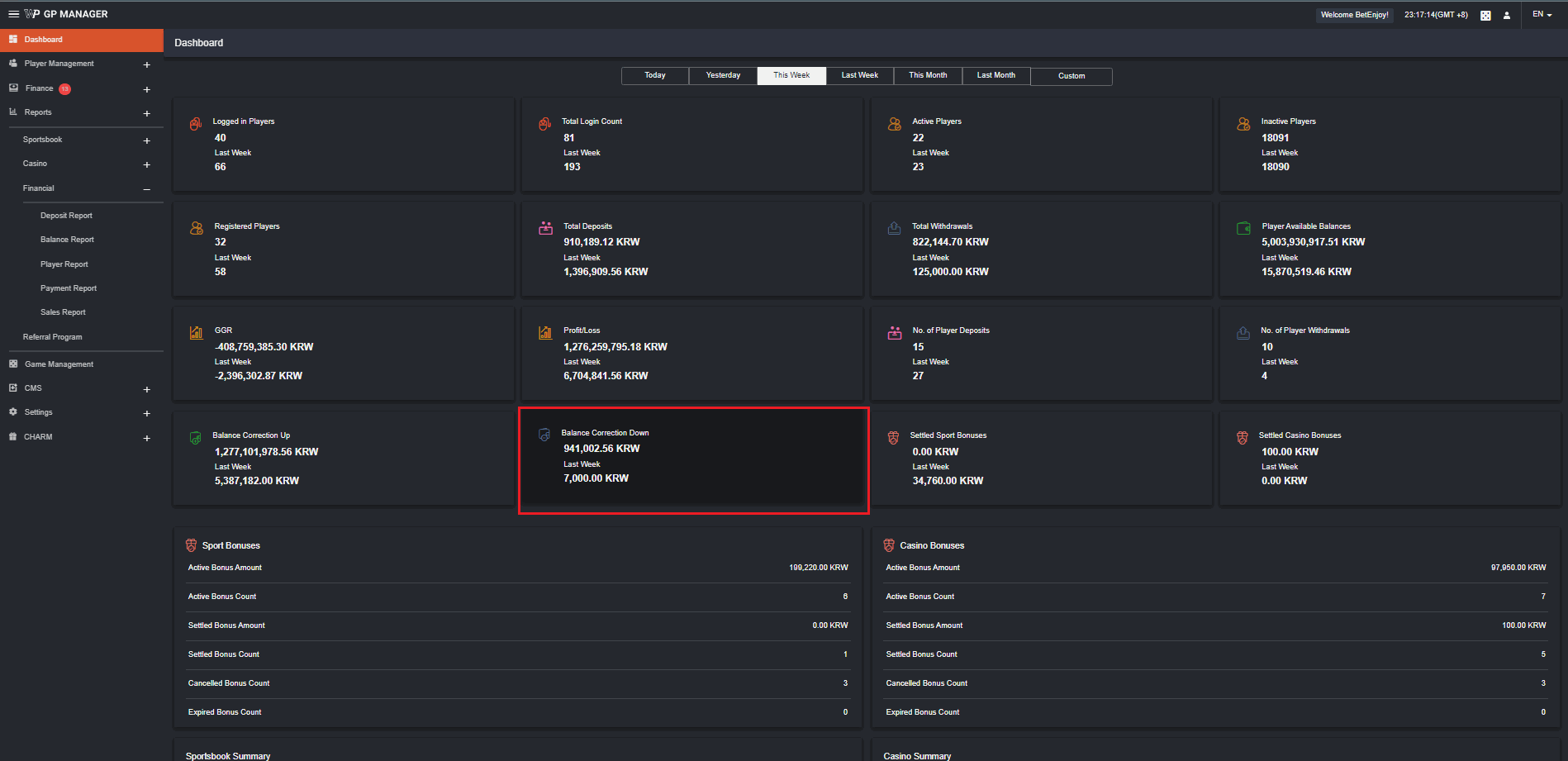
The dashboard provides you, the Backoffice user, with an overview of all operational activity, player logs and financial reports during a specific period of time. In dashboard, highlighted cards are clickable cards. Check out the guide below for ideas on how they work.- “Filter:On” will automatically show including the details of the filer set from Dashboard.
- Columns with the
 symbol can be sorted. Click the sort symbol to see the arrows representing the ascending (↑) and descending (↓) order of the value.
 - This
 icon will appear which signifies a movable column.
- Dashboard details will appear when the Backoffice user selects the date. Once Total Deposits card in the dashboard is clicked, it will route you to Deposit Report instead of clicking Reports > Financial > Deposit Report.
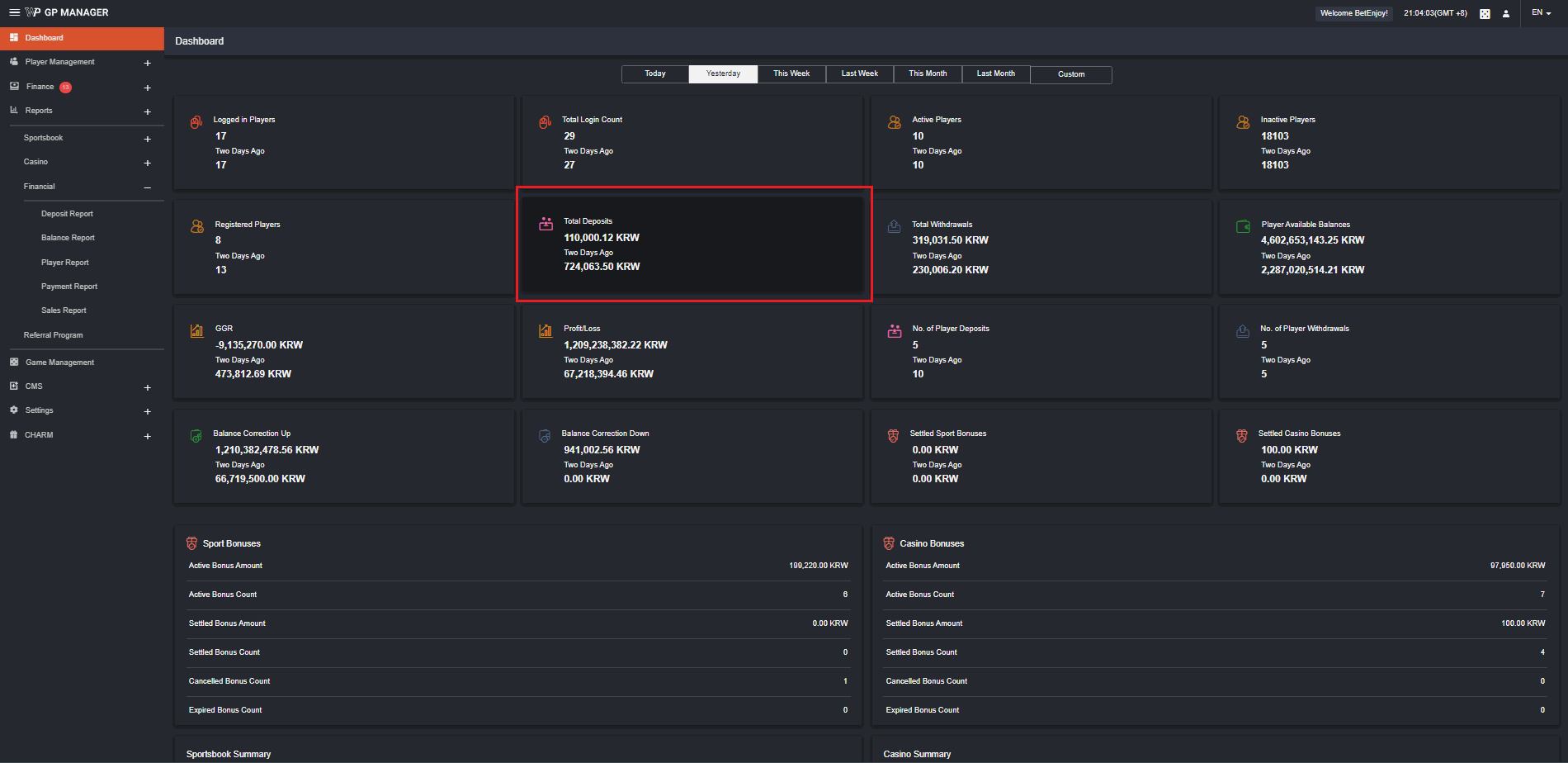
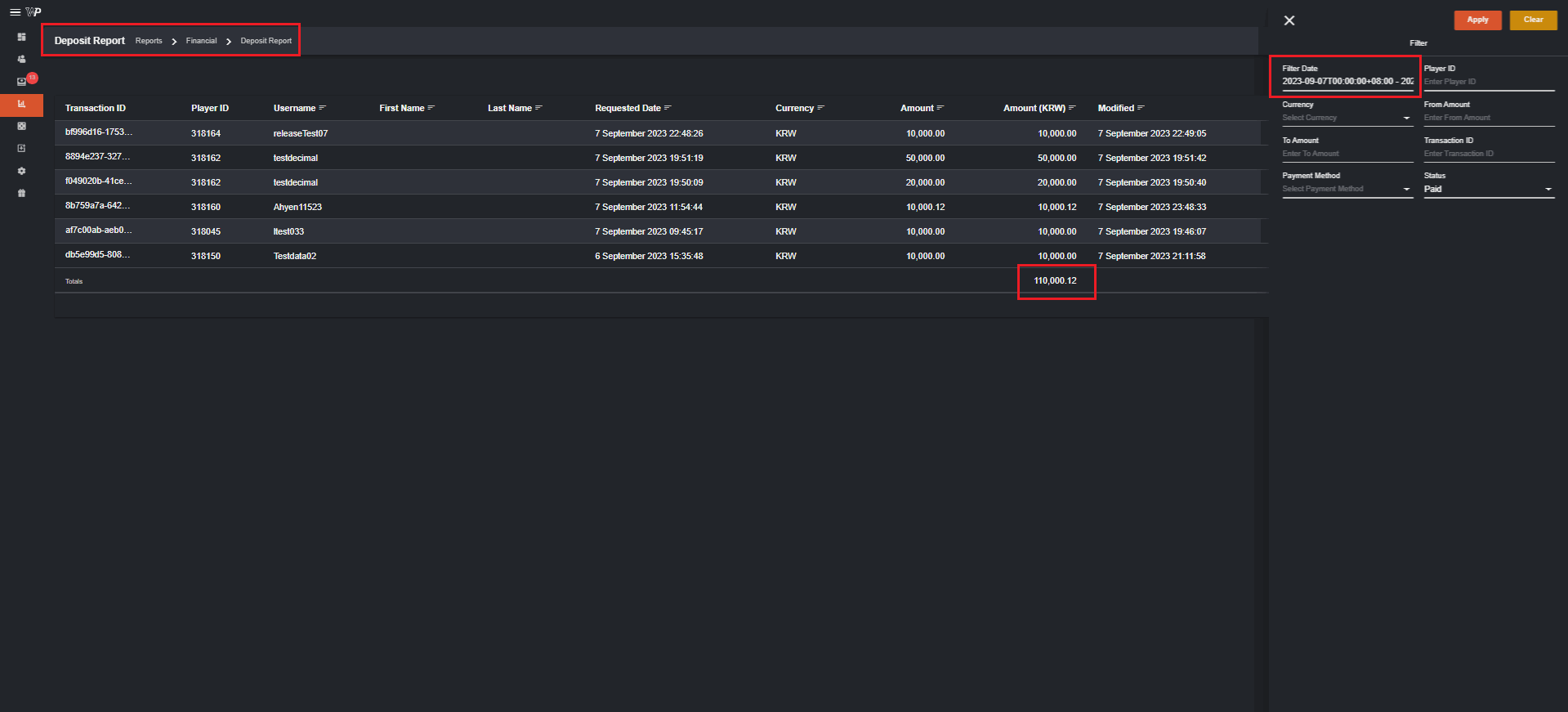 Deposit Report Filter should be ON and the details will appear. When you click Filter, you can see that you are in your selected date.
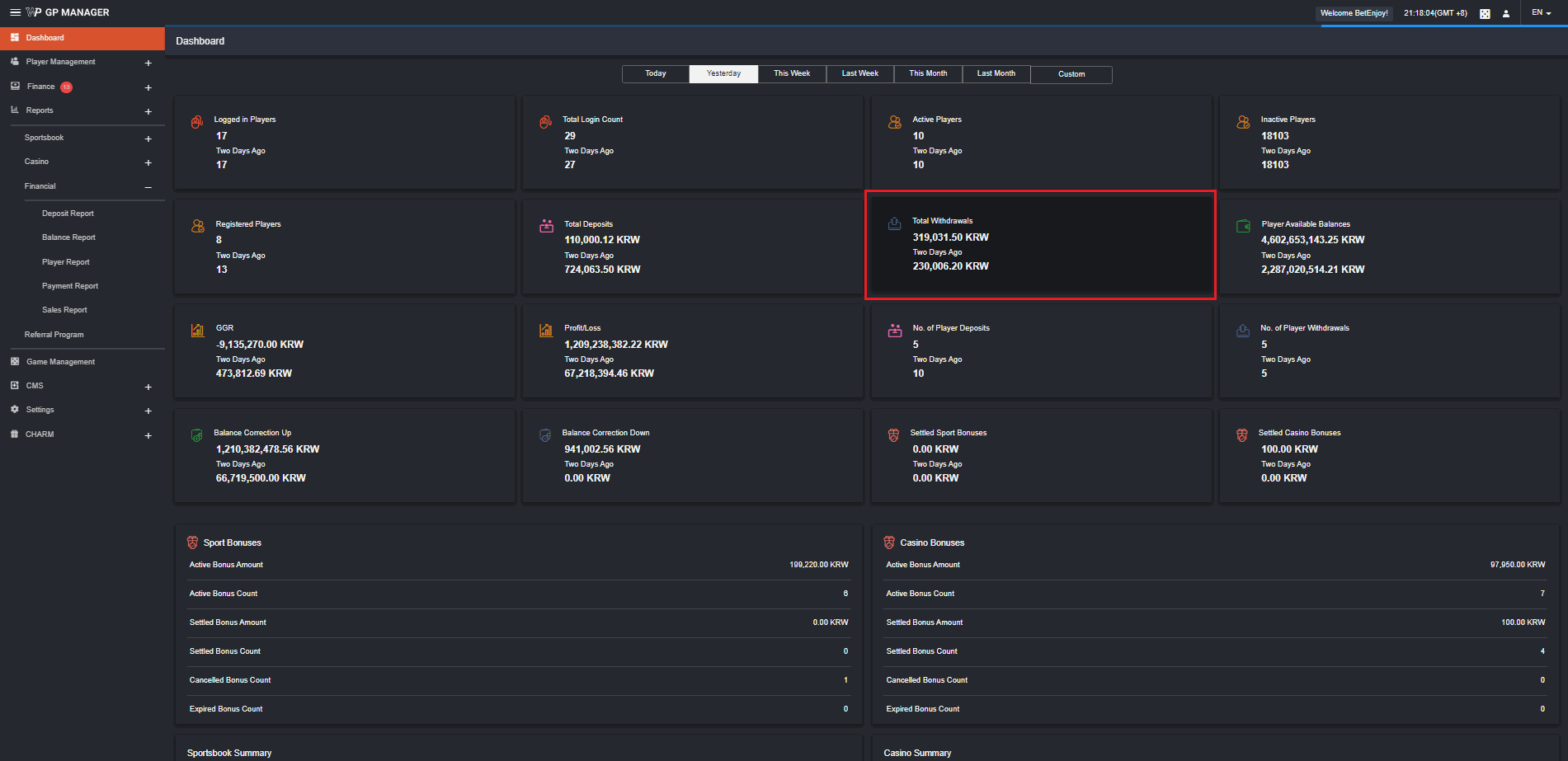
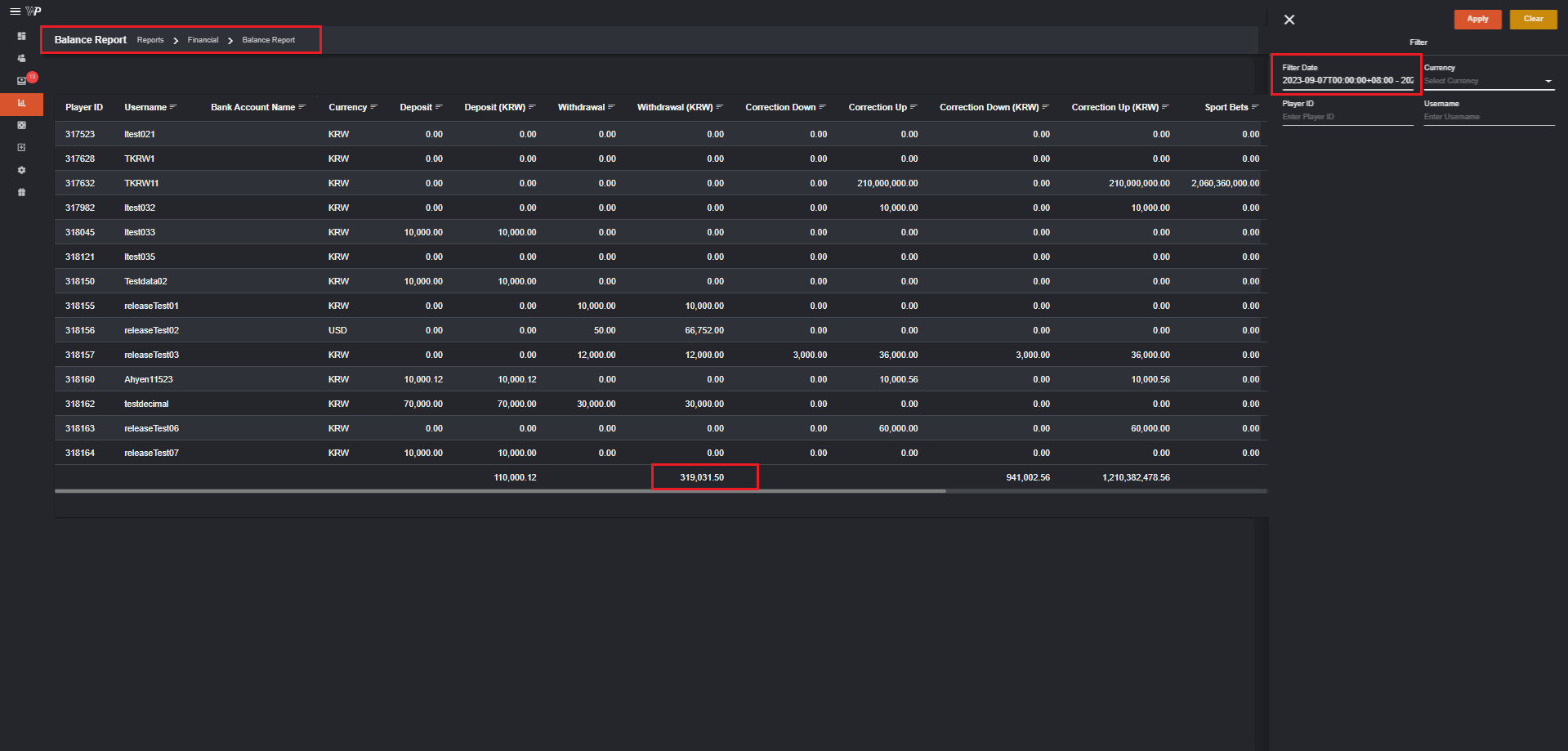
Total Withdrawals
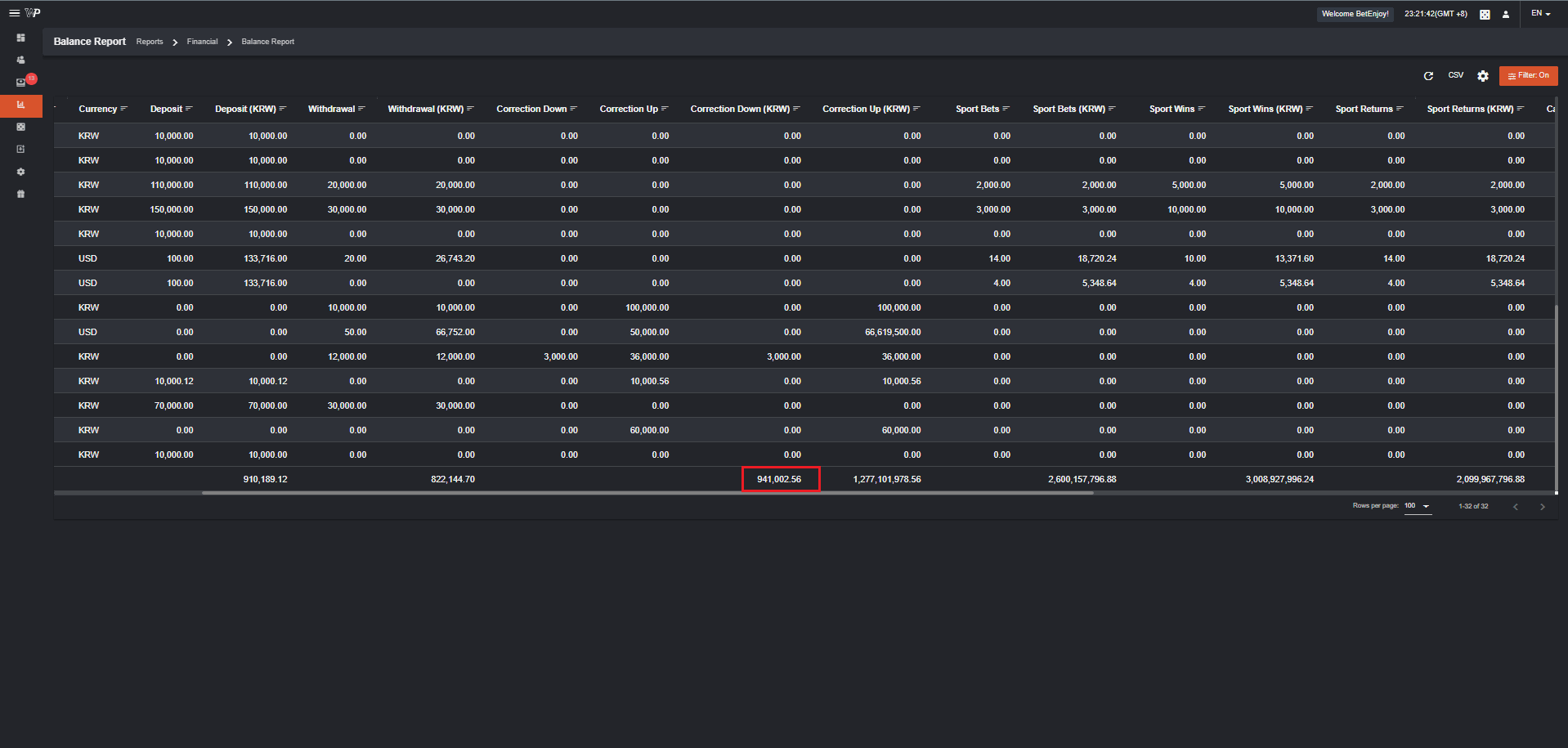
Like Deposit Report, you can also click on the Total Withdrawals card to be redirected to Financial Balance Report.
Deposit Report Filter should be ON and the details will appear. When you click Filter, you can see that you are in your selected date.
Total Withdrawals
Like Deposit Report, you can also click on the Total Withdrawals card to be redirected to Financial Balance Report.
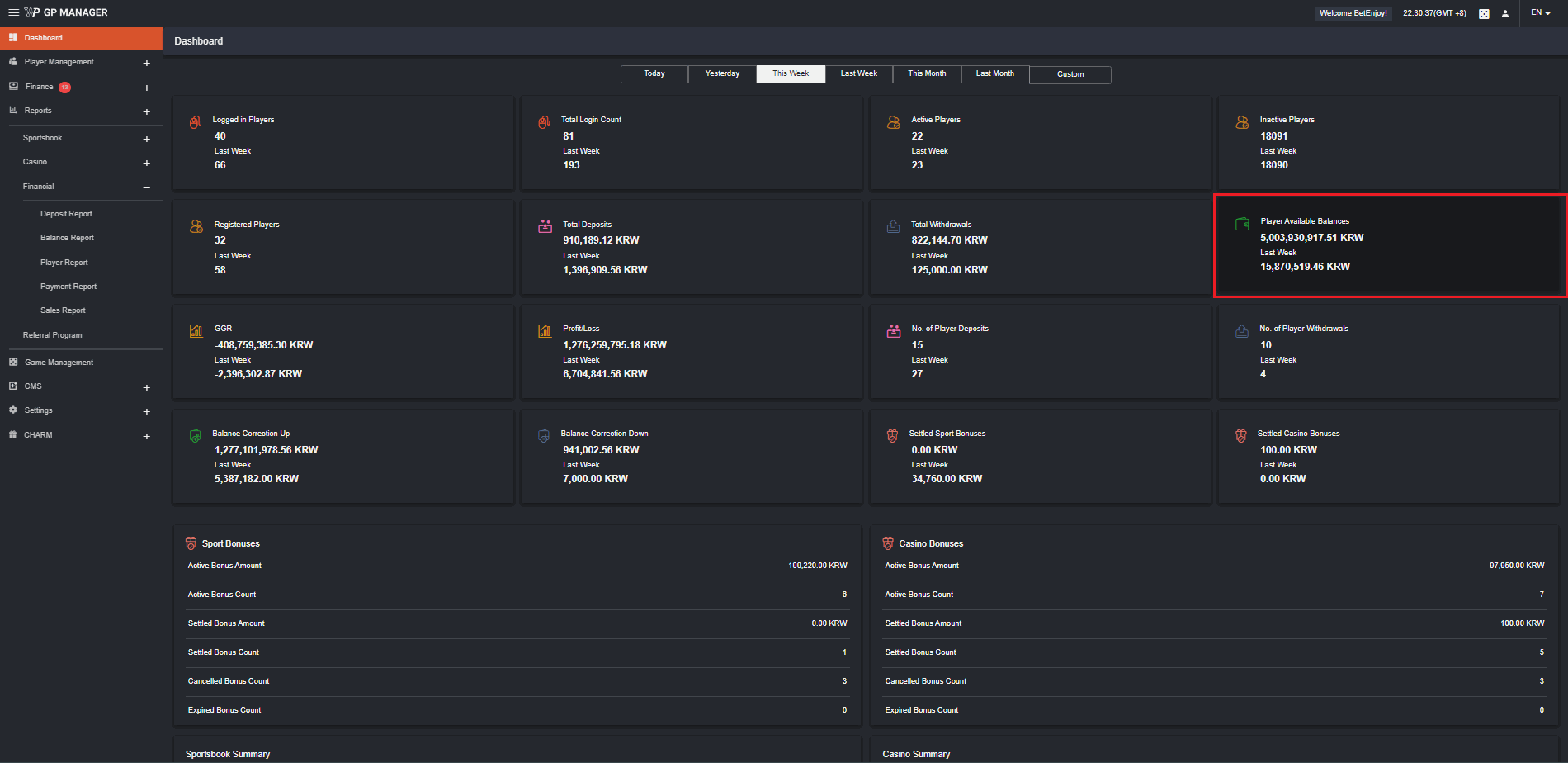
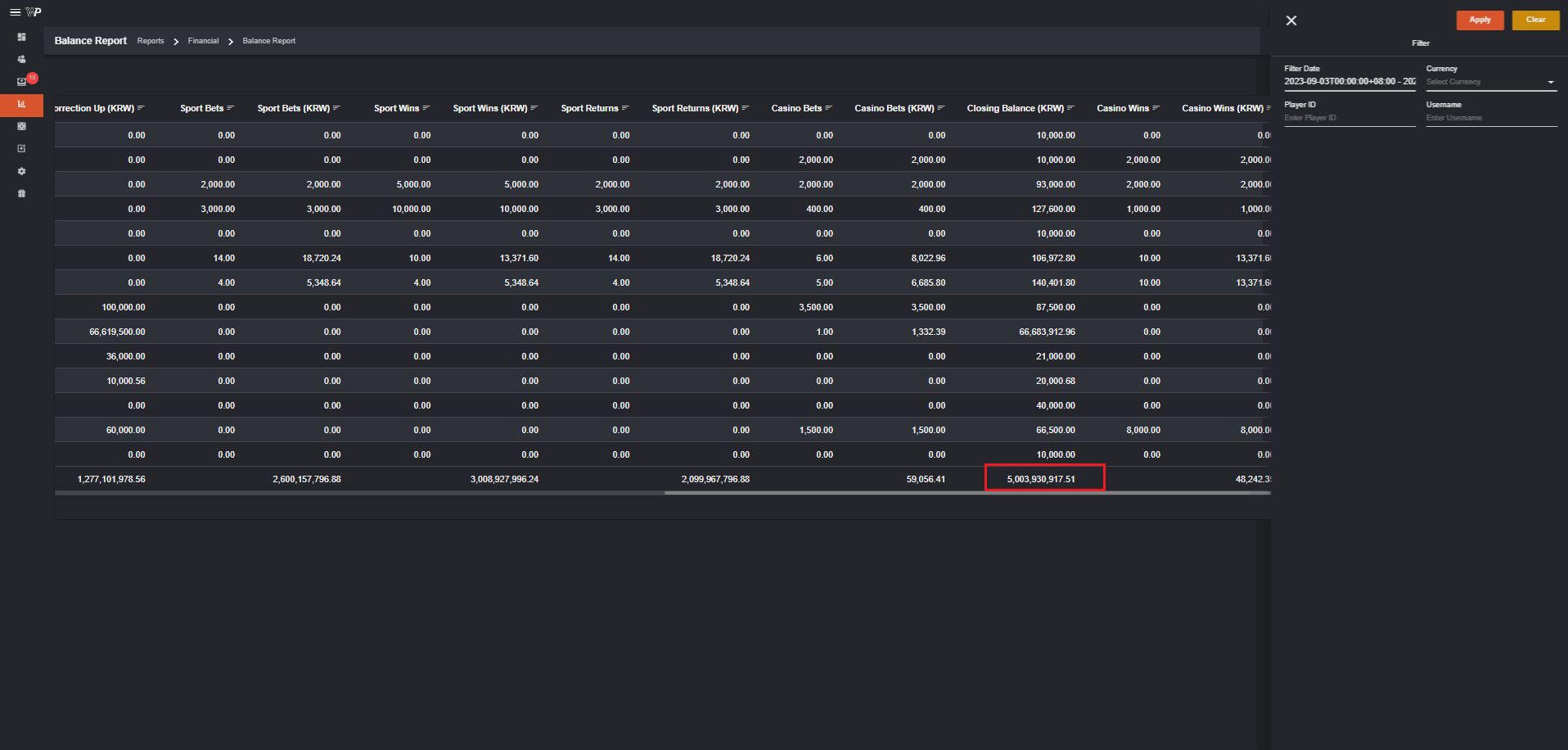
 Player Available Balances
- Refers to the amount of money remaining in the players account within a selected time frame.
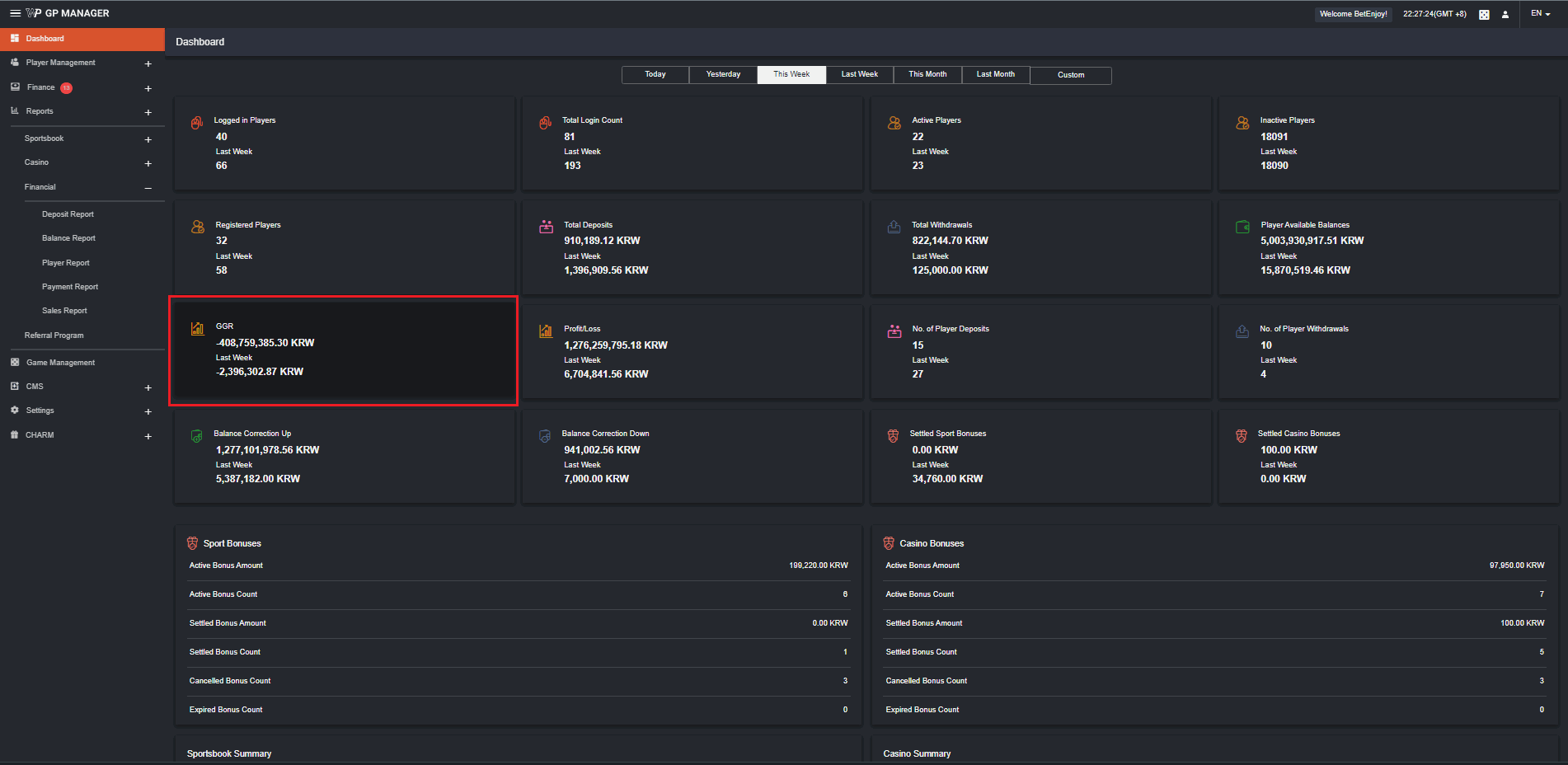
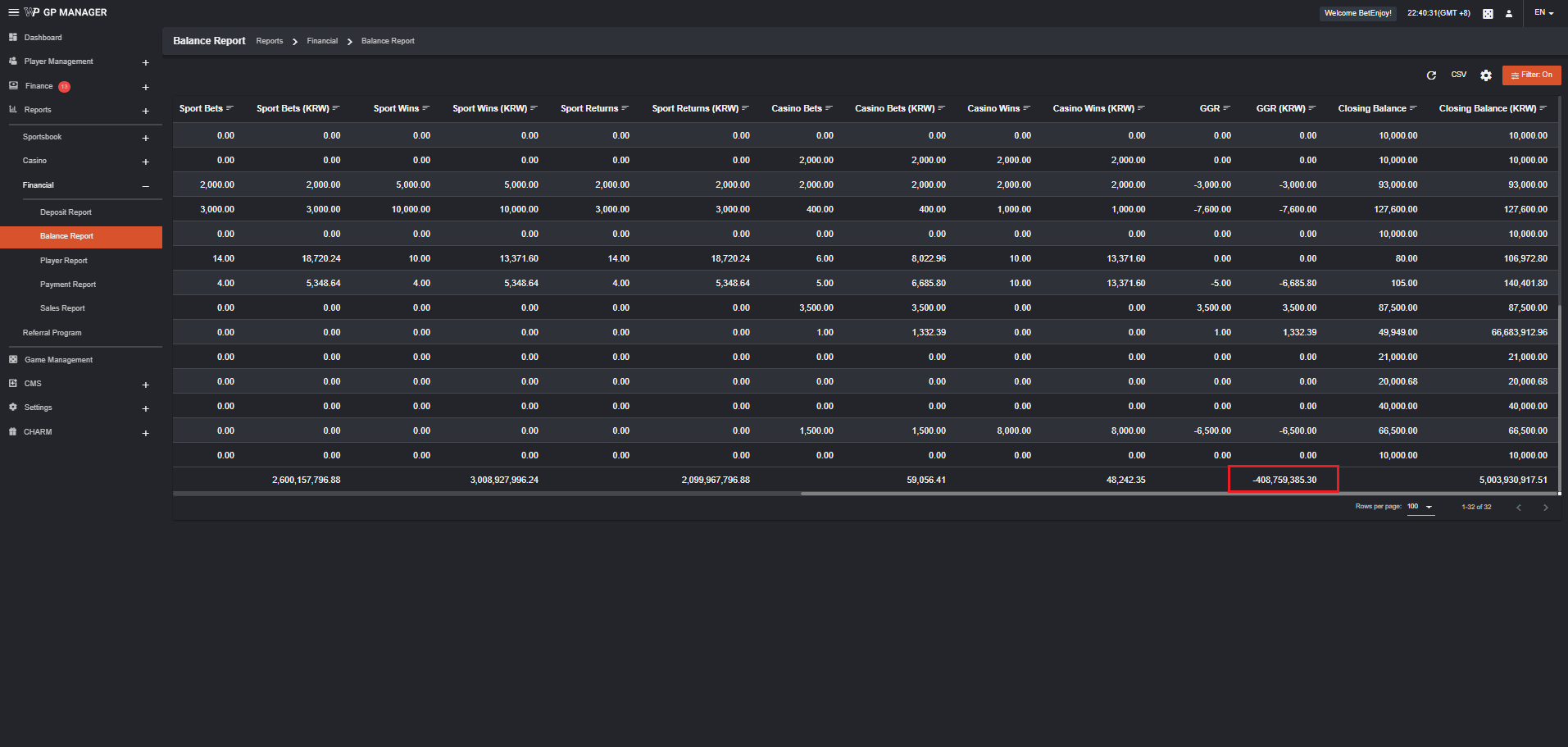
 GGR
Gross Gaming Revenue is used by game merchants as a key indicator to determine the success of their business and determine whether their business strategy needs to be modified.
GGR
Gross Gaming Revenue is used by game merchants as a key indicator to determine the success of their business and determine whether their business strategy needs to be modified.
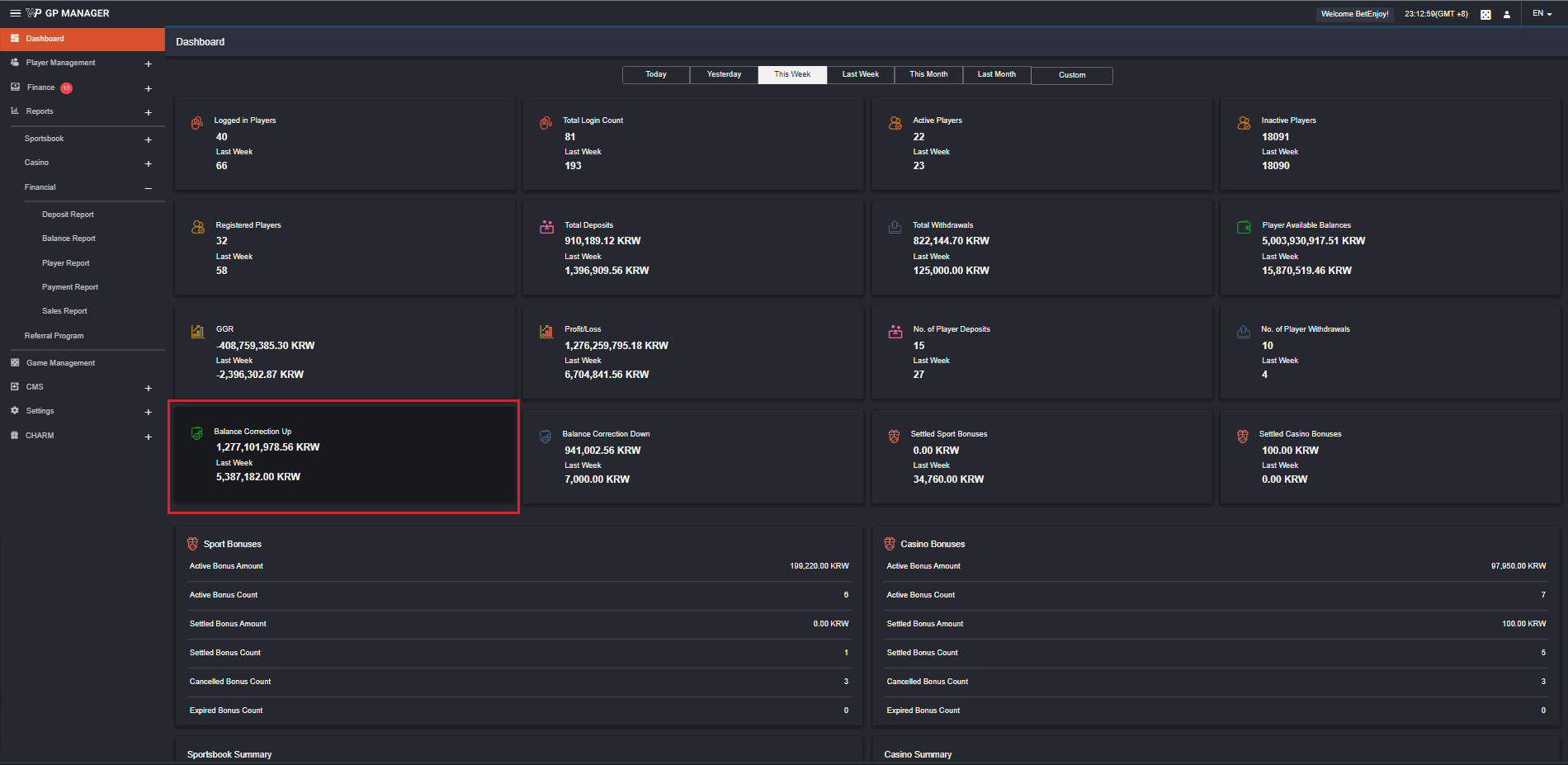
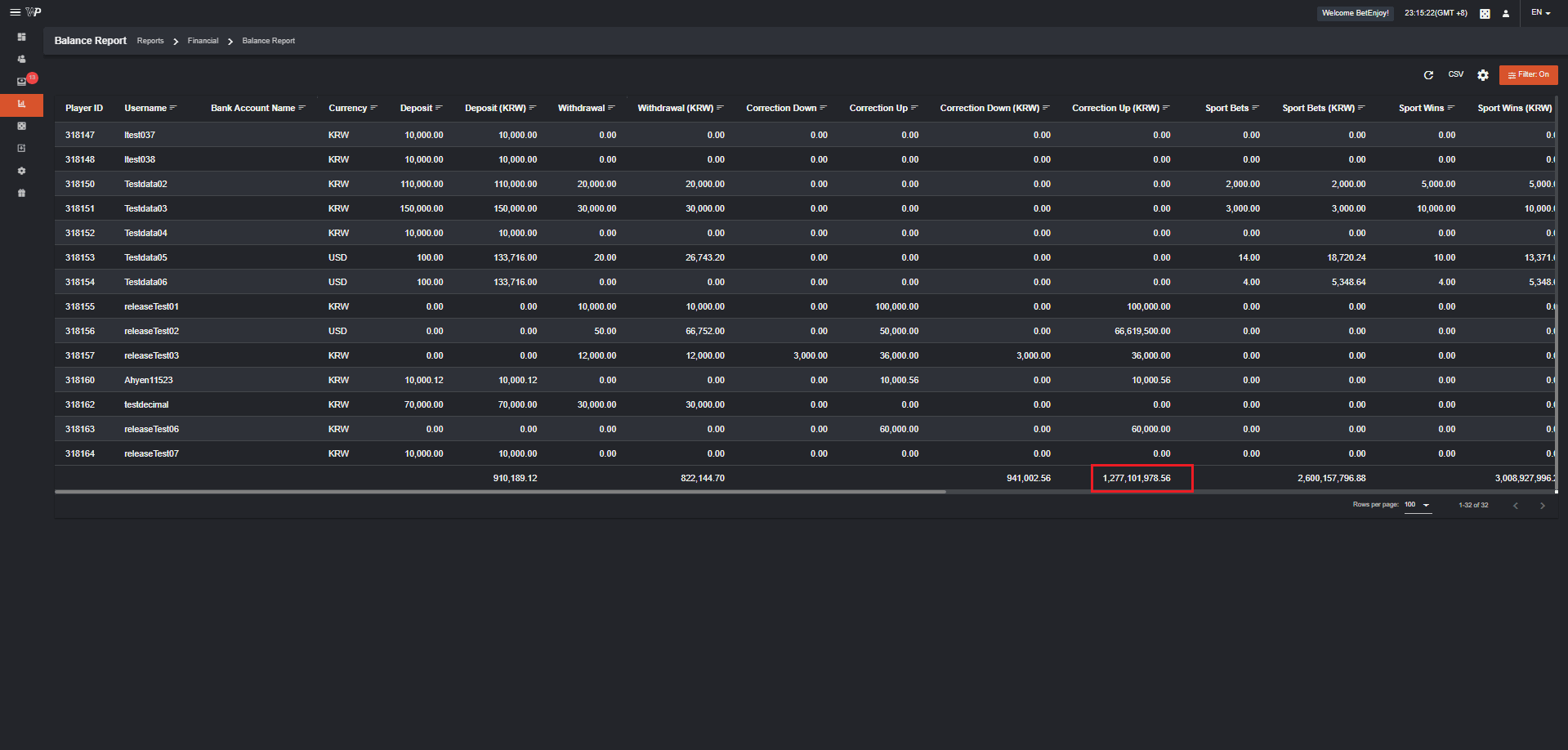
 Balance Correction Up
- Refers to the sum of all amount manually credited to the players.
 Balance Correction Down
- Refers to the total amount manually debited to the players.
 To see introduction about the Dashboard, please refer to: Dashboard
Metrics Dashboard
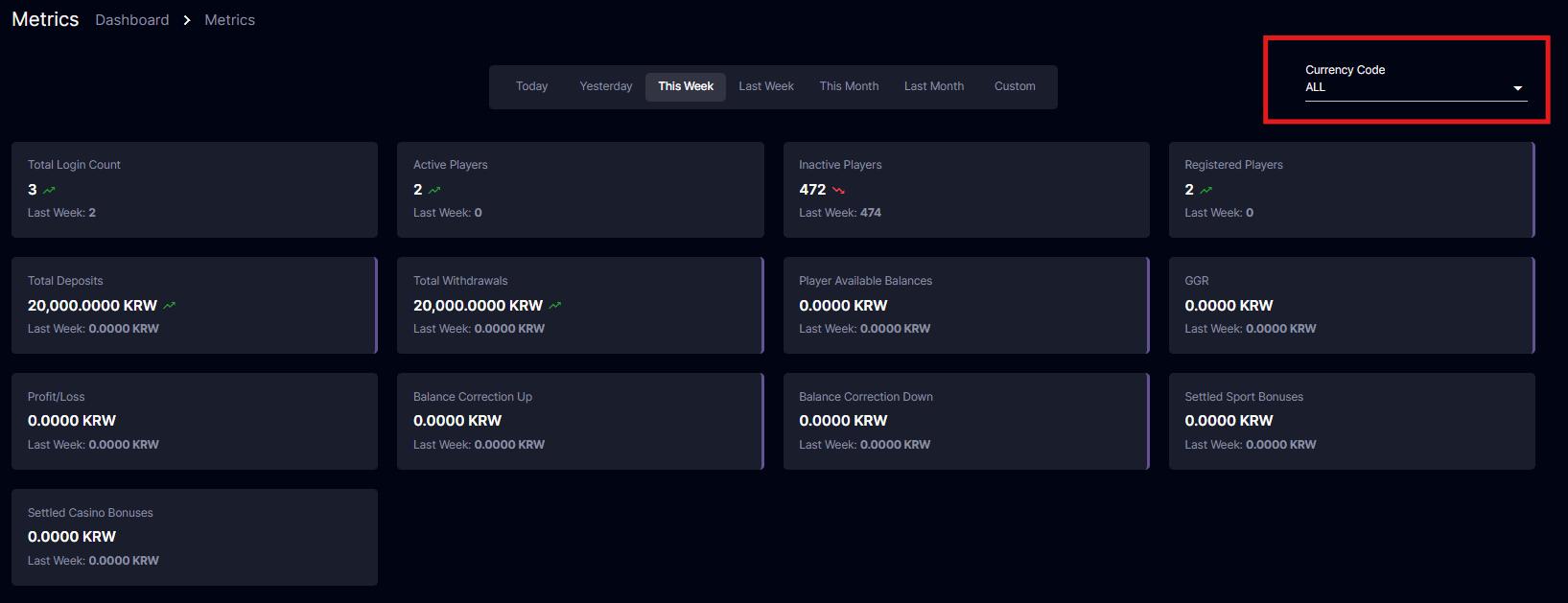
Here is the updated version of the Dashboard in the backoffice for SingleCurrency and MultiCurrency. Navigation: Settings > User Management > Select a user > Individual Permissions > Dashboard
If ‘Not Permitted’ is selected, Metrics will not be visible in the Dashboard dropdown.
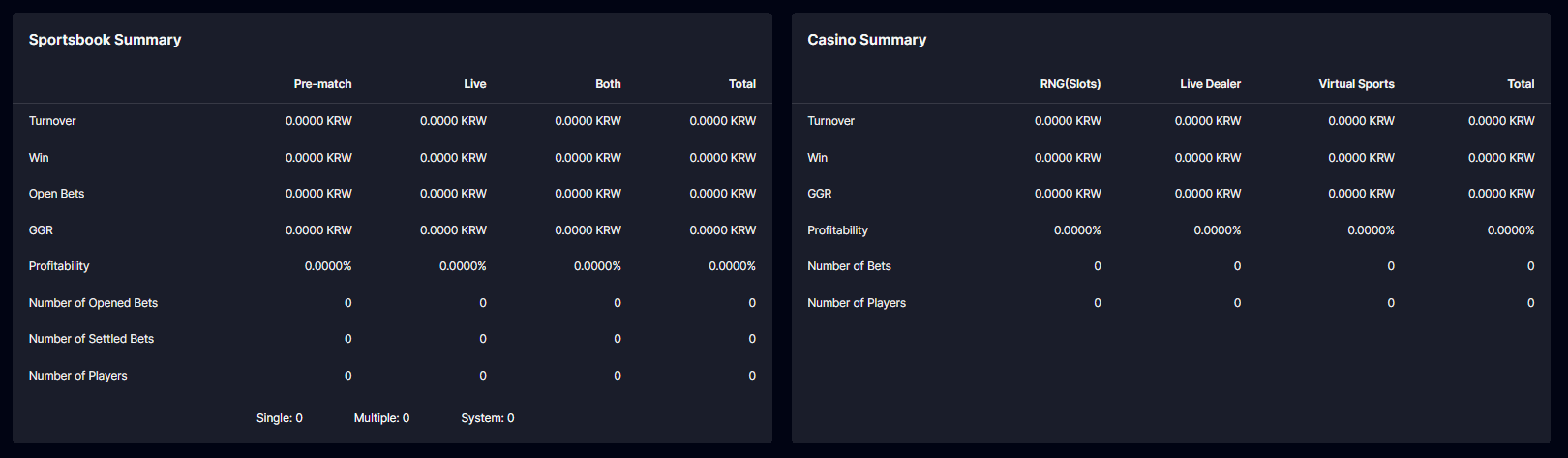
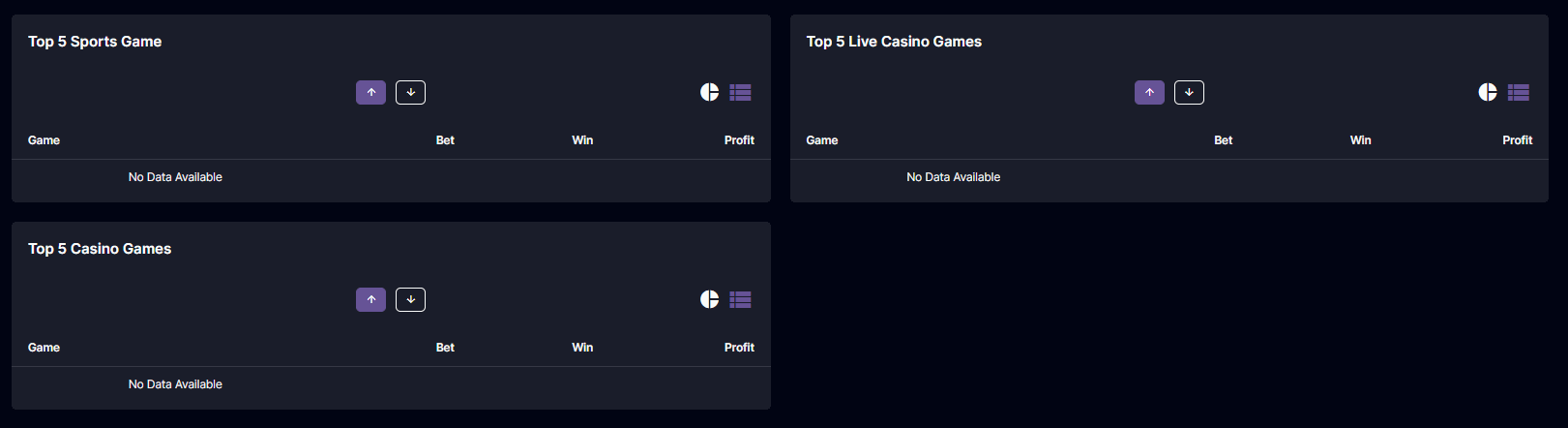
Single-Currency:
- Metric Count: Based on the selected currency only.
- Transactions: If there is no transaction in the Selected Currency it will show zero or no transactions.
- Active Players: Count of active players based on the selected currency.
- Currency Code: When the currency code is changed, the card metrics will change based on the currency selected.
- All View: Combines all the currencies and shows them in the base currency and it will show the breakdown of data.
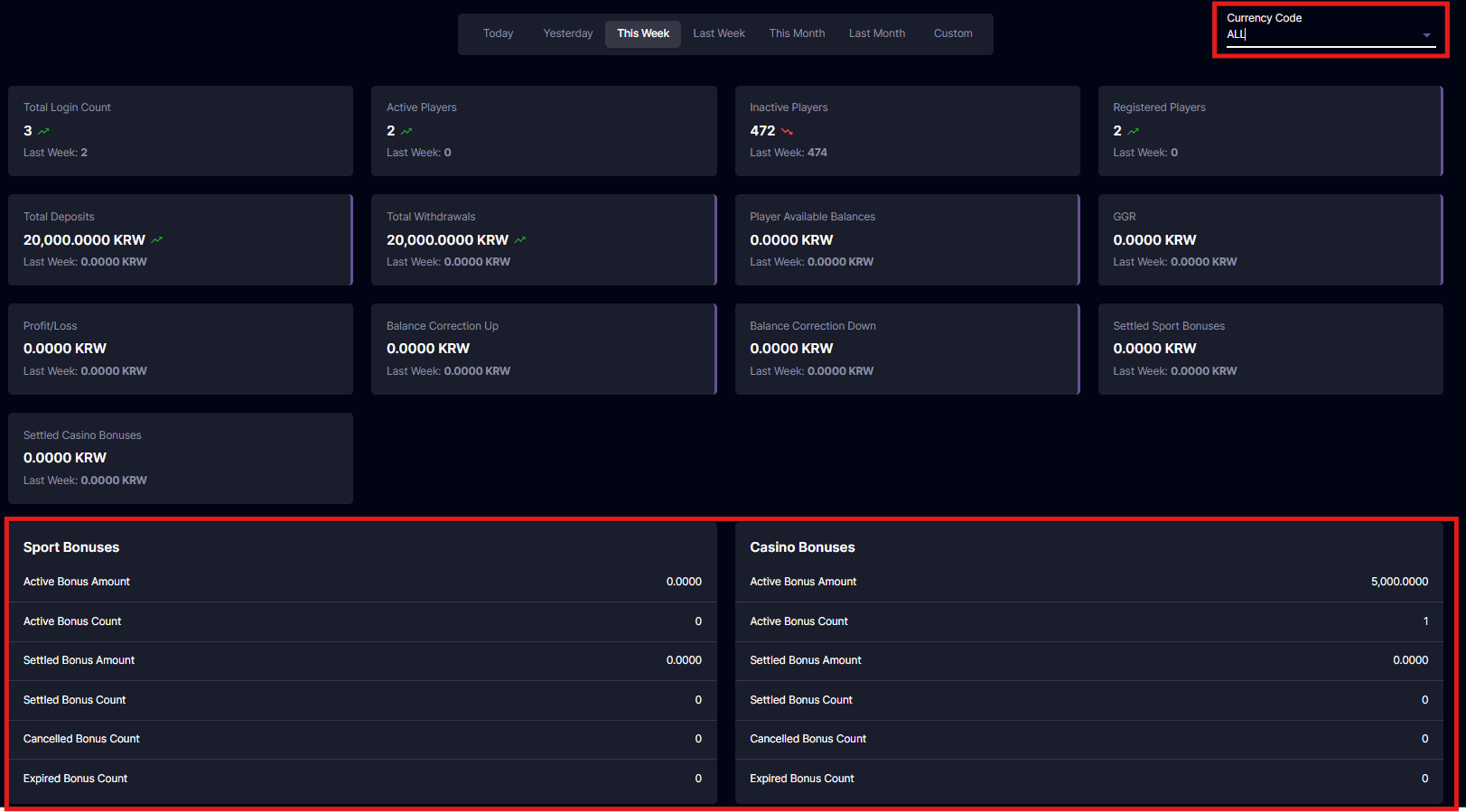
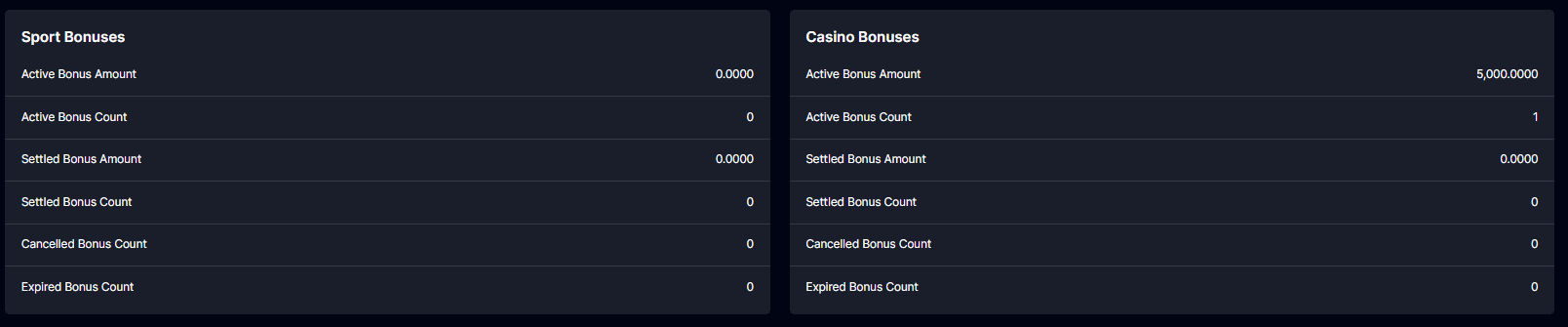
Note that from Sports Bonus and below, the details will only be displayed once ALL is selected. Filtering per currency selection of these will be applied in the next deployment.
Multi-Currency:
- Metric Count: Based on the selected currency only.
- Transactions: If there is no transaction in the Selected Currency it will show zero.
- Active Players: It is multi-currency therefore the count of the Active Players will not be filtered based on the selected currency because a player can use multiple currencies.
- Currency Code: When the currency code is changed, the card metrics will change based on the currency selected.
- All View: Combines all the currencies and shows them in the base currency. It will also show the breakdown of transactions based on the base currency of the operator.
- When the operator selects the “ALL” filter, the table will display data in the base currency (e.g., USD) along with a summary of the base currency. If the operator selects the USD filter, the table will show the summary of data under USD, as it is the operator’s base currency.
Conversion
- The currency conversion will be based on the exchange rate at the time the bet is placed. This means the rate used will correspond to the moment the bet is made.
All
This will introduce the selection that combines metrics in all enabled currencies into a unified view.- Total Metrics: It will display all the combined values of the currencies converted to the operator’s base currency.
- Bet Placement: When the bet is placed, the conversion and exchange rate are saved during the bet placement, which means that the exchange rate at the time of the transaction is recorded.
- Count Metrics: It will display the total counts in all of the transactions regardless of the currency.
- The Currency Code option appears at the top of the currency dropdown for quick access to the consolidated view. Selecting it will replace all single-currency views.
Player Analytics Dashboard
This feature will allow the backoffice user to view an overview of players’ performance during a selected period. You can filter the time range you want to see what happened in the players’ performance. To access the Player Analytics Dashboard, go Settings > User Management > Select your username > Scroll to Individual Permission > Dashboard > Player Analytics. If ‘Not Permitted’ is selected, Player Analytics will not appear in the dropdown of the Dashboard menu. Navigation: Dashboard > Player Analytics
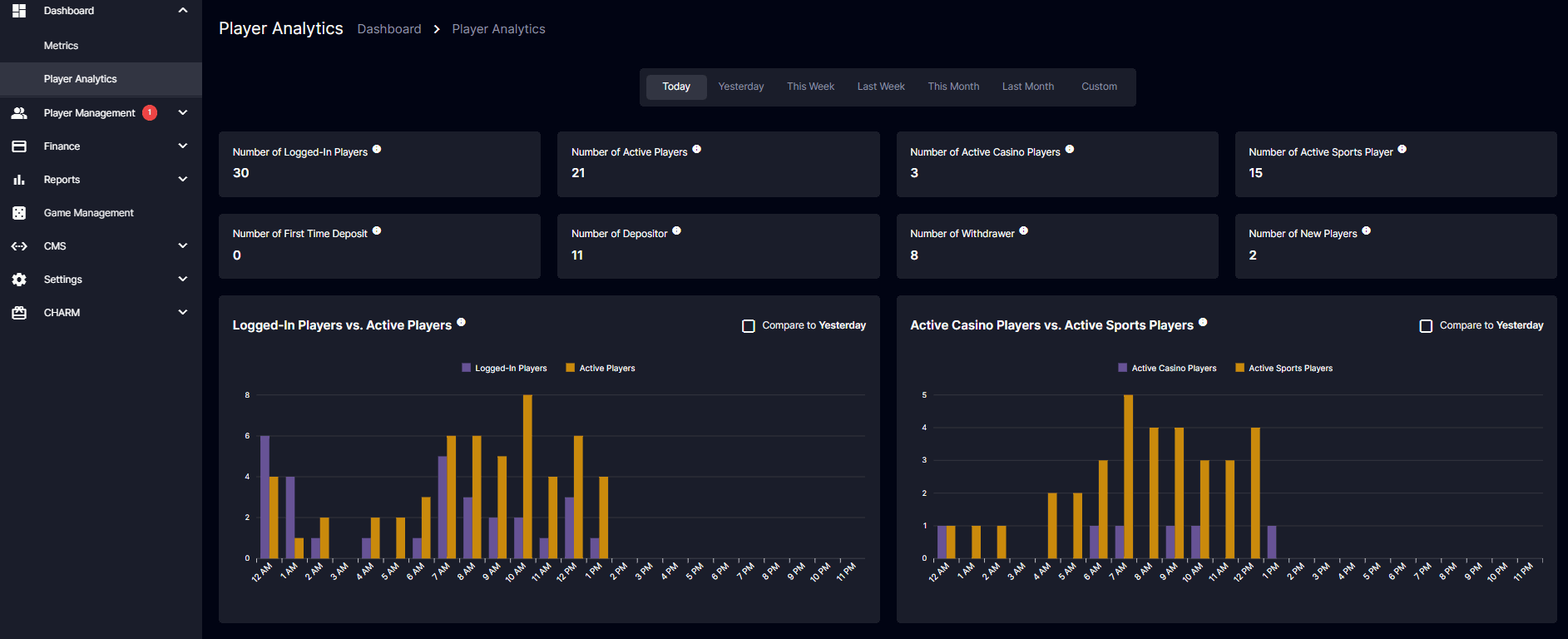
- The backoffice user will be able to view the summary of the players’ activities during the time they have selected.
- The data will change based on the your time zone preferences. When the backoffice user changes their time zone, the data is shown for the selected time zone. However, changing the time format does not affect the time format of the graphs in Player Analytics. The preferences are under the log-out option of the backoffice.
- Every chart should has an information button to help the backoffice user understand the purpose of each chart. Upon hovering the information
 button, the operator can view the details about the chart.
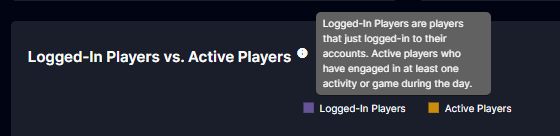
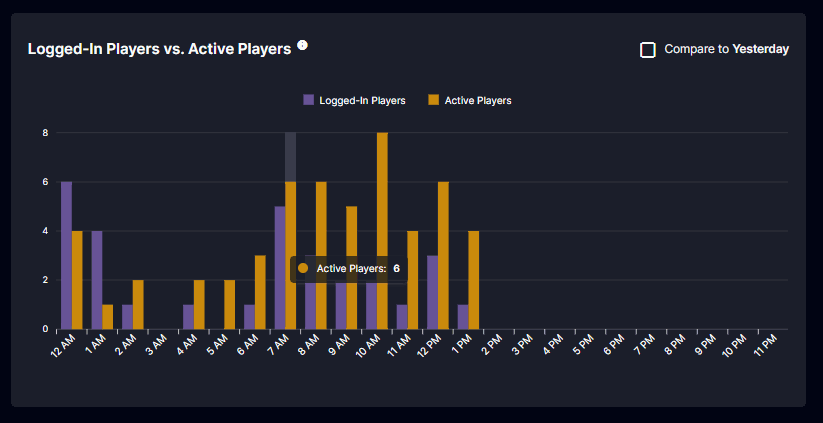
- The bar number should be displayed when hovering over a bar in the graph. Upon hovering a label on the graph, the selected label will be highlighted to show the associated count, providing a clearer representation of the data. This also shows a clear comparison of data.
- Every chart has a “Compare To” depending to the date filtered excluding custom filtering.
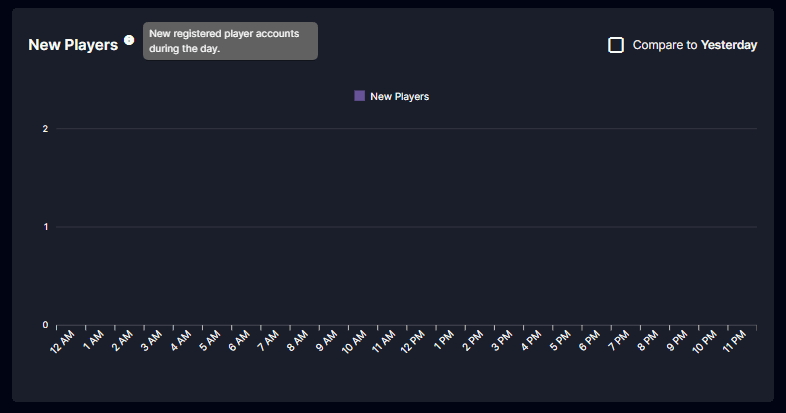
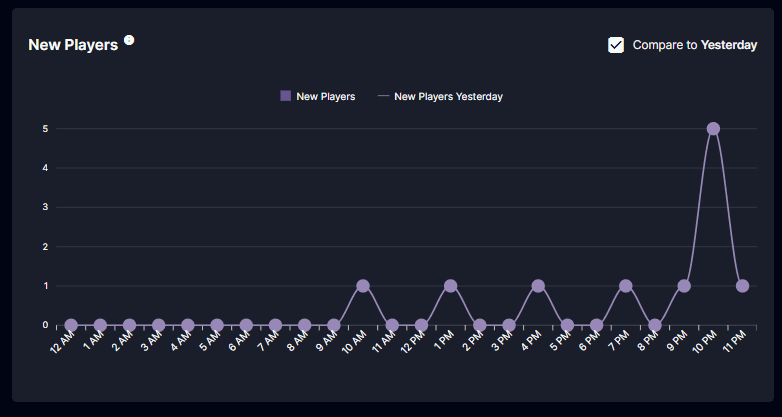
- The data that appears will not remain at 0; it will depend on the data and the filter selected by the operator. For example, the selected filter of the operator is ‘Today’ and click on the ‘Compare to Yesterday’ checkbox.
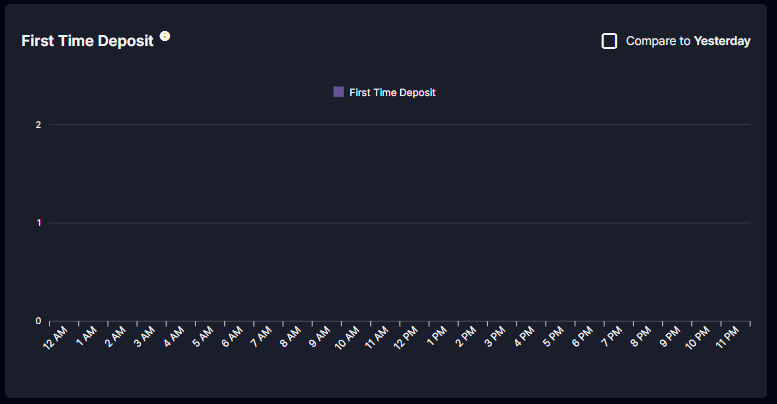
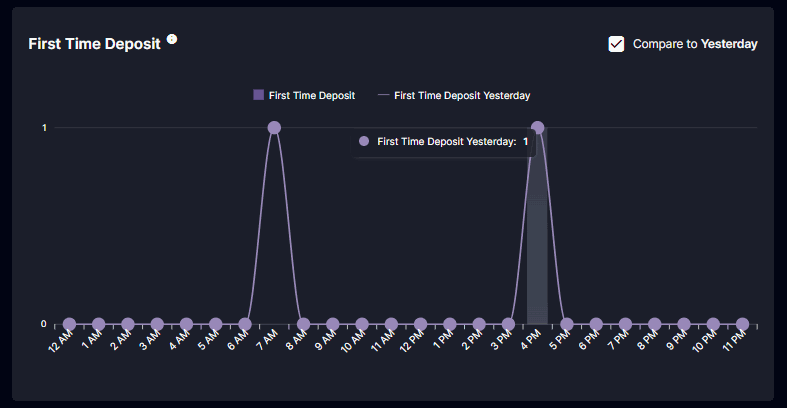
- If there is no data available today, no information will be displayed. However, if the operator clicks on ‘Compare to Yesterday’, the data from yesterday will appear as a line graph.
- The Player Analytics dashboard shows the summary of player activities based on the selected filter. Various charts display player analytics, and filters include Today, Yesterday, This Week, Last Week, This Month, Last Month, and Custom. The data shown will be updated once the operator refreshes the page.

Filters
-
Today: When the ‘Today’ filter is selected, it will display today’s data. The default checkbox is ‘Compare to Yesterday,’ which can be clicked to compare today’s data to yesterday’s.
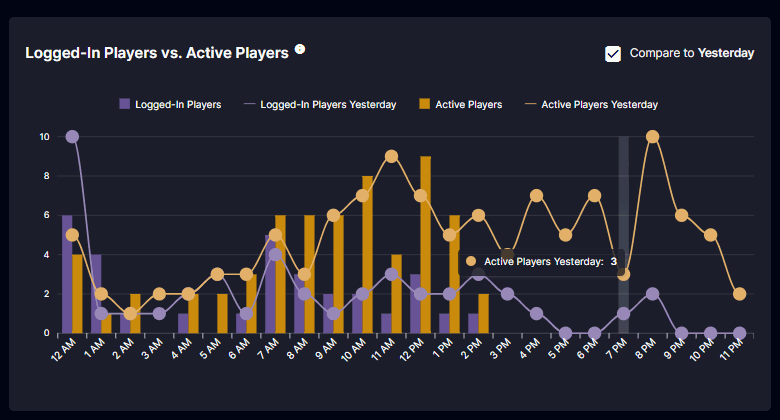
-
Yesterday: When the “Yesterday” filter is selected, it will display the data from the previous day. The default checkbox in every chart is ‘Compare to Two Days Ago, the data will be compared to the distinct players per hour from two days ago.
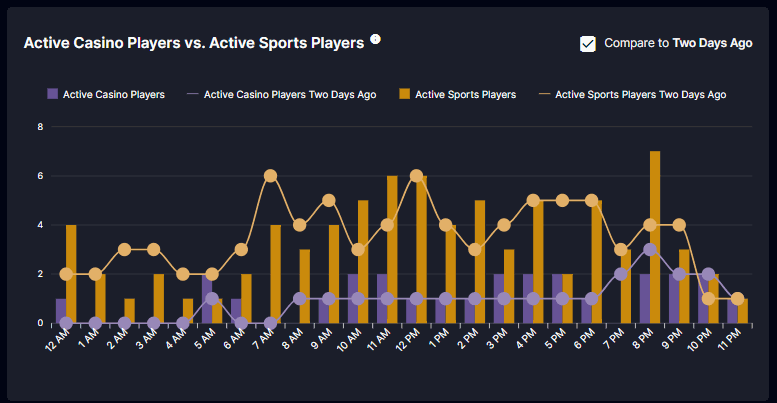
-
This Week: When the ‘This Week’ filter is selected, it will display the data from the current week. The default checkbox is ‘Compare to Last Week,’ which can be clicked to compare this week’s data to last week’s. If they select the ‘This Week’ filter, it will still follow the operator’s first day of the week.
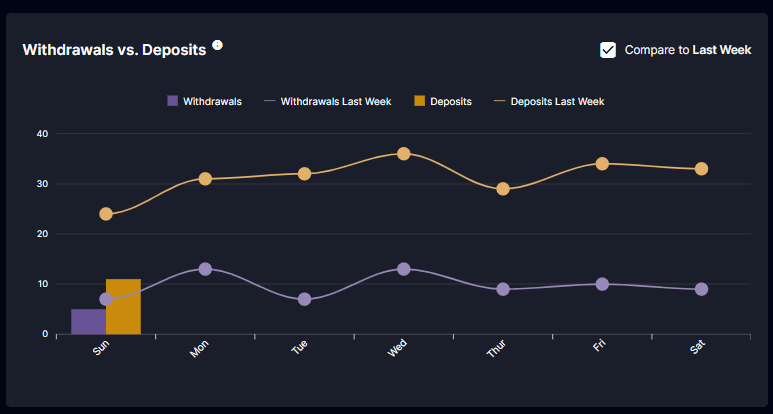
-
Last Week: When the ‘Last Week’ filter is selected, it will display the data from last week. The default checkbox is ‘Compare to Two Weeks Ago,’ which can be clicked to compare last week’s data to two weeks ago. If they select the ‘Last Week’ filter, it will still follow the operator’s first day of the week.
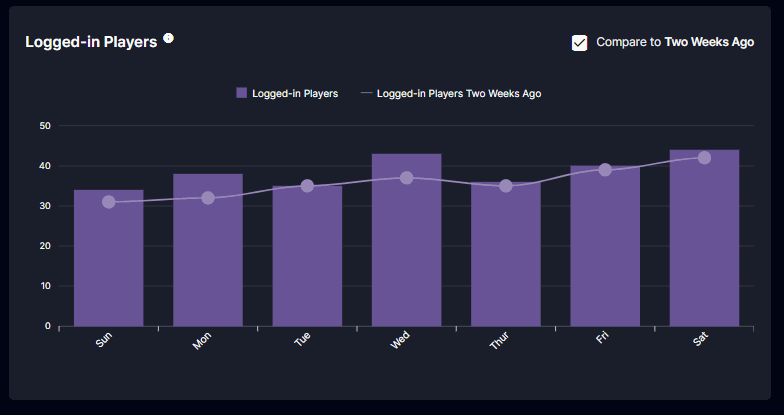
-
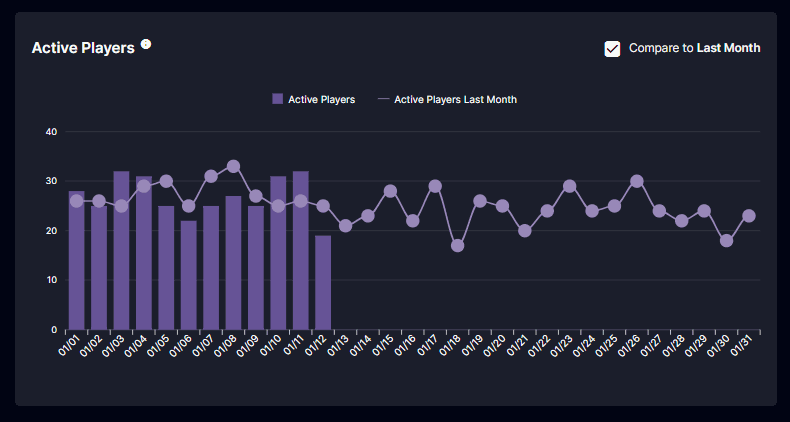
This Month: When the ‘This Month’ filter is selected, it will display the data from the whole month. The default checkbox is ‘Compare to Last Month,’ which can be clicked to compare this month’s data to last month’s.
-
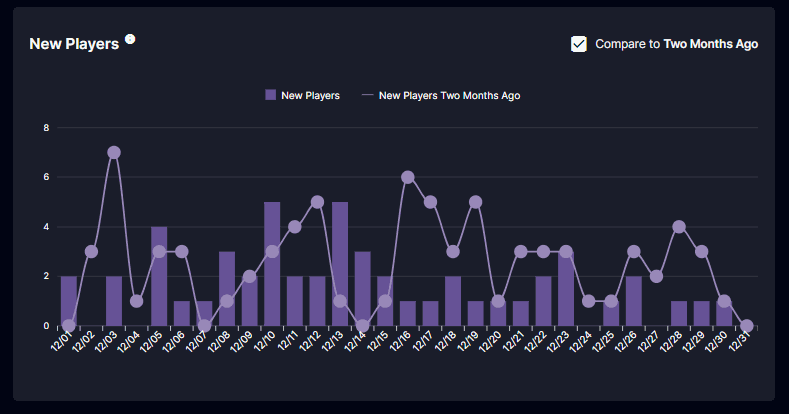
Last Month: When the ‘Last Month’ filter is selected, it will display the data from last month. The default checkbox is ‘Compare to Two Months Ago,’ which can be clicked to compare last month’s data to two weeks ago.
-
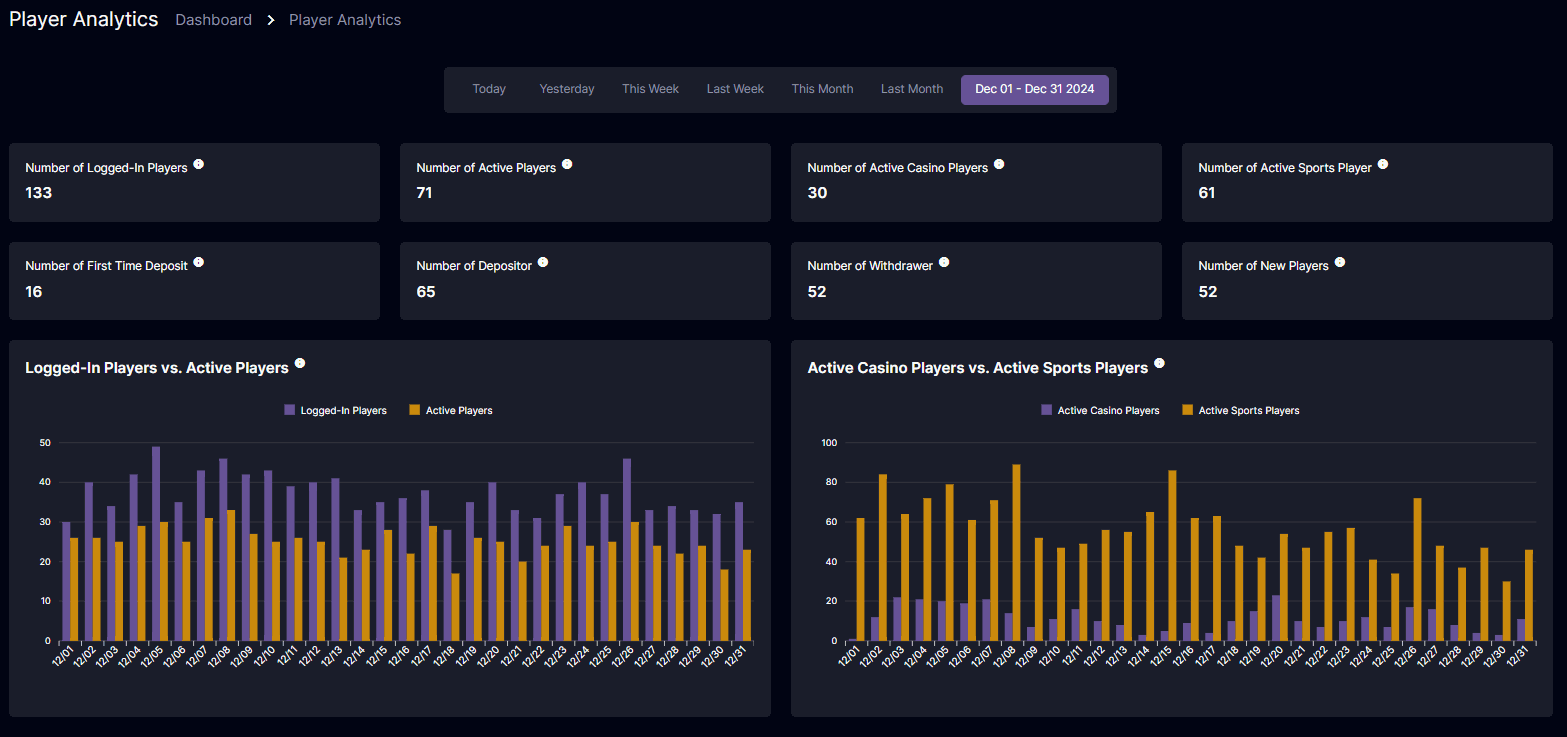
Custom: When the operator selects the Custom filter, the default checkbox in every chart will be removed. The chart displays the data based on the filter that the operator selected. The operator can select data ranging only to a maximum of 31 days. There will be no direct data comparison, as the filter generates unique data that does not fit into predefined groups.
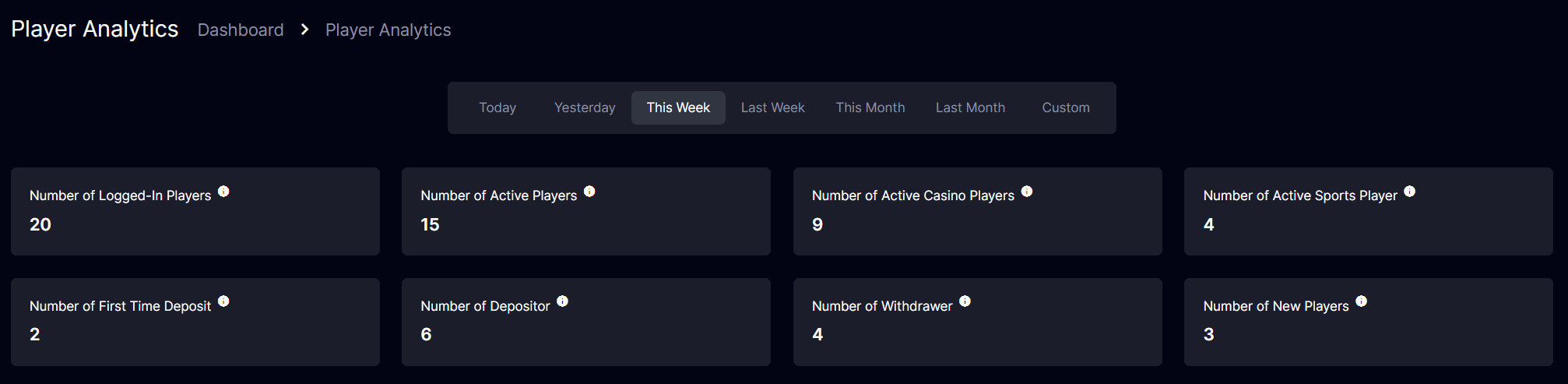
 Here is an example for you to understand the cards better:
If there are 20 logged-in players and 15 of them are Active, this means that out of the 20 logged-in players, 15 have engaged such as placing a bet (Settled), Withdrawing (Paid), or making a Deposit (Paid).- Active Casino Players: 9 distinct active players have placed bets (settled) in the Casino.
- Active Sports Player: 4 distinct active players have placed bets (settled) in Sports.
- Depositors: 6 distinct players have made deposits.
- Withdrawer: 4 distinct players who have made withdrawals.
- Number of Logged-In Players: Distinct players Logged-In during the selected period.
- Number of Active Players: Distinct Active Players during the selected period.
- Number of Active Casino Players: Distinct Active Casino players during the selected period.
- Number of Active Sports Player: Distinct Active Sports Player count based on the selected period.
- Number of Depositors: Distinct players who made a deposit.
- Number of Withdrawers: Distinct players who made withdrawals.
- Number of New Players: Players who are newly registered.
Player Analytics Charts and Comparison Filters
Every chart has an information button designed to help the you easily understand the purpose of different charts in the Back Office. There is a legend that makes it easier to read.
 Also, a ‘Compare to’ checkbox on the various charts may vary depending on the selected filter.
Today Filter
The backoffice user can view the data for the whole day in this filter. The operator can view the data for the whole day in this filter. The data are from every hour of the day. In that way, the operator can identify at what hours of the day most activities happen.Logged-In Players vs. Active Players
This chart compares the number of logged-in players (successfully logged into their accounts) with the number of active players (players who bet, withdraw, or deposit) within the specified time.- If the player logs in multiple times during the day, their logins during the day will be counted on the chart and in the summary in the dashboard.
- The Active Players will show the data of players who place their bet, withdraw, or deposit (with ‘Paid’ remarks) during the specified time of the day.
- If a player is registered via the Player Portal or created from the Back Office and logs in, their login should be counted in Player Analytics. The count of logged-in players must reflect their unique login during the day.
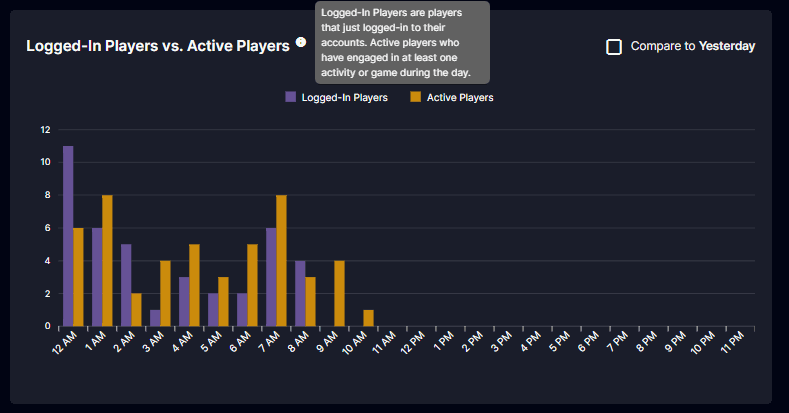
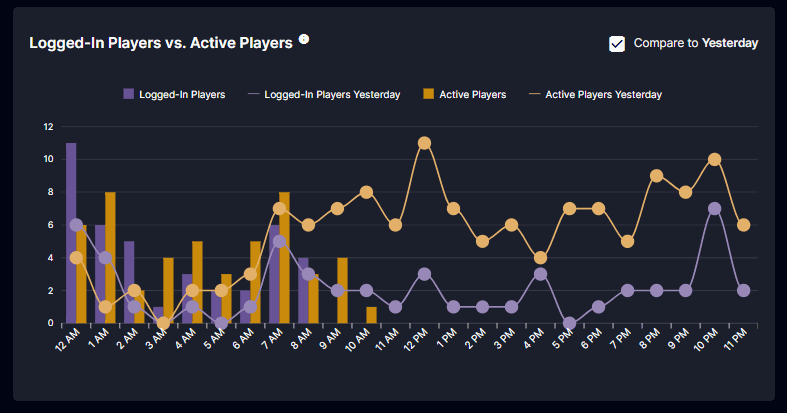 The chart aims to provide insights into user engagement on the platform by comparing the number of users who have logged in with the number of users who actively engaged with the platform during the day.
Active Casino Players vs. Active Sports Players
This chart compares the number of Active Casino Players (users who engaged with the sports betting platform) with the number of Active Sports Players (users who engaged with the sports betting platform) within the period.- Active Casino Players are considered active if they perform any of the following actions: placing bets and playing casino games. Active Sports Players are considered active if they perform any of the following actions: placing sports bets, participating in sports leagues, or engaging with live sports betting.
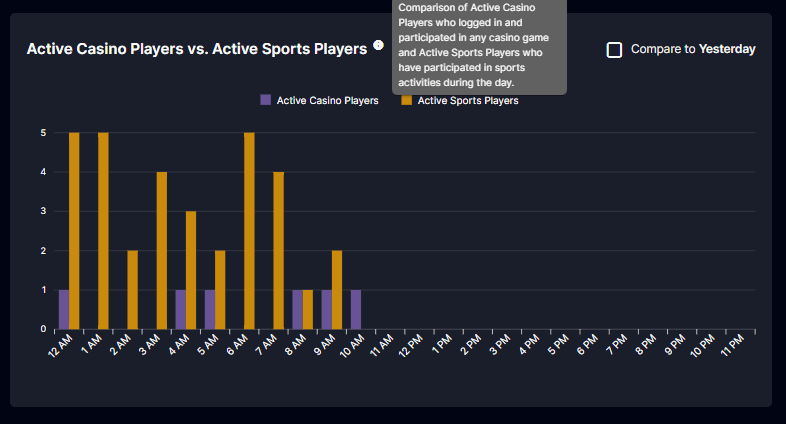
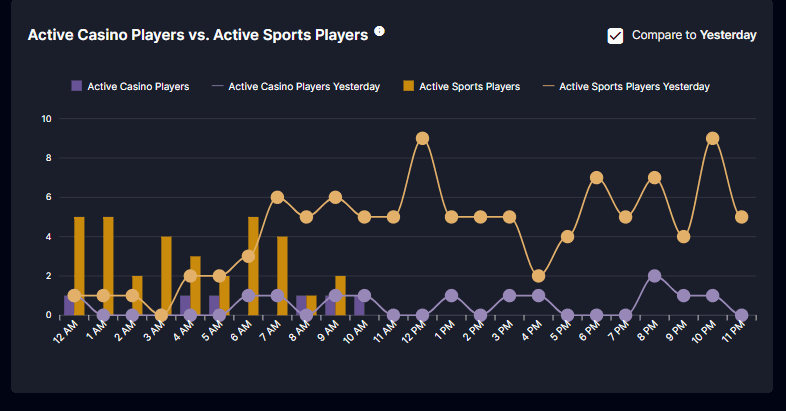 This chart compares user engagement between the Casino and Sports betting platforms to understand active user participation.
Logged-in Players
This chart display the players who have successfully logged into their accounts on the platform during the specified period. If the player has multiple log-ins during the day then the data that will be counted is the first log-in of the player. If they have logged-in for multiple times within an hour the unique login will be shown on the graph.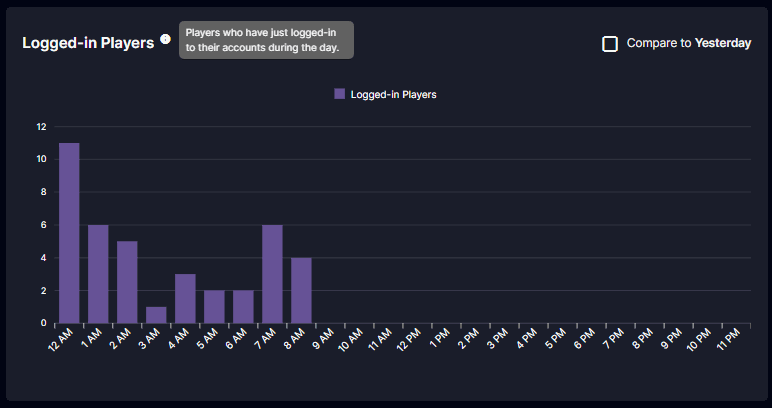
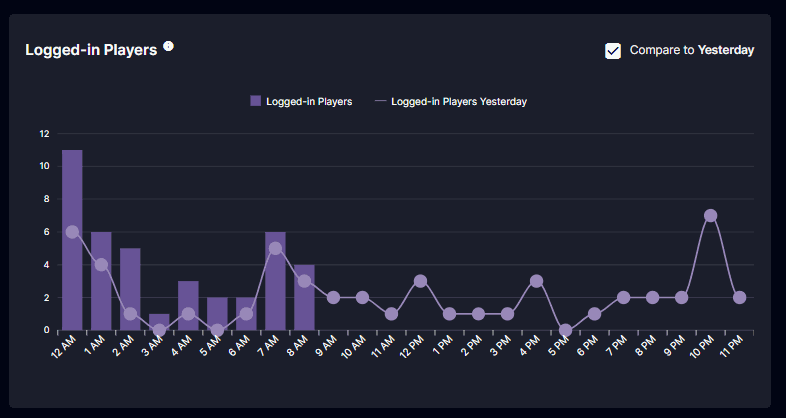 The chart shows the comparison of logged-in players from Yesterday. The line graph represents the comparison in that way it can be easily identified.
Active Players
This chart show the number of users engaging with the platform through betting, withdrawing, or depositing at a specific time.- If a player makes their first deposit it is counted as the First-time deposit and it will be included in the Withdrawals vs. Deposits chart if the transaction is marked as ‘Paid.’
- However, if an backoffice user assigns a manual deposit to a player, the player is not considered active unless they conduct the transaction themselves.
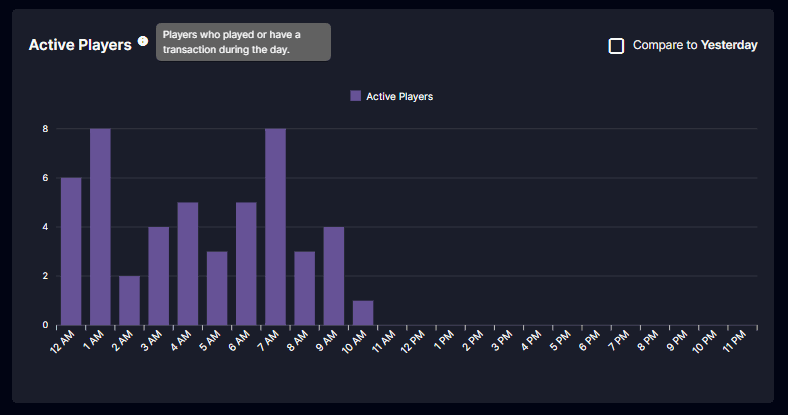
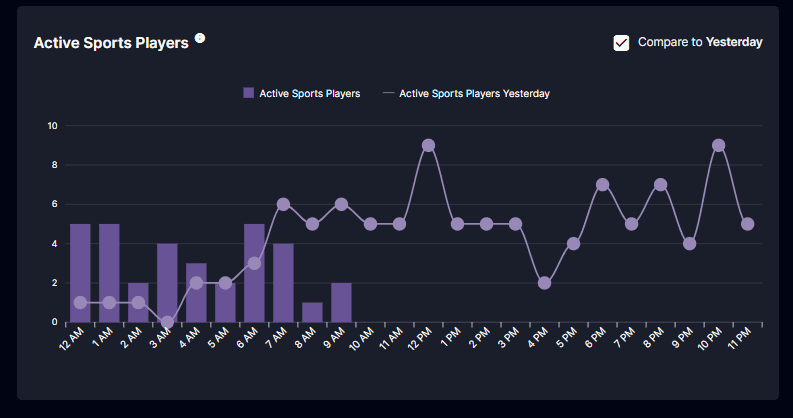
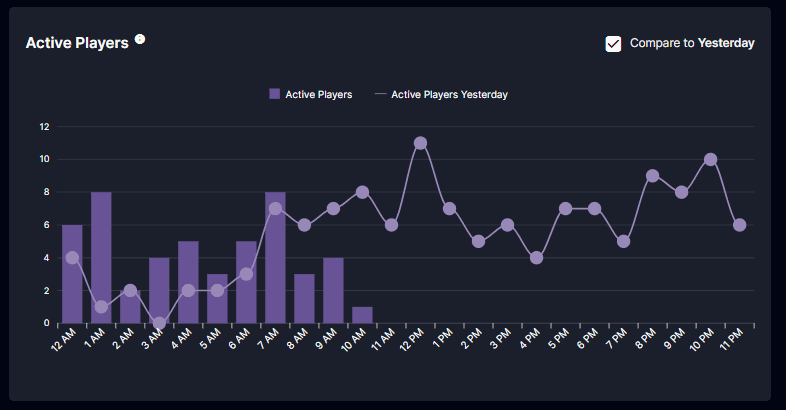 The chart shows the number of Active players at a specific time. It also shows the comparison of Active Players from Yesterday.
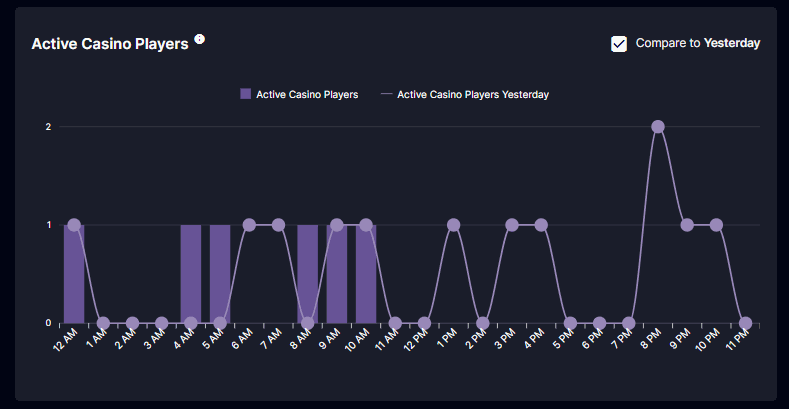
Active Casino Players
Are the number of users interacting with the casino platform during the specified period. These are playing casino games, placing bets, and participating in the events the casino hosts.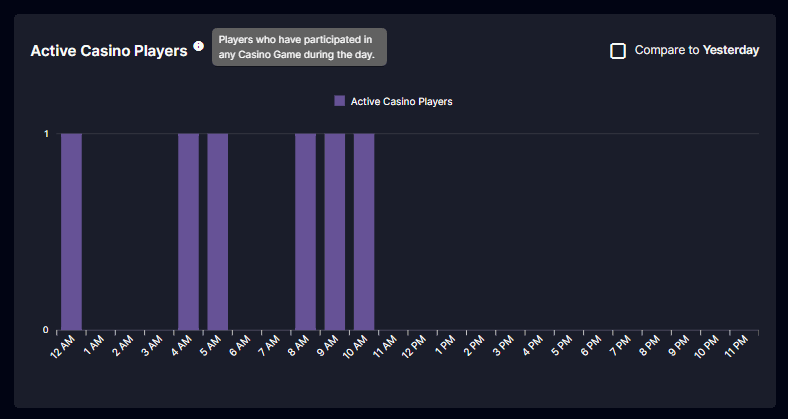
Active Sports Players
Represents the number of users who have participated in sports betting activities on the platform within the specified period. This can be placing sports bets, participating in sports leagues, and engaging in live betting during an event.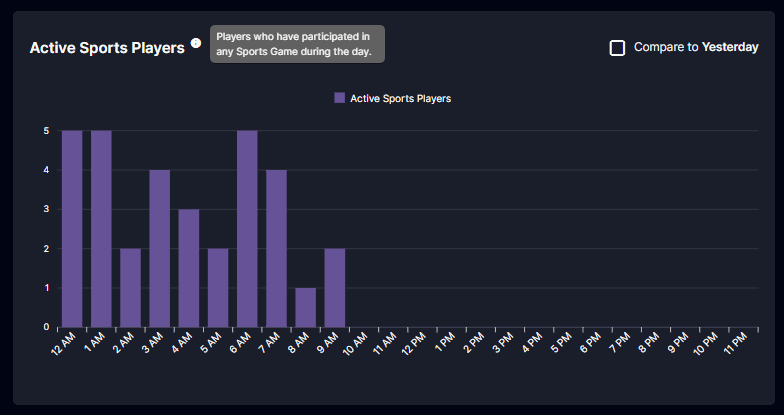
Withdrawals vs. Deposits
This chart compares the total number of Withdrawals with ‘Paid’ remarks and Deposits with ‘Paid’ remarks on the platform within a specified period.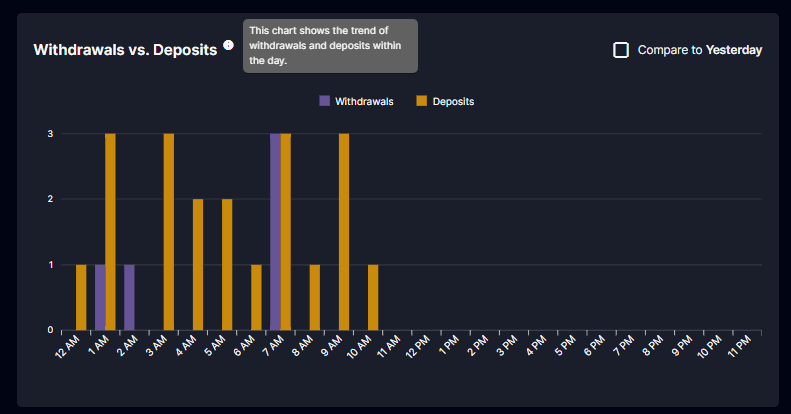
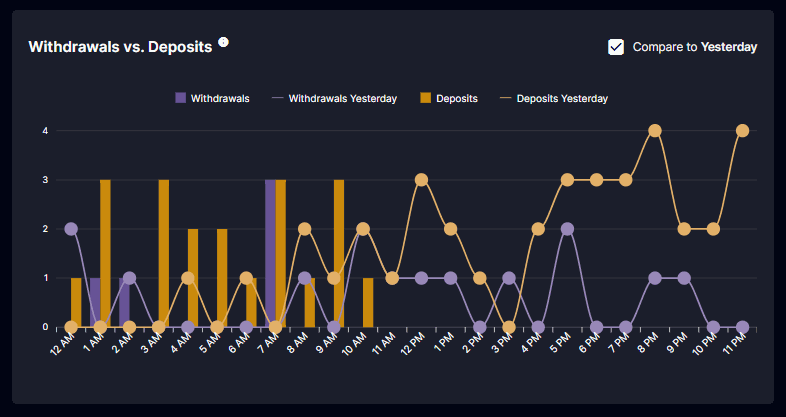 The Manual Deposit will not be included in the count; the player must perform the transactions. The first-time depositor will be included in the chart.
If the deposit was made yesterday and the request is accepted today, the data will be added to yesterday’s data.
The Manual Deposit will not be included in the count; the player must perform the transactions. The first-time depositor will be included in the chart.
If the deposit was made yesterday and the request is accepted today, the data will be added to yesterday’s data.
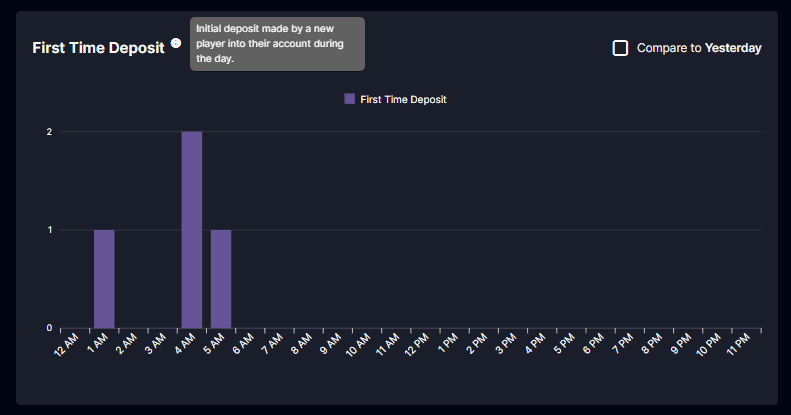
First Time Deposit
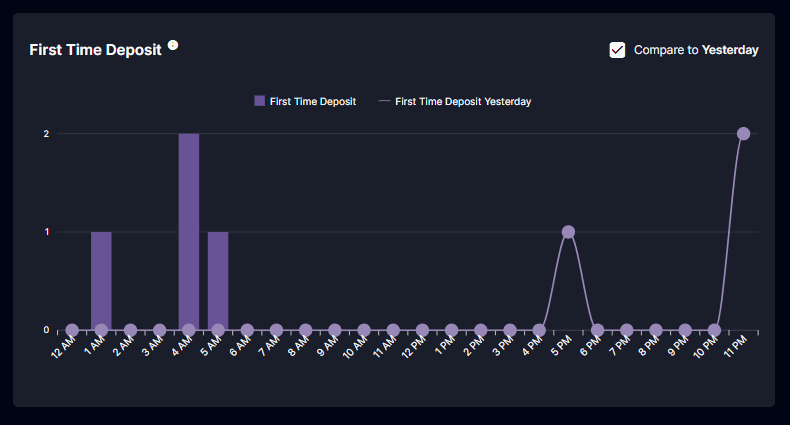
Indicates the initial deposit transaction made by the player upon creating their account on the platform. This data will consider the players who have their first-ever deposit once the status of their deposit request is marked as ‘Paid’.- For example, if a player registers a month ago and makes a deposit, it is considered their first deposit only if it is the initial deposit they’ve made. Manual deposits are not counted as the player’s first deposit; the player should make the deposit.
New Players
This chart displays the newly registered players who have signed up or registered on the platform for the first time within the period.- If newly registered players make transactions, such as deposits, those transactions will be recorded in the First Time Deposit and Withdrawal vs. Deposits chart. As a result, the players will be considered active players.
- If the Player is created in the Back office it is not considered as New Player.
This Week Filter
- The ‘This Week’ filter displays the data from the current week to the present day, which can help the backoffice user analyze the weekly data of activities.
- In the ‘This Week’ filter and ‘Last Week’ filter, the accumulated data per day is the player’s distinct daily transaction throughout the week. The chart starts on Monday for the week’s consistent data. The backoffice user can change their preference for the ‘First Day of Week ‘but upon changing the start date data will also change.
- If the backoffice user chooses this filter and there are transactions within the day, the data will still be counted. For example, if a player makes a deposit today and it is marked as ‘Paid’, the transaction deposit data will be accumulated in the chart of Withdrawal Vs. Deposits will still be counted.
- The checkbox for every chart is ‘Compare to Last Week’. Upon checking there will be a comparison of the data from last week.
This month
- In this filter, the data accumulated includes the entire month’s data, providing a summary of activities for the whole month. If the month is not yet complete, any transactions that happen on the whole month will still be counted.
- In the ‘This Month’ and ‘Last Month’ filters, the accumulated data displays daily data throughout the month, which is the player’s distinct transaction daily during the whole month.
- The checkbox for every chart is ‘Compare to Last Month.’ Upon checking it, there will be a line graph for comparison of the data from the last month to the present month (bar graph).
Custom Filter
- In this filter, the operator can choose a custom date range to display on the dashboard. The backoffice user can select a range of dates that is limited to a maximum of 31 days. Once a custom range is selected, there will be no way to compare the data to other ranges, and comparisons on all charts will be removed. The accumulated data on each chart will be based solely on the selected date range.
- If the backoffice user only customized only One day, the data that will be counted is the distinct transaction of the player during that day. The data that will be shown is the data accumulated per day.