How to set user access for IP Blocking
The backoffice has an individual access in granting permissions to hide, view, and modify functions. To Navigate, go to Setting > User Management > Individual Permissions.The table below will guide you on how to set individual permission for the user and in blocking IP address.
To guide you how to block and unblock IP: Guide for IP Address Blocking and Unblocking
To check what player’s see when IP is blocked: What Players see when IP Address is Blocked
Guide for IP Address Blocking and Unblocking
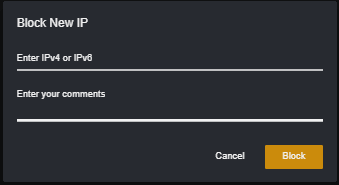
This feature will allow the Operators to block certain IP Addresses from accessing the website. The Operator should also be allowed to remove the blocked IP Addresses but should be able to keep this history on when the IP Address has been blocked/unblocked and which backoffice user did it. If the user’s IP Address is determined to be part of the Blocklist, then a Blocked Page will be displayed to the user. All users who visit the gaming platform using the blocked IP will not be able to access the website except for players who are in the game stage. I. How to Block IP Address To block and unblock IP, go to Settings > Site Blocking > IP Blocking. All listed IP addresses will appear in the Blocked List while Previously Blocked will provide you the record of all IP’s that are recently unblocked. To block an IP address, click the ‘Block New IP’ then the below pop-up will appear.
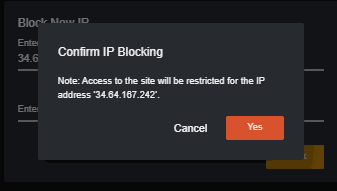
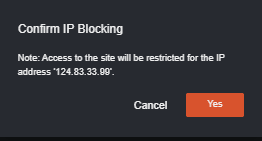
 You will receive a prompt that this IP will be restricted in accessing the website.
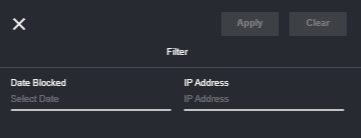
 You can also search as specific IP in the filter section.
 II. Unblock IP Address
All blocked IPs will appear in the Blocked List. To unblock, click the orange icon beside your chosen IP.
II. Unblock IP Address
All blocked IPs will appear in the Blocked List. To unblock, click the orange icon beside your chosen IP.
 You can enter a comment for unblocking the IP.
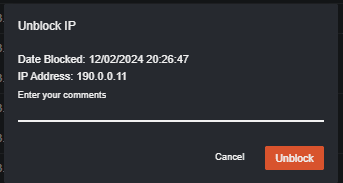 Unblocked IP’s will then appear in the Previously Blocked page.
III. View IP Blocked Players
You can also see the list of players who are using the blocked IP by clicking the eye icon.
Unblocked IP’s will then appear in the Previously Blocked page.
III. View IP Blocked Players
You can also see the list of players who are using the blocked IP by clicking the eye icon.
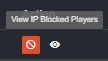
 You can also unblock the IP in this page.
IV. Previously Blocked
Once an IP has been unblocked, it will appear in this page.
You can also unblock the IP in this page.
IV. Previously Blocked
Once an IP has been unblocked, it will appear in this page.
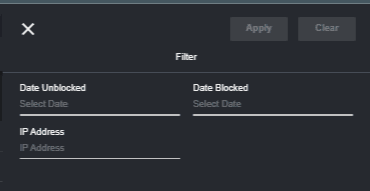
 You can filter the IP you want to check, the IP’s blocked and unblocked on the date you want to check.
 V. Player Management
The backoffice user can block the player’s IP address by clicking the block IP button the player’s account. To navigate, Player Management > select a player > General > Edit Player Info
V. Player Management
The backoffice user can block the player’s IP address by clicking the block IP button the player’s account. To navigate, Player Management > select a player > General > Edit Player Info
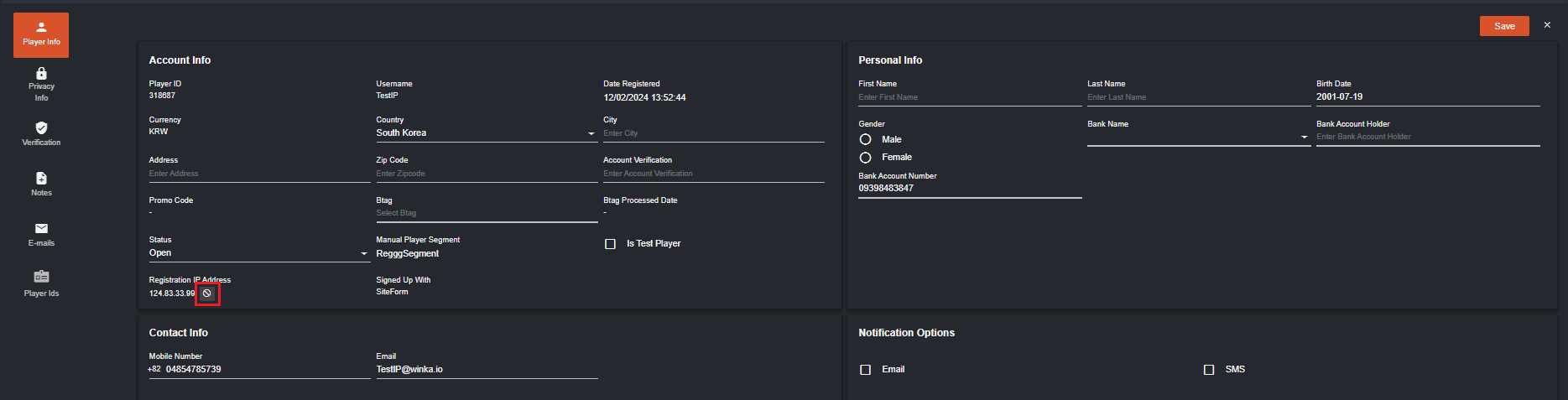
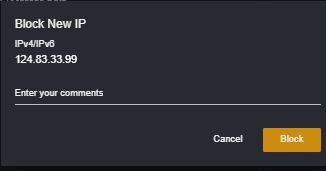 A confirmation will appear if you decide to block or unblock the IP address.
 VI. Login Sessions
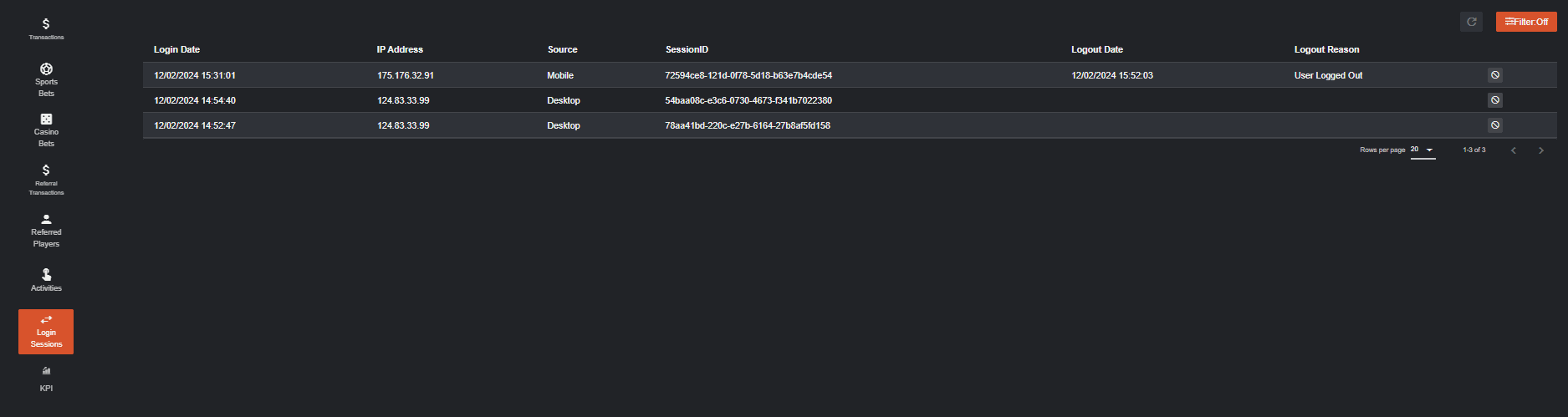
You can also block and unblock a particular IP address of the player in Login Sessions.
Navigation: Player Management > Select a Player > Reports > Login Sessions
VI. Login Sessions
You can also block and unblock a particular IP address of the player in Login Sessions.
Navigation: Player Management > Select a Player > Reports > Login Sessions
 VII. CMS Site Settings for Blocked IP
A new module shall be added to support the customization of the IP Blocked Page that will be displayed on the website.
It will be added as a new tab under the CMS > Site Settings, “IP Blocked Page”.
VII. CMS Site Settings for Blocked IP
A new module shall be added to support the customization of the IP Blocked Page that will be displayed on the website.
It will be added as a new tab under the CMS > Site Settings, “IP Blocked Page”.
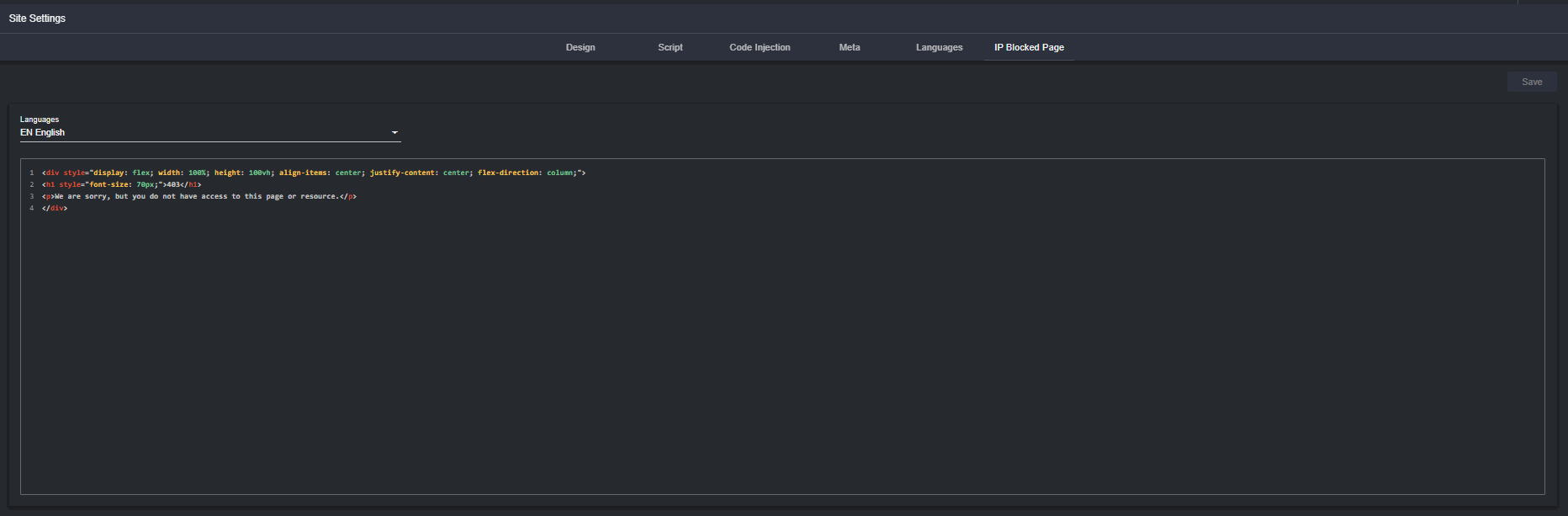
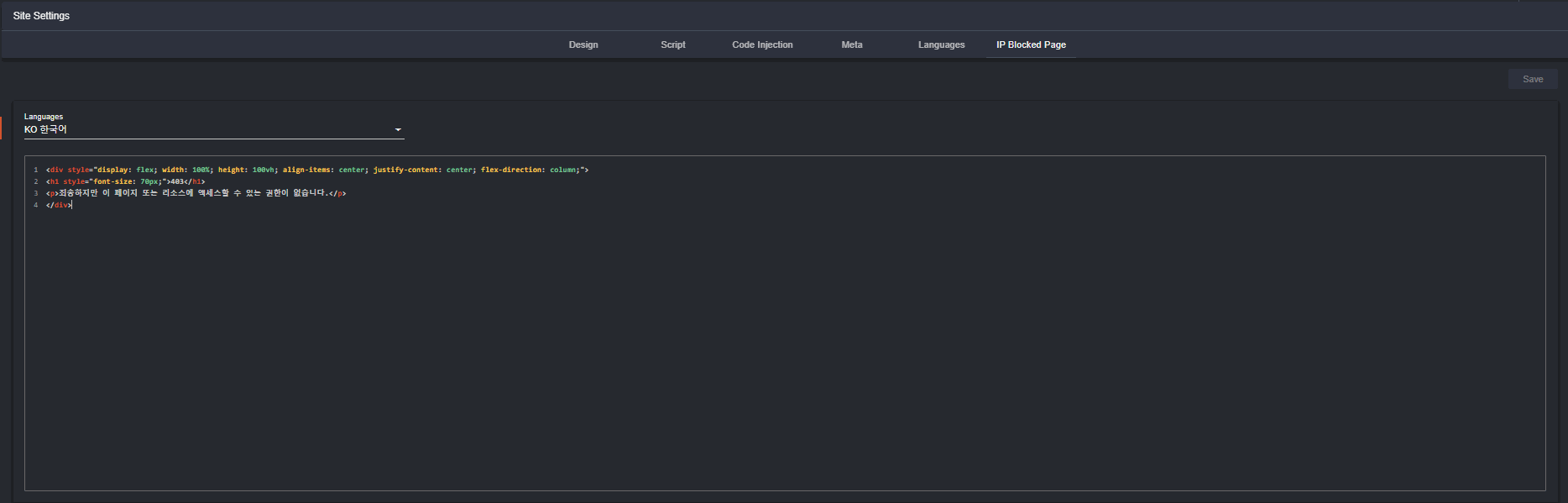
- It should have different versions for each of the languages supported by the Operator
- The language shown in the player portal will depend on the user’s browser language used.
- The default language shown will be the default operator language set.
- Content will be in HTML format to allow for full customization.
What Players see when IP Address is Blocked
Once the player’s IP address is blocked, a message will appear whenever they try to access the website. The error message displayed depends on the language configured in the Site Settings IP Blocked Page. In English: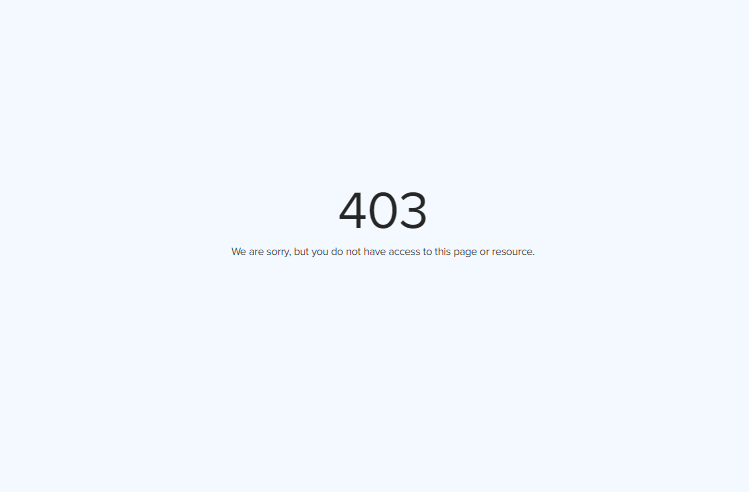 In Korean:
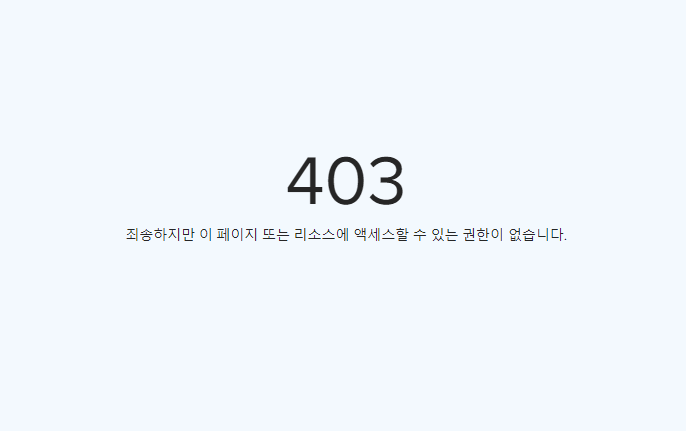
- All users who visit the gaming platform using the blocked IP will not be able to access the website except for the players who are in the game stage.
- If the user has already accessed or logged in to the site before the IP address has been blocked, the player will not be logged out, instead when accessing a different page in the website or the site refreshes, they will automatically received the block error.
- If the IP address of the user has been lifted, they may refresh the page and will allow them to access the website.