Guide for Tournament List in Backoffice
Tournament List
Tournament Landing page utilizes table to display important information of a tournament and clickable buttons for tournament configurations. By default, the Tournament shall be inactive, it will be active once the Start Date and Time begins, or the back office user enabled the Tournament. Active and Ended tournaments cannot be deleted, Scheduled tournaments can be deleted but will trigger a delete pop-up confirmation. Display column lets the back office user for showing/not showing the tournament in the player portal n days before start date (Scheduled) and n days after end date (ended). Active tournaments shall be always displayed on the player portal.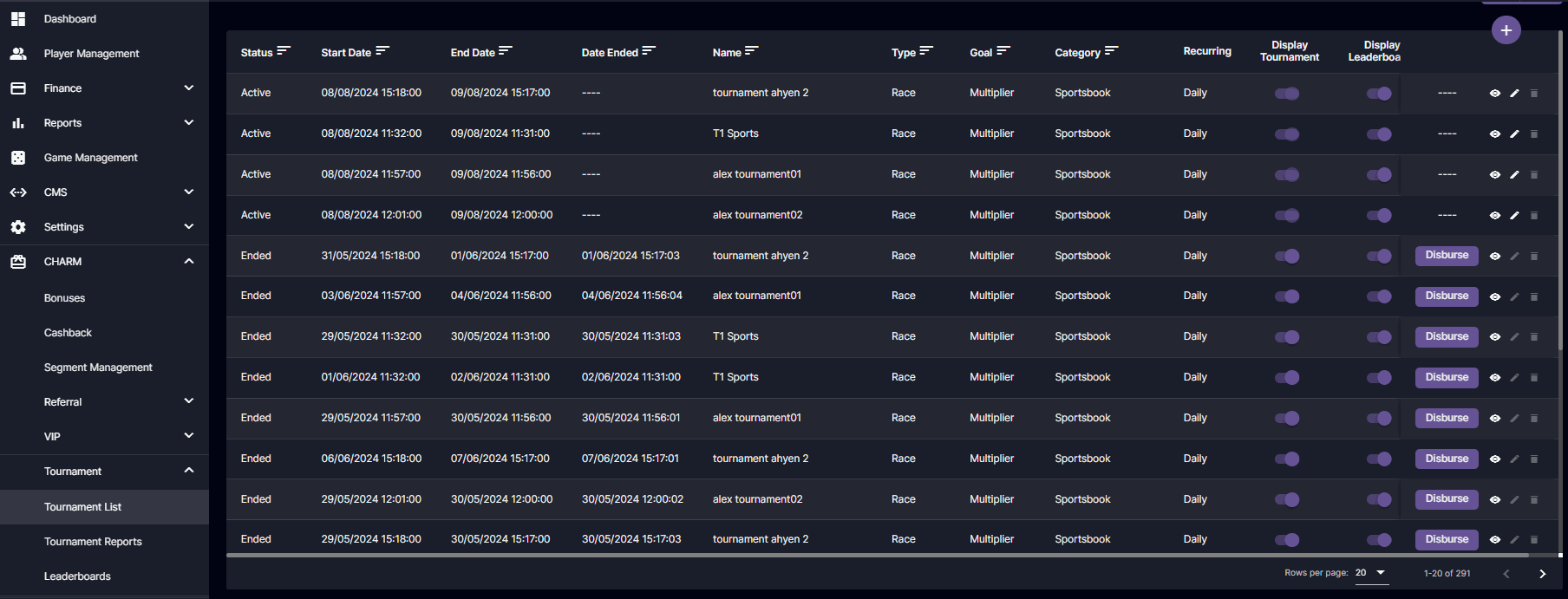
you can filter the table in ascending or descending order by clicking the filter icon per column.
| Tournament List | Description |
|---|---|
| Status | Display status of the tournament whether it is Active, Ended, or Scheduled. • When “Active” it means the tournament is ongoing. • When “Ended” it means the tournament is concluded or stopped by the back office user. • When “Scheduled” it means the tournament has not started yet. |
| Start Date | Display the start date of the tournament. |
| Date ended | Display the end date of the tournament IF: Race • Display the end date of the tournament since it is possible to end earlier than the End date. Time Limit • Display the end date of the tournament aligned with the End Date. |
| End Date | Display the end date of the tournament. |
| Name | Display the title of the tournament. |
| Type | Display the type of the tournament. • Time Limit • Tournament has a Time limit regardless of ranks filled in the leaderboards. • Race • Tournament has only limited ranks: • WHEN: Ranks are filled between the Start Date & Time and End Date & Time, the tournament will be concluded. • ELSE: Ranks remain unfilled within the specified Start Date & Time and End Date & Time, the tournament will persist until its conclusion within the designated timeframe. • Ranking in race is determined by the target goal amount. |
| Goal | Display the goal of the tournament. • Multiplier • Formula: winamount/betamount • Casino - get the winamount and betamount and apply the formula above to get the multiplier. • Sportsbook - Regardless of the bet type, get the betamount and winamount as long as the sport or competition is included in the tournaments term & conditions and the tournament period and shall be open bets (as long as placed bet then accepted bets). • Refund or cancellation of bets should not be covered • Bonus bets are not counted • Even if it’s different games, but included in the tournament games, it shall still be included in the computation. • Even if it’s different games and the other game is not included in the tournament games/sport it shall be included in the computation. • Multiplier in Sportsbook is equivalent to Odds. • Bet Amount • accumulated bet amount, regardless of Casino (Settled bets) and Sportsbook category (Open/Accepted bets). • Bonus bets are not counted • Refund or cancellation of bets should not be covered Tournaments Points Computation for Win, Half Won, Half Lost • Real Money Win Amount / Real Money Bet Amount • Ex. 10,000 / 5,000 = 2 Tournament Points Incase of Resettlement: Player Portal in My Bets of the player, it shall show “Not Counted” or “Counted” to inform the player. Resettlement: • Won → Lost • Lost → Won |
| Category | Display the category of the tournament. • Sportsbook • Live Casino • Casino |
| Recurring | Display the recurring type of the tournament, if any. • Daily • Weekly • Monthly display “-” if not recurring tournament. The operator’s preferences determine how recurring events are created. |
| Display Tournament | Display the tournament if it is on or off to the player portal page |
| Display Leaderboards | Display the tournament’s Leaderboards if it is on or off to the player portal page |
| Disburse | Disburse button is the trigger button to disburse the prizes of the tournament to the players. • The prizes that will be disbursed is real money only. • The flow of disbursement shall be: • Disburse (Button) → Disbursing (text) → Disbursed (text) • The Disbursed prizes will go to the player’s real money wallet, and will notify/record them in Player transactions that they have received their Tournament Prize. 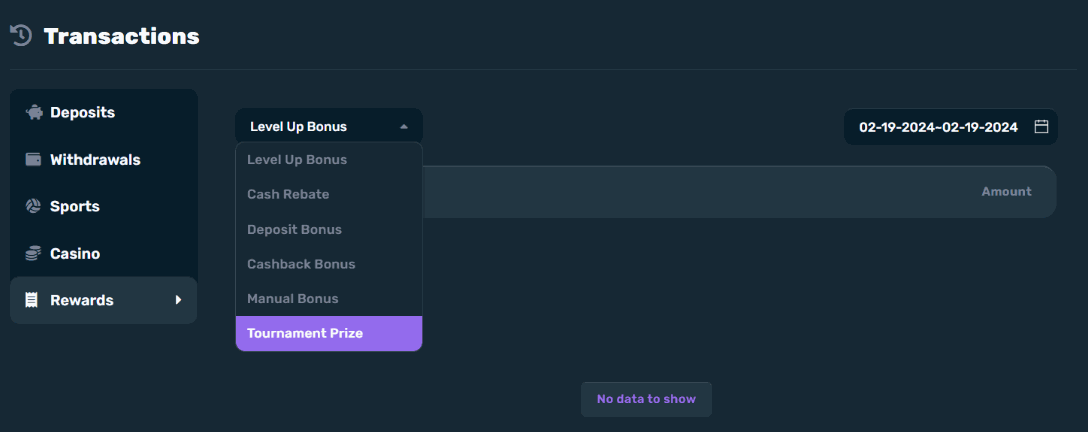 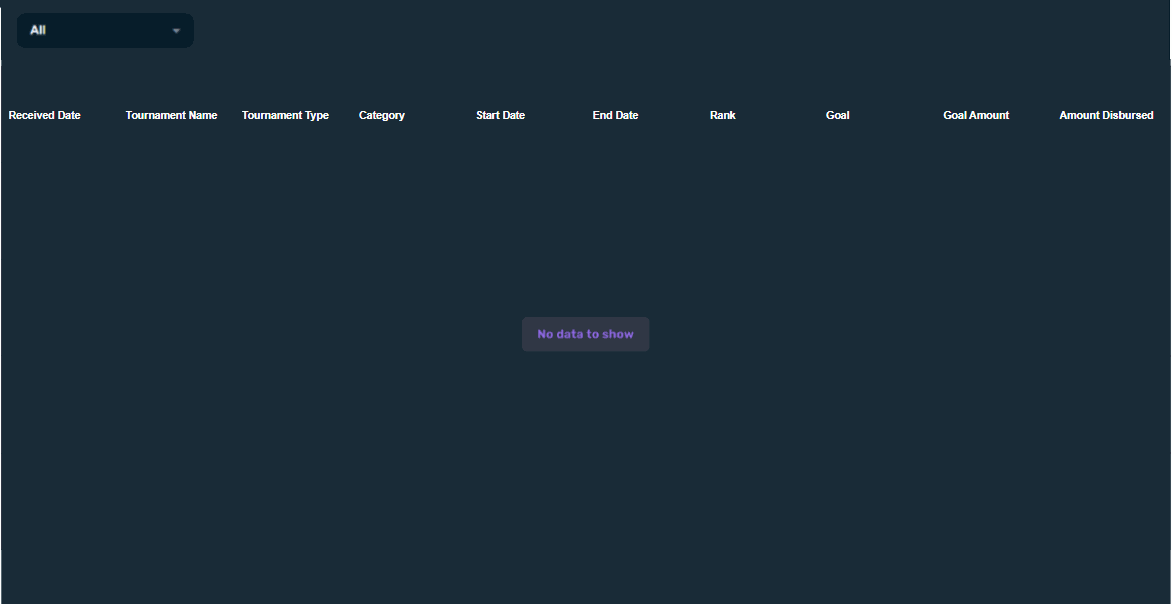 • Date (date of disbursement or when the player received his/her tournament prize. • Tournament Name • Tournament Type • Race • Time Limit • Category • Sports • Casino • Live Casino • Start Date & End Date - As for end date, it will display the “Date Ended” of the tournament incase, the scenario is that the tournament finished earlier that the End date set by the operator. • Format: MM-DD-YYYY~MM-DD-YYYY • Rank • Goal • Goal Amount • Amount Disbursed Filter • All • Sports • Casino • Live Casino |
| Add Icon | The add icon lets the back office user redirect to the Create New Tournament page. |
| Eye Icon | The eye icon lets the back office user redirect to View Details - Tournament Info. |
| Edit Icon | The edit icon lets the back office user to redirected to Edit Tournament page. |
| Delete Icon | The delete icon lets the back office user delete a tournament. Tournaments that can be deleted: • Scheduled Tournaments |
Create a Tournament
This article will guide you how to create a tournament.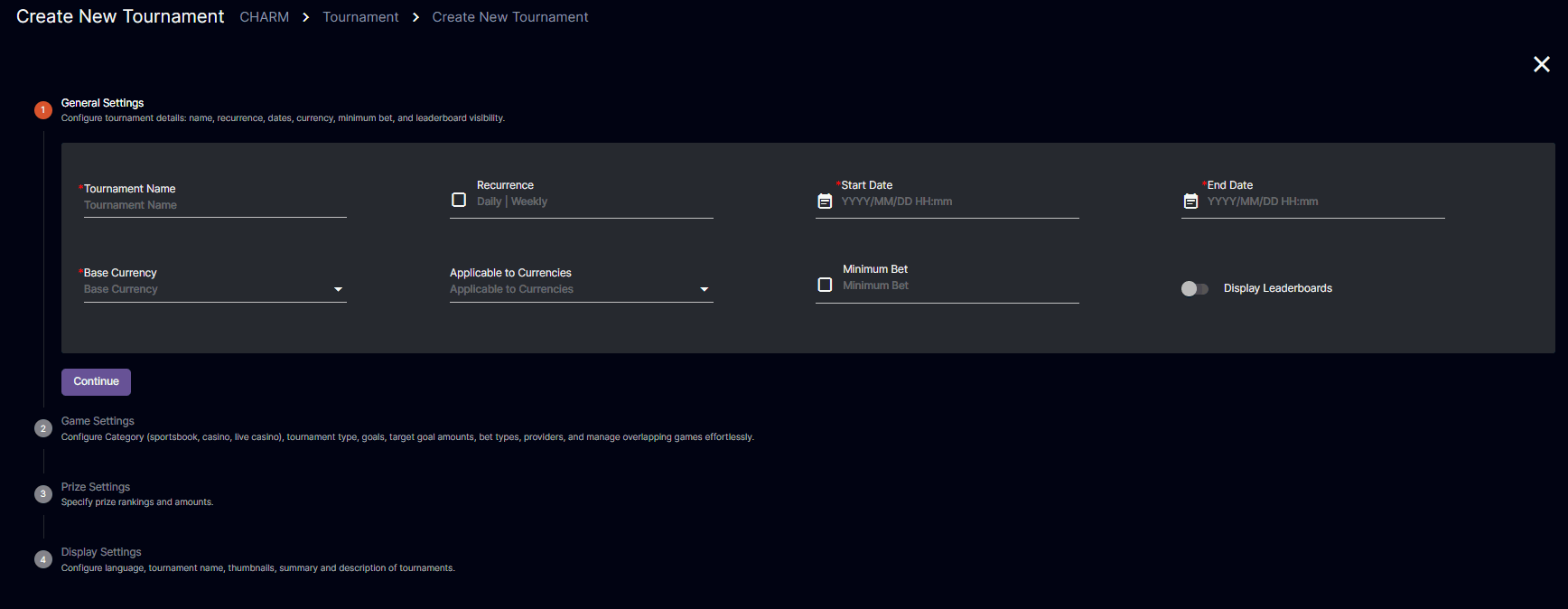
Make sure to fill in all the required information. You cannot proceed to the next step if the required field is not filled.
General Settings
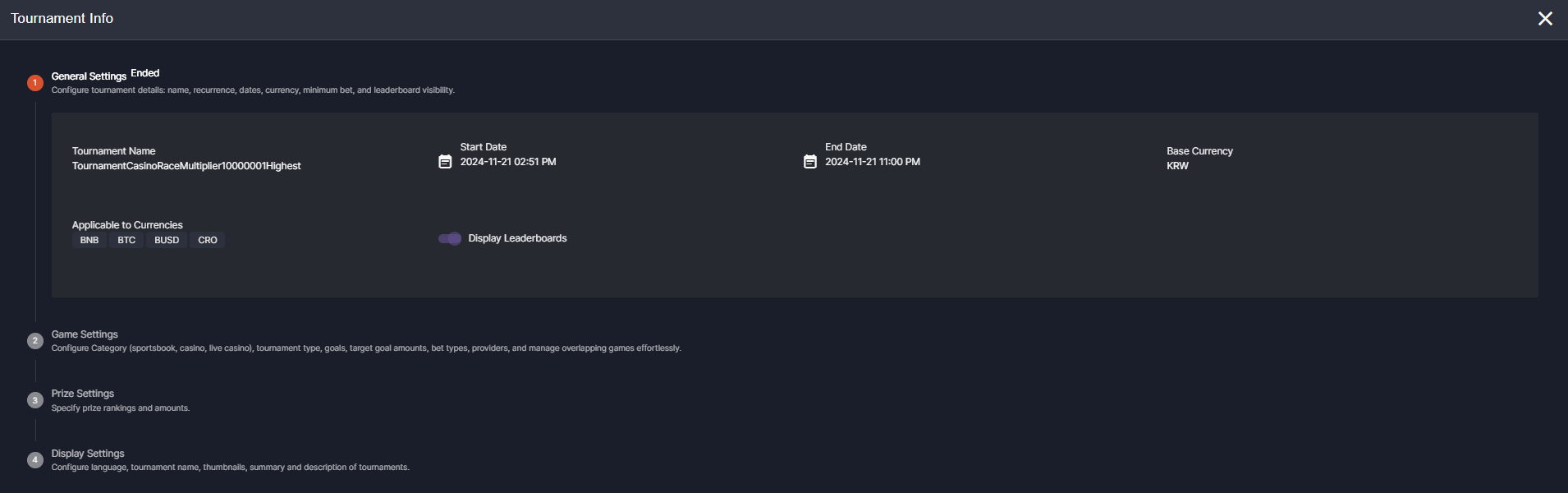
Lets the back office user set the Tournament Name, Start and End Date, Base Currency, Applicable to Currencies, Minimum Bet (if any), and Display Leaderboards. Initially, the tournament created is toggled as shown in the player portal.| Tournament General Settings | Description |
|---|---|
| ⭐ Tournament Name | Input the name of the tournament • If there are tournament name that is already existing: prompts: Error! tournament name already exist. |
Recurrence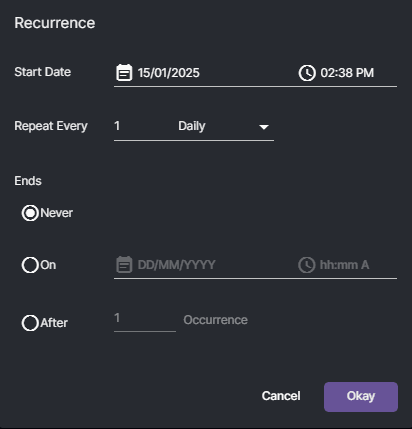 | You can choose if the tournament is recurring or not by checking and NOT checking the check box of recurrence. A recurring tournament means that the tournament created by the operator will occur depending on the preferences set by the operator. Recurrence Types: • Daily • Weekly Upon clicking recurrence, pop-up will show that will let the operator set the tournament’s recurrence. Active Recurring tournament can be edited. All settings in Scheduled Recurring tournament can be edited. |
| ⭐ Start Date | Select the start date and time of the tournament • Past dates cannot be selected. • When creating a tournament within the current date, the minimum hour is an hour (1 hour) for both recurring and non-recurring tournaments. |
| ⭐ End Date | Select the end date and time of the tournament |
| ⭐ Base Currency | Select the base currency of the prize • Regardless of whether the betting occurs in a casino or on sports events, the player’s betting currency should align with the tournament conditions (applicable currencies). This ensures consistency and fairness across all participants, regardless of the type of betting they engage in. • Operator-enabled currencies |
| Applicable to Currencies | Select applicable currencies for conversion from the base currency • Operator-enabled currencies • The chosen base currency is automatically included in the applicable to currencies but will not be displayed in the dropdown menu. |
| Minimum Bet | Input minimum bet for the player to participate in the tournament The minimum bet field must be 0.00000001 or more By default, the check box is unchecked. • If the back office user does not want to have a minimum bet, back office user can uncheck the check box. |
| Display Leaderboards | A toggle button whether to show the leaderboards of the tournaments in the player portal - landing page. Displaying Leaderboards shall be off by default. Validation upon clicking the toggle button. 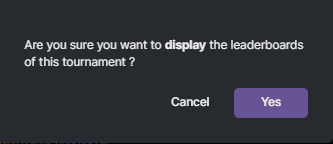 |
Games Settings
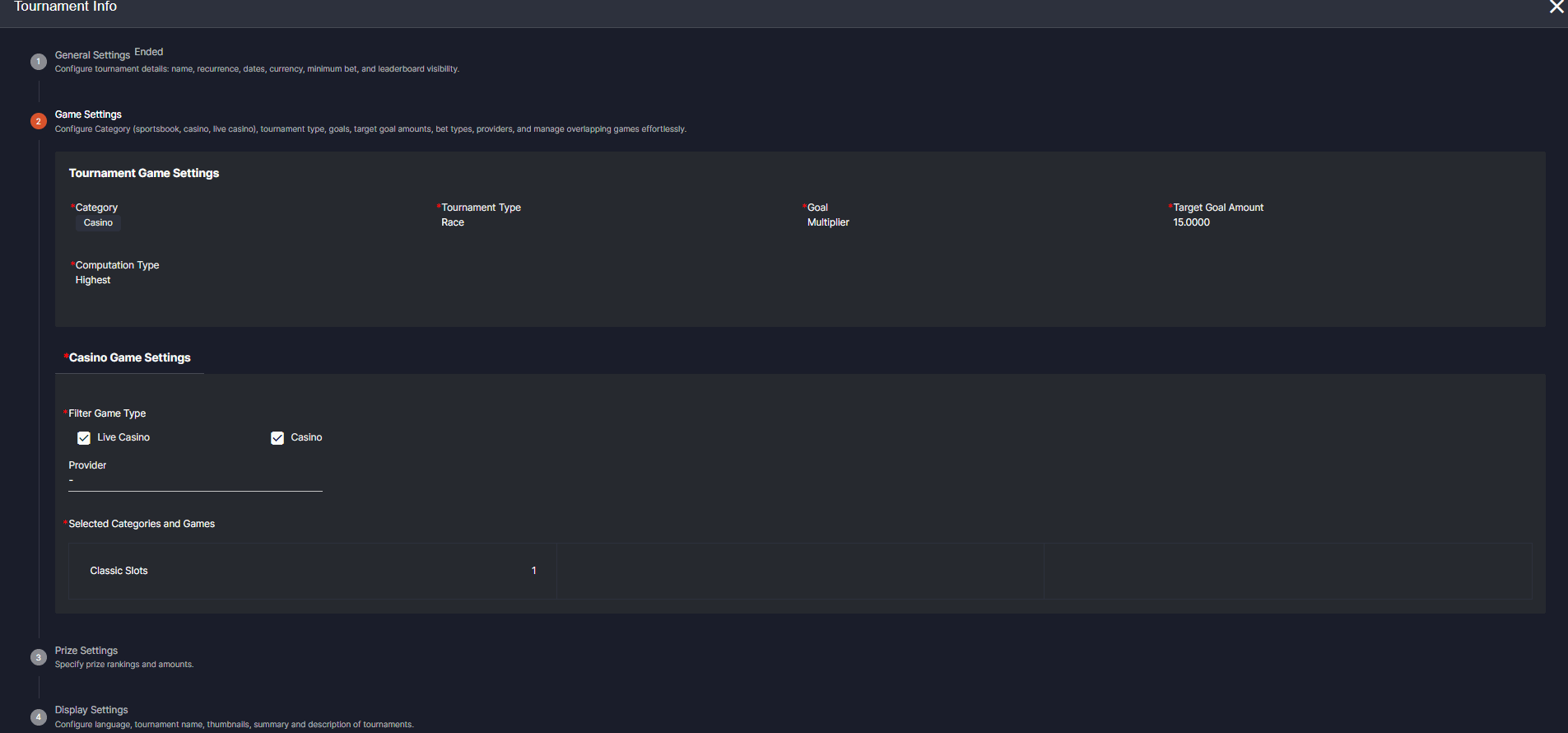
Let the back office user set the Categories, Tournament Type, and the goal of the tournament.| Tournament Games Settings | Description | Details |
|---|---|---|
| ⭐ Category | Select the category of the games included in the tournament. • Sportsbook • Casino • Live Casino (not included in the drop down) • The inclusion of the Live Casino option by the operator falls within the category of casino category, represented by a checkbox. WHEN: the operator already selected a category on which it is more than 1, Games settings shall have tabs with the selected category. 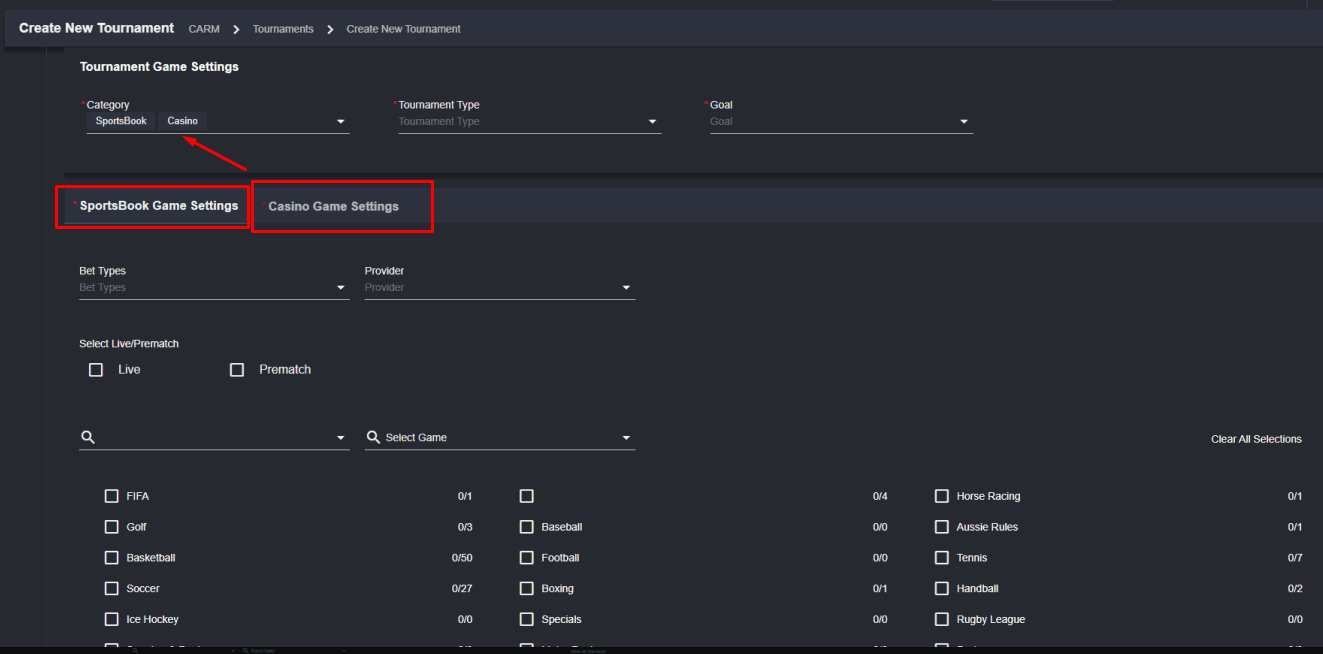 | Sportsbook Game Settings • Filter Bet Types (single/combo/system) • Filter Provider - the providers will be displayed in the dropdown • Filter Live/Prematch - check which would you like the game settings to apply 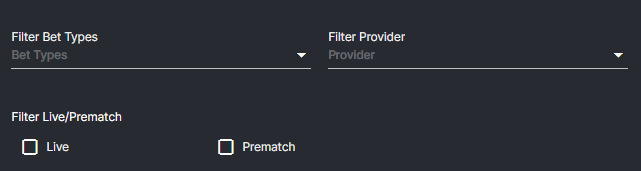 Select Sports and Competitions • You can filter particular sports and competitions or use the checkbox for sports selection and clear all checked selections. 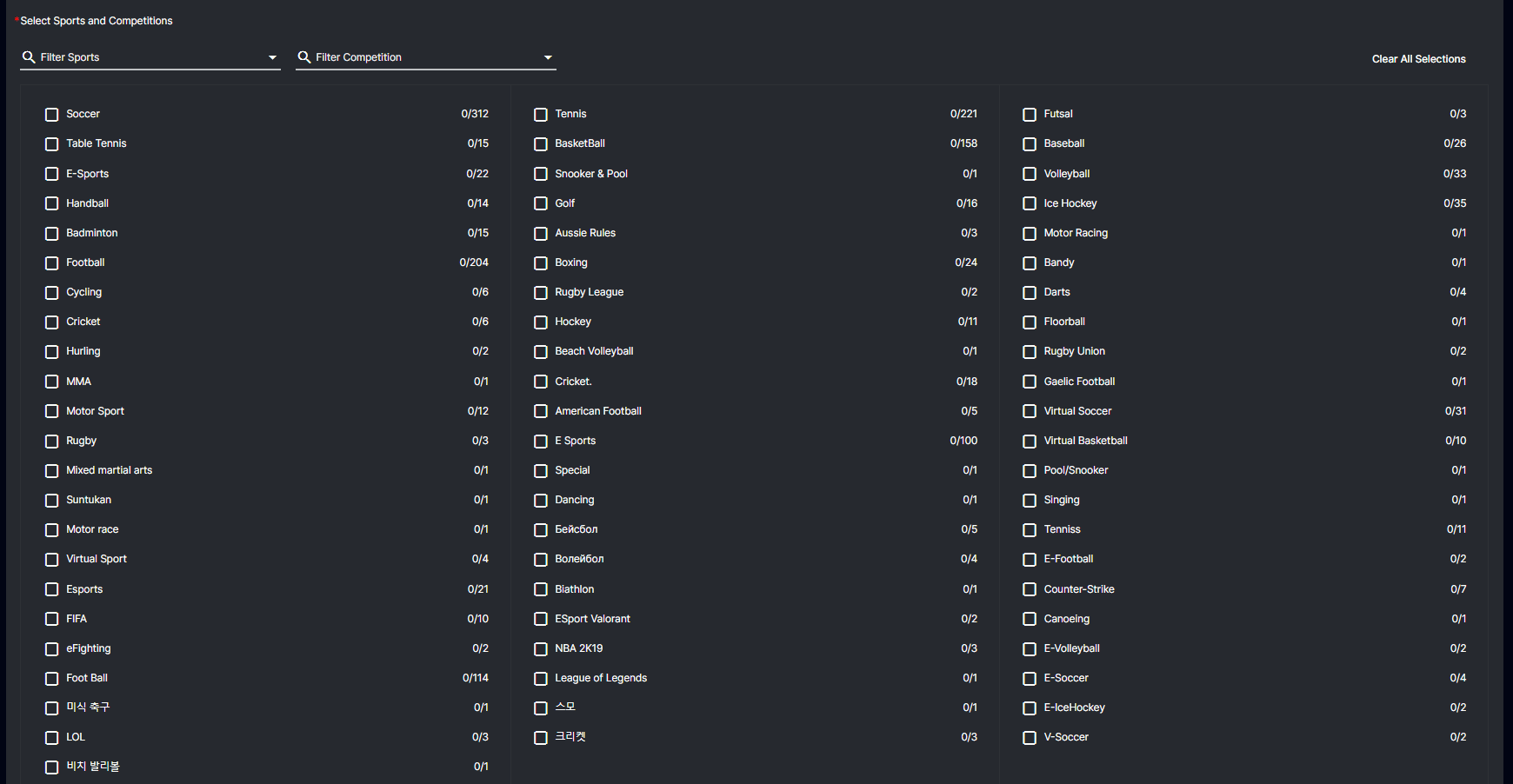 Casino Game Settings • Filter Game Type - Live Casino/ Casino • Filter Provider - the providers will be displayed in the dropdown 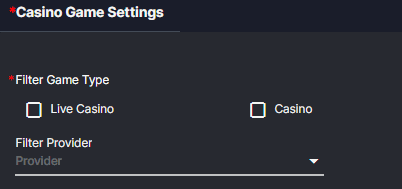 |
| ⭐ Tournament Type | Select the tournament type included in the tournament. • Race • Time Limit | |
| ⭐ Target Goal Amount | If the selected tournament type is race, target goal amount is required to be filled, for the players to race on the set target goal amount. | |
| ⭐ Goal | Select the goal of the tournament • Multiplier • Bet Amount | Computation Type will appear when Multiplier is selected. • Highest • Cumulative 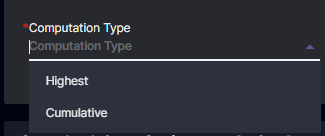 |
Rules: Overlapping games
Rules: Overlapping games
Rules: Overlapping games
- Definition of Overlapping Games: Overlapping games refer to tournaments that occur simultaneously or within a timeframe that conflicts with another scheduled tournament. In other words, if Tournament A and Tournament B have games that occur at the same time or overlap within their respective schedules, those games are considered overlapping.
- Scheduled Tournaments: The rule for overlapping games applies specifically to tournaments that are scheduled in advance. This ensures that there is clarity and organization regarding the timing of events.
- Parameters: The key parameters for identifying overlapping games are the start and end dates of the tournaments. These dates establish the timeframe during which matches occur for each tournament.
- Automated Detection and Disablement: When creating Tournament B, the system automatically checks for any overlap with Tournament A based on their start and end dates. If there are overlapping games, the system disables those specific games within Tournament B’s game selection settings. This prevents conflicting schedules and ensures that players and teams do not have to participate in multiple matches simultaneously.
- Back Office User Intervention Option: Alternatively, the back office user has the option to manually edit Tournament A. They can deselect the overlapping games from Tournament A’s schedule to accommodate the creation of Tournament B without conflicts, by clicking the “Clear All Overlapping Games” in the list provided. This gives the operator flexibility and control over managing tournament schedules.
- Additionally, given that many tournaments are scheduled or active and overlapping with the creation of a new tournament, the system will display all the tournament names along with their corresponding games that have been overlapped.
- When there’s a mix of scheduled and active tournaments, the first prompt will be the “active tournament pop-up”. After clicking “okay”, the “scheduled tournament pop-up” will appear to determine whether to remove or retain the overlapped games.
- Additionally, given that many tournaments are scheduled or active and overlapping with the creation of a new tournament, the system will display all the tournament names along with their corresponding games that have been overlapped.

Prize Settings
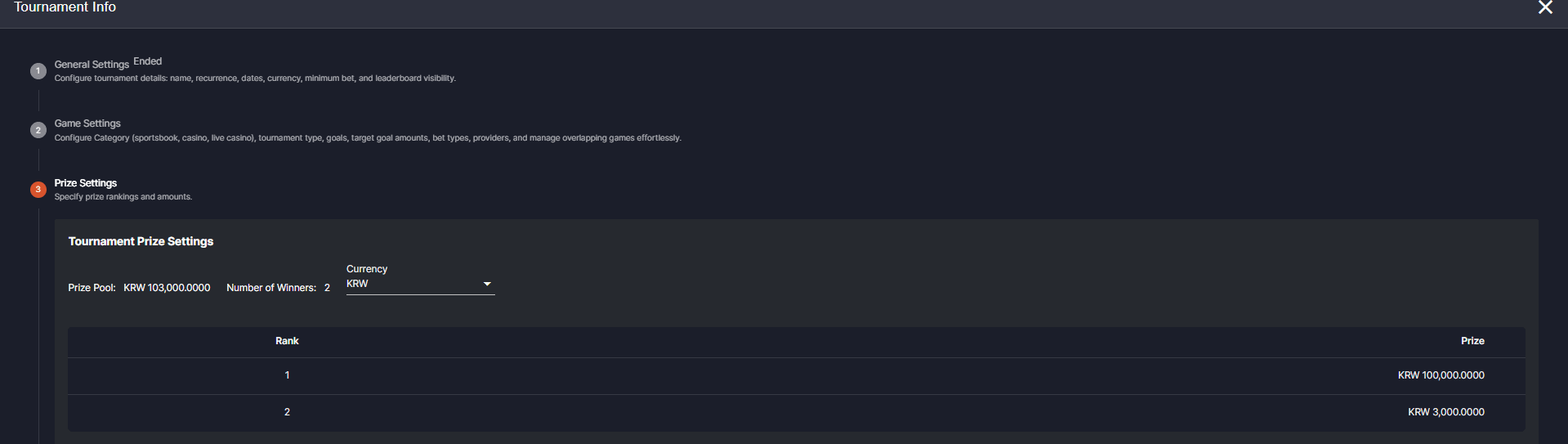
The Tournament Prize Settings let the back office user set how many ranks and its corresponding Prize Amount.| Tournament Prize Settings | Description |
|---|---|
| Prize Pool | Display the accumulated amount of the prize pool. Formula: Prize pool = Calculated Sum of Prize Column *Prize Pool and Number of winners are automatically calculated. |
| Number of Winners | Displays the sum of the Winner count |
| Rank | Displays the ranking or hierarchy of the prizes • rank in the table is incremental. |
| ⭐ Prize | Input the amount of prize in a particular rank.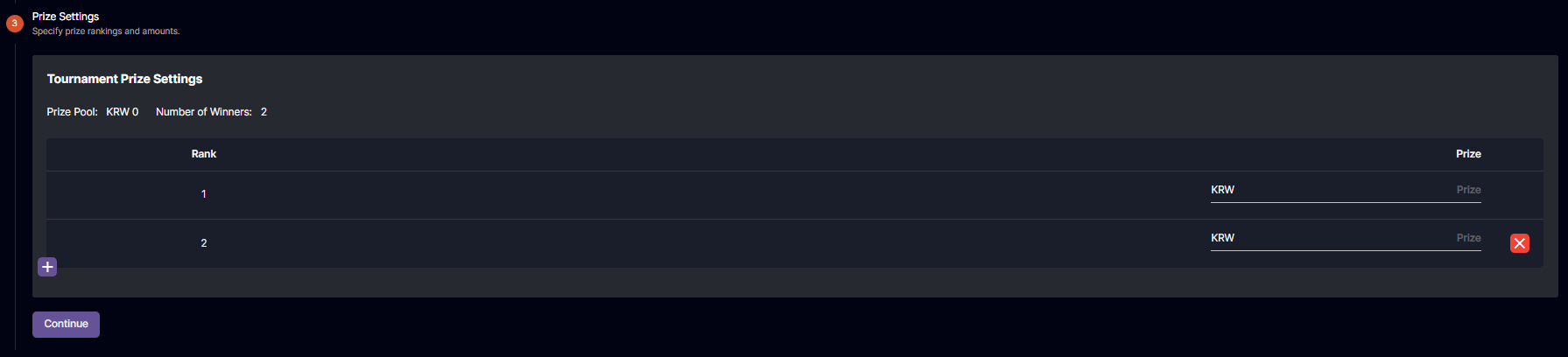 |
Add  | Add another row or ‘Rank’ for configuring another prize. |
Remove  | Remove the current row for removing the current configuring of the prize |
Display Settings
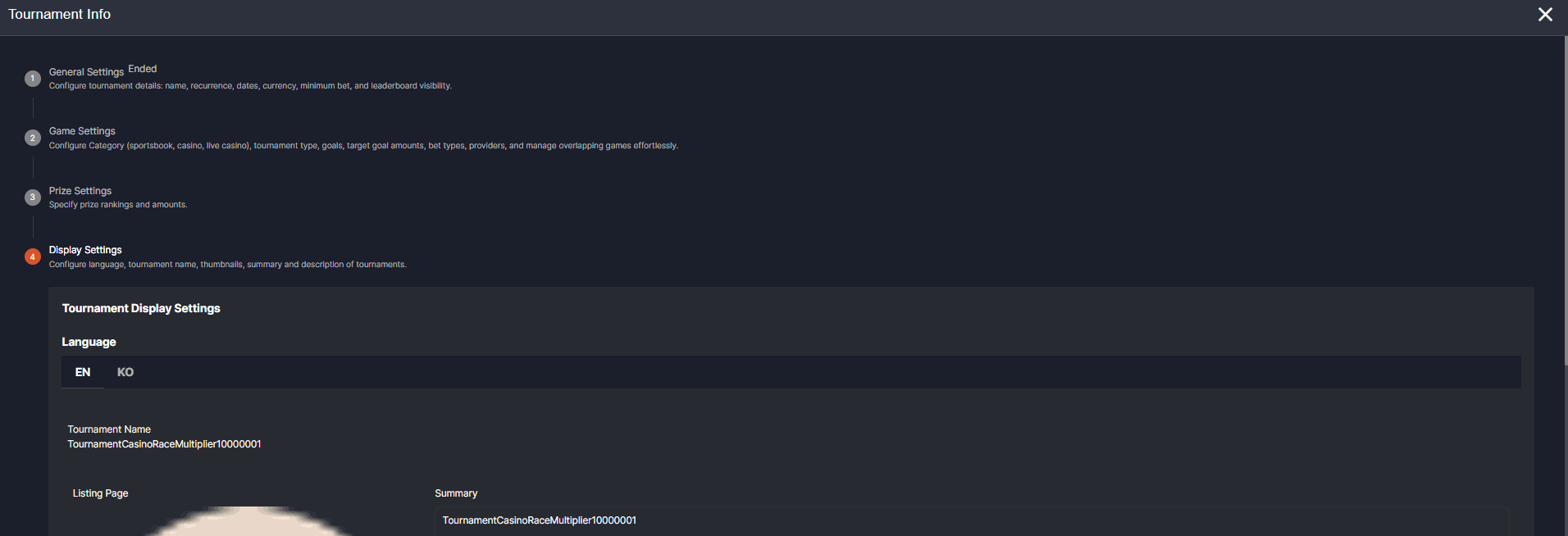
The backoffice user will be able to configure the language, tournament name, thumbnails, summary and description of tournaments.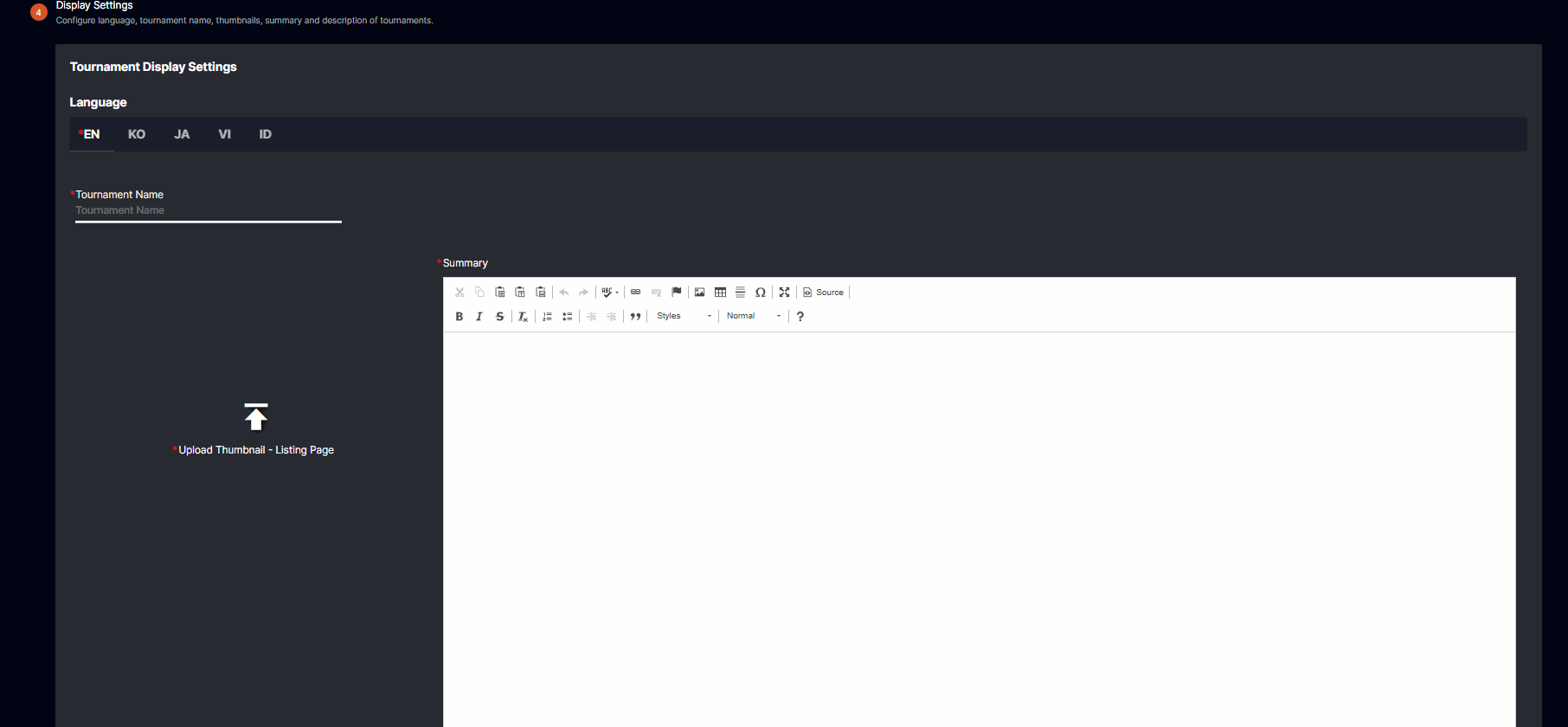
- Prompt Error Message: “The <field name> field is required.” (if the required fields are not filled by the backoffice user.)
- The match dates and betting dates of the sports tournament should be within the tournament period.
- Automatic deselect the specific league or sport that is not within the tournament period.
- WHEN the backoffice user selects the league or sport that is not within the tournament period: will trigger a prompt to automatically adjust the end date of the tournament period with the selected league or sport match end date.
- The bonus or partial bonus are not counted, real money bets are the only counted.
- In creating new tournament, if all games in a category are already selected in another scheduled tournament <TournamentName> and has overlapping date and time, the selection of that category is disabled, and prompt “This category is already included in a scheduled tournament”. Else, if in another active tournament and has an overlapping date and time, it will prompt “This category is already included in an active tournament <TournamentName>.
Edit a Tournament
This article will guide you how to edit a tournament.| Non-recurring | Recurring |
|---|---|
| • Active • Not editable only the Display leaderboards in the player portal - landing page can be configured. • Scheduled • All fields are editable • Ended • Not editable. Only the Display leaderboards in the player portal - landing page can be configured. | Once the edit button is clicked, this pop up will appear.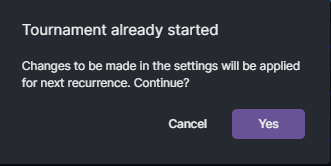 Upon clicking Yes, it will redirect to the scheduled tournament of the current recurring tournament. 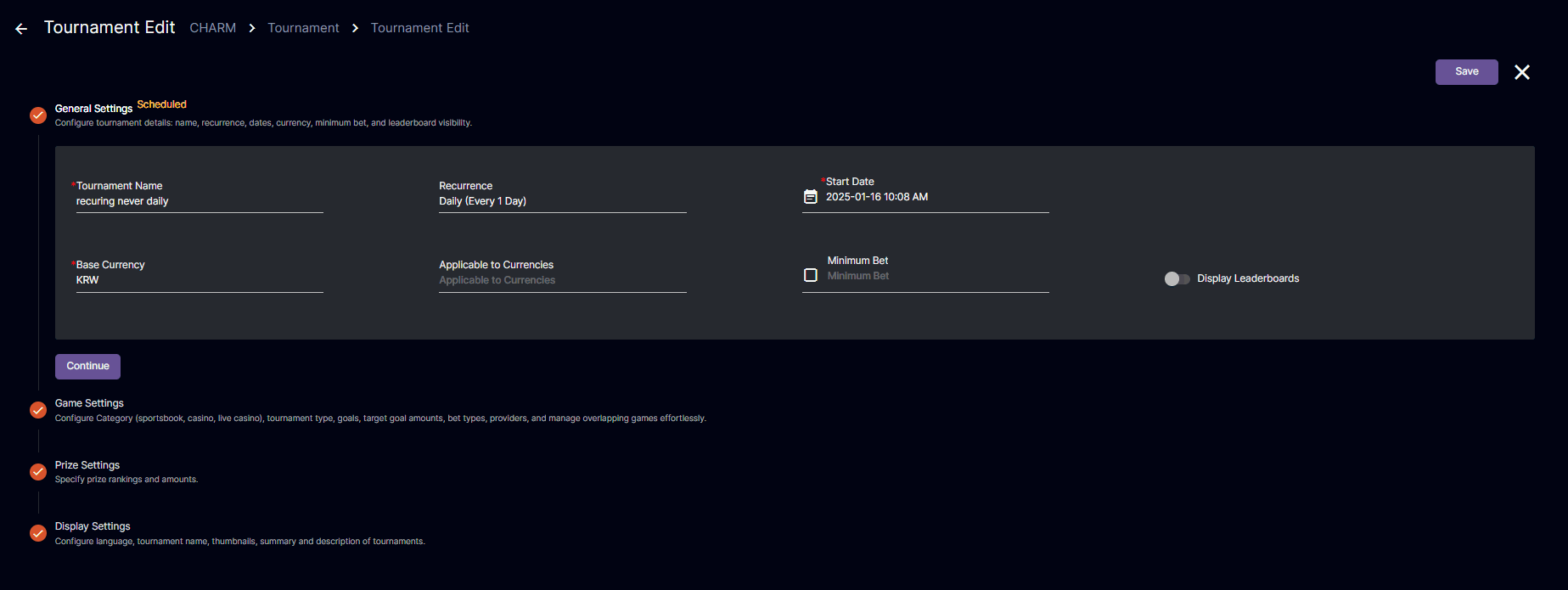 After saving or updating the scheduled tournament, it will be redirected to tournament list, and the edited scheduled tournament shall NOT be shown in the tournament list. |
- Tournament Name
- Recurrence Type (Daily, Weekly, Monthly)
- Goal (Multiplier, Bet amount)
- Tournament Type
- Race (Target Goal Amount)
- Time Limit
- Base currency
- Applicable to currencies
- Scheduled - all fields are editable
- Ended - not editable
- Incase the backoffice user sets it as:
- Never - the backoffice user can end it by clicking the “End Tournament” in view details by clicking the eye icon in the tournament list. It will end in the next recurrence.
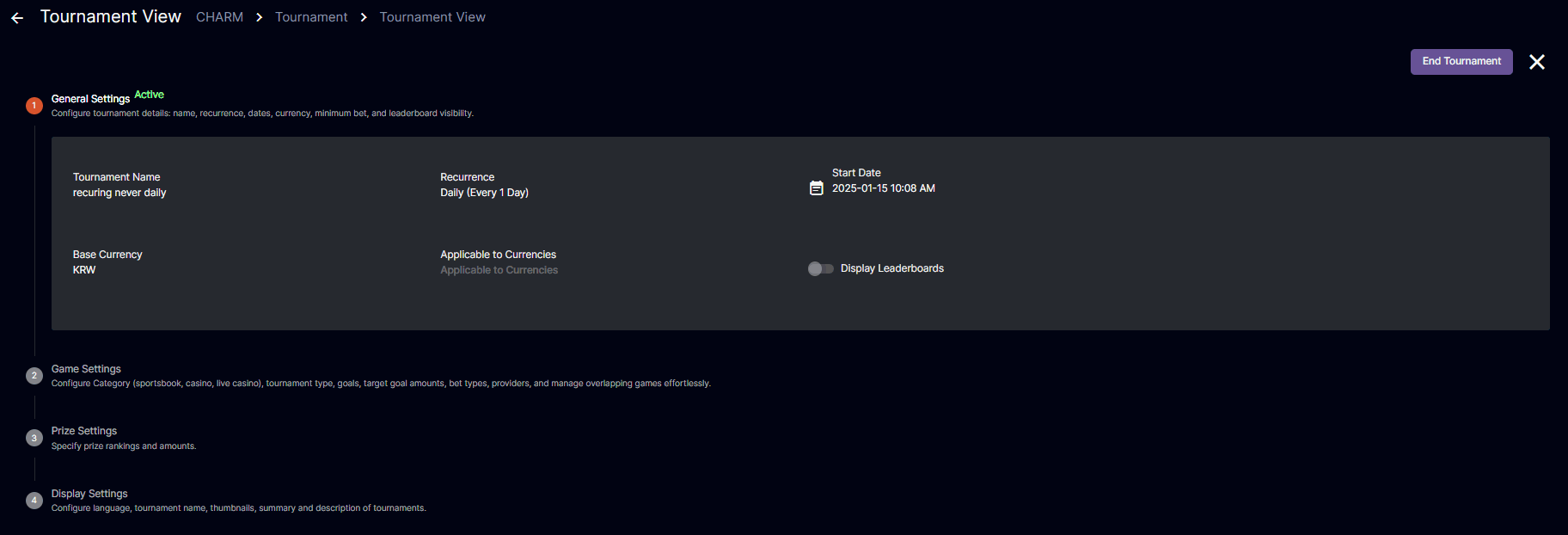
- On - Not editable, only the Display leaderboards in the player portal - landing page can be configured.
- After - Not editable, only the Display leaderboards in the player portal - landing page can be configured.
- Never - the backoffice user can end it by clicking the “End Tournament” in view details by clicking the eye icon in the tournament list. It will end in the next recurrence.
- Incase the backoffice user sets it as:
Same features as Creating New Tournament, but when editing the previous data is displayed and is editable.
Tournament Disbursement
Disburse
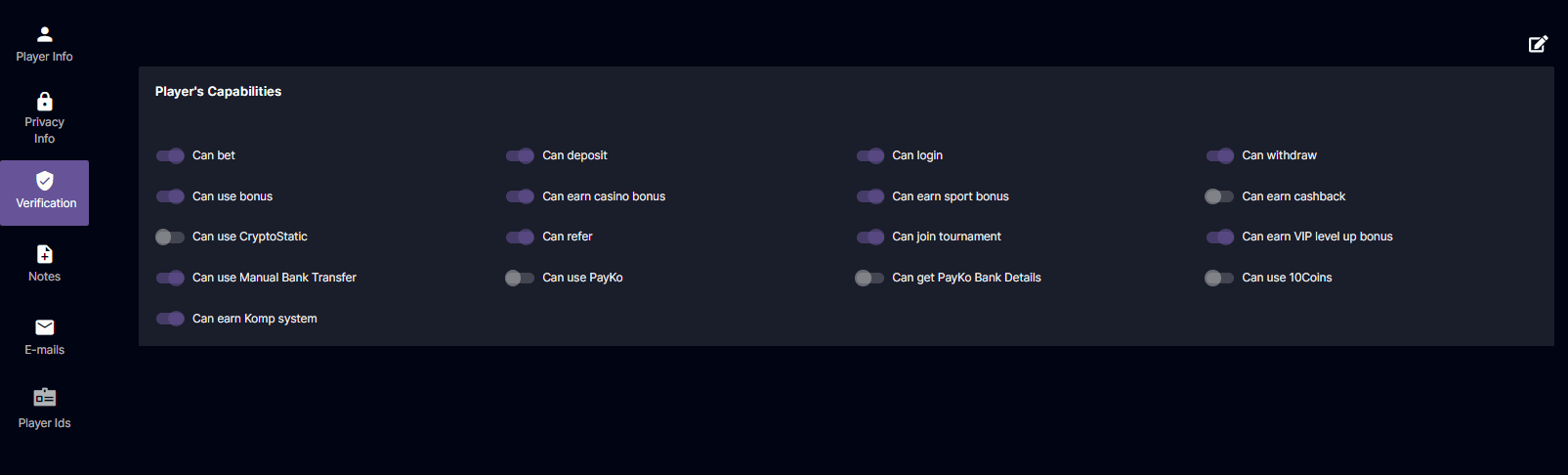
The disburse button will show when the tournament’s status is “Ended”- For the player to receive the tournament Prize the “Can Join tournament” shall be toggled on.
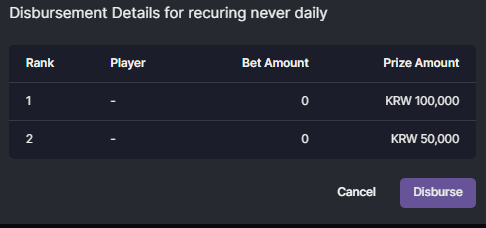
- After clicking the “Disburse” button, It will trigger a pop-up of Disbursement Details for <tournament name>.
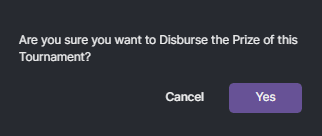
- If the backoffice user clicks the “Disburse”, there will be a pop-up confirmation if the operator is sure to disburse the prize of the tournament, then it will change to “Disbursed” signifying the tournament has been reviewed by the back office user and disbursed to the players.
- When the tournament is on “Disbursed” Status, the tournament will be visible on the tournament list for only 7 days.
- The prize will be real money only.
- The real money wallet will be automatically enabled when the player has not enabled that currency wallet.
Filter
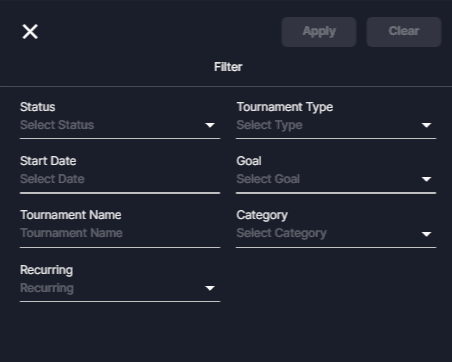 The filter option can be used for filtering the table as follows:
- Status
- Active
- Scheduled
- Ended
- Date Range
- Tournament Name
- Tournament Type
- Race
- Time Limit
- Goal
- Multiplier
- Bet Amount
- Category
- Sportsbook
- Live Casino
- Casino
- Recurring
- Daily
- Weekly
- Monthly
View details - Tournament Info
Upon clicking the “Eye icon”, View Details pops up all the details that the tournament has. In View Details, it will showcase the End tournament button to end the recurring tournaments in the next recurrence.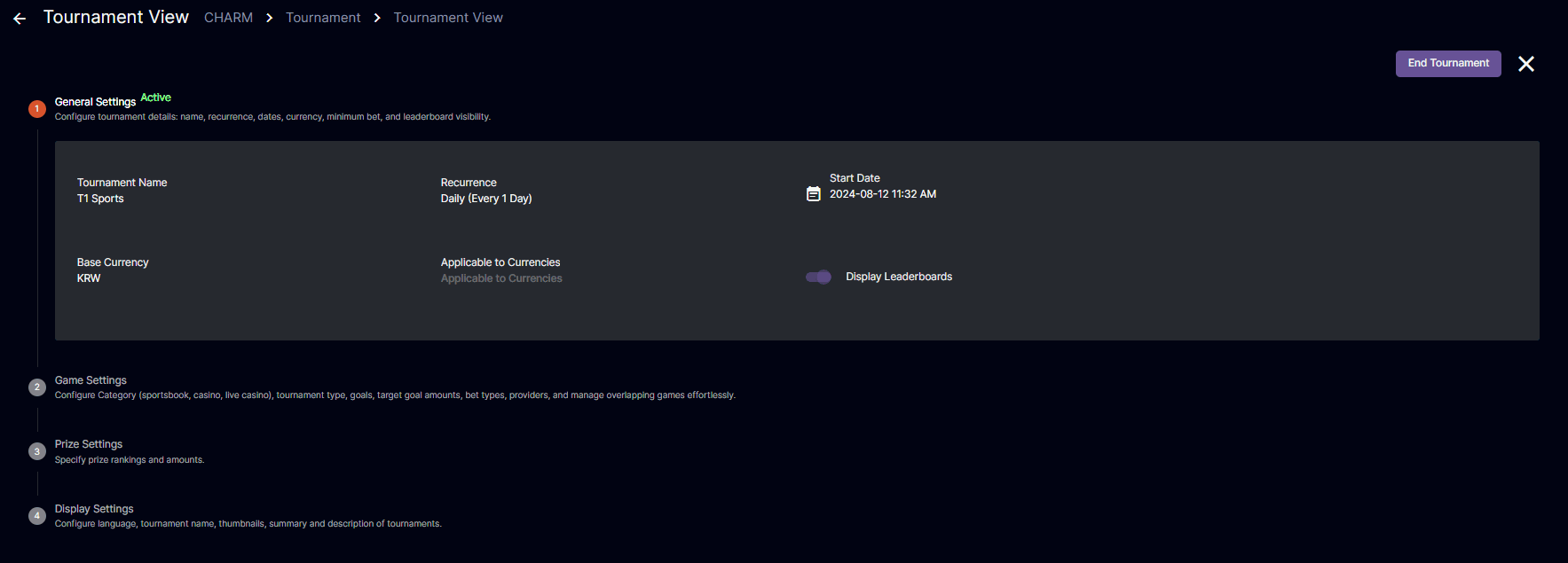 In Tournament Prize Settings, the back office user can convert the prize column into the selected applicable currency set in the creation of a tournament in the back office, by clicking and selecting the Currency dropdown menu. The only selectable currency shall be only the setting in applicable currencies set by the back office user in the creation of the tournament.
 In Tournament Display Settings the back office user can select language for viewing the display settings.
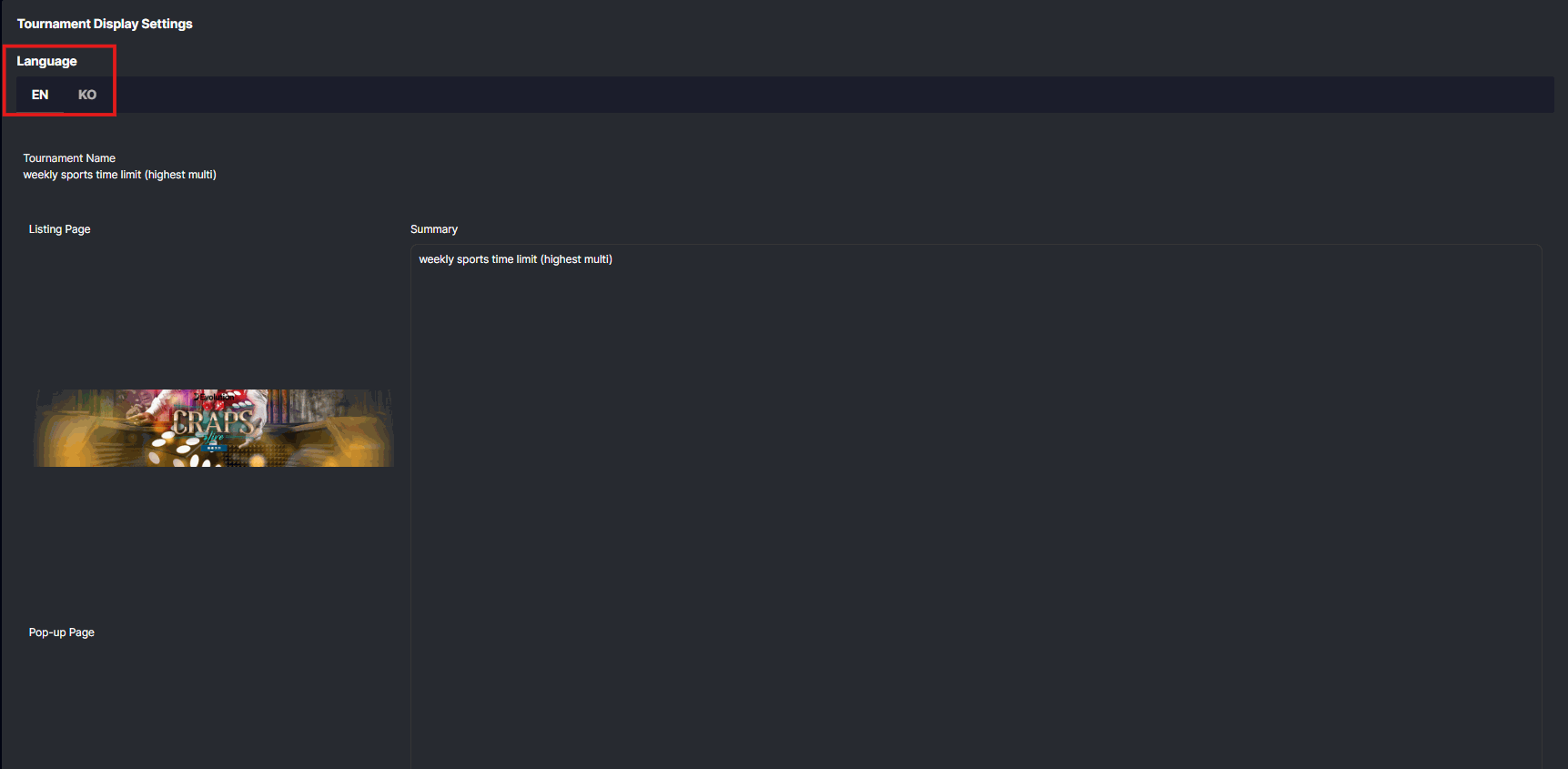 Korean ver: 토너먼트 지출
Tournament Reports
Tournament reports will provide a detailed record of tournament activities and outcomes. For ended tournament, this will also show the tournament results with the player’s rank and the disbursement report. Tournament Reports has three level drill down, depends of the tournament if it is recurring or non-recurring tournament. Tournament Reports is essential for all ended or concluded tournaments. This serves as an historical data for the the backoffice user.Filters
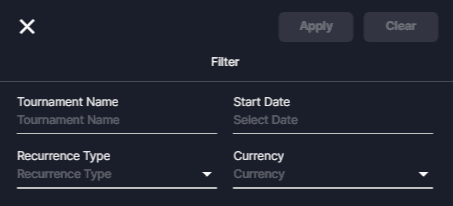
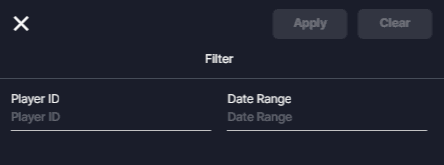
- Tournament Name
- Date Range
- Recurrence Type
- Daily
- Weekly
- Monthly
- Currency
 - to sort the column in descending or ascending order. By default, it is sorted by descing order.
Reload button
- to sort the column in descending or ascending order. By default, it is sorted by descing order.
Reload button  - to manually reload the Tournament Reports for the updated data.
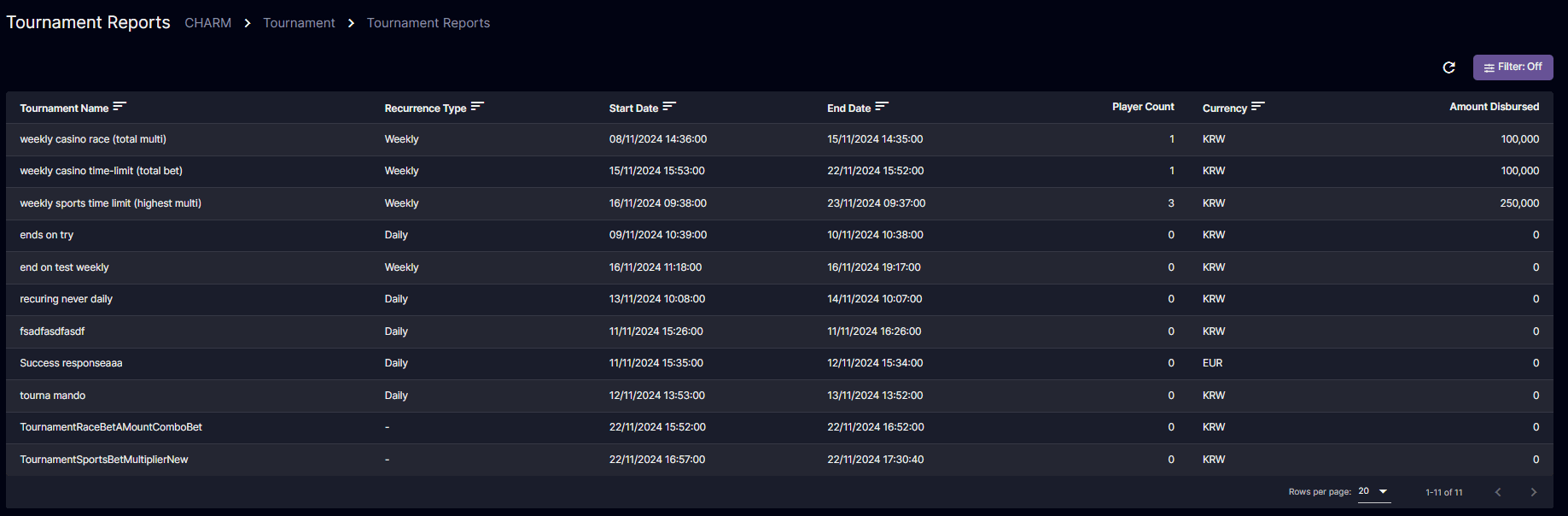
| Tournament Reports | Description |
|---|---|
Tournament Name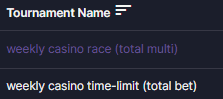 | Display the name of the tournament • The tournament name is highlighted which means it is clickable.  |
| Recurrence Type | Display recurring indication if the tournament is a recurring tournament or NOT by displaying its type. • Daily • Weekly • Monthly |
| Start Date | Display the start date of the tournament. |
| End Date | Display the end date of the tournament. |
| Player Count | Display the accumulated sum player count of the recurring or non-recurring tournament. |
| Currency | Display the currency of the amount disbursed |
| Amount Disbursed | Display the accumulated sum of the amount disbursed based on all the player’s amount disbursed in that recurring or non-recurring tournament. |
Tournament Report Player Ranks

Non-Recurring
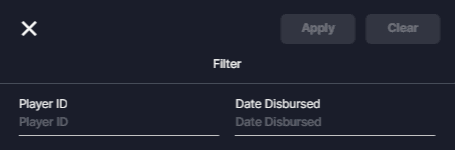
Tournament Report Recurrence List

Recurring
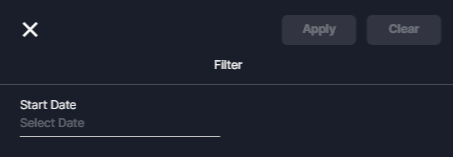
Bet Reports
Bet Reports of the tournament will be placed in the Reports tab, and will be recorded accordingly if it is a sportsbook bet report or Casino bet report.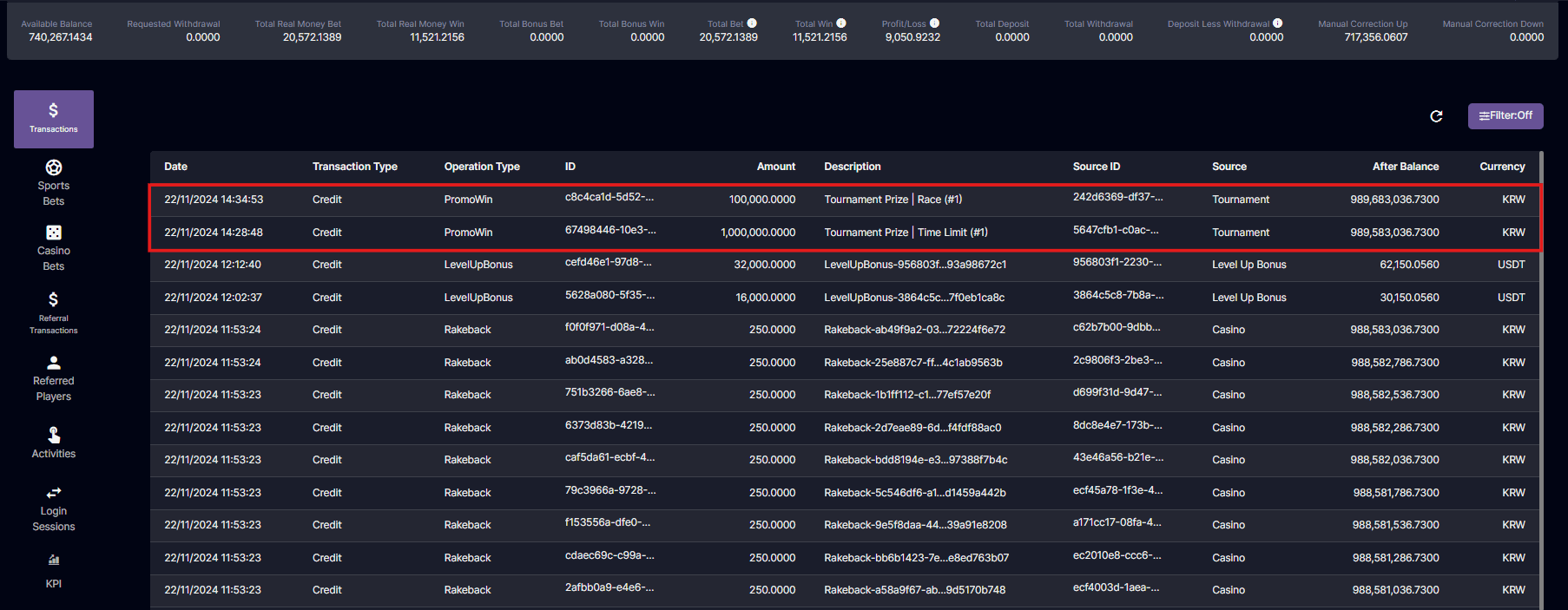 Tournament ID will be highlighted indicating that it is clickable and if the bet report is from the tournament. Once clicked, you will be routed to the Tournament Info.
 The backoffice user can manage the user’s capabilities regarding tournaments.
Navigation: Settings > User Management > view username details > Tournament
The backoffice user can manage the user’s capabilities regarding tournaments.
Navigation: Settings > User Management > view username details > Tournament
- Tournament List
- Tournament Report
- Tournament Leaderboards
 Korean ver: 토너먼트 보고서
Tournament Leaderboards
Reload button - to manually reload the leaderboards to the updated view
Date and time format of Leaderboards is: DD Mon YYYY HH:MM:SS am/pm (15 Feb 2024 11:59:59pm).
- to manually reload the leaderboards to the updated view
Date and time format of Leaderboards is: DD Mon YYYY HH:MM:SS am/pm (15 Feb 2024 11:59:59pm).

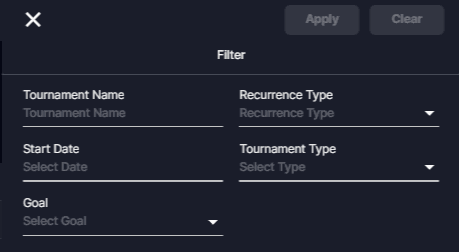
Filters:
- Tournament Name
- Recurrence Type
- Daily
- Weekly
- Monthly
- Date Range
- Tournament Type
- Race
- Time Limit
- Goal
- Multiplier
- Bet amount
- Goal Amount

This table displays all the player that is currently in the ranking, just like in the player portal’s leaderboards.
Korean ver: 목표 금액토너먼트 순위표
Tournament Player Portal
Tournament Landing Page
A landing page is where the players can browse the Active, Scheduled, and Ended Tournaments for their information. Here is a sample of a tournament.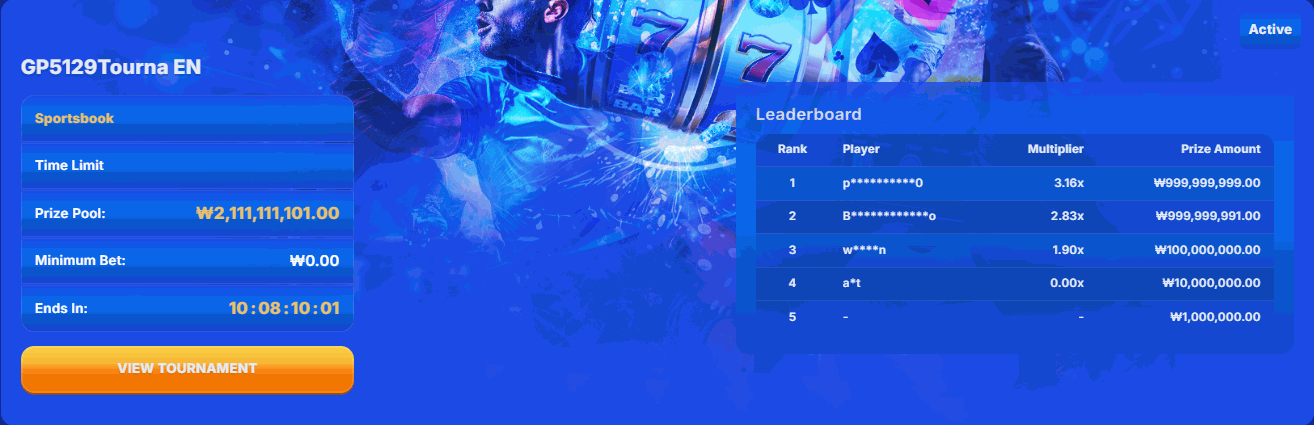
Here are the details of the tournament:
- Tournaments will be managed by the Back Office User.
- Time format for tournaments that has Real-Time count down timer shall be: DD:HH:MM:SS
-
Player’s own username shall be unmasked regardless of it’s ranks
Example:- Scenario 1: The leaderboard ranking is set up to Rank 3 only: My player’s username is Tourna23
- Rank 1 = T*****1Rank 2 = T*****2Rank 3 = T*****3Rank 4 = T*****4Rank 5 = T*****5 My Rank is, Rank 125 = Tourna23 (Should not be masked)
- Scenario 2: The leaderboard ranking is set up to Rank 3 only: My player’s username is Tourna23
- Rank 1 = T*****1Rank 2 = T*****2Rank 3 = Tourna23Rank 4 = T*****4Rank 5 = T*****5 My Rank is, Rank 3 = Tourna23 (Should not be masked)
- In scenarios 1 and 2, the player should be Logged In. If the player is NOT Logged In, in Scenario 1 it will not show the details of My rank section. in Scenario 2, given that the player is rank 3, it shall be masked.
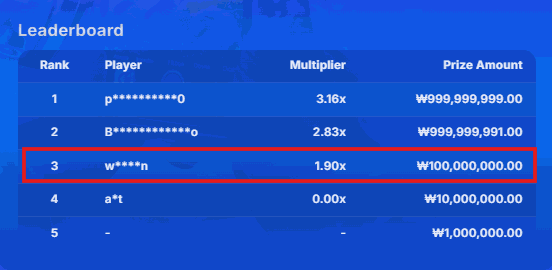
player is not logged in
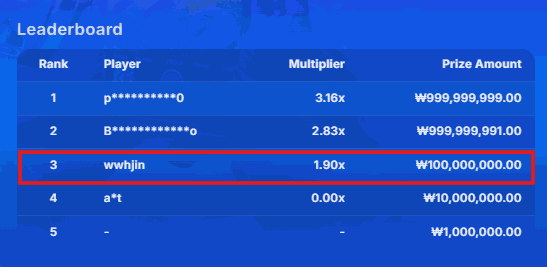
player is logged in
- Scenario 1: The leaderboard ranking is set up to Rank 3 only: My player’s username is Tourna23
- Leaderboards will initially display maximum of top 20. When, the operator sets only 10 ranks then it will showcase 10 ranks in the leader boards, else if it is more than top 20 ranks that is set by the operator, the leaderboards shall be scrollable.
-
If 2 or more players have the same “goal amount”, this will be applied:
- Time-based tiebreakers: The player with the faster time will be ranked higher. This shall include milliseconds or even smaller units of time. (DD:HH:MM:mm).
View Results (Ended Tournament)
Sample image of what you see when ‘View Result’ is clicked.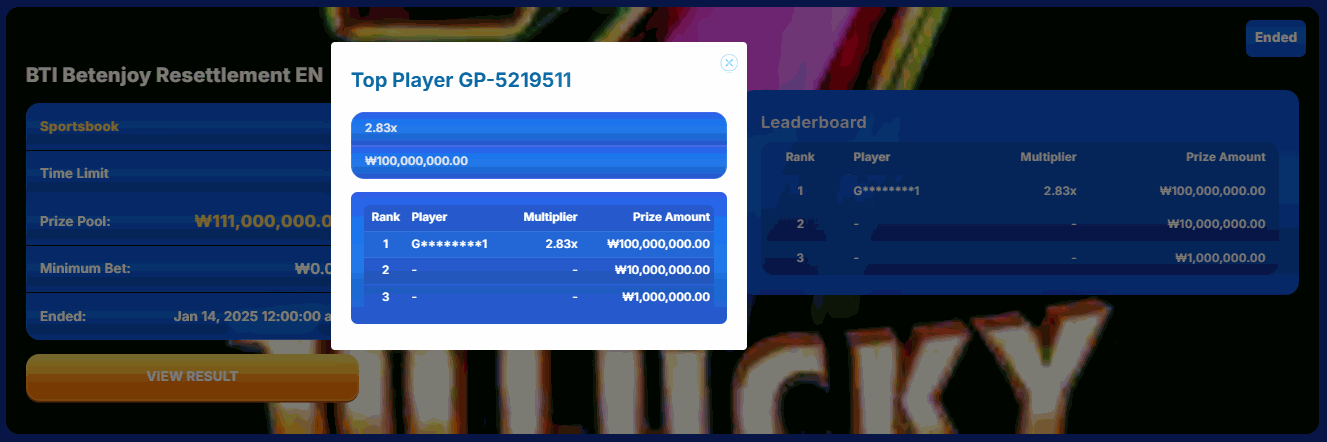
- The sequence will prioritize Active tournaments first, followed by Scheduled tournaments, and finally Ended tournaments. This order is determined by the proximity of the tournament’s end time (for Active tournaments) or start time (for Scheduled tournaments).
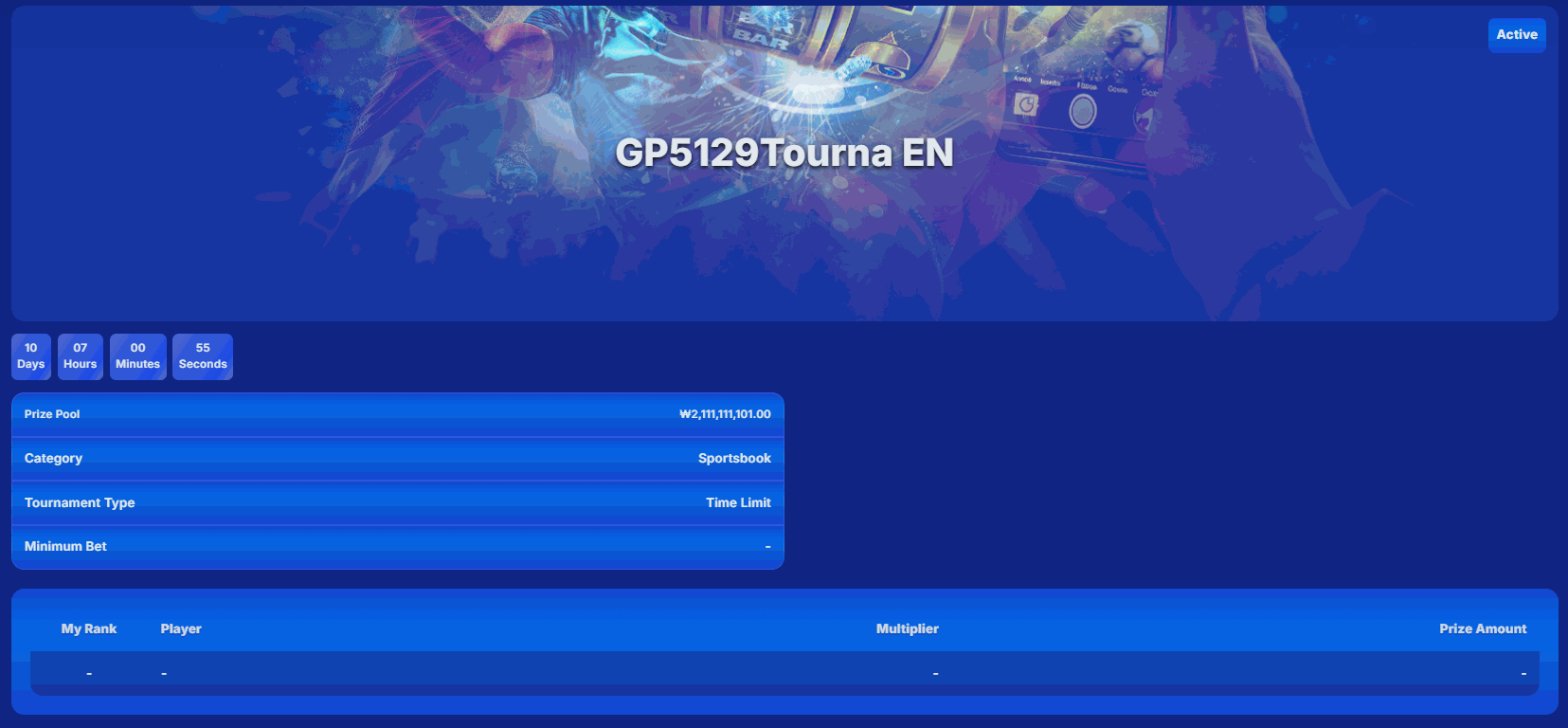
All about Player info shall be displayed as “ - “ as long as the player is NOT Signed in.
Active Tournament
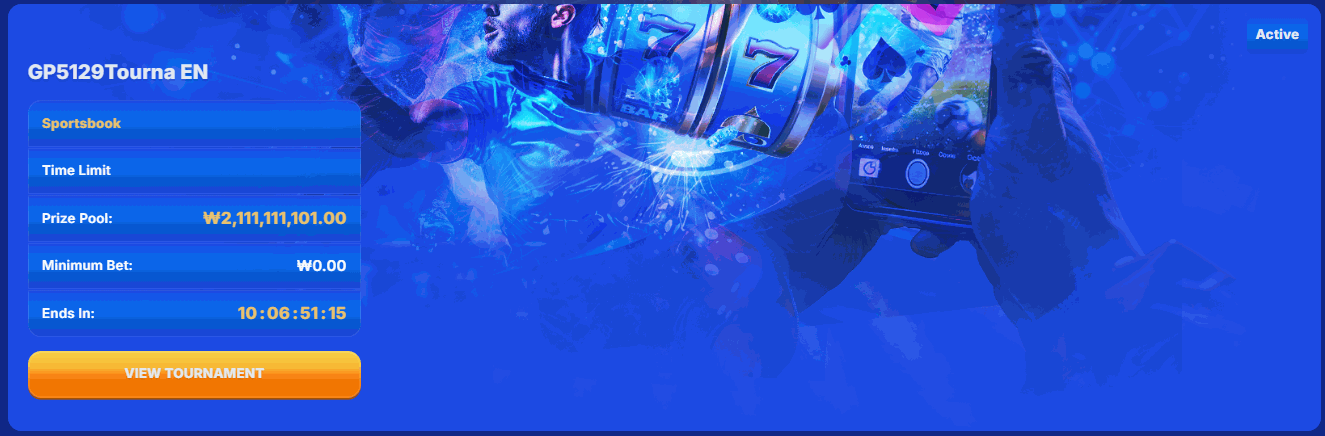
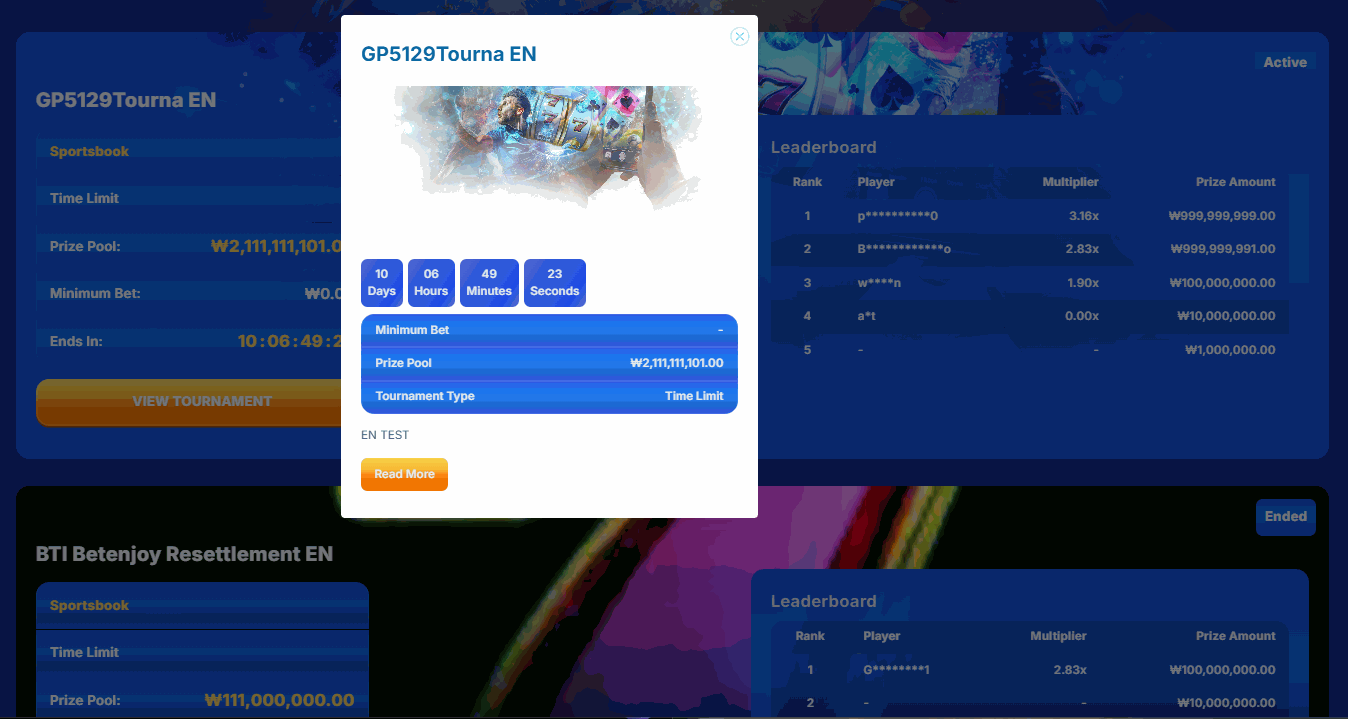
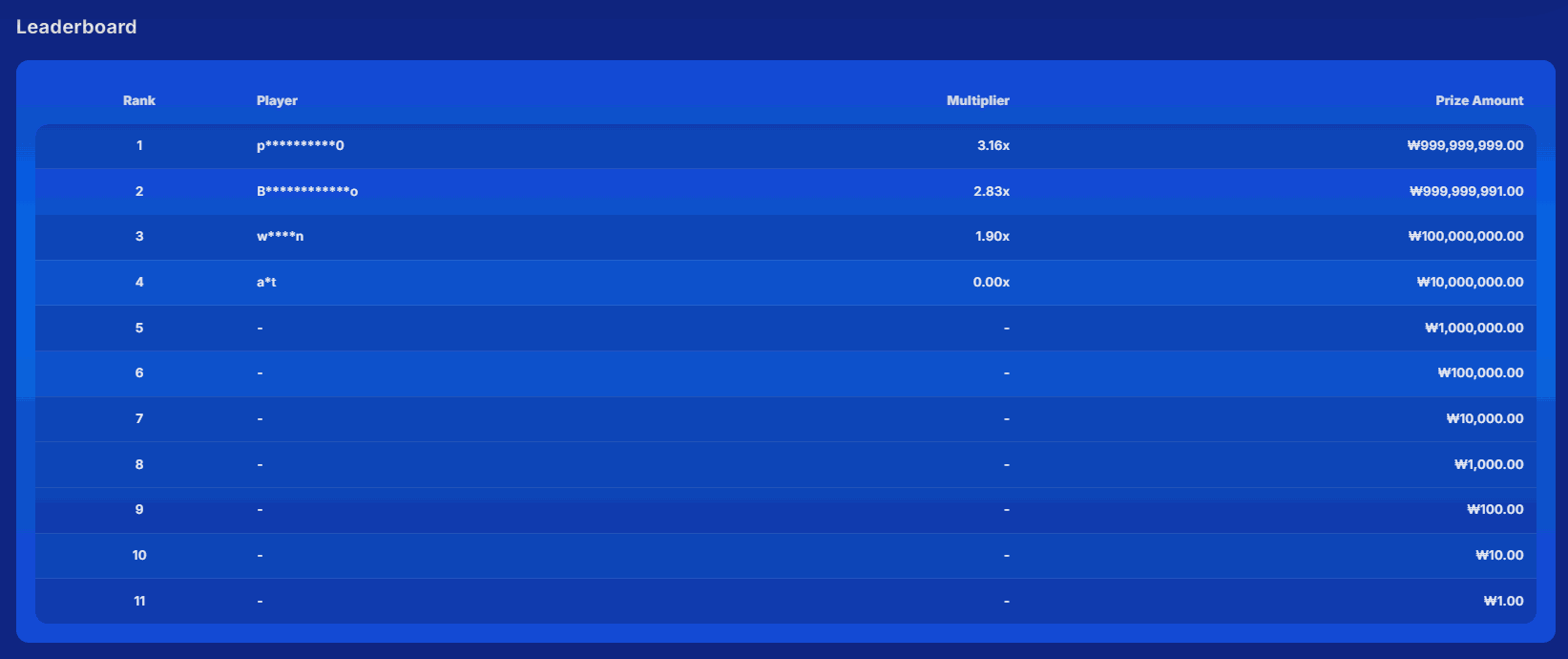
Active Tournaments mean that the tournament is ongoing. Active tournaments cannot be deleted but can configure the leaderboards regardless of whether they are recurring or non-recurring tournaments to be on or off display. By default, Leaderboards shall display the top 5 player.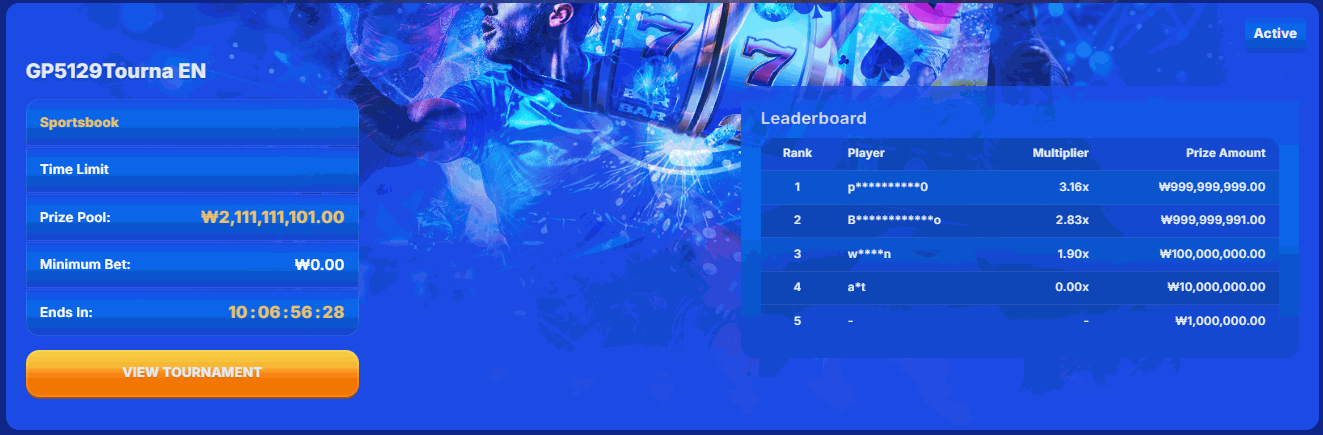
Display Leaderboards - toggled on
Display Leaderboards - toggled off
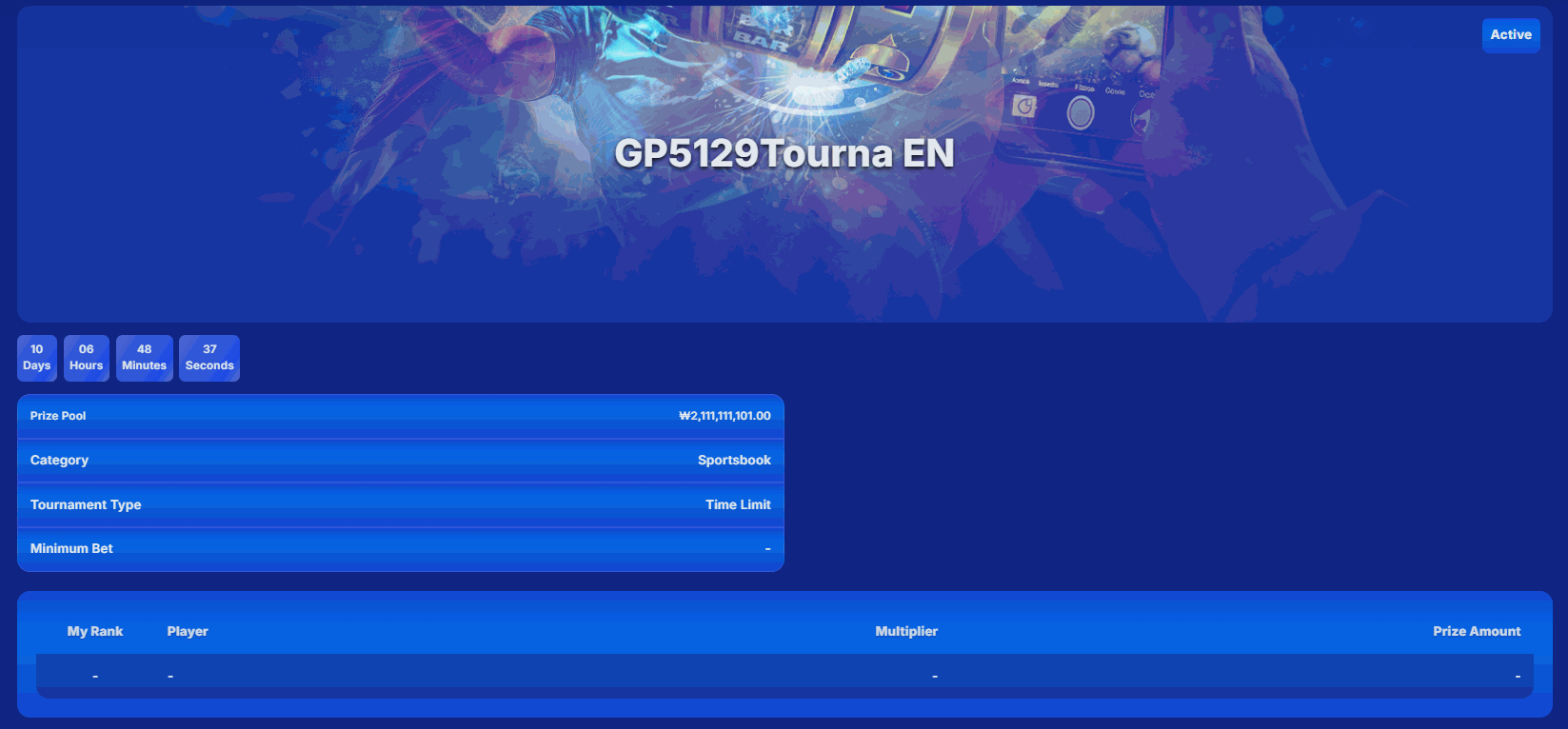
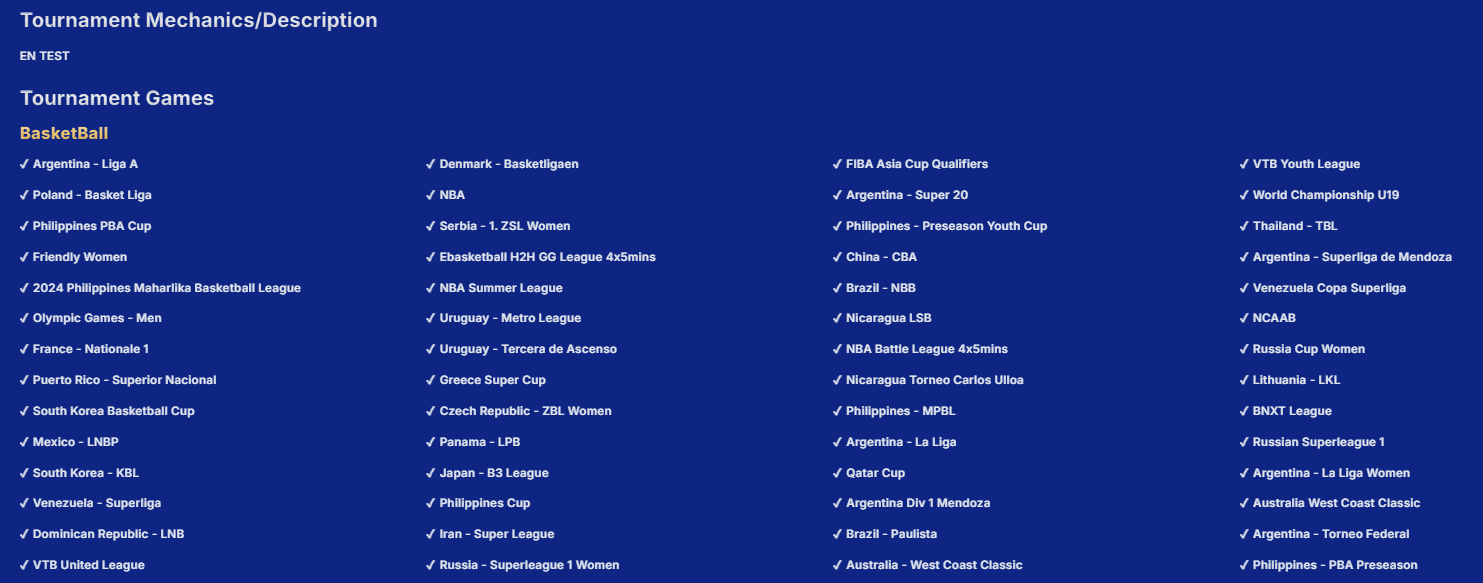
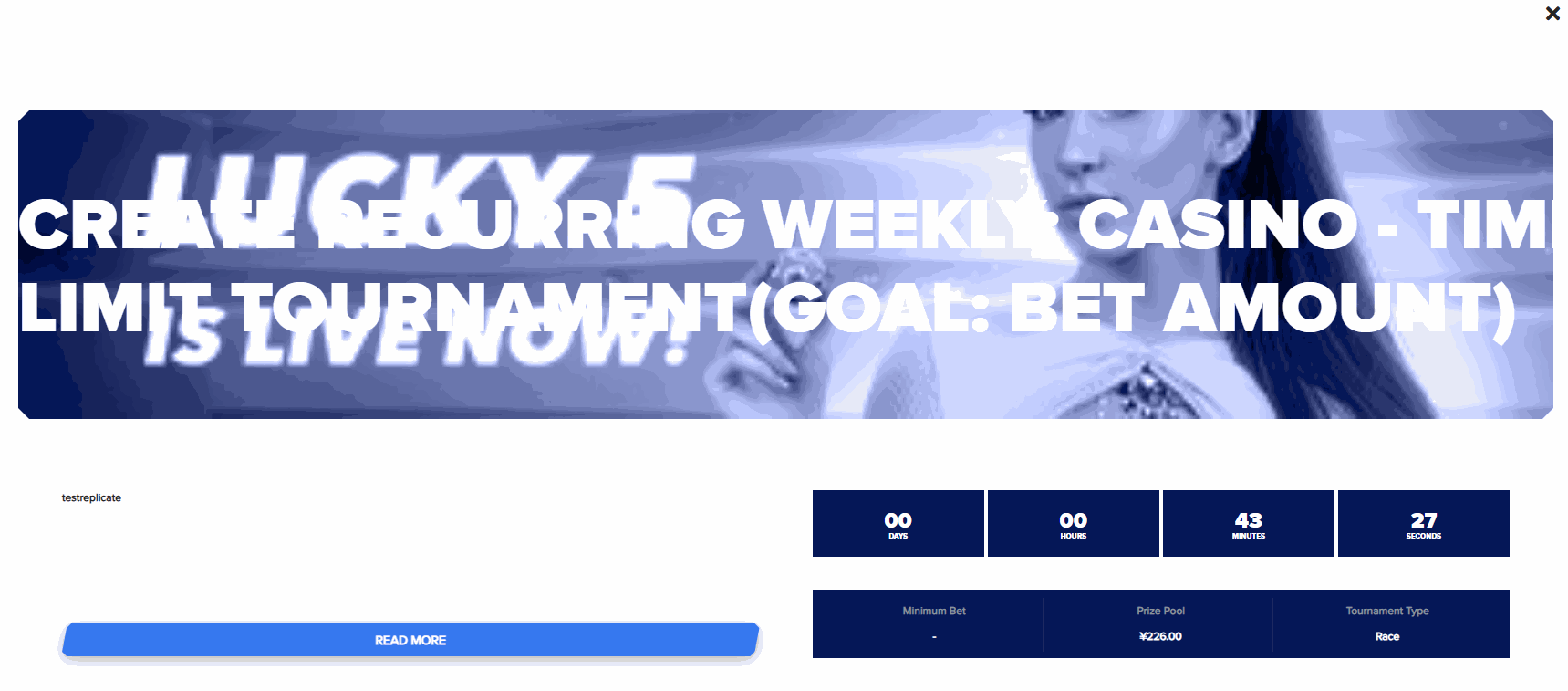
 Upon clicking “Read More”, here are the details that you will see for a non-recurring tournament.
 Recurring tournaments, will display the previous ended tournament, and players can view the previous leaderboards results of the tournament.
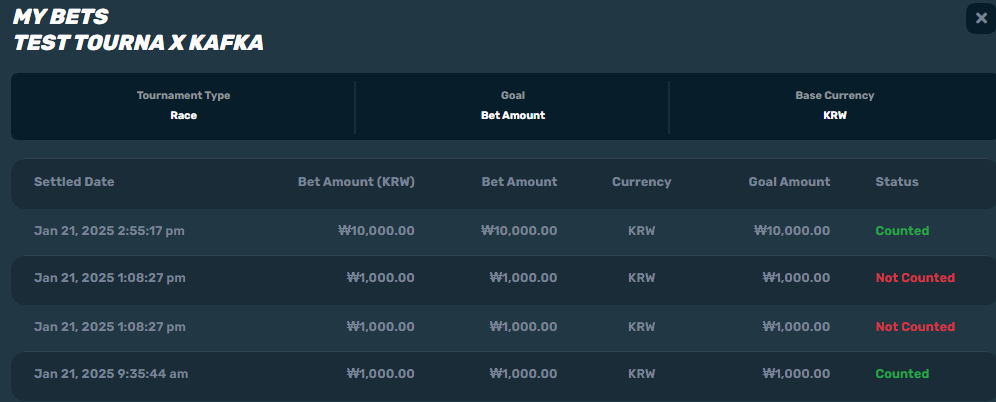
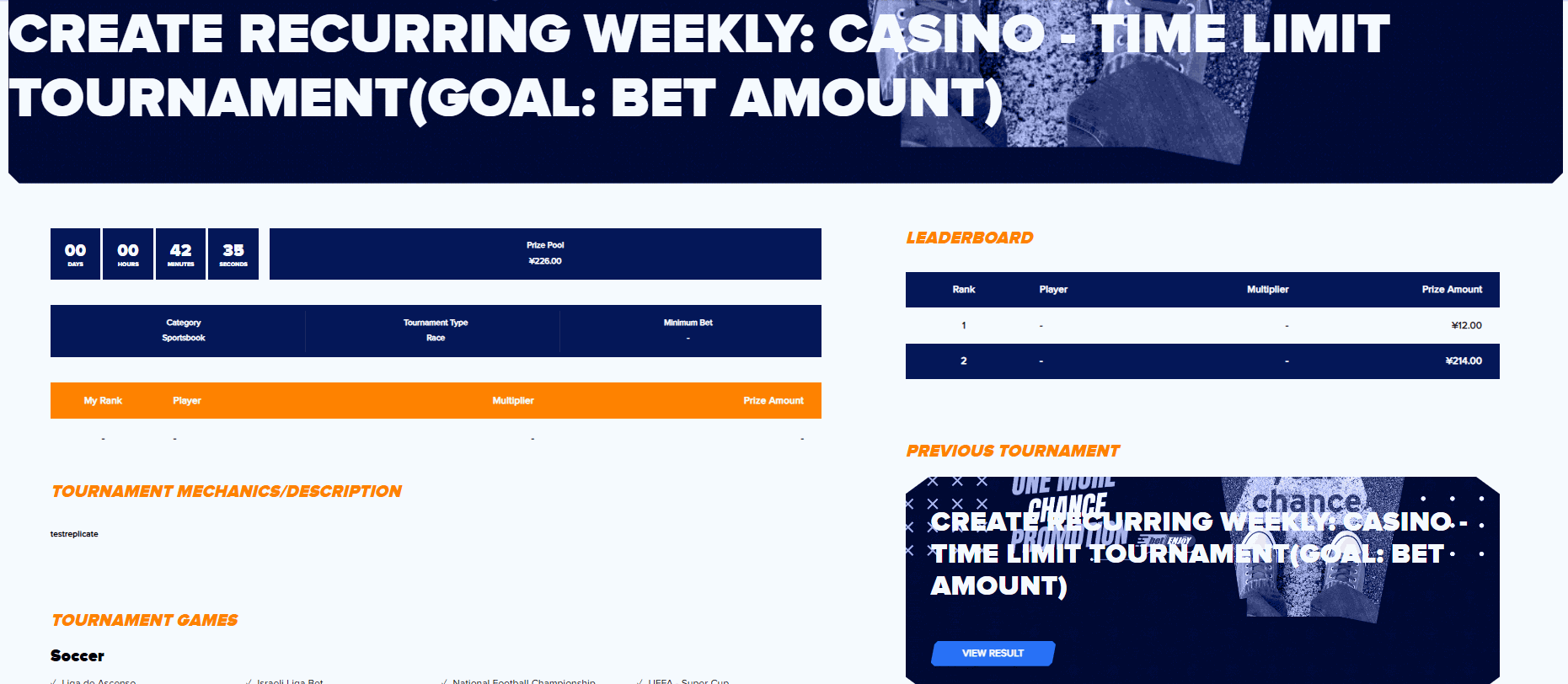 When “<player>” under My rank table is clicked, it will trigger a pop-up detailed report. All report shall met the requirements of games set by the operator and within the tournament period.
- If a player bets using a currency that is not included in the applicable currencies set by the operator, it will automatically NOT be counted and will also NOT be displayed in the detailed report.
- If a player bet using a currency that is included in the set currencies by the BO, but does not meet the “Min. Bet” requirement, it will be included in the detailed report but reported as “Not Counted”.
Pop-up detailed report of the player
Pop-up detailed report of the player
Scheduled Tournament
Scheduled Tournaments mean that the competition is planned to occur based on the start date and time configured by the Back Office User. It can always configured and delete by the Back Office User whether it is recurring or non-recurring tournaments.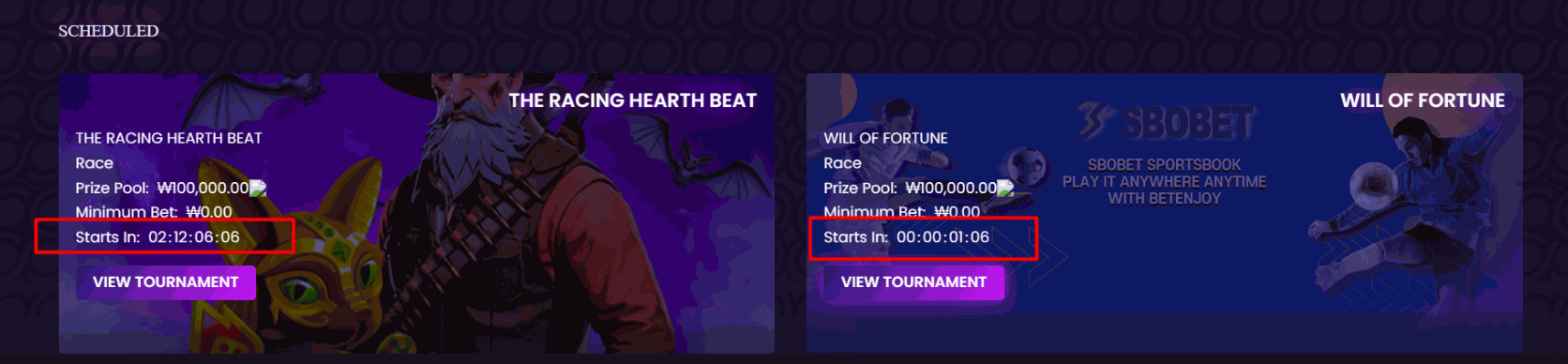
Ended Tournament
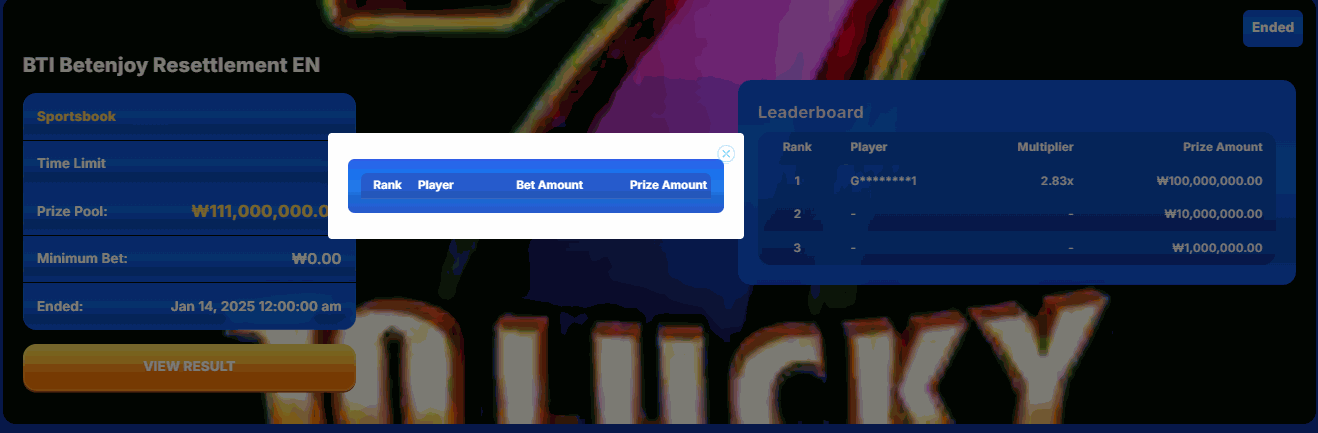
Ended Tournament means that the competition is concluded and cannot be configured by the Back Office User. Ended tournament can NOT be edited, but is configurable if the leaderboards is to be on or off display. By default, Leaderboards shall display the top 5 player.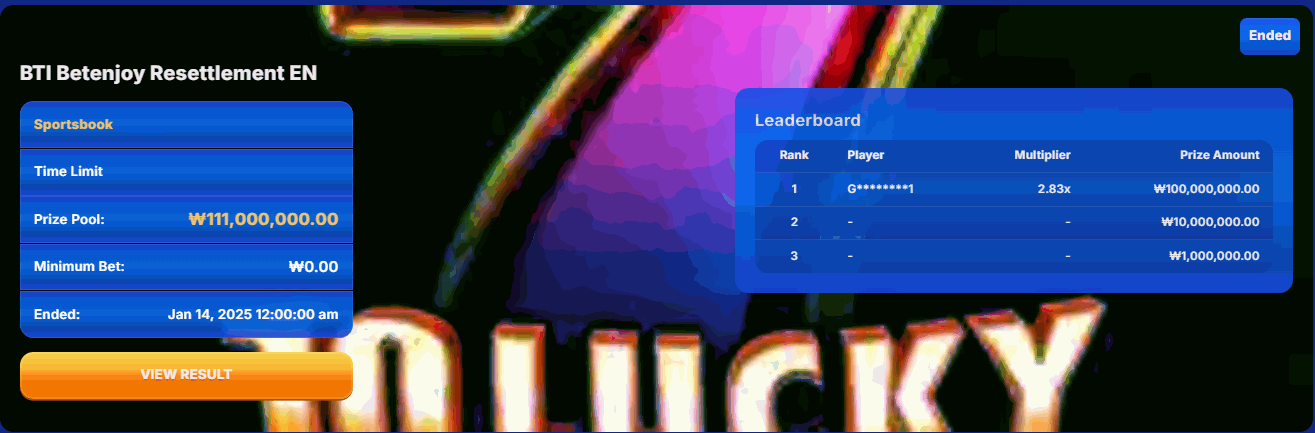 Upon clicking “View Results” It will display a Pop-up that displays the Rank, Player, Bet Amount, and Prize Amount.
Game Page Widget
This widget is available for all the games that are included in tournament games settings, it gives the players an overview of the tournament, and players can be redirected to the tournament info thru the button “Read more”. Only Active tournaments can be displayed as a widget in Game Page/s.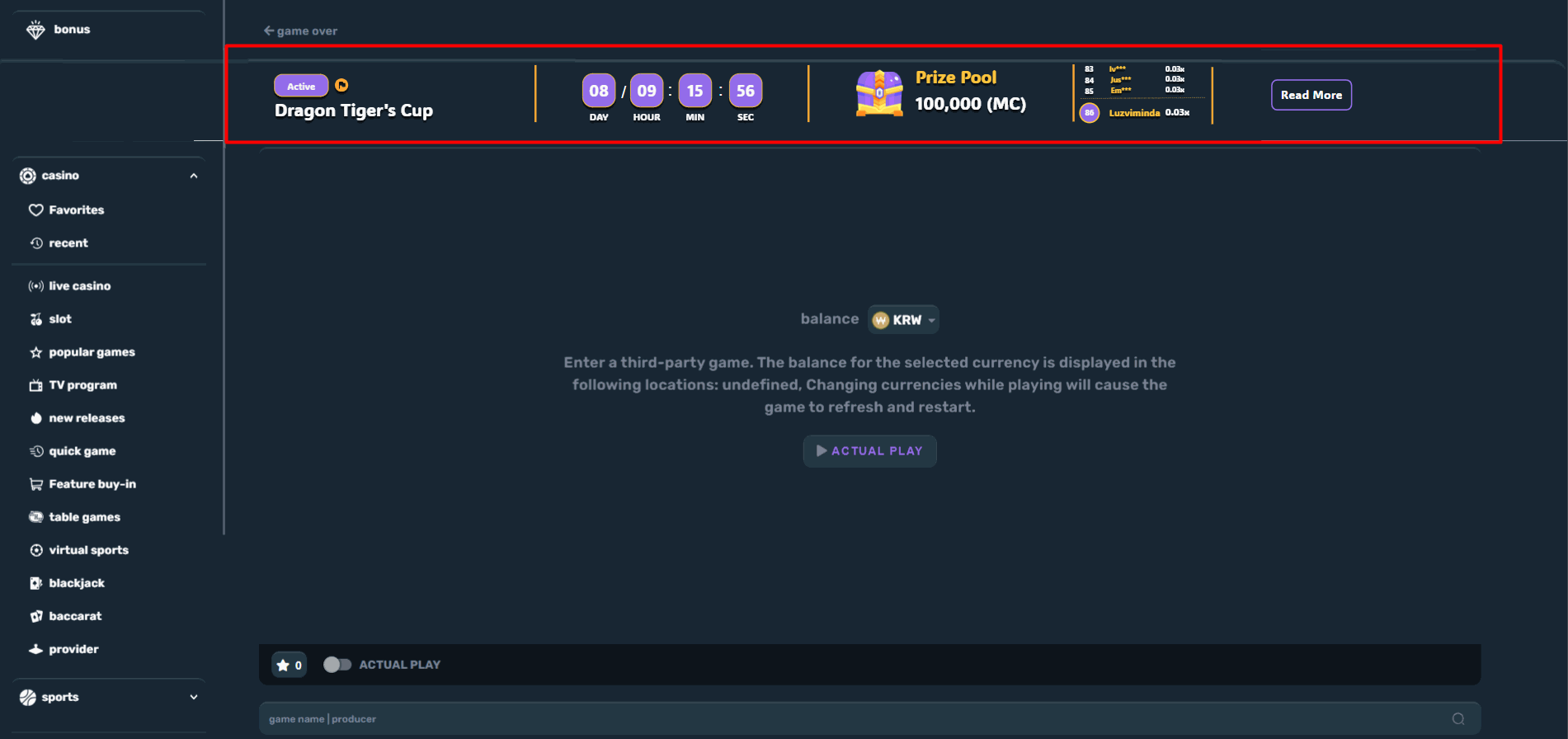 The flag icon beside the status label can be hovered and will display tournament information as follows:
- Tournament Type (Race/Time Limit)
- Goal (Multiplier/Bet amount)
- “Receive goal amount based on the total amount you gain by <Goal>.”
- Read more Button
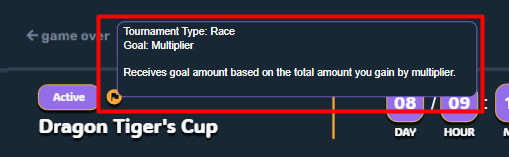
Icon that can be hovered - Modern
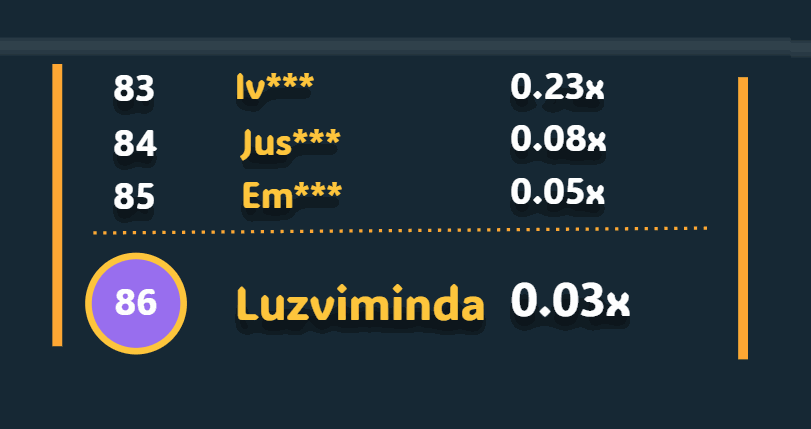 If the player does not have a rank, the initial display for the player’s rank is “ - “ dash only and 0 value of goal amount, and the display will be the top 3 players of the tournament.

Game page widget - Classic
- Tournament Name
- Tournament Type (Race/Time Limit)
- Goal (Multiplier/Bet Amount)
- Prize Pool
- Leaderboards
- Read more button - will redirect to the specific page of the tournament.
Tournament New Update
Below are are the current and new implementation for tournament so you can easily determine what changes.- Category: Sportsbook and Casino
- Goal: Multiplier
- The changes can only be applied to new bet transactions after the changes are deployed
- Default to Computation: Cumulative for active and scheduled tournaments
Korean ver: 토너먼트 신규 업데이트