Create New Komp Settings
The Komp System serves as a method for Single Currency operators to allocate points to players, who can then request redemption in the form of actual wallet currency, bonus wallet currency, or other potential future rewards. Players can instantly accumulate Komp points through placing wagers, and this specifically pertains to bets that have been settled. To create a new Komp Settings, click the plus icon to get started.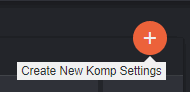
 There is only one set of Komp Settings for each Komp Activity Type and Category. This means that the plus icon will not appear if Komp Settings for Casino and Sports are already existing. The earned Komp Points will be computed for each settled wager and will not be immediately visible after placing the bet.
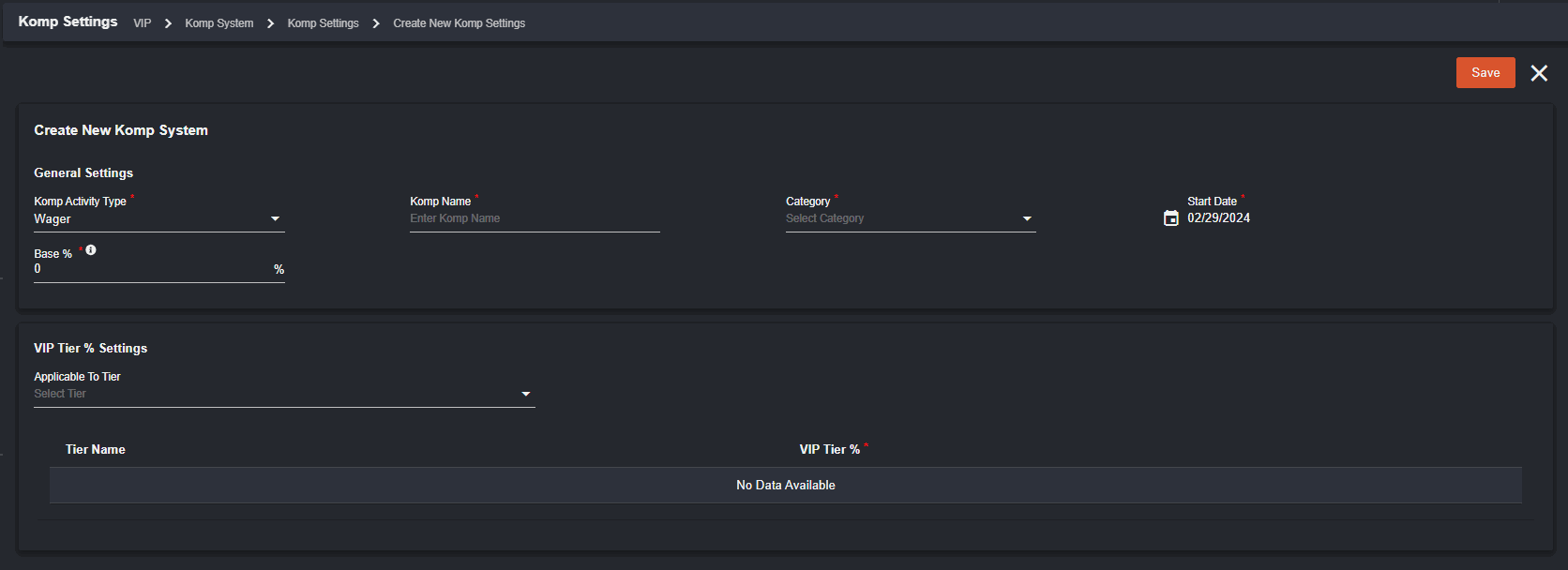 General Settings
Komp Activity Type - by default we have Wager
Komp Name - refers to the Komp name
Category - whether it is for Sportsbook or Casino
Start Date - date when the Komp Settings start
Base % - the backoffice user can set the base % amount which will serve as the multiplier. You will see how it is calculated by clicking the (i) button.
Calculation:_ Committed Wager x (Base % + VIP Tier %) / FX Rate_
VIP Tier % Settings
Applicable to Tier - the dropdown will provide the list of tiers which can also be set for multiple tiers
The selected tier will appear below in the Tier Name with their equivalent percentage (VIP Tier %).
General Settings
Komp Activity Type - by default we have Wager
Komp Name - refers to the Komp name
Category - whether it is for Sportsbook or Casino
Start Date - date when the Komp Settings start
Base % - the backoffice user can set the base % amount which will serve as the multiplier. You will see how it is calculated by clicking the (i) button.
Calculation:_ Committed Wager x (Base % + VIP Tier %) / FX Rate_
VIP Tier % Settings
Applicable to Tier - the dropdown will provide the list of tiers which can also be set for multiple tiers
The selected tier will appear below in the Tier Name with their equivalent percentage (VIP Tier %).
 The VIP Tier % can be set up by the back office user.
Created Komp Settings will now appear in the Komp Settings page. You will notice that there is no option to add a new Komp Settings since each category has been setup.
The VIP Tier % can be set up by the back office user.
Created Komp Settings will now appear in the Komp Settings page. You will notice that there is no option to add a new Komp Settings since each category has been setup.
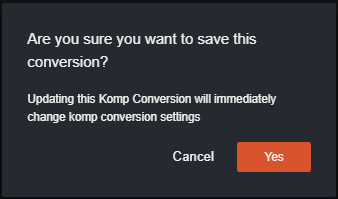
 If the specific Komp Setting will be disabled, a prompt will appear as a confirmation for proceeding with the changes.
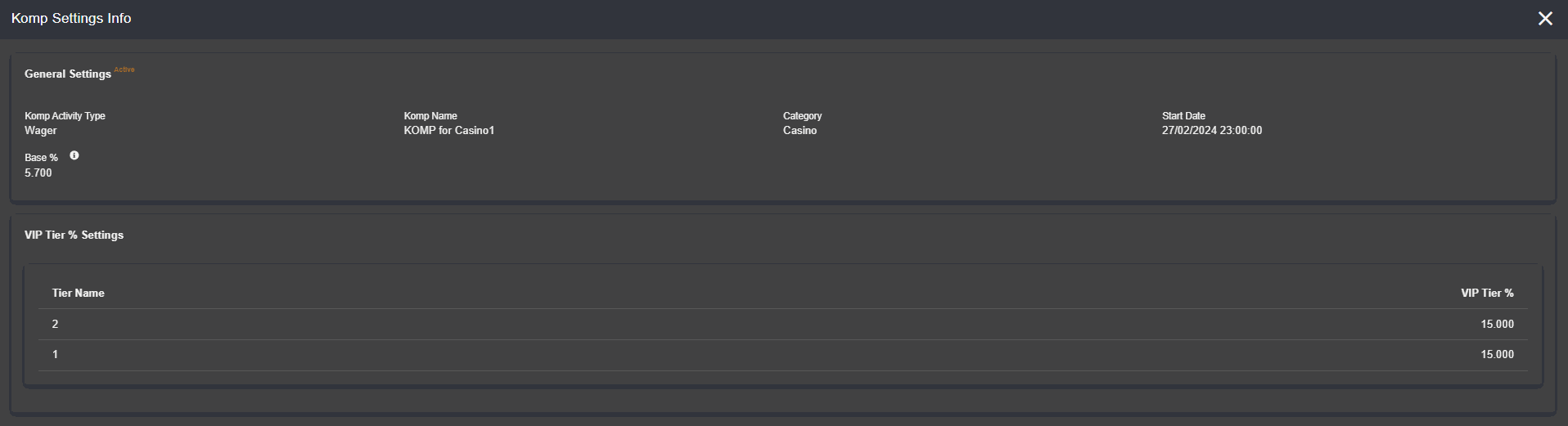
 You can view and edit the Komp Settings by clicking the icons beside them.
  This is how it looks when you view it.
 Once you click the pen icon, you will be routed to the page where you can edit the chosen Komp Setting.
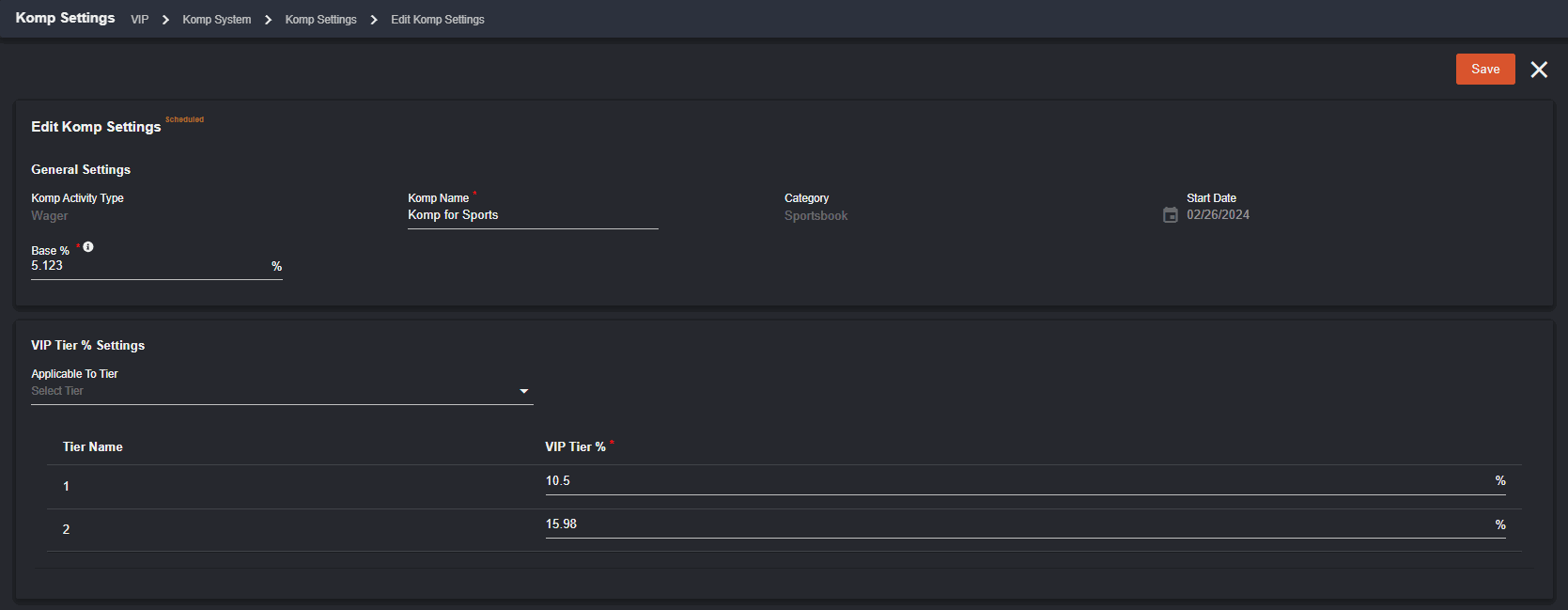 Since this is already an ongoing setting, you can only edit the Komp Name, Base %, add additional tier and modify the VIP Tier %. The back office user is unable to remove the tiers added but they can edit the VIP tier % equivalent to it.
Since Komp System is under VIP Program, the backoffice user has to set up the VIP Settings, Tier Settings, and Activity Settings.
Since this is already an ongoing setting, you can only edit the Komp Name, Base %, add additional tier and modify the VIP Tier %. The back office user is unable to remove the tiers added but they can edit the VIP tier % equivalent to it.
Since Komp System is under VIP Program, the backoffice user has to set up the VIP Settings, Tier Settings, and Activity Settings.
Komp System in the Backoffice
I. Player Management To get started, if a specific player will be using Komp, it should be enabled in the Player’s Capabilities.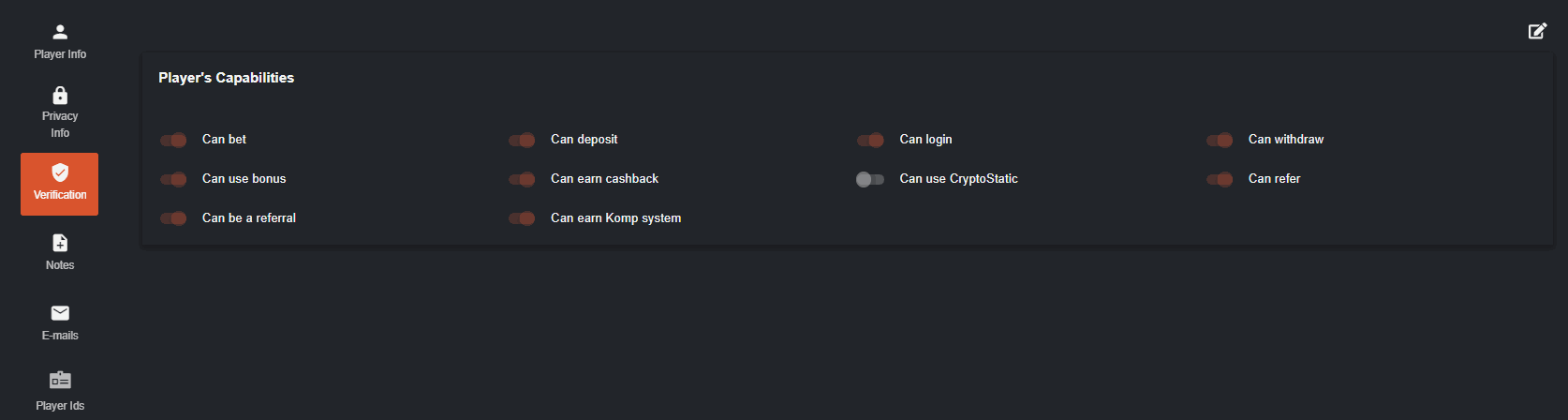 Toggled On - the player will be able to earn Komp Points for every Komp Activity Type enabled settings
Toggled Off - the player will not be able to earn Komp Points but can still redeem Komp rewards with the accumulated Komp Points
Player Management > Komp Points
Records for Komp System activities should appear here.
Toggled On - the player will be able to earn Komp Points for every Komp Activity Type enabled settings
Toggled Off - the player will not be able to earn Komp Points but can still redeem Komp rewards with the accumulated Komp Points
Player Management > Komp Points
Records for Komp System activities should appear here.
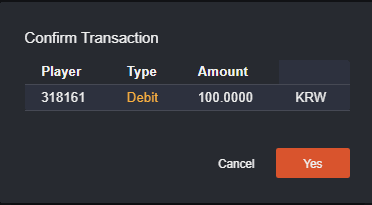
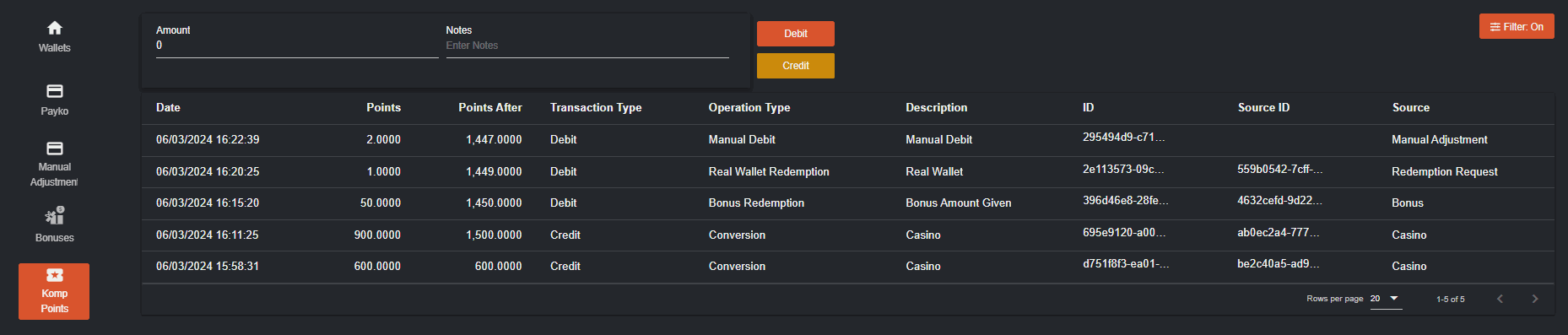 To manually adjust Komp points for a specific user, input the amount to be adjusted then choose whether it is for debit or credit. A pop up will appear for confirmation. Once the back office user confirmed the request, it will now appear in the same page for Komp Points.
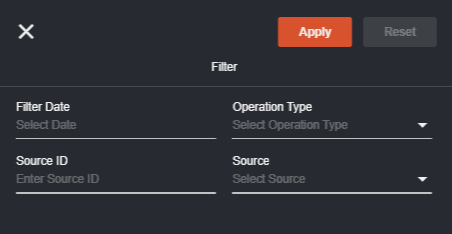
 Filter
The filter section is also enabled which will be available if the back office user would like to check specific details or transactions.
Filter
The filter section is also enabled which will be available if the back office user would like to check specific details or transactions.
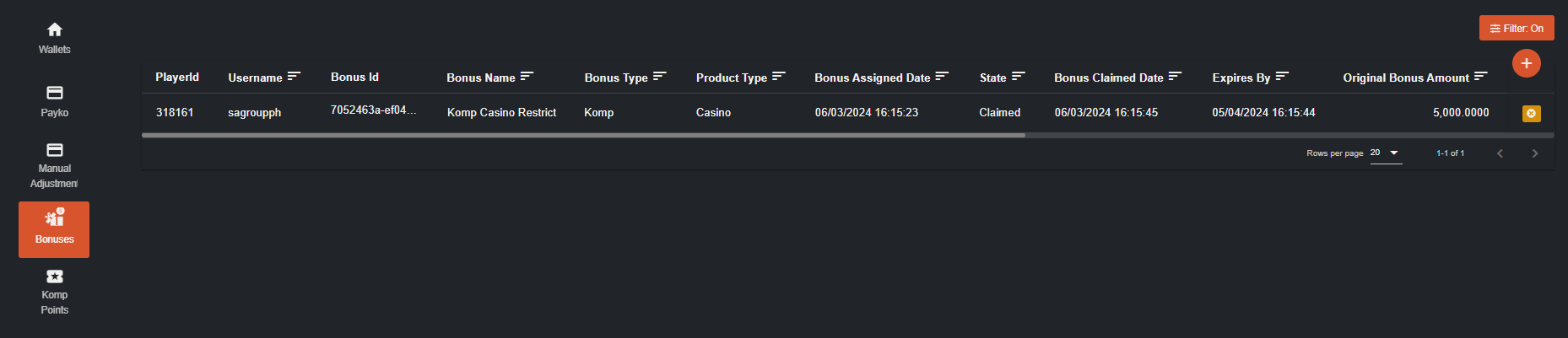
 Bonus
Komp Bonus will also appear in Bonus regardless of the status.
Bonus
Komp Bonus will also appear in Bonus regardless of the status.
 Reports
Komp Redemption will appear in Reports > Transactions.
Reports
Komp Redemption will appear in Reports > Transactions.
 Please note that the Komp Bonus is displayed in transactions in the same format as our regular bonuses. ‘TransferOut/In’ entries will be visible, and you’ll need to click on the source ID to view the Komp bonus transactions.
 II. Finance
In order for Komp to appear in Finance, the back office user must has a permission to view or modify it.
II. Finance
In order for Komp to appear in Finance, the back office user must has a permission to view or modify it.
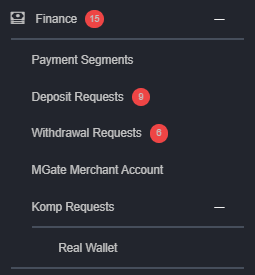 Once player requested to redeem or convert it to Real Wallet money, the request will be appearing in Komp Request > Real Wallet which will be processed by the back office user.
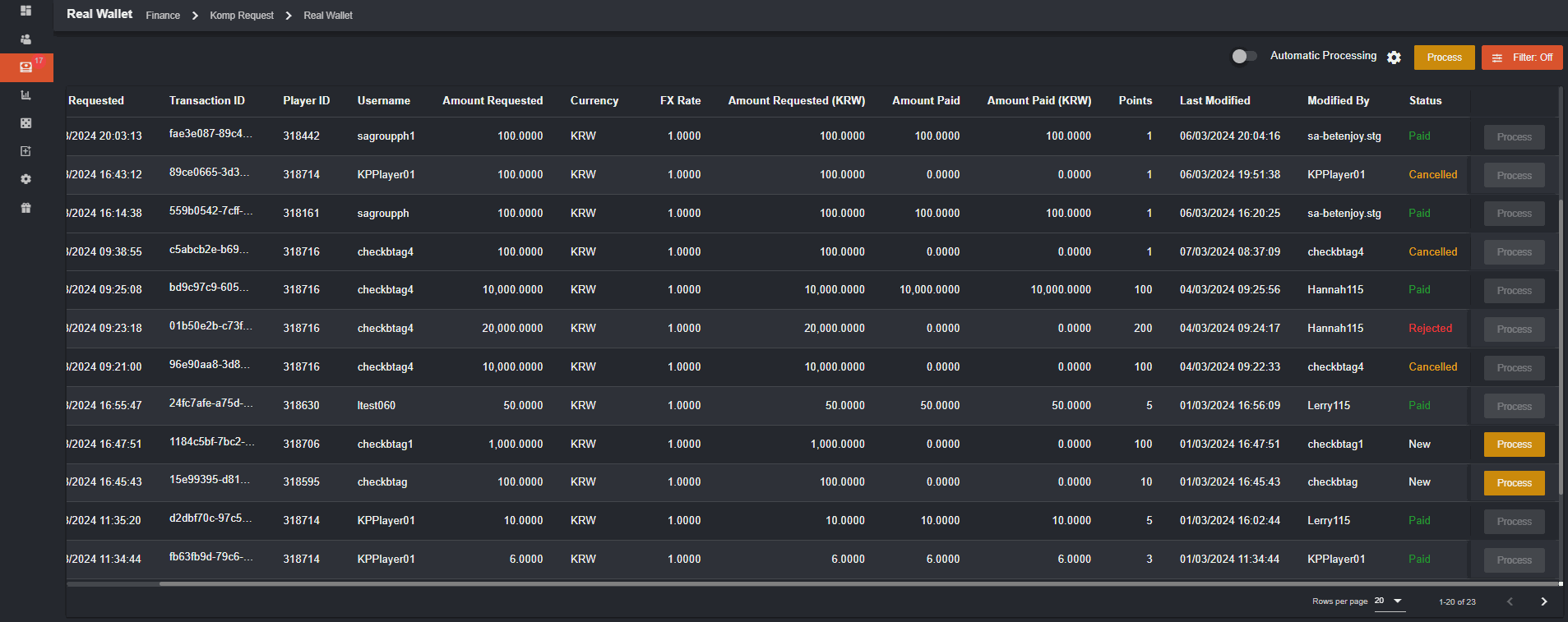 If the back office user toggled on ‘Automatic Processing”, new real wallet conversion request will automatically be processed as Paid. Note that ‘New’ requests that was already posted before enabling ‘Automatic Processing’ will not be included.
 The process button can also be used for multiple processing.
III. Settings > User Management
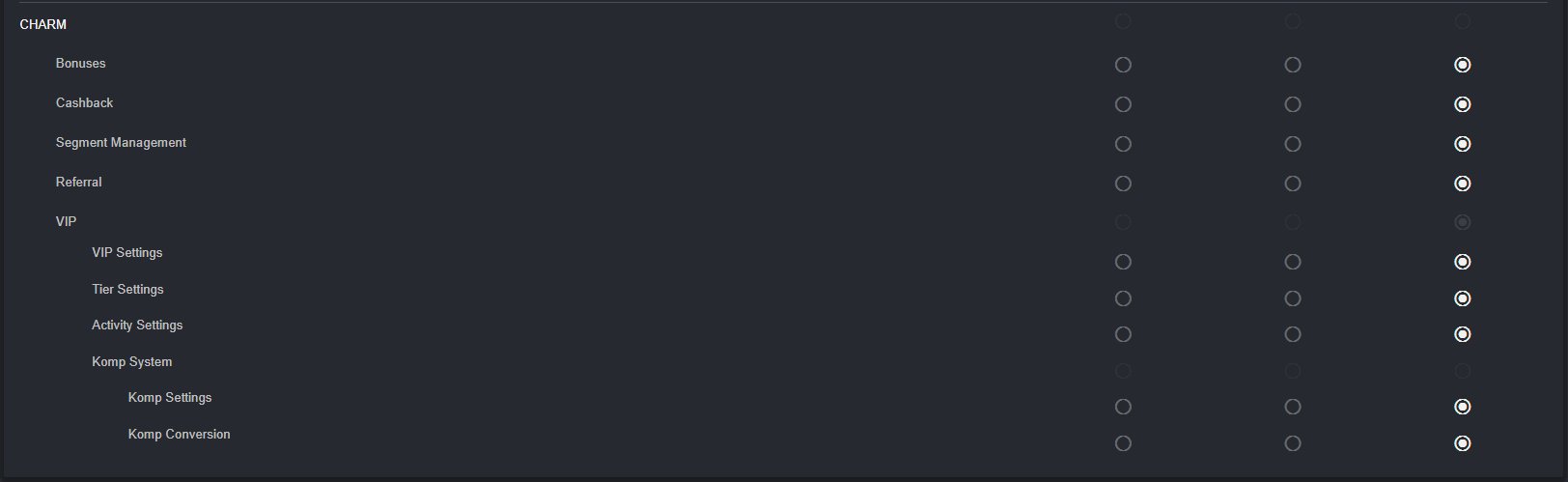
In Settings > User Management > choose the backoffice user then edit the individual permissions.
The process button can also be used for multiple processing.
III. Settings > User Management
In Settings > User Management > choose the backoffice user then edit the individual permissions.
 In order for Komp System to appear in VIP, individual permission should be Permitted or Can Modify.
 IV. Bonus
Komp bonus will appear in CHARM > Bonuses. Just like the regular bonus, the back office user can edit, view, duplicate, and check bonus report. The back office user can also disable the bonus
IV. Bonus
Komp bonus will appear in CHARM > Bonuses. Just like the regular bonus, the back office user can edit, view, duplicate, and check bonus report. The back office user can also disable the bonus
 V. VIP Settings
 Toggled On
- If enabled, the Komp System and VIP will also be enabled in the Player Portal.
- The Komp System navigation in Player Portal will be hidden as well as VIP Settings.
 Komp Conversion
All Komp Conversion type regardless of the status will appear here.
Komp Conversion
All Komp Conversion type regardless of the status will appear here.

How Players see Komp System
The player can view his/her Komp points, Komp redemption, and transactions in the player portal.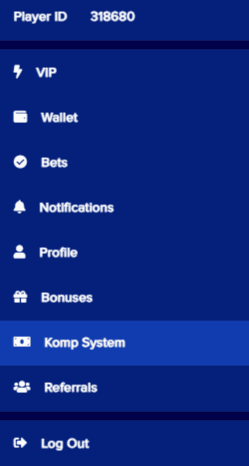 I. My Komp Points
Once clicked will be routed to the the player’s Komp Points page.
I. My Komp Points
Once clicked will be routed to the the player’s Komp Points page.
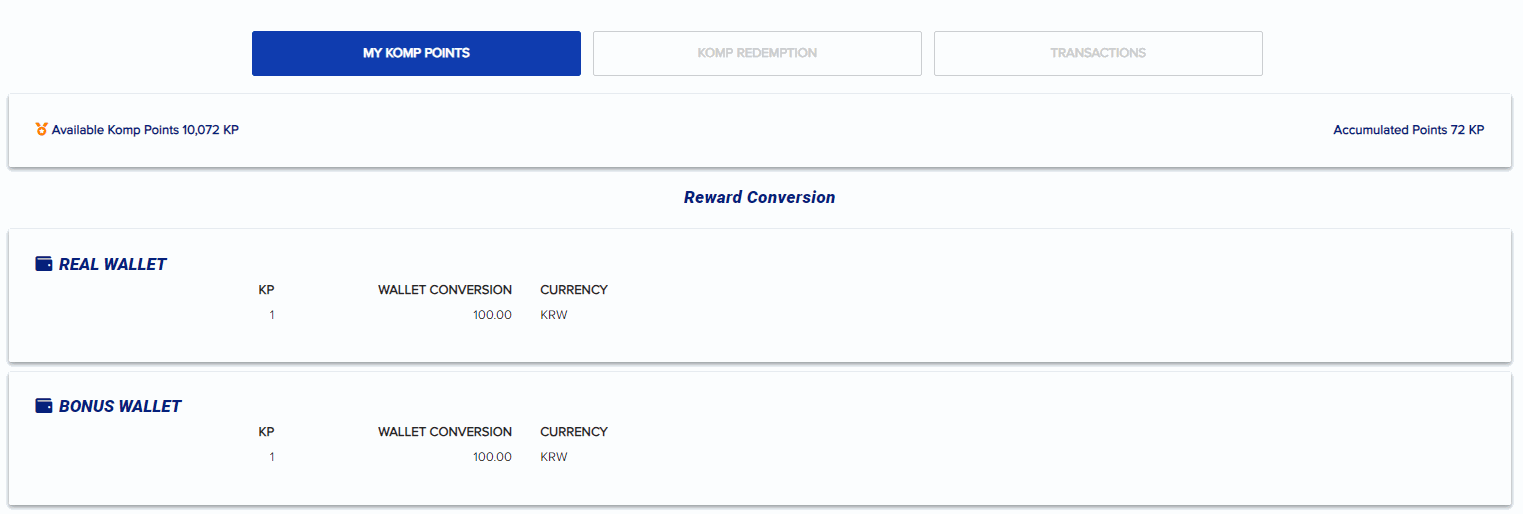 Available Komp Points - refers to the current points of the player including manually adjusted points.
Accumulated Points - refers to all Komp points earned. This does not include manually adjusted Komp points.
Reward Conversion
Available Komp Points - refers to the current points of the player including manually adjusted points.
Accumulated Points - refers to all Komp points earned. This does not include manually adjusted Komp points.
Reward Conversion
- Real Wallet - refers to the RealWallet set up in Komp Conversion
- Bonus Wallet - refers to the Bonus set up in Komp Conversion
 II. Komp Redemption
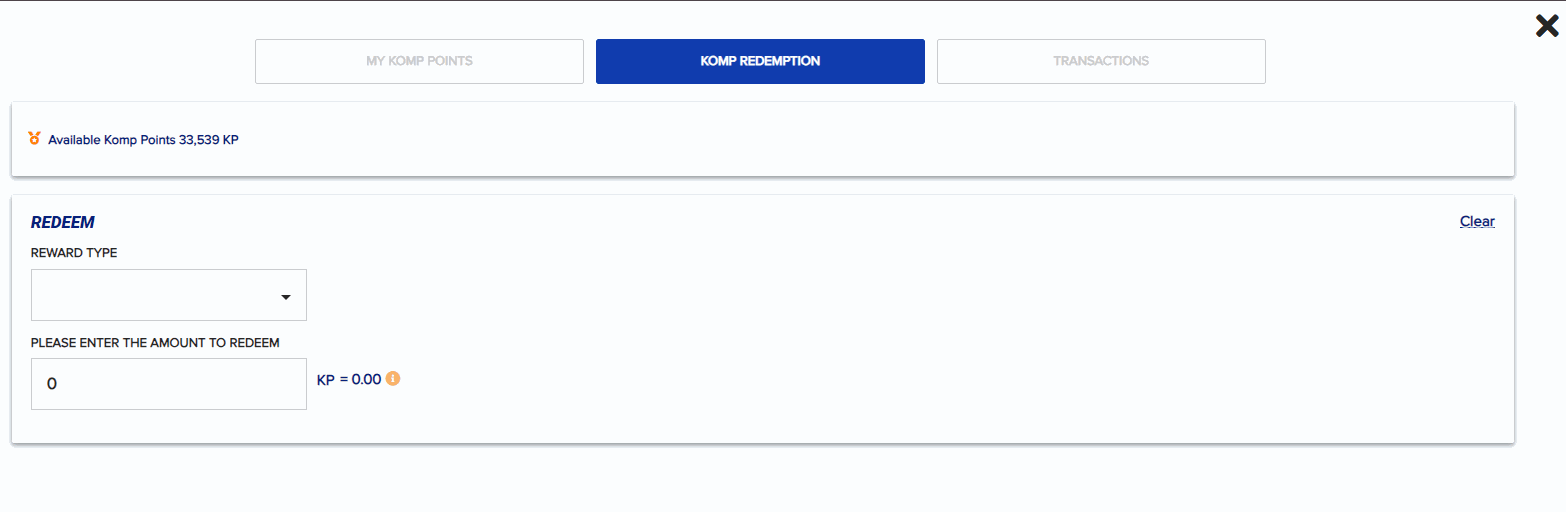 Reward Type:
A. Real Wallet
Real wallet redemption can only be requested one at a time.
Reward Type:
A. Real Wallet
Real wallet redemption can only be requested one at a time.
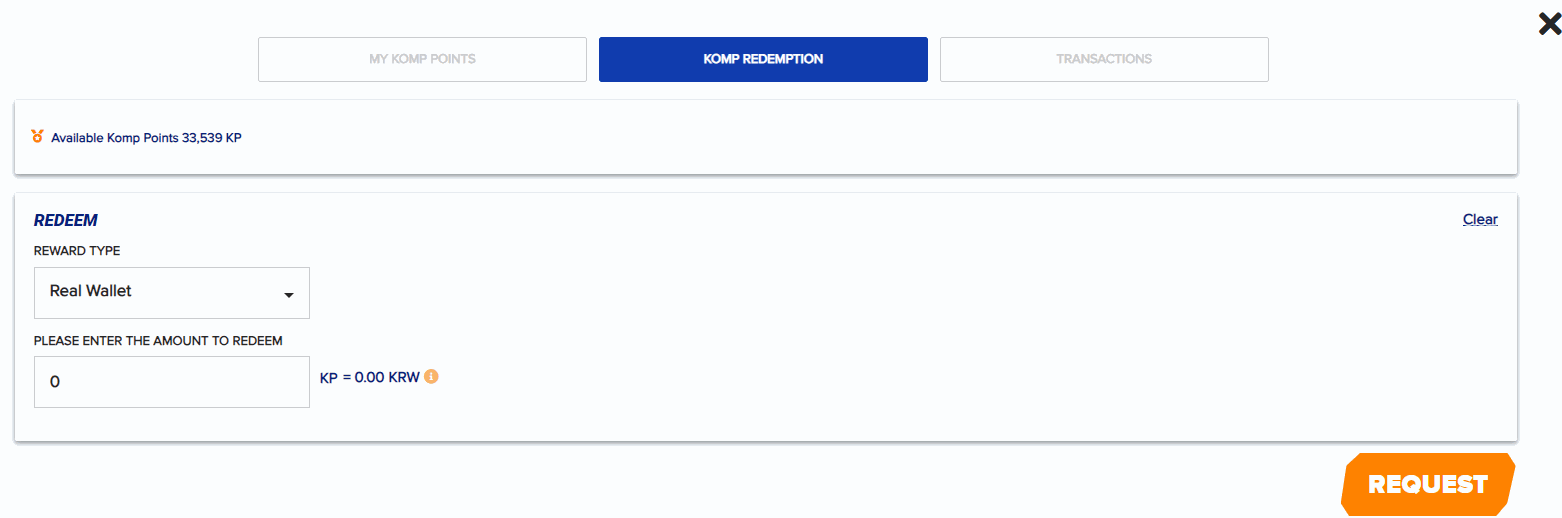 Once the player requested to redeem using Real Wallet, the status will appear ‘Pending’ which they can also ‘Cancel’ as long as the request has not yet been processed by the backoffice user.
B. Komp Bonus
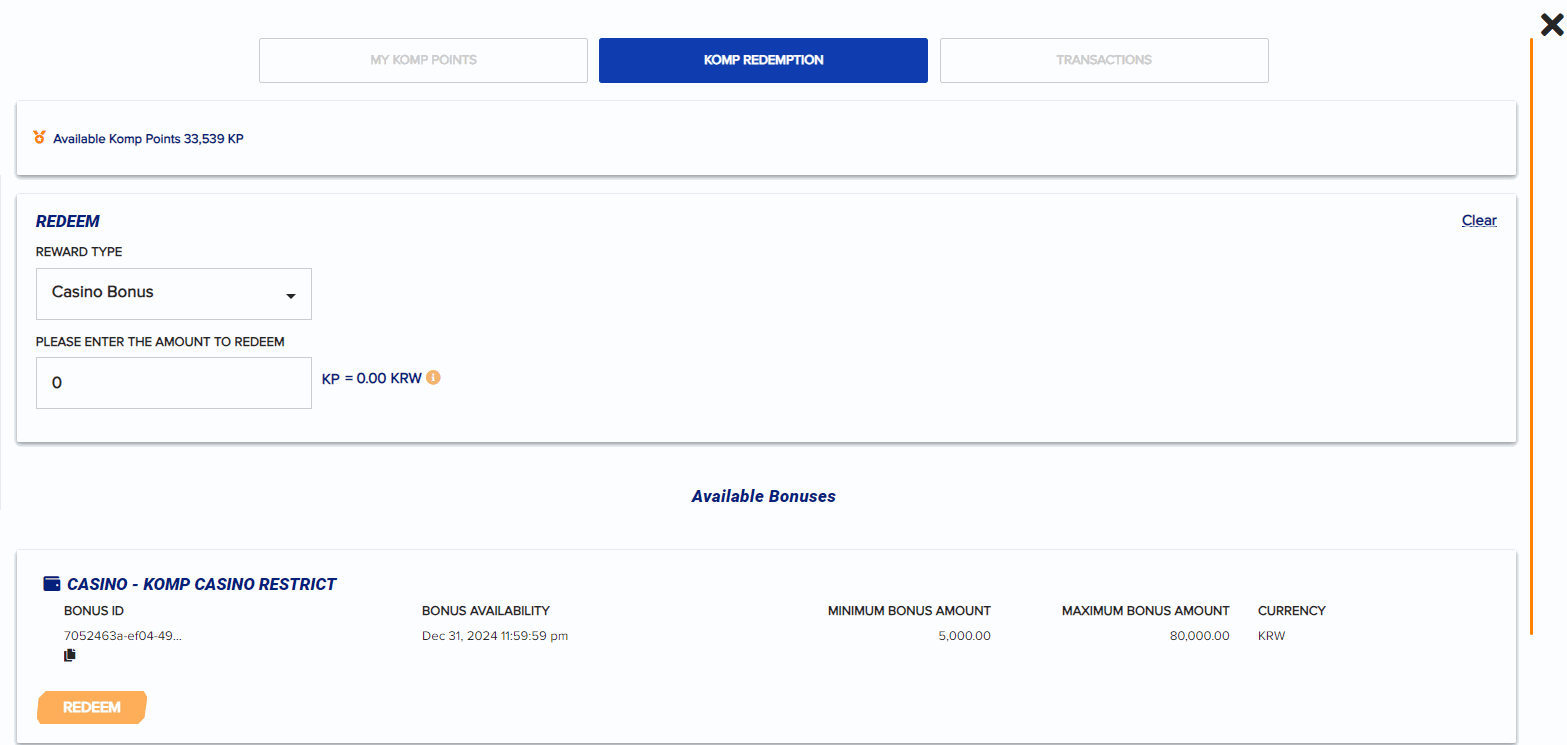
Players may redeem multiple Komp bonuses. The player will see all the available bonuses depending on the Bonus (Casino/Sportsbook) he/she selected.
Once the player requested to redeem using Real Wallet, the status will appear ‘Pending’ which they can also ‘Cancel’ as long as the request has not yet been processed by the backoffice user.
B. Komp Bonus
Players may redeem multiple Komp bonuses. The player will see all the available bonuses depending on the Bonus (Casino/Sportsbook) he/she selected.
- Casino Bonus
- Sportsbook Bonus
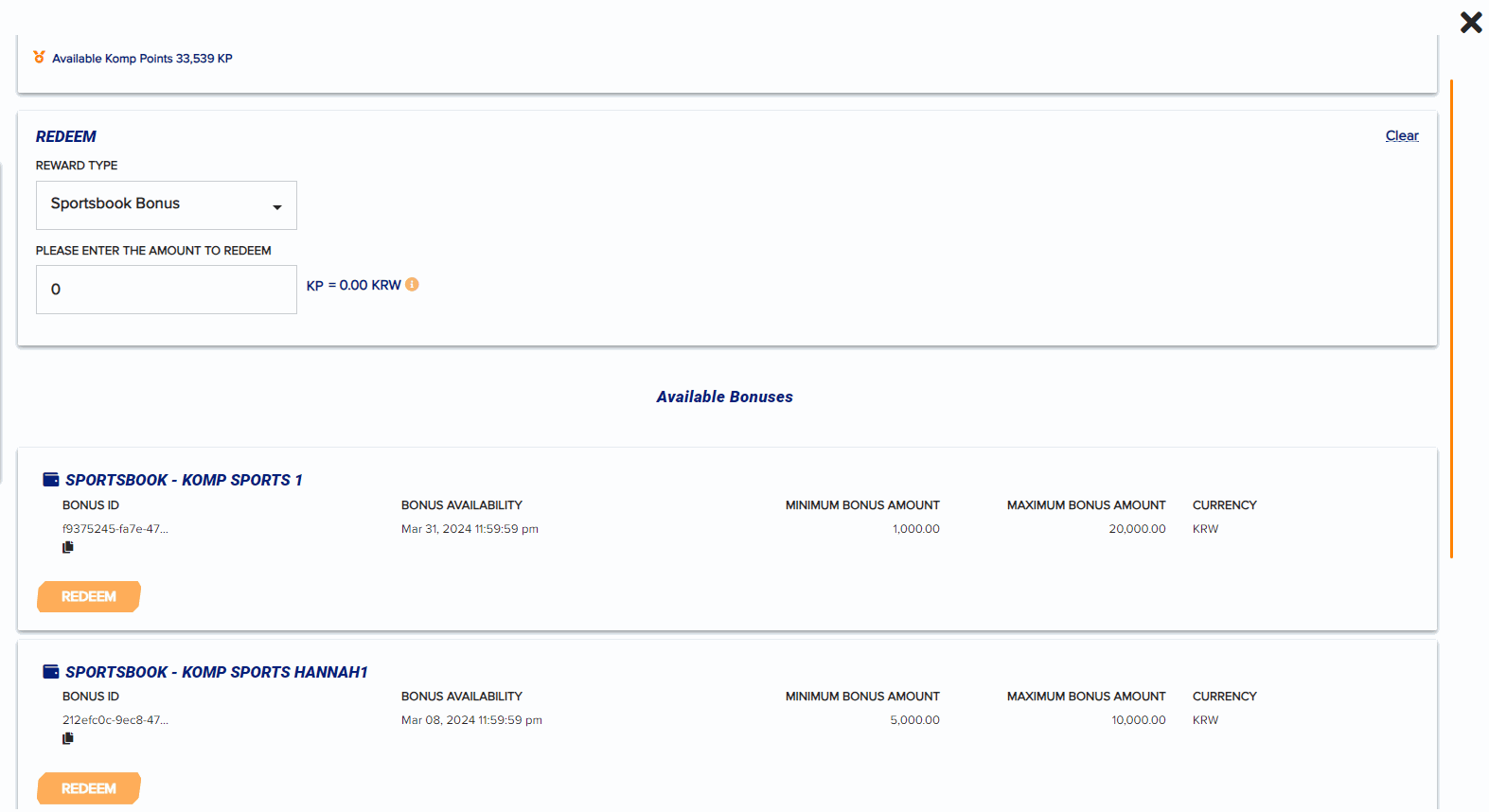 Once redeemed, the bonus redeemed will now be ready to be claimed in Bonuses > Active Bonuses.
III. Transactions
In Redemption History, the player can filter his/her transactions whether it’s for Real Wallet or Komp Bonus by date and status (Paid, Rejected, Cancelled, New).
Once redeemed, the bonus redeemed will now be ready to be claimed in Bonuses > Active Bonuses.
III. Transactions
In Redemption History, the player can filter his/her transactions whether it’s for Real Wallet or Komp Bonus by date and status (Paid, Rejected, Cancelled, New).
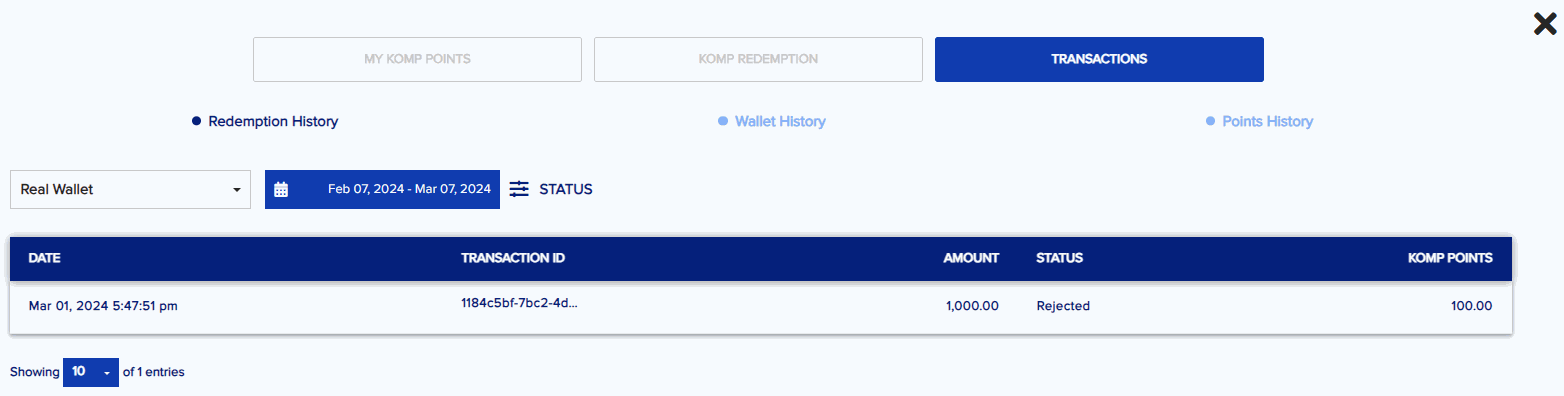
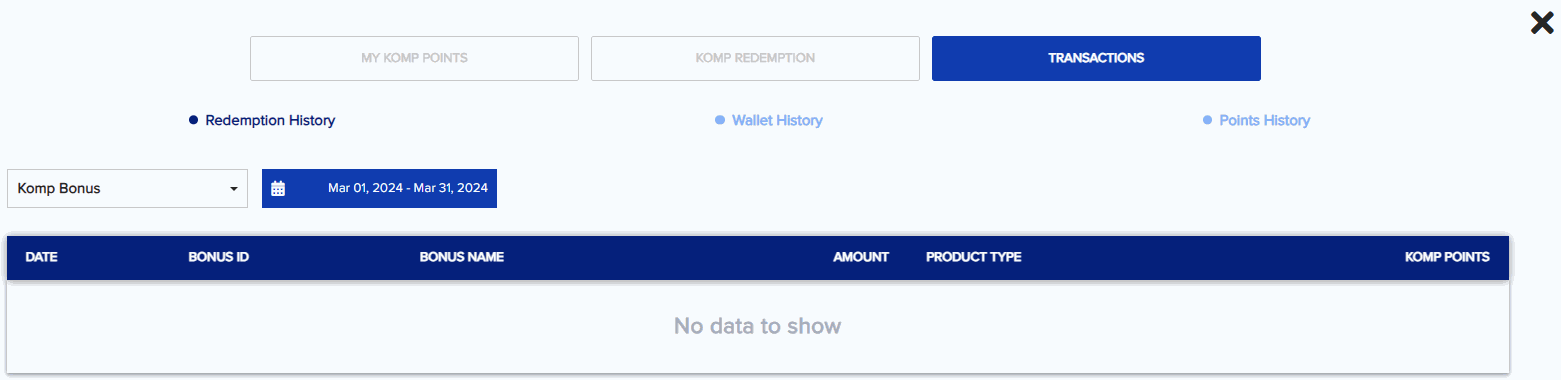 Redemption History - conversion records from Komp Points to Real Wallet or Komp Bonus will appear here.
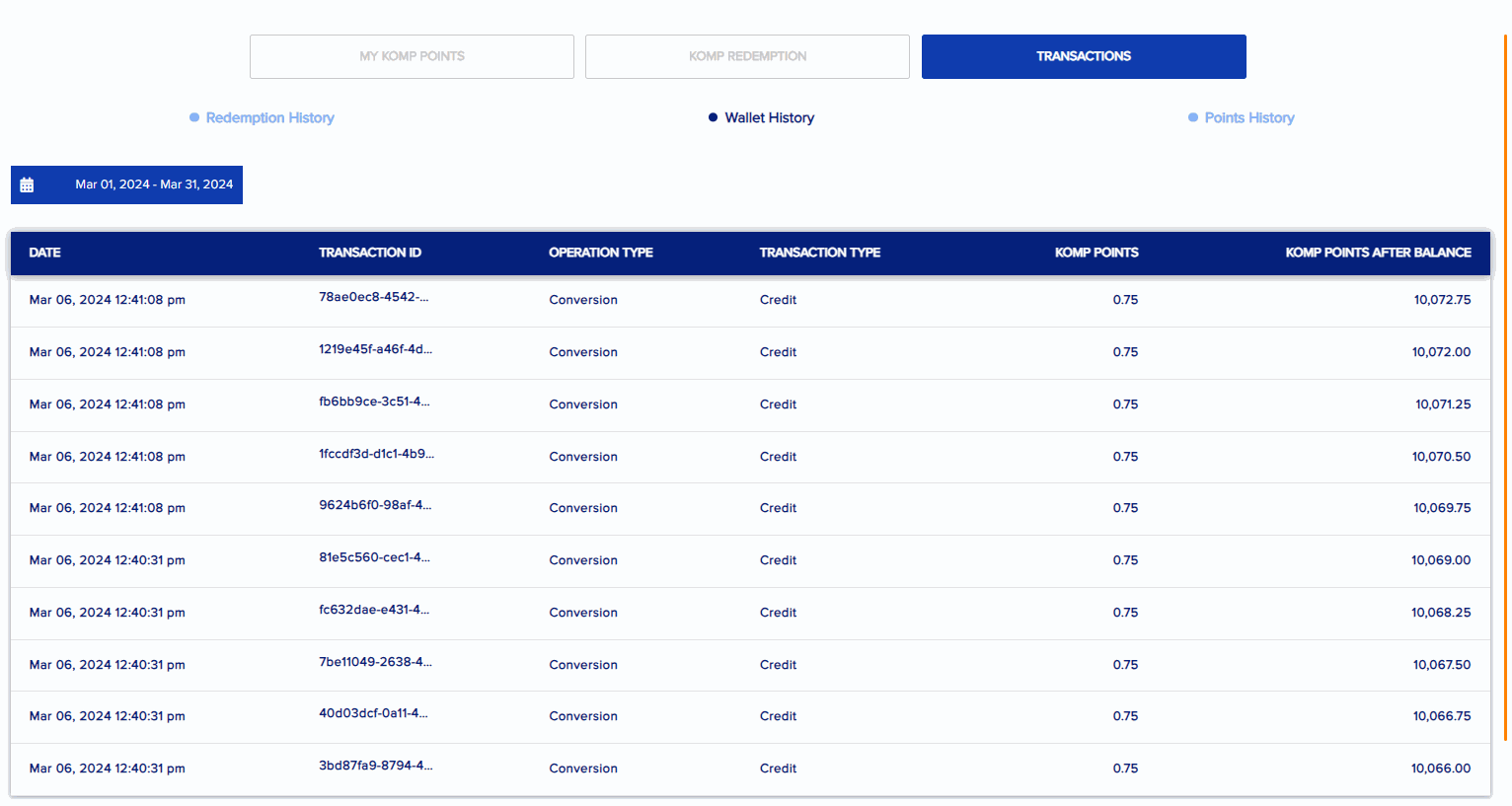
Wallet History - all debit/credit Komp points records will appear here
Redemption History - conversion records from Komp Points to Real Wallet or Komp Bonus will appear here.
Wallet History - all debit/credit Komp points records will appear here
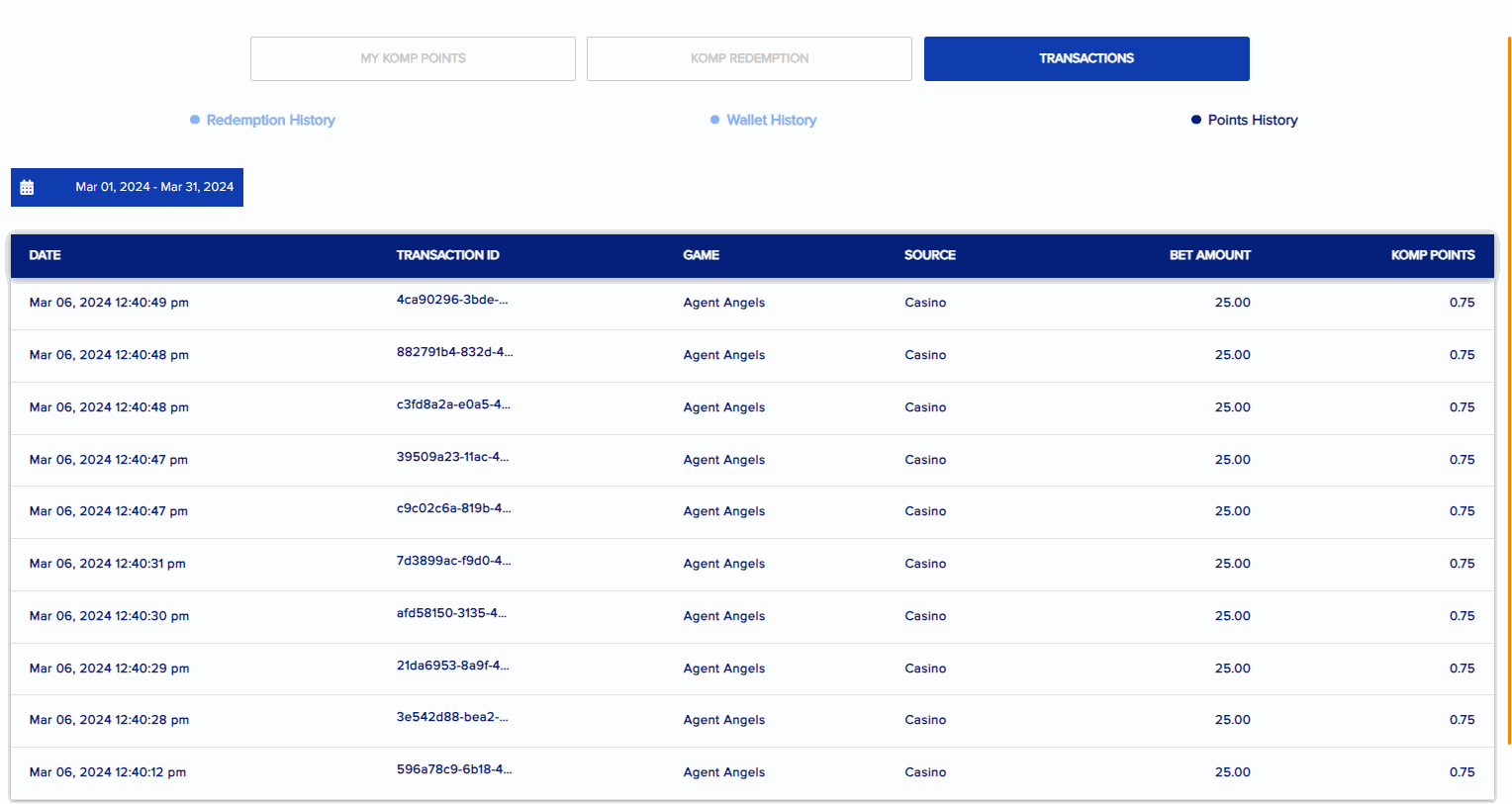
 Points History - credit transaction records for Komp points earned using wagering in Sportsbook or Casino will appear here.
Create Komp Conversion
To create a new Komp Conversion, click the plus icon. You will be routed to this page which needs to be filled out.
I. General Settings
Komp Conversion Type - can be either Real Wallet & Komp Bonus
Start Date - by default date today will be selected
You will be routed to this page which needs to be filled out.
I. General Settings
Komp Conversion Type - can be either Real Wallet & Komp Bonus
Start Date - by default date today will be selected
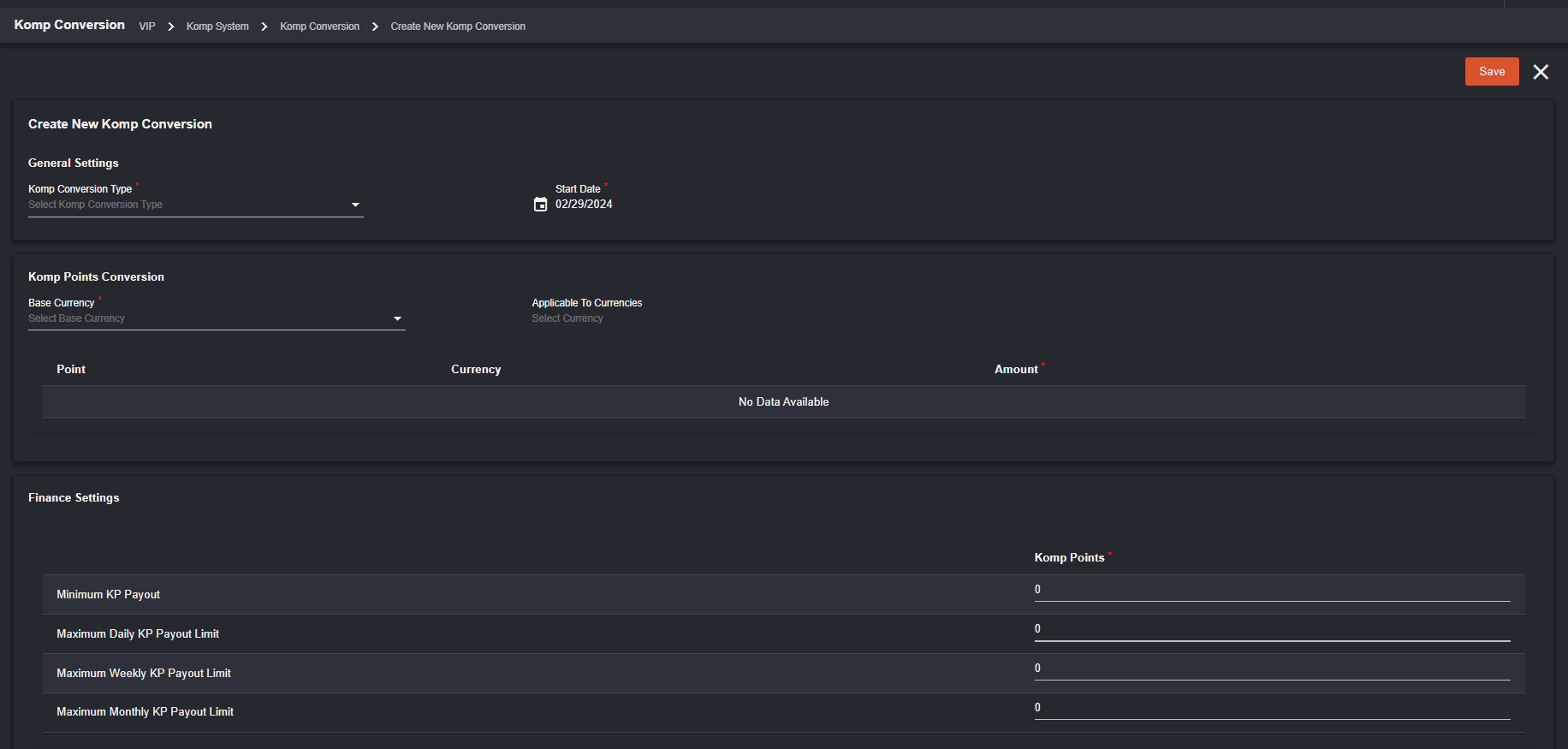 II. Komp Points Conversion
Base Currency - system currency enabled
Applicable To Currencies - will show all available currencies
After completing the base currency field, the Point number (1) will be displayed automatically. If Bonus Komp type is selected, the Bonus Amount field will appear.
II. Komp Points Conversion
Base Currency - system currency enabled
Applicable To Currencies - will show all available currencies
After completing the base currency field, the Point number (1) will be displayed automatically. If Bonus Komp type is selected, the Bonus Amount field will appear.
 If RealWallet, Real Wallet Amount will appear.
 The back office can set what is the equivalent of 1 KP.
III. Finance Settings
Minimum KP Payout - refers to minimum Komp Points to be converted.
The back office can set what is the equivalent of 1 KP.
III. Finance Settings
Minimum KP Payout - refers to minimum Komp Points to be converted.Maximum Daily KP Payout Limit - refers to the maximum KP payout daily
Maximum Weekly KP Payout Limit - refers to the maximum KP payout weekly
Maximum Monthly KP Payout Limit - refers to the maximum KP payout monthly
- Player will not be able to convert Komp points to real money wallet if value is lower than Minimum KP Payout (per transaction).
- Player will not be able to convert Komp points if payout is higher than maximum limit (per day).
- Player will not be able to convert Komp points if payout is higher than maximum limit (per week).
- Player will not be able to convert Komp points if payout is higher than maximum limit (per month).
 IV. View Komp Coversion
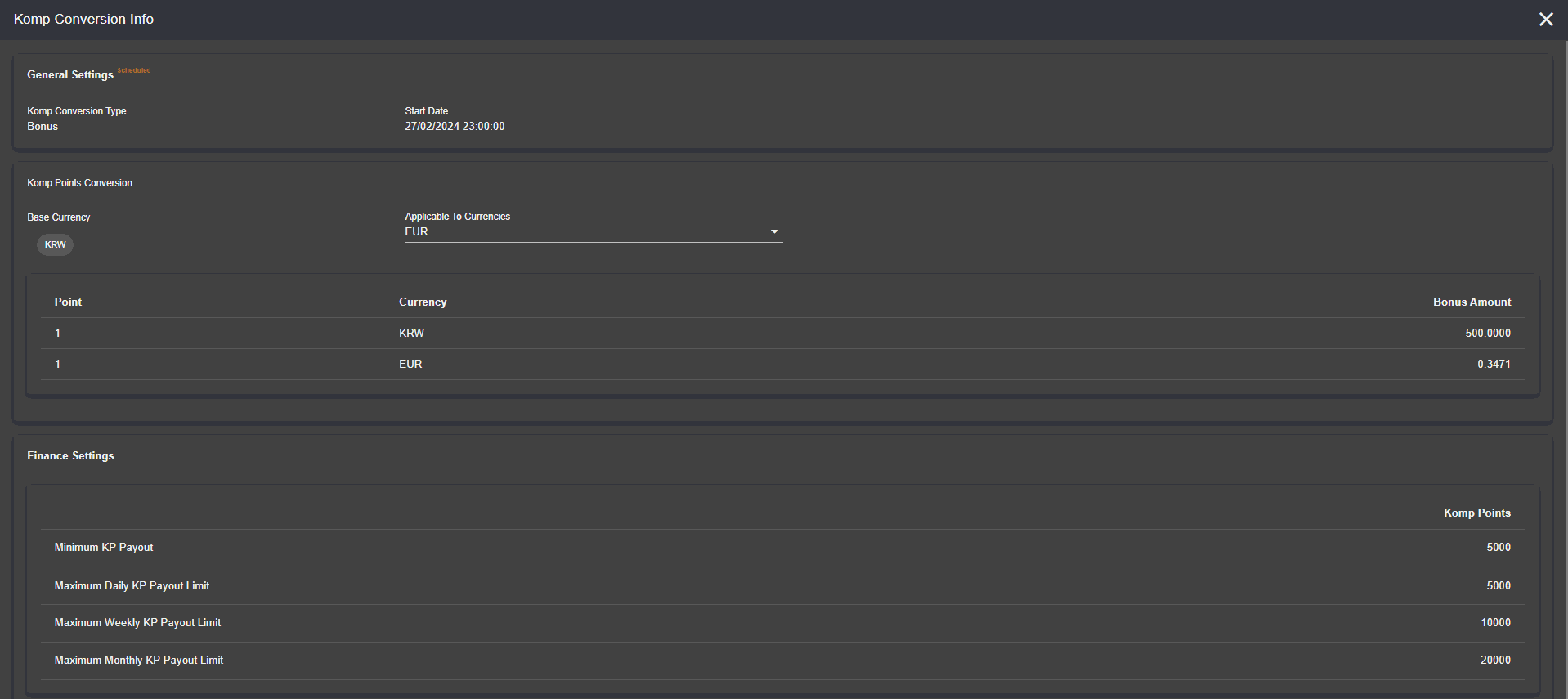
Click the eye icon to view the Komp Conversion details.
IV. View Komp Coversion
Click the eye icon to view the Komp Conversion details.  The details will appear as the image below.
 V. Edit Komp Conversion
Once you click the pen icon, you will be routed to this page. Since Komp Conversion cannot be deleted, only the Real Wallet Amount/Bonus Amount (depending on the Komp type set up) and Payouts in the Finance Settings can be edited.
V. Edit Komp Conversion
Once you click the pen icon, you will be routed to this page. Since Komp Conversion cannot be deleted, only the Real Wallet Amount/Bonus Amount (depending on the Komp type set up) and Payouts in the Finance Settings can be edited.
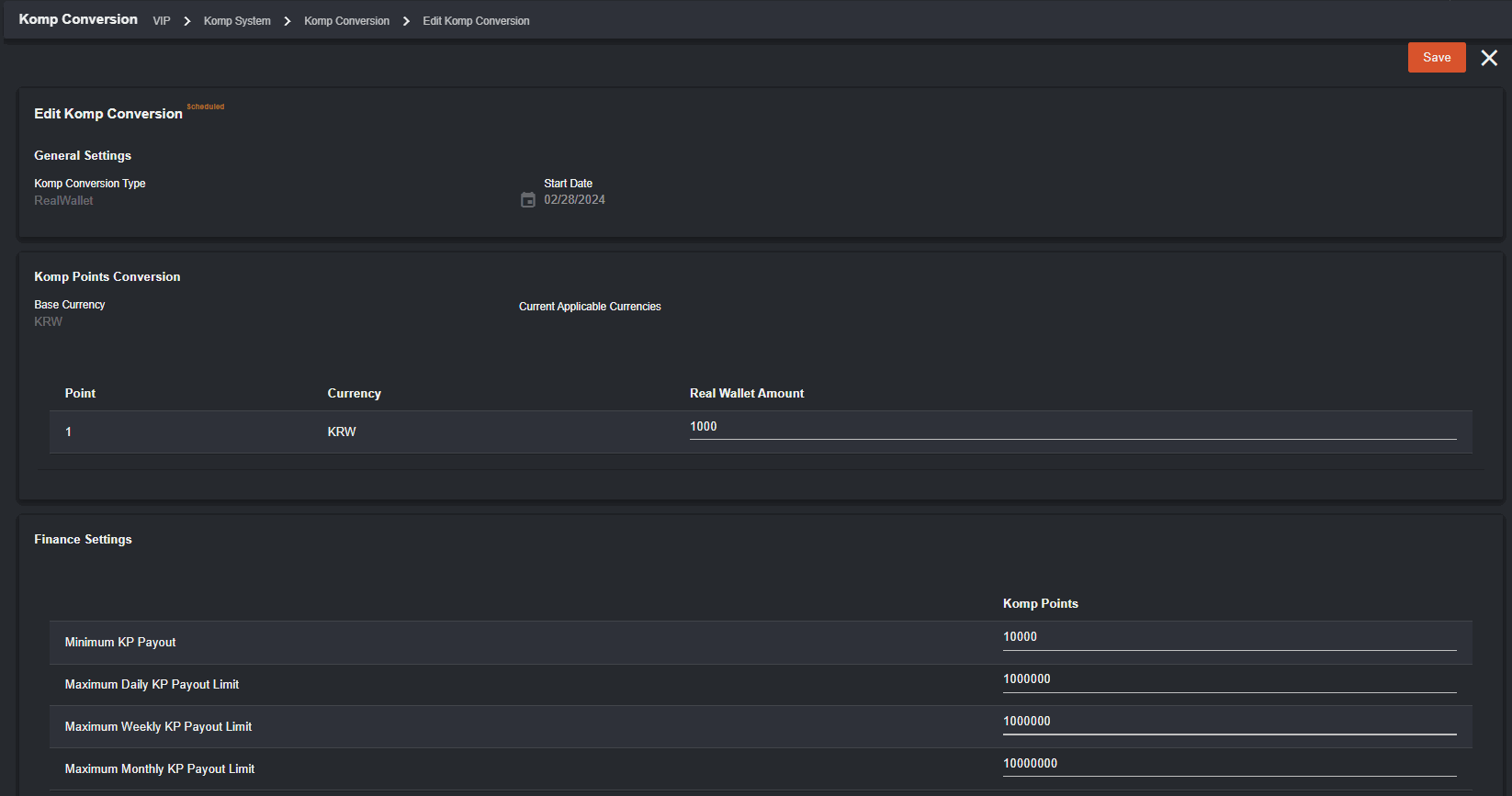 Just like Komp Settings, only one Komp Conversation per conversion type should be existing. The back office user can create a new Komp Conversion if the converstion type (Bonus/RealWallet) will be created is disabled.
- Once a player requested a RealWallet reward type, the request will be appearing in Finance > Komp Requests > Real Wallet which will be processed by the back office user. Transaction will appear as ‘New’ until the back office user processed it as ‘Paid/Rejected.’
- There should be a Komp Bonus (CHARM > Bonuses) for Komp Bonus (Sportsbook/Casino Bonus) to be redeemed by the player.